
How to fix Microsoft Store error 0x80070422 in Windows?
Prefer to fix it yourself? The manual steps follow.
6 methods in this guide
Hi, I've been trying to install new apps in Microsoft Store, but I can't because of the 0x80070422 error. It has been around for weeks now, and it's really starting to get annoying. Any tips would be appreciated.
The Microsoft Store is the go-to destination for Windows 11, 10, and 8 users to get exclusive apps, games, and multimedia content. Its digital distribution platform makes it incredibly easy to download and install applications quickly while giving access to a wide selection of free or paid options. Unfortunately, not all users are happy because of certain issues they sometimes encounter when using the app.
According to multiple user reports on various IT forums, 0x80070422 is an error that they encounter whenever they try to download new apps or update already installed ones. This is not a new problem, and reports have been around since at least a few years ago - yet users still struggle with the error to this day.
0x80070422 error is just one of many Microsoft Store errors that users encounter when using the app. In some cases, it shows up not only when using the Store but also when trying to log into it, trying to update Windows, and add a new Microsoft account, among others.
Since every Windows machine is unique once used, there is no universal fix for the 0x80070422 error because the causes might be different, which means that not all solutions will help all people. For example, the error might have occurred because certain related services were disabled or system files were corrupted.
Regardless of what the reason is, below, you will find several methods that should help you get rid of the issue. We also recommend running a sophisticated PC repair tool that can effectively eliminate the most common problems in Windows automatically, including update errors, DLL errors, BSODs, crashes, registry corruption, and more.
Fix 1. Enable Microsoft Account Sign-in Assistant service
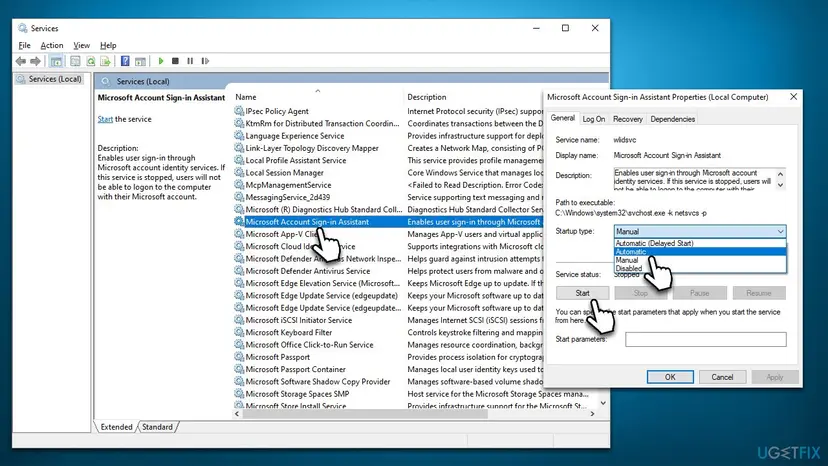
Users noticed that Microsoft Account Sign-in Assistant
- Type Services in Windows search and hit Enter.
- Scroll down to locate the Microsoft Account Sign-in Assistant service and double-click it.
- Locate Startup type section and click on the drop-down menu.
- Select Automatic and then click Start.
- Click Apply and OK.
Fix 2. Check BITS and Windows Update services
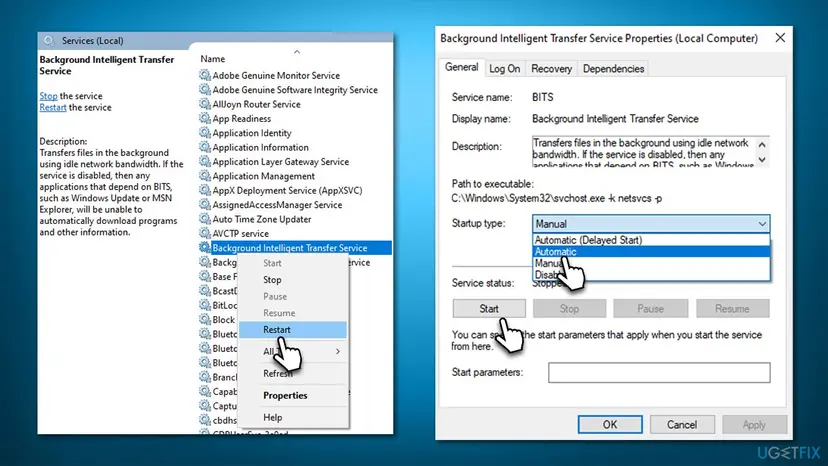
Another reason why the 0x80070422 error occurs is due to bugged/not running Windows Update and BITS services. If they are already running, restart them instead.
- Open Services once again and find Background Intelligent Transfer Service.
- If it is already running, right-click and select Restart.
- Otherwise, double-click and set the Startup type to Automatic and click Start.
- Click Apply and OK.
- Do the same with Windows Update Service.
Fix 3. Run the troubleshooter
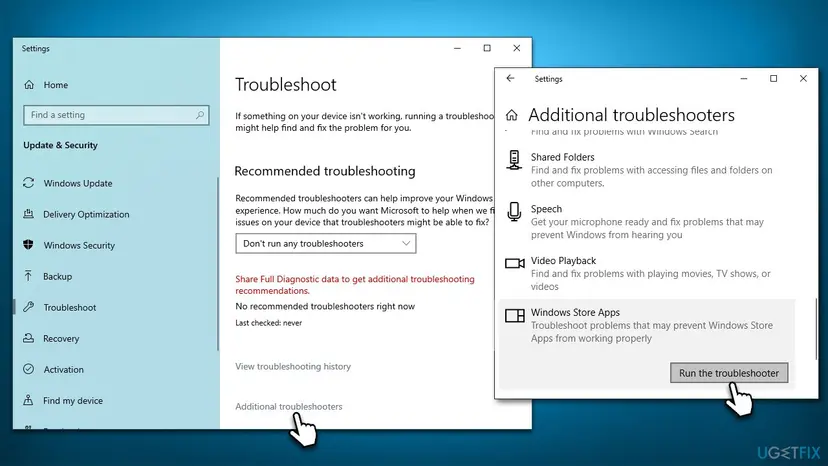
- Type Troubleshoot in Windows search and press Enter.
- Click Additional troubleshooters on the right side of the window.
- Scroll down to locate Windows Store Apps.
- Click it and pick Run the troubleshooter.
- Wait till the process is finished and apply the recommended fixes.
Fix 4. Reset Microsoft Store cache
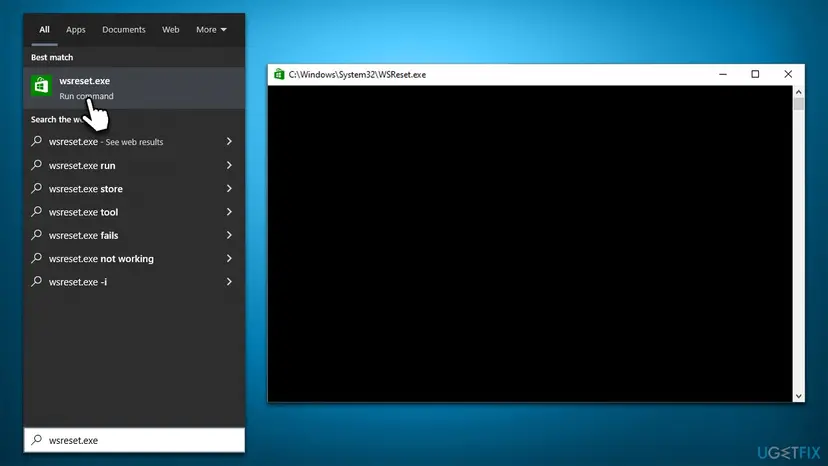
- In Windows search, type wsreset.exe and press Enter.
- Wait till a black window shows up – do not interact with it or close it.
- Once it's gone, Microsoft Store should restart.
- Try downloading apps once again.
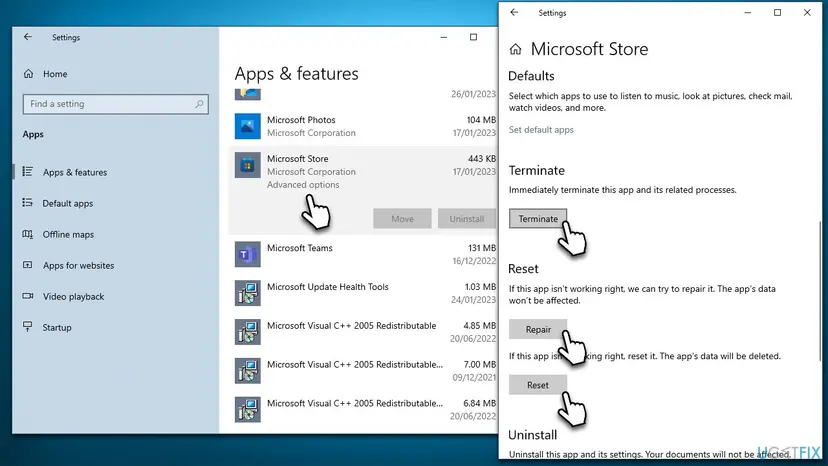
Fix 5. Repair or reset the app
- Right-click on Start and pick Apps & Features.
- Scroll down to locate Microsoft Store and click Advanced options.
- Click Terminate and Repair.
- If that does not help, try the Reset option instead.
Fix 6. Check for corrupted system files
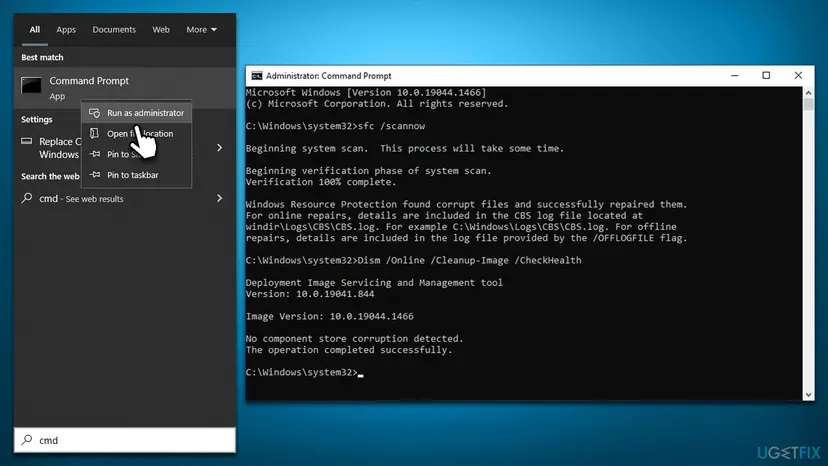
- Type in cmd in Windows search.
- Right-click Command Prompt result and pick Run as administrator.
- User Account Control will ask you whether you want to allow making changes to the system - click Yes.
- In Command Prompt, use the following command and hit Enter:
sfc /scannow - Once the scan is complete, use these commands and press Enter after each:
Dism /Online /Cleanup-Image /CheckHealth
Dism /Online /Cleanup-Image /ScanHealth
Dism /Online /Cleanup-Image /RestoreHealth - Restart your system.
Did this fix work?
One click, no account. It tells the next reader which guides are worth their time.
Questions and experiences: fix Microsoft Store error 0x80070422 in Windows
Still broken, or found a fix we did not cover? Ask here: members and our editors answer. Reading is open; writing needs a free account.
…