How to fix
Microsoft Teams error caa70004
on Windows
Resolve Microsoft Teams error caa70004 on Windows 10 or 11 with our expert-tested solutions that ensure smooth communication in minutes.

What causes How to fix Microsoft Teams error caa70004 in Windows?
- Compatibility issues
- Insufficient permissions
- Bugged Teams caches
- Simple bugs
- Outdated application
Repairs Windows system files, removes malware, and restores a clean OS state — without reinstalling.
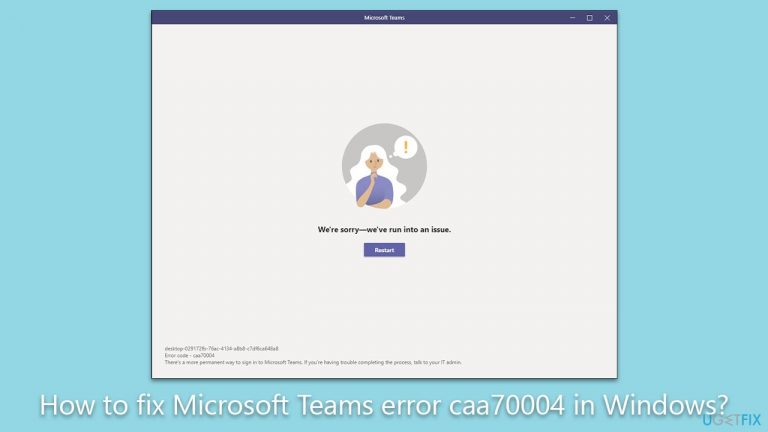
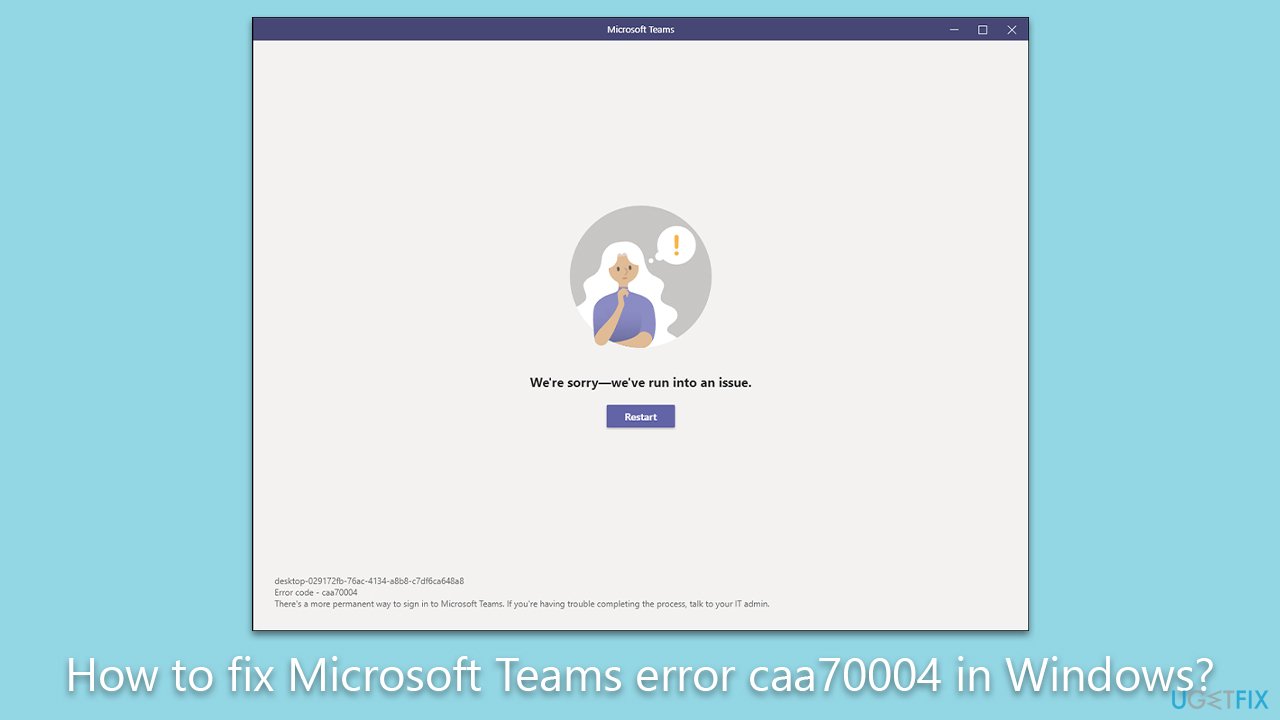
Today, I attempted to launch Microsoft Teams as I do every day, but I couldn't because of the error code caa70004. The message said, "We’re sorry - we’ve run into an issue," but there were no further explanations. Please advise on how to fix this.
Microsoft Teams is a collaboration and communication tool that enables users to connect with colleagues, share files and chat in real-time. This powerful platform has become increasingly popular, especially with the rise of remote work and virtual teams. Whether it’s for corporate environments or working from home, Microsoft Teams has become a staple tool for many businesses worldwide.
However, sometimes users may encounter errors when launching the application, and one such error is caa70004. This error can be frustrating as it prevents users from accessing the application and collaborating with their colleagues. The reasons for this error can vary, including compatibility issues, insufficient permissions, bugged Teams caches, or even simple bugs.
One possible cause of the caa70004 error is a compatibility issue. Running the compatibility troubleshooter would help in this case. Another reason for the error could be insufficient permissions to access certain files or settings necessary to run the application.
Sometimes, the error may occur due to a bugged cache in the Microsoft Teams application. In such cases, the user can try clearing the cache to resolve the issue. Alternatively, updating the application or performing a clean reinstallation may fix the error. In some instances, the error may be due to a simple bug within the application. If this is the case, waiting for the next update or contacting Microsoft support may be the best solution.
Encountering errors when launching Microsoft Teams is not uncommon. The caa70004 error is just one of the many errors that can occur. We've already discussed users not being able to access Admin Center, as well as other similar errors like 80080300, caa50024, and 0xc0000020.
However, by identifying the potential causes and solutions to the problem, users can quickly resolve the issue and continue using Microsoft Teams. If you frequently receive errors on Windows, we recommend trying a PC repair tool [d1], which can help optimize your computer and fix any underlying issues that may be causing errors like caa70004.
Fix 1. Run compatibility troubleshooter
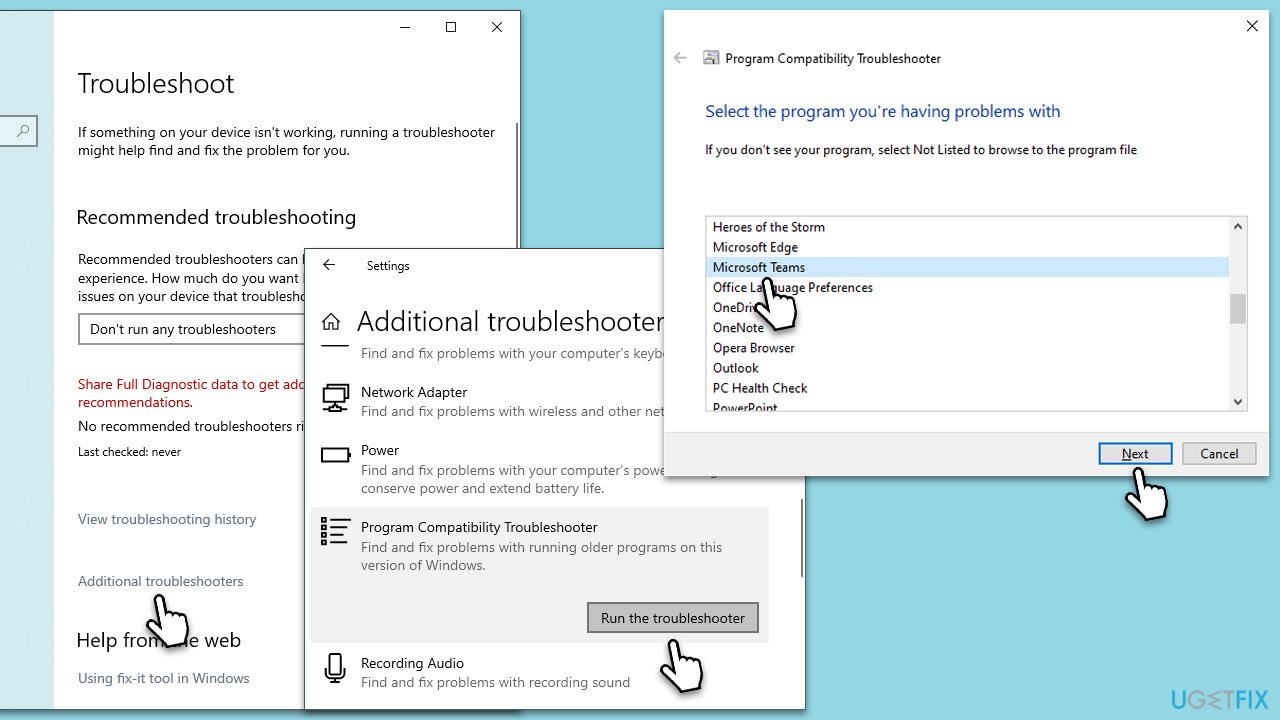
A troubleshooter can check the built-in apps for compatibility issues, so we recommend starting with that:
- Type troubleshoot in the Windows search box and press Enter.
- Select Additional troubleshooters/Other troubleshooters.
- Scroll down till you see Program compatibility troubleshooter.
- Select it and click Run the troubleshooter/Run.
- Pick Microsoft Teams from the list and click Next.
- Wait for the scan to finish, and then apply the recommended fixes.
Fix 2. Run as administrator
Sometimes, the reason for the caa70004 Microsoft Teams error runs in simple lack of permissions. To bypass this, try running the app as an administrator:
- Sign out of Microsoft Teams.
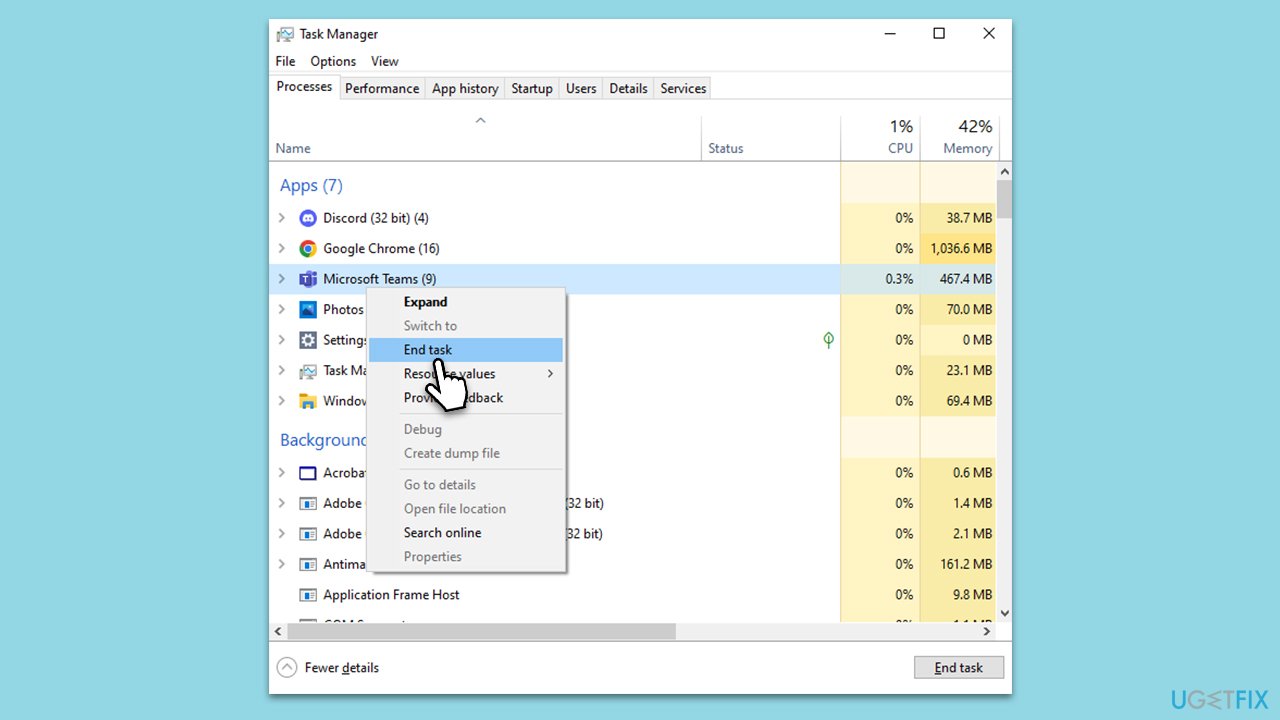
- Press Ctrl + Shift + Esc on your keyboard to open the Task Manager.
- Here, scroll down and find any instances of Microsoft Teams running.
- Right-click and select End Task.
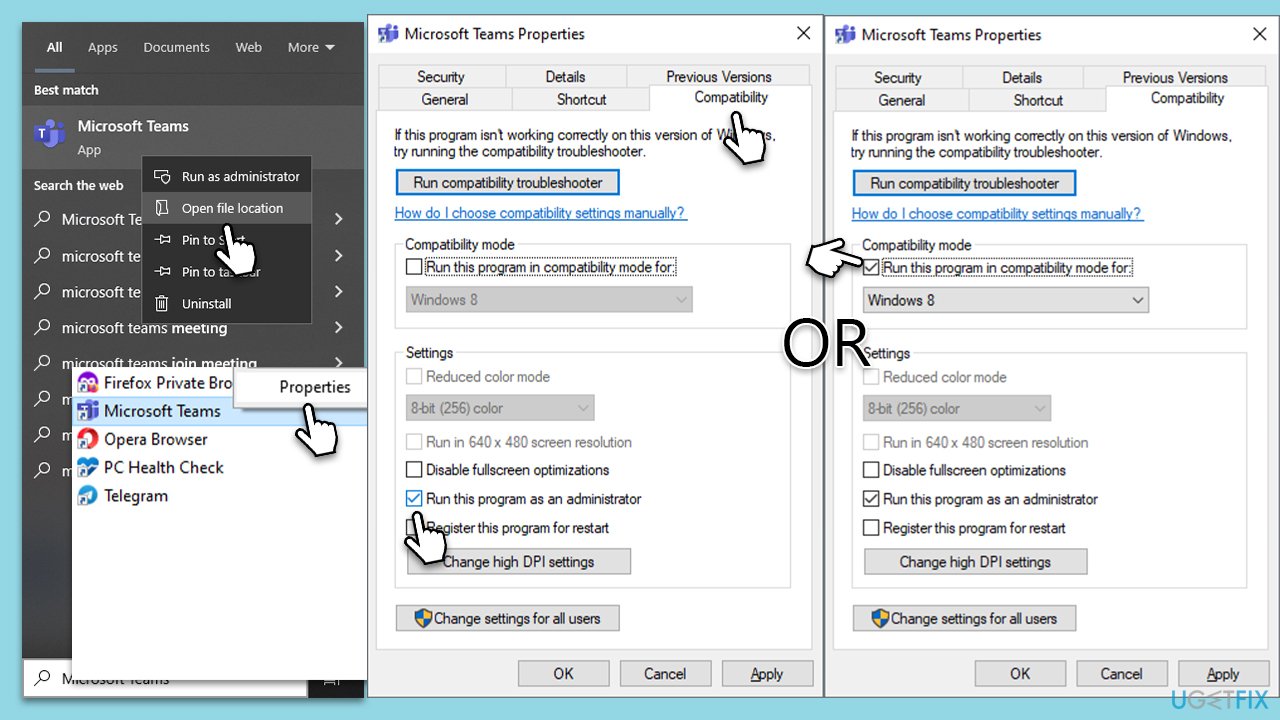
- Type Microsoft Teams in Windows search.
- Right-click on the result and select Open file location.
- Right-click on Microsoft Teams file and pick Properties.
- Go to the Compatibility tab.
- Under Settings, mark the Run this program as administrator option.
- Click Apply and OK.
- You could also try marking the Run this program in compatibility mode for [pick Windows version] and see if that helps to solve the issue.
Fix 3. Clear Teams cache files
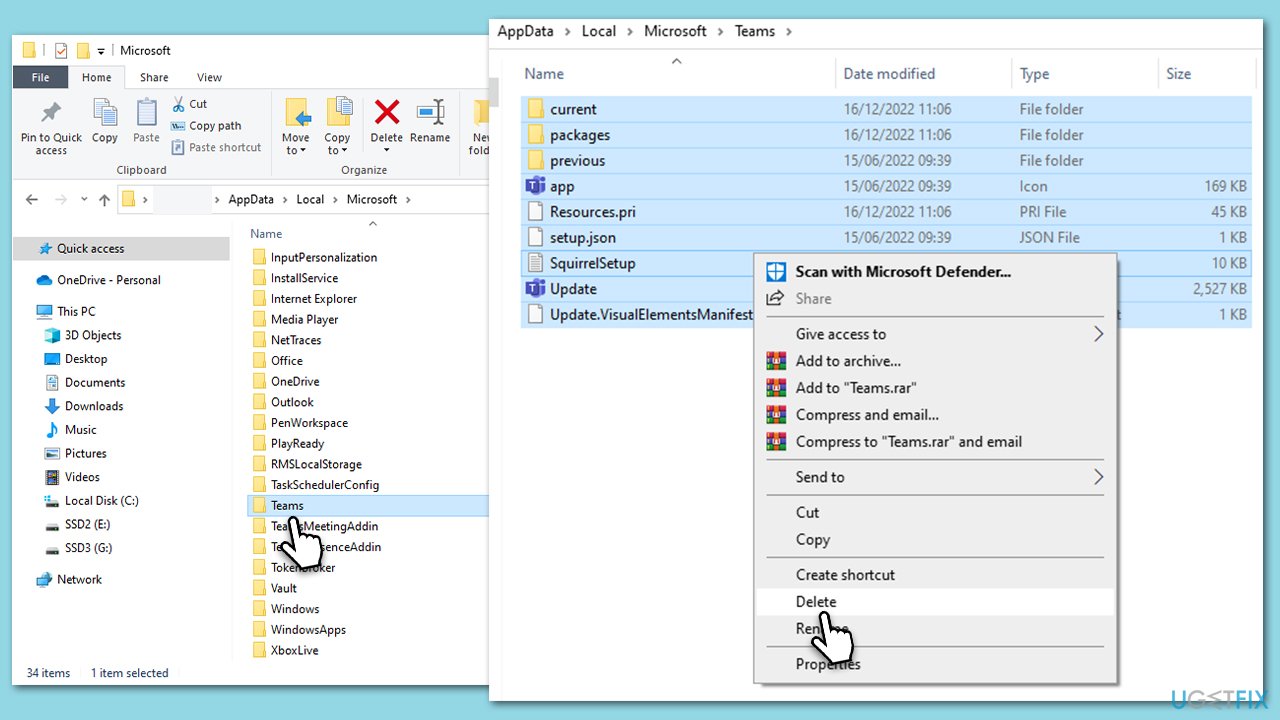
- Make sure Teams is not running (close from the system tray or Task Manager).
- Press Win + R on your keyboard to open the Run dialog.
- Type AppData and press Enter or click OK.
- Go to the following location:
C:\Users\User\AppData\Local\Microsoft - Delete all the files and folders located in the Teams folder.
- Start the app again.
Fix 4. Repair or reset the app
Some apps on Windows have a built-in repair/reset feature you should try if it's accessible to you (it depends on your Windows version). Follow these steps:
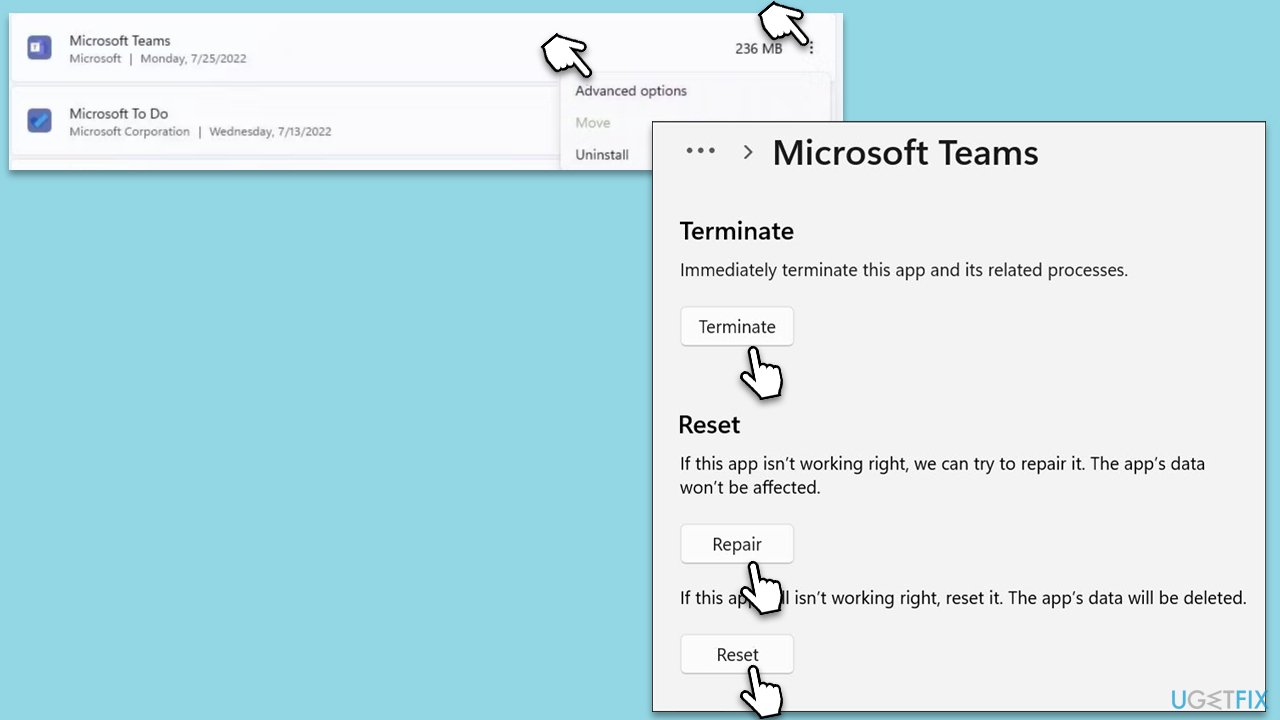
- Click on Start and pick Settings.
- Go to the Apps section.
- Locate Microsoft Teams from the list.
- Click on the three vertical dots and pick Advanced options.
- Click Terminate to ensure that the app is not running.
- Under the Reset section, click Repair and see if that solved your issue.
- If not, then try the Reset option.
Fix 5. Enable TLS
For Teams to run properly and securely, TLS must be enabled. Follow these steps.
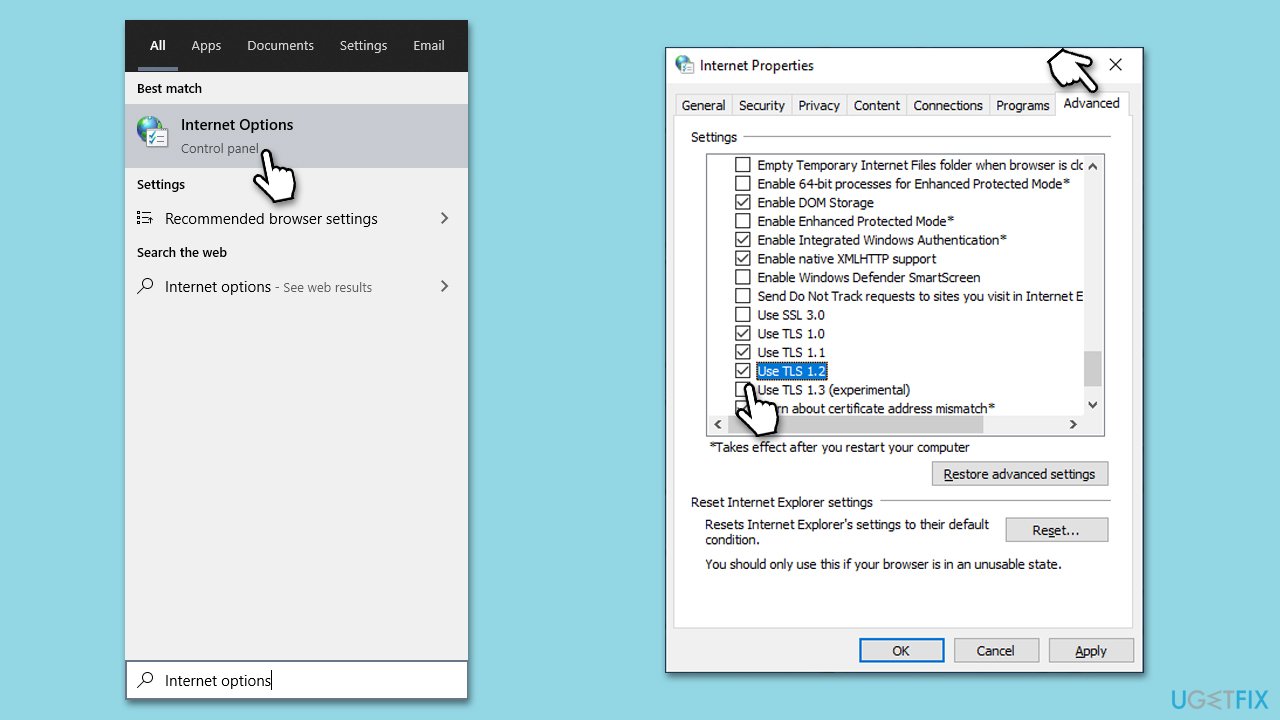
- Type Internet options in Windows search and press Enter.
- Go to the Advanced tab.
- Scroll down until you see the Security section.
- Enable all TLS protocols here, including 1.0, 1.1, and 1.2.
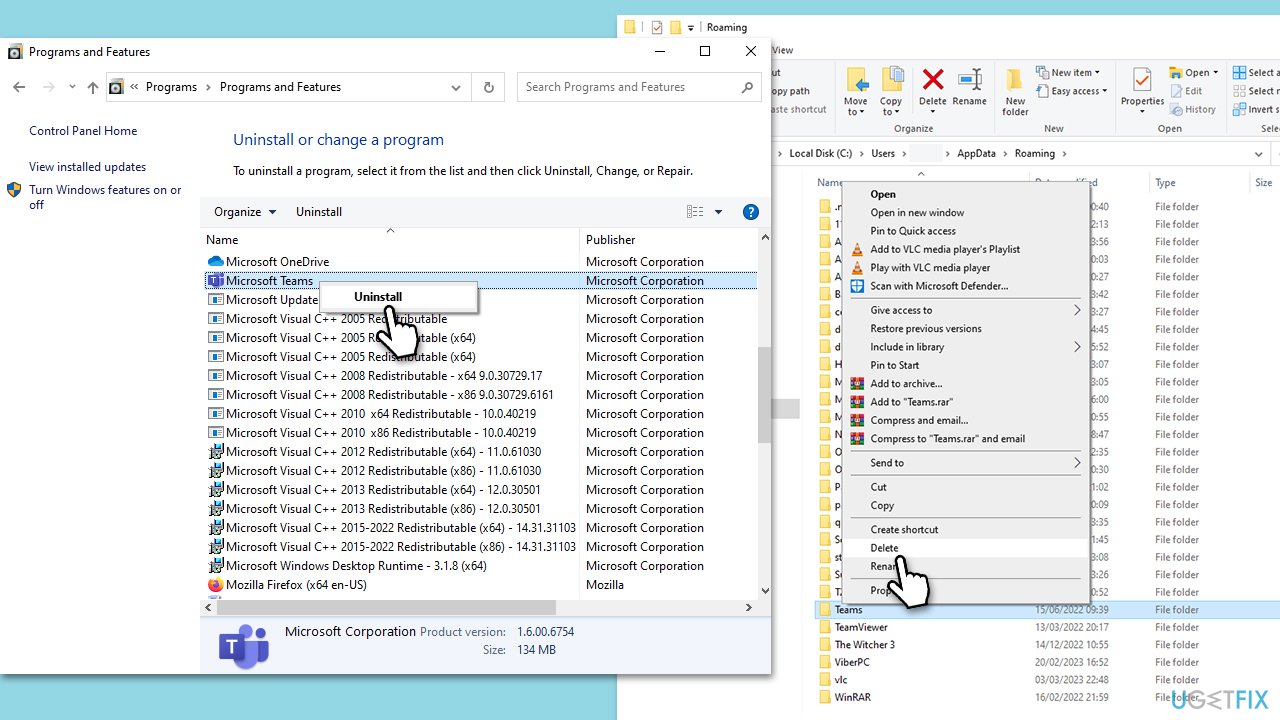
Fix 6. Reinstall Teams
Reinstalling the app may sometimes fix the error. Make sure you eliminate all the leftover files before reinstalling.
- Type Control Panel in Windows search and press Enter.
- Go to Programs > Uninstall a program.
- Find Microsoft Teams, right-click, and select Uninstall.
- Follow the prompts to remove the app.
- Once done, press Win + E to open File Explorer.
- In the View tab at the top of the window, enable Hidden Files.
- Go to C:\Program Files\WindowsApps location.
- Scroll down to find the Microsoft Teams folder and delete it (alternatively, you can rename it).
- Now type %AppData% in Windows search and press Enter.
- Delete the Teams folder here.
- Finally, restart your system and reinstall the app.
Bottom line
To fix the caa70004 error in Microsoft Teams, users can run the compatibility troubleshooter, clear the cache, update the application, or perform a clean reinstallation. If the issue persists, waiting for the next update or contacting Microsoft support may be necessary.
Frequently asked questions
The error caa70004 typically occurs due to issues with network connectivity or problems with the Microsoft Teams application itself, such as outdated versions or corrupted files.
To fix the caa70004 error on Windows 11, try clearing the Teams cache, updating the application, or reinstalling Teams to ensure you have the latest version.
Yes, ensure that your firewall and antivirus settings allow Microsoft Teams to connect to the internet, and check your network configuration for any restrictions that might block the application.




Report an issue
What's wrong with this guide? We review every report and update or remove content.
Report received — thank you. We'll review and fix it.
You need a free account to submit a report.
Be the first to comment