
How to fix Microsoft Windows Search Filter Host (SearchFilterHost.exe) high CPU in Windows?

Prefer to fix it yourself? The manual steps follow.
- 9methods
- 5 minutes to check, 15 minutes to trim the index, up to 24 hours for a full rebuild
- Easy to intermediate
Applies to Microsoft Windows Search Filter Host (SearchFilterHost.exe) and the Windows Search service on Windows 11 and Windows 10
9 methods in this guide
Microsoft Windows Search Filter is driving my CPU to extreme heights and I don't understand why that is happening. It stops for a bit after I restart the PC, but then it comes back again.
Microsoft Windows Search Filter Host (SearchFilterHost.exe) is the part of Windows Search that opens your files and reads the text inside them for the search index. High CPU for a while after new files or an update is normal; constant load means the index is too big, one file type keeps failing, or the index is damaged. Check the indexing status first, then trim what Windows indexes.
SearchFilterHost.exe is a safe Windows process that reads file contents for search. Open Settings > Privacy & security > Searching Windows and check the status: if indexing is in progress, let it finish with the PC plugged in (Fix 1). If it never finishes, exclude big folders you never search (Fix 2), switch heavy file types to properties only (Fix 3) and rebuild the index (Fix 4).
| Error | No error message. Task Manager shows Microsoft Windows Search Filter Host high in the CPU column, sometimes with high disk use, fans running and a slow PC. |
|---|---|
| Where it appears | Task Manager on Windows 11 and Windows 10, usually next to Microsoft Windows Search Indexer and Microsoft Windows Search Protocol Host. The file is C:\Windows\System32\SearchFilterHost.exe. |
| Main cause | The search index is working through many files: after new files, a big copy or a Windows update, or because too much is indexed. Microsoft says trouble starts above about 400,000 items. |
| Fastest fix | Let indexing finish while plugged in (Fix 1). If it never finishes, exclude big folders (Fix 2) and rebuild the index (Fix 4). |
| Also written as | SearchFilterHost.exe, Search Filter Host, Microsoft Search Filter Host, Windows Search Filter Host, searchfilter exe. Its neighbours are SearchIndexer.exe and SearchProtocolHost.exe. |
| Safe? | Yes, when it runs from C:\Windows\System32. Microsoft runs it with restricted rights and no network or disk access of its own. |
| Microsoft's limits | A typical PC indexes fewer than 30,000 items, a power user up to 300,000. Above 400,000 performance suffers; 1 million is the maximum. Outlook mailboxes over 6 million items also slow it. |
| Microsoft's status | Not a known bug with a fix number. Microsoft treats it as a tuning issue: fewer items, other file type settings, a rebuild. |
| Time to fix | 5 minutes to check, 15 minutes to trim the index, up to 24 hours for a rebuild to finish in the background. |
Facts checked on 15 October 2026. Steps written for Windows 11 (25H2 and 26H2) and Windows 10 22H2, with the limits, paths and status messages read from Microsoft's Windows Search troubleshooting articles.
What Microsoft Windows Search Filter Host (SearchFilterHost.exe) is
Microsoft Windows Search Filter Host is one of three processes behind the search box in Windows. SearchIndexer.exe is the Windows Search service (WSearch). SearchProtocolHost.exe reaches the items in each indexed place. SearchFilterHost.exe opens each file and pulls out its text and properties, so a search can find a word inside a document.
Microsoft's developer documentation says the filtering process SearchFilterHost.exe binds to the filter (IFilter) registered for the file's type or extension. It runs those filters in a locked-down process: no access to the network or the user interface, no child processes, and a 100 MB working-set limit. Microsoft built it this way because third-party filters can be badly written.
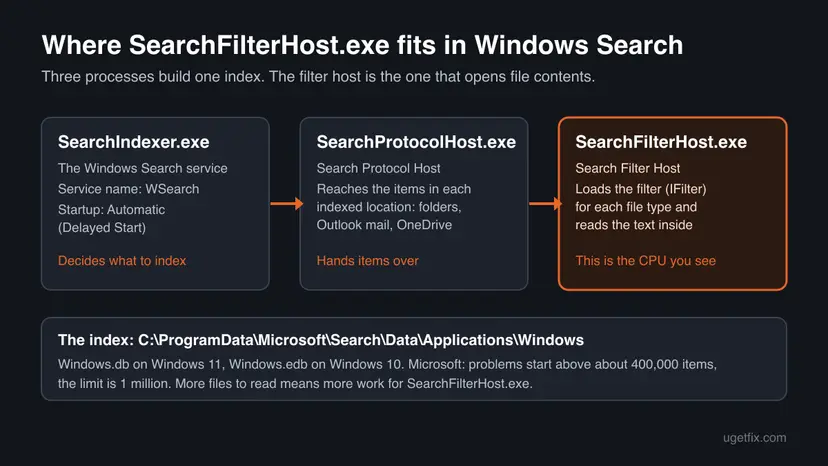
| What you see | Where | What it is |
|---|---|---|
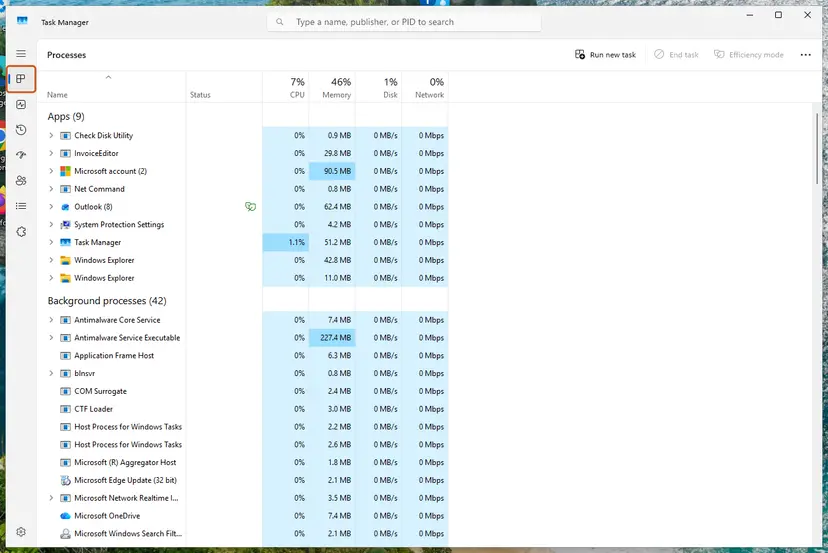
| Microsoft Windows Search Filter Host | Task Manager, Processes tab | SearchFilterHost.exe. Reads file contents for the index. Starts and stops on its own. |
| Microsoft Windows Search Indexer | Task Manager, Processes tab | SearchIndexer.exe, the Windows Search service (WSearch). Runs all the time. |
| Microsoft Windows Search Protocol Host | Task Manager, Processes tab | SearchProtocolHost.exe. Reaches files, mail and other indexed places. |
| Windows Search | services.msc | The service. Microsoft's normal setting: Running, Automatic (Delayed Start). |
Windows.db or Windows.edb | C:\ProgramData\Microsoft\Search\Data\Applications\Windows | The index itself: Windows.db on Windows 11, Windows.edb on Windows 10. |
SearchFilterHost.exe appears when there is something new to read and closes when it is done. After a Windows update, a large download, a new Outlook profile or a copied photo library, it can be busy for hours. Microsoft says indexing slows down while you use the PC and waits when the CPU or disk is busy.
Why Search Filter Host uses so much CPU, from most to least common
Most often the indexer is simply catching up on many new or changed files. Next comes an index that is too large for the PC, which Microsoft names as the main factor in indexing performance. Less often one file type, or a filter that another program installed, keeps failing. Rarely the index is damaged or malware uses the name. Microsoft publishes no shares, so this order comes from its articles and the reports we read.
| Cause | How often | How to tell | Fix |
|---|---|---|---|
| Indexing in progress after new files, a big copy, a new mailbox or a Windows update. | Most often | Searching Windows says Indexing in progress and the item count grows. | Fix 1 |
| Too many items indexed: whole drives, developer folders, archives, a huge photo or mail store. | Often | The Indexed count is in the hundreds of thousands. Microsoft: above 400,000 you may see problems. | Fix 2, Fix 6 |
| One file type is slow or fails to filter, often through a filter another program added. | Sometimes | The load starts when certain files arrive, or Event Viewer shows SearchFilterHost.exe crashing. | Fix 3 |
| A damaged index that is rebuilt again and again. | Sometimes | Indexing never says Indexing complete, the count jumps, search results are wrong. | Fix 4, Fix 7 |
| A stuck Windows Search service after sleep or an update. | Sometimes | The spike started today and a restart of the service calms it. | Fix 5 |
| Damaged system files or malware using the name. | Rarely | Other Windows parts fail too, or the file is not in C:\Windows\System32. | Fix 8, Fix 9 |
The reader's question says the load stops after a restart and comes back. That fits indexing that never finishes: a restart ends the filter host, and the indexer starts again from the same unfinished queue. The fixes below shrink the queue or repair the index instead.
How to fix Microsoft Windows Search Filter Host high CPU usage
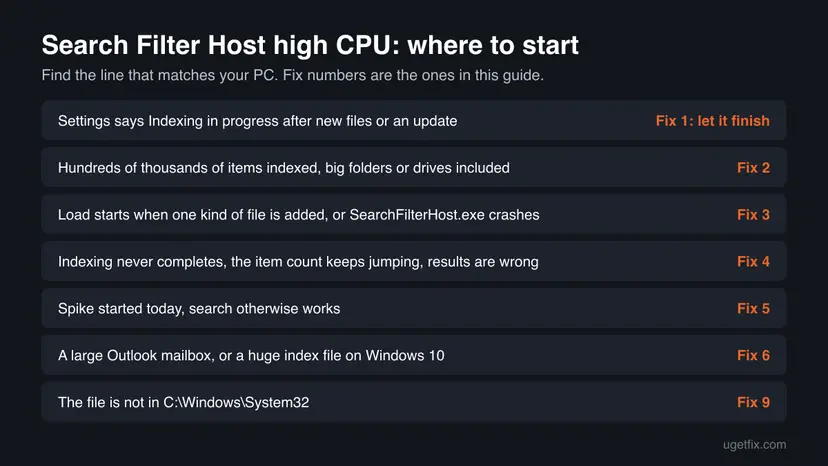
Fix 1 takes two minutes and tells you whether Windows is just catching up. Fix 2 to Fix 4 shrink or repair the index and solve most cases. Fix 5 and Fix 6 are for a stuck service and very large mail stores. Fix 7 to Fix 9 are the general repairs. Disabling Windows Search is a last resort, covered after the fixes.
| What you see or have | Start with |
|---|---|
| Indexing in progress after new files or a Windows update | Fix 1, then wait |
| Hundreds of thousands of items indexed, whole drives included | Fix 2 |
| The load starts when one kind of file arrives, or SearchFilterHost.exe crashes | Fix 3 |
| Indexing never completes and results are missing or wrong | Fix 4 |
| A spike that started today, search otherwise works | Fix 5 |
| A large Outlook mailbox, or a very big Windows.edb on Windows 10 | Fix 6 |
The SearchFilterHost.exe file is not in C:\Windows\System32 | Fix 9 |
Fix 1. Check the indexing status and let indexing finish
3 minutes, then a few hours of waitingNo riskEveryone, before changing anything. It tells you whether the load is normal catch-up work.
SearchFilterHost.exe only works while there are files waiting to be read. Settings shows how many items are indexed and whether indexing is still running, which tells you if the CPU use will end on its own.
- Press Ctrl + Shift + Esc to open Task Manager and select the CPU column header. Check that Microsoft Windows Search Filter Host is the busy line.
- Windows 11: open Settings > Privacy & security > Searching Windows. Windows 10: open Settings > Search > Searching Windows.
- Read the status at the top and the number next to Indexed (Windows 10: Indexed Items).
- If it says Indexing in progress, keep the PC on and plugged in for a few hours. A laptop on battery may pause indexing.
- Look again later. When the status says Indexing complete, the filter host should close and the CPU drop.
| Status in Searching Windows | What to do |
|---|---|
| Indexing complete | Indexing is done. If the CPU stays high anyway, go to Fix 3 or Fix 4. |
| Indexing in progress. Search results might not be complete during this time. | Normal after new files. Wait a few hours with the PC on power. |
| Indexing speed is reduced because of user activity. | It slows down while you work. Leave the PC idle and on power. |
| Index is performing maintenance. Please wait. | Microsoft: can take up to 30 minutes. If it repeats, check the drive (see the still broken section). |
| Item count in the hundreds of thousands | Too much is indexed. Go to Fix 2. |
It worked if: The status turns to Indexing complete and Microsoft Windows Search Filter Host disappears from the top of Task Manager.
If not: If indexing has run for more than a day, or the count keeps going up and down, go to Fix 2 and then Fix 4.
Fix 2. Exclude large folders you never search from the index
10 minutesLow riskThe indexed count is high, or you added whole drives, game libraries, code projects, virtual machines or backups to the index.
Microsoft names the number of indexed items and the size of the index as the main factors in indexing performance. Every excluded folder is a folder SearchFilterHost.exe no longer has to open and read.
- Windows 11: open Settings > Privacy & security > Searching Windows. Windows 10: Settings > Search > Searching Windows.
- Under Exclude folders from enhanced search, select Add an excluded folder and pick a large folder you never search, such as a backup, a game library or a code project.
- For finer control, open Advanced indexing options (Windows 10: Advanced Search Indexer Settings).
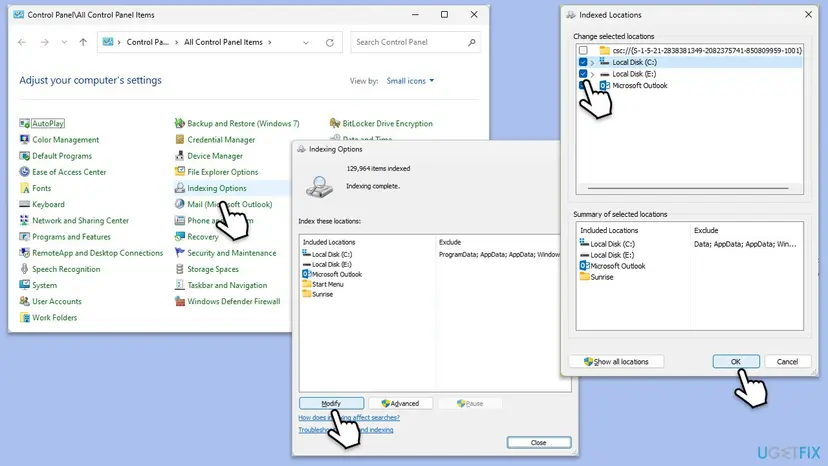
- In Indexing Options, select Modify.
- Clear the boxes of whole drives and folders you do not need in search, then select OK.
- Leave the PC on and plugged in so the indexer can drop the removed items.
Windows 11 can search your libraries and desktop only (Classic) or the whole PC (Enhanced) under Find my files. Enhanced indexes far more items. If you switched to it and the load began then, go back to Classic.
It worked if: The Indexed count drops after a while and the filter host is busy for much shorter periods.
If not: If the count stays high or the load continues with only small folders indexed, one file type may be the problem. Go to Fix 3.
Fix 3. Index heavy or failing file types by name and properties only
5 minutesLow riskThe load starts when certain files arrive (large PDFs, archives, mail, logs), or SearchFilterHost.exe crashes in Event Viewer.
SearchFilterHost.exe loads a separate filter for each file type, and some filters come from other programs. Telling Windows to read only the name and properties of a type stops the filter host from opening its contents at all.
- Open Indexing Options as in Fix 2 and select Advanced.
- Open the File Types tab.
- Find the extension you suspect, for example
.pdf,.logor.zip. - Select it and choose Index Properties only.
- To skip a type completely, clear its check box instead.
- Select OK. Windows may say the index must be rebuilt; let it.
The Filter Description column next to each extension names the filter in use. A filter from a PDF reader, an office suite or an archive tool is a good first suspect when SearchFilterHost.exe crashes or spins. Updating or repairing that program can fix its filter: How to repair or reset an app in Windows.
It worked if: Files of that type no longer make the filter host busy, and you can still find them by name.
If not: If no single type stands out, the index itself may be damaged. Go to Fix 4.
Fix 4. Rebuild the search index
5 minutes, then up to 24 hours in the backgroundLow riskIndexing never reaches Indexing complete, the item count jumps around, results are wrong, or you changed locations in Fix 2 and Fix 3.
A damaged index makes Windows Search go over the same files again and again. A rebuild deletes the index and creates it from scratch, using the smaller set of locations and file types you just chose.
- Windows 11: open Settings > Privacy & security > Searching Windows > Advanced indexing options. Windows 10: Settings > Search > Searching Windows > Advanced Search Indexer Settings.
- In Indexing Options, select Advanced.
- Under Troubleshooting, select Rebuild, then OK.
- Keep the PC on and plugged in. Microsoft says to let the indexer run for up to 24 hours.
- Check the status in Searching Windows the next day.
Search results are incomplete until the rebuild ends, and SearchFilterHost.exe will be busy because it reads every file again. This is the last long burst you should see, not the problem coming back.
It worked if: The status says Indexing complete, the count is steady, and the filter host only appears briefly when new files arrive.
If not: If the rebuild never finishes, restart the service (Fix 5) and run the troubleshooter (Fix 7). If the Searching Windows page is greyed out, see the still broken section.
Fix 5. Restart the Windows Search service
2 minutesLow riskThe load started today, after sleep or an update, and search otherwise works.
SearchFilterHost.exe is started by the Windows Search service. A restart ends a stuck filter host and lets the indexer pick up its queue from a clean state.
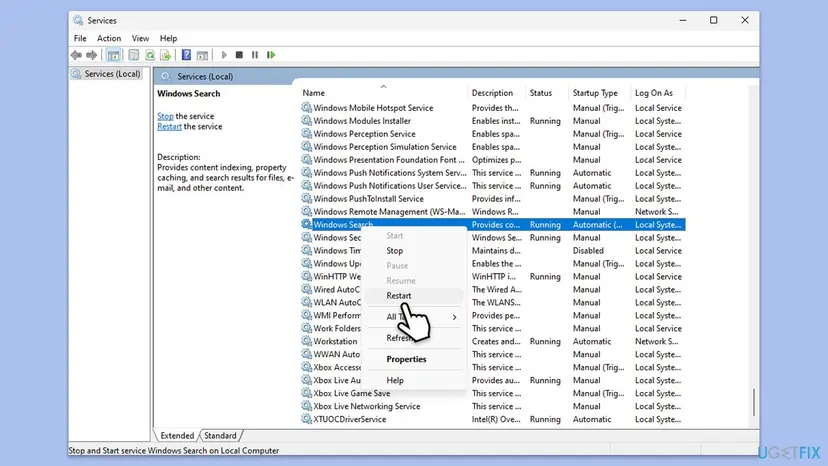
- Press Win + R, type
services.mscand press Enter. - Find Windows Search in the list.
- Right-click it and select Restart. If it is not running, select Start.
- Double-click it and check that Startup type is Automatic (Delayed Start), Microsoft's normal setting.
- Watch Task Manager for a few minutes.
From an administrator Command Prompt the same restart is two commands. Step by step for any service: Check and restart Windows services.
Command Prompt (administrator)
net stop wsearch
net start wsearch
It worked if: Microsoft Windows Search Filter Host disappears for a while and comes back only briefly when new files appear.
If not: If the load returns within minutes and stays, the index has too much work or is damaged. Go back to Fix 2 and Fix 4.
Fix 6. Shrink a large Outlook mailbox or compact the index on Windows 10
15 minutesLow riskYou use Outlook with a large mailbox, or the index file on Windows 10 has grown to many GB.
Microsoft says the indexer includes Outlook mailboxes by default and slows down above 6 million items. A shorter mail sync window means fewer items to filter, and defragmenting the index database reclaims empty space inside it.
- In Outlook, open the account settings of an Exchange or Microsoft 365 account and set the offline mail period to a shorter time than the default one year.
- Check the index size: open
C:\ProgramData\Microsoft\Search\Data\Applications\Windows, right-click Windows.edb (Windows 10) or Windows.db (Windows 11), select Properties and read Size on disk, not Size. - On Windows 10, open Command Prompt as administrator and run the commands below one by one. They stop Windows Search, defragment Windows.edb and start the service again.
- Leave the PC on until indexing says complete again.
Command Prompt (administrator, Windows 10)
Sc config wsearch start=disabled
Net stop wsearch
EsentUtl.exe /d %AllUsersProfile%\Microsoft\Search\Data\Applications\Windows\Windows.edb
Sc config wsearch start=delayed-auto
Net start wsearchMicrosoft's command names Windows.edb, the Windows 10 index. Windows 11 keeps its index in Windows.db, and we found no Microsoft command for compacting it. On Windows 11 use Fix 2 and Fix 4 to make the index smaller instead.
It worked if: Fewer mail items to index, a smaller index file and shorter bursts of the filter host.
If not: If the database command reports an error, make sure Windows Search is stopped and the window runs as administrator, then use Fix 4 to rebuild instead.
Fix 7. Run the Search and Indexing troubleshooter
5 minutesNo riskSearch itself also misbehaves: results are missing, the box does not respond, or indexing never starts.
Microsoft says this troubleshooter resets Windows Search to its default settings. That undoes odd settings left by tweaking tools, which can keep the indexer and its filter host busy.
- Press Win + R, type
cmdand press Enter. - Type the command below and press Enter.
- In Search and Indexing, tick Search or indexing is slow and select Next.
- Follow the screens and apply the fixes it offers.
- Restart the PC.
Command Prompt
msdt.exe -ep WindowsHelp id SearchDiagnostic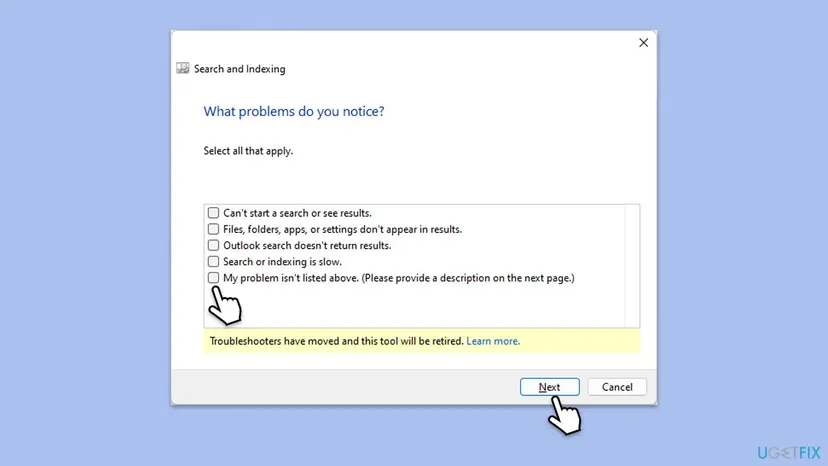
It worked if: The troubleshooter reports what it fixed, and indexing starts again with default settings.
If not: If the command does nothing on your Windows build, the old troubleshooter has been removed. Go to Fix 8.
Fix 8. Update Windows and repair system files
30 minutesNo riskThe steps above did not help, or other Windows features fail too.
Windows Search is part of Windows. Microsoft lists checking for updates as a fix for search problems, and damaged system files can make the indexer or its filters fail in a loop.
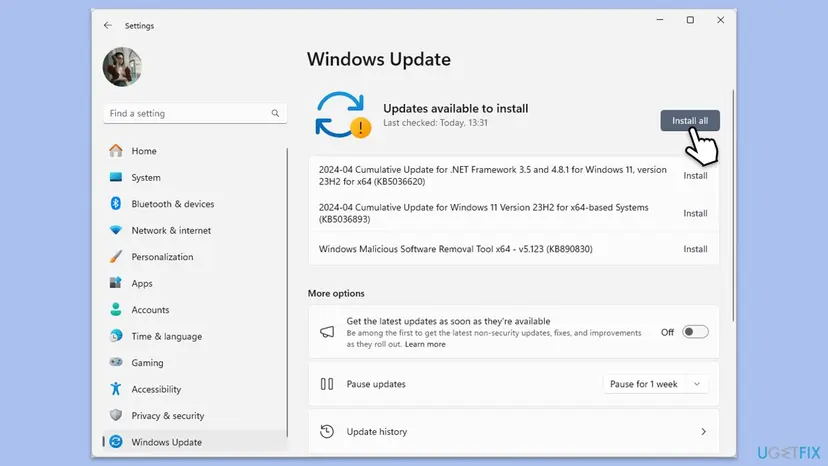
- Press Win + I and open Windows Update.
- Select Check for updates, install everything offered and restart.
- Then repair system files as below.
- Open an elevated command window. Right-click Start and select Terminal (Admin), or type cmd in the search box, right-click Command Prompt and select Run as administrator. Select Yes when Windows asks for permission.
- Run DISM first. Type the command below and press Enter. DISM downloads clean copies of damaged components from Windows Update, so it can take several minutes. Wait until it says The operation completed successfully.
DISM.exe /Online /Cleanup-Image /RestoreHealth - Run System File Checker. In the same window, type the command below and press Enter. Do not close the window until the verification reaches 100%.
sfc /scannow - Read the result and restart. Compare the last message with the table below this guide, then restart the PC so that repaired files are loaded.
These steps were written for Windows 11 24H2 and 25H2. The full page with the other versions and what each result means: Run DISM and SFC to repair Windows system files
It worked if: Windows is up to date, SFC reports no integrity violations or repaired them, and the indexer settles after a restart.
If not: If SFC cannot repair some files even after DISM, check the file location and scan for malware in Fix 9.
Fix 9. Check the SearchFilterHost.exe location and scan for malware
15 minutesNo riskThe process uses CPU with Windows Search stopped, or you are not sure the file is the real one.
The real SearchFilterHost.exe lives in C:\Windows\System32 and is started by Windows Search. A copy elsewhere, or one that runs with the service stopped, is not part of Windows.
- In Task Manager, right-click Microsoft Windows Search Filter Host and select Open file location.
- Check that File Explorer opens
C:\Windows\System32with SearchFilterHost.exe selected. - Run a full scan with Microsoft Defender as in How to scan for malware with Microsoft Defender.
It worked if: The file is in System32 and Defender finds no threats, so the load is the indexer and not malware.
If not: If the file is somewhere else or Defender finds a threat, remove it and run an offline scan before any other fix.
Search Filter Host still uses high CPU: what to check next
If the index is small, the rebuild has finished and the scan is clean, collect evidence before you change anything bigger. Windows records what the indexer does in places you can read.
- Event Viewer: press Win + R, type
eventvwr.mscand open Windows Logs > Application. Errors that name SearchFilterHost.exe or a filter DLL point to one file type (Fix 3). - Greyed-out search page: Microsoft says a greyed-out Searching Windows page with no status means damaged indexer settings or database. Its fix is to delete the contents of
C:\ProgramData\Microsoft\Search\Dataand refresh Windows. - The drive: if Index is performing maintenance keeps coming back, Microsoft warns that indexer write problems often come before a drive failure. Back up your files (Back up your files (Windows Backup, File History, Time Machine)) and check the disk (Check a disk for errors (chkdsk)).
- Feedback Hub: press Win + F and report it under Desktop Environment > Search, with your Windows build and the indexed item count.
- Repair install: as a last step, reinstall Windows over itself and keep your files: Reinstall Windows without losing files.
Setting Windows Search to Disabled in services.msc stops SearchFilterHost.exe for good, and that is all it does. Searching file contents in File Explorer becomes slow, and Outlook's search depends on the index too. To undo it, set the service back to Automatic (Delayed Start) and start it.
How to keep Search Filter Host from flaring up again
- Index what you search: your user folders and mail. Leave backups, game libraries, code projects and virtual machines out.
- Look at the Indexed count now and then. Microsoft's comfort zone is under 300,000 items.
- After a big copy or a Windows update, leave the PC on and plugged in once so indexing can finish.
- Keep free space on the system drive. Microsoft says the index is generally about 10 % of the indexed content and wants more than 1 GB free.
- Do not let "PC optimizer" tools switch the Windows Search service off. Microsoft notes that some do, which breaks search.
Frequently asked questions
What is Microsoft Windows Search Filter Host?
It is SearchFilterHost.exe, a built-in Windows process that opens files and extracts their text and properties for the search index. Microsoft's documentation says it loads the filter registered for each file type and runs it with restricted rights, so a badly written filter cannot harm the system. It works together with SearchIndexer.exe, the Windows Search service, and SearchProtocolHost.exe. You see it in Task Manager only while there are files waiting to be indexed. In Spanish, Microsoft Windows Search Filter Host is the same process: the search filter host that reads files for the index.
Why does Microsoft Windows Search Filter Host use high CPU?
Because it is reading file contents for the index. Most often Windows is catching up after new files, a large copy or an update, and the load ends when Settings shows Indexing complete. If it never ends, too much is indexed (Microsoft sees trouble above about 400,000 items), one file type keeps failing, or the index is damaged. Excluding folders, changing file type settings and rebuilding the index solve most cases. A restart only hides it, because indexing resumes where it stopped.
Is SearchFilterHost.exe a virus?
No, not when it is the real file in C:\Windows\System32 and is started by the Windows Search service. Malware sometimes uses familiar Windows names, so check once: in Task Manager, right-click Microsoft Windows Search Filter Host and select Open file location. If File Explorer opens System32, the file is Windows' own. If it opens any other folder, or the process runs while the Windows Search service is stopped, scan the PC with Microsoft Defender, including an offline scan, before you do anything else.
Can I disable Microsoft Windows Search Filter Host?
Only by disabling the whole Windows Search service, because the service starts the filter host when it needs it. You can do it in services.msc by setting Windows Search to Disabled. The cost is real: searching inside files in File Explorer becomes slow, and Outlook's search depends on the index. A better first step is to index less: exclude large folders and switch heavy file types to properties only. If you disable it anyway, you can undo it by setting the service back to Automatic (Delayed Start).
Is it safe to end SearchFilterHost.exe in Task Manager?
Yes, ending it does no harm, but it does not fix anything either. The Windows Search service starts a new filter host as soon as there are more files to read, so the CPU load usually returns within minutes. Ending it is useful only to check whether the PC speeds up without it. To make the load go away for good, reduce what is indexed, change the settings of the file types that cause trouble, or rebuild the index so the queue can finish.
Why does SearchFilterHost.exe keep crashing?
Most often because the filter for one file type fails on a file, and that filter often comes from another program such as a PDF reader or an office suite. Microsoft isolates filters in SearchFilterHost.exe exactly so such a failure does not take Windows Search down. Open Event Viewer, look under Windows Logs > Application for errors that name SearchFilterHost.exe, and note the module. Then set that file type to Index Properties only, or update or repair the program that installed the filter.
How long should Windows indexing take?
It depends on how many items are indexed. Microsoft says to let the indexer run for up to 24 hours after a rebuild, and that indexing new files can take a few hours. It also slows down while you use the PC and may pause on battery power. A typical PC indexes fewer than 30,000 items and finishes much faster. If indexing has run for days and the count keeps changing, the index is too large or damaged; exclude folders and rebuild it.
What is the difference between Search Filter Host and Search Protocol Host?
Both serve the same index but do different jobs. Microsoft Windows Search Protocol Host, SearchProtocolHost.exe, reaches the items in each indexed place, such as folders or a mailbox. Microsoft Windows Search Filter Host, SearchFilterHost.exe, opens each item and reads the text inside it through the filter for that file type. Both are started by SearchIndexer.exe, the Windows Search service. High CPU in either one has the same causes and the same fixes on this page.
Does this happen on Windows 10 and Windows 11?
Yes. The process, the causes and most fixes are the same. The menus differ: Windows 11 has Searching Windows under Settings > Privacy & security, Windows 10 under Settings > Search. Windows 11 keeps its index in Windows.db and Windows 10 in Windows.edb, and Microsoft's command to compact the index applies to Windows.edb. Windows 10 left support on 14 October 2025, so it no longer gets regular fixes for problems like this one.
What is filter.exe or searchfilter.exe?
There is no Windows file called searchfilter.exe. People who type that usually mean SearchFilterHost.exe, the Microsoft Windows Search Filter Host this page is about. A file named filter.exe is not part of Windows Search, and this page is not about it. If you find a filter.exe running on your PC and do not know which program installed it, open its file location from Task Manager and scan it with Microsoft Defender before you trust it.
Sources
- Microsoft Learn: Troubleshoot Windows Search performance (KB 4558579) (learn.microsoft.com)
- Microsoft Learn: Fix problems in Windows Search (KB 4520146) (learn.microsoft.com)
- Microsoft Learn: Understanding filter handlers in Windows Search (learn.microsoft.com)
Did this fix work?
One click, no account. It tells the next reader which guides are worth their time.
Questions and experiences: fix Microsoft Windows Search Filter Host (SearchFilterHost.exe) high CPU in Windows
Still broken, or found a fix we did not cover? Ask here: members and our editors answer. Reading is open; writing needs a free account.
…