How to fix
Origin error code 9:0
on Windows
Resolve Origin error code 9:0 on Windows 10 and 11 quickly with our expert-tested solutions. Get back to gaming in minutes, zero traces left.

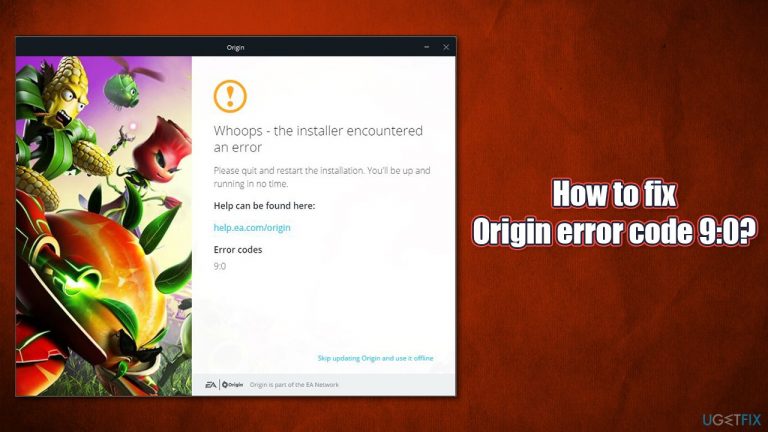
What causes How to fix Origin error code 9:0?
- App bugs
- Third-party antivirus
- Corrupt or missing .NET Framework package
- Insufficient permission of the app
- Simple bugs in OriginWebHelperService
Repairs Windows system files, removes malware, and restores a clean OS state — without reinstalling.
Hello. I just can't get Origin to update. Every time I try, I receive an error "Whoops - the installer encountered an error. Error code 9:0." I tried to restart the computer and update Windows, but none of that helped. Any tips would be appreciated.
Origin is a video game distribution platform that was released back in 2011 by Electronic Arts (EA) and remains one of the more prominent tools for gamers. Players can buy, download, uninstall, and update games, as well as add friends and communicate with them. The platform offers exclusive EA games that are not available on Steam, Epic Games, GOG, or Uplay - this is one of the reasons why so many people have it installed on their systems. To use it, people have to create an EA account via the official website or the client itself.
Just like any other platform, this one does not avoid errors. Origin error code 9:0, accompanied by the "Whoops - the installer encountered an error" title, prevents users from updating or installing the app in the first place, which can be a rather frustrating issue to deal with.
The problem has been around for many years now, according to many user reports on EA official forums.[ref en-3] As the error message stated, all that has to be done in order to address the issue is to restart the update or install process. Restarting the app and trying again did not work for most, unfortunately.
There could be many different reasons why you are experiencing this error - app bugs,[ref en-1] third-party antivirus, corrupt or missing .NET Framework package, insufficient permission of the app, and much more.
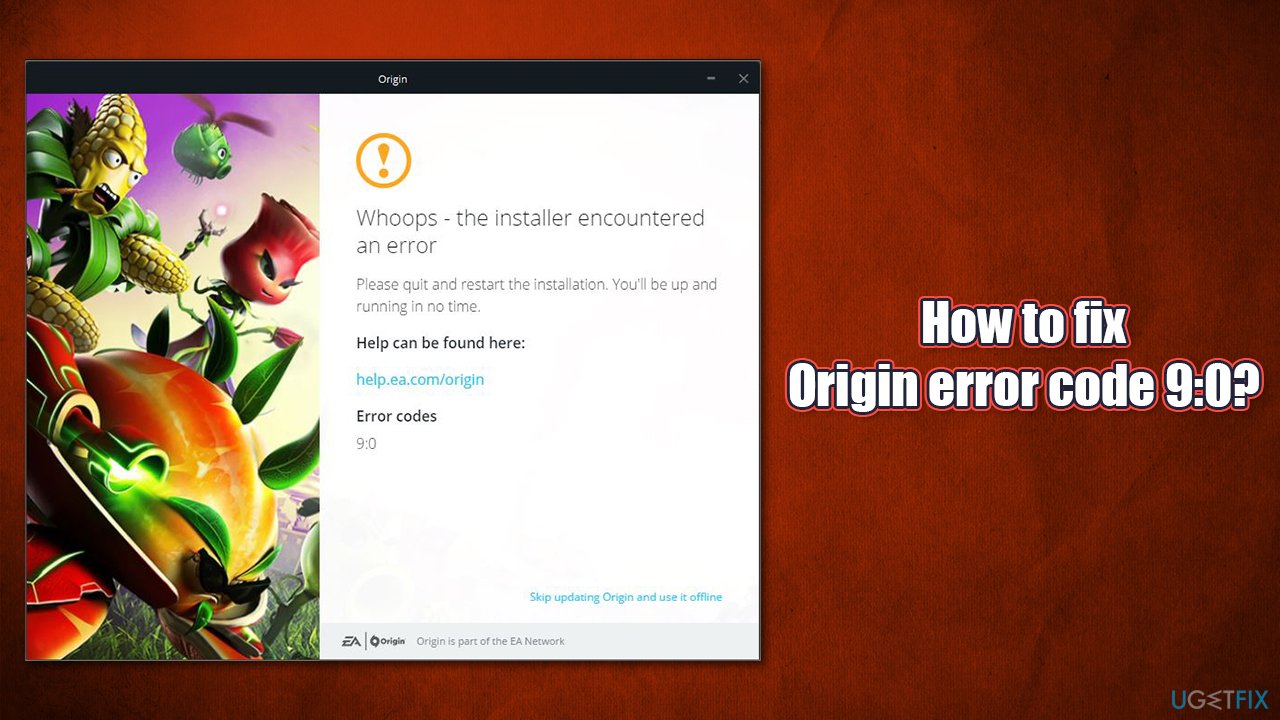
We have previously discussed Origin error 327683:0 and provided solutions for it. In this article, we will give you some tips to fix Origin error code 9:0 in many different ways. Before you begin going through the manual solutions below, we recommend you use [d1] to ensure that no system file corruption or other Windows-related issues are causing this.
1. Shut down OriginWebHelperService
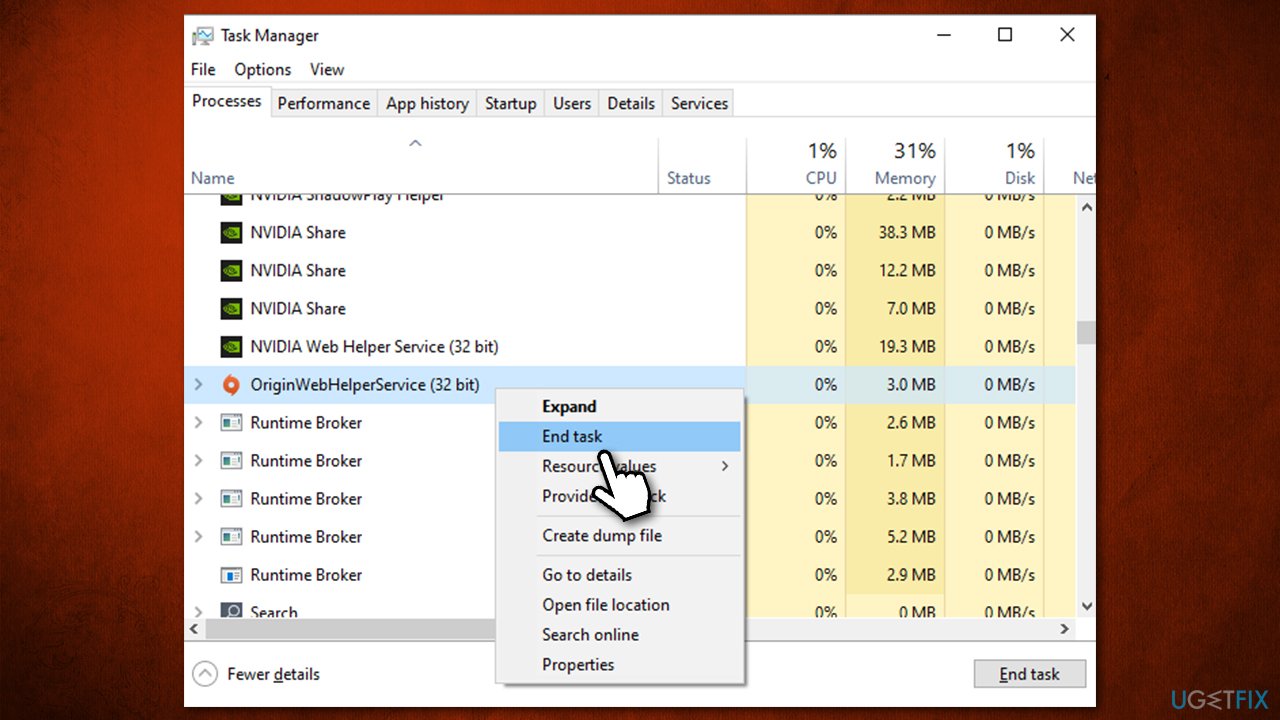
A simple bug can cause you to face the Origin error 9:0. In order to address it, first, try to shut down the app's task via the Task Manager:
- Close down Origin app if you have it open
- Press Ctrl + Shift + Esc to open the Task Manager
- Click More details if required
- Scroll down until you find OriginWebHelperService
- Right-click and pick End task
How to fix origin error code 9 0 shut down originwebhelperservice - Open Origin and try updating it again.
2. Install the latest version of .NET Framework
.NET Framework is particularly important for gaming and many other features.[ref en-2] If it gets corrupted or the latest versions in missing, it might also result in Origin Error code 9:0. Thus, you should install the latest version and ensure that it is enabled:
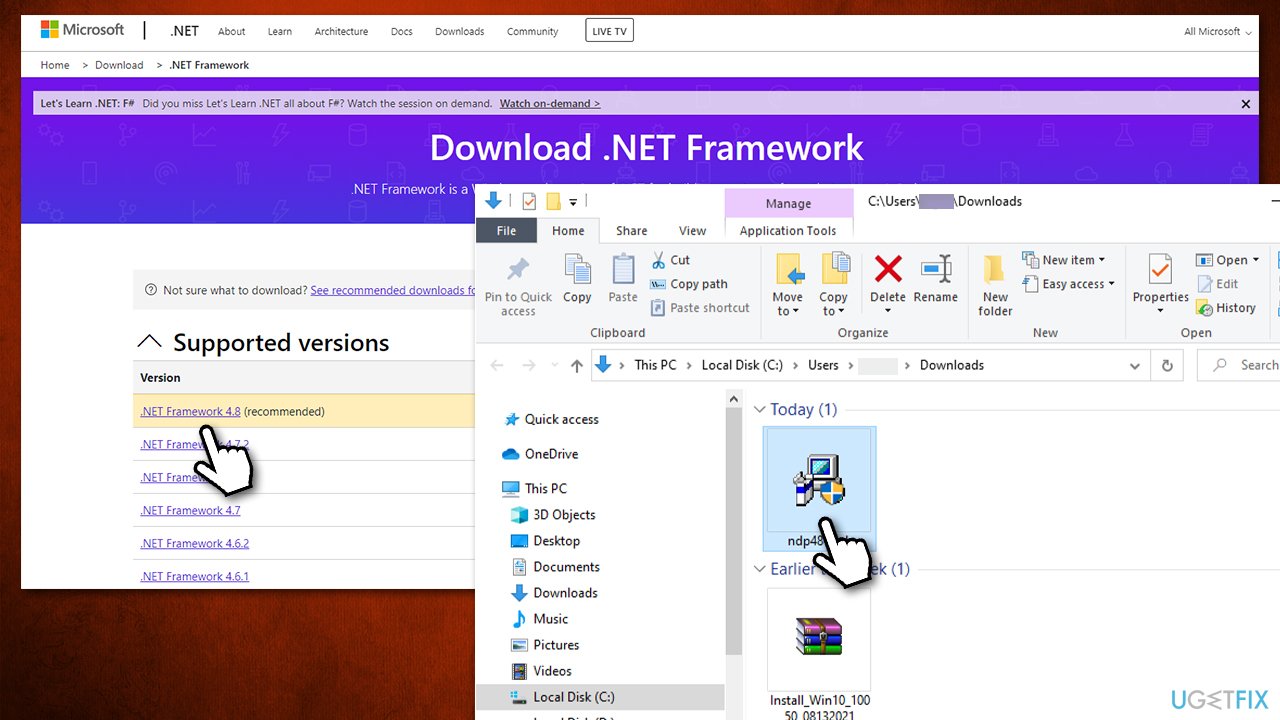
- Download the newest version of .NET Framework from the official website
- When option is presented, select Runtime
- Launch the ndp48-web.exe executable and proceed with on-screen instructions
How to fix origin error code 9 0 download the latest net framework - Once installed, type in Control Panel in Windows search and press Enter
- Select Programs > Uninstall a program
- On the left, pick Turn Windows features on or off
- Make sure that both 3.5 and 4.8 versions are enabled and click OK.
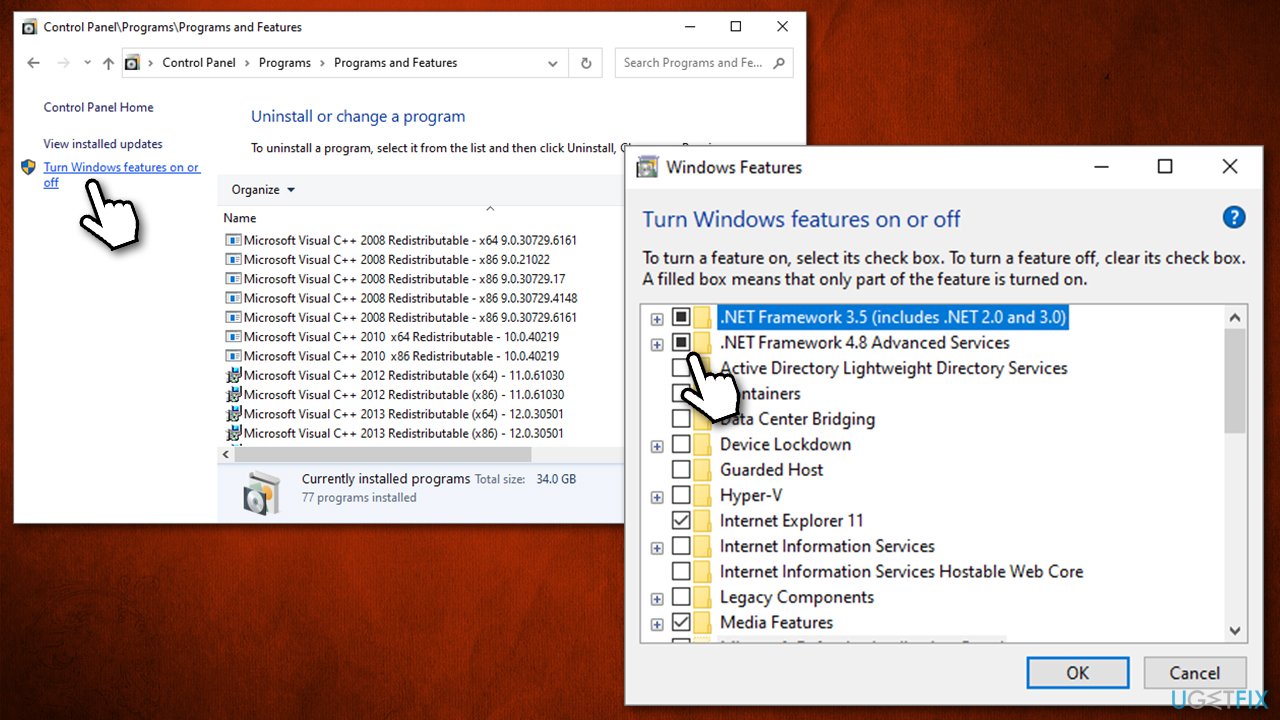
How to fix origin error code 9 0 make sure net framework is enabled
3. Turn on Application management service
In some cases, not having the Application Experience service enabled might cause you not to be able to use updating services. You can enable it easily:
- Type in Services in Windows search
- Right-click on Services result and select Run as administrator
- Locate Application Management service and double-click it
- Under Startup type, select Automatic from the drop-down menu
- Click Start, Apply, and OK.
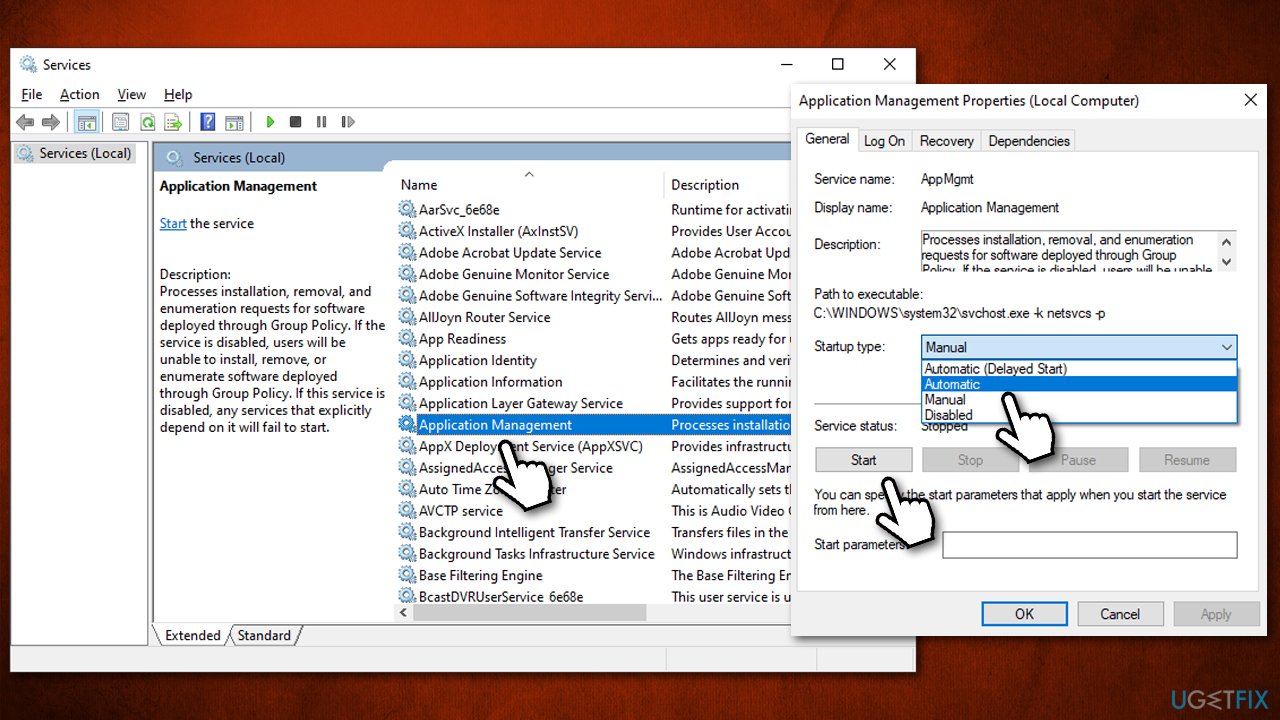
How to fix origin error code 9 0 enable application management service
4. Reinstall the app
Reinstalling software on Windows does not take a long time. However, taking extra steps while doing so might make a huge difference. Don't worry about your installed games, as they will remain on the system even if you uninstall the game client. Here's what you should do:
- Type Control Panel in Windows search and press Enter
- Go to Programs > Uninstall a program
- Find the client, right-click and pick Uninstall
- Proceed with on-screen instructions
- Once done, press Win + R on your keyboard
- Type %ProgramData% and press Enter
- Find Origin folder and access it. Here, delete everything apart from LocalContent folder (this is important!)
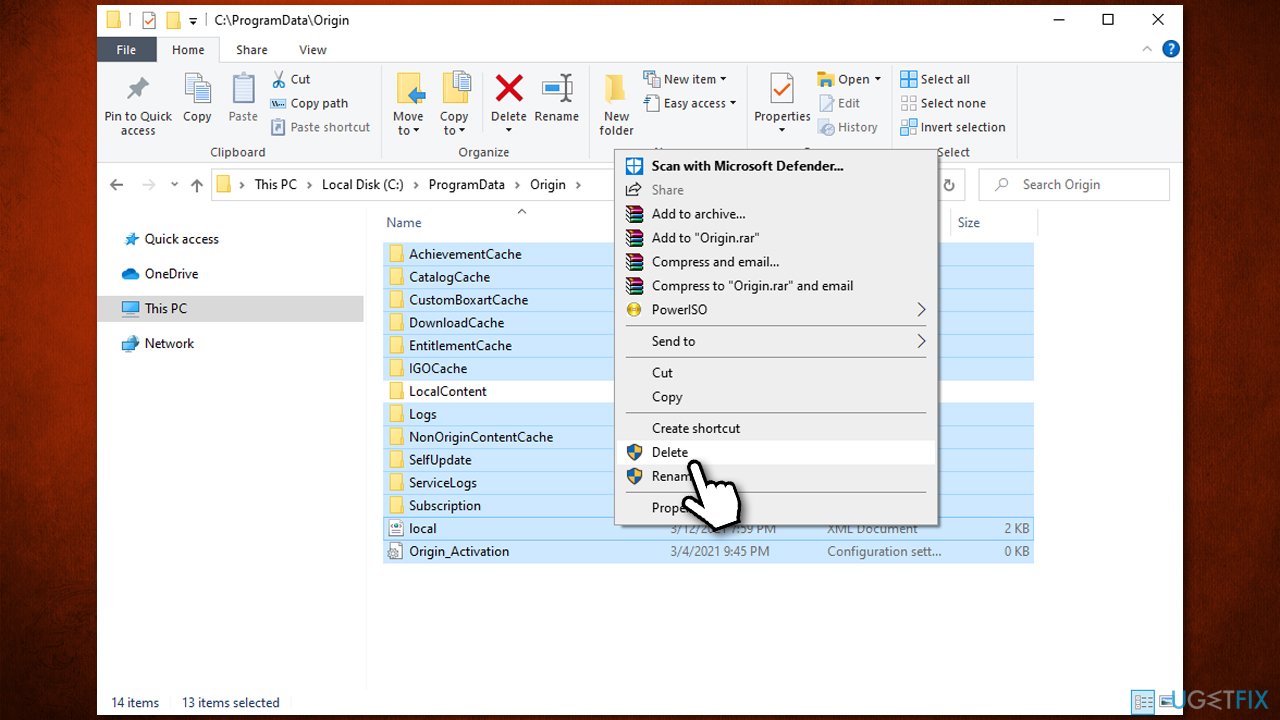
How to fix origin error code 9 0 reinstall the app3 - In the same way, access %AppData% folder
- Locate Origin folder and delete it
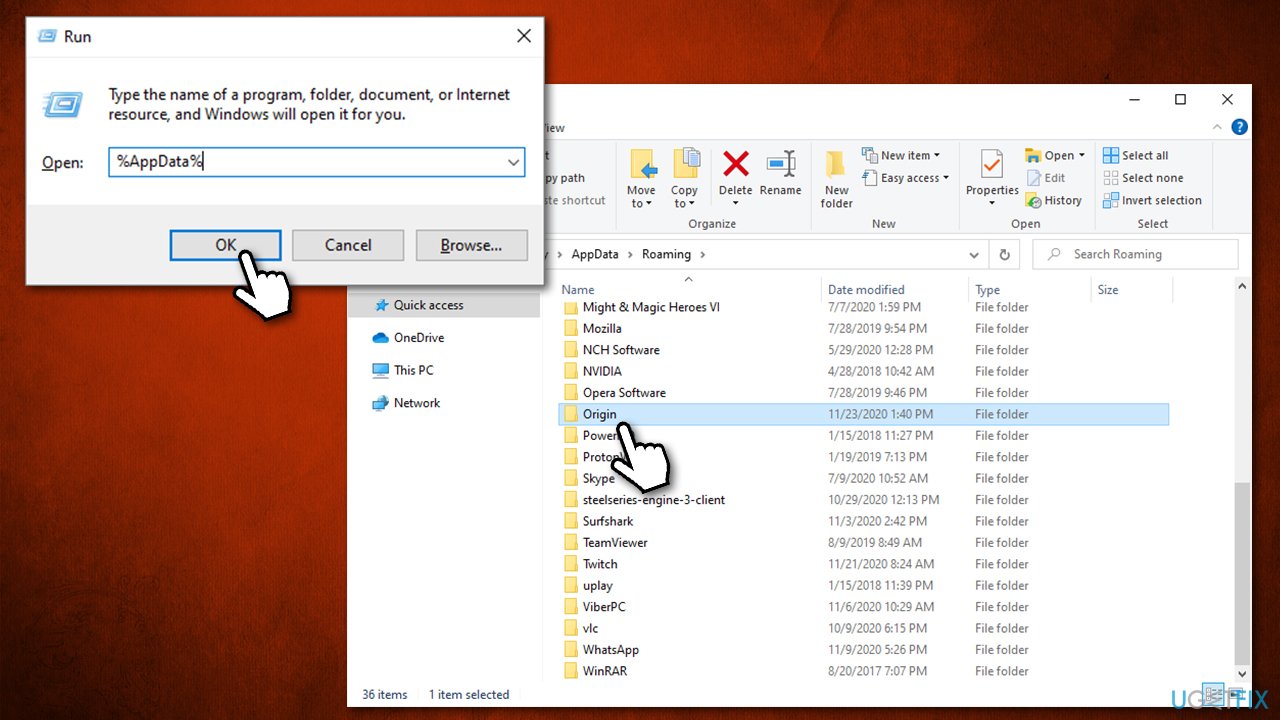
How to fix origin error code 9 0 reinstall the app - Now go back by pressing up arrow at the top-left
- Select Local folder and double-click it
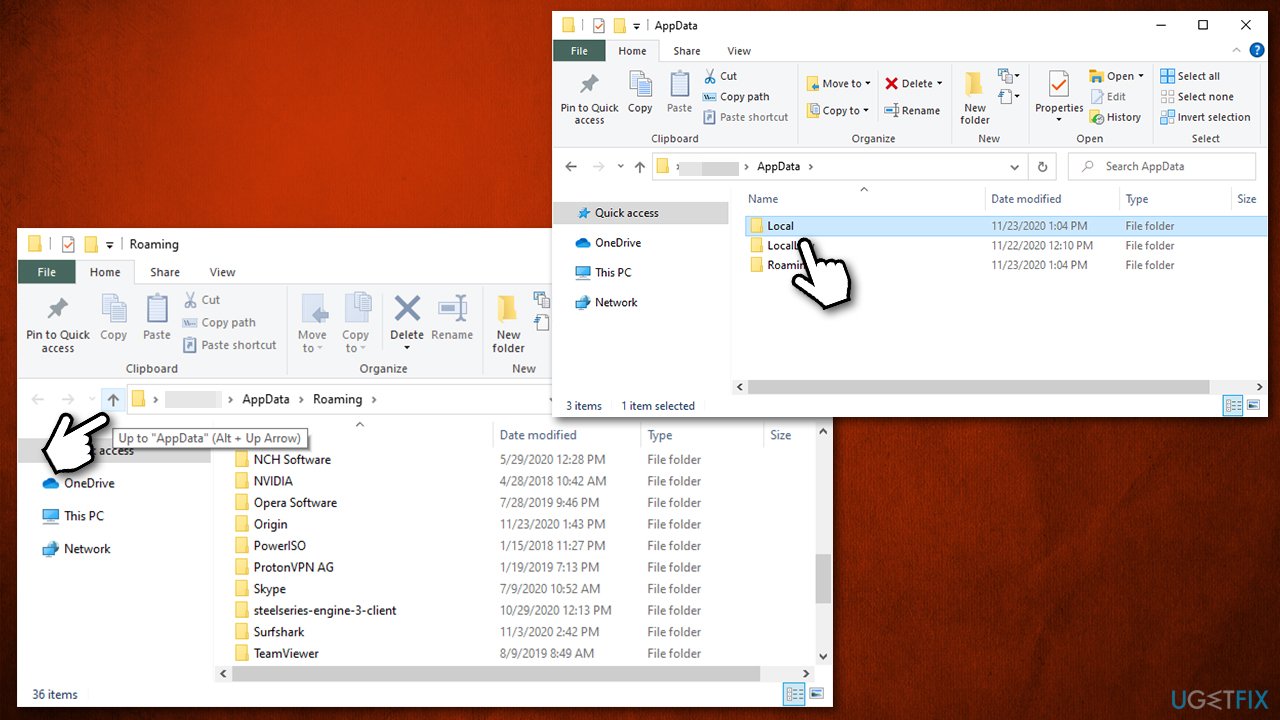
How to fix origin error code 9 0 reinstall the app2 - Delete Origin folder there as well.
- Finally, restart your computer
- Download the app installer from the official website
- Right-click on the installer and select Run as administrator
- Follow on-screen instructions to finish the installation process.
5. Allow the app through Firewall
Ensure you are logged in to your administrator account before proceeding:
- Type in Windows Defender Firewall in Windows Search and hit Enter
- Select Allow an app or feature through Windows Defender Firewall
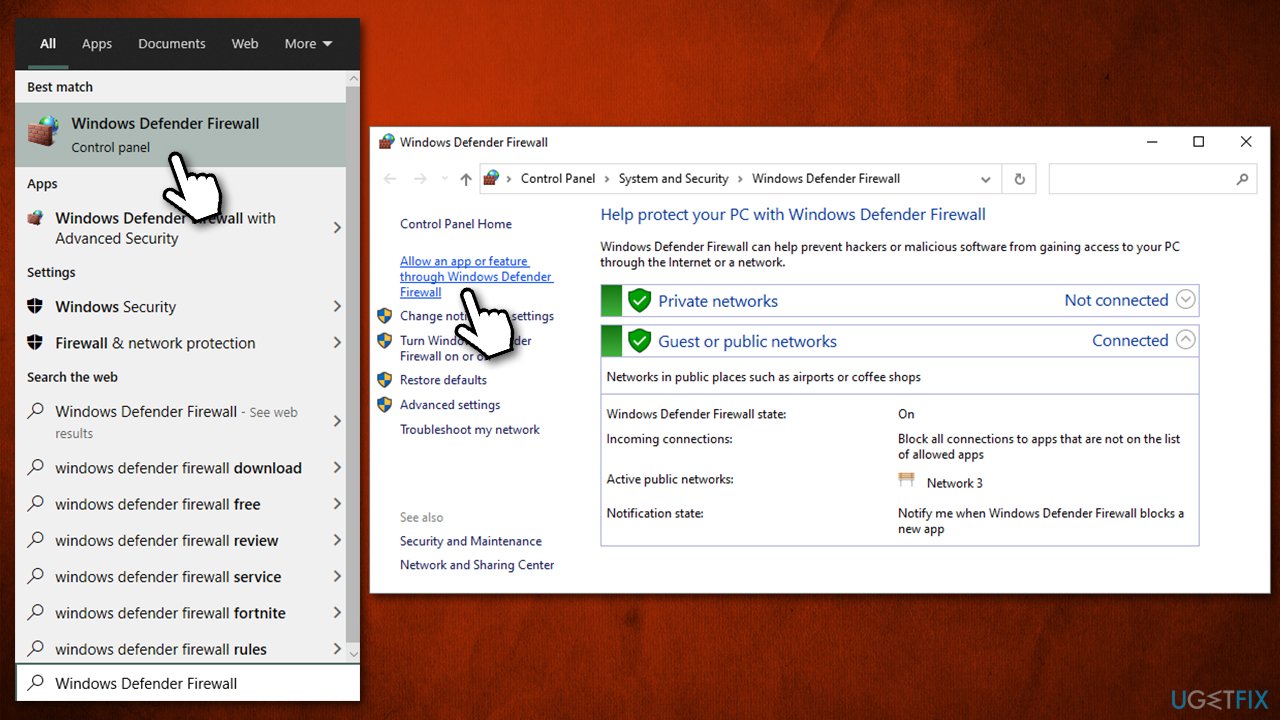
How to fix origin error code 9 0 allow origin through firewall - Pick Change settings
- Locate Origin entry and tick Private + Public checkmarks
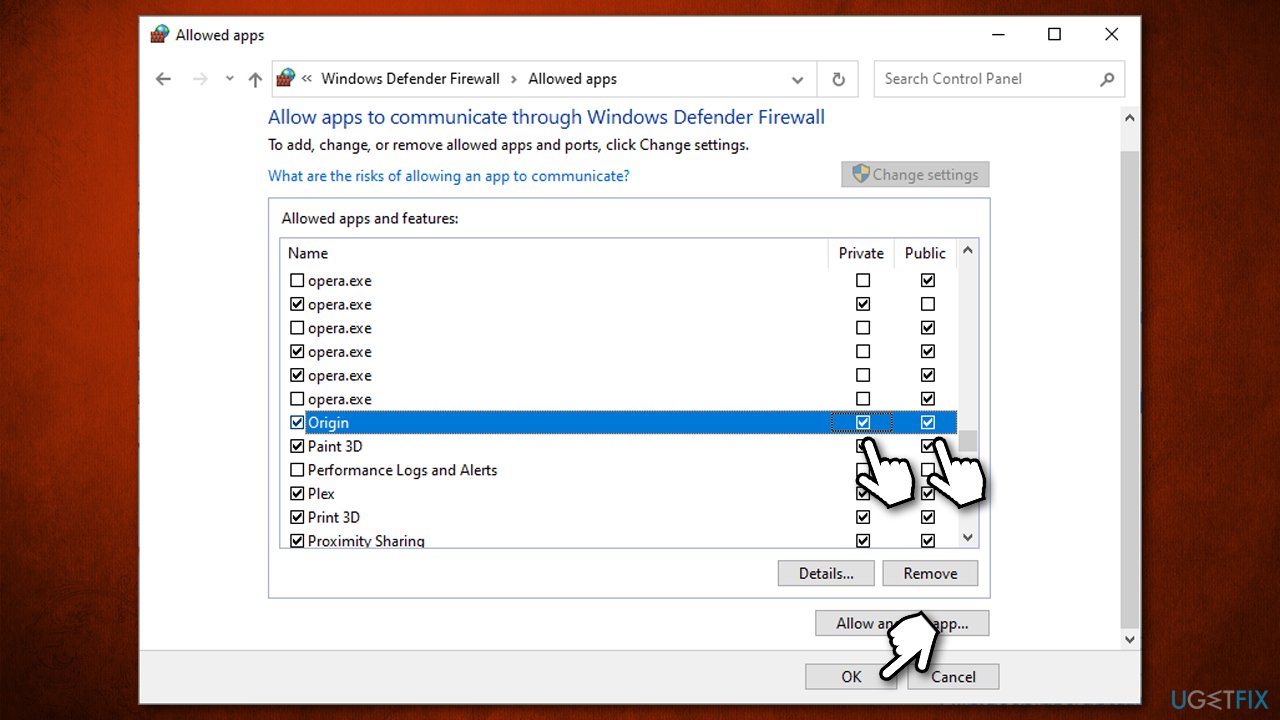
How to fix origin error code 9 0 allow origin through firewall2 - Click OK.
Other tips
- Make sure your Windows is up to date
- Disable or uninstall your third-party security software
- Run Origin as administrator.
Bottom line
To fix Origin error code 9:0, you can try shutting down the OriginWebHelperService, checking for antivirus interference, and ensuring that the .NET Framework is properly installed. If these solutions do not resolve the issue, consider checking for system file corruption or other Windows-related problems.
Frequently asked questions
Origin error code 9:0 typically occurs due to corrupted game files, issues with the Origin client, or problems with your internet connection on Windows 10 or Windows 11.
To fix Origin error code 9:0 on Windows 11, try repairing the game files in the Origin client, clearing the cache, or reinstalling the Origin application.
To prevent Origin error code 9:0 on Windows 10, ensure that your Origin client and games are always updated, and regularly check your internet connection for stability.




Report an issue
What's wrong with this guide? We review every report and update or remove content.
Report received — thank you. We'll review and fix it.
You need a free account to submit a report.
Be the first to comment