How to fix
Photo Viewer applies yellow tint to photos
on Windows
Resolve the yellow tint issue in Photo Viewer on Windows 10 and 11 quickly. Get expert-tested solutions and restore true colors in minutes.

What causes How to fix Photo Viewer applies yellow tint to photos in Windows?
- Color profile issues
- Corrupted system files
- Graphics driver problems
- Software conflicts
- Incorrect display settings
Repairs Windows system files, removes malware, and restores a clean OS state — without reinstalling.
Whenever I try to view images in Microsoft Photo Viewer, a yellowish filter is applied even if I quickly flip through the pictures. Although this doesn't permanently alter the images, it makes it difficult for me to see their quality as only the photos are affected - not their background. This issue seems different than what other users have experienced online before, so I'd appreciate any help here.
Windows Photo Viewer is a free image-viewing application that comes bundled with the Windows Operating System. With the most recent Windows installments such as Windows 10 or 11, the app's name was changed to simply Photos, although many still refer to it as a Windows Photo Viewer to this day.
It allows users to view and print their photos, as well as perform basic editing functions like cropping, rotating, resizing, and adjusting brightness or contrast settings. Because the app is free and comes pre-installed, many users choose it as a default app for viewing pictures on Windows.
Despite this, the app is not always functioning properly. Users have previously reported having problems with the zoom-in function, crop changes not being saved, Next/Previous arrows missing, and more. This time, we are talking about a problem where users noticed all their photos opened via Photo Viewer have a strange yellow tint to them.
Evidently, this behavior is abnormal since the Photos app is not supposed to show images in yellow. Most users are baffled because they struggle to understand the reason and don't know how to fix this issue. Many people said that they have been struggling with this for months and still fail to find a solution.
In most cases, the Photo Viewer's yellow tint on photos can be fixed by changing color profiles, and this is easy to do. However, some users said that this method did not work for them, and the issue persisted. This is because it could be caused by different reasons, which need to be addressed in a different manner - we provide all solutions below.
In case the system is affected by other unrelated issues, e.g., corrupted system files, they could also cause Windows apps to malfunction, so we recommend checking if it's the case with [d1] PC repair utility.
Solution 1. Check the Night Light function
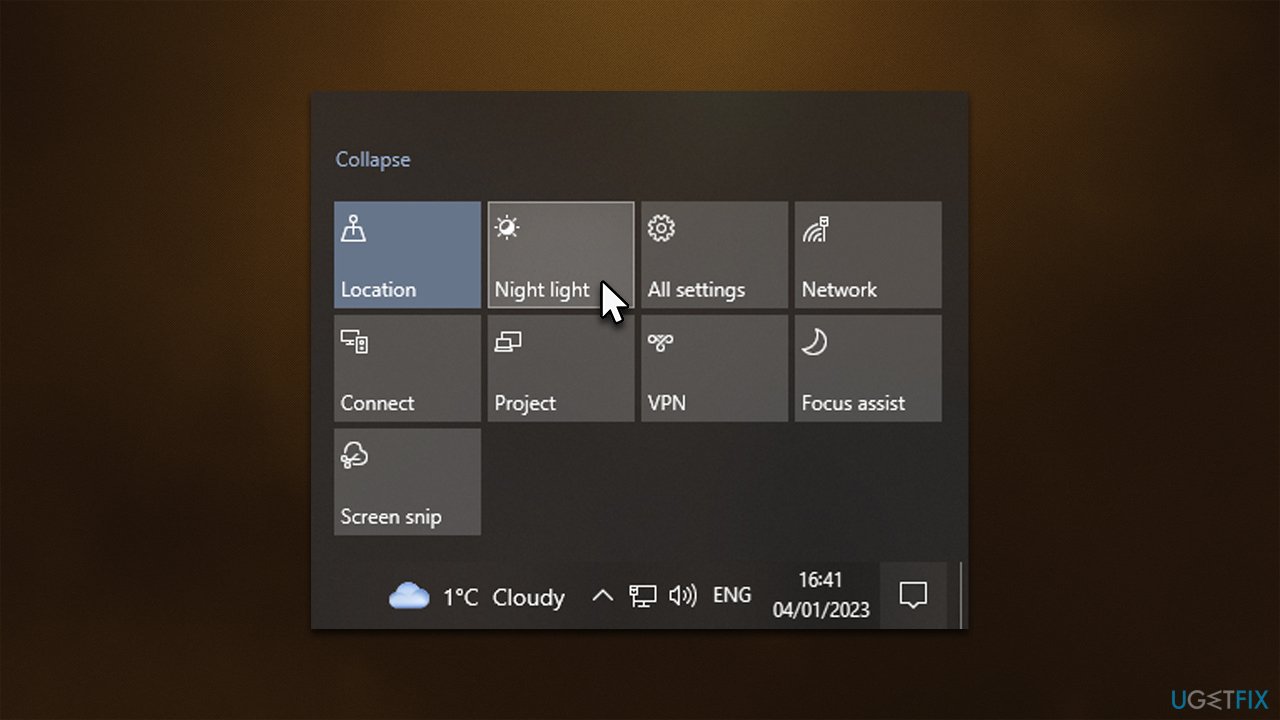
A Night Light is a feature in Windows that dims the screen a bit and replaces standard colors with those that are easier to view for the human eye, which can be especially beneficial when using a computer during dark hours of the day. If this function is on, the photos may look yellow in Photo Viewer. You can disable the feature as follows:
- Click the Notifications button in taskbar (next to time/date)
- Click on Night Light once if it is already enabled to turn it off.
In Windows 11, follow these steps:
- Right-click the Start menu and pick Settings
- Select System and then pick Display
- Under Brightness & color, toggle the switch to the Off position.
Solution 2. Add a new color profile
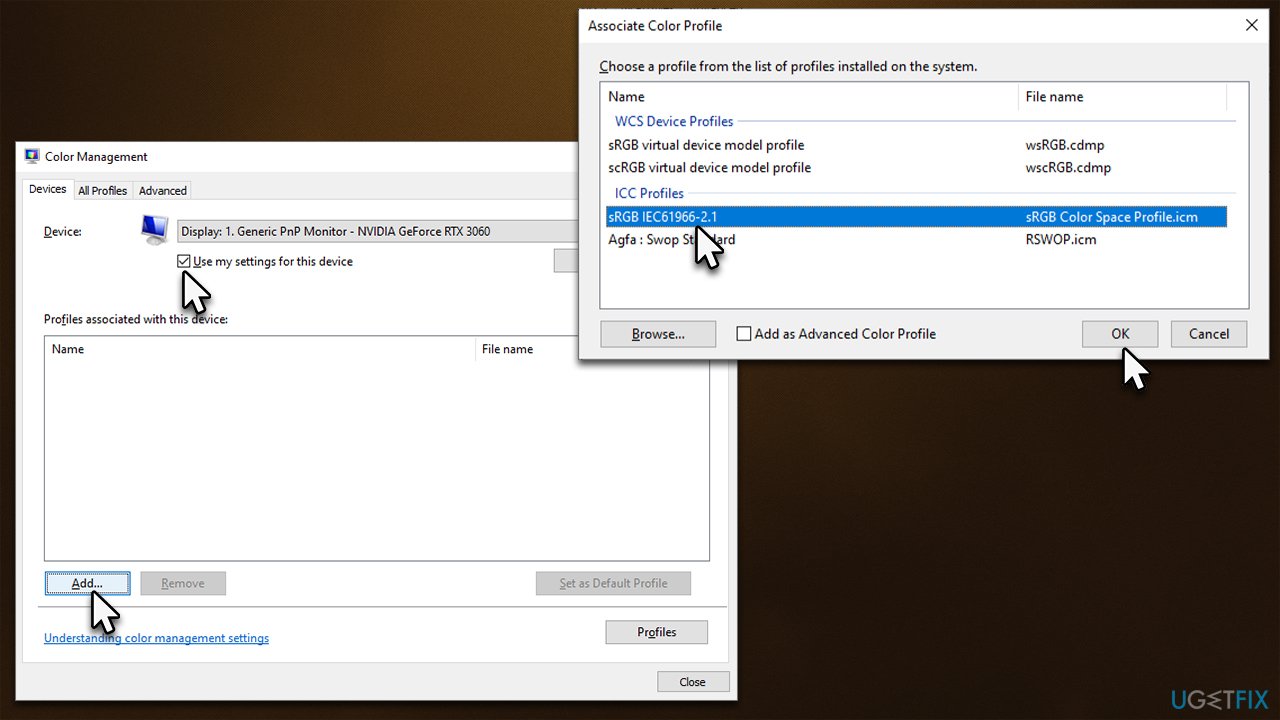
- Type Color Management in Windows search and press Enter
- Under Devices, make sure the correct monitor is selected from the drop-down menu
- Under it, tick the Use my settings for this device option
- Delete any already available profiles if they are listed
- At the bottom, click Add
- Under ICC Profiles, select sRGB IEC61966-2.1 and click OK
- Back in the Color Management window, go to Advanced tab
- Here, make sure that Device profile is set to sRGB IEC61966-2.1.
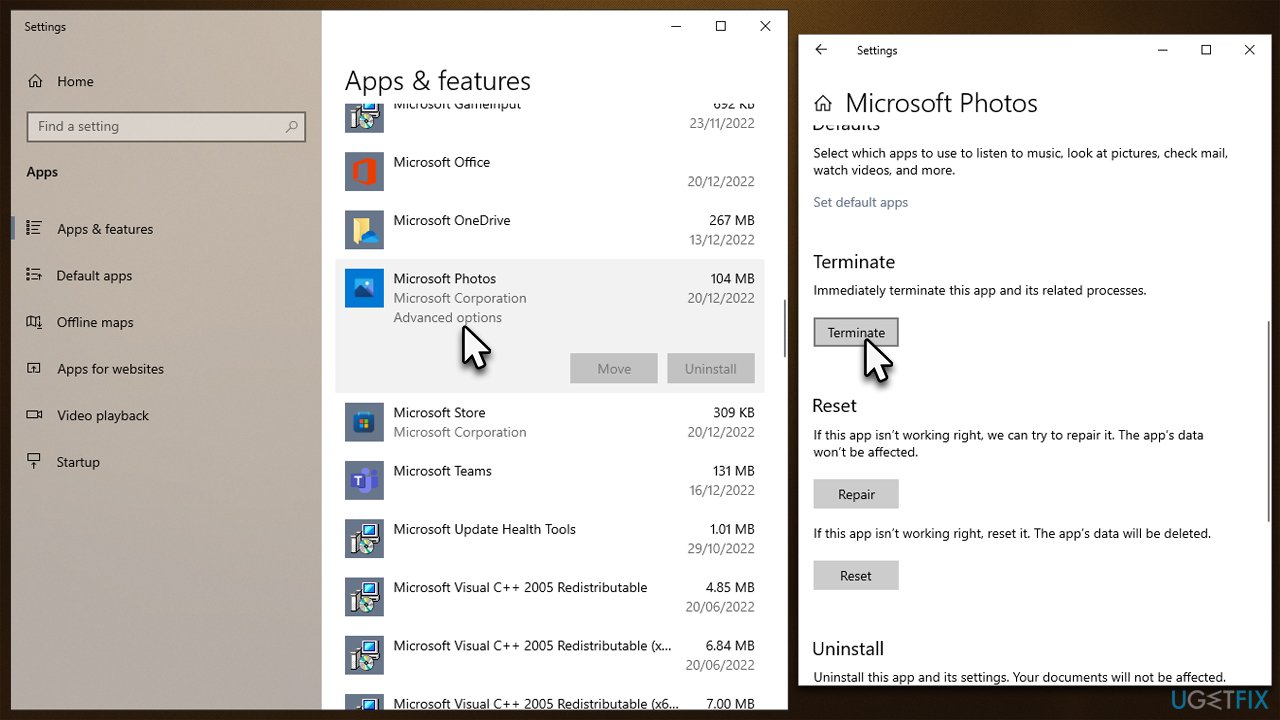
Solution 3. Reset Photos App
The app might be bugged out, which may happen in some cases. Thus, we recommend resetting it as follows:
- Right-click on Start and pick Apps and Features
- Scroll down to locate Microsoft Photos
- Click Advanced options (in Windows 11, click the three vertical dots to access this option)
- Scroll down, click Terminate and Reset.
Solution 4. Calibrate your display
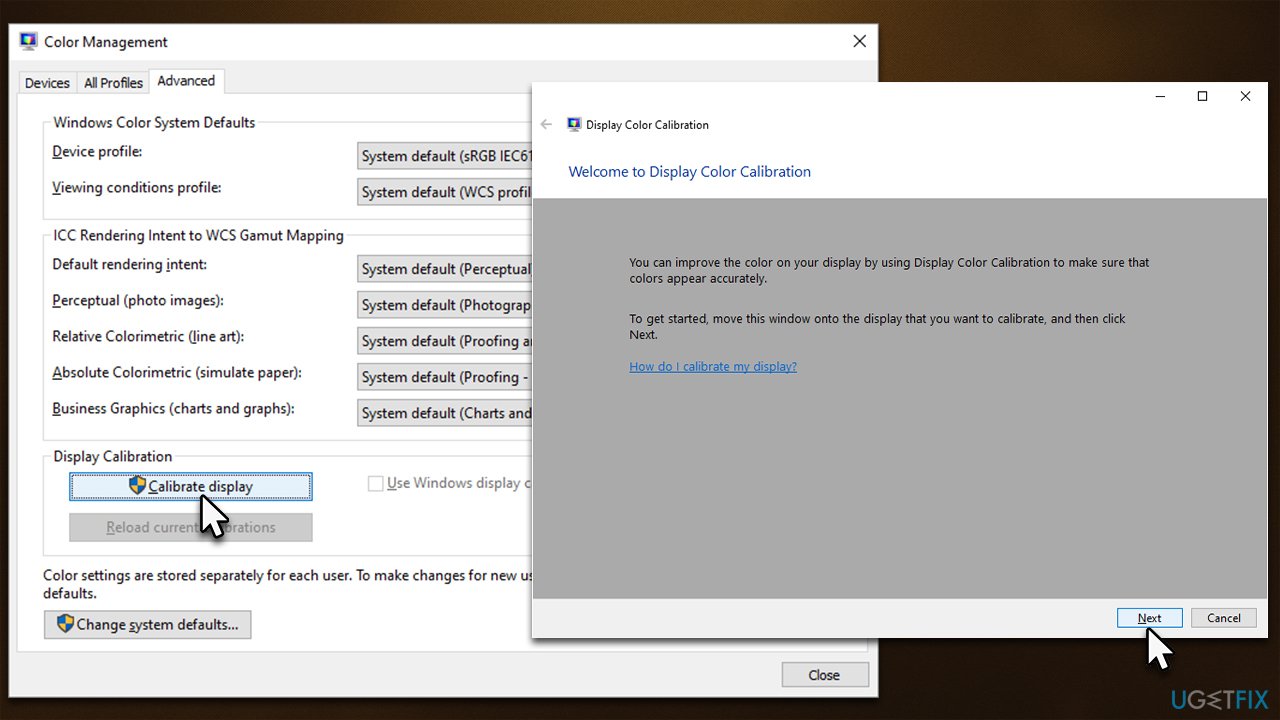
Sometimes the display may not be calibrated correctly. Follow these steps:
- Go to Color Management again and select the Advanced tab
- At the bottom, you will find Display Calibration section
- Click Calibrate display
- Here, you will be guided through the process by on-screen instructions.
Bottom line
To fix the yellow tint in Photo Viewer, users can try changing color profiles, updating graphics drivers, or adjusting display settings. If these solutions do not resolve the issue, it may be necessary to investigate potential software conflicts or corrupted system files.
Frequently asked questions
The yellow tint in Photo Viewer may be caused by incorrect color calibration settings or display drivers. Checking your color management settings and updating your graphics drivers can help resolve this issue.
To fix the yellow tint in Windows 11, go to Settings > System > Display, then adjust the color calibration settings under 'Advanced display'. Additionally, you can use the Color Management tool to recalibrate your display.
Yes, you can reset Photo Viewer by going to the Control Panel, selecting 'Color Management', and then resetting the color profile for your display. This can help eliminate any unwanted color tints, including yellow.




Report an issue
What's wrong with this guide? We review every report and update or remove content.
Report received — thank you. We'll review and fix it.
You need a free account to submit a report.
Be the first to comment