
How to fix "Printer settings could not be saved. Error 0x000006d9" in Windows?

Prefer to fix it yourself? The manual steps follow.
- 8methods
- 5 to 20 minutes
- Intermediate
Applies to Windows 11 and Windows 10 PCs where you tick Share this printer in a printer's properties or share a printer in the Add Printer wizard
8 methods in this guide
I was trying to share a printer with somebody in my house on the same network, and when I tried to set it up, I received an error "Printer settings could not be saved. Operation could not be completed (error 0x000006d9)." Could you help?
Error 0x000006d9 appears when you try to share a printer and Windows cannot reach the firewall it needs to open the sharing rules. Microsoft names one cause: the Windows Defender Firewall service is stopped or disabled. Start that service, set it to Automatic, then share the printer again.
0x000006d9 means the Windows Defender Firewall service is not running, and Windows needs it to switch on the File and Printer Sharing rules. Open services.msc, start Base Filtering Engine and then Windows Defender Firewall, make sure both are set to Automatic, and tick Share this printer again (Fix 1). If the startup type is greyed out or the service will not start, go to Fix 2 or Fix 3.
| Error | Printer settings could not be saved. with the second line Operation could not be completed (error 0x000006d9). |
|---|---|
| Where it appears | In a Printer Properties box after you tick Share this printer on the Sharing tab and select OK or Apply. In the Add Printer wizard it reads "Windows could not share your printer." with the same code. |
| Main cause | The Windows Defender Firewall service (service name MpsSvc) is stopped or disabled. Microsoft documents this as the cause. |
| Fastest fix | Start Base Filtering Engine and Windows Defender Firewall in services.msc, set both to Automatic, then share the printer again (Fix 1). |
| Also written as | 0x000006D9, 0x6d9, error 1753, EPT_S_NOT_REGISTERED, "There are no more endpoints available from the endpoint mapper", and the typo "error 0x00006d9". |
| Affects | Windows 11 and Windows 10, Home and Pro, and older Windows versions. Every printer brand and model, because the printer itself is not involved. |
| Microsoft's status | Known and documented (KB 2123653, last updated 12 February 2026). Not a bug: the spooler checks the firewall service before it shares a printer. The article was written for Windows 7 and Server 2008 R2; Microsoft has no separate article for Windows 10 or 11. |
| Time to fix | 2 minutes when the service only needs starting. Up to 20 minutes with the registry or a repair of system files. |
Facts checked on 16 October 2026. Steps written for Windows 11 (25H2 and 26H2) and Windows 10 22H2.
What error 0x000006d9 means when you share a printer
The full message reads Printer settings could not be saved. and under it Operation could not be completed (error 0x000006d9). It shows up at one moment only: when you turn on sharing for a printer. Printing on the PC itself usually keeps working.
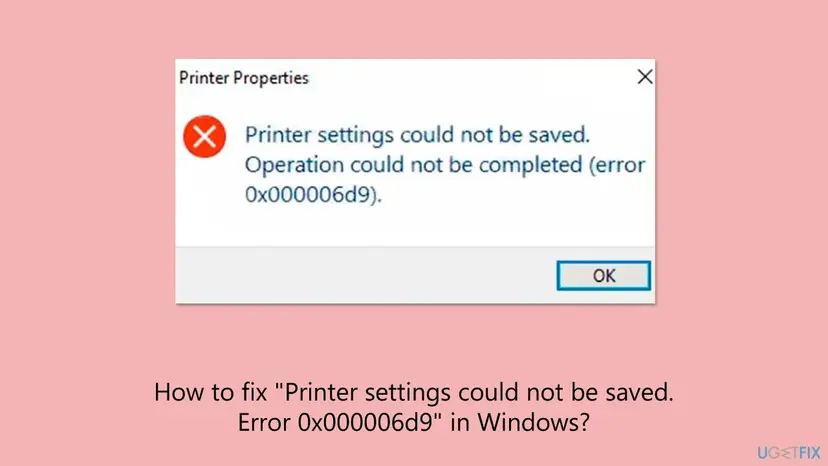
In Windows terms, 0x000006D9 is error 1753, EPT_S_NOT_REGISTERED: "There are no more endpoints available from the endpoint mapper." In plain words, the Print Spooler asked the firewall service to add the sharing rules and nobody answered. Microsoft's article says the Spooler service uses Firewallapi.dll to check that the firewall service is available before it shares.
| What you see | Where | Same cause? |
|---|---|---|
| Printer settings could not be saved. Operation could not be completed (error 0x000006d9). | Printer properties, Sharing tab | Yes, this page |
| Windows could not share your printer. Operation could not be completed (Error 0x000006D9) | Add Printer wizard, sharing page | Yes, this page |
| Windows Firewall can't change some of your settings. Error code 0x80070424 | Windows Firewall settings | Related: the firewall service is missing or will not start (Fix 3) |
| Printer settings could not be saved. This operation is not supported. / Access is denied. | Printer properties | No, a different cause |
If your message has no 0x000006d9 and the second line names a policy, "This operation is not supported." or "Access is denied.", the firewall is not the cause. Those versions are covered in our general guide: Printer settings could not be saved in Windows.
Why error 0x000006d9 appears: causes, ranked
Most often the firewall service was simply switched off, by hand or by a tool. Less often it cannot start because something it depends on is broken. Rarely the service starts but the sharing rules or the spooler are stuck.
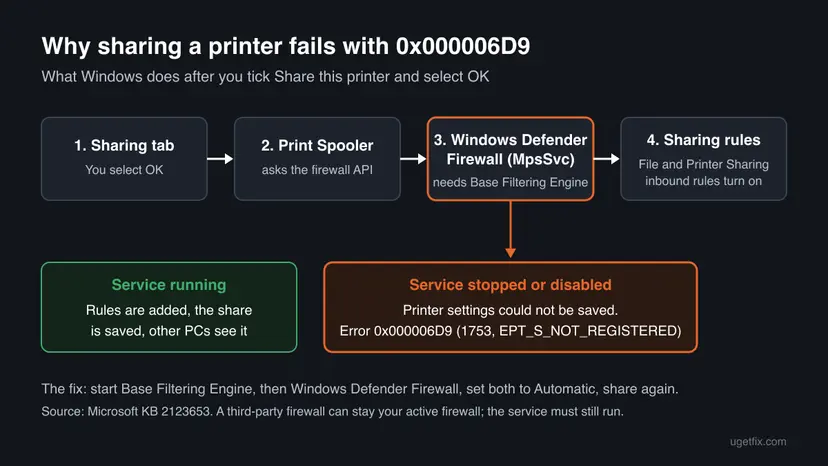
- The Windows Defender Firewall service is stopped or disabled (most common). Someone turned it off to "speed up" Windows, or a tuning script did. Microsoft names this as the cause (Fix 1).
- The startup type is locked. On Windows 10 and 11 the Startup type box of this service is often greyed out, so a disabled service cannot be set back in
services.msc(Fix 2). - Base Filtering Engine does not start. The firewall service depends on it. Windows then shows error 1068, "The dependency service or group failed to start" (Fix 3).
- Another security suite switched the service off (less common). Users report this after installing a third-party firewall (Fix 4).
- Sharing is off for your network, or the network is set to Public (less common). The share is refused or not visible (Fix 5).
- A stuck spooler (rare). The spooler checked the firewall once and kept the failed state (Fix 6).
- Malware or damaged system files (rare). A firewall service that turns itself off again points here (Fixes 7 and 8).
How to fix error 0x000006d9: eight fixes in order
Fix 1 works for most readers because it removes the documented cause. Fixes 2 to 4 are for a service that cannot be started or keeps turning off. Fixes 5 to 8 are for the rare case when the service runs and sharing still fails.
| What you see or what your PC has | Start with |
|---|---|
Windows Defender Firewall shows an empty Status in services.msc | Fix 1 |
| The Startup type box is greyed out and says Disabled | Fix 2 |
| "Error 1068", "Error 5. Access is denied." or error 0x80070424 when the service starts | Fix 3 |
| You use a third-party firewall or security suite | Fix 4 |
| The service runs, but the error stays or other PCs do not see the printer | Fix 5 |
| The service turns itself off again after a restart | Fix 7 |
Fix 1. Start the Windows Defender Firewall service and set it to Automatic
2 minutesLow riskEveryone with 0x000006d9. Check this first, it takes two minutes.
Microsoft's fix for 0x000006D9 is exactly this: set the firewall service to Automatic and start it. When it runs, the spooler can switch on the File and Printer Sharing rules and the share is saved.
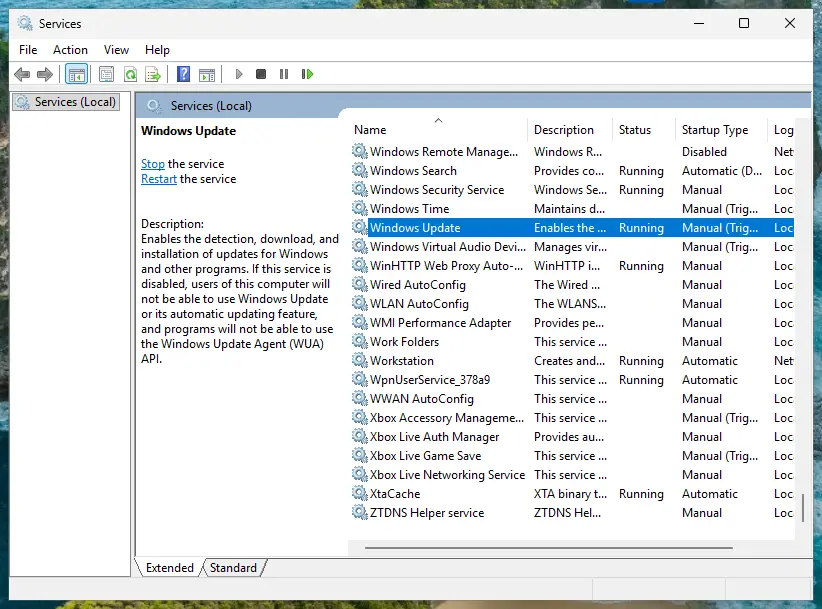
- Press Win + R, type
services.mscand press Enter. - Find Base Filtering Engine. Its Status must be Running. If it is empty, right-click it and select Start.
- Find Windows Defender Firewall (on older Windows: Windows Firewall). Double-click it.
- If Startup type can be changed, set it to Automatic and select Apply.
- Select Start and wait until Service status shows Running, then select OK.
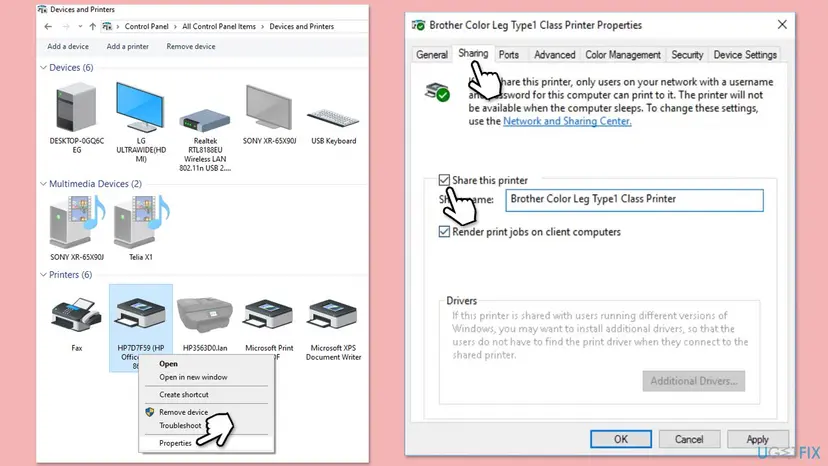
- Open your printer's properties, go to the Sharing tab, tick Share this printer and select OK.
Terminal (Admin): check and start both services
Get-Service BFE, MpsSvc
Start-Service BFE
Start-Service MpsSvc
Get-Service BFE, MpsSvc
Both lines should show Running. More on the Services window and startup types: Check and restart Windows services.
It worked if: Share this printer stays ticked after OK, no error box appears, and the printer shows a small shared icon in Devices and Printers.
If not: If the startup type is greyed out on Disabled, go to Fix 2. If the service refuses to start with an error, go to Fix 3.
Fix 2. Startup type greyed out: set the firewall service to Automatic in the registry
10 minutesRead the warningThe Startup type box of Windows Defender Firewall is greyed out on Disabled, so Start does nothing.
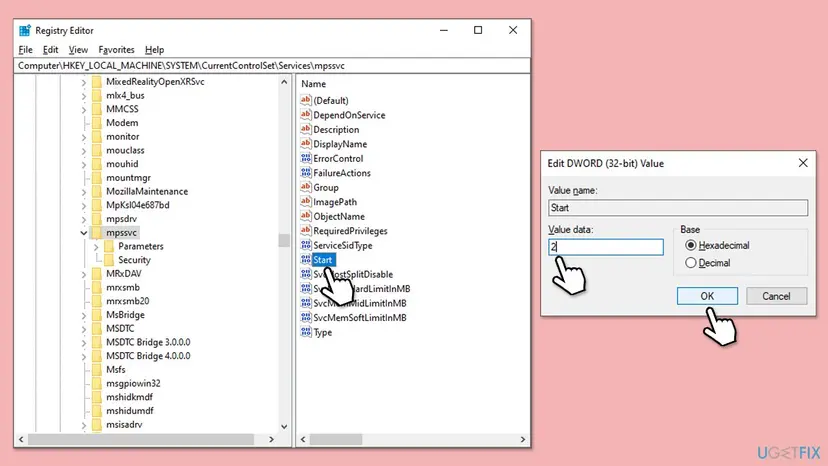
Windows protects this service, so the Services window often will not let you change its startup type. The setting itself is the Start value in the service's registry key; 2 means Automatic, 4 means Disabled.
A wrong change in this part of the registry can stop a Windows service from starting. Export the MpsSvc and BFE keys before you edit them: Back up the registry before editing it. Change only the Start value, nothing else.
- Press Win + R, type
regeditand press Enter. Select Yes in the User Account Control prompt. - Go to
HKEY_LOCAL_MACHINE\SYSTEM\CurrentControlSet\Services\MpsSvc. - Double-click Start in the right pane, set Value data to
2and select OK. - Go to
HKEY_LOCAL_MACHINE\SYSTEM\CurrentControlSet\Services\BFEand check that its Start value is2as well. Change it only if it is4. - Close the Registry Editor and restart the PC.
- Check in
services.mscthat both services are Running, then share the printer again.
Terminal (Admin): read the current values first
reg query "HKLM\SYSTEM\CurrentControlSet\Services\MpsSvc" /v Start
reg query "HKLM\SYSTEM\CurrentControlSet\Services\BFE" /v Start
It worked if: After the restart, Windows Defender Firewall shows Running and Automatic, and the printer can be shared.
If not: If the value goes back to 4 after a restart, a security suite or a policy sets it: go to Fix 4. If the service still will not start, go to Fix 3.
Fix 3. Firewall service will not start: repair Base Filtering Engine and the firewall defaults
10 minutesLow riskStarting the service ends in "Error 1068. The dependency service or group failed to start.", "Error 5. Access is denied.", or Windows Firewall settings show error 0x80070424.
The firewall service cannot run without Base Filtering Engine. Error 1068 means that dependency failed. Error 0x80070424 means Windows cannot find the firewall service at all, which points to damaged service entries rather than a setting.
- In
services.msc, double-click Base Filtering Engine, check that Startup type is Automatic and select Start. - Start Windows Defender Firewall after it. The order matters, because the firewall waits for Base Filtering Engine.
- If both start, open Windows Security > Firewall & network protection and select Restore firewalls to default, then Restore default and Yes.
- Share the printer again.
- If Base Filtering Engine fails with Error 5. Access is denied., or the firewall service is missing from the list, repair the system files with Fix 8.
Restore firewalls to default removes every firewall rule that you or your apps added. Apps ask for permission again the next time they need the network. Write down any rule you added by hand before you reset.
Users on Microsoft's forum report that when Base Filtering Engine kept failing with Access is denied even after repairs, only a reinstall of Windows fixed it. Try Fix 8 first; an in-place reinstall that keeps your files is the last step: Reinstall Windows without losing files.
It worked if: Both services show Running, and Firewall & network protection shows the firewall as on for your network.
If not: If the services start but turn off again, go to Fix 4 and Fix 7.
Fix 4. Another firewall or security suite turned the service off: switch it back on
5 minutesLow riskYou installed a third-party firewall or internet security suite, and the Windows Defender Firewall service is disabled again after each restart.
Some security suites set the Windows firewall service to disabled when they take over. Users report that 0x000006d9 appeared exactly then. Your suite can stay your active firewall; Windows only needs the service running to create the sharing rules.
- Open Windows Security > Firewall & network protection and read which firewall is shown as active.
- Open the settings of your security suite and look for an option that controls the Windows firewall or Windows services. Turn off the option that disables the Windows firewall service.
- Start the Windows Defender Firewall service as in Fix 1, or set its
Startvalue as in Fix 2. - Restart the PC and check that the service is still Running.
- Share the printer again.
Old forum answers say to turn your other firewall off, share the printer, then turn the Windows firewall off again. That leaves the PC with less protection and breaks again on the next share. Keep the Windows service running.
It worked if: The service stays Running after a restart and the share is saved.
If not: If the suite has no such option, ask its support how to keep the Windows firewall service running, or go to Fix 7 if the service turns off with no suite installed.
Fix 5. Turn on file and printer sharing for your private network, then share again
5 minutesLow riskThe firewall service runs, but the error stays, or the share is saved and other PCs cannot see the printer.
When you share for the first time, Windows switches on the File and Printer Sharing inbound rules, such as File and Printer Sharing (Spooler Service - RPC). If those rules are off or your network is set to Public, sharing does not complete.
- Windows 11: open Settings > Network & internet > Advanced network settings > Advanced sharing settings. Windows 10: Control Panel > Network and Sharing Center > Change advanced sharing settings.
- Under Private networks, turn on Network discovery and File and printer sharing.
- Check that your home network is set to Private: Settings > Network & internet, select your Wi-Fi or Ethernet connection, then Private network.
- Open the printer's properties, select the Sharing tab, tick Share this printer and select OK.
Terminal (Admin), English Windows: switch the sharing rules on for private networks only
Get-NetFirewallRule -DisplayGroup "File and Printer Sharing" | Where-Object { $_.Profile -match 'Private' } | Enable-NetFirewallRuleDo not turn on file and printer sharing for Public networks. On a café or hotel Wi-Fi it would let strangers see your printer and shared folders.
It worked if: The share is saved and the printer appears under Network on the other PC.
If not: If the error box still shows 0x000006d9, restart the spooler with Fix 6.
Fix 6. Restart the Print Spooler service after the firewall is running
2 minutesLow riskThe firewall service now runs, and you started it without restarting the PC.
The spooler is the service that asks the firewall for the sharing rules. A restart makes it check again with the firewall now running.
- In
services.msc, right-click Print Spooler and select Restart. - Wait until its Status shows Running.
- Share the printer again.
The same in Terminal (Admin): Restart-Service -Name Spooler. Step by step with screenshots: Check and restart Windows services.
It worked if: The share is saved without an error.
If not: Restart the whole PC once. If the error stays, go to Fix 7.
Fix 7. Scan for malware if the firewall service turned itself off
15 minutesLow riskYou never turned the firewall service off, and it is disabled again after you fixed it.
Some malware disables the Windows firewall service so it can talk to the network unseen. A service that switches itself off with no security suite installed is a reason to scan.
- Open Windows Security > Virus & threat protection > Scan options.
- Select Full scan and then Scan now. Wait until it ends.
- If it finds nothing, select Microsoft Defender Offline scan and Scan now. The PC restarts and scans before Windows loads.
- After the restart, repeat Fix 1 and check that the firewall service stays Running.
More detail with screenshots: How to scan for malware with Microsoft Defender.
It worked if: The scan ends with no threats, or removes them, and the firewall service stays Running after Fix 1.
If not: If the scan is clean and the service still turns off, go to Fix 8 and repair the system files.
Fix 8. Repair Windows system files
20 minutesLow riskThe firewall service is missing from services.msc, Base Filtering Engine fails with Access is denied, or nothing above helped.
Damaged system files or service entries keep the firewall service from starting at all. DISM repairs the Windows image and SFC then replaces damaged files.
- Open an elevated command window. Right-click Start and select Terminal (Admin), or type cmd in the search box, right-click Command Prompt and select Run as administrator. Select Yes when Windows asks for permission.
- Run DISM first. Type the command below and press Enter. DISM downloads clean copies of damaged components from Windows Update, so it can take several minutes. Wait until it says The operation completed successfully.
DISM.exe /Online /Cleanup-Image /RestoreHealth - Run System File Checker. In the same window, type the command below and press Enter. Do not close the window until the verification reaches 100%.
sfc /scannow - Read the result and restart. Compare the last message with the table below this guide, then restart the PC so that repaired files are loaded.
These steps were written for Windows 11 24H2 and 25H2. The full page with the other versions and what each result means: Run DISM and SFC to repair Windows system files
Restart the PC, then repeat Fix 1. Windows 10 left support on 14 October 2025, so a Windows 10 PC no longer gets fixes for damaged components through Windows Update unless it is enrolled in Extended Security Updates.
It worked if: SFC reports that it found and repaired files, or found no violations, and the firewall service starts.
If not: Read the logs in the next section. An in-place reinstall that keeps your files is the last step: Reinstall Windows without losing files.
Still getting error 0x000006d9? Where the real cause is written
These checks show whether the firewall service ran and whether the sharing rules were created. They are also what support will ask for.
| Check | Where | What it tells you |
|---|---|---|
| Services | Get-Service BFE, MpsSvc, Spooler in PowerShell | Whether all three are Running |
| Startup values | reg query "HKLM\SYSTEM\CurrentControlSet\Services\MpsSvc" /v Start | 0x2 is Automatic, 0x4 is Disabled |
| Firewall log | Event Viewer, Applications and Services Logs > Microsoft > Windows > Windows Firewall With Advanced Security > Firewall | Event ID 2005 with rule File and Printer Sharing (Spooler Service - RPC) means the sharing rules were turned on |
| Service errors | Event Viewer, Windows Logs > System, source Service Control Manager | Why Base Filtering Engine or the firewall service failed to start |
| Sharing rules | Get-NetFirewallRule -DisplayGroup "File and Printer Sharing" | Format-Table DisplayName, Enabled, Profile | Which sharing rules are on and for which network type |
- What to send to support: the full message, your Windows version (
winver), the output ofGet-Service BFE, MpsSvc, and any Service Control Manager errors with their time. - On a work PC: firewall services are often set by the company's policy. Ask your administrator before you change them.
- Is it hardware? No. The printer is never involved in this error. If it prints from the PC it is connected to, it is fine.
How to keep error 0x000006d9 from coming back
The error returns when the firewall service is switched off again. A few habits keep it on.
- Leave Windows Defender Firewall and Base Filtering Engine on Automatic.
- Keep your home network set to Private and your café or hotel networks on Public.
- Check a security suite's settings after you install it, so it does not disable the Windows service.
- Connect other PCs to a Wi-Fi or Ethernet printer by its own IP address when it has one, so no PC has to share it.
- Run "debloat" or "speed up" scripts that disable Windows services.
- Turn off firewall services to fix games or network problems.
- Turn on file and printer sharing for public networks.
- Edit service keys in the registry without exporting them first.
Frequently asked questions
What does error 0x000006d9 mean?
It is Windows error 1753, EPT_S_NOT_REGISTERED. Its text is "There are no more endpoints available from the endpoint mapper." When you share a printer, it means the Print Spooler could not reach the Windows Defender Firewall service to switch on the File and Printer Sharing rules. Microsoft's article KB 2123653 gives a stopped or disabled firewall service as the cause and starting it as the fix. The spelling 0x00006d9, with one zero missing, is the same error.
Do I have to keep Windows Defender Firewall on to share a printer?
The service must run. That is what Microsoft documents: the spooler checks the Windows Defender Firewall service before it shares, and fails with 0x000006d9 when it is stopped. We could not confirm from Microsoft whether the firewall must also be switched on for your network type. Keep it on: the sharing rules only let other PCs on your private network reach the printer, and the firewall keeps blocking everything else.
Can I use a third-party firewall and still share a printer?
Yes. Your suite can stay the active firewall. Windows only needs the Windows Defender Firewall service to run so the spooler can create its sharing rules. If your suite sets that service to disabled, look in its settings for an option about the Windows firewall, or ask its support. Fix 4 has the steps. Old advice to turn your suite off, share, and switch the Windows service off again leaves you less protected and fails on the next share.
Why is the Startup type greyed out for Windows Defender Firewall?
Windows protects this service so that programs cannot switch it off easily, and the same protection keeps the Services window from changing its startup type. An administrator can still set it through the Start value in HKEY_LOCAL_MACHINE\SYSTEM\CurrentControlSet\Services\MpsSvc, where 2 means Automatic and 4 means Disabled. Export the key first and change only that value. Fix 2 has the steps. On a work PC, a company policy may set it, and only the administrator can change it.
I get "This operation is not supported" or "Access is denied" instead of 0x000006d9. Is it the same fix?
No. Printer settings could not be saved. This operation is not supported. usually comes from changing a printer that is already shared or one redirected into Remote Desktop. Access is denied. means your account lacks the right to manage the printer. Neither is caused by the firewall service. Both are covered, with their own fixes, in the general guide linked in the first section of this page.
The Add Printer wizard says "Windows could not share your printer" with 0x000006D9. Is that the same error?
Yes. Microsoft lists both messages for the same cause. The wizard shows "Windows could not share your printer. Operation could not be completed (Error 0x000006D9)", and the printer's properties show "Printer settings could not be saved" with the same code. The printer itself is installed fine; only sharing failed. Start the firewall service as in Fix 1, then turn on sharing on the printer's Sharing tab instead of running the wizard again.
Is error 0x000006d9 a printer or driver problem?
No. The error comes from Windows before anything reaches the printer, so updating or reinstalling the driver does not help. The printer brand does not matter either; the same code appears with every model. If the printer prints from the PC it is connected to, the printer and its driver are fine. Fix the firewall service, and the share is saved.
Does error 0x000006d9 happen on Windows 11?
Yes, the same message and code appear on Windows 11 and Windows 10. Microsoft's article was written for Windows 7 and Windows Server 2008 R2 and has no separate version for newer Windows. The service now has a different display name, Windows Defender Firewall, but the same service name, MpsSvc, and the same fix works. Windows 10 left support on 14 October 2025, which matters only if you need Fix 8.
I fixed it, but the error came back after a restart. Why?
Something sets the firewall service back to disabled at startup. The usual suspects are a security suite, a "tuning" or "debloat" script that runs at sign-in, or a company policy on a work PC. Check the Start value of MpsSvc after a restart: if it is 4 again, find the tool that changes it (Fix 4). If you have none of these, scan for malware (Fix 7).
Is this guide available in other languages?
This page is in English only. Readers search for this error in Vietnamese, Spanish, Hindi, Arabic and Thai, asking what the error means and how to solve it. The answer is the same in every language of Windows: the Windows Defender Firewall service must run. Press Win + R, type services.msc, start Windows Defender Firewall, set it to Automatic and share the printer again. The service has the same name, MpsSvc, in every language.
Sources
- Microsoft Learn: Error 0x000006D9 when you share a printer (KB 2123653) (learn.microsoft.com)
- Microsoft Q&A: Unable to share printer, errors 0x000006d9 and 0x80070424 (user reports on the firewall and Base Filtering Engine services) (learn.microsoft.com)
- Microsoft Q&A: Cannot save printer share with error code 0x000006d9 (user reports on third-party firewalls and Base Filtering Engine) (learn.microsoft.com)
Did this fix work?
One click, no account. It tells the next reader which guides are worth their time.
Questions and experiences: fix "Printer settings could not be saved. Error 0x000006d9" in Windows
Still broken, or found a fix we did not cover? Ask here: members and our editors answer. Reading is open; writing needs a free account.
…