How to fix
REGISTRY_FILTER_DRIVER_EXCEPTION
on Windows
Resolve the REGISTRY_FILTER_DRIVER_EXCEPTION error on Windows 10 and 11 efficiently. Get expert-tested solutions to fix it swiftly and easily.


What causes How to fix REGISTRY_FILTER_DRIVER_EXCEPTION?
- System file corruption
- Disk errors
- Incompatible drivers
- Unhandled exception in a registry filtering driver
Repairs Windows system files, removes malware, and restores a clean OS state — without reinstalling.
Hello, I have a very annoying issue that I hope you could help me solve. I recently started experiencing random blue screen crashes - the error code provided is REGISTRY FILTER DRIVER EXCEPTION. Can you please provide some solutions to this, as these random restarts are driving me mad. Help will be much appreciated.
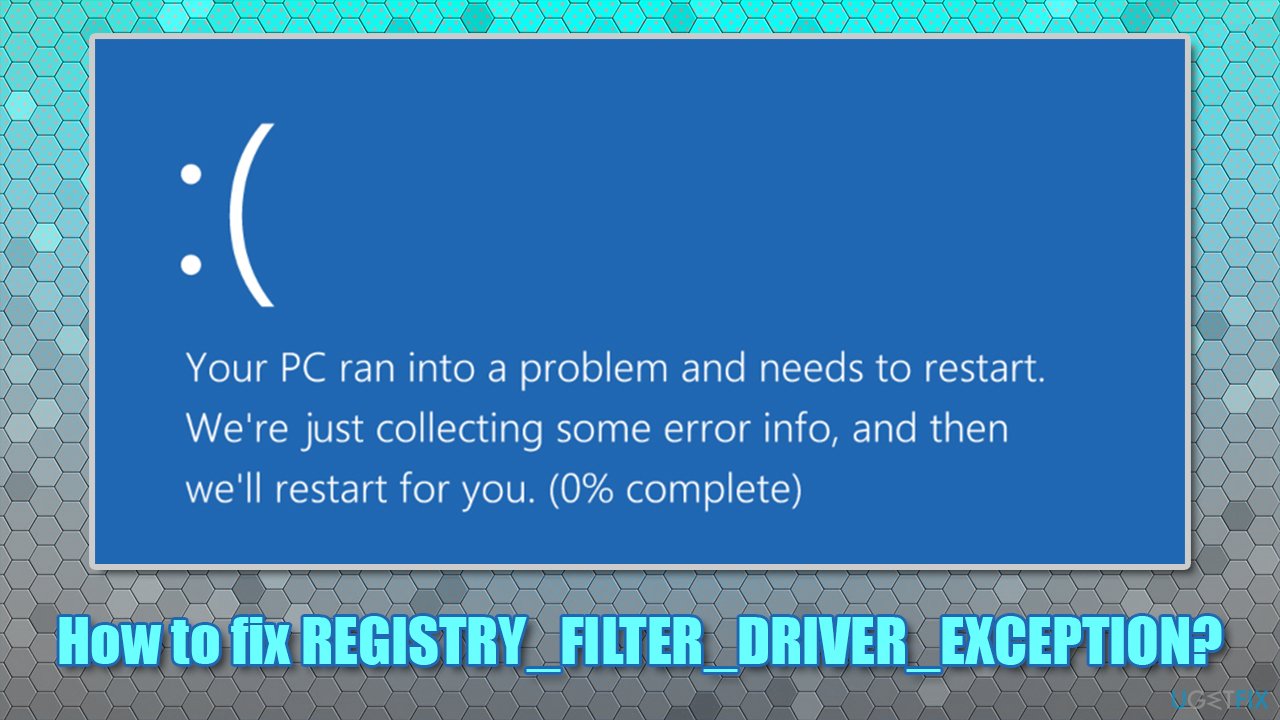
REGISTRY_FILTER_DRIVER_EXCEPTION is a Blue Screen of Death (BSOD)[ref en-1] error that interrupts any computer work currently performed and reboots the PC immediately. Before the system does so, it provides the error code for troubleshooting purposes.
BSODs are always somewhat a mystery to regular computer users, as they do not provide many details about the error, neither do they explain what caused the issue. Nonetheless, when it comes to this particular blue screen, quite often, the related file is also provided, for example, WdFilter.sys or swin1.sys. It also has a bug check value of 0x00000135.
While it might seem like insignificant information for most, these hits often provide vital information about why the issue arose and how to tackle it. In this particular case, the BSOD is caused by an unhandled exception in a registry[ref en-2] filtering driver. This can be caused by numerous issues, such as system file corruption, disk errors, incompatible drivers, and much more.
Users claimed that they started receiving the REGISTRY FILTER DRIVER EXCEPTION BSOD seemingly randomly - it can happen while playing video games, watching videos, or doing computer work on MS Office applications. Randomness is not a unique trait of Blue Screen errors, and it only adds to the confusion even more.
Note that ignoring the problem might only cause more problems in the future, so you should take action immediately. Now, in order to fix REGISTRY_FILTER_DRIVER_EXCEPTION, you will have to follow the steps we provide below.
Fix 1. Run an automatic Windows repair tool
Blue Screen errors are relatively common and possibly one of the most despised phenomena among Windows users. While with Windows 10, the overall number of BSODs encountered by users reduced (compared with outdated OS versions such as Windows Vista or Windows Me), it remains one of the biggest problems.
BSODs can occur due to various reasons, including system file corruption, program incompatibility, driver conflicts, or even malware[ref en-3] infections. Therefore, if you are encountering Blue Screens or other errors regularly or just want a quick solution for your Windows-related problems, we highly recommend you try using [d1].
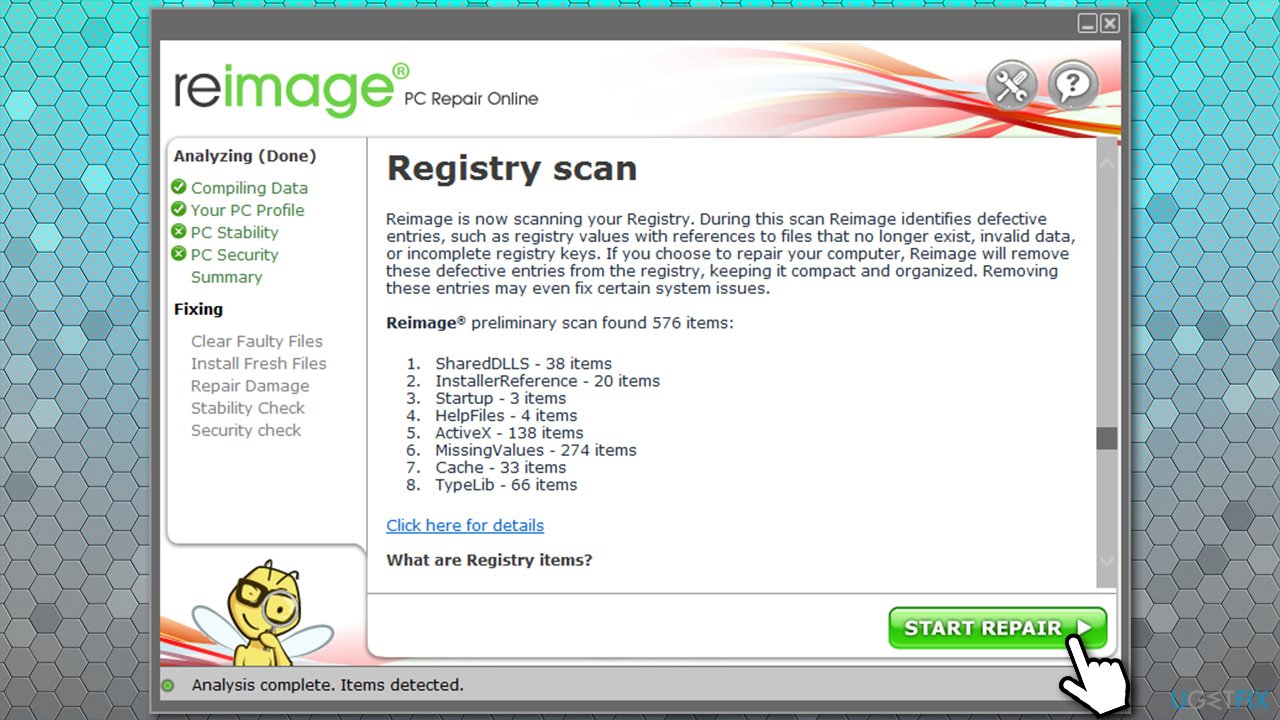
This automated solution is excellent for users who are not that familiar with the peculiarities of Windows machines and just want problems to be solved quickly. The software can find and replace corrupted or malware-affected system files with brand new ones without having to reinstall Windows.
Fix 2. Update Windows to the latest version
If you have been neglecting Windows updates, you should delay no more and update your OS immediately. Windows updates can fix software bugs and patch software vulnerabilities, preventing malware attacks in the future.
- Type in Windows update in Windows search and press Enter
- In the new window, click Check for updates
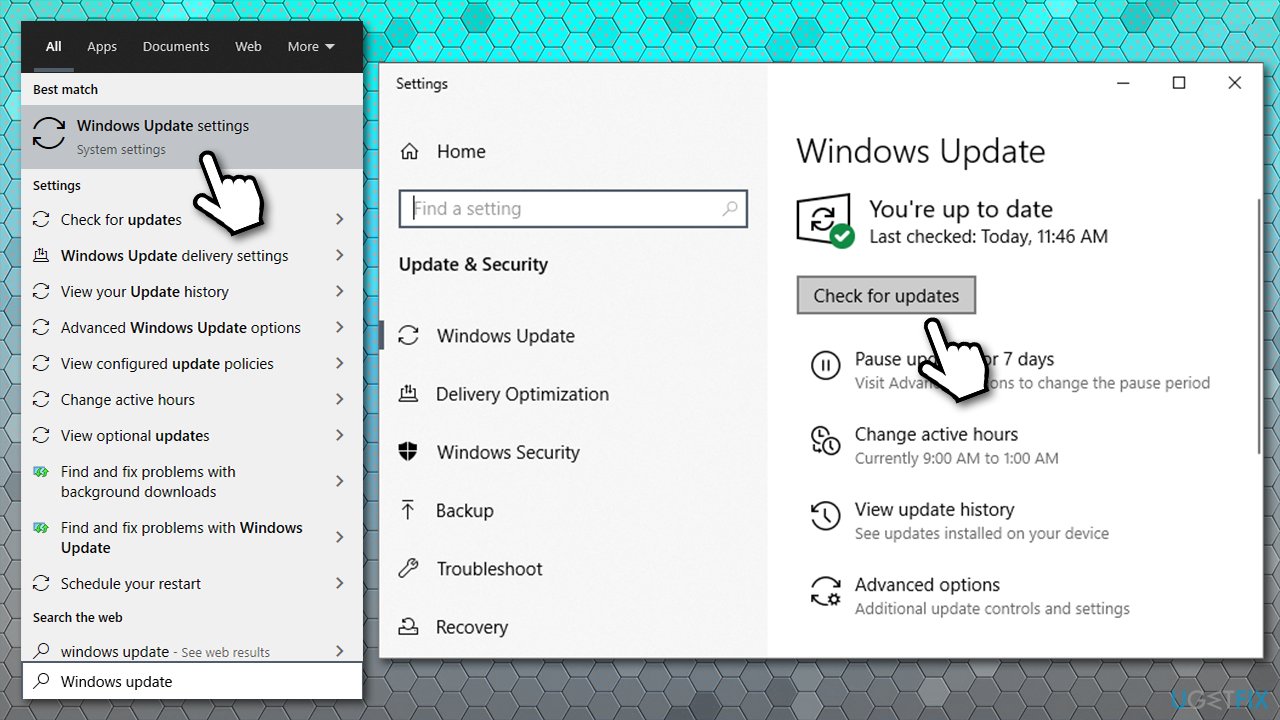
How to fix registry filter driver exception error update windows - Wait till Windows downloads and installs updates
- Reboot your PC.
Fix 3. Run SFC scan
SFC, or otherwise known as System File Checker, is a tool that can check Windows for system file corruption. Here's how to use it:
- Type in cmd in Windows search
- Right-click on Command Prompt result and select Run as administrator
- In the new window, paste the following command, pressing Enter after:
sfc /scannow
- Wait until scan completes - Windows should report the findings
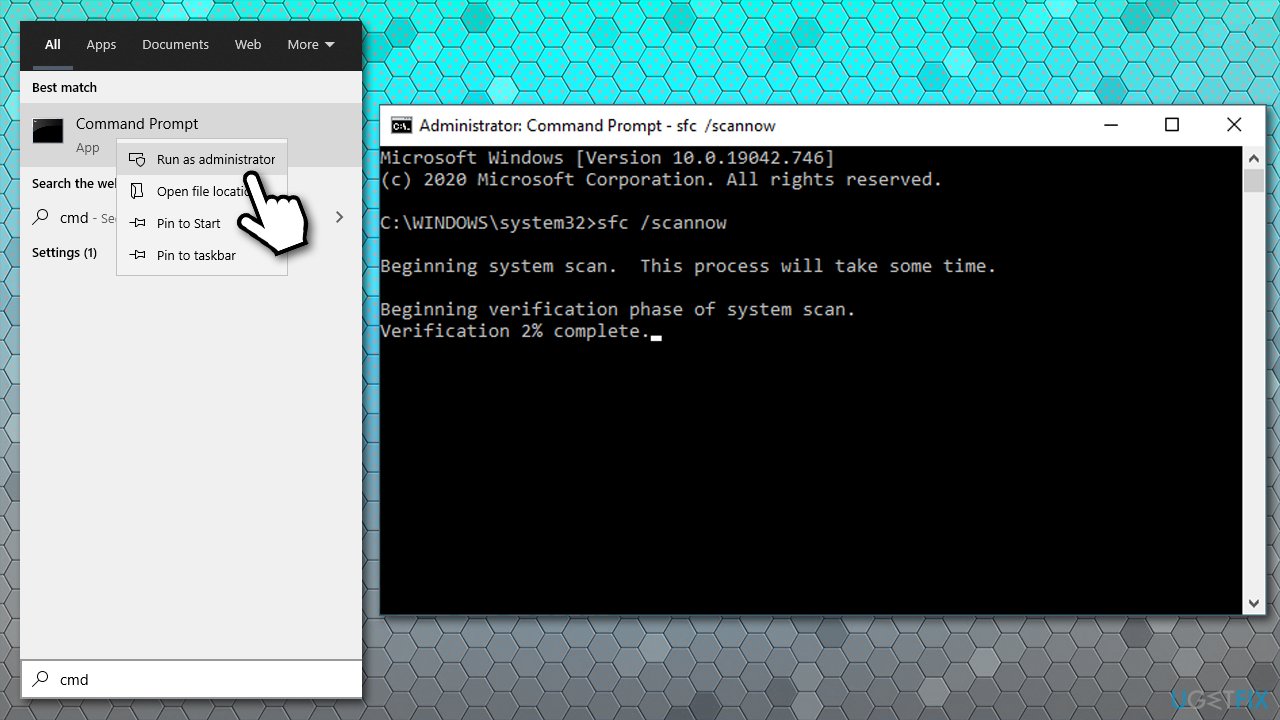
How to fix registry filter driver exception error run sfc scan - Reboot and see if the problem persists.
If System File Checker returns an error and says that it was unable to fix corrupted files, proceed with the next solution.
Fix 4. Use DISM tool to check for Windows image file corruption
DISM (Deployment Image Servicing and Management) is a robust tool that can repair various Windows image files related to Windows Recovery Environment, Windows PE, etc. This is particularly useful when the SFC scan is unable to fix the corrupted system files.
- Open Command Prompt as administrator again
- Copy and paste each of the following commands, pressing Enter after each of them:
Dism /Online /Cleanup-Image /CheckHealth
Dism /Online /Cleanup-Image /ScanHealth
Dism /Online /Cleanup-Image /RestoreHealth
Fix 5. Check your disk for errors
Here's another check that can be performed via Command Prompt:
- Open Command Prompt with administrator's privileges
- Type in the following command and press Enter:
chkdsk /x /f /r
- If an error shows up, type in Y and press Enter
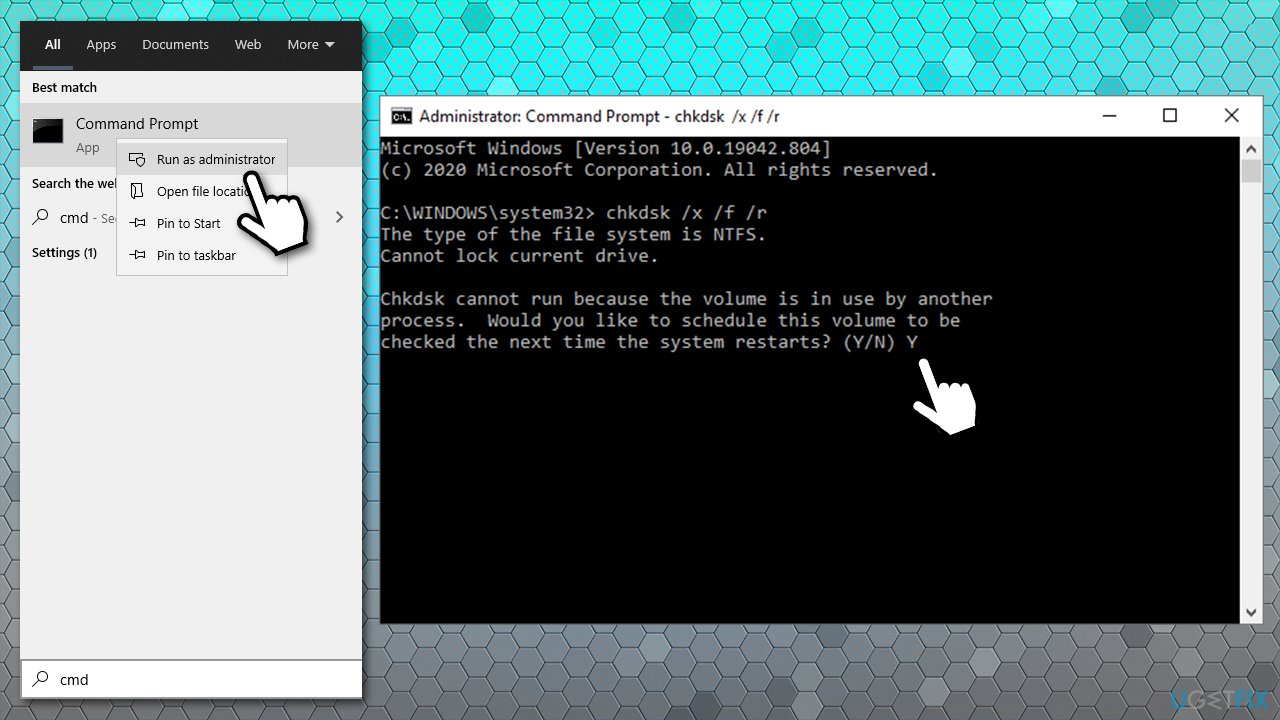
How to fix registry filter driver exception error run disk check - Reboot your PC and the disk check will start automatically.
Fix 6. Reinstall drivers
Driver issues are one of the most common reasons for Blue Screen of Death errors. Therefore, if you are experiencing this problem, not the first time, we recommend you try using an automatic solution - [rev id="DriverFix"]. It can backup your driver setups and update the relevant drivers automatically in just a few minutes for you.
If you want to reinstall drivers manually, proceed with the following steps:
- Right-click on Start and pick Device Manager
- In the new window, expand the Display adapters section
- Right-click on your graphics card and select Uninstall device
- When warning shows up, tick the Delete the driver software for this device and press Uninstall
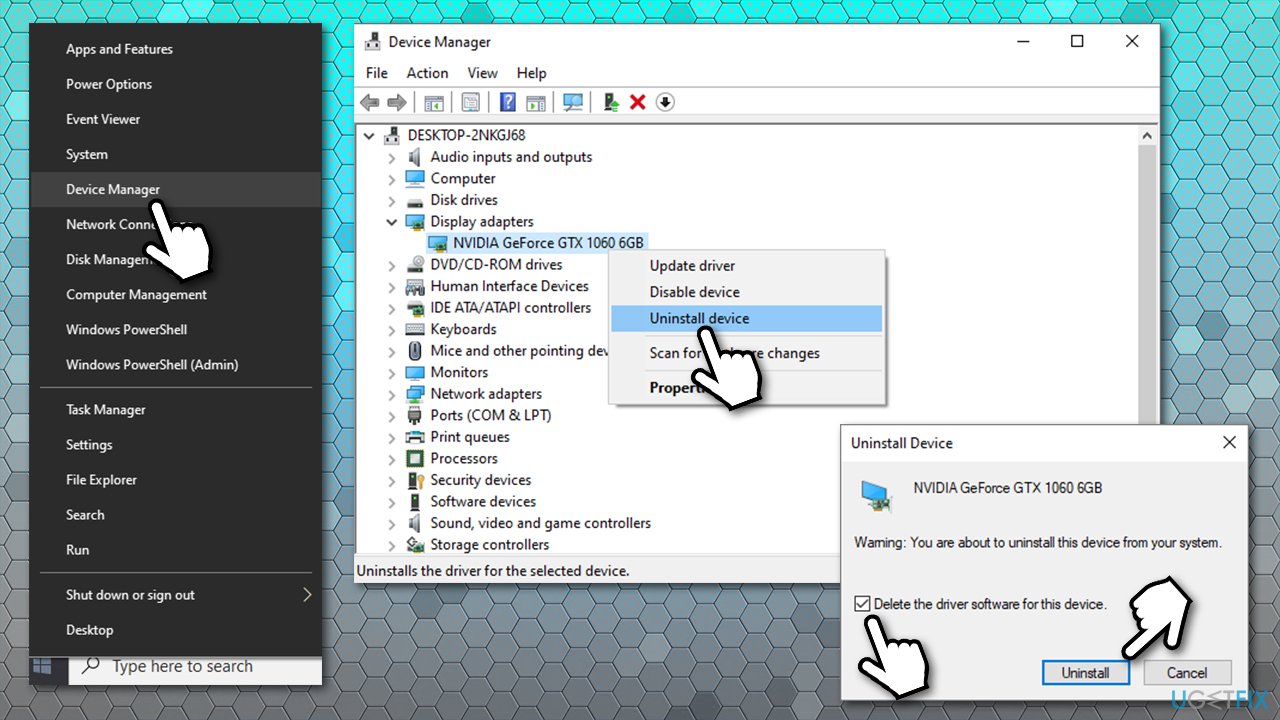
How to fix registry filter driver exception error reinstall drivers - Reboot your PC.
Now you should go to your device's manufacturer website and download the appropriate drivers. Note that you might have to reinstall the network, chipset, and other drivers that could be causing the issue.
Fix 7. Uninstall recent third-party programs
If you have recently installed third-party applications, you should immediately uninstall them. Compatibility issues are one of the reasons for BSOD errors.
- Right-click on Start and pick Settings
- Go to Apps
- Sort apps by the installation date
- Click on the most recently installed software that could be causing the issue and click Uninstall
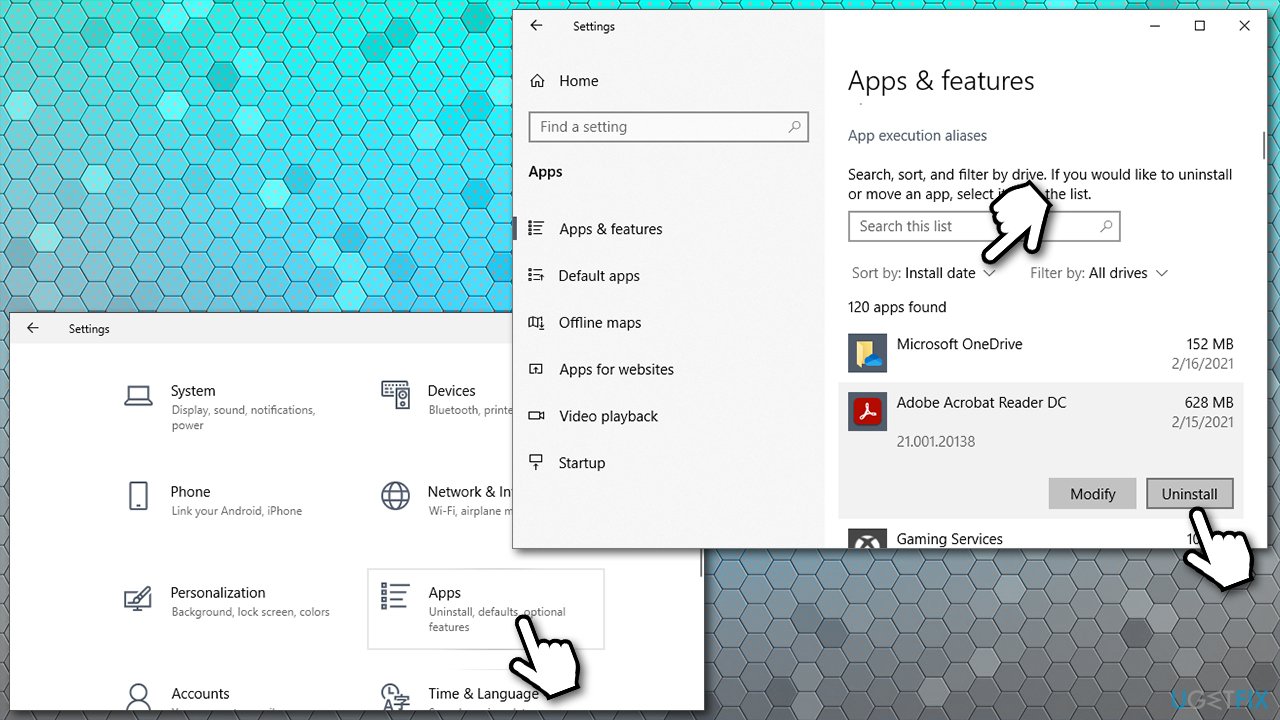
How to fix registry filter driver exception error uninstall third party apps - Proceed with on-screen instructions to finalize the process.
Fix 8. Reinstall Windows
If none of the methods helped you fix REGISTRY FILTER DRIVER EXCEPTION error, you should simply reinstall Windows. While it might sound scary, Windows 10 is an intricate system - you can do that without losing your personal files. There are several methods on how you can do this - you can use the one that suits you most in our How to reset Windows to factory settings article.
Bottom line
To fix REGISTRY_FILTER_DRIVER_EXCEPTION, you can run an automatic Windows repair tool among other solutions. It is important to address this issue promptly to prevent further problems. If none of the solutions work, consider seeking professional assistance.
Frequently asked questions
This error is usually caused by faulty drivers, corrupted system files, or issues with the Windows registry. It can also occur due to incompatible software installations.
To troubleshoot this error, try booting into Safe Mode and uninstalling any recently added drivers or software. You can also run the System File Checker tool to repair corrupted files.
To prevent this error, ensure that you keep your drivers and Windows updates up to date, and regularly scan your system for malware or corrupted files.




Report an issue
What's wrong with this guide? We review every report and update or remove content.
Report received — thank you. We'll review and fix it.
You need a free account to submit a report.
Be the first to comment