How to fix
Remote Procedure Call high CPU usage
on Windows
Resolve high CPU usage from Remote Procedure Call in Windows 10 and 11. Get efficient fixes and expert-tested solutions to boost performance now!


What causes How to fix Remote Procedure Call high CPU usage in Windows?
- Malfunctioning applications
- Services using high CPU power
- Remote Procedure Call not suspending properly
- Corrupted system files
- Issues with maintenance tools
Repairs Windows system files, removes malware, and restores a clean OS state — without reinstalling.
Hello. I have noticed in Task Manager that there is an item called Remote Procedure Call that uses extreme amounts of CPU power. My PC has become much slower. Are there any solutions?
Windows relies on thousands of processes working in the background to keep it running smoothly. For some reason, some of the applications, services, sometimes malfunction, and start using high amounts of CPU[ref en-1] power. This can result in bugs, glitches, and a significant decrease in performance. Some users have been having problems with Remote Procedure Call high CPU usage in Windows.
Remote Procedure Call is a protocol that a program uses to request service from a program located on a different computer on a network without indulging in the network details. RPC uses the client-server model,[ref en-2] which means that the requesting program is considered a client while the service provider is the server. RPC is a synchronous process requiring the program to be suspended until the results of the remote procedure are returned.
Sometimes when the program does not get suspended it causes high CPU and Disk usage on the computer. There are many services that use Remote Procedure Call protocol such as Windows Update, OneDrive, Dropbox, etc. As a result, people can have problems when trying to use these applications. In this guide, you will find 6 steps that could help you fix Remote Procedure Call high CPU usage in Windows.
You can also use maintenance tools like [d1] to fix various system errors, BSODs,[ref en-3] corrupted files, and registry issues. This powerful software can also clear up cookies and cache, often the culprits behind many malfunctions. If you want to begin the guide that could fix Remote Procedure Call high CPU usage in Windows, make sure to follow the instructions in an orderly manner.
Step 1. Fix Corrupted System Files
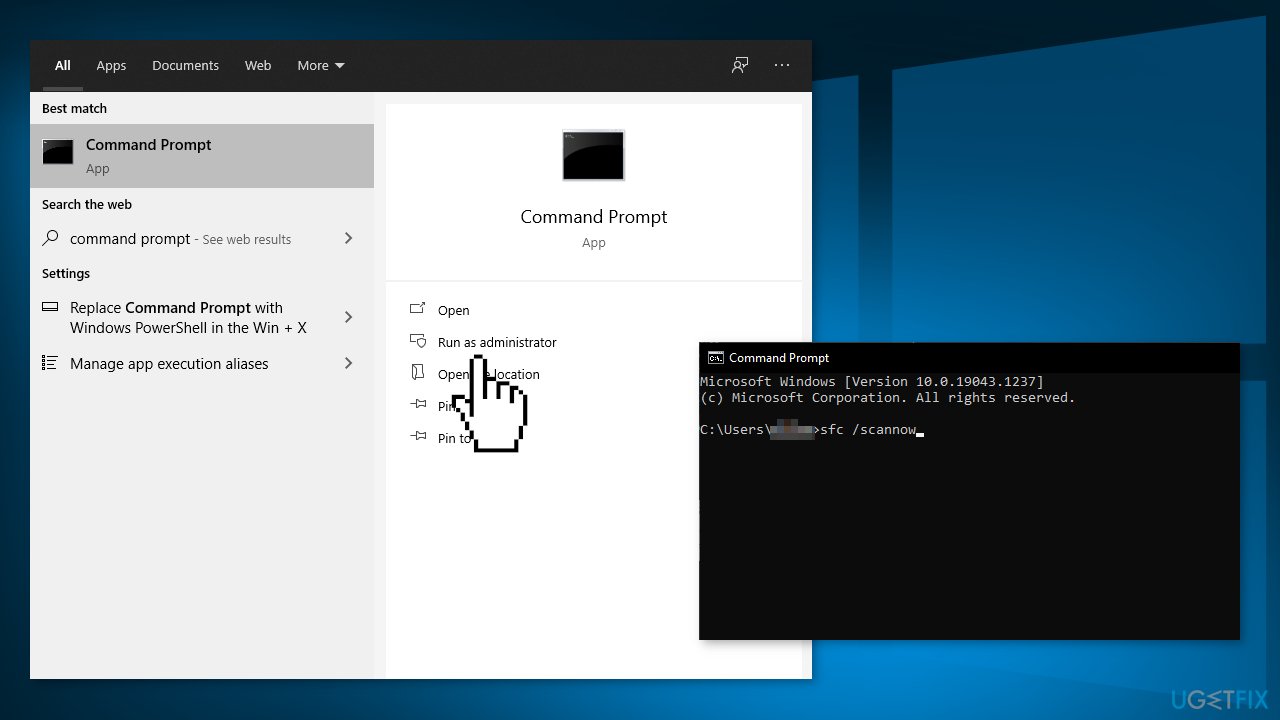
Use Command Prompt commands to repair system file corruption:
- Open Command Prompt as administrator
- Use the following command and press Enter:
sfc /scannow
- Reboot your system
- If SFC returned an error, then use the following command lines, pressing Enter after each:
DISM /Online /Cleanup-Image /CheckHealth
DISM /Online /Cleanup-Image /ScanHealth
DISM /Online /Cleanup-Image /RestoreHealth
Step 2. Uninstall OneDrive
- Press Windows + R button to launch the Run box
- Type control panel and hit Enter
- Click on Uninstall a program
- Navigate through the list until you find OneDrive
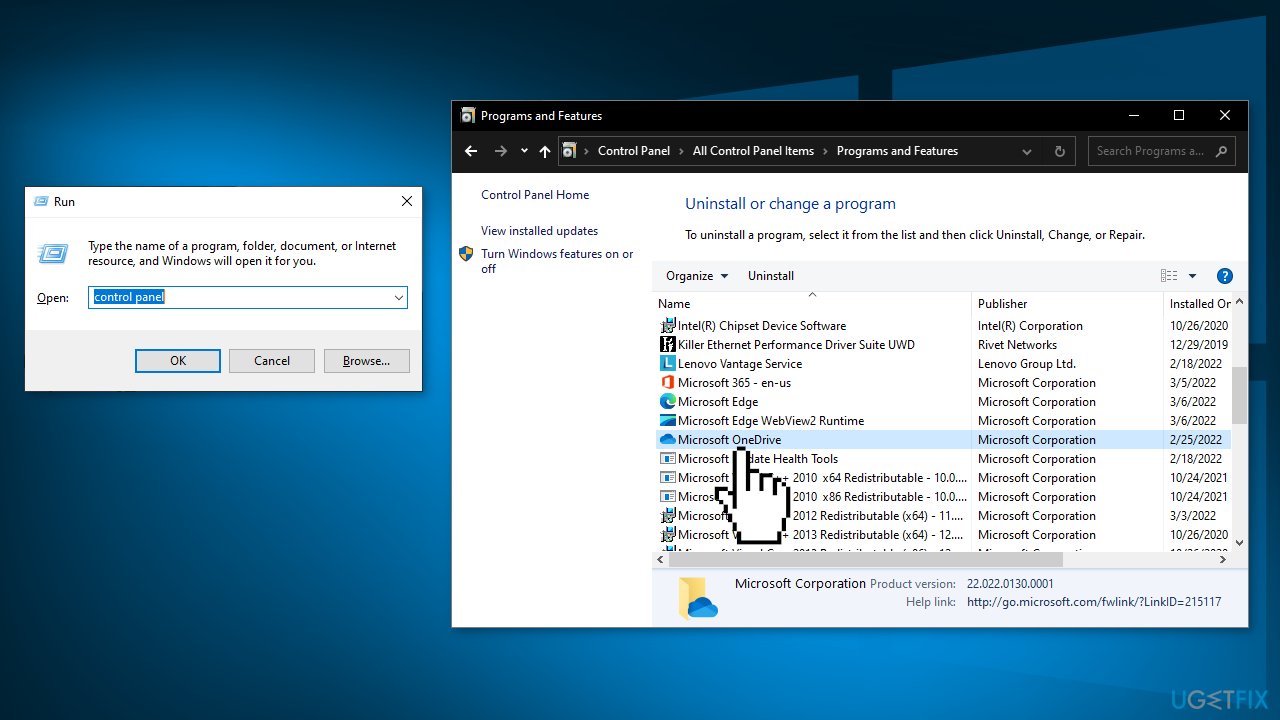
- Right-click it and select Uninstall
- Restart your computer and check if this fixed the CPU usage
Step 3. Disable Windows Updates
- Type Windows update into the search bar and click on the first option
- Select Advanced Options
- Click on Choose how updates are delivered
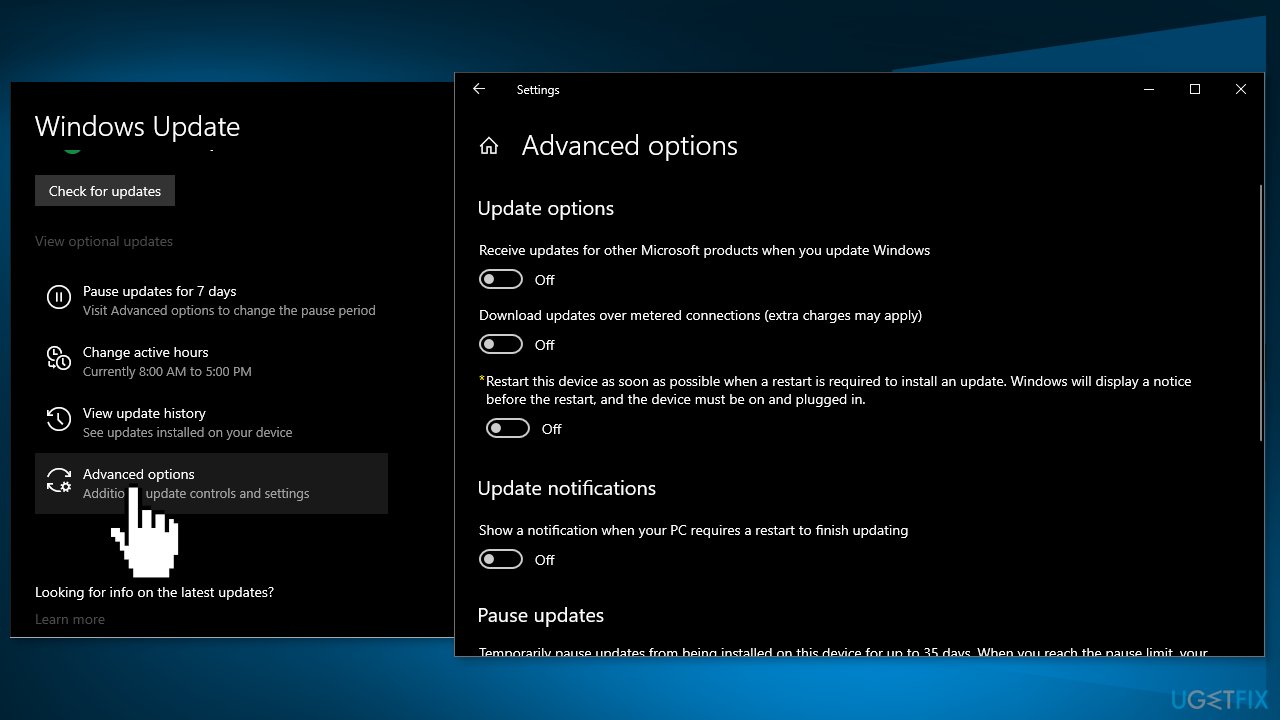
- Set the option to Off
Step 4. Stop the Windows Update Service
- Press Windows + R to bring up the Run application
- Type services.msc and press Enter
- Find Windows Update Service
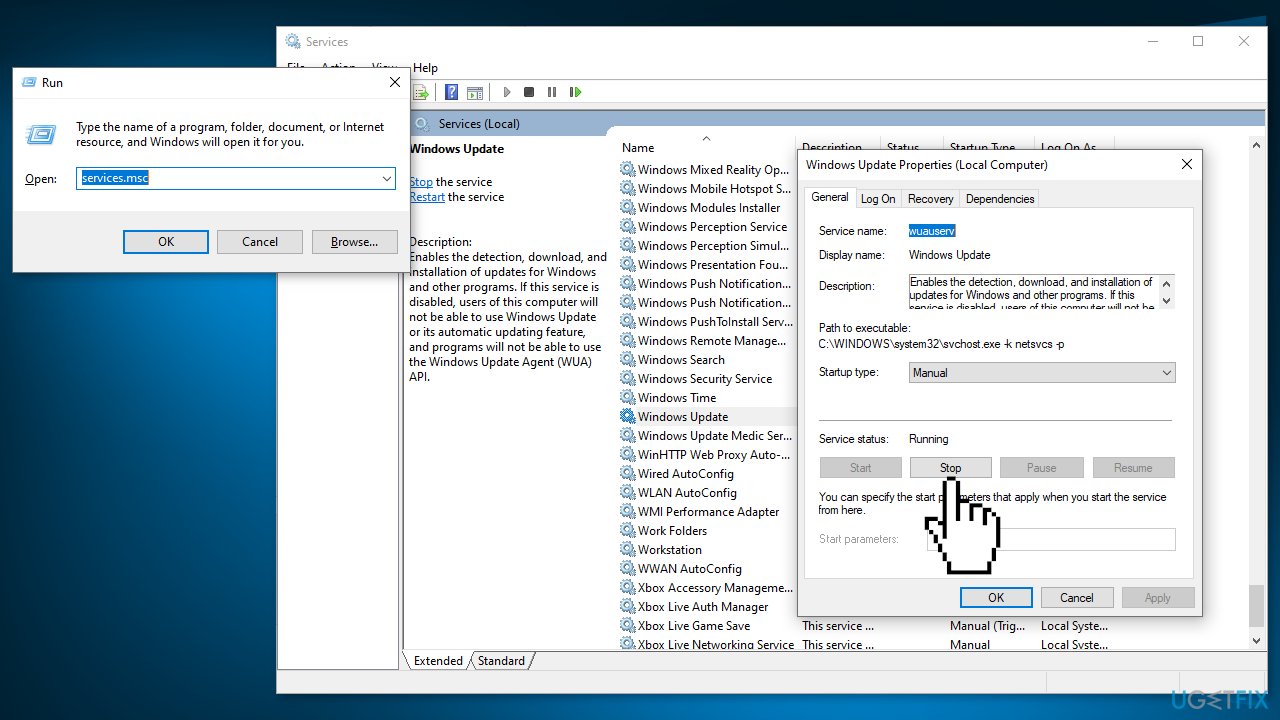
- Right-click on the service and select Properties
- Click on Stop under the sub-heading of Service Status
Step 5. Delete contents of the Software Distribution folder
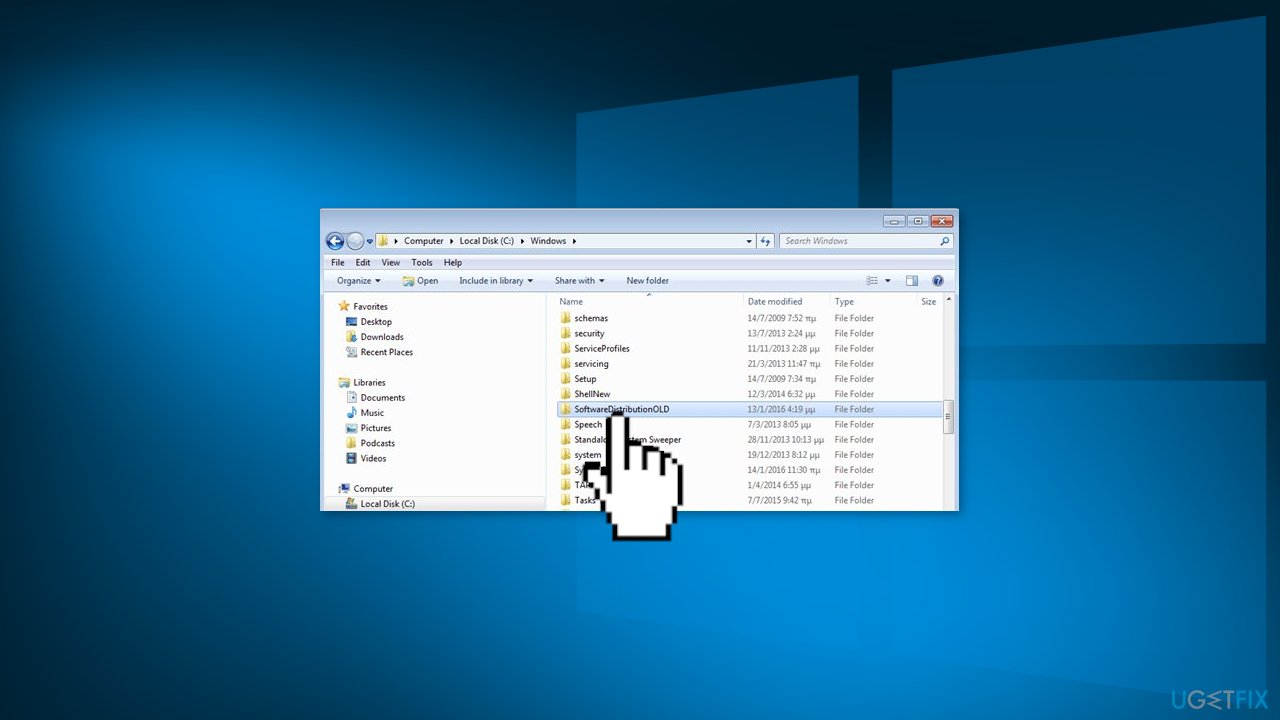
- Navigate to C:\\Windows\\SoftwareDistribution
- Delete everything inside the Software Distribution folder
Step 6. Disable Windows Defender
- Press Windows + R button to launch the Run box
- Type gpedit.msc and press Enter
- Click the Computer Configuration tab and select Administrative Templates
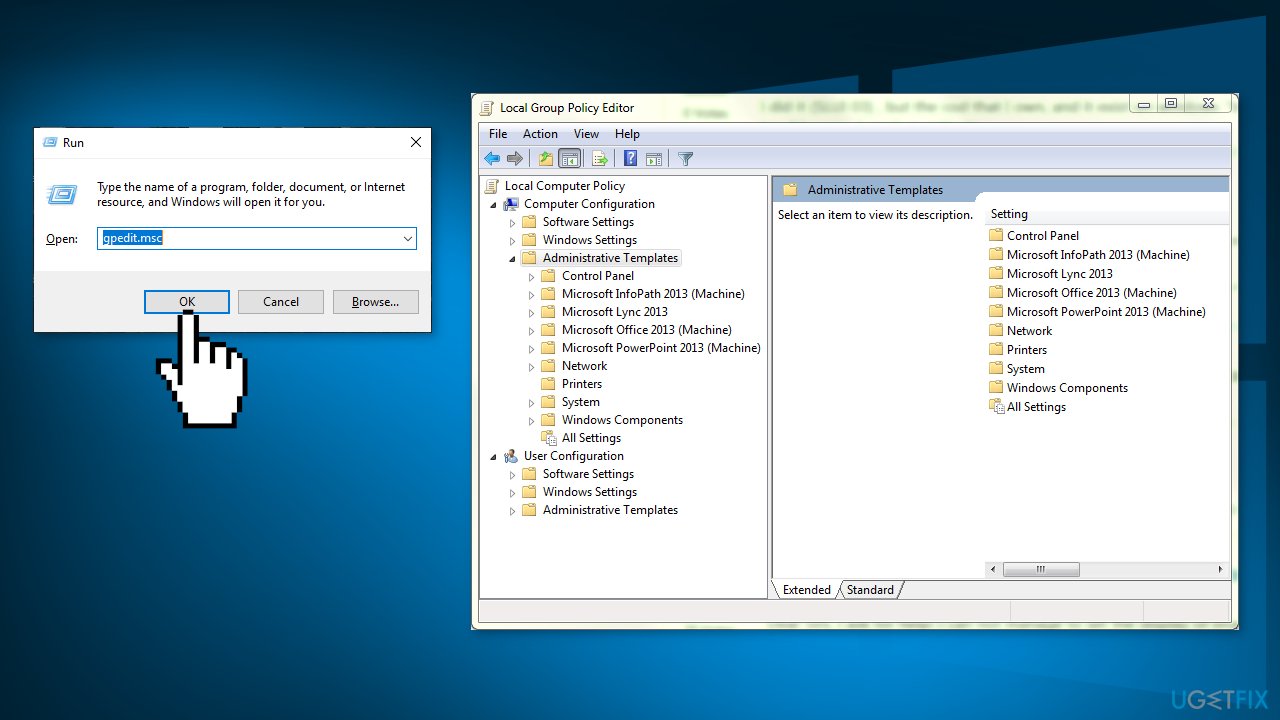
- Click on the folder of Windows Components and select Windows Defender
- Select Turn off Windows Defender
- Select Enabled to turn Windows Defender off
- Apply settings and press OK
- Restart your computer
You might also be interested in these topics:
Bottom line
To fix Remote Procedure Call high CPU usage in Windows, you can repair corrupted system files using Command Prompt commands, such as 'sfc /scannow' and 'DISM' commands. If these steps do not resolve the issue, consider using maintenance tools to address various system errors.
Frequently asked questions
High CPU usage from Remote Procedure Call can be triggered by issues such as malware infections, corrupted system files, or problematic software running in the background.
You can use Windows Defender or a trusted third-party antivirus program to perform a full system scan to detect and remove any malware that may be causing the issue.
You can start by checking the Task Manager for any unusual processes, updating your system, and running the System File Checker tool to repair corrupted files.




Report an issue
What's wrong with this guide? We review every report and update or remove content.
Report received — thank you. We'll review and fix it.
You need a free account to submit a report.
Be the first to comment