How to fix
“Remove” button is missing for Microsoft account
on Windows
Resolve the "Remove" button issue for your Microsoft account in Windows 10 or 11 effortlessly. Get expert-tested solutions today!

What causes How to fix “Remove” button is missing for Microsoft account in Windows?
- Corrupted system files
- User account settings misconfiguration
- Windows malfunction
- Temporary account addition
- Privacy concerns with shared computers
Repairs Windows system files, removes malware, and restores a clean OS state — without reinstalling.
Hello, I have a weird problem. I added my Microsoft account temporarily on my work PC. Once I wanted to remove it, I couldn't do so as the "Remove" button was completely missing. I do not want my personal account to be permanently connected to my work one so I was wondering you could help me to find a fix?
Interconnectivity of user accounts is a convenient implementation - it allows users to retain the preferences and information across multiple platforms as soon as a particular account is connected. Google was one of the first to enable this scheme a while ago,[ref en-1] and many users soon realized how convenient this technology could be.
When it comes to Windows, users can use their Microsoft accounts that they can easily create via the official website and then use it on the MS Edge web browser, phone, email, or different computer. Once such an account is created, users can add it via the Settings menu within the operating system - it only takes a few minutes to set up.
Without a doubt, such functionality makes everything so much easier, and many users prefer it, hence they add their accounts on Windows immediately. There are many reasons and circumstances that people would want to remove their account from a device completely.
And it is very understandable. If a computer is being shared with another person or persons, personal information can be disclosed and sometimes even used for malicious purposes. In other words, it can negatively impact users' privacy. The only thing one must do is access the account settings and remove the particular email/account from Windows.
Unfortunately, many users found out that not everything works as planned, as they noticed that the "Remove" button from their Microsoft account was simply missing. Instead, all they could see was "Manage."
Luckily, this problem is not permanent and can be easily solved. Below you will find three different methods that could help you when the "Remove" button is missing from your Microsoft account.
Note: If your system files were corrupted, Windows might malfunction in many ways and lack main features. Thus, we recommend you first run a scan with the [d1] repair tool to ensure that it is not the case. It can also help you fix major Windows issues such as BSODs,[ref en-3] missing DLLs, virus damage, registry[ref en-2] errors, etc.
Option 1. Use "Manage" button to delete your account
Several Microsoft accounts can be added to a Windows PC. In order to remove one of them, you can use the Manage button that is accessible. Here's how:
- Right-click on Start and pick Settings
- Go to Accounts section
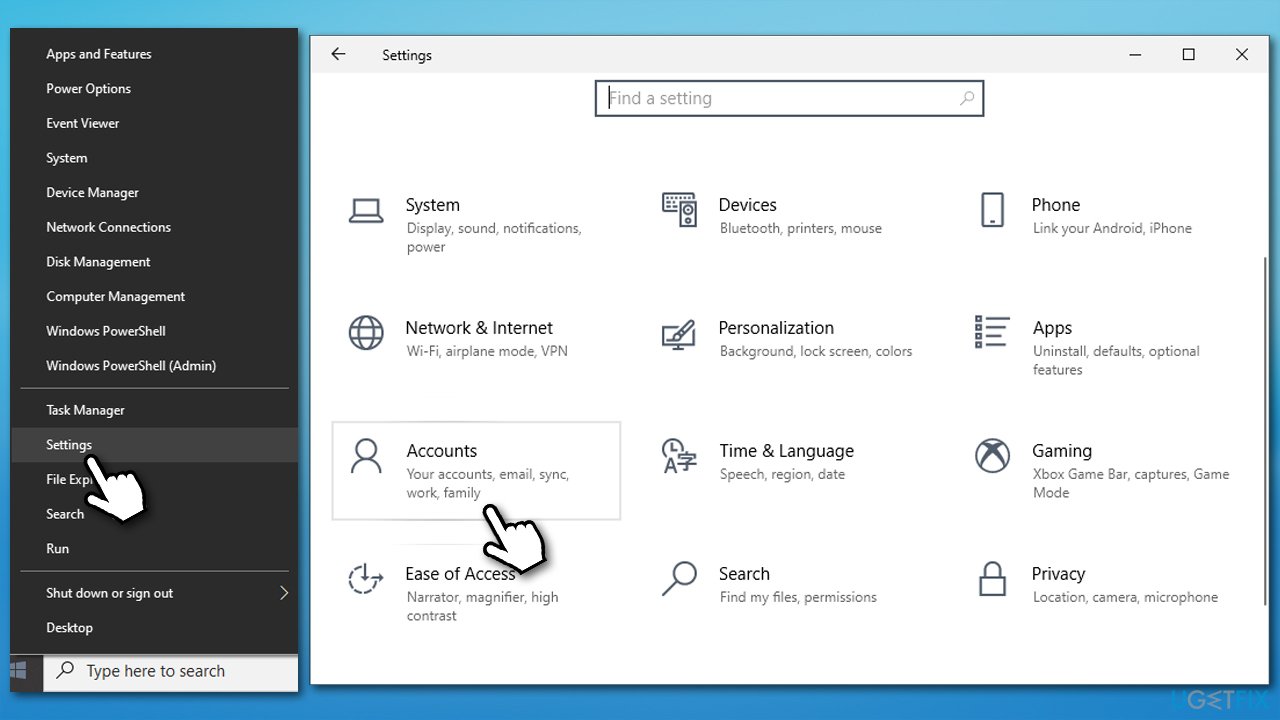
How to fix remove button is missing for microsoft account in windows go to settings - On the left, pick Email & accounts
- Scroll down and click Manage next to the email address you want to remove
- Here, select Delete account from this device
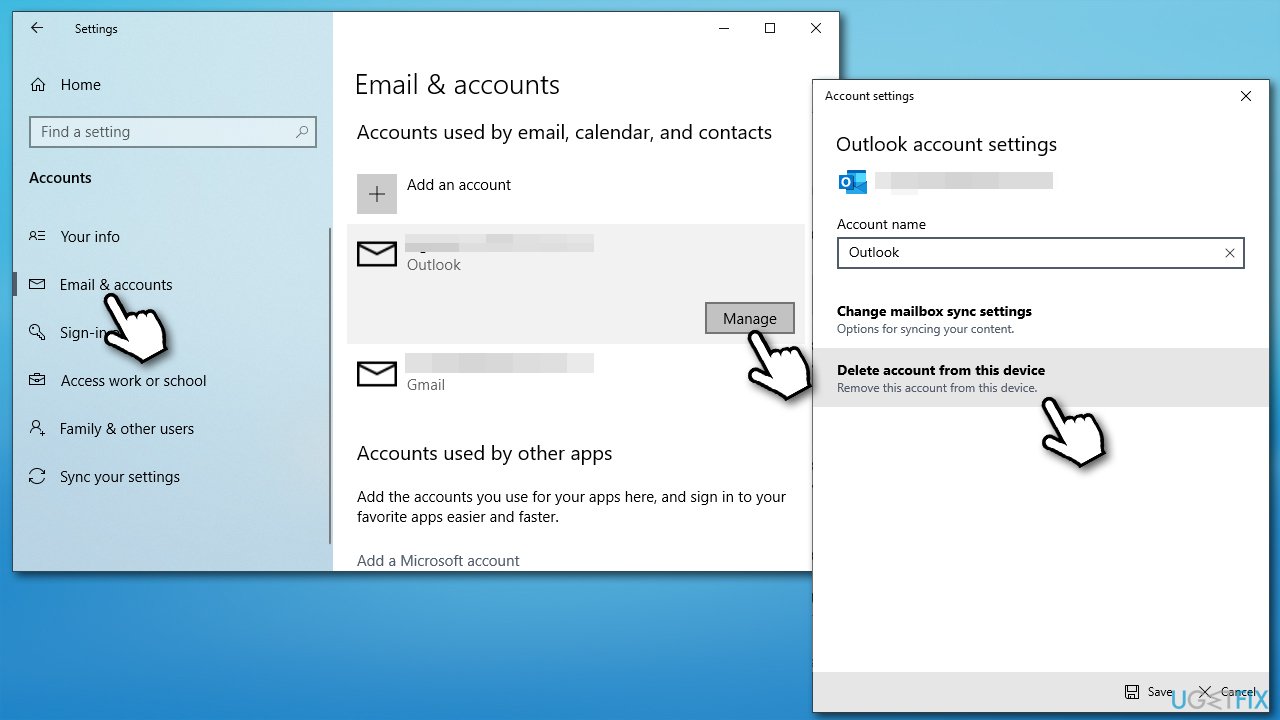
How to fix remove button is missing for microsoft account in windows delete account - Finally, click Delete.
Option 2. Unlink your account via "Access work or school"
- Open Windows Settings panel once again and go to Accounts
- On the left side, select Access work or school
- Here, you should see an email address associated with the account you want to delete
- Pick the account and select Disconnect
- Once the warning shows up, click Yes.
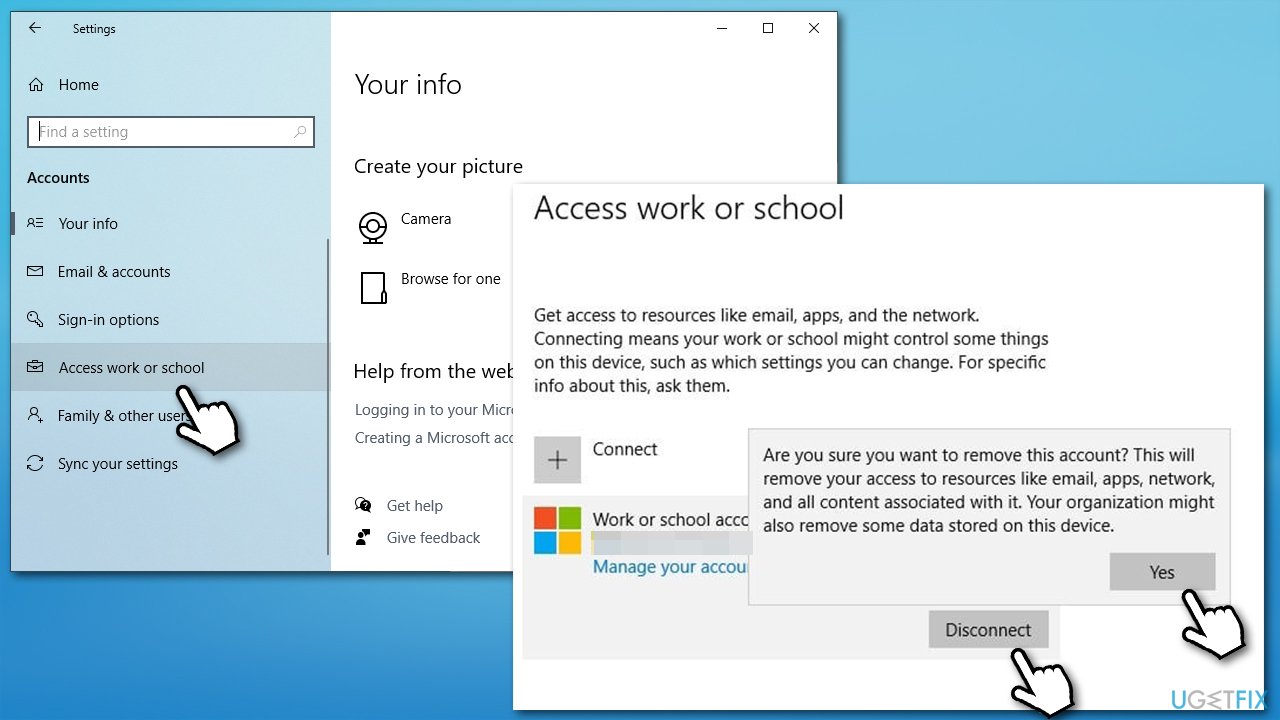
How to fix remove button is missing for microsoft account in windows disconnect account via worl or school
Option 3. Sign in with local account instead
If none of the options above helped you, you could try to connect via your local account instead of a Microsoft one instead.
- Go to Settings > Accounts as explained above
- On the right side, click Sign in with a local account instead
- In the pop-up window, click Next
- Next, enter your PIN or Microsoft account credentials to verify it's you
- Fill in the required fiends in the next window - create user name, new password, and password hint
- Click Next
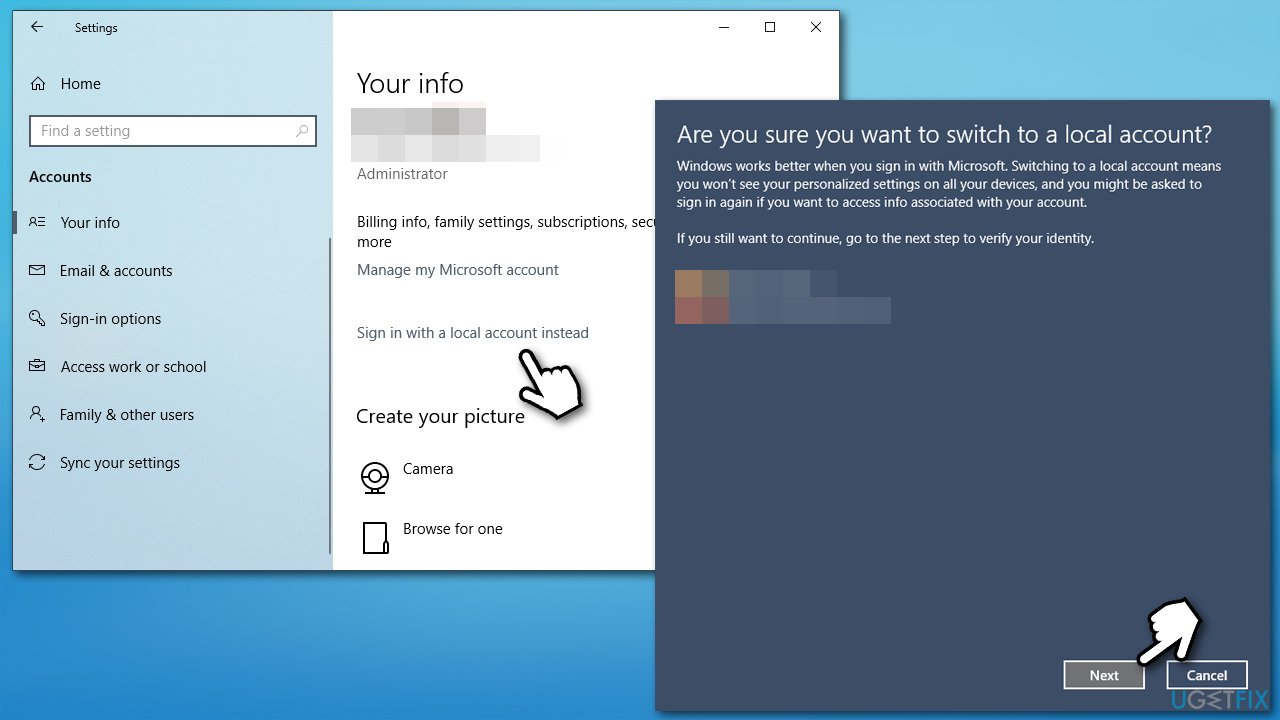
How to fix remove button is missing for microsoft account in windows sign in with local account - Finally, click Sign out and finish button
- You can now log in with a local account.
Hopefully, this article helped you resolve the issue. Here are a few related topics that could interest you as well:
Bottom line
To fix the missing 'Remove' button for your Microsoft account, you can try accessing account settings, checking for system file corruption, or adjusting user account settings. If none of these methods work, consider seeking further assistance or exploring additional troubleshooting options.
Frequently asked questions
The 'Remove' button may be missing due to account permissions or because the account is currently being used by a running application. Make sure to close any apps linked to the account and check your account settings.
You can try signing out of your Microsoft account and then signing back in, which might refresh the account settings. Additionally, ensure your Windows 11 is up to date, as updates can fix bugs related to account management.
If the issue persists, consider creating a new local user account and check if the 'Remove' button appears there, or try using the built-in Windows Troubleshooter for account issues.




Report an issue
What's wrong with this guide? We review every report and update or remove content.
Report received — thank you. We'll review and fix it.
You need a free account to submit a report.
Be the first to comment