How to fix
Searchindexer.exe high CPU usage
on Windows
Resolve high CPU usage from Searchindexer.exe in Windows 10 or 11 effortlessly. Follow our expert-tested solutions for quick relief and zero traces left.


What causes How to fix Searchindexer.exe high CPU usage in Windows?
- Corrupted data after rebuilding the index
- Windows updates causing the Search Database to flood with data
- Re-indexing due to corrupted Search Database
- Background processes competing for resources
- Excessive resource usage by Windows processes
Repairs Windows system files, removes malware, and restores a clean OS state — without reinstalling.
Hey. For the past week or so, I have experienced some high CPU usage from Searchindexer.exe, even when I'm not doing anything in particular on my PC. It happens completely randomly, and I see my CPU go up to 50%. I have also noticed that Disk also jumps up to 100% at times. I tried to restart the process via the Task Manager and the problem goes away... for like 10 minutes, and then it's the same. Please help.
If you open the Task Manager, you would see many processes running in the background at all times. This is not surprising at all, considering how many components Windows needs in order to perform its routine tasks, such as initiation of automatic Windows updates or ensuring that third-party apps are running without issues.
Searchindexer.exe stands for Microsoft Windows Search Indexer and is used for file search and indexing functions. It enables users to search for files or folders through various methods, such as the Start Menu or basic search made through Windows Explorer. There are other components that comprise the whole operation related to file search, e.g., SearchUI.exe.
Unfortunately, many users reported that Searchindexer.exe was hogging way too much of their CPU[ref en-2] or Disk at times when it shouldn't. This undoubtedly diminishes the performance of the device and sometimes even prevents people from using their PC normally. The phenomenon of excessive resource usage by Windows-based processes has been discussed by us in the past, and we helped people solve issues with WUDFHost, MsMpEng.exe, WSAPPX, and many others.
While Windows processes might sometimes spike up during the active time period, it shouldn't be happening without a reason. So, what is causing Searchindexer.exe high CPU usage, and how to fix it?

There could be many reasons why the problem occurs. For example, some users said that they experienced the issue right after rebuilding the index, which points to the corrupted data. In other cases, Windows updates could cause Windows Search Database to be flooded with data and get corrupted, which results in the Searchindexer.exe process trying to re-index everything, which can take a bunch of resources.
If you frequently encounter Windows issues, such as lag, Blue Screen[ref en-1] crashes, various errors, and high computer resource usage at an inadequate time, consider running a scan with a powerful PC repair and maintenance tool [d1]. Not only can it find and replace damaged system components but also remove most of the installed malware, fix its damage done, and also clean all junk files from the system for better performance.
Solution 1. Run Search and Indexing troubleshooter
Troubleshooters[ref en-3] are excellent tools that might help you solve a lot of issues on your PC. Thus, we recommend starting from running one related to Search and Indexing.
- Right-click on Start, and go to Update & Security > Troubleshoot
- Click Additional Troubleshooters
- Scroll down and select Search and Indexing
- Click Run the troubleshooter
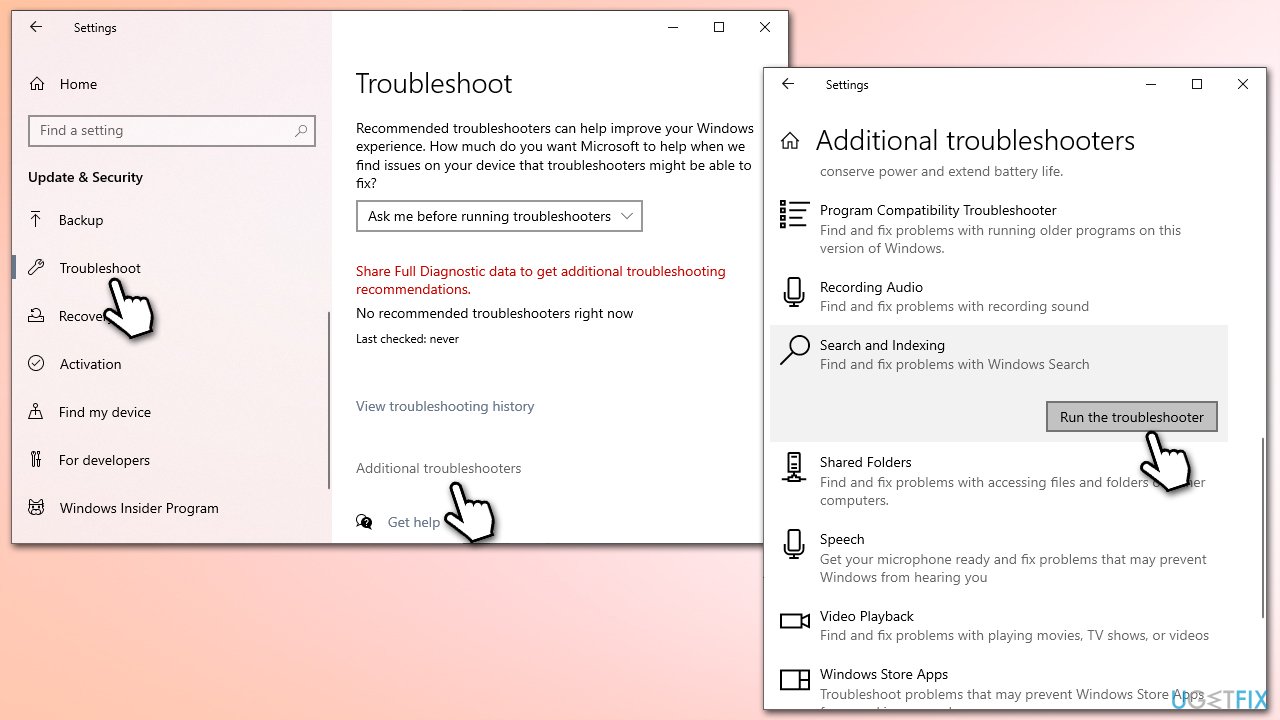
How to fix searchindexer exe high cpu usage in windows run troubleshooter - Apply the suggested fixes.
Solution 2. Restart the service
You can try manually restarting the Windows Search service.
- Type in Services in Windows search and press Enter
- Scroll down until you find Windows Search - double click it
- If the service is running, click Stop and wait for 30 seconds
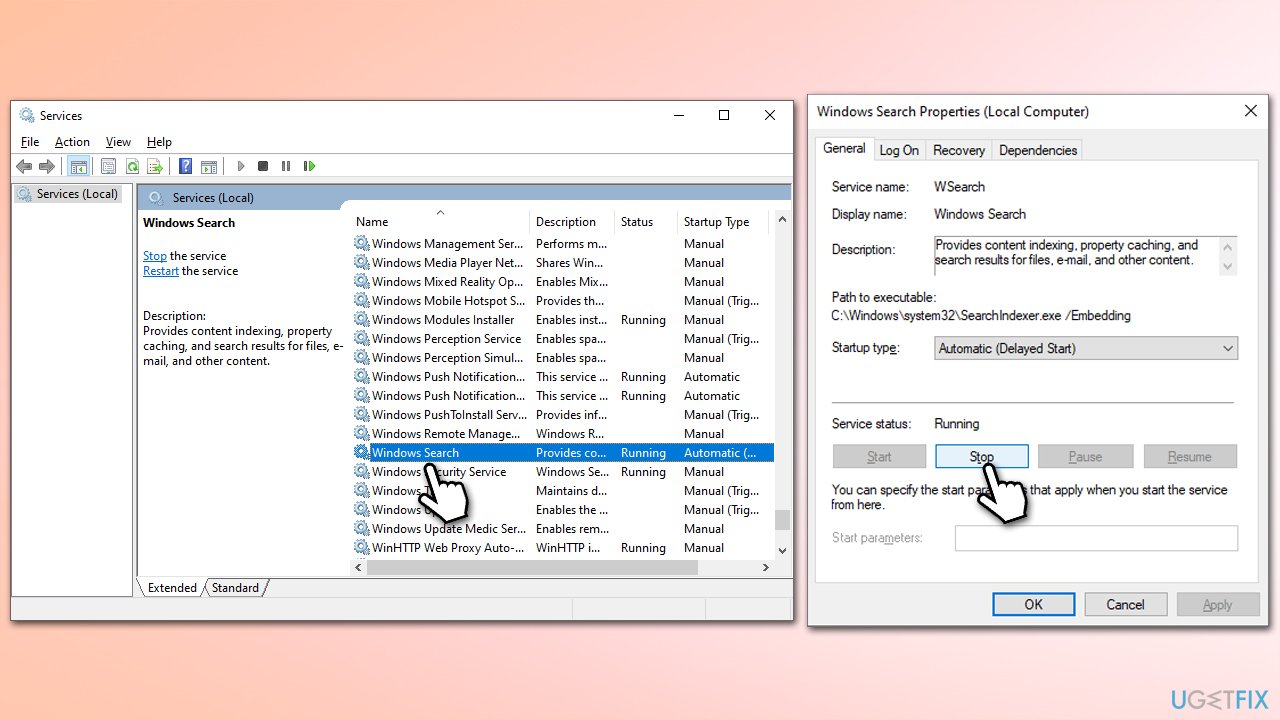
How to fix searchindexer exe high cpu usage in windows restart the search service - Click Start and press Apply and OK.
Solution 3. Rebuild the index
- Press Win + R, type in Control Panel, and press Enter
- On the top-right corner, click on View by option and select Small icons
- Pick Indexing options
- Click Modify
- Mark the locations that you want to be indexed and click OK (you can also use Show all locations at the bottom-left of the window if you can't see the location you are looking for)
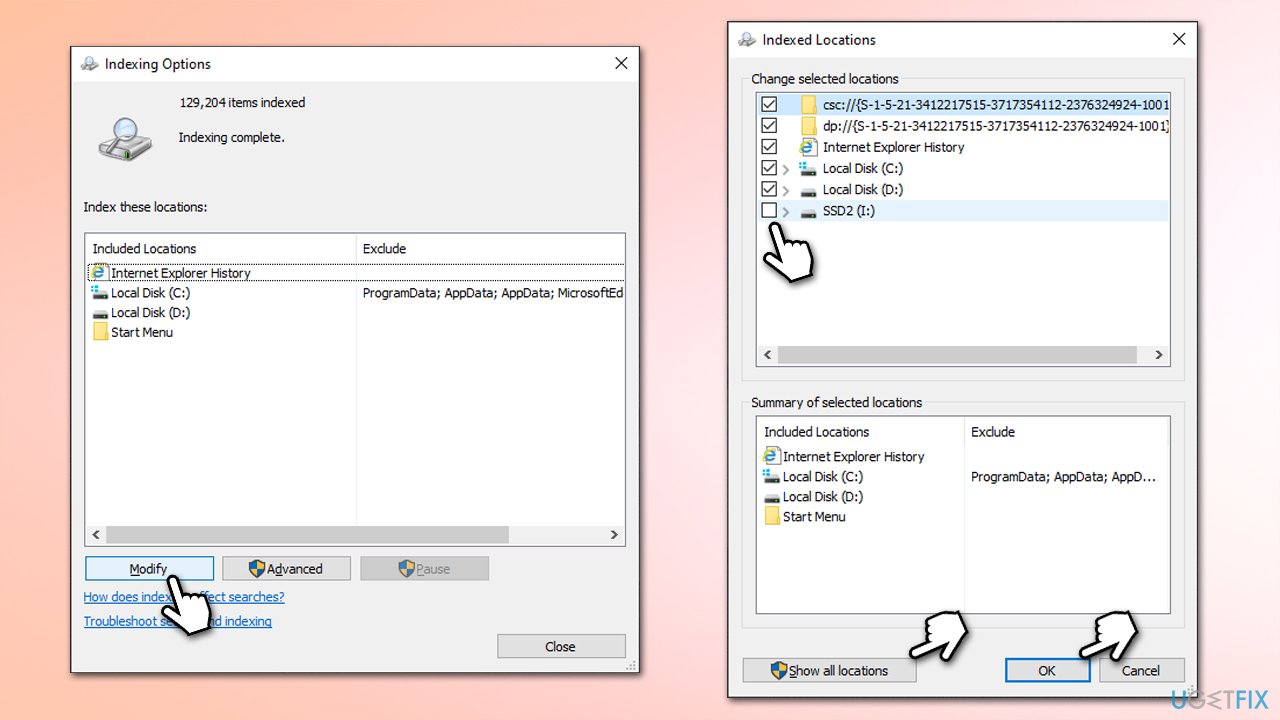
How to fix searchindexer exe high cpu usage in windows rebuild index - In the Indexing Options window, click Advanced
- Click Rebuild under Delete and rebuild index. This might take a while, depending on how large your drives are. During the rebuilt process, you might not be able to use the search bar or receive incomplete results
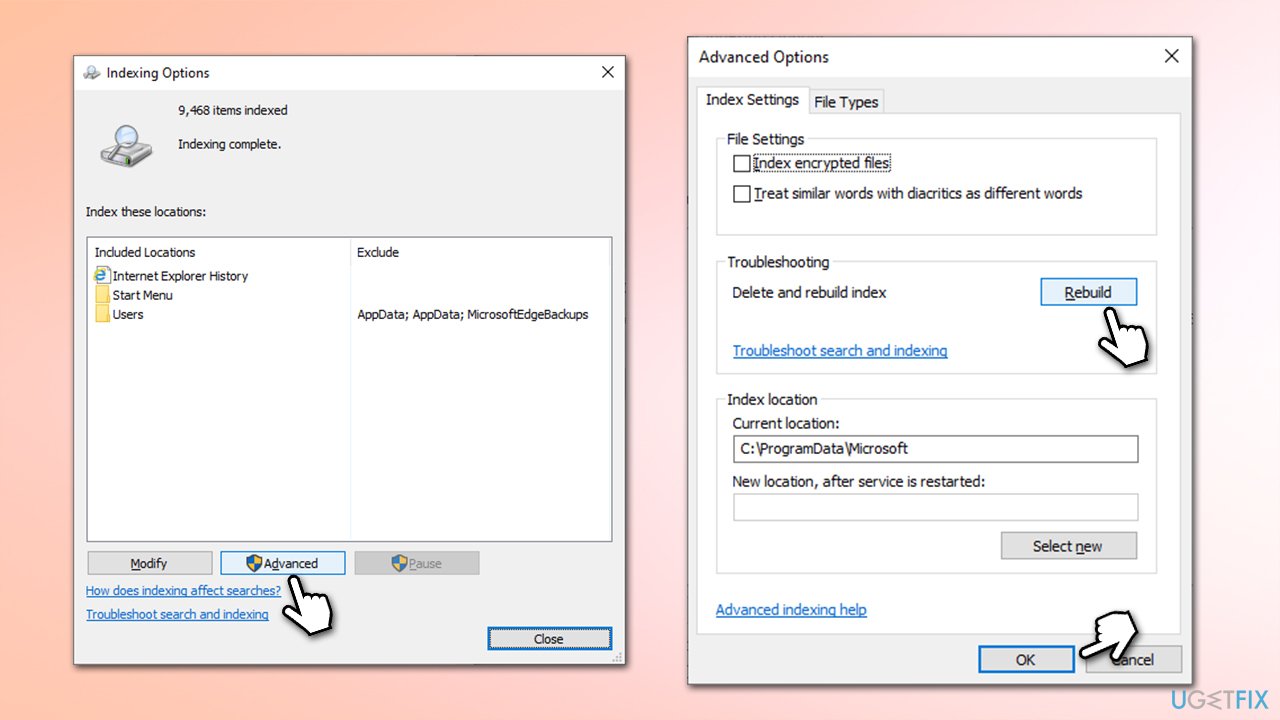
How to fix searchindexer exe high cpu usage in windows rebuild index2 - Finally, click OK and exit all the windows.
Solution 4. Delete the search database if it's too large
As we already mentioned, if the database becomes too big or corrupted, it might cause Windows to try to re-index it, causing high CPU and Disk usage.
- Press Win + E on your keyboard to open File Explorer
- Navigate to the following location (make sure Hidden files are visible. You can enable the option in File Explorer by going into the View tab and marking the Hidden items option):
C:\ProgramData\Microsoft\Search\Data\Applications\Windows - Look at the Windows.edb file - check its size
- If this file is incredibly large, proceed with the following:
- Access Windows Search service as explained in our second solution
- Right-click Windows Search and select Stop
- Now delete the Windows.edb file by marking it and pressing Shift + Delete on your keyword

How to fix searchindexer exe high cpu usage in windows delete the database - Go back to services and make sure the Windows Search service is running by right-clicking it and pressing Start.
Solution 5. Run SFC and DISM
System file corruption is one of the main reasons for the high CPU usage of certain Windows services. To fix it, you can run SFC and DISM via elevated Command Prompt:
- Type cmd in Windows search and press Enter
- When User Account Control (UAC) shows up, click Yes
- First, check whether or not the Windows image is damaged and whether it is repairable. Run these commands, pressing Enter after each:
DISM /Online /Cleanup-Image /CheckHealth
DISM /Online /Cleanup-Image /ScanHealth
DISM /Online /Cleanup-Image /RestoreHealth - Once done, run SFC – use the following command:
sfc /scannow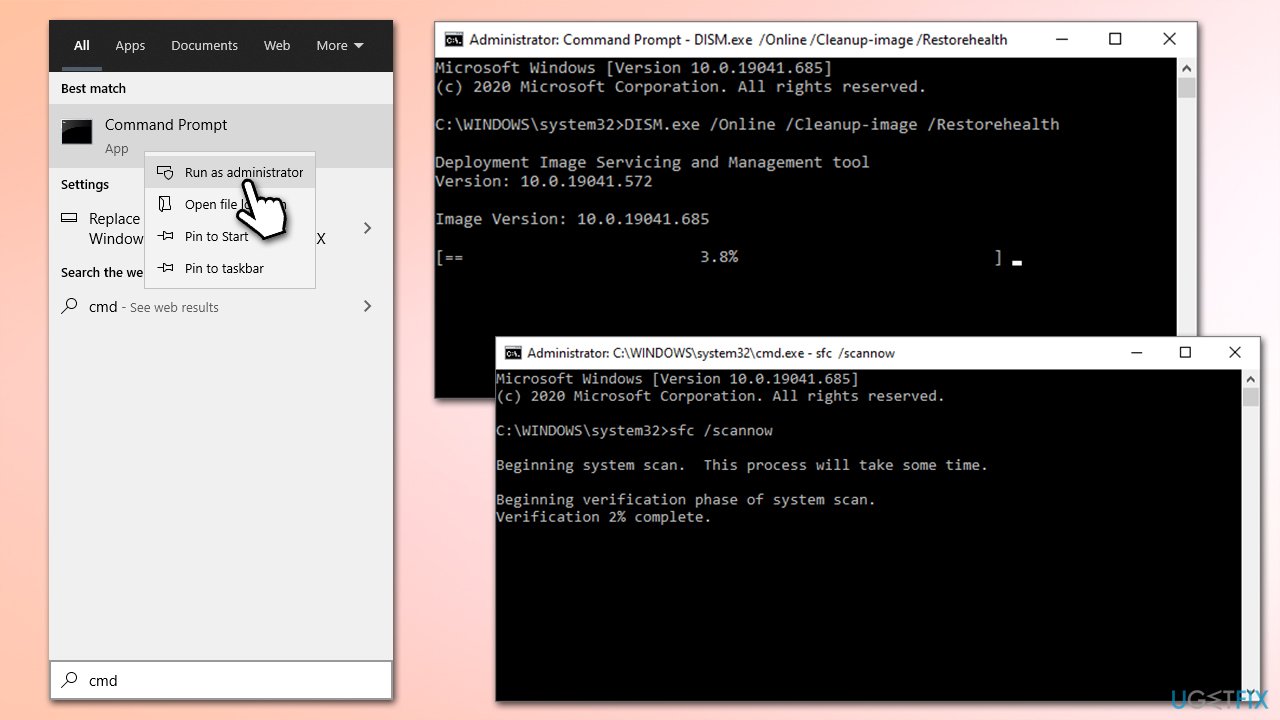
How to fix searchindexer exe high cpu usage in windows run sfc dism - Restart your system.
Bottom line
To fix high CPU usage by Searchindexer.exe, you can try restarting the process via Task Manager, rebuilding the index, or checking for Windows updates. If these solutions do not resolve the issue, consider further troubleshooting or seeking additional support.
Frequently asked questions
High CPU usage by Searchindexer.exe is often caused by indexing a large number of files or a corrupt index database. Other factors may include system scans or issues with connected external drives.
You can temporarily stop Searchindexer.exe by opening the Task Manager, locating the process, right-clicking it, and selecting 'End Task'. However, this will only provide a short-term solution until the process restarts.
Yes, you can disable Searchindexer.exe by accessing Indexing Options in the Control Panel, but this will impact the search functionality in Windows. If you rely on search features, consider adjusting indexing settings instead.




Report an issue
What's wrong with this guide? We review every report and update or remove content.
Report received — thank you. We'll review and fix it.
You need a free account to submit a report.
Be the first to comment