How to fix
Settings app Search bar not working
on Windows
Resolve the Settings app Search bar issue in Windows 10 or 11 quickly and effectively. Get expert-tested solutions for smooth navigation, zero traces left.

What causes How to fix Settings app Search bar not working in Windows?
- General bugs in the system
- Corrupted settings app files
- Issues with Windows search indexing
- Outdated system software
- Conflicts with third-party applications
Repairs Windows system files, removes malware, and restores a clean OS state — without reinstalling.
Over the last few days, I have been experiencing issues with the search function in Windows Settings. When attempting to search directly in settings, no results are displayed for any query. However, if I use Cortana or the Start menu to search, the results do include relevant settings-related information. Despite this, upon selecting these results, the settings app opens but displays the same result as before. Please help.
The Windows Settings app is a built-in application in the Windows operating system that provides users with a centralized location to manage and customize various aspects of their computer. It replaced the traditional Control Panel and provides a more streamlined and user-friendly interface for configuring settings on Windows devices.
The Settings app allows users to adjust system settings such as display, sound, network, security, and privacy options. Users can also manage their user accounts, personalize their desktop backgrounds, and customize accessibility features.
One of the key advantages of the Settings app is its search functionality, which enables users to quickly and easily find specific settings using keywords or phrases. Unfortunately, some users reported that this feature is not working correctly, and no results are shown whenever they search for something in the Settings app.
This can be a frustrating problem, as the search feature is extremely useful, considering how many sections Windows is directed into. Finding precisely what you need or knowing shortcuts to open those items might not always be accessible for everyone.
Users reported additional problems as well. Some said that, when using the Windows search bar instead, the results were shown perfectly fine, but when users clicked on that result, they would be redirected to the Settings app, where the problem with missing results recurred.
One of the primary reasons for this is general bugs that might occur due to one reason or another, so make sure you restart your system first and check if the issue continues. If that does not help, follow the instructions below to fix the Settings app Search bar not working problem.
Note: if you want to try a quicker solution, try running an automatic PC repair software [d1], which can identify and replace damaged Windows files within just a few minutes. The app can also check for broken registries, DLL issues, and more.
Fix 1. Run Search and Indexing troubleshooter
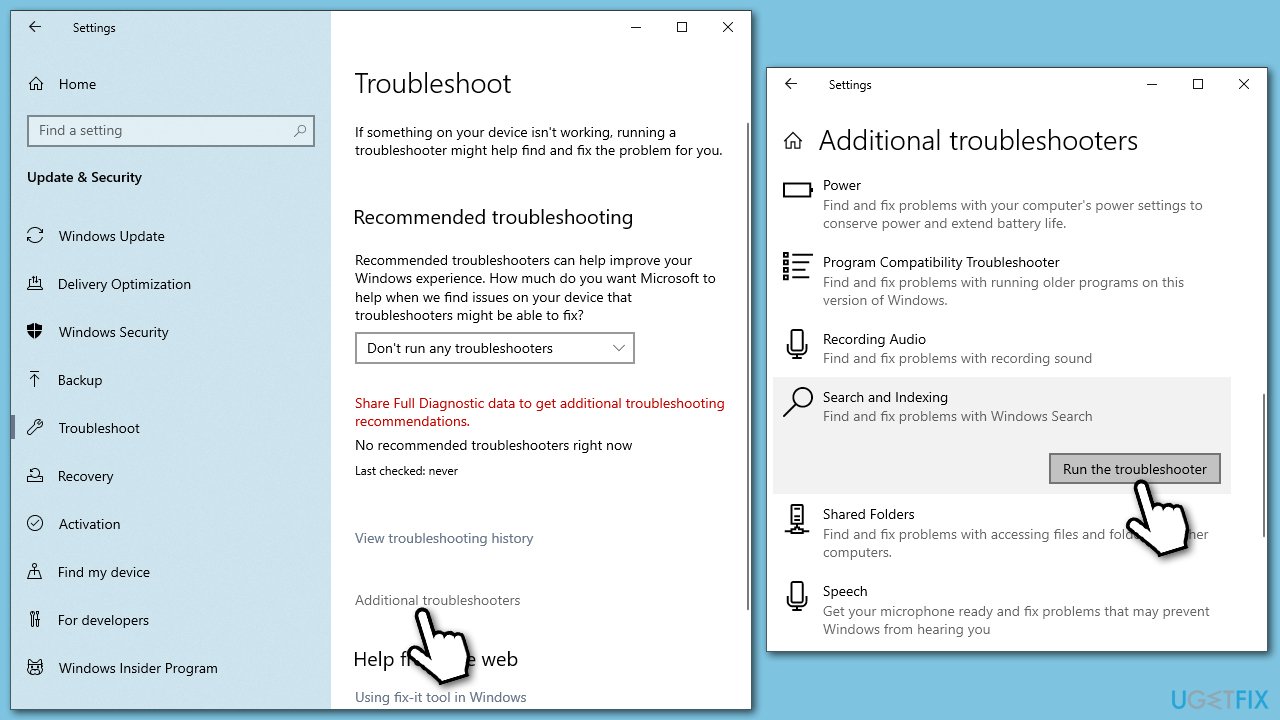
Troubleshooters are great tools that come pre-built in any modern Windows system and can be a great help when issues with Windows arise. Thus, we recommend running a Search and Indexing troubleshooter as follows:
- Click Start and select Settings.
- Go to Update & Security section.
- On the left, select Troubleshoot.
- Pick Additional troubleshooters/Other troubleshooters.
- Scroll down to find Search and Indexing troubleshooter.
- Click on it and select Run the troubleshooter/Run.
Fix 2. Install Windows updates
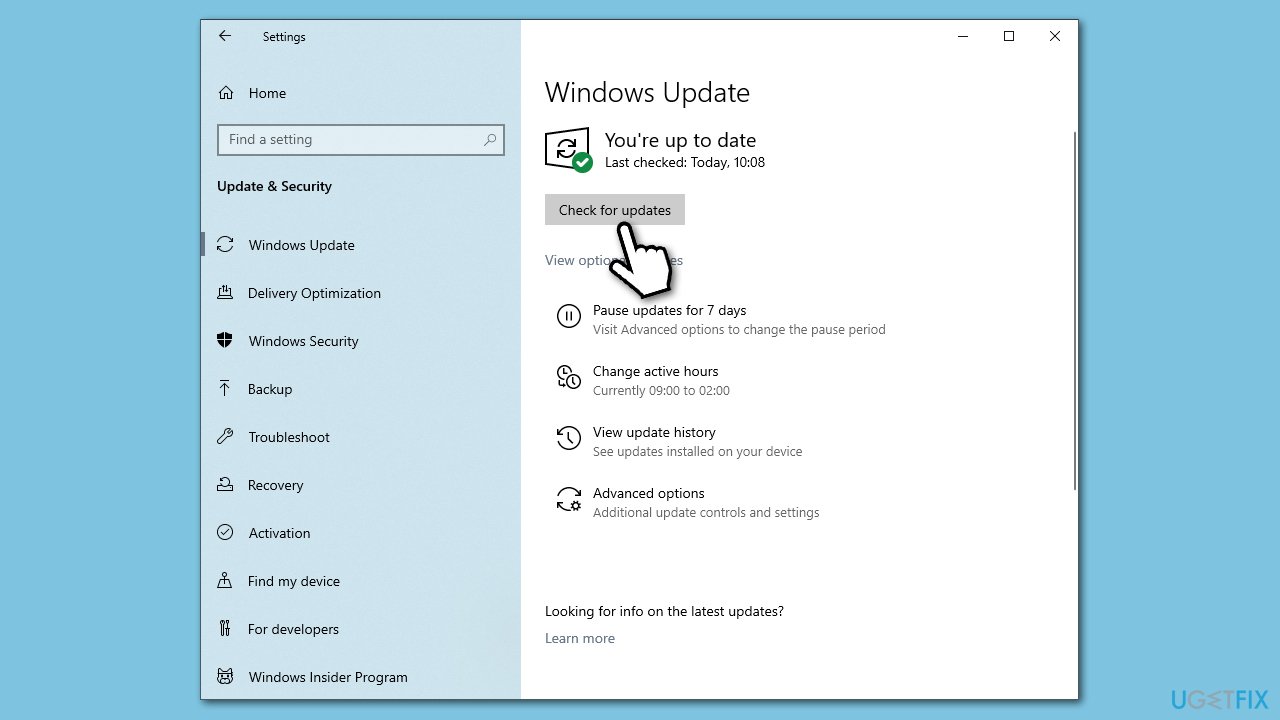
- Type Updates in Windows search and press Enter.
- Here, click Check for updates.
- Wait till all the files are installed.
- Install optional updates if they are available.
- Once installed, restart your system.
Fix 3. Reset the Settings app
You can try resetting the Settings app easily. Here's how:
- In Windows search, type Settings.
- Right-click on Settings and pick App settings.
- Scroll down and click Reset.
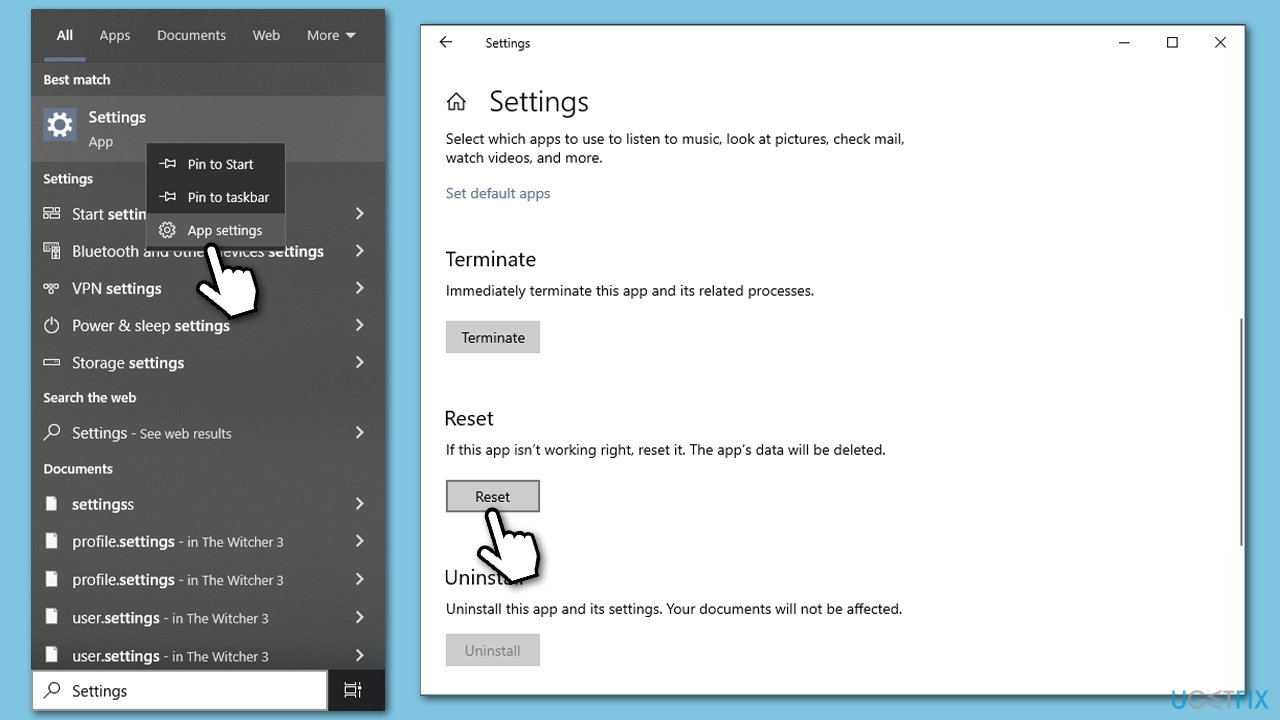
Fix 4. Force reset via Command Prompt
If the previous method did not work for you for some reason, you could always use an elevated Command Prompt to reset the app:
- Type cmd in Widnows search.
- Right-click the Command Prompt result and select Run as administrator.
- User Account Control will ask you whether you want to allow changes - click Yes.
- In the new window, copy and paste the following command:
Get-AppxPackage *windows.immersivecontrolpanel* | Reset-AppxPackage - Press Enter.
- Once the command is executed, close down the Command Prompt and check whether the Settings app search bar works again.
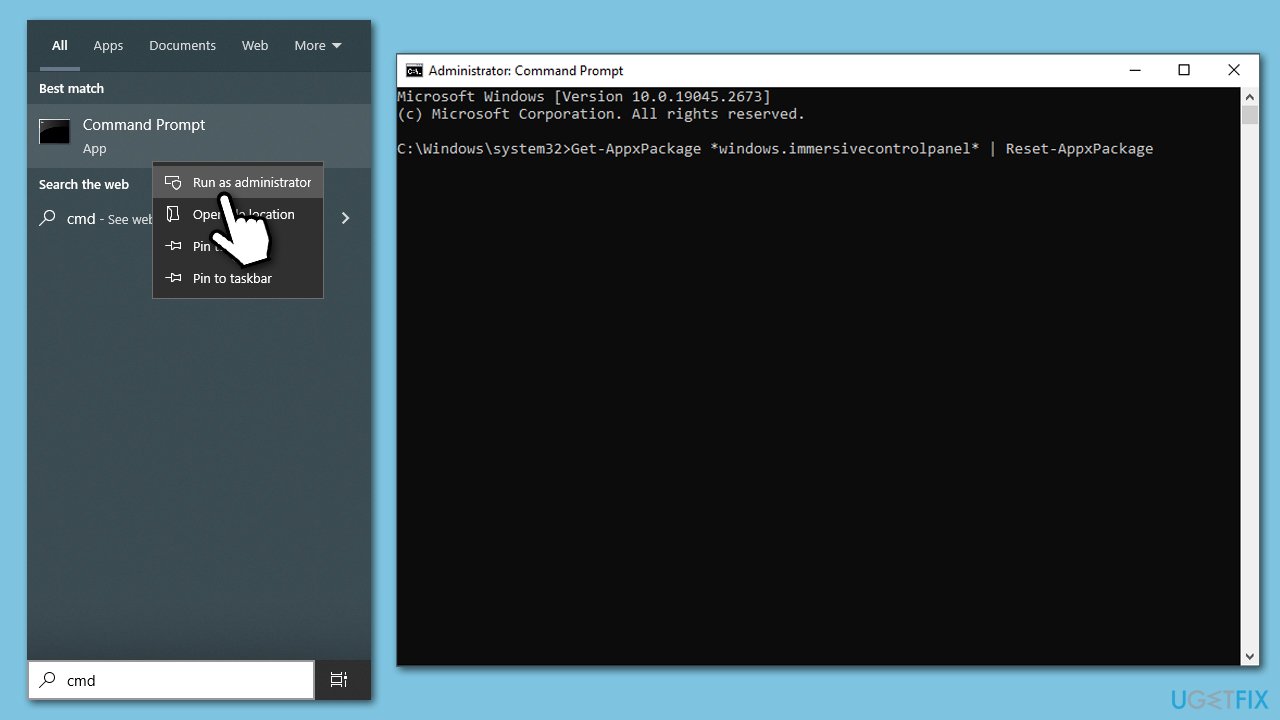
Fix 5. Reinstall Settings app
It is impossible to uninstall the Settings app via Control Panel or Apps and Features. However, there are ways you can force a reinstall via elevated PowerShell.
- Type PowerShell in Windows search.
- Right-click and select Run as administrator.
- When UAC shows up, click Yes.
- Copy and paste the following command, pressing Enter after:
Get-AppXPackage -AllUsers -Name windows.immersivecontrolpanel | Foreach {Add-AppxPackage -DisableDevelopmentMode –Register “$($_.InstallLocation)\AppXManifest.xml” -Verbose} - Close down PowerShell and see if the issue is resolved.
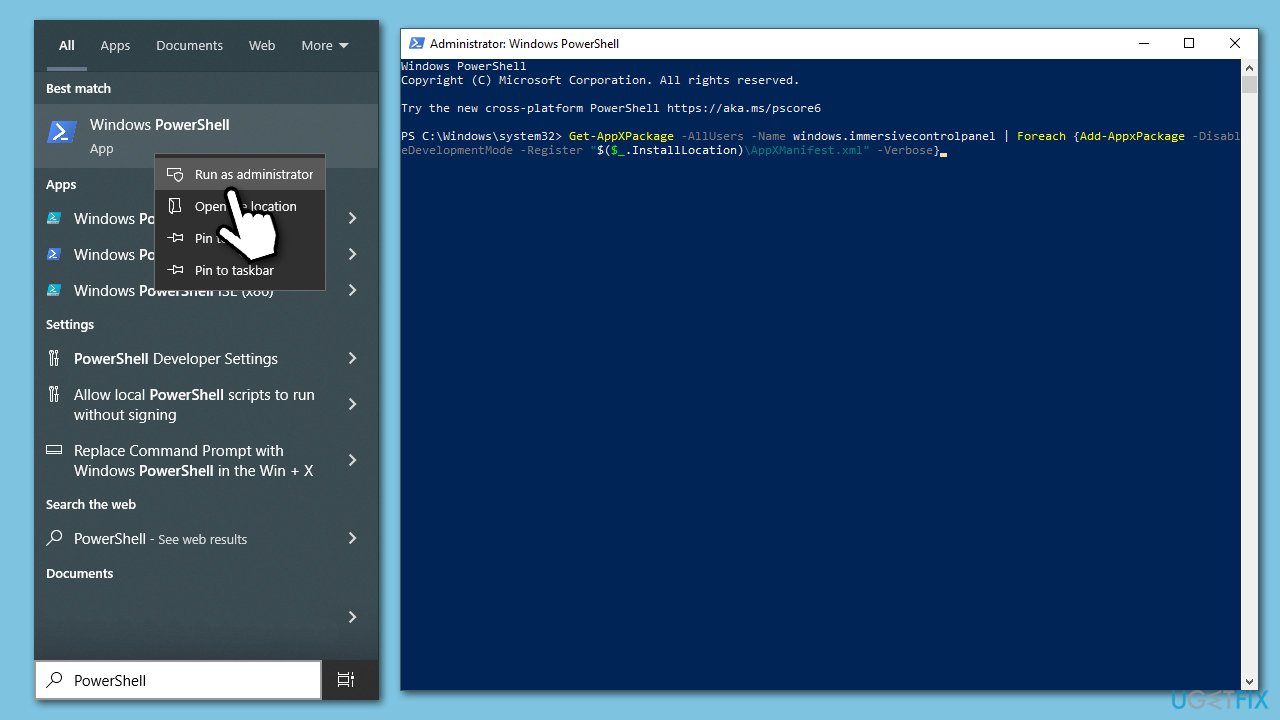
Fix 6. Reset Windows
- Click Start and select Settings.
- Go to the Updates & Security section.
- Select Recovery on the left.
- Under Reset this PC, click Get started.
- Select Keep my files and Cloud download.
- Wait till Windows finishes to download the necessary files.
- Your computer will restart to finalize the process.
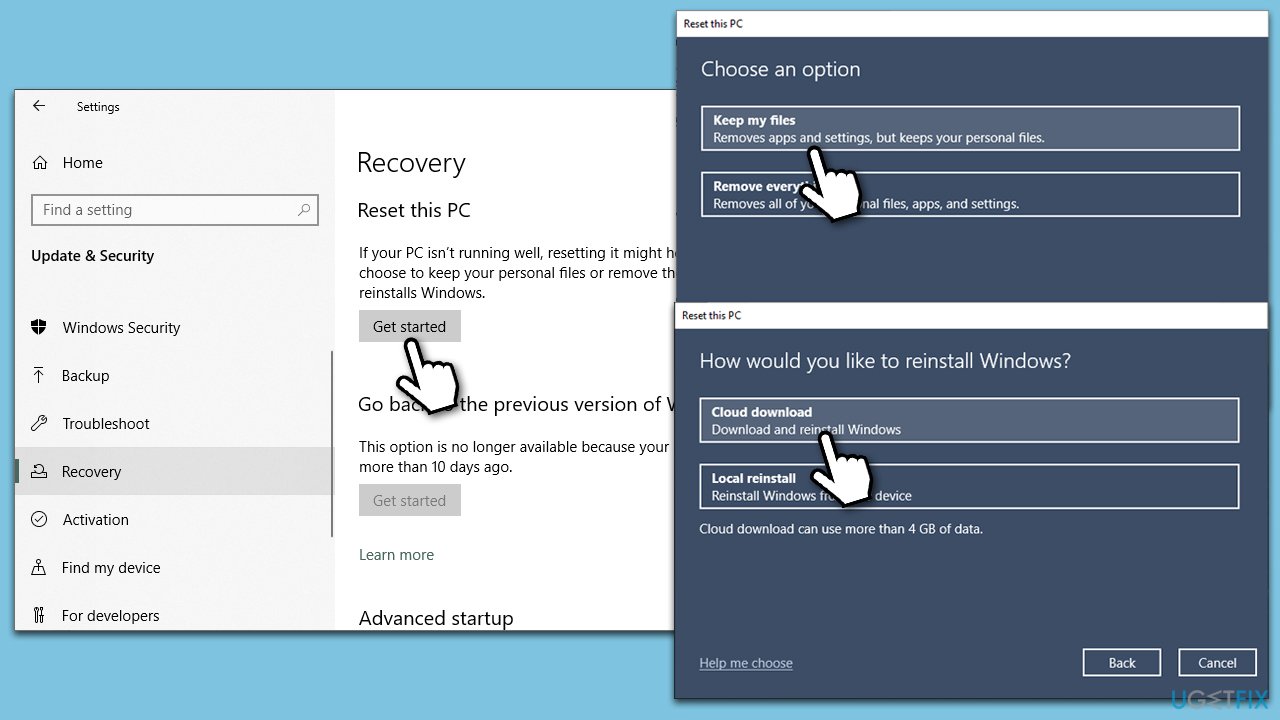
Related topics you might want to check:
Bottom line
To fix the Settings app Search bar not working issue, users can try restarting their system, running a troubleshooter, or resetting the Settings app. If none of these solutions work, consider checking for system updates or reinstalling the app.
Frequently asked questions
Try restarting the Windows Search service by typing 'services.msc' in the Run dialog, locating 'Windows Search,' and selecting 'Restart.' If that doesn't work, resetting the Settings app might help.
You can run the Windows Troubleshooter for Search and Indexing by going to Settings > Update & Security > Troubleshoot > Additional troubleshooters. This can help identify and fix any underlying issues.
Yes, you can navigate to 'HKEY_CURRENT_USER\Software\Microsoft\Windows\CurrentVersion\Search' in the Registry Editor and modify the 'BingSearchEnabled' and 'CortanaConsent' values to fix search issues.




Report an issue
What's wrong with this guide? We review every report and update or remove content.
Report received — thank you. We'll review and fix it.
You need a free account to submit a report.
Be the first to comment