How to fix
Software Reporter Tool high CPU issue
on Windows
Resolve the Software Reporter Tool high CPU issue on Windows 10 and 11 effortlessly. Get quick, expert-tested solutions to optimize your system performa…

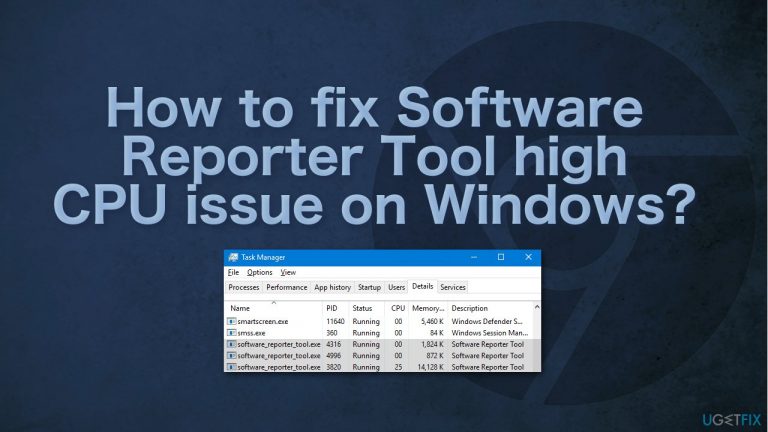
What causes How to fix Software Reporter Tool high CPU issue on Windows?
- Outdated version of Chrome
- Corrupted files
- Interference from harmful software
- Long runtime of Software Reporter Tool
- Excessive background processes
Repairs Windows system files, removes malware, and restores a clean OS state — without reinstalling.
Hello. What is this software reporter tool, and why does it keep using so much of my CPU? It slows down my PC making it difficult to perform tasks. Any insights would be helpful.
Chrome is one of the most popular browsers developed by Google because of its excellent functionality and trustworthiness. It was first released in 2008 for Microsoft Windows, built with free software components from Apple WebKit[ref en-1] and Mozilla Firefox. As of July 2021, it is estimated that Chrome has a 65% worldwide browser market share on personal computers, tablets, and smartphones.
Google Chrome has many great features such as a minimalistic user interface, the merging of the address bar and search bar into the Omnibox,[ref en-2] and overall strong browser performance. However, like any other application, it is not perfect and sometimes causes some inconvenience for users.
Recently, people noticed in their Task Manager that Software_Reporter_Tool.exe is using huge amounts of CPU power which is causing a decrease in the device's performance. Software Reporter Tool (SRT) is used by Google Chrome web browser. It is a part of Google Chrome’s “Clean up Computer” functionality.
Google Chrome runs SRT to record all the programs and processes interfering with the normal function of the browser. If any harmful software is found, Chrome prompts the user to run Software Removal Tool to remove it. If the tool runs for 20 minutes or more, it can result in unresponsive programs.
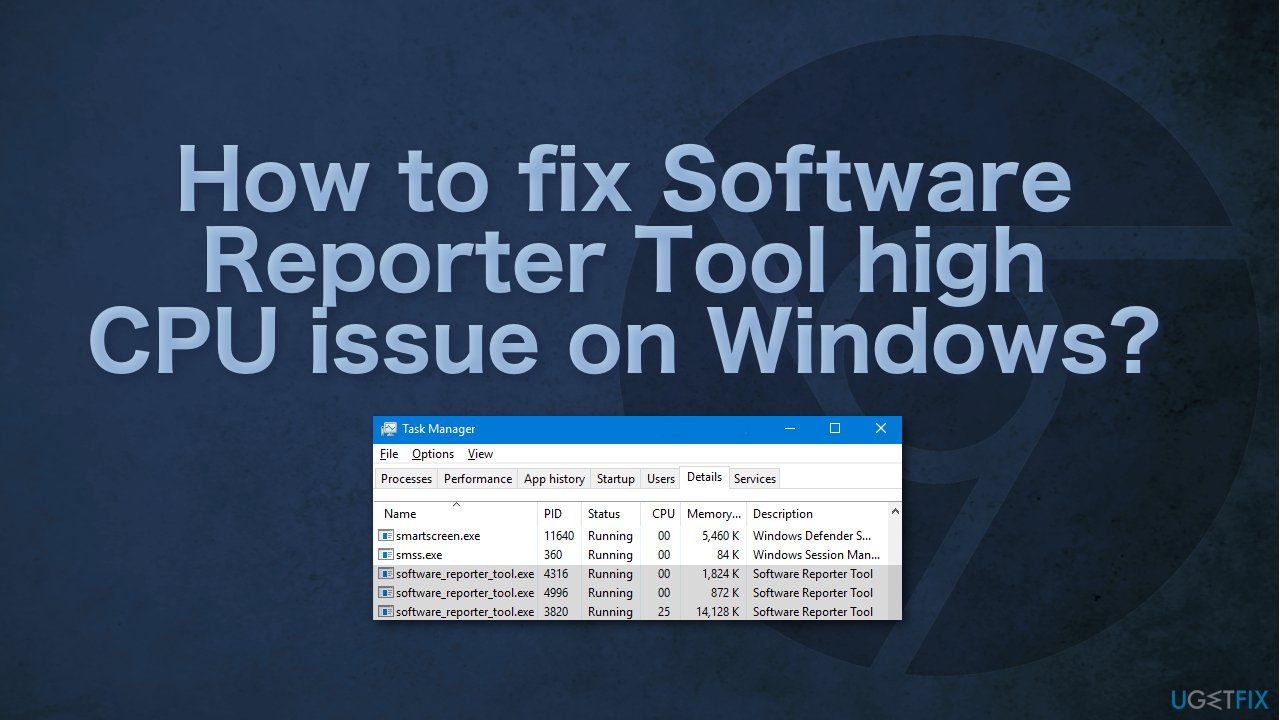
There are many possibilities why SRT consumes so much of your CPU power, so if you do not want to go through all the possible fixes, as some of them are quite complicated, you can try using [d1] optimization tool. It can find and repair various corrupted files, system errors, BSODs,[ref en-3] and more automatically.
Below you will find different methods which could help you fix Software Reporter Tool high CPU issue on Windows. Make sure not to rush and go through all the steps, we hope you will fix this issue with our tips:
Method 1. Update Chrome and clear cache
- Launch Chrome and click on the menu
- Select Settings and steer to the About Chrome tab
- Make sure Chrome is up-to-date
- Once Chrome is updated, check if the high CPU usage issue is resolved
- If not, launch Chrome and click on the menu
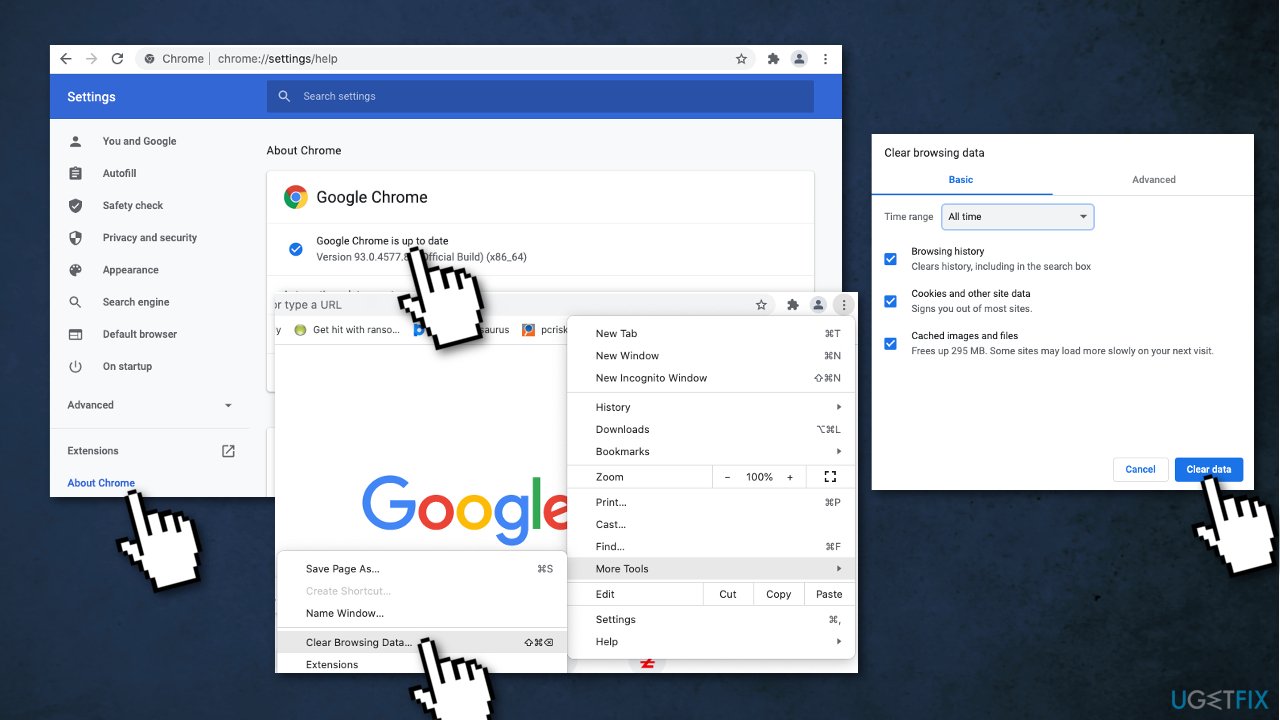
- Select More Tools
- Choose Clear Browsing Data, and click on Sign-out
- Open the dropdown of Time-Range and select All Time
- Checkmark all the categories and click on the Clear Data button
- Restart your PC
Method 2. Disable the Software Reporter Tool via Chrome settings
The Software Reporter Tool is a Chrome process and disabling its relevant settings in the Chrome browser may solve the problem.
- Launch Chrome and open its menu
- Choose Settings and expand Advanced
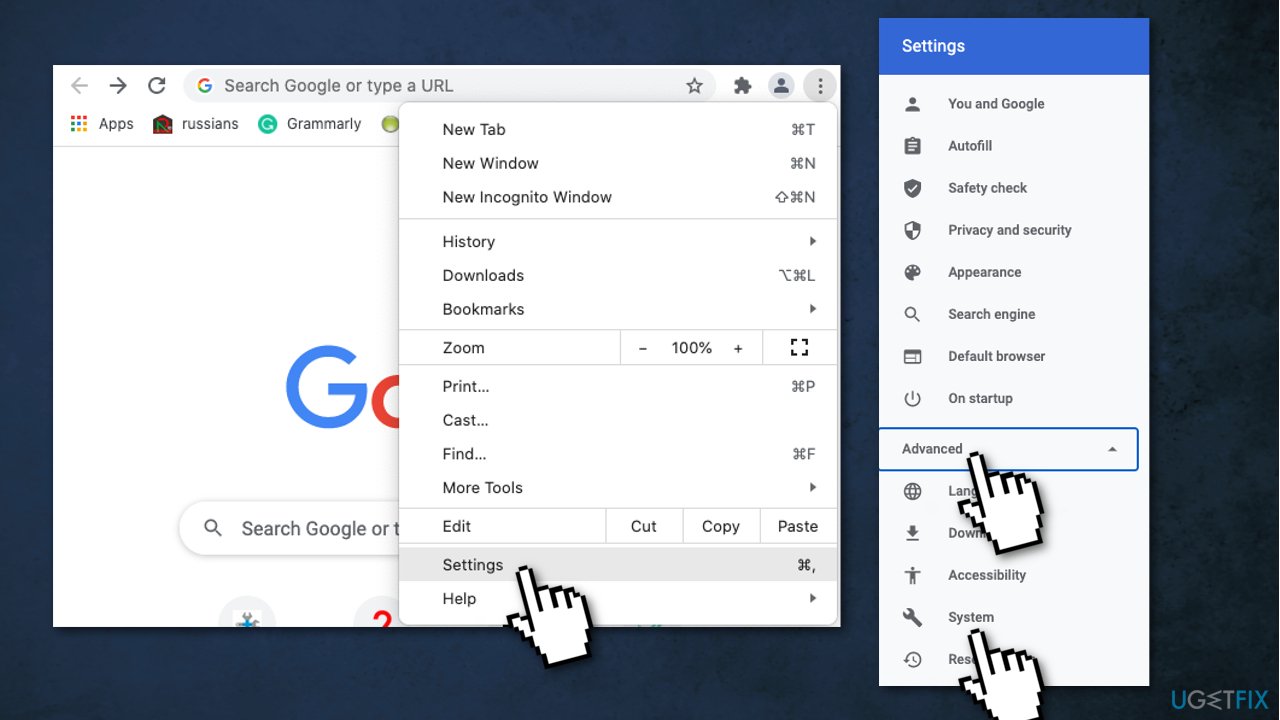
- Select System and disable the option Continue Running Background Apps When Google Chrome is Closed
- Open Clean Up Computer and uncheck the option Report Details to Google About Harmful Software
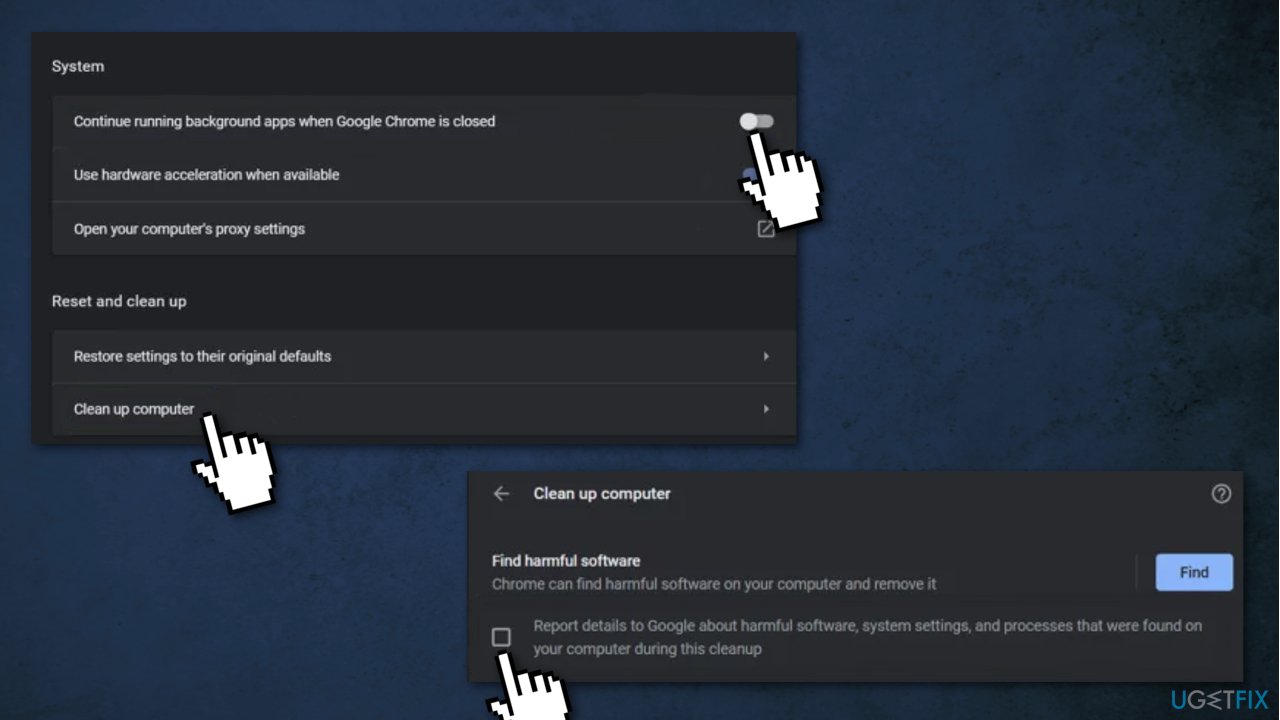
- Relaunch Chrome and check if the issue is resolved
Method 3. Remove read/write permissions
- Right-click Windows and select Run
- Navigate to the following path:
- %localappdata%\\Google\\Chrome\\User Data\\
- Right-click on the SwReporter folder and select Properties
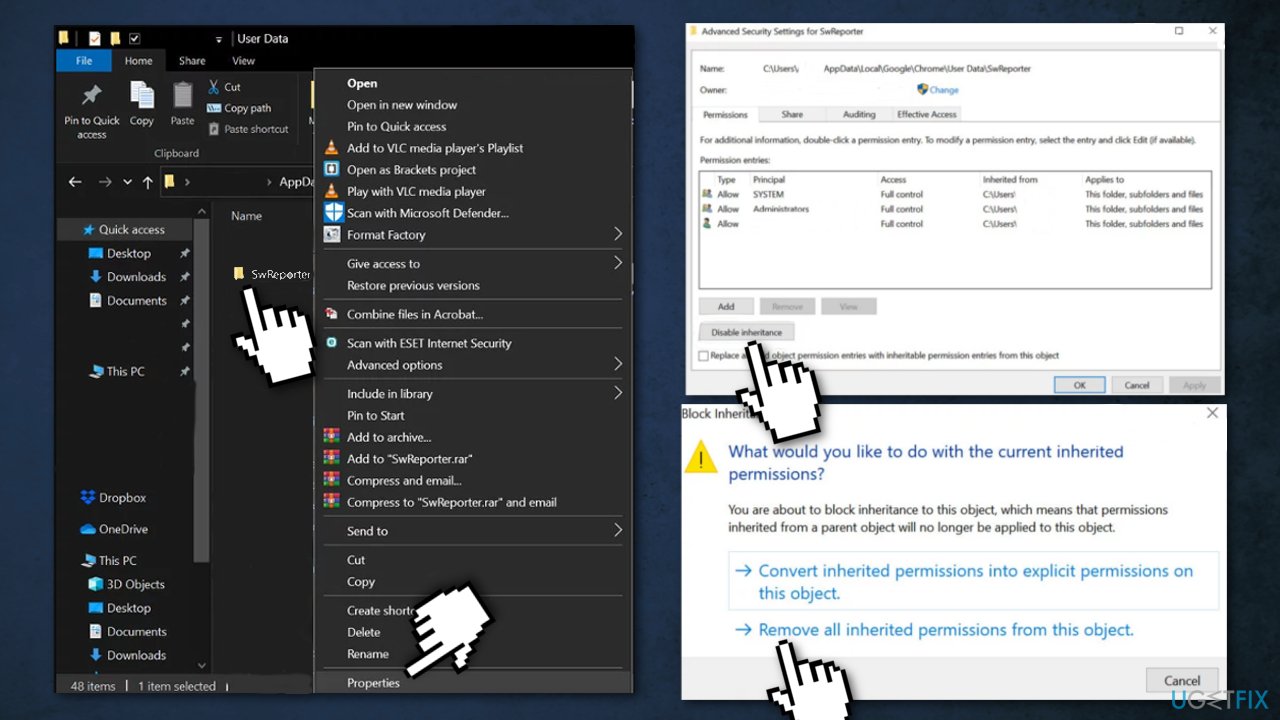
- Then navigate to the Security tab and click on the Advanced button
- Click on the Disable Inheritance button and select Remove All Inherited Permissions from This Object
- Restart
Method 4. Delete Software_Reporter_Tool.Exe
This will not block any Google operations and the browser will run without any problems. However, this fix is temporary as the executable file will come back when you update Google Chrome:
- Right-click Windows and select Run.
- Navigate to the following directory (copy-paste the address):
- %localappdata%\\Google\\Chrome\\User Data\\SwReporter
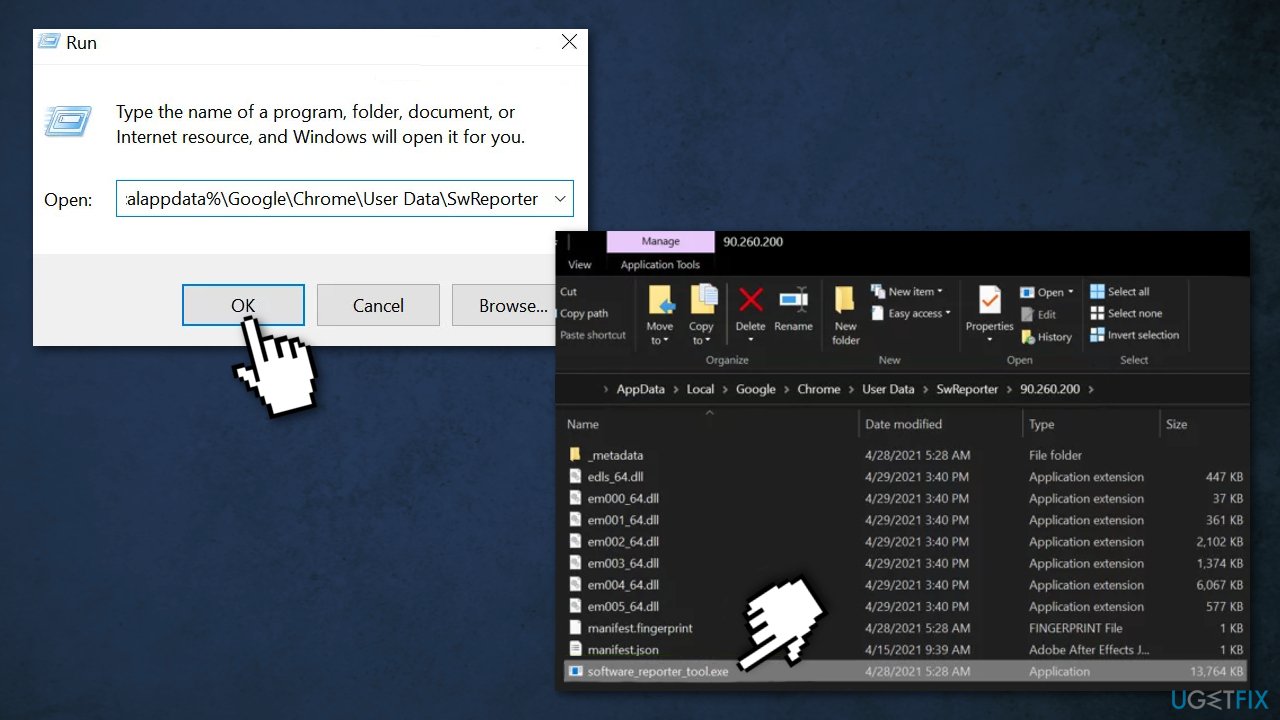
- Open the folder with the Chrome version and delete the software_reporter_tool.exe file
- Reboot your PC
Method 5. Disable the Execution of Software Reporter Tool with a Policies Key
- Exit Chrome and End Task of its related processes (including the Software Reporter Tool) in the Task Manager
- Click Windows, and type in Registry Editor; right-click it and choose Run as Administrator
- Navigate to the following registry path:
- HKEY_LOCAL_MACHINE\\SOFTWARE\\Policies\\
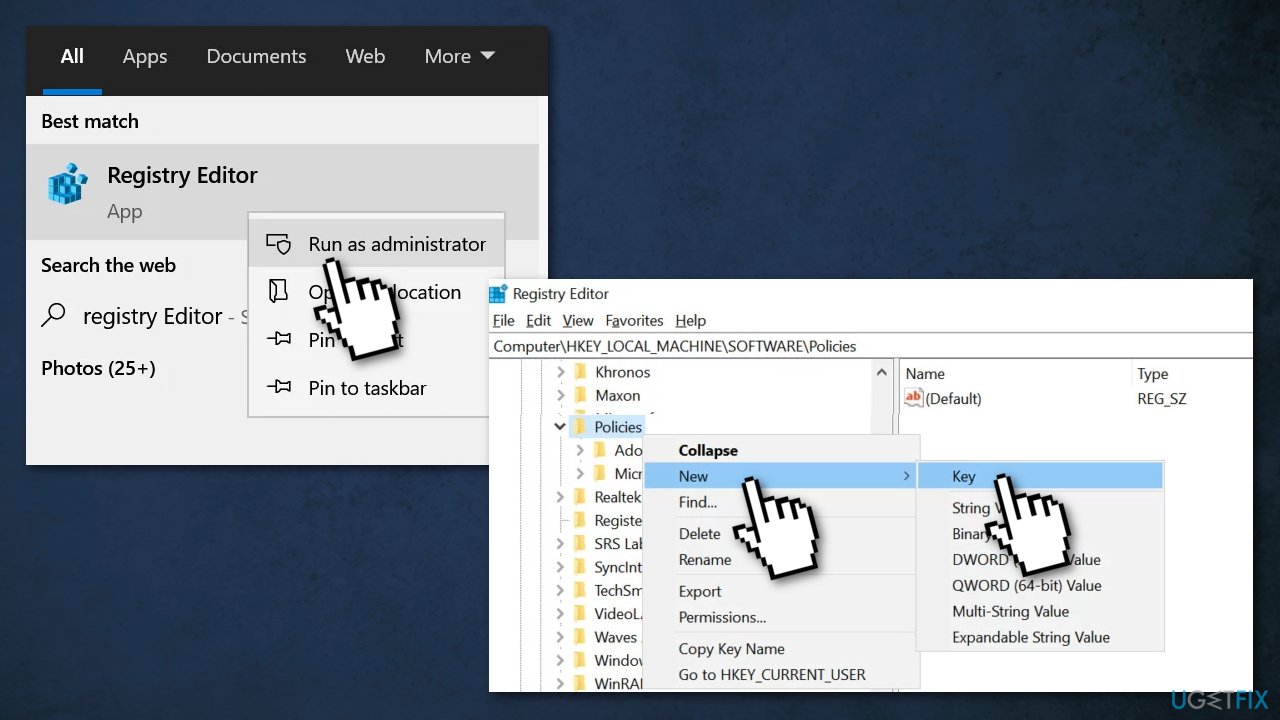
- Now check if the folders with the Google > Chrome are present
- If not, then in the left pane, right-click on Policies and choose New > Key
- Name the key as Google and then right-click on the Google key
- Select New > Key and name it Chrome; After that right-click on the Chrome key
- Now choose New > Dword (32-bit) Value and in the right pane, name the key as ChromeCleanupEnabled
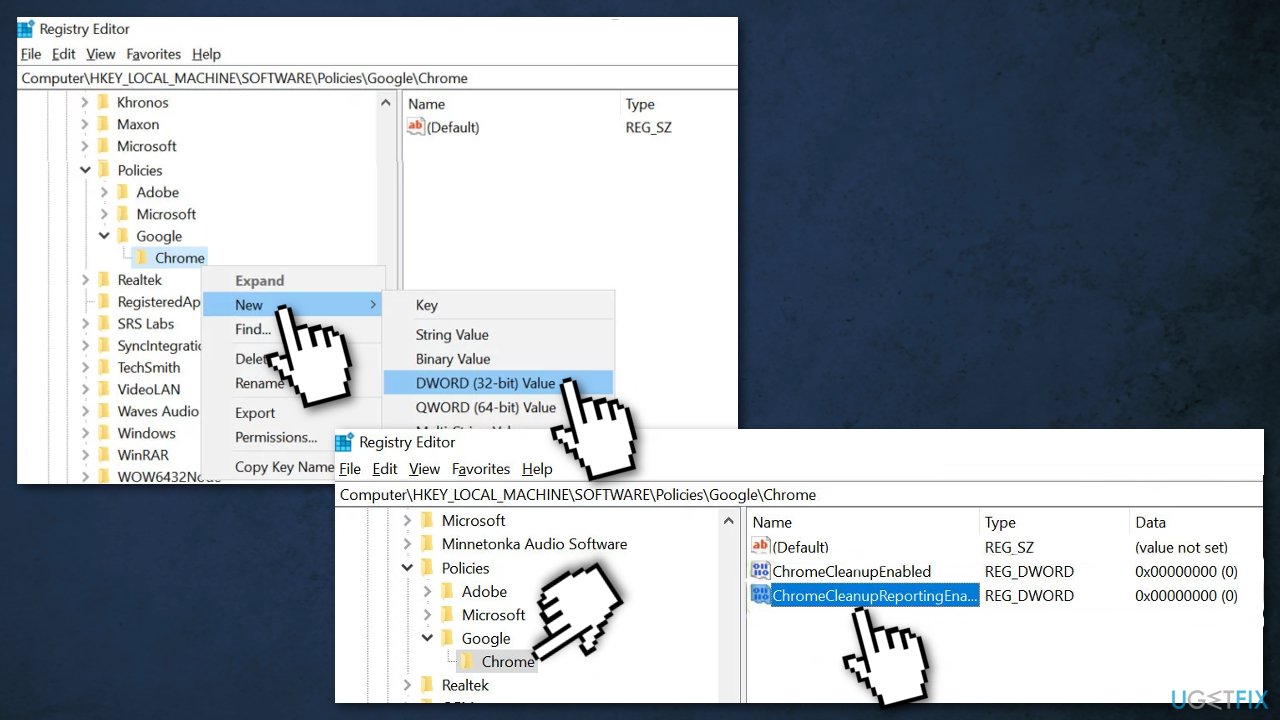
- Double-click on it and set its value to 0
- Right-click on the Chrome key and select New > Dword (32-bit) Value
- Name it as ChromeCleanupReportingEnabled and set its value to 0
- Close the editor and restart your PC
Method 6. Block the Execution of Software Reporter Tool with a DisallowRun Key
- Navigate to the following path:
- HKEY_CURRENT_USER\\Software\\Microsoft\\Windows\\CurrentVersion\\Policies
- Right-click Policies and select New > Key
- Name the key as Explorer and right-click on Explorer
- Choose New > Key and name it as DisallowRun; The complete registry path will be:
- HKEY_CURRENT_USER\\Software\\Microsoft\\Windows\\CurrentVersion\\Policies\\Explorer\\DisallowRun
- Right-click on DisallowRun and choose New > String
- Name it as 1 and double-click on it
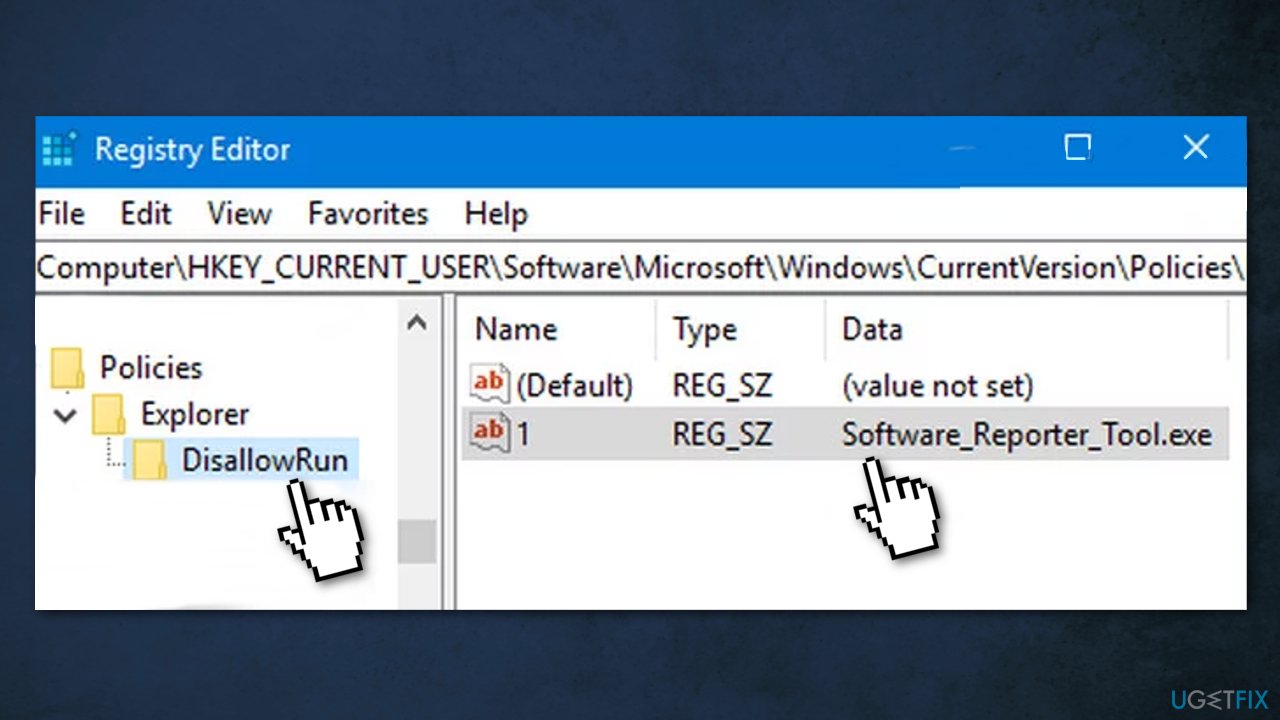
- Set its value to Software_Reporter_Tool.exe and exit the editor
- Restart your PC
You might also be interested in these topics:
Bottom line
To address the high CPU usage issue caused by the Software Reporter Tool, you can update Chrome, clear the cache, and check for any harmful software. If these methods do not resolve the problem, consider using an optimization tool to automatically repair system errors.
Frequently asked questions
The Software Reporter Tool is a Google Chrome component that scans for harmful software and can consume high CPU resources due to extensive scanning processes. This can occur especially if there are many applications installed or if the tool is running multiple scans in a short period.
You can disable the Software Reporter Tool by navigating to the Task Scheduler, finding the tool under the Google section, and disabling its scheduled tasks. Alternatively, you can adjust the permissions of the folder where the tool is located to prevent it from running.
Yes, you can try updating Google Chrome to the latest version as updates often include performance improvements, or you can limit the number of extensions that may lead to increased scanning demands. Additionally, checking for malware can also help reduce the load.




Report an issue
What's wrong with this guide? We review every report and update or remove content.
Report received — thank you. We'll review and fix it.
You need a free account to submit a report.
Be the first to comment