How to fix
Starfield crashing with BSOD
on Windows
Resolve Starfield crashes and BSOD errors on Windows 10 and 11 effortlessly. Get expert-tested solutions to get back to gaming in minutes!


What causes How to fix Starfield crashing with BSOD in Windows?
- High graphical demand exposing weak points in system drivers
- Incompatibilities between game software and certain PC configurations
- Issues related to memory management
- Corrupt game files
- Accessing protected or non-existent memory areas
Repairs Windows system files, removes malware, and restores a clean OS state — without reinstalling.
I was stoked to finally play Starfield, and the first few hours of the game worked great - no stutters, no significant FPS drops, etc. Then, suddenly, the game crashed with a BSOD. Now, whenever I attempt to load a save or start a new game, the blue screen repeats. What is going on? I can't play the game anymore.
Starfield is one of the most anticipated releases from Bethesda Game Studios in recent years. Launched in September 2023, it marks a significant milestone for the developer, being their first new franchise in 25 years. Designed as an action role-playing game, Starfield thrusts players into an expansive space-themed environment. While critics and users alike have mixed opinions about the game, the general reception is positive, and millions of players are playing the game.
Nevertheless, with such a large release comes its set of technical challenges. Post-release, a number of Windows users reported game crashes manifested in the form of the Blue Screen of Death (BSOD). Specific error codes frequently identified by users included "DRIVER_OVERRAN_STACK_BUFFER," "KMODE_EXCEPTION_NOT_HANDLED," and others.
Some users lamented that post-crash, attempting to reload Starfield resulted in recurrent PC crashes. This severity meant that a portion of the player base was entirely barred from delving back into the Starfield universe.
Starfield BSOD crashes can arise from several underlying issues. With their high graphical demand and complex computing requirements, games like Starfield may expose weak points in a system's drivers or hardware. Incompatibilities between the game software and certain PC configurations might also trigger these crashes.
Moreover, issues related to memory management or corrupt game files can culminate in a BSOD, especially if the game tries to access protected or non-existent memory areas.
For those searching for a remedy, comprehensive instructions to address these BSOD errors will be provided below. Ensuring that your PC's drivers are updated, the game's integrity is verified, and potential conflicts with other software are ruled out is crucial.
For persistent and unidentifiable BSOD origins, it might be worthwhile to consider using the [d1] PC repair tool. Designed to diagnose and resolve Windows-based challenges, this tool can autonomously identify and rectify underlying system anomalies, offering players a smoother Starfield experience.
Fix 1. Update graphics drivers
Graphics drivers are crucial for the optimal performance of video games. An outdated or incompatible driver can cause games to crash, freeze, or encounter a BSOD. You can start by using the built-in Windows feature:
- Right-click on Start and pick Device Manager.
- Expand the Display Adapters section.
- Right-click on your graphics card and select Update Driver.
- Select Search automatically for drivers and wait.
- Once done, restart your device.

It is worth noting that updating GPU drivers this way might not always be successful (Windows sometimes fails to find the latest software). To address this, it is always better to install drivers manually through the official website or employ specialized software such as [rev id="DriverFix"].
Fix 2. Check game integrity
Corrupt or missing game files can lead to crashes. Most gaming platforms, like Steam, offer a way to verify and repair game installations.
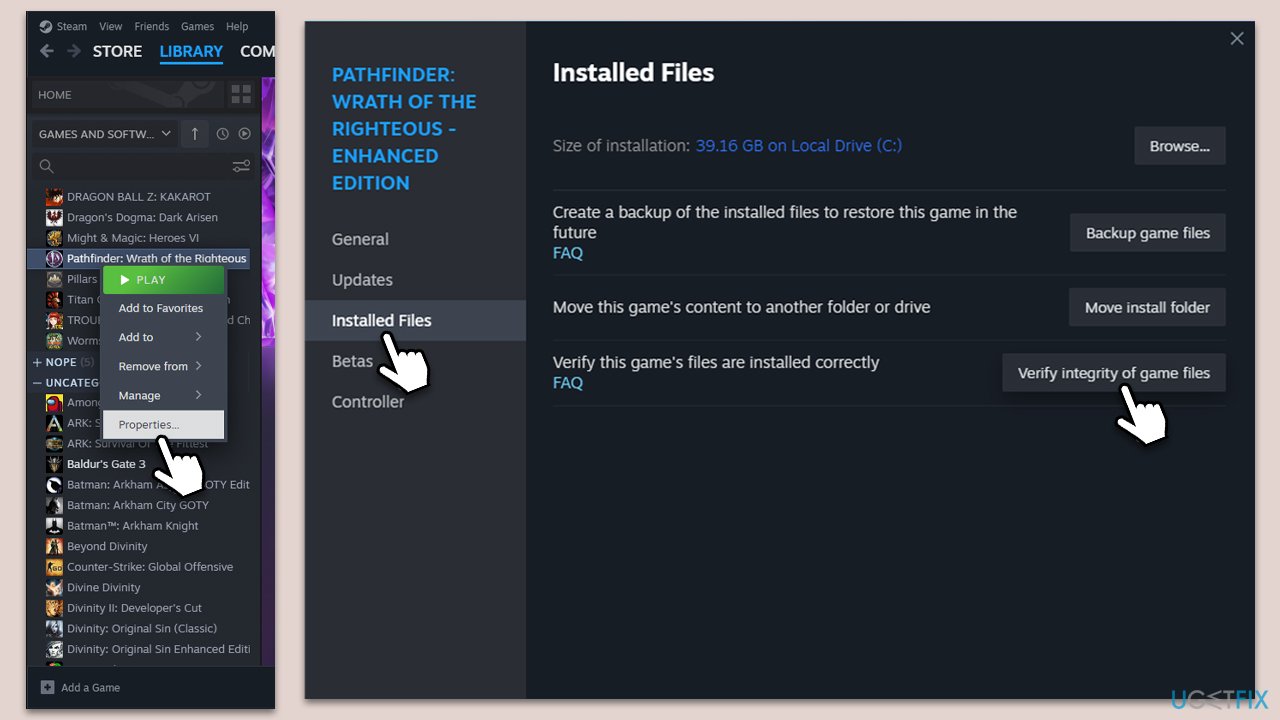
- Open Steam and go to your Library.
- Right-click on Starfield and select Properties.
- Go to the Installed Files section.
- Click Verify integrity of game files and wait till the process is complete.
- Launch the game as normal.
Fix 3. Run as administrator
Some games require higher permissions to access certain files or processes. Running the game as an administrator might resolve such issues.
- Go to Steam's library and select Starfield.
- Right-click on it and pick Browse local files.
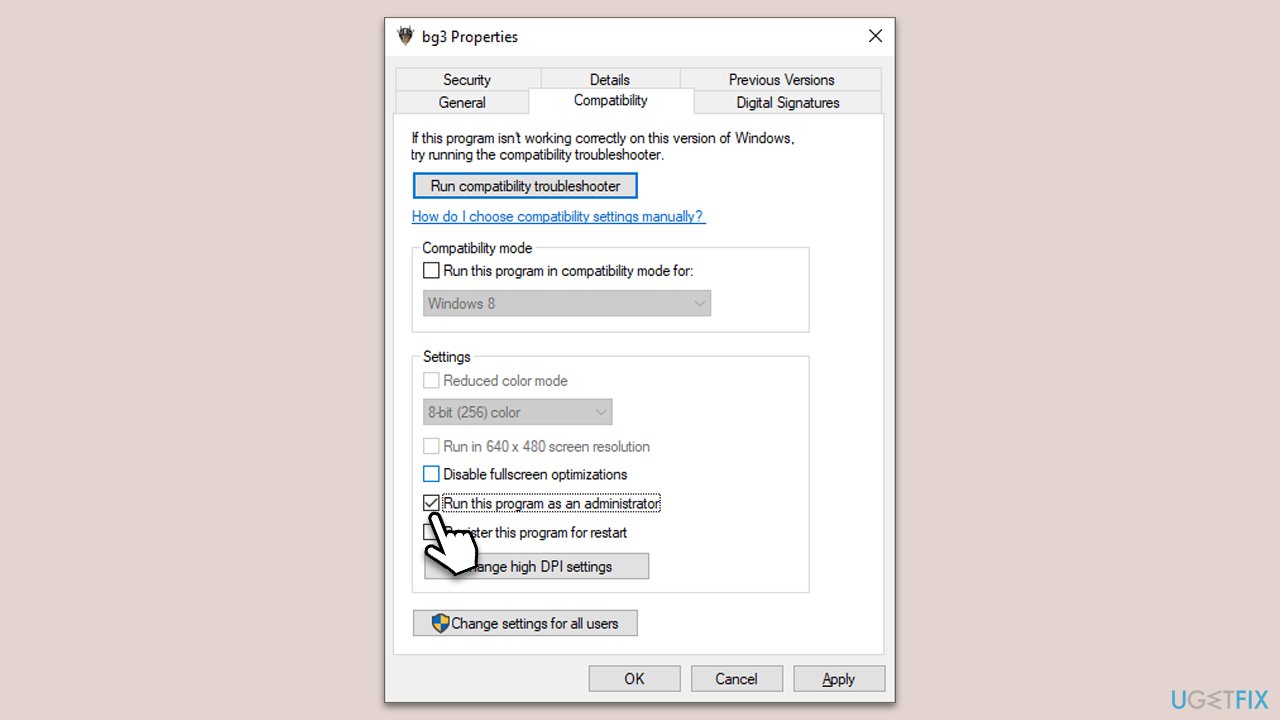
- In the game's installation folder, right-click on the game's executable file.
- Select Properties.
- Go to the Compatibility tab.
- Under Settings, tick the Run this program as administrator checkbox.
- Click Apply and OK.
Fix 4. Adjust game settings
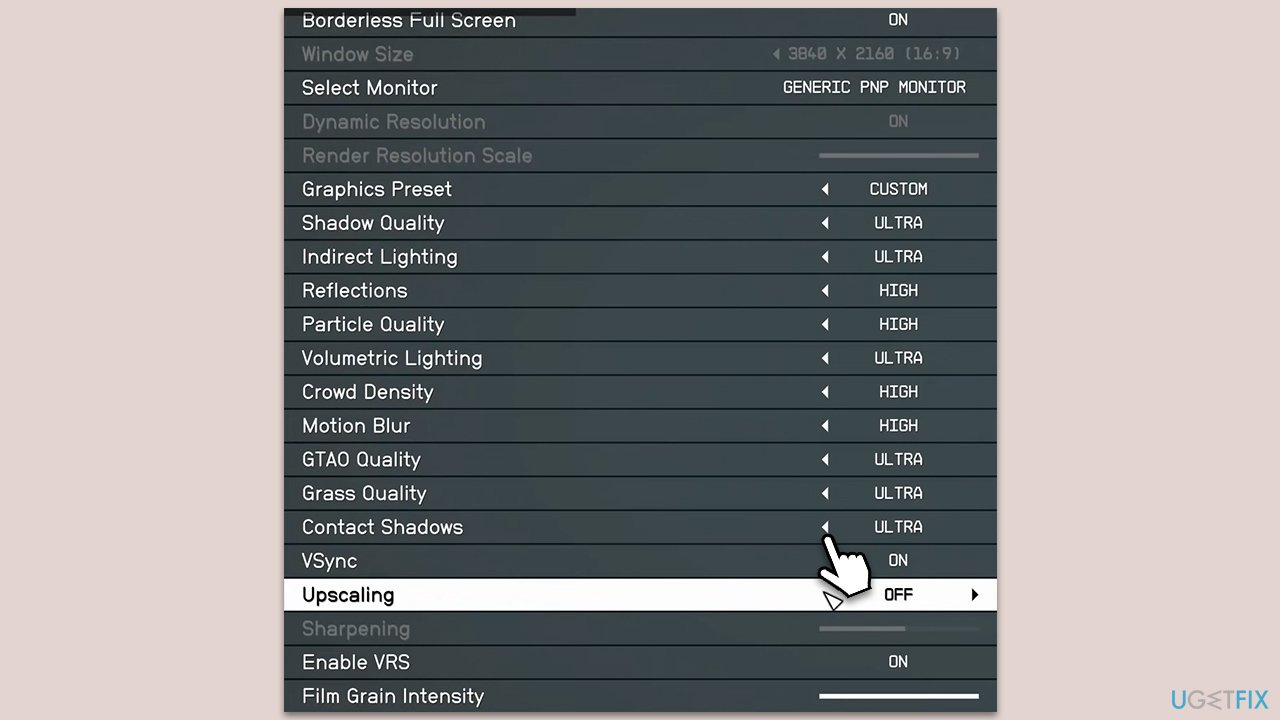
Reducing the graphics settings can relieve stress on your hardware and potentially avoid crashes.
- Launch Starfield.
- Navigate to the Settings menu.
- Go to Display.
- Reduce graphics settings like shadows, textures, and resolution.
- Save changes and restart the game.
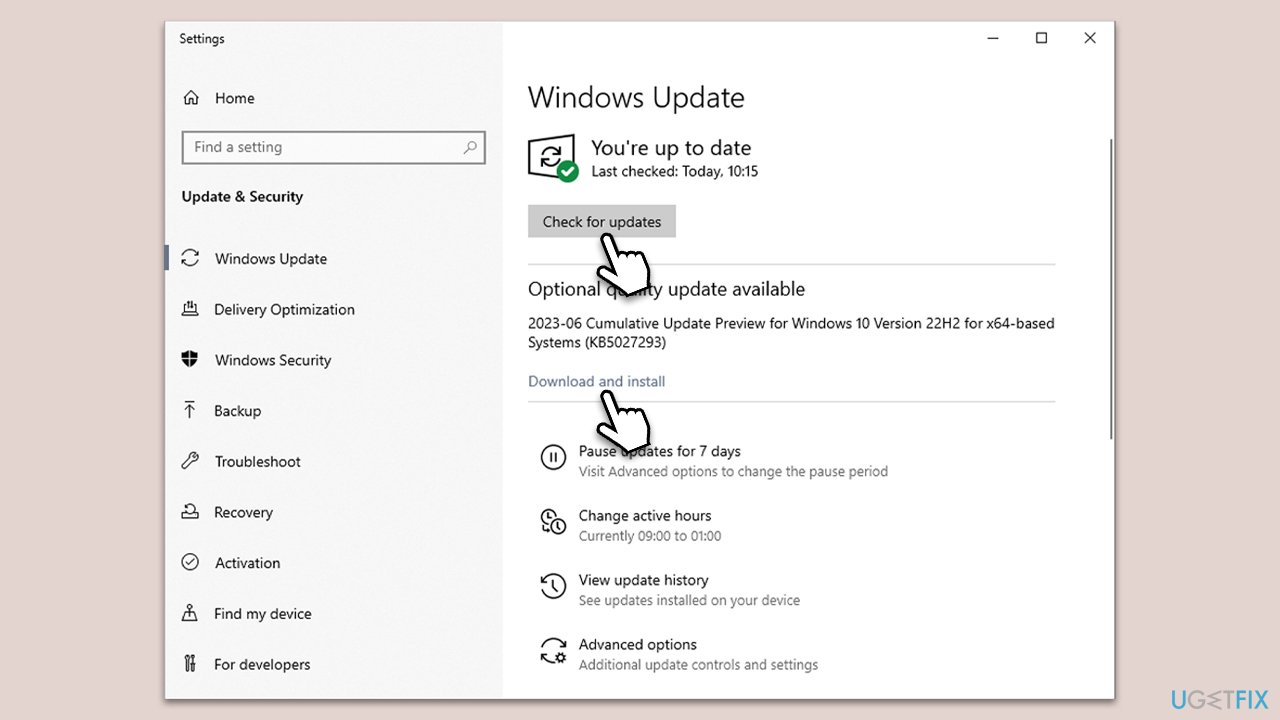
Fix 5. Update Windows
Having the latest Windows updates ensures system stability and can resolve compatibility issues.
- Type Updates in Windows search and press Enter.
- In the new window, click Check for updates.
- If optional updates are available, install them too.
- Wait until all the files are downloaded and installed, then restart your PC to implement the changes.
Fix 6. Roll back Windows updates
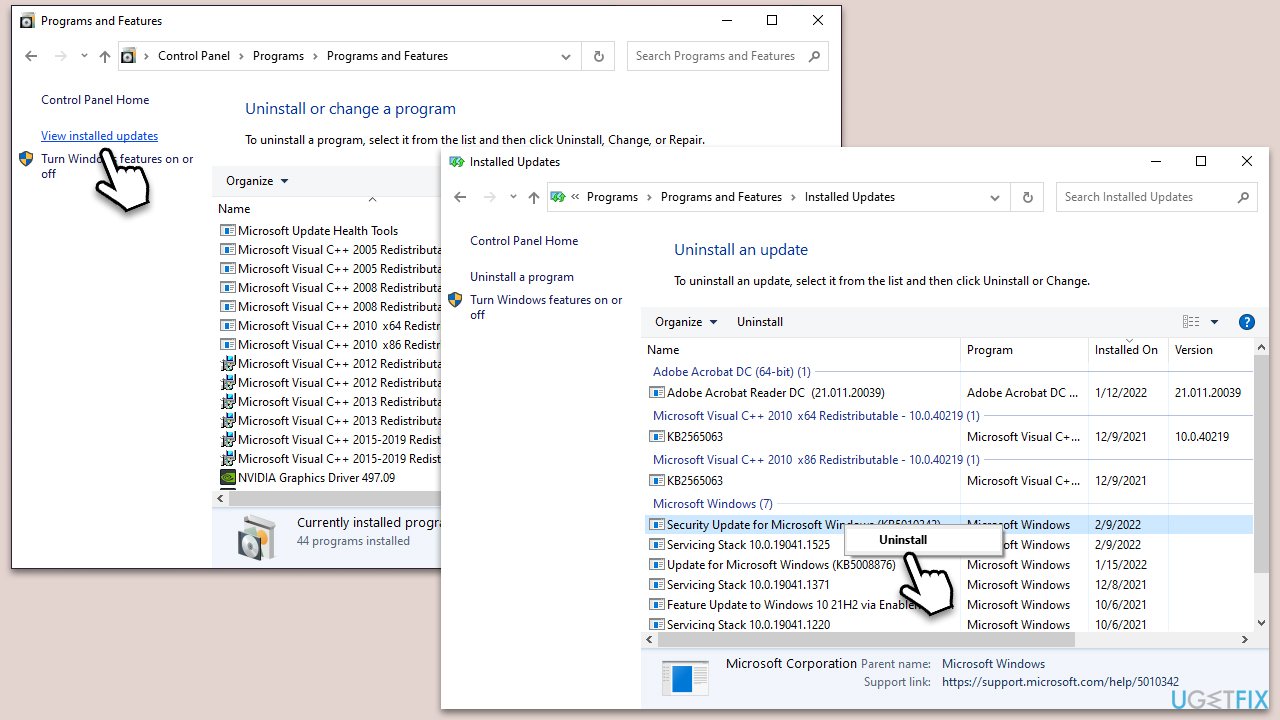
Some users reported that they started receiving Starfield crashes as soon as Windows updates were installed (KB5029351, in particular, is causing issues). If that is the case for you, you can uninstall the most recent update as follows:
- Type Control Panel in Windows search and press Enter.
- Select Programs > Uninstall a program.
- Click on View installed updates on the left side of the window.
- Sort all the updates by date.
- Right-click on the most recent update and select Uninstall.
- Proceed with on-screen instructions.
- Then, type Updates in Windows search and press Enter.
- Click Pause the updates for 7 days (in Windows 11, you can pick a different time period).
Fix 7. Reinstall the game
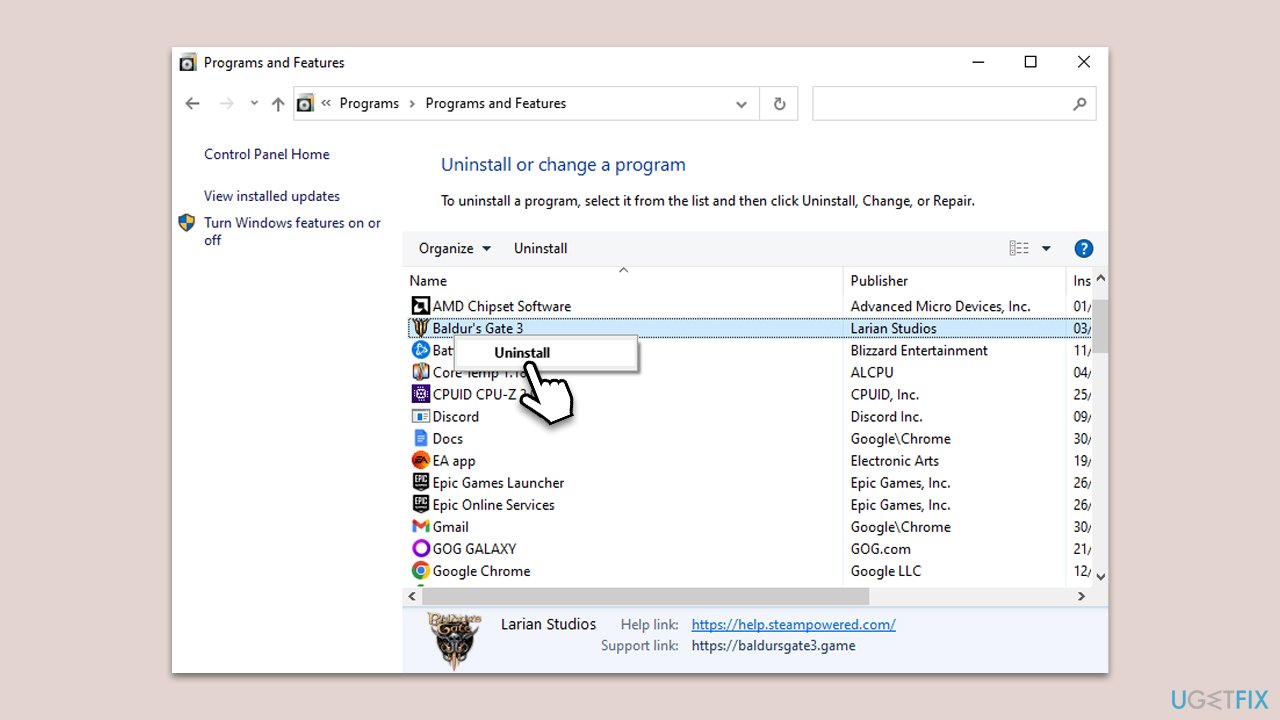
Sometimes, a fresh installation can solve persistent issues by removing any corrupt files or settings.
- Type Control Panel in Windows search and press Enter.
- Go to Programs > Uninstall a program.
- Find the client, right-click, and pick Uninstall.
- Proceed with on-screen instructions.
- Once done, reboot your PC.
- Re-download and reinstall the game.
Fix 8. Use a System Restore point
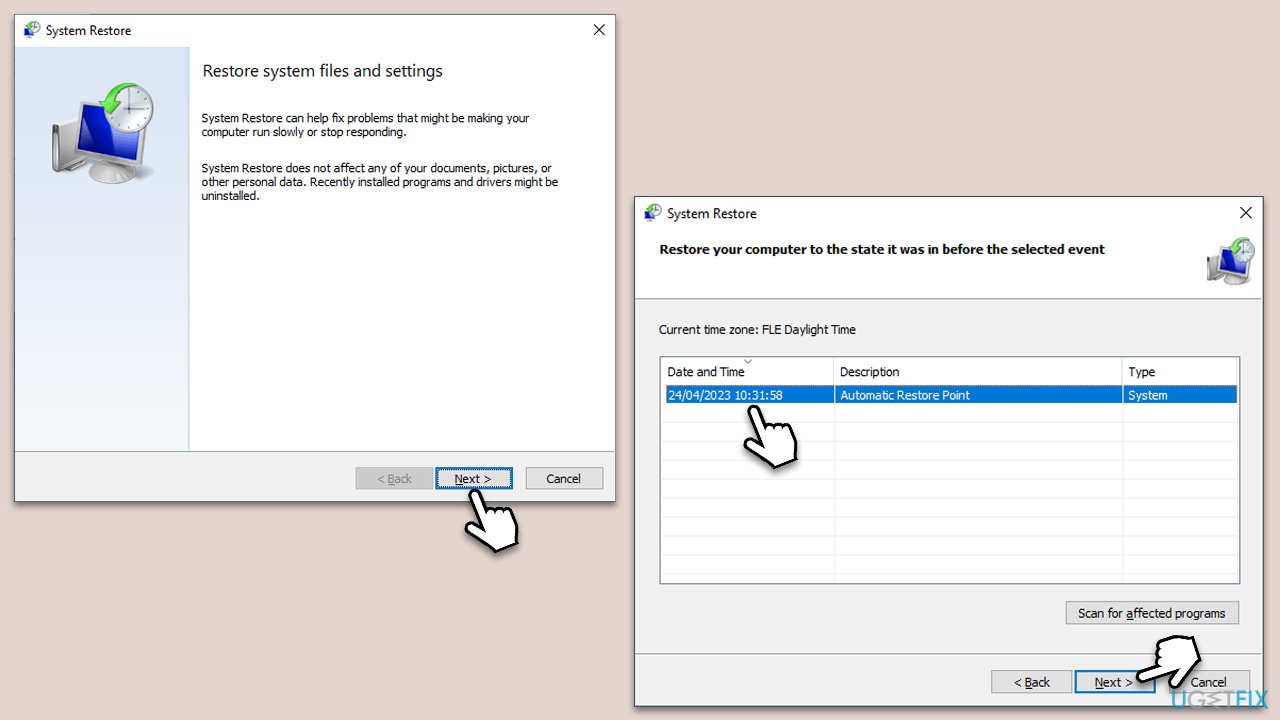
If the issue started recently, reverting to a previous system state can help.
- Type in Create a Restore point in Windows search and hit Enter.
- In the System Protection tab, pick System restore.
- Click Next.
- Click Show more restore points (if available).
- Pick the time before the problem occurred and click Next.
- Your computer will restart.
Fix 9. Run SFC and DISM
If your system files are corrupted, games may crash. To address this, perform the following:
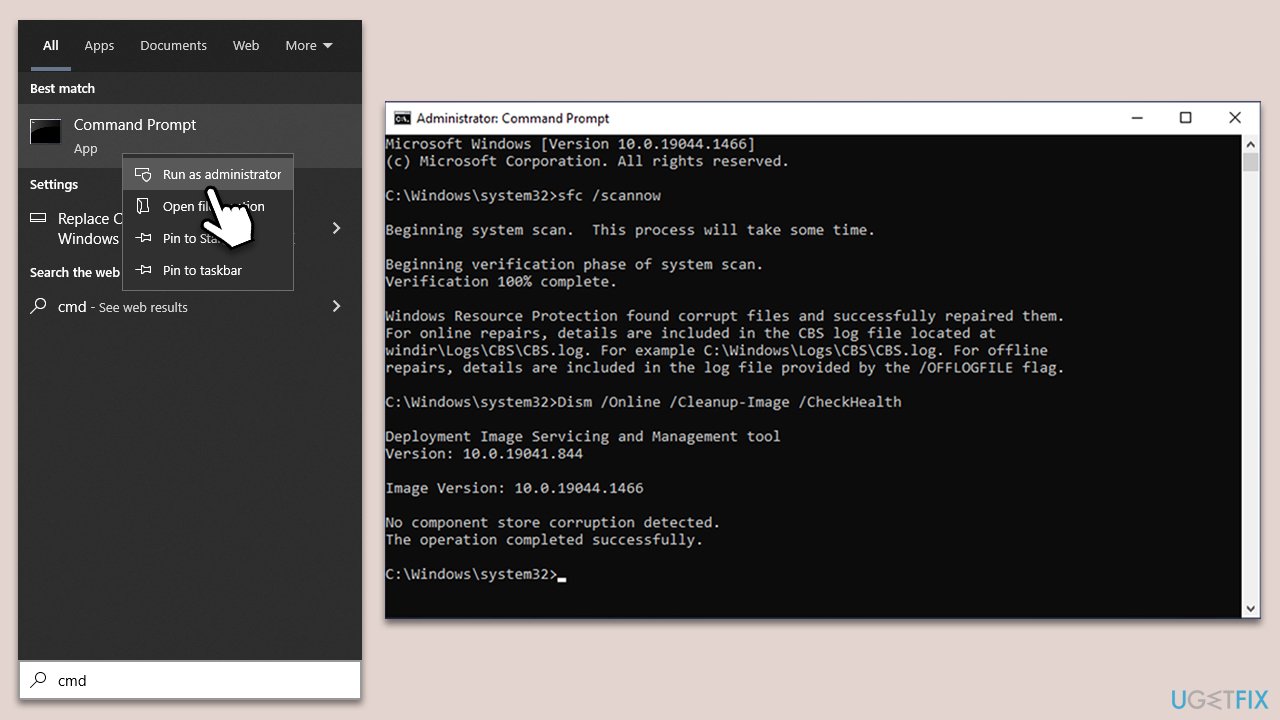
- Type cmd in Windows search.
- Right-click on the Command Prompt result and select Run as administrator.
- User Account Control (UAC) will ask if you want to make changes - click Yes.
- Now copy and paste the following commands, pressing Enter every time:
sfc /scannow
DISM /Online /Cleanup-Image /CheckHealth
DISM /Online /Cleanup-Image /ScanHealth
DISM /Online /Cleanup-Image /RestoreHealth - Close down the Command Prompt and reboot your PC.
Bottom line
To fix the BSOD crashes in Starfield, ensure that your PC's drivers are updated, verify the game's integrity, and rule out potential conflicts with other software. If these steps do not resolve the issue, consider using a PC repair tool for persistent problems.
Frequently asked questions
First, ensure your graphics drivers are up to date by visiting the manufacturer's website. If the issue persists, consider verifying the game files through the game launcher.
Yes, Windows 11 users can encounter BSOD crashes in Starfield; it's essential to check for system updates and driver compatibility.
You can try lowering the game's graphics settings and disabling any overclocking features on your hardware to improve stability.




Report an issue
What's wrong with this guide? We review every report and update or remove content.
Report received — thank you. We'll review and fix it.
You need a free account to submit a report.
Be the first to comment