
How to fix Steam fatal error "Failed to load Steamui.dll"?

Prefer to fix it yourself? The manual steps follow.
- 7methods
- 5 minutes for the first fixes, up to 30 minutes for a repair
- Advanced
Applies to The Steam client on Windows 11 and Windows 10, at launch or right after installing it
7 methods in this guide
Hello. Since yesterday, I can't open Steam because of "Fatal error, failed to load steamui.dll." Is there anything that could be done about this? I can't play my games because of this. Help would be appreciated.
"Fatal error, failed to load steamui.dll" means the Steam client could not load one of its own files, so it closes before the window opens. Your games and saves are not in that file. Restart the PC and check Windows Security for a removed file first, then let Steam download its files again (Fix 2).
Steam cannot load its own file steamui.dll, so it stops before the window opens. Start with Fix 1: close every Steam process, restart the PC and look in Windows Security > Virus & threat protection > Protection history for a removed Steam file. If the error stays, Fix 2 moves steamui.dll aside so Steam downloads a fresh copy. Your games in the steamapps folder are not touched.
| Error | A message box with the text "Fatal error, failed to load steamui.dll" that appears when Steam starts. Steam closes after you select OK. |
|---|---|
| Where it appears | When you start the Steam client, or when you start it for the first time after installing it. No Library, no sign-in window and no game opens. |
| Main cause | A damaged, missing or blocked Steam interface file in the Steam folder. Users report it most often after an interrupted update, a crash or an antivirus that removed the file. |
| Fastest fix | Close Steam, move steamui.dll and the libswscale file out of the Steam folder, and start Steam again so it downloads them (Fix 2). |
| Also written as | Failed to load steamui.dll, Steam fatal error steamui dll, steamui.dll not found, Steam erro fatal failed to load steamui dll. |
| Affects | The Steam client on Windows 11 and Windows 10. Windows 10 lost Microsoft support on 14 October 2025, which does not change this error. |
| Vendor status | We found no Valve page for this message and no client update that names it. The fixes below come from Steam Support's client troubleshooting and from user reports. |
| Time to fix | 5 minutes for Fixes 1 to 3. 10 to 30 minutes for the repair and the reinstall. |
Facts checked on 16 October 2026. Steps written for the Steam client on Windows 11 (25H2 and 26H2) and Windows 10 22H2, read against Steam Support.
What "Fatal error, failed to load steamui.dll" means and where it comes from
The message "Fatal error, failed to load steamui.dll" is written by the Steam client itself. At start it needs steamui.dll, a file in the Steam folder, and when Windows cannot load it, Steam stops. People also meet it right after a first install, when the setup left a file unfinished.
Valve publishes no description of what is inside steamui.dll. The name and the failure point to the part of the client that draws the window, and nothing here depends on more than that. The file is not a Windows file and not part of a game, so a game, your saves and your login are not damaged by this error.
| Text on screen or in the search | What it is | Covered here? |
|---|---|---|
| Fatal error, failed to load steamui.dll | The Steam client cannot load its steamui.dll file at start | Yes, all fixes |
| Steam fatal error steamui dll, Steam ui error | The same message, searched without the dot or with fewer words | Yes |
| Steam erro fatal failed to load steamui dll | The same message on a Portuguese or Spanish system | Yes: the fixes are the same, see the FAQ |
| Failed to load steam.dll | A different file name. We found no source that ties it to this error | No: see the FAQ |
| steam_api.dll missing or not found | A file that belongs to one game, not to the Steam client | No: see our steam_api.dll guide |
Steam writes this file itself and downloads a matching one when it is missing. A copy from a download site can be old or carry malware. Every fix below makes Steam fetch its own file.
What causes the "Failed to load steamui.dll" error, from most to least likely
Valve gives no statistics for this message. The order below follows what Steam users report for it and the causes Steam Support lists for a client that crashes or will not open.
| Cause | How to tell | Fix |
|---|---|---|
| A file removed or blocked by security software. Steam Support says antivirus software can hook deep into the system and raise false alerts. | The error began right after an antivirus scan, an update of it or a cleaner program. | Fix 1 |
| A damaged or half-downloaded steamui.dll or libswscale file after an interrupted update, a crash or a power cut. | Steam worked yesterday and closes today without any change by you. | Fix 2 |
| Damaged client files in the package or bin folder. | Fix 2 changed nothing, or the same message returns after every update. | Fix 3 |
| Missing permission to write to the Steam folder. | Steam is in C:\Program Files (x86) and the message appears at the first launch after install. | Fix 4 |
| An update channel problem. Users report that the beta client sometimes loads when the normal one does not. We could not confirm this in a Valve document. | Fixes 1 to 4 did not help. | Fix 5 |
| Damaged Windows system files. | Other programs show missing file errors too. | Fix 6 |
| A damaged Steam installation. Steam Support: reinstalling "may fix potential issues with Steam client and service files". | Nothing above helped. | Fix 7 |
| A failing drive or faulty memory. Both are on Steam Support's list of causes of crashes. | Files damage again after a repair, or Windows shows other file errors. | The section after the fixes |
Our old guide told you to register steamui.dll with regsvr32 and to uninstall Steam through Control Panel while "keeping your games". Neither is safe advice. Steam Support warns that uninstalling Steam any other way than installing over it deletes game and user data, and we found no source that says steamui.dll can be registered.
How to fix the "Failed to load steamui.dll" error
Fixes 1 to 3 are the ones users report most and they cost nothing: restart, check what was removed, then let Steam download its files again. Fixes 4 and 5 change how Steam starts. Fix 6 repairs Windows files and Fix 7 reinstalls Steam over itself, which keeps your games.
| What you see or have | Start with |
|---|---|
| Steam stopped working after an antivirus scan, an update of it or a cleaner program. | Fix 1 |
| Steam worked yesterday and today it shows the error at every start. | Fix 1, then Fix 2 |
| Fix 2 changed nothing, or the error returns after each Steam update. | Fix 3 |
| The error comes at the very first start after installing Steam. | Fix 4, then Fix 7 |
| Other Windows programs also show missing or damaged file errors. | Fix 6 |
| Everything above was tried. | Fix 7, then the section on drive and memory |
Fix 1. Close every Steam process, restart the PC and check what Windows Security removed
5 minutesNo riskEveryone. Start here, above all when the error began after an antivirus scan or a cleaner program.
Steam Support lists a restart of Steam and the computer as the first step for a client that crashes or will not open, because it releases locked files. It also warns that antivirus software can raise false alerts. If Windows Security removed steamui.dll, restoring it is faster than any repair.
- Press Ctrl + Shift + Esc to open Task Manager.
- On the Processes tab, select every entry whose name starts with Steam and select End task.
- Restart the PC with Start > Power > Restart.
- Open Windows Security > Virus & threat protection > Protection history.
- Look for an entry named steamui.dll or for a file in your Steam folder. If you find one, open it, select Actions and then Restore.
- Start Steam from its shortcut.
If you use another security program, open its quarantine list instead and look for the same file. Restore only a file in your Steam folder, never one from another place.
It worked if: Steam opens its sign-in window or Library, with no message box.
If not: If Protection history shows nothing for Steam and the error stays, let Steam download its files again with Fix 2.
Fix 2. Move steamui.dll and libswscale aside so Steam downloads them again
5 minutesLow riskSteam worked before and now fails at every start. This is the fix users report most.
A file that is damaged or only half written fails to load. When it is gone, Steam downloads a new one while it updates. Moving the files to a folder, instead of deleting them, lets you put them back.
- Exit Steam completely with Fix 1, steps 1 and 2.
- Right-click the Steam shortcut and select Properties.
- At the bottom of the window, select Open File Location. The Steam folder opens, by default
C:\Program Files (x86)\Steam. - Create an empty folder on your desktop and name it steam-backup.
- In the Steam folder, find steamui.dll and drag it into steam-backup.
- Find the file libswscale-X.dll, where X is the version number, for example 3, 4 or 5. Drag it into steam-backup too.
- Double-click steam.exe and wait while Steam updates and downloads files.
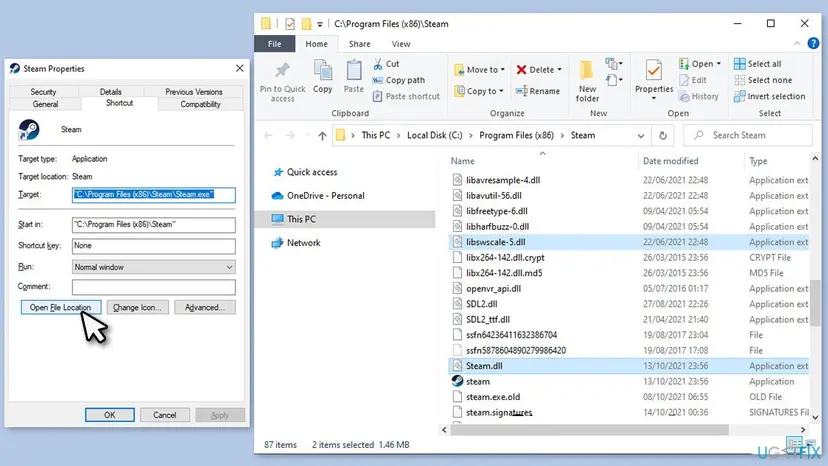
Valve has no page about steamui.dll. Steam users and troubleshooting write-ups report that Steam downloads the two files again when it starts. We could not confirm this in a Valve document, which is why the files are moved and not deleted.
It worked if: Steam shows an update window, then the sign-in window. New steamui.dll and libswscale files are back in the Steam folder.
If not: If the same message returns, remove the bin and package folders with Fix 3. The backup folder can stay until Steam works.
Fix 3. Move the bin and package folders out of the Steam folder
5 minutesLow riskFix 2 changed nothing, or the error comes back after every Steam update.
The bin and package folders hold the client's own program files and update packages. If a damaged file sits there, a new steamui.dll can fail the same way. With both folders gone, Steam builds them again at the next start.
Leave steamapps (your installed games), userdata (your settings and local saves) and every other folder where it is. Moving them can make Steam see your games as not installed.
- Exit Steam completely with Fix 1, steps 1 and 2.
- Open the Steam folder with Properties > Open File Location on the Steam shortcut, as in Fix 2.
- Drag the package folder into the steam-backup folder from Fix 2.
- Drag the bin folder into the same backup folder.
- Double-click steam.exe. Steam downloads the missing files and starts.
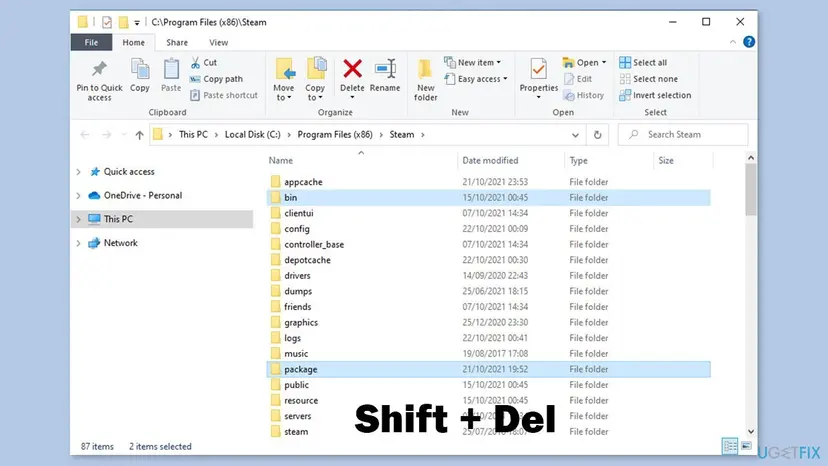
It worked if: Steam downloads files, the bin and package folders reappear in the Steam folder and the sign-in window opens.
If not: If the message returns, check the permissions with Fix 4.
Fix 4. Run Steam as an administrator
3 minutesLow riskThe error appears at the first launch after a new install, or Steam sits in a folder that normal users cannot write to.
If Steam cannot write its files into its folder, an update can stop halfway and leave steamui.dll unfinished. A start as administrator gives it the right to write. The old version of this page gave this step, and we kept it because it is quick and can be undone.
- Exit Steam completely with Fix 1, steps 1 and 2.
- Right-click the Steam shortcut or
steam.exeand select Run as administrator. Select Yes when Windows asks. - If that works, right-click the shortcut again and select Properties.
- Open the Compatibility tab and tick Run this program as an administrator.
- Select Apply and OK.
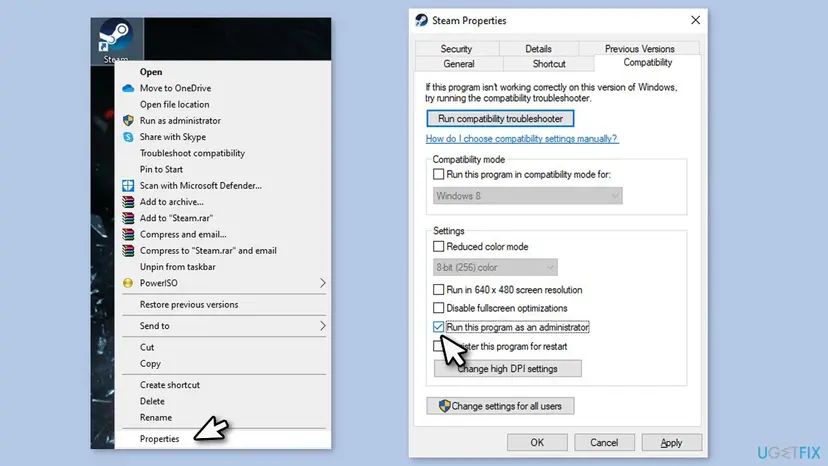
Step by step, with Windows 11 screenshots: How to run a program as administrator or in compatibility mode
A permanent administrator box for Steam is inherited by the games it starts. If a game later cannot find Steam, clear the box again.
It worked if: Steam starts and finishes its update without the message.
If not: If the message stays, clear the box again and try the beta parameter in Fix 5.
Fix 5. Start Steam with the client beta parameter
3 minutesLow riskFixes 1 to 4 did not help and you accept that Steam may install its beta client.
Users report that Steam starts with this parameter when the normal client keeps failing, because it fetches the client from the beta channel. We could not confirm this in a Valve document. The beta client can also have faults of its own.
- Exit Steam completely with Fix 1, steps 1 and 2.
- Right-click the Steam shortcut and select Properties.
- On the Shortcut tab, click in the Target field and press End.
- Type a space and then
-clientbeta client_candidate. Keep the quotation marks around the path as they are. - Select Apply and OK, then start Steam from this shortcut.
"C:\Program Files (x86)\Steam\steam.exe" -clientbeta client_candidate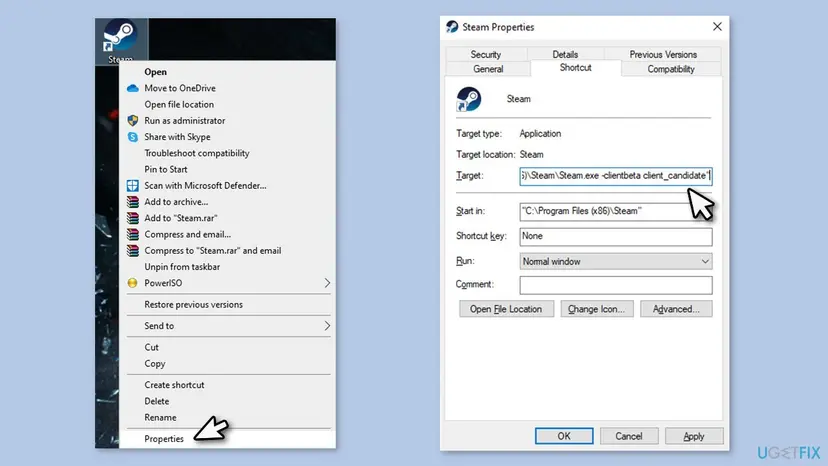
That is wrong: the parameter then becomes part of the file name and Windows cannot find the program. It belongs after the closing quotation mark.
It worked if: Steam downloads a client update and opens the sign-in window.
If not: Remove the text from the Target field again and continue with Fix 6.
Fix 6. Repair Windows system files with SFC and DISM
20 to 40 minutesNo riskOther programs on the PC also show missing or damaged file errors, or Fixes 1 to 5 did not help.
Steam loads steamui.dll through Windows. If Windows' own files are damaged, a correct Steam file can still fail to load. SFC and DISM replace damaged Windows files and do not touch your games or your files.
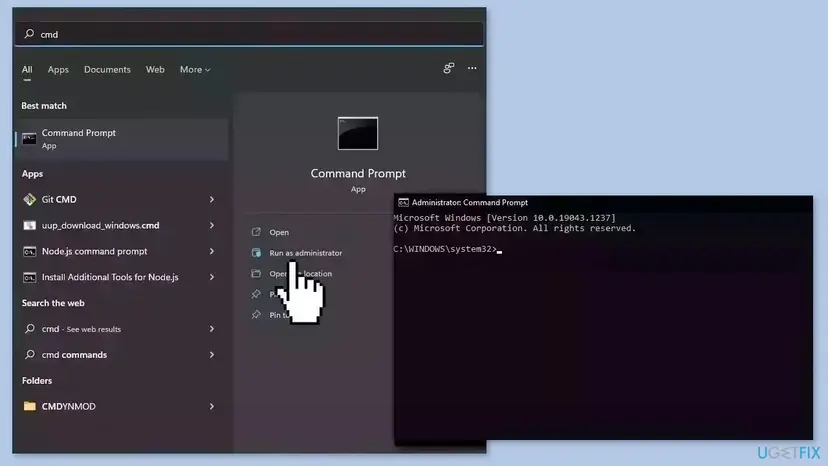
- Open an elevated command window. Right-click Start and select Terminal (Admin), or type cmd in the search box, right-click Command Prompt and select Run as administrator. Select Yes when Windows asks for permission.
- Run DISM first. Type the command below and press Enter. DISM downloads clean copies of damaged components from Windows Update, so it can take several minutes. Wait until it says The operation completed successfully.
DISM.exe /Online /Cleanup-Image /RestoreHealth - Run System File Checker. In the same window, type the command below and press Enter. Do not close the window until the verification reaches 100%.
sfc /scannow - Read the result and restart. Compare the last message with the table below this guide, then restart the PC so that repaired files are loaded.
These steps were written for Windows 11 24H2 and 25H2. The full page with the other versions and what each result means: Run DISM and SFC to repair Windows system files
It worked if: SFC says it found no integrity violations or that it repaired files, and Steam starts after a restart.
If not: If neither scan finds or fixes anything, reinstall Steam over itself with Fix 7.
Fix 7. Install Steam again into the same folder
10 to 30 minutesRead the warningNothing above helped, or the error comes at the first launch after a failed install.
Steam Support: reinstalling "may fix potential issues with Steam client and service files. Installing into same location will preserve all installed games." The installer writes every client file again, including steamui.dll.
Steam Support: "Uninstalling Steam through any other method will delete all game and userdata content." Install over the old folder. If you want a copy of your games anyway, copy the steamapps folder to another drive first.
- Exit Steam completely with Fix 1, steps 1 and 2.
- Download the Steam installer from
https://store.steampowered.com/about/and run it. - When the installer asks for the folder, choose the folder where Steam already is, by default
C:\Program Files (x86)\Steam. - Finish the setup, let Steam update and sign in with your account.
It worked if: Steam starts, your Library shows the games you installed, and no message appears.
If not: If a fresh install shows the same message, the cause is probably outside Steam: see the section on drive and memory below.
If Steam still says it failed to load steamui.dll: what to check and whom to ask
We found no log that records this message, because Steam stops before it writes one. Steam Support lists what lies outside Steam when the client keeps failing: programs that watch the disk, a failing drive and faulty memory. Check them in this order.
- Close cleaner, optimizer, recording and overlay programs, and test Steam again. Steam Support names these as common interference.
- Check the drive that holds Steam. Steam Support's path is This PC > right-click the drive > Properties > Tools > Error checking. The command version: Check a disk for errors (chkdsk)
- Check the memory: press Windows key, type mdsched and run Windows Memory Diagnostic.
- If you use a security program that is not Windows Security, add the Steam folder to its exceptions list, as Steam Support suggests for its own folders.
- Open Steam Support at
https://help.steampowered.com, choose the topic for a client that will not start and describe the message and what you tried.
- Hardware sign: files are damaged again soon after a repair, Windows shows other file errors or the PC restarts on its own. The drive or the memory is then the first suspect.
- Account sign: none. This error comes before you sign in, so your account, password and licenses are not the cause.
How to keep the steamui.dll error from coming back
- Let Steam finish an update before you shut down the PC.
- Keep the Steam folder in the exceptions of your security program.
- Reinstall Steam by installing over the same folder.
- Keep your games in steamapps, which these fixes never touch.
- Do not download steamui.dll from a DLL website.
- Do not uninstall Steam through Windows to save time.
- Do not let a cleaner program remove files from the Steam folder.
- Do not leave a beta parameter in the shortcut once Steam works.
Frequently asked questions
What does "Fatal error, failed to load steamui.dll" mean?
It means the Steam client could not load its own steamui.dll file at start and stopped. The file is in the Steam folder, by default C:\Program Files (x86)\Steam, and is part of the client, not of a game or Windows. Valve gives no description of what is inside. The usual causes are a file that is damaged after an interrupted update, a file removed by security software or missing write rights. Start with Fix 1 and Fix 2, which cost nothing and keep your games.
Is steamui.dll a virus, and can I download it from a DLL site?
No to both. A steamui.dll in the Steam folder is a normal Steam file. We could not confirm where else a genuine copy would sit, so a steamui.dll in another folder or sent to you in a message is a reason to scan it. Never download the file from a DLL site: it can be old or carry malware, and Steam downloads a matching copy itself when you move the old one aside, as Fix 2 shows. If Windows Security flagged the real file, restore it from Protection history.
Will I lose my games if I move steamui.dll, bin and package, or reinstall Steam?
No, if you follow the steps on this page. Games are in the steamapps folder, and Fixes 2 and 3 never touch it. Reinstalling by running the Steam installer into the same folder keeps all installed games, as Steam Support states. What does delete them is uninstalling Steam through Windows or any other way than installing over it. Copy steamapps to another drive first if you want a spare copy.
Should I run regsvr32 steamui.dll?
No. Old guides, including our own earlier version, suggested it, but we found no Valve or Microsoft source that says steamui.dll can be registered. Windows only registers a file that offers a registration entry, and for others regsvr32 just shows an error and changes nothing. The time is better spent on Fix 2 and Fix 3, which make Steam write its files again. If you ran the command already, it did no harm.
What does -clientbeta client_candidate do?
It starts Steam on its beta update channel instead of the normal one. Users report that this makes Steam finish its update when the normal client keeps showing the steamui.dll error, but Valve has no page that says so and we could not confirm it. The beta client can have bugs of its own. Remove the text from the Target field of the shortcut when Steam works again, as Fix 5 says.
I see "Failed to load steam.dll", not steamui.dll. Is it the same fix?
We found no source that ties "failed to load steam.dll" to this error. Steam.dll and steamui.dll are two different files. Steam.dll is the file older games look for, and its fix is in our guide to the Failed to find Steam error. If Steam itself shows the message, Fix 1, Fix 2 and Fix 7 are the safest to try, because they only make Steam write its own files again.
Steam shows "erro fatal" or "fatal error" in another language. Do the same steps work?
Yes. The message is the same, only the first words are translated, for example "Steam erro fatal" on Portuguese Windows. File names such as steamui.dll and libswscale-3.dll and the folder names bin, package and steamapps do not change. Menu names in File Explorer, Task Manager and Windows Security do, but they sit in the same places. If you cannot find an item, search for it in the Windows search box.
The error began yesterday and I changed nothing. Why?
Steam may have updated in the background and stopped halfway, or a security program may have removed or blocked a file. Users report both. We could not find a Valve notice that names a client update for this error. Check Protection history in Windows Security first (Fix 1), because a removed file can be restored in a minute, and then move steamui.dll aside (Fix 2). A power cut or crash during an update can leave the file unfinished too.
Do I have to be signed in or connected to the internet for the fixes?
The fixes themselves work offline until the last step. Steam needs an internet connection when it starts again, because it downloads steamui.dll, the libswscale file and the other client files from Valve's servers. If the download stops, Steam Support advises restarting your router and modem and trying another network. You do not need to sign in until Steam shows its sign-in window.
Sources
Did this fix work?
One click, no account. It tells the next reader which guides are worth their time.
Questions and experiences: fix Steam fatal error "Failed to load Steamui.dll"
Still broken, or found a fix we did not cover? Ask here: members and our editors answer. Reading is open; writing needs a free account.
…