How to fix
Taskbar disappeared
on Windows
Restore your missing Taskbar in Windows 10 effortlessly with our expert-tested solutions and regain full functionality in minutes.

What causes How to fix Taskbar disappeared in Windows 10?
- Settings issues
- Accidental clicks
- Full-screen mode in applications
- Random disappearance
- Hovering mouse over taskbar does not help
Repairs Windows system files, removes malware, and restores a clean OS state — without reinstalling.
Hello, I am using Windows 10, and my taskbar has suddenly disappeared. I cannot see the Start button either. How do I bring the taskbar back?
The taskbar is a multi-purpose graphical user interface element. It sits at the bottom of the screen, giving the user access to the Start Menu and the icons of frequently used applications. It is also used to check the time, internet connection, and battery status. Microsoft originally developed the taskbar as a feature in Windows 95.[ref en-1]
Since then, it was modified with a new design and features like Task View and Windows Search. Now you can personalize it in many ways - change the color and size, pin your favorite apps to it, move it around on your screen, and rearrange or resize taskbar buttons. As you already probably know, it is a very useful element in WIndows, so it is a problem when a lot of users have their taskbars disappear.
There are many possibilities why this might have happened. Most times, this occurs because of settings issues or accidental clicks. Users have noticed these changes when using Google Chrome or other applications in full-screen mode. After exiting this mode, the taskbar did not reappear like supposed to. For others, it seemed to be gone randomly, and hovering the mouse over it did not help.
Not having a taskbar makes it difficult to perform basic tasks. First, You can try clicking the Windows key, which should open the Start Menu. If that did not make it appear, you should check if you did not bring your display to a full-screen mode yourself by accidentally clicking the F11 button on your keyboard.
You might also be interested in:
- Search bar not working in Windows 10
- Desktop icons are missing on Windows 10
- High disk and CPU usage in Windows 10
Even though it is rare for this issue to appear because of a bug in the system, we recommend using the [d1] repair tool to scan your machine and automatically fix damaged system components, errors like BSOD and registry issues.[ref en-2] The software can also be used for optimization purposes - free up space by clearing cookies and cache[ref en-3], which should boost the performance.
Below you will find 7 possible solutions for a missing taskbar in Windows operating system. Be sure to go through them step-by-step and not miss anything:
Method 1. Unhide the Taskbar
Your taskbar may be set to hide automatically. If that is the case, it should appear when you move your mouse to the taskbar area on the desktop. You can try to turn off auto-hide in your settings:
- Press Windows + R to open the Run window
- Type in Control Panel and hit Enter
- Choose Appearance and Personalization
- Click Taskbar and Navigation
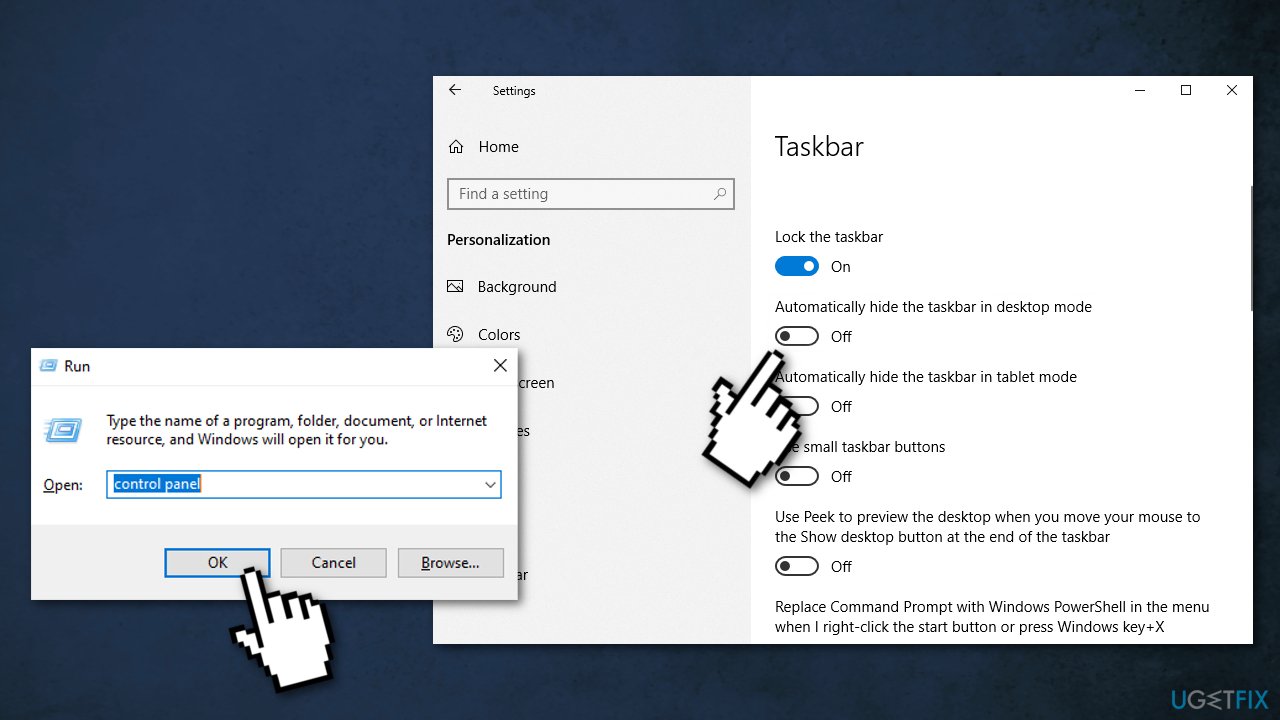
- Uncheck the Automatically hide the taskbar in desktop mode box
Method 2. Change display resolution
If your screen resolution is larger or smaller than the monitor size, it can cause the taskbar to be hidden. You can change the display resolution to see if it gets back:
- Press Windows + I to open Windows Settings
- Click System
- Press Display
- Scroll down to find Resolution
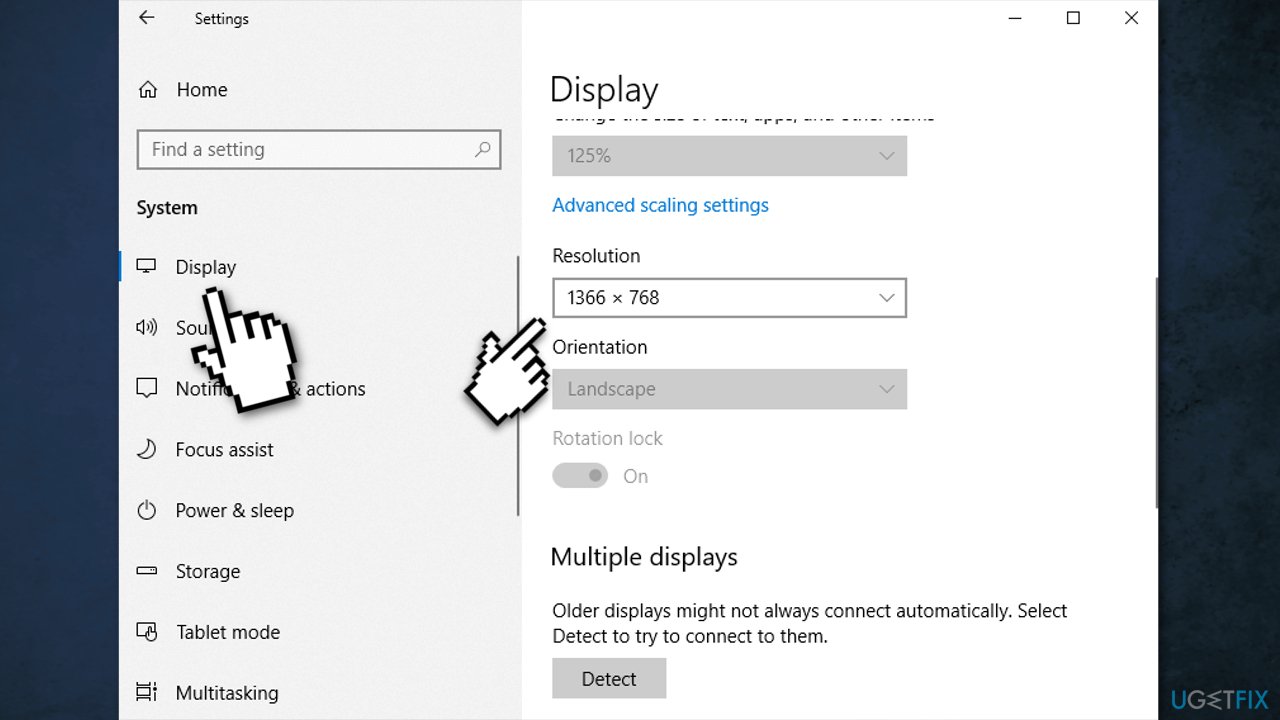
- Choose an appropriate screen resolution for your display
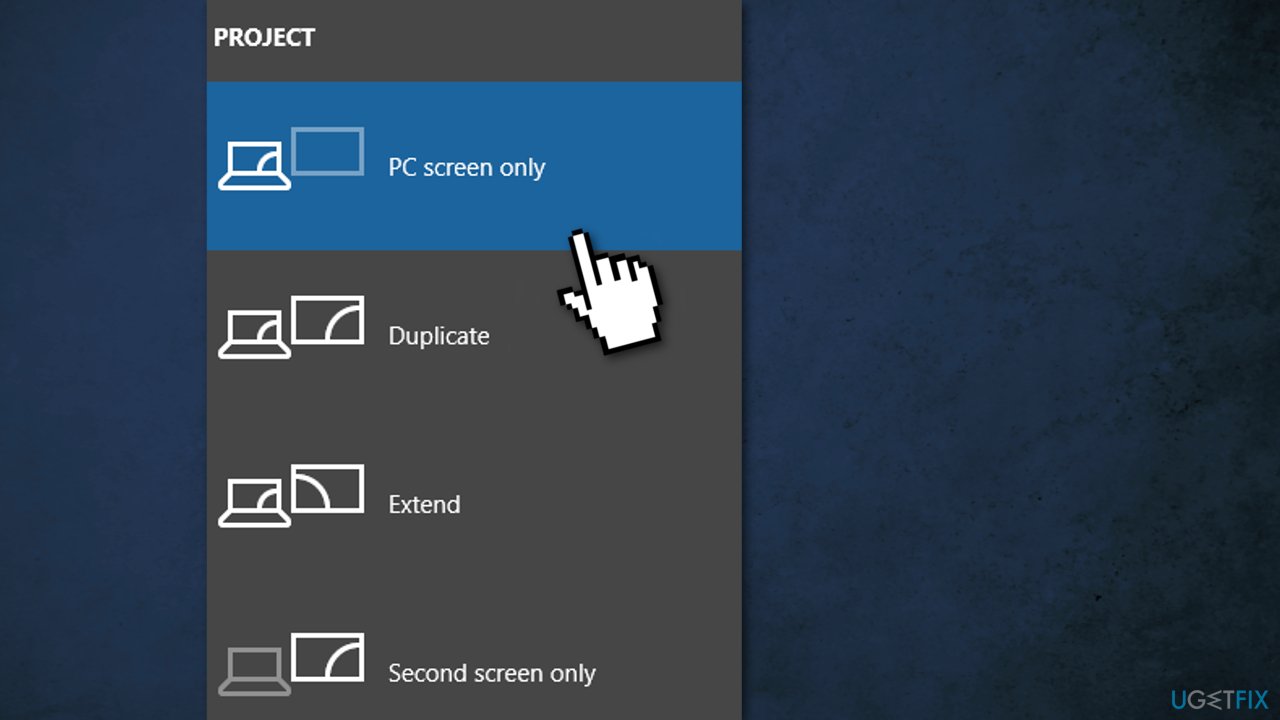
Method 3. Change to PC screen only
If you have ever connected the computer to an external display, it may be causing the taskbar disappearance:
- Press Windows + P to open Windows Project settings
- Select PC screen only option
Method 4. Restart Explorer.exe
Windows Explorer is responsible for the desktop and taskbar. If this application has problems, it may be the cause:
- Press Ctrl + Shift + Esc to open Task Manager
- Click on the Process tab
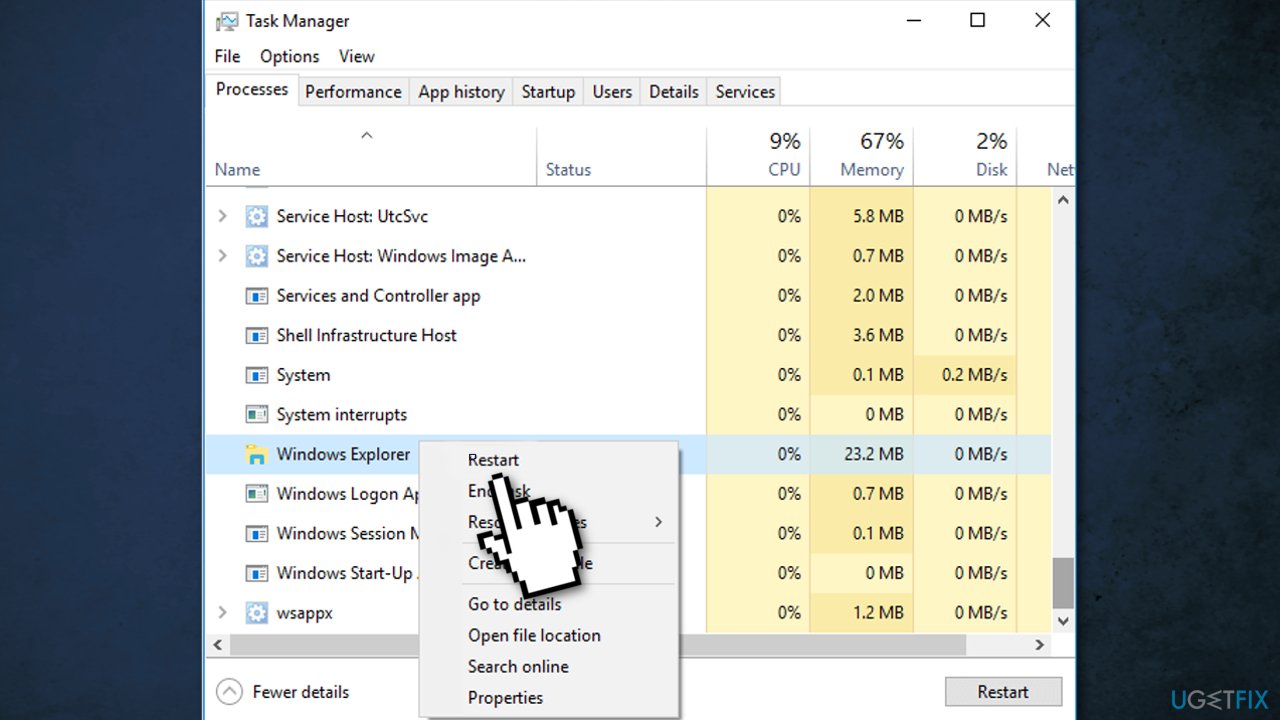
- Find Windows Explorer in the list
- Right-click and choose Restart
Method 5. Disable Tablet mode
- Press Windows + I to open Windows Settings
- Click System
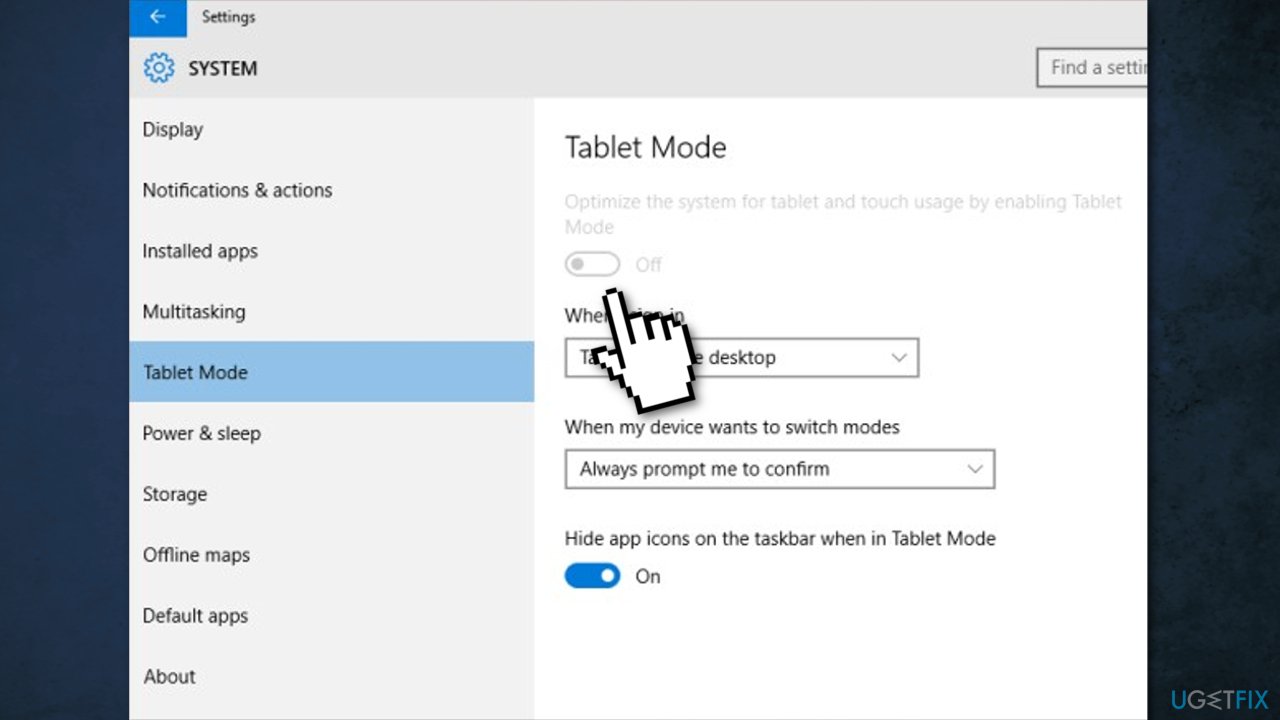
- Turn Tablet Mode off
Method 6. Update drivers
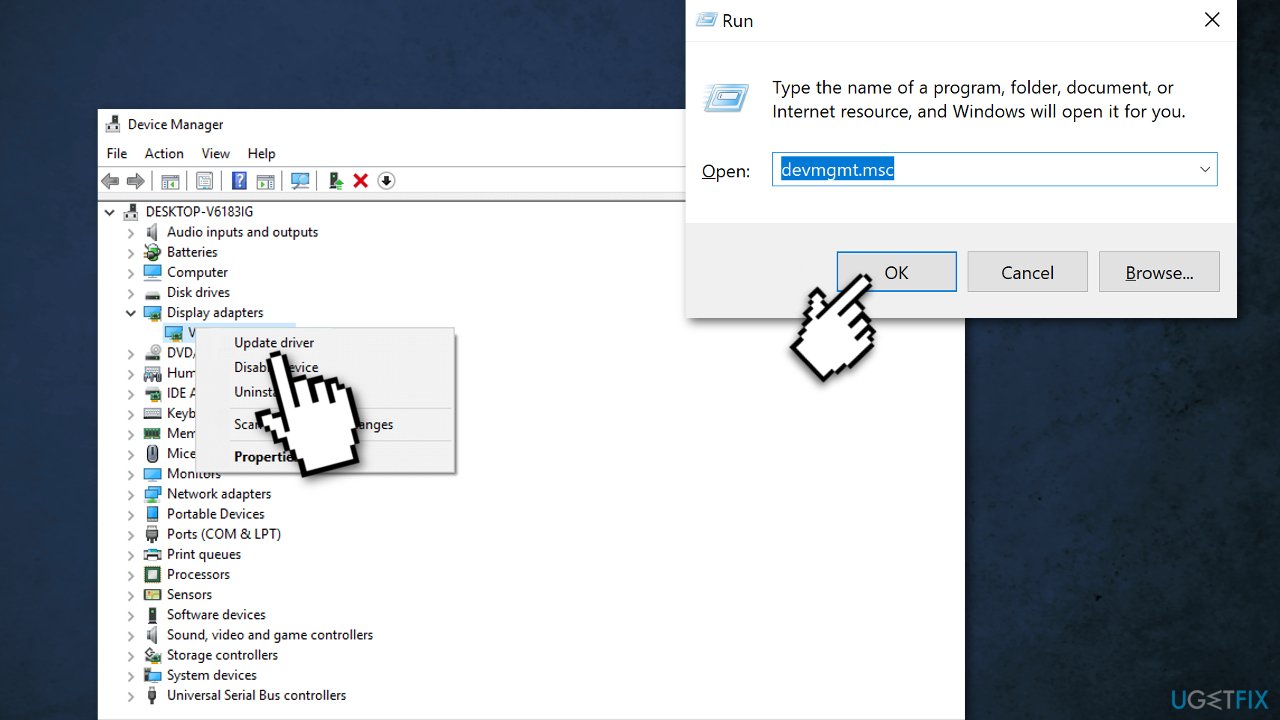
Hardware driver incompatibility may cause the Windows taskbar to disappear. You can manually update graphics card, video card drivers on your computer:
- Press Windows + R to open the Run dialog
- Type in devmgmt.msc, and hit Enter
- Right-click and choose Update driver
Method 7. Repair corrupted system files
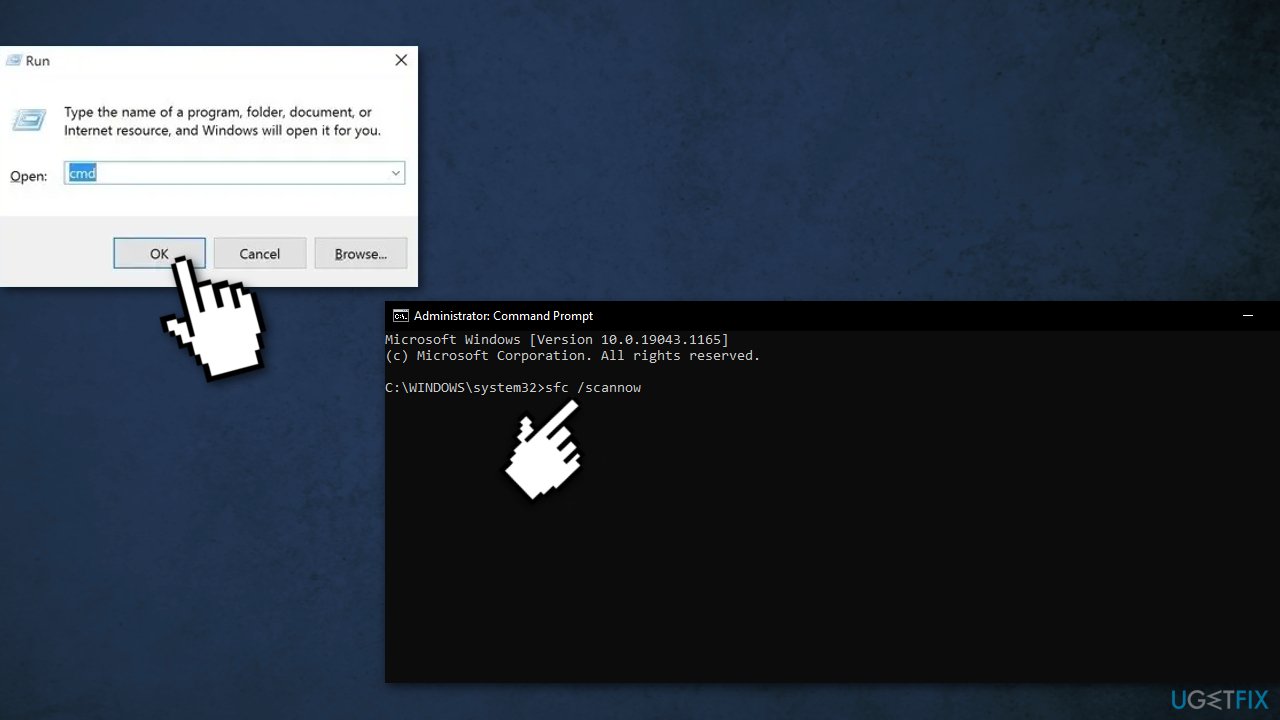
You can use Windows built-in System File Checker to repair corrupted system files:
- Press Windows + R to open the Run box
- Type cmd and click OK to open a regular Command Prompt
- Type cmd and then press Ctrl+Shift+Enter to open an Administrator Command Prompt
- Use the following command and press Enter:
sfc /scannow
- Reboot your system
- If SFC returned an error, then use the following command lines, pressing Enter after each:
DISM /Online /Cleanup-Image /CheckHealth
DISM /Online /Cleanup-Image /ScanHealth
DISM /Online /Cleanup-Image /RestoreHealth
Bottom line
To bring back the taskbar, try clicking the Windows key to open the Start Menu, and check if you accidentally activated full-screen mode by pressing the F11 key. If these steps do not resolve the issue, consider using a repair tool to scan for and fix any damaged system components.
Frequently asked questions
Try pressing the Windows key on your keyboard, which may bring back the taskbar. If that doesn't work, restart Windows Explorer from the Task Manager by right-clicking the taskbar area and selecting 'Task Manager.'
Move your mouse to the bottom of the screen and see if the taskbar appears; if not, go to Settings > Personalization > Taskbar and ensure 'Automatically hide the taskbar in desktop mode' is turned off.
The taskbar may disappear due to a bug, corrupted system files, or if it's set to auto-hide. Running a system scan or restarting your computer can often resolve the issue.




Report an issue
What's wrong with this guide? We review every report and update or remove content.
Report received — thank you. We'll review and fix it.
You need a free account to submit a report.
Be the first to comment