How to fix
“The code execution cannot proceed” error
on Windows
Resolve "The code execution cannot proceed" error on Windows 10/11 with our expert-tested solutions. Get back to work fast—fixed in minutes!

What causes How to fix “The code execution cannot proceed” error in Windows?
- Corrupt or Missing Files
- Incomplete Installations
- System Updates
- Missing DLL Files
Repairs Windows system files, removes malware, and restores a clean OS state — without reinstalling.
Hello, I experienced this issue with an error stating that the code execution is not proceeding. Unfortunately, I cannot pinpoint the particular program because the file name that gets shown in the "The code execution cannot proceed" error constantly changes. It is always a DLL file, though. Can you help me?
The more people start using Windows computers, the more errors occur daily. People might experience particular issues due to system issues, update bugs, and file problems. One such issue with files is the "The code execution cannot proceed" error in Windows. Users commonly report the error as the one that gets on their nerves because it continues to occur on the screen[ref en-1].
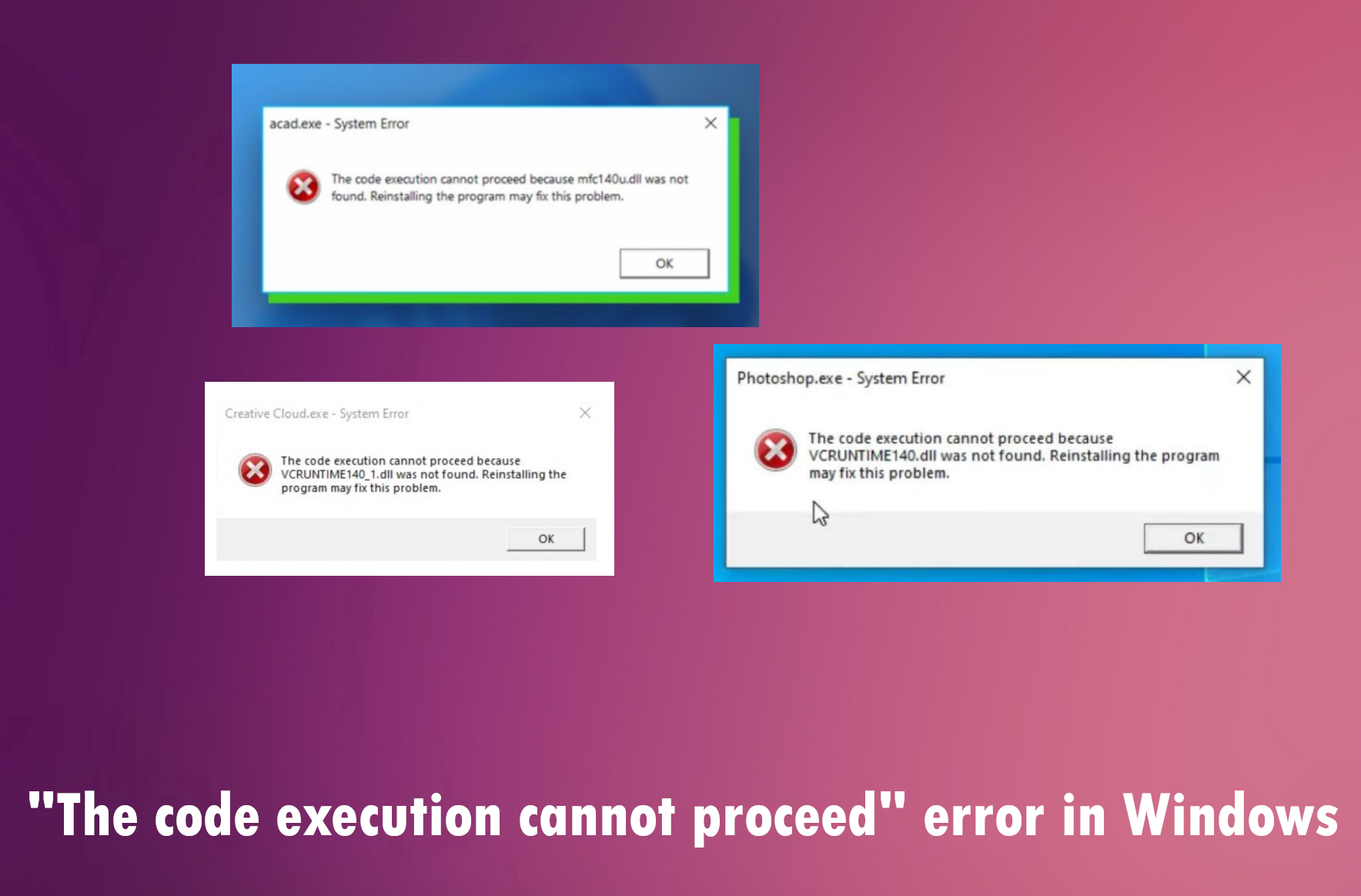
When you encounter the "The code execution cannot proceed" error in Windows, it usually means that a specific DLL file is missing from your system. DLL files, such as MSVCP140.dll, MSVCP120.dll, and VCRUNTIME140.dll, are essential for the operating system's and various applications' correct performance.
This error can occur during the launching or closing of a program. The missing DLL file[ref en-2] is crucial for the application's functionality, and without it, the program cannot execute properly. This issue can arise from various reasons, including:
- Corrupt or Missing Files: The DLL file might be accidentally deleted or corrupted.
- Incomplete Installations: The program installation might not have been completed properly, leading to missing files.
- System Updates: Occasionally, system updates can interfere with existing DLL files, causing them to become unrecognized or missing.
How to fix "The code execution cannot proceed" error in Windows?
This error message indicates that the operating system cannot find the necessary DLL file, which is vital for running the application correctly. Addressing this issue is important to ensure that your system and programs function smoothly. You can rely on tools like [d1] that can check for corrupted files. This way, you do not need to fix the "The code execution cannot proceed" error in Windows ever again.
The solution to the problem might be as easy as installing the program that triggers the error again. Other steps are not as easy, but following the guide step by step could help you avoid making mistakes.
1. Reinstall the program that corresponds with the error
- Press Win + I to open Windows Settings.
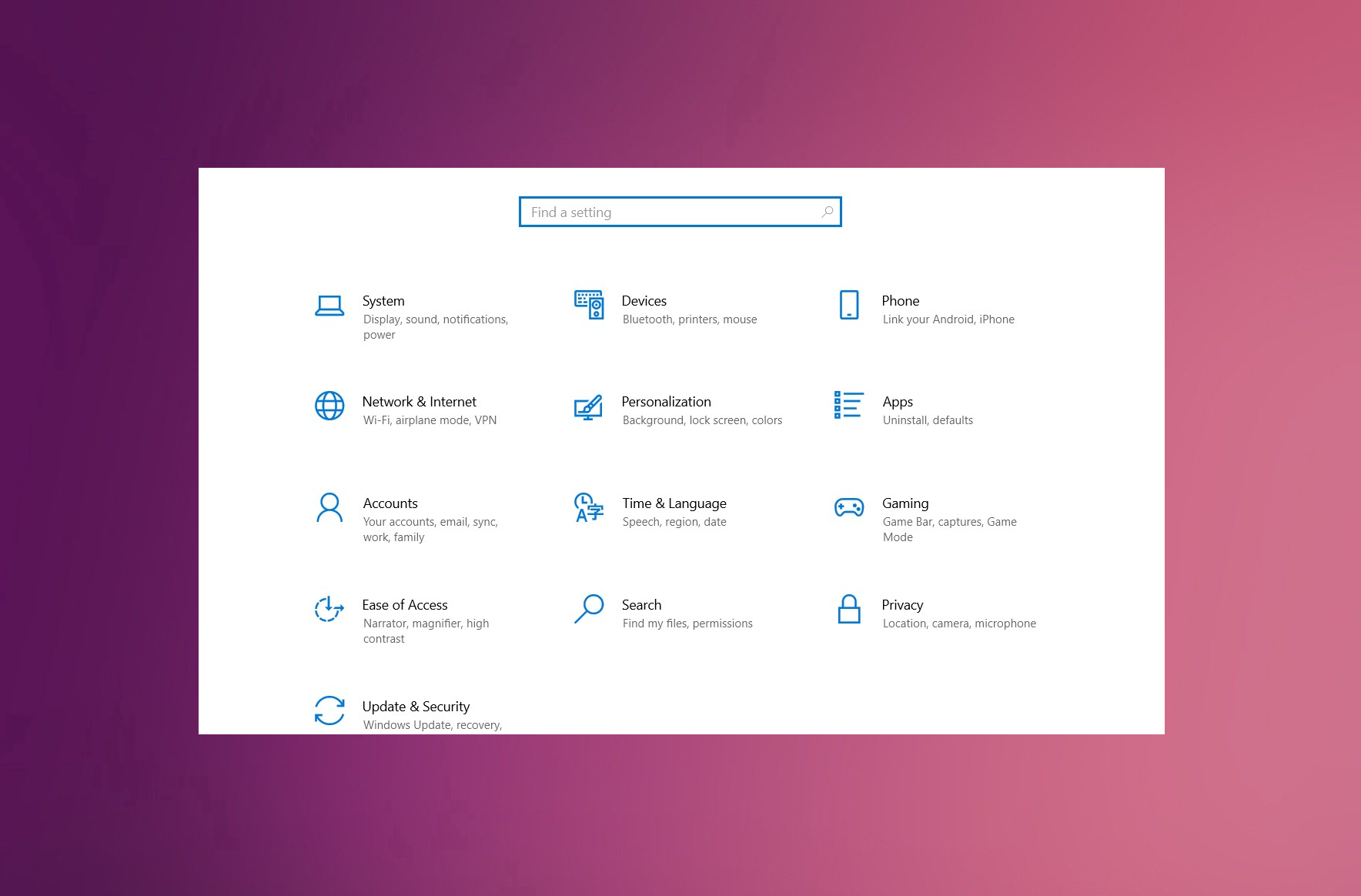
- Click on Apps > Apps & Features.
- Please scroll down to find the search box and type the program's name into it.
- Click on the program and select Uninstall to remove it.
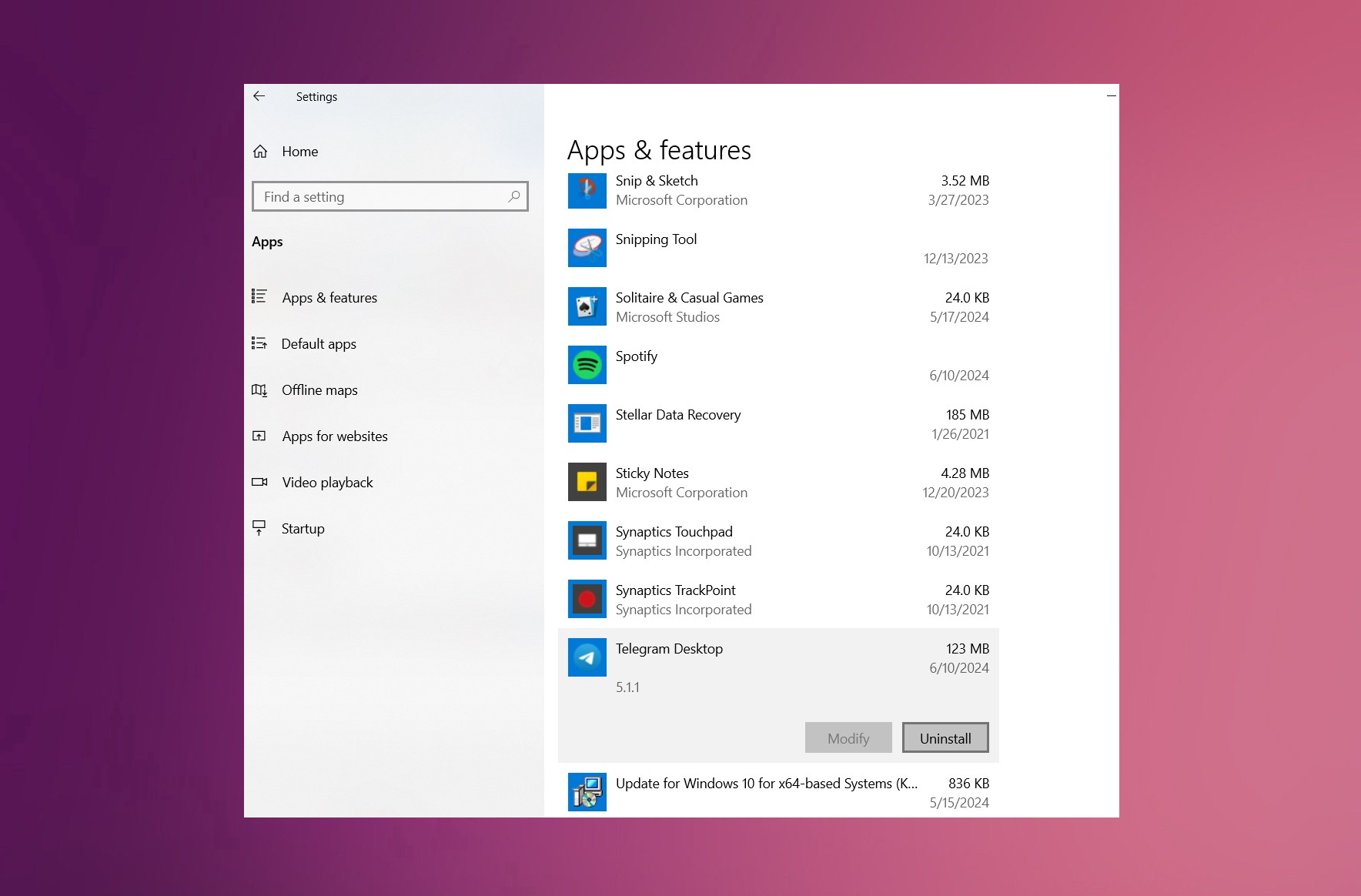
You can then install the program again from the Microsoft Store. Then do not forget to check if the code execution cannot proceed because a specific dll file not found problem still exists.
2. Re-register the file
- Open Command Prompt and Run as administrator.
- Copy and paste the following commands, pressing Enter after each:
regsvr32 /u file name
regsvr32 file name - Close down the Command Prompt and restart the system.
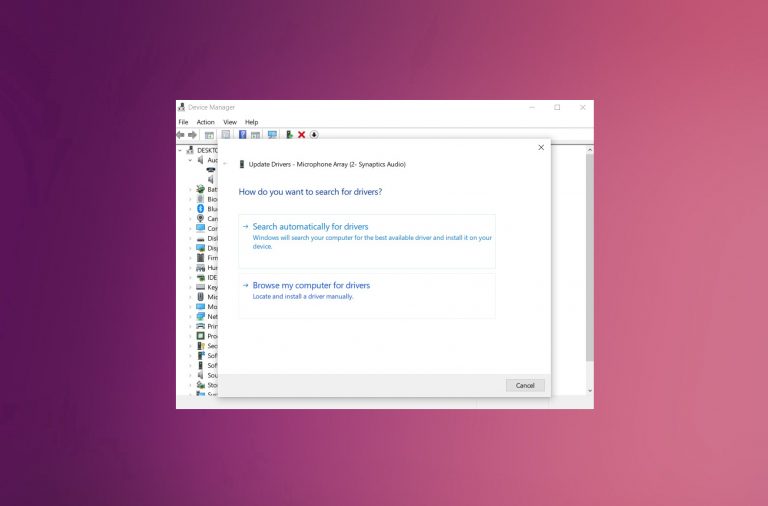
3. Update Device Drivers
Outdated or incompatible device drivers can cause DLL errors. Updating them in time means you cannot get compatibility issues.
- Open Device Manager. You can search for it to get there quicker.
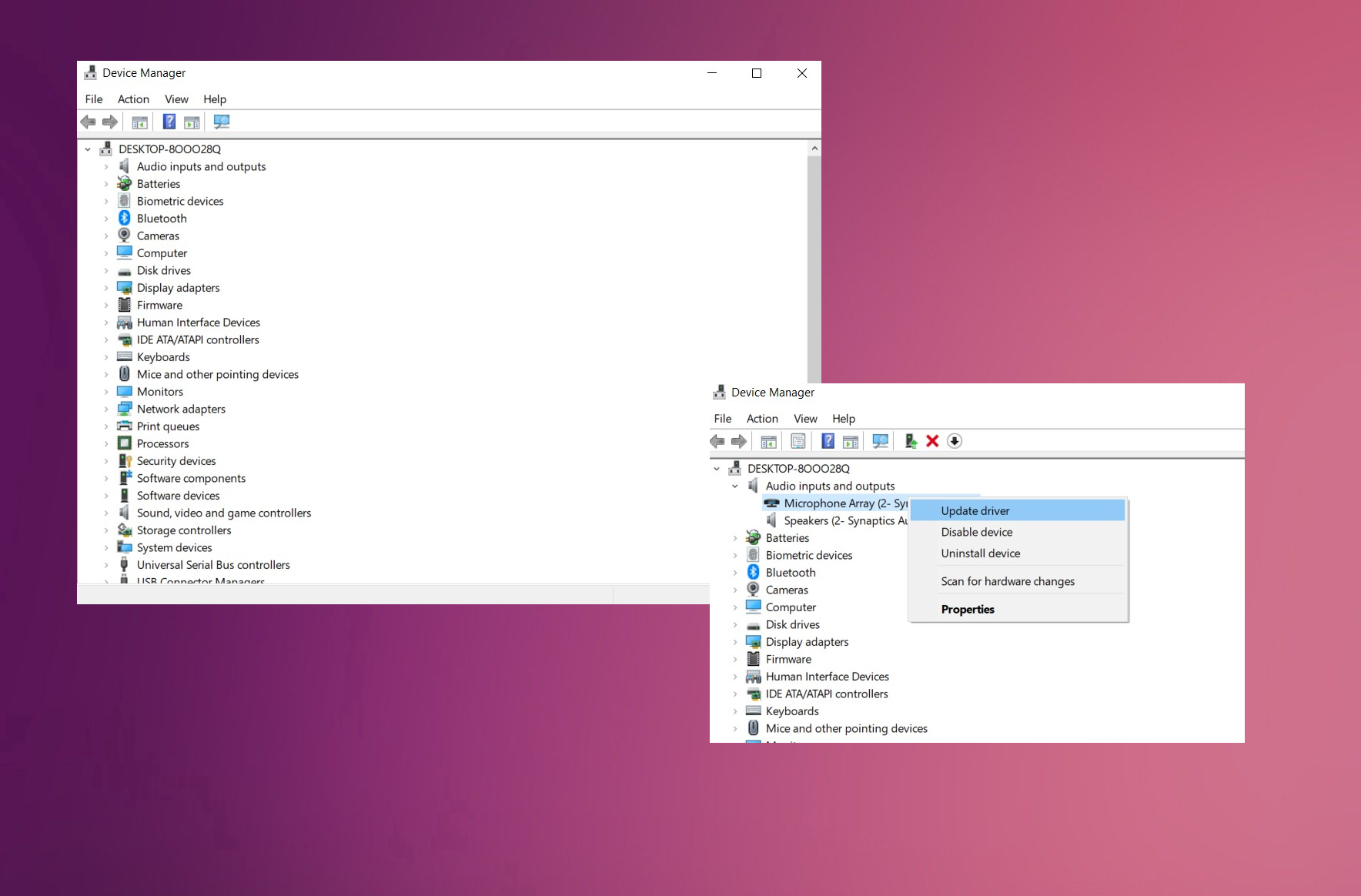
- Expand the section for which you want to update drivers.
- Find the particular device in the list.
- Right-click on your device and choose Update driver.
- Select Search automatically for drivers.
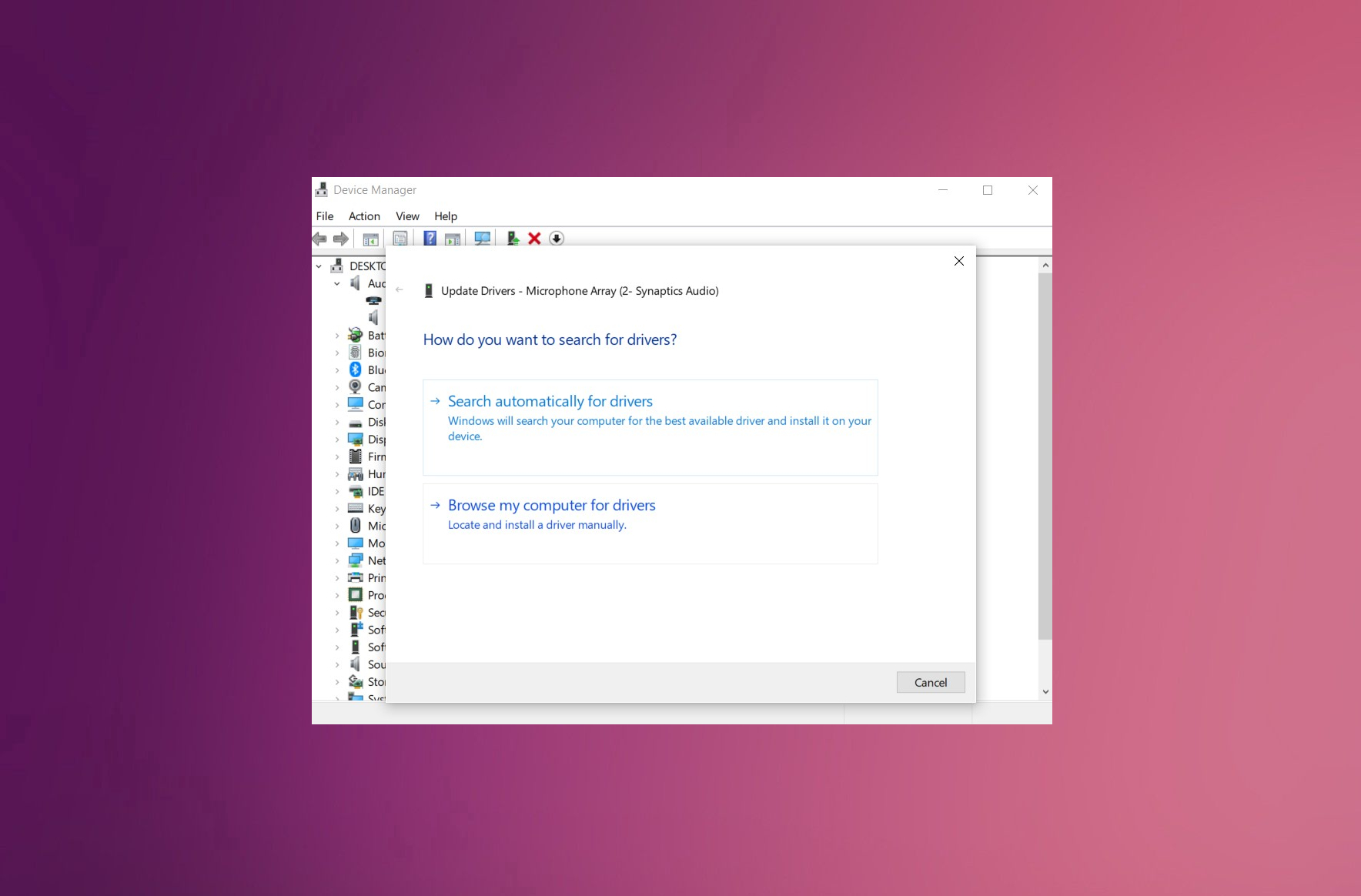
- Follow the on-screen instructions to complete the process.
4. Run System File Checker to repair files
In case any of the system files are corrupted, SFC scan will be able to detect and repair it automatically, fixing the "The code execution cannot proceed" error in Windows.
- Type in cmd or Command Prompt into the search box
- Right-click on the search result and select Run as administrator
- Type sfc /scannow and hit Enter.
- The corrupted files should be fixed automatically. Unless there are no corrupted or damaged files.
- You might want to launch the application again and see if the error occurs.
5. Run DISM check
- Run Command Prompt as administrator again and enter the commands:
dism.exe /online /cleanup-image /scanhealth
dism.exe /online /cleanup-image /restorehealth - These two commands can scan the Windows for corruption and restore the health of the device.
- Hit ENTER after the first one and repeat the step with the second command after that process is done.
Bottom line
To fix the 'The code execution cannot proceed' error in Windows, you can try reinstalling the program that triggers the error or using tools to check for corrupted files. If these solutions do not resolve the issue, further troubleshooting may be necessary.
Frequently asked questions
This error frequently occurs due to missing or corrupted DLL files or when an application is incompatible with Windows 10. Additionally, outdated drivers may also trigger this issue.
You can resolve this error by reinstalling the affected application, updating your system, or running the System File Checker tool to repair corrupted files. Ensure all essential system files are intact for smooth operation.
Yes, keeping your Windows updated can fix compatibility issues and replace missing system files, which may eliminate the error. Regular updates also enhance overall system stability.




Report an issue
What's wrong with this guide? We review every report and update or remove content.
Report received — thank you. We'll review and fix it.
You need a free account to submit a report.
Be the first to comment