
How to fix "The feature you are trying to use is on a network resource that is unavailable"

Prefer to fix it yourself? The manual steps follow.
- 7methods
- 5 to 30 minutes
- Medium
Applies to Windows 11, Windows 10; any program installed with Windows Installer (.msi), most often Microsoft Visual C++ Redistributable and .NET runtimes
7 methods in this guide
Recently I tried to download a game, and it said that I need the Visual C++ 2022 Runtime to play it. I tried to download it from the official Microsoft website, and it kept giving me an error: "The feature you are trying to use is on a network resource that is unavailable." How do I fix this?
This Windows Installer box appears when a setup needs the original .msi package of a program that is already installed, and that package is gone. It has nothing to do with your internet connection. Most often it shows up with Visual C++ runtimes: remove the old entry in Installed apps first, then install the new package again.
The message means Windows Installer cannot find the .msi file of the version that is already installed, so it cannot update, repair or remove it. Open Settings > Apps > Installed apps, uninstall the program named in the box title (for Visual C++, the old 2015-2022 entries), restart and install the new package again (Fix 1). If the uninstall shows the same box, remove the entry with Microsoft's troubleshooter (Fix 4).
| Error | The feature you are trying to use is on a network resource that is unavailable. Below it: Click OK to try again, or enter an alternate path to a folder containing the installation package with the name of an .msi file. |
|---|---|
| Where it appears | In a Windows Installer box during a setup, update, repair or uninstall. The title bar names the program whose package is missing, often an older version than the one you are installing. |
| Main cause | The cached copy of the installed version's .msi package was deleted or moved, so Windows Installer cannot work on that version. |
| Fastest fix | Uninstall the old version named in the title bar, restart, and run the new installer again (Fix 1). |
| Also written as | "network resource that is unavailable", "network resource unavailable", "the feature you are trying to use is on a network". Microsoft's developer list gives the matching Windows Installer error as 1706: No valid source could be found for product. |
| Often seen with | Microsoft Visual C++ Redistributable (the Minimum Runtime and Additional Runtime parts), Microsoft .NET Host and other runtimes, and programs once installed from a USB drive, DVD or network share. |
| Affects | Windows 11 and Windows 10. Windows 10 left support on 14 October 2025; the cause and the fixes are the same on both. |
| Vendor status | Not a Windows bug and not a network problem. Microsoft's Q&A staff describe it as an installer looking for a cached MSI file or path from an earlier installation that no longer exists. |
| Time to fix | About 5 minutes for Fix 1. Up to 30 minutes if you need the troubleshooter or the registry. |
Facts checked on 15 October 2026. Steps written for Windows 11 (25H2 and 26H2) and Windows 10 22H2.
What "The feature you are trying to use is on a network resource that is unavailable" means
Programs packed as .msi files are installed by Windows Installer, which keeps a record of where each package came from. When a later setup updates, repairs or removes that program, Windows Installer goes back to the same package. If the file is no longer there, it shows this box and asks you where the package is now.
The words "network resource" are generic. The missing place can be a folder on your own disk, a USB stick or a DVD, not only a shared folder on a network. Your internet connection is not the problem, and a better connection does not fix it.
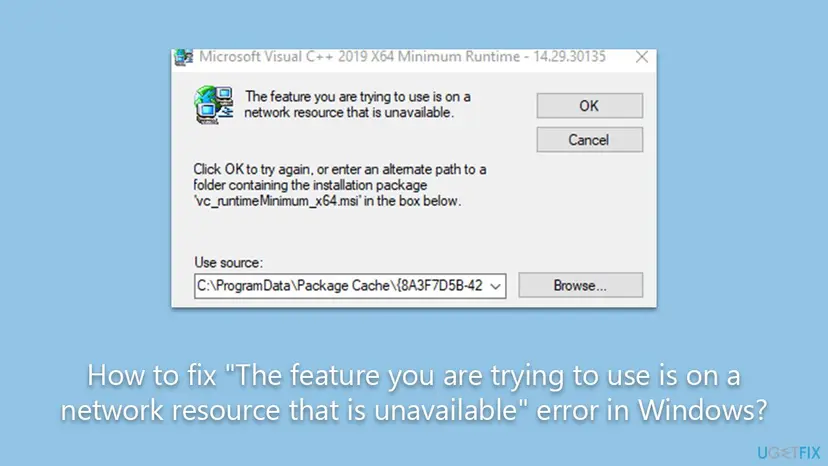
- First line: The feature you are trying to use is on a network resource that is unavailable.
- Second line: Click OK to try again, or enter an alternate path to a folder containing the installation package, followed by a file name such as
vc_runtimeMinimum_x64.msi. - Use source: a field that shows the folder Windows Installer expected, for Visual C++ usually under
C:\ProgramData\Package Cache, with a Browse button. - Title bar: the program and version whose package is missing. This is the version you must deal with, not the one you are installing.
In the Visual C++ case the title often names an older version, such as 2019 14.29, while you are installing the 2022 package. The new installer must remove or upgrade that old version and cannot, because its package is gone. That is why the fixes below work on the old version.
Why the network resource is unavailable
Most often the cached package of the installed version was deleted, for example by a cleanup tool that emptied the Package Cache or Temp folder. Less often the program was installed from a drive or share that is no longer connected. Rarely the Windows Installer service or its records are damaged.
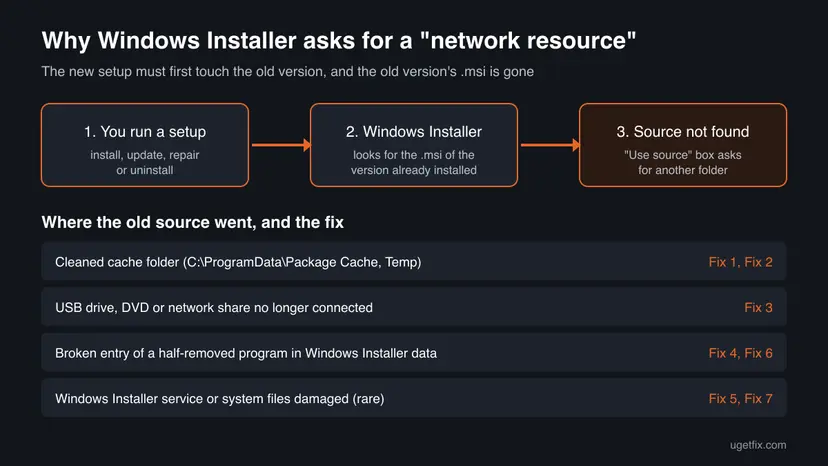
| Cause | How often | How to tell | Fix |
|---|---|---|---|
| The cached .msi of the installed version was deleted by a cleanup tool or by hand. | Most often | The Use source field points to a folder on your C: drive, often Package Cache. | Fix 1, Fix 2 |
| The program was installed from a USB drive, DVD or network share that is gone. | Sometimes | The Use source field shows a drive letter like D: or a path starting with two backslashes. | Fix 3 |
| An earlier uninstall stopped halfway and left a broken record. | Sometimes | The program is in Installed apps, but its uninstall shows the same box. | Fix 4, Fix 6 |
| The Windows Installer service hangs or system files are damaged. | Rarely | Programs from many makers fail to install, not only one. | Fix 5, Fix 7 |
The old version of this page said corrupted registry files caused by malware or sudden shutdowns are a main cause. No Microsoft source says that. The registry record is only a problem when it points to a package that no longer exists, which Fix 4 and Fix 6 deal with.
How to fix "The feature you are trying to use is on a network resource that is unavailable"
Fixes 1 to 4 deal with the missing package itself and solve most cases. Fixes 5 to 7 are for PCs where many installers fail. Run the setup again after each fix.
| What you see or have | Start with |
|---|---|
| You are installing Visual C++ or a .NET runtime and the title names an older version. | Fix 1 |
| You still have the setup file of the version named in the title bar. | Fix 2 |
| The Use source field shows a USB drive, DVD drive or network path. | Fix 3 |
| The uninstall of the old version shows the same box. | Fix 4 |
| Setups from many different makers fail. | Fix 5, then Fix 7 |
Fix 1. Uninstall the old version named in the box, then install the new package
5 minutesLow riskEveryone, first. Especially when you install Visual C++ or .NET and the title bar names an older version.
The new setup stops because it cannot touch the old version without that version's package. Microsoft's Q&A staff advise removing the existing Visual C++ 2022 entries, x64 and x86, before installing the official package again. With the old version gone, nothing is left to look for.
- Select Cancel in the error box and close the setup.
- Open Start > Settings > Apps > Installed apps. On Windows 10 open Start > Settings > Apps > Apps & features.
- Type the program name from the box title in the search field, for example
Visual C++. - Select the three dots next to the matching entry and select Uninstall. For Visual C++, remove the 2015-2022 entries for both x64 and x86.
- Restart the PC.
- Download the package again from its maker. For Visual C++, Microsoft's permalinks are
https://aka.ms/vc14/vc_redist.x64.exeandhttps://aka.ms/vc14/vc_redist.x86.exe. - Right-click the downloaded file, select Run as administrator and finish the setup.

Removing Visual C++ for a few minutes is safe. Games and apps that need it may not start until you install it again in step 7. Microsoft says the latest v14 package covers apps built with Visual Studio 2017, 2019, 2022 and 2026, so one current package replaces the older 2015-2022 entries.
Install both the x64 and the x86 package on 64 bit Windows: many games are 32 bit and need the x86 one. Microsoft notes that the x64 package also carries the ARM64 files for ARM PCs.
It worked if: The old entry disappears from Installed apps, and the new setup ends with a message that setup was successful.
If not: If the uninstall itself shows the same box, go to Fix 2 when you have the old setup file, otherwise Fix 4.
Fix 2. Point Windows Installer to the old version's setup files
10 minutesLow riskYou still have the setup file of the exact version named in the title bar, for example from the program's download folder or its maker.
The box itself asks for a folder that contains the named .msi file. Running the same version's setup and choosing Repair puts its package back where Windows Installer expects it, so the next update or uninstall can run.
- Note the program name, the version number in the title bar and the .msi file name in the message.
- Find the setup file of that same version. A newer or older version does not work, because Windows Installer checks the package.
- Cancel the error box, run that setup file and select Repair if it offers it.
- If the setup has no Repair option but you have the .msi file itself, leave the error box open, select Browse next to Use source and pick the folder that holds the .msi.
- Select OK and let the setup continue.
- Run the new installer or the uninstall again.
Many setups are .exe files that carry the .msi inside, so you may not see the .msi name in a folder. Running the .exe with Repair is then the easier path.
We could not confirm that Microsoft still offers older Visual C++ v14 builds, such as 14.29, for download. If you cannot find the exact version, skip this fix and use Fix 4.
It worked if: The repair finishes without the box, and the update or uninstall that failed now runs through.
If not: If you cannot find the same version, or the box comes back, go to Fix 4.
Fix 3. Reconnect the drive or network share the program came from
3 minutesNo riskThe Use source field shows a removable drive letter, a DVD drive or a network path that starts with two backslashes.
Here the message means exactly what it says. The program was installed from that drive or share, and Windows Installer wants to read the package from the same place again.
- Read the path in the Use source field.
- Plug in the USB drive, insert the DVD or connect to the work or school network the path belongs to.
- Open File Explorer with Win + E and check that the folder in the path opens.
- Back in the error box, select OK to try again.
If the drive now has another letter, select Browse and pick the same folder on the new letter. On a work PC whose programs come from a company share, ask your IT team: only they can restore the share.
It worked if: The setup reads the package and continues without the box.
If not: If the source no longer exists anywhere, remove the program's record with Fix 4 and install it fresh.
Fix 4. Remove the broken entry with Microsoft's Program Install and Uninstall troubleshooter
10 minutesLow riskThe old version cannot be uninstalled because its uninstall shows the same box, and you do not have its setup file.
Microsoft's support page says this troubleshooter repairs problems that block programs from being installed or removed, including corrupted registry keys. It can drop the Windows Installer record of the old version without its missing package.
- Open Microsoft's support page Fix problems that block programs from being installed or removed.
- Select Download troubleshooter and open the downloaded MicrosoftProgram_Install_and_Uninstall.meta.diagcab file.
- Select Next, then Uninstalling.
- Pick the program named in the error box from the list and select Next.
- Follow the prompts to remove the program and wait for the tool to finish.
- Restart the PC and install the new package, as in Fix 1.
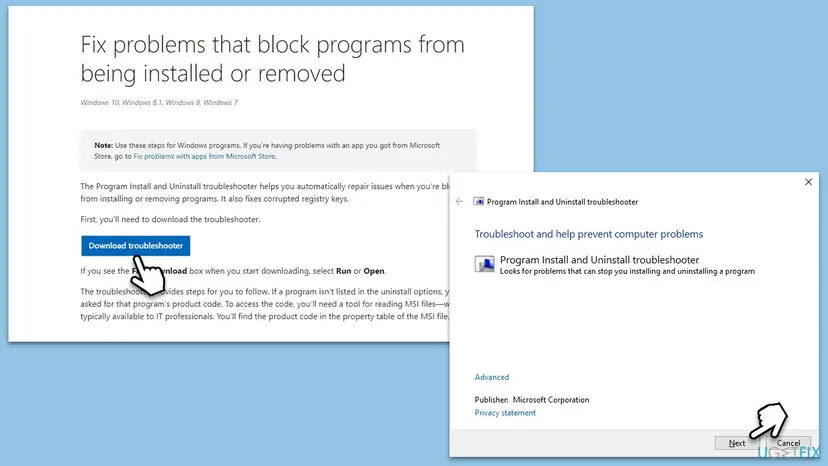
If the program is missing from the tool's list, the tool asks for its product code, which most home users do not have. Fix 6 removes the same record by hand. The older version of this page said to look for Media Feature Pack in the list; pick the program your own box names instead.
It worked if: The tool reports the problem as fixed, the old entry is gone from Installed apps, and the new setup runs.
If not: If the program is not listed, or other setups fail too, go to Fix 5.
Fix 5. Restart the Windows Installer service
5 minutesNo riskSetups from more than one maker fail, or the box appears even for programs you never installed before.
Every .msi setup goes through the Windows Installer service. A hung service can keep stale information about a source, and a restart gives the next setup a fresh start.
- Open Services. Press Windows+R, type the command below and press Enter. You can also type Services in the search box on the taskbar and open the app.
services.msc - Find the service. The list is sorted by Name. Click any row and type the first letter of the service to jump to it. Check the Status column (Running or empty) and the Startup Type column.
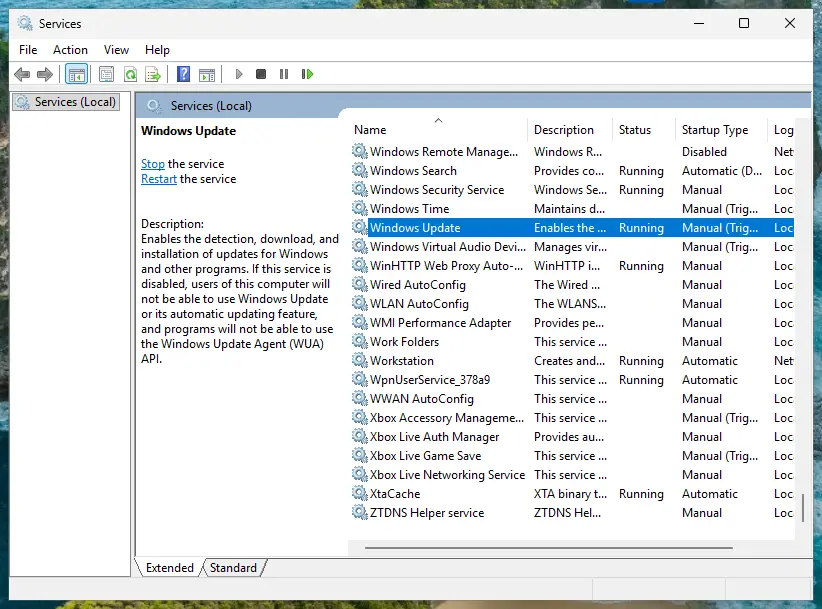
Status and Startup Type of each service are shown in the list. Screenshot: Windows 11 26H2. - Restart the service. Right-click the service and select Restart. If the service is not running, select Start instead. Wait until the progress window closes.
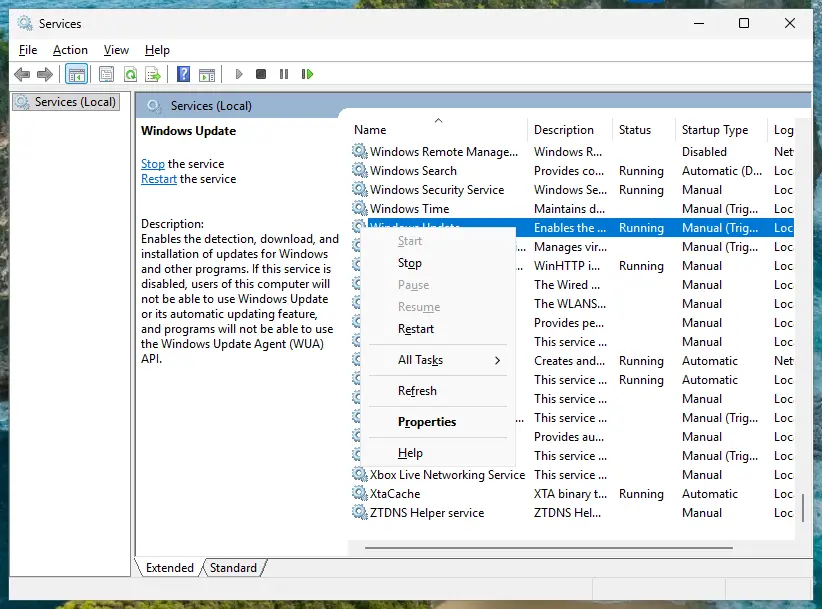
Right-click a service to start, stop or restart it. Screenshot: Windows 11 26H2.
These steps were written for Windows 11 and Windows 10 (the steps are the same). The full page with the other versions and what each result means: Check and restart Windows services
In the list, the service is called Windows Installer. Windows starts it when a setup needs it, so it is normal to see it stopped. Do not change its startup type; the old version of this page said to set it to Automatic, which is not needed.
It worked if: The setup gets past the box on the next try.
If not: If Restart is greyed out, the service is not running, which is normal. Go to Fix 6 for one program, or Fix 7 when many fail.
Fix 6. Delete the old version's Windows Installer record in the registry
15 minutesRead the warningAdvanced users only, after Fix 4, when the troubleshooter does not list the program and its uninstall keeps asking for the package.
Windows Installer keeps one key per installed .msi product under Installer\Products. Microsoft's Q&A staff point to this key for Visual C++ entries with invalid paths. Without the key, the new setup no longer sees the old version and stops asking for its package.
Deleting the wrong key can break the uninstall or repair of another program. Export the key first as described in Back up the registry before editing it, and delete only the one key whose ProductName matches the program in the error box.
- Press Win + R, type
regeditand press Enter. Select Yes in the permission prompt. - Go to the key below.
- Select each subkey with a long letter and number name and read ProductName on the right.
- When ProductName matches the program and version in the error box, right-click that subkey and select Export. Save the .reg file on your desktop.
- Right-click the subkey again, select Delete and confirm.
- Restart the PC and run the new installer.
Where Windows Installer keeps its product records
HKEY_LOCAL_MACHINE\SOFTWARE\Classes\Installer\Products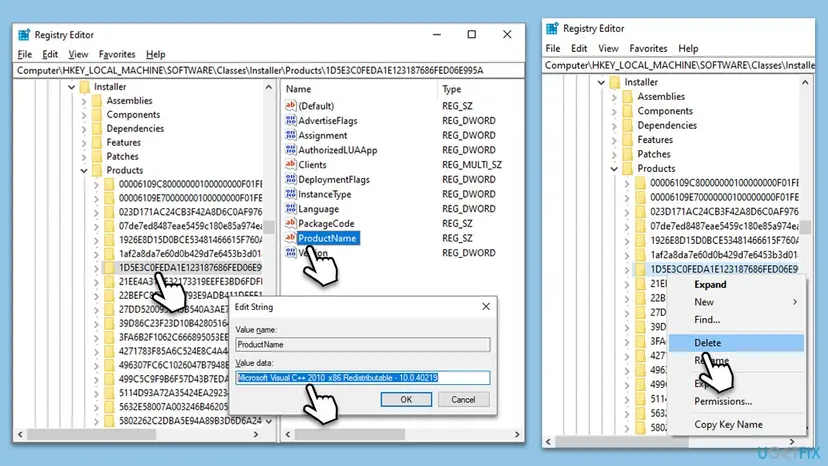
It worked if: The new setup runs without asking for the old package. The old version may still show in Installed apps; uninstall it there or ignore it once the new version works.
If not: Double-click the .reg file on your desktop to put the key back, and go to Fix 7.
Fix 7. Repair Windows system files with SFC and DISM
20 minutesLow riskMany setups fail on this PC, and the fixes above did not help.
Windows Installer is part of Windows. If its own files are damaged, every .msi setup can fail. Microsoft's Q&A staff list a system file check as an optional repair for this message, and users there report that it fixed their Visual C++ install.
- Open an elevated command window. Right-click Start and select Terminal (Admin), or type cmd in the search box, right-click Command Prompt and select Run as administrator. Select Yes when Windows asks for permission.

Search for cmd and choose Run as administrator. Screenshot: Windows 11 26H2. - Run DISM first. Type the command below and press Enter. DISM downloads clean copies of damaged components from Windows Update, so it can take several minutes. Wait until it says The operation completed successfully.
DISM.exe /Online /Cleanup-Image /RestoreHealth
DISM /RestoreHealth running. Screenshot: Windows 11 26H2. - Run System File Checker. In the same window, type the command below and press Enter. Do not close the window until the verification reaches 100%.
sfc /scannow
sfc /scannow at 100%. Screenshot: Windows 11 26H2. - Read the result and restart. Compare the last message with the table below this guide, then restart the PC so that repaired files are loaded.

The result line tells you what SFC did. Screenshot: Windows 11 26H2.
These steps were written for Windows 11 24H2 and 25H2. The full page with the other versions and what each result means: Run DISM and SFC to repair Windows system files
After the scans, restart the PC and run Fix 1 again, because a repair does not bring back a deleted package of a single program.
It worked if: SFC reports that it found and repaired files, or found no integrity violations, and the setup runs.
If not: Read the next section for the log to check and what to send.
If the network resource is still unavailable: what to check and send
Windows writes every Windows Installer failure to its event log, with the product name and the error number. Microsoft's Q&A staff suggest looking there for MSI errors when the message stays.
- Event Viewer. Press Win + R, type
eventvwr.msc, open Windows Logs > Application and look for MsiInstaller entries at the time of the failure. An entry with error 1706 or the words No valid source could be found confirms a missing package. - A screenshot of the box, with the title bar and the Use source path visible.
- The program name and version from Installed apps, and what you were doing: installing, updating or uninstalling.
- Your Windows version from
winver. - Who to ask: the program's maker for its own setup, Microsoft Q&A for Visual C++ and .NET, your IT team for a work PC.
This message is not a sign of failing hardware or of a virus. If the PC also shows read errors when it copies files, check the drive with Check a disk for errors (chkdsk) and back up your files first.
How to avoid the network resource message next time
- Uninstall programs from Settings, not by deleting their folders.
- Keep the setup files of programs you install from a USB drive or a share, or copy them to your PC first.
- Let Visual C++ and .NET setups finish and restart when they ask.
- Get runtimes only from their maker's own site.
- Do not delete C:\ProgramData\Package Cache or C:\Windows\Installer to free space.
- Do not let cleaner tools remove installer caches.
- Do not install programs straight from a network share you will not keep.
Frequently asked questions
What does "The feature you are trying to use is on a network resource that is unavailable" mean?
It means Windows Installer needs the original .msi package of a program that is already installed and cannot find it. The box asks for a folder that holds that package. It usually appears when a new setup must upgrade or remove the old version first. The word network is generic: the package was often on your own disk and got deleted. Removing the old version (Fix 1) or giving the setup its package (Fix 2) fixes it in most cases.
How do I fix this when installing Visual C++ 2022?
Look at the title bar of the box. It usually names an older Visual C++ part, such as the 2019 X64 Minimum Runtime. Uninstall the Visual C++ 2015-2022 entries for x64 and x86 in Settings > Apps > Installed apps, restart, and install the current packages from Microsoft's permalinks aka.ms/vc14/vc_redist.x64.exe and aka.ms/vc14/vc_redist.x86.exe. If the uninstall shows the same box, use the Program Install and Uninstall troubleshooter (Fix 4).
What does it mean with Microsoft .NET Host?
The same thing. The .NET runtime installers include a part called Microsoft .NET Host, and its .msi package of an earlier version is missing. Uninstall the older .NET entries named in the box from Installed apps, restart, and install the .NET version your app asks for from Microsoft's own .NET download page. If the old entry will not uninstall, Fix 4 or Fix 6 removes its record.
Is this a network or internet problem?
No. The message comes from Windows Installer, and "network resource" only means a location it cannot reach. In most cases that location is a cache folder on your C: drive that was cleaned up. Only when the Use source field shows a USB drive, DVD or a network path does reconnecting it help (Fix 3). Resetting your router or network settings does not fix this message.
What should I type in the Use source box?
A folder that contains the exact .msi file named in the message, from the same version as the title bar. If you have that file, select Browse and pick its folder, then OK. A different version's .msi does not work. If you do not have it, select Cancel and remove the old version instead (Fix 1 or Fix 4). Typing a random folder only makes the box appear again.
Can I just click OK or Cancel to get past it?
Clicking OK tries the same missing path again, so the box returns unless you reconnected the source first. Cancel stops the setup. In the Visual C++ case the new package then rolls back and reports a failure, and the game that needs it still will not start. Clicking through it does not damage anything, but it does not fix the cause either.
Why did the error start on a new PC?
New PCs often come with Visual C++ runtimes installed by the maker or by preinstalled apps. If the cache of those packages was not copied to the PC, or a cleanup app removed it, the first newer Visual C++ setup you run hits the missing package. A Microsoft Q&A user reported exactly this on a brand new PC. Fix 1 and Fix 4 work the same way there.
Does it help to run the installer as administrator or turn off antivirus?
Running the setup as administrator is part of Fix 1 and is worth doing. It does not bring back a missing package, though. Turning off antivirus is not a fix for this message, because the package is gone, not blocked. If you think your antivirus quarantined a setup file, pause it for one try with Turn off Microsoft Defender protection for a moment and turn it back on right after.
Is there a video of these steps?
This page does not have a video. Each fix has numbered steps, and Fix 1, Fix 4 and Fix 6 include screenshots of the windows you will see. The step by step pages linked in Fix 5 and Fix 7 have their own screenshots for Windows 11. If one step does not match your screen, check whether you are on Windows 10, where Installed apps is called Apps & features.
Sources
- Microsoft Learn: Windows Installer Error Messages (1706) (learn.microsoft.com)
- Microsoft Learn: Latest supported Visual C++ Redistributable downloads (learn.microsoft.com)
- Microsoft Q&A: "The feature you are trying to use is on a network resource that is unavailable" when installing Visual C++ (learn.microsoft.com)
Did this fix work?
One click, no account. It tells the next reader which guides are worth their time.
Questions and experiences: fix "The feature you are trying to use is on a network resource that is unavailable"
Still broken, or found a fix we did not cover? Ask here: members and our editors answer. Reading is open; writing needs a free account.
…