
The referenced account is currently locked out and may not be logged on to: how to fix it

Prefer to fix it yourself? The manual steps follow.
- 7methods
- 10 minutes (waiting) to 30 minutes
- Easy
Applies to Windows 11 and Windows 10 PCs with a local account, a Microsoft account on a PC with a lockout policy, or a work account in Active Directory or Microsoft Entra ID
7 methods in this guide
As I understand now, I have been entering a wrong password into the login screen more than five times, which is why I'm currently locked out of my account and desperately need to log in. It's my work PC, so I'm really frustrated. Could you please help?
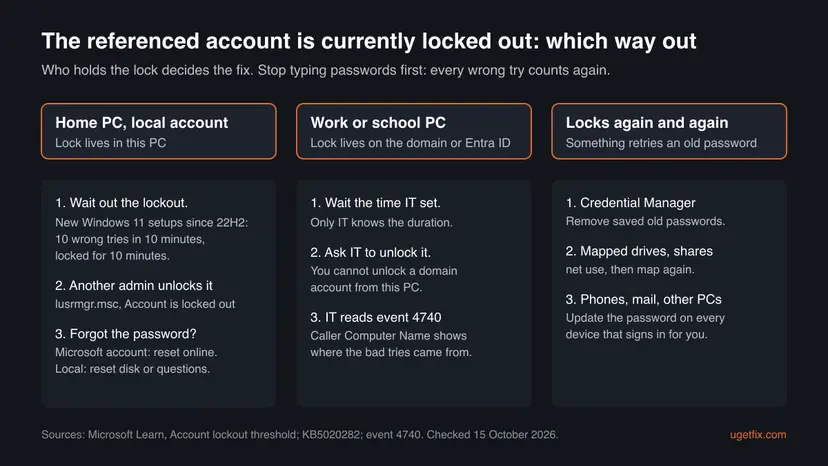
The referenced account is currently locked out and may not be logged on to means Windows counted too many wrong passwords and blocked the account for a while. It is a security policy, not a fault. Stop typing passwords, wait out the lockout, then sign in once with the right password, or ask whoever manages the PC to unlock it.
Windows locked the account because the Account lockout threshold was reached. Do not try again now: each wrong try counts. On a home PC set up with Windows 11 22H2 or later the default lock lasts 10 minutes, so wait and sign in once (Fix 1). On a work or school PC only IT can unlock it early (Fix 2). If it keeps locking, a saved old password is retrying in the background (Fix 4 and Fix 5).
| Error | The referenced account is currently locked out and may not be logged on to. Shown at sign-in, in Remote Desktop and when opening a network share. |
|---|---|
| Where it appears | The Windows sign-in screen, the Remote Desktop window, a prompt for a mapped drive or shared folder, or a net use command. |
| Main cause | More wrong passwords than the Account lockout threshold allows, typed by you or retried by a saved old password. |
| Fastest fix | Wait out the lockout duration without typing, then sign in once (Fix 1). At work, ask IT to unlock your account (Fix 2). |
| Also written as | the referenced account is currently locked out, the referenced account is locked out, reference account is locked and may not be logged on to, referenced account is currently locked out and may not be logged into. |
| Default on Windows 11 | New Windows 11 22H2 setups: 10 wrong tries within 10 minutes lock the account for 10 minutes, then it unlocks by itself (Microsoft KB5020282). |
| Affects | Windows 11 and Windows 10, local and domain accounts. Windows 10 left support on 14 October 2025. |
| Microsoft's status | By design. It is the Account Lockout Policy working as set (checked 15 October 2026). |
| Time to fix | 10 minutes of waiting with the Windows 11 default. At work, as long as IT needs to unlock it. |
Facts checked on 15 October 2026. Steps written for Windows 11 (25H2 and 26H2) and Windows 10 22H2, local accounts and domain accounts, read against Microsoft's account lockout documentation.
What "The referenced account is currently locked out and may not be logged on to" means
Windows keeps a count of failed sign-ins for each account. Microsoft's page on the Account lockout threshold setting says that when the count passes the set number, the account is locked and cannot be used until an administrator resets it or until the Account lockout duration runs out. The message is how Windows tells you this, word for word: The referenced account is currently locked out and may not be logged on to.
The password itself is not changed or deleted. Your files are untouched. Once the lock ends, the same password works again, as long as it is the right one.
| Setting | What it does | Windows 11 default for new setups |
|---|---|---|
| Account lockout threshold | Wrong tries before the account locks. 0 means it never locks. | 10 invalid sign-in attempts |
| Account lockout duration | Minutes the account stays locked before it unlocks itself. | 10 minutes |
| Reset account lockout counter after | Minutes after which the count of wrong tries starts again from zero. | 10 minutes |
On a home PC with a local account the lock lives in this PC. On a work or school PC joined to a domain or to Microsoft Entra ID (formerly Azure AD) the lock lives on your organisation's servers, so nothing on this PC can lift it early.
What causes the referenced account to be locked out, from the most common
The direct cause is always the same: too many failed sign-ins. What differs is who or what made them. The ranking is our reading of Microsoft's notes and user reports, not a statistic.
| How often | Cause | Typical sign | Fix |
|---|---|---|---|
| Most often | You or someone else typed a wrong password several times | It started right after the wrong tries at the sign-in screen. | Fix 1, Fix 2 |
| Often | The password was changed, but a mapped drive, a saved credential or another device still uses the old one | The account locks again minutes after being unlocked. | Fix 4, Fix 5 |
| Often | You forgot the password and kept guessing | Even after the wait the password is refused. | Fix 3 |
| Less often | An app or a dropped connection retries the sign-in by itself | Locks while you are not typing anything. | Fix 5, Still locked out section |
| Rarely | Someone on the network is guessing passwords for the account | Event 4740 names a computer you do not know. | Fix 2, Still locked out section |
Microsoft names the less obvious sources itself: an app whose connection drops repeatedly can count every retry as a failed sign-in, and Kerberos can retry sign-ins on its own during encryption negotiation. It also notes that a wrong password typed to unlock a locked workstation counts toward the lockout.
How to fix "The referenced account is currently locked out and may not be logged on to"
Start with what costs nothing. You are done when Windows accepts your password and the message does not come back after an hour of normal use.
| Your situation | Start with | Then |
|---|---|---|
| Home PC, you know the password | Fix 1 | Fix 6 |
| Work or school PC, or Microsoft Entra ID sign-in | Fix 2 | Fix 4 |
| You forgot the password | Fix 3 | Still locked out section |
| Another administrator account works on this PC | Fix 6 | Fix 7 |
| It locks again soon after unlocking | Fix 4 | Fix 5 |
| The error appears when you open a shared folder | Fix 5 | Fix 4 |
Fix 1. Stop trying and wait out the lockout duration
10 minutes or moreLow riskEveryone, first. Especially a home PC with a local account, where the default lock ends by itself.
Microsoft says a locked account unlocks when the Account lockout duration expires. On new Windows 11 22H2 setups that is 10 minutes. Every new wrong try during the wait only feeds the count again.
- Leave the sign-in screen alone. Do not type any password now.
- Wait at least 10 minutes on a home PC. On a work PC wait as long as IT told you, or ask (Fix 2).
- Check Caps Lock and Num Lock, and the language code such as ENG in the corner of the sign-in screen.
- Type the password once, slowly, and press Enter.
If you are not sure of the password, do not guess after the wait. A wrong guess can lock the account again for the same time. Go to Fix 3 instead.
It worked if: Windows accepts the password and opens your desktop.
If not: If the same message shows after a long wait, the lock is not on this PC or the duration is long: on a work PC go to Fix 2, at home try Fix 6 from another administrator account.
Fix 2. Ask IT to unlock a work or school account
5 minutes to ask, then as long as IT needsLow riskThe PC belongs to an employer or school, signs in to a domain, or uses a work account in Microsoft Entra ID (formerly Azure AD).
For a domain or Entra ID account the lockout lives on the organisation's servers. Microsoft says a locked account stays unusable until an administrator resets it or the duration expires, and only IT knows the duration they set.
- From a phone or another computer, contact your help desk.
- Give them your user name and the exact message: The referenced account is currently locked out and may not be logged on to.
- Tell them if you changed your password recently and on which devices you use the account.
- Ask them to unlock your account and, if it locks again, to check event 4740 for the computer that caused it.
- When they confirm, sign in once with the current password.
Event 4740 is logged every time a user account is locked out, on domain controllers for domain accounts. Its Caller Computer Name field shows the computer the failed tries came from, which is how IT finds a phone or an old session still using an old password.
It worked if: IT confirms the unlock and your password works at the sign-in screen.
If not: If it locks again within minutes, a device still sends the old password: Fix 4 and Fix 5 on each PC you use.
Fix 3. Reset a forgotten password the supported way
5 to 10 minutesLow riskYou do not remember the password and kept guessing.
Waiting does not help if the password is wrong. A reset proves who you are with the account itself and stops new failed tries from piling up.
- Microsoft account: on the sign-in screen select I forgot my password, or reset it on Microsoft's account recovery page from another device.
- Sign in to this PC once, online, with the new Microsoft account password.
- Local account: after a wrong password Windows shows Reset password. Answer your security questions or insert the password reset disk you made earlier.
- Work or school account: use your organisation's password reset page or ask IT (Fix 2). Windows cannot reset it locally.
We could not confirm that a new password lifts a lockout that is already running. If the message stays after the reset, wait out the duration (Fix 1) and then sign in once with the new password.
It worked if: The new password signs you in.
If not: If no reset option works for a local account, use another administrator account (Fix 6) or read the Still locked out section.
Fix 4. Remove saved old passwords from Credential Manager
5 minutesLow riskThe account locks again soon after an unlock, usually after a password change.
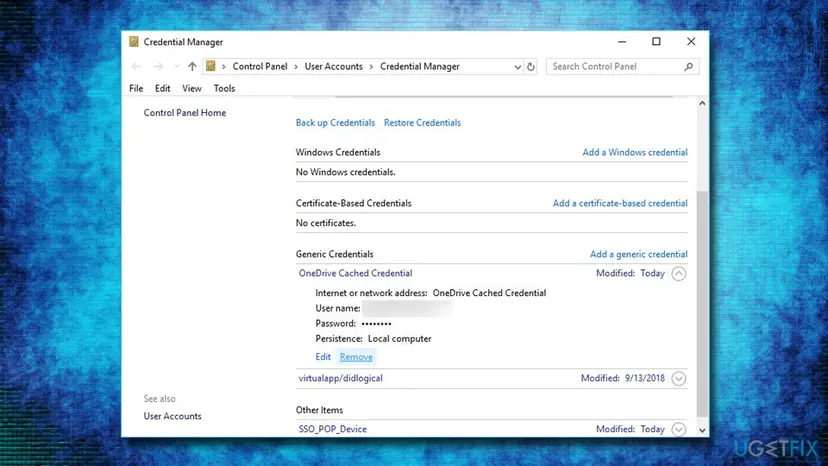
Windows Credential Manager stores passwords for network shares, Remote Desktop and some apps. After a password change those entries keep sending the old password, and each attempt is a failed sign-in that counts toward the lockout.
- Sign in once the account is unlocked (Fix 1 or Fix 2).
- Press Win + S, type
Credential Managerand open it. - Select Windows Credentials.
- Expand each entry that uses your account name or a work server name.
- Select Remove and confirm with Yes.
- Restart the PC, then open the shares or apps again and type the current password when asked.
It worked if: The account stays unlocked through the day after the restart.
If not: If it still locks, check mapped drives with Fix 5 and every phone or PC that signs in with the same account.
Fix 5. Disconnect mapped drives and network shares that use the old password
5 minutesLow riskThe message appears when you open a shared folder or a mapped drive, or the account locks after a password change.
A mapped drive reconnects at every sign-in with the credentials saved when it was mapped. Microsoft notes that when a connection drops repeatedly, every failed retry counts toward the threshold.
- Press Win + R, type
cmdand press Enter. - Type
net useand press Enter to list the connected drives and shares. - Remove one connection with
net use Z: /delete, using its letter, or all of them withnet use * /delete. - Restart the PC.
- Map the share again in File Explorer > This PC > Map network drive and enter the current password when asked.
net use
net use * /delete
It worked if: The shared folder opens without the locked out message and the account is not locked again later.
If not: If it still locks on a work network, ask IT to read event 4740 (Fix 2): the Caller Computer Name points to the device that sends the old password.
Fix 6. Unlock a local account from another administrator account
5 minutesLow riskA home or small office PC with a second administrator account that still signs in. Windows Pro, Enterprise or Education.
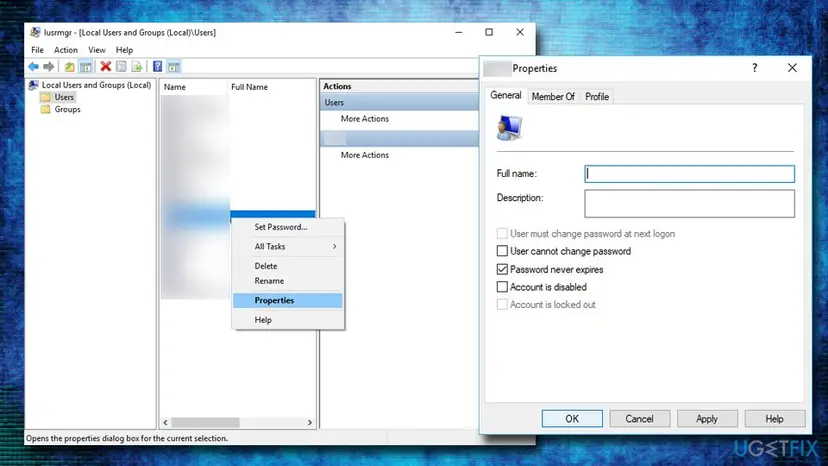
Microsoft says a locked account can be used again once an administrator resets it. Local Users and Groups shows the lock as a box on the account, so an administrator can clear it without waiting.
- Sign in with the other administrator account.
- Press Win + R, type
lusrmgr.mscand press Enter. - Select Users, right-click the locked account and select Properties.
- On the General tab clear Account is locked out.
- Select OK, sign out, and sign in to the unlocked account once.
Windows Home does not include Local Users and Groups. On Home, wait out the lockout (Fix 1) instead.
It worked if: The account signs in with its password at the next try.
If not: If the box is grey on a locked account, the lock comes from a domain: Fix 2.
Fix 7. Check the lockout policy on your own PC, without turning it off
5 minutesRead the warningYou own the PC, you are an administrator, and the lockout is shorter or stricter than you want. Not on a PC that IT manages.
The threshold and the duration decide how quickly the message appears and how long it lasts. Microsoft's baseline is 10 tries, 10 minutes and 10 minutes, which allows typing errors and still stops password guessing.
Older guides, this one included, said to set Account lockout threshold to 0. That turns lockout off, and Microsoft says to choose 0 only with complex passwords of eight or more characters and an audit that alerts on failed sign-ins. On a home PC it leaves the account open to unlimited guessing. Write down the current values before you change anything.
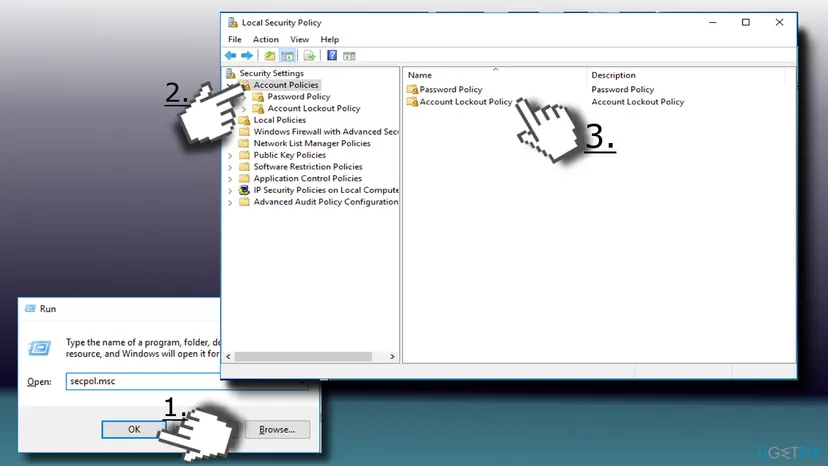
- Press Win + R, type
secpol.mscand press Enter. - Open Security Settings > Account Policies > Account Lockout Policy.
- Read the values of Account lockout threshold, Account lockout duration and Reset account lockout counter after.
- To change one, double-click it, enter the new number and select OK. Microsoft says no restart is needed.
- Keep the threshold above 0. Microsoft's baseline is 10.
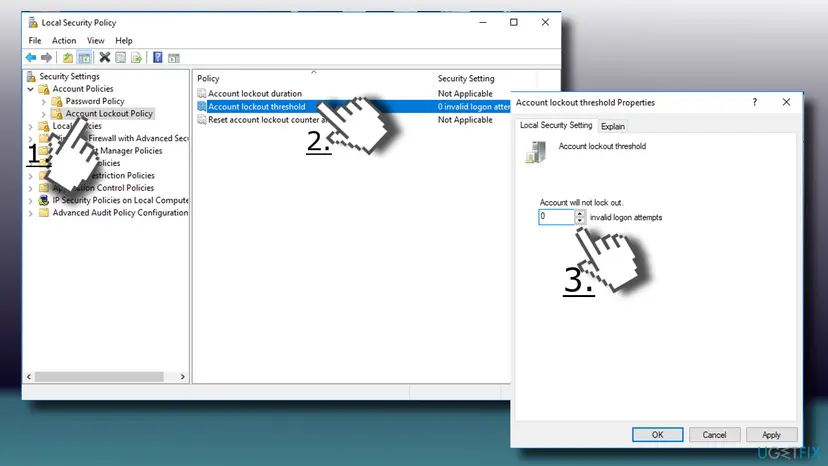
Windows Home does not include secpol.msc. There, net accounts in an administrator Command Prompt shows the same three values.
It worked if: The policy shows the values you chose, and a typing slip no longer locks you out for long.
If not: If the values are greyed out, a domain or IT policy sets them: Fix 2.
If you are still locked out: where the cause is written and who can help
If the account locks again after every unlock, something is still sending a wrong password. Windows records each lockout as Security event 4740: A user account was locked out. For a domain account it is on the domain controller, for a local account in this PC's Security log, if account management auditing is turned on.
- Read the event: in Event Viewer > Windows Logs > Security filter for event ID
4740. The Caller Computer Name field names the computer the failed tries came from. - Work or school account: send IT the time of the lockout and the devices you use. They can read 4740 on the domain controller.
- Local account, no other administrator, no reset option: there is no supported way around the sign-in. Resetting Windows from the recovery screen is the way back. It needs the BitLocker recovery key on an encrypted PC.
- Before any reset: copy your files out if another account still signs in. Step by step: Back up your files (Windows Backup, File History, Time Machine).
- A computer name you do not know in event 4740 means someone else is trying the account. Change the password from a safe device and tell IT.
The old version of this page said to run net user administrator /active:yes from the recovery Command Prompt. We could not confirm that it enables the account of your installed Windows rather than the recovery system, and sign-in bypasses weaken the PC's security. Use the supported routes above.
How to keep the account from being locked out again
- After a password change, update it at once on every phone, mail app, PC and mapped drive that uses the account (Fix 4 and Fix 5).
- Lock the PC with Win + L when you leave it, so nobody tries passwords on it.
- Check Caps Lock and the keyboard layout before you type at the sign-in screen.
- Set up a recovery route now: a Microsoft account with a current phone and email, or security questions for a local account.
- Keep a second administrator account on a home PC, so you can free the first one (Fix 6). Step by step: Create a new user account to test a problem.
- Keep the lockout on. A threshold of 10 forgives typing slips and still stops guessing.
Frequently asked questions
What does it mean when the referenced account is currently locked out?
It means Windows counted more failed sign-ins for the account than its Account lockout threshold allows, so it blocked the account for a while. The password is not deleted and your files are safe. The account becomes usable again when the Account lockout duration runs out or when an administrator unlocks it. Until then, every try shows the same message, even with the right password.
How long is a referenced account locked for?
As long as the Account lockout duration says. On new Windows 11 22H2 setups Microsoft sets it to 10 minutes, after 10 wrong tries within 10 minutes. A work or school PC uses whatever IT chose, which can be longer or even until an administrator unlocks it. On your own PC with Windows Pro you can read the value in secpol.msc, on Home with net accounts.
How long does Windows 11 lock you out for a wrong password?
With the defaults Microsoft applies to new Windows 11 22H2 and later setups, 10 minutes after 10 wrong passwords within 10 minutes. After that the account unlocks by itself. PCs that were set up earlier and only updated later may have no lockout at all, and work PCs follow their organisation's policy. A Windows Hello PIN has its own separate lockout.
Why is my account locked out when I typed the right password?
Because during the lockout Windows refuses every sign-in, right or wrong. Wait out the duration, then type the password once. If the account locks again soon after, something else sends an old password: a saved credential, a mapped drive, a phone with work mail or another PC. Remove saved credentials (Fix 4) and reconnect mapped drives (Fix 5).
The referenced account is currently locked out with Azure AD: what do I do?
On a PC that signs in with a work account in Microsoft Entra ID (formerly Azure AD) the lock is held by your organisation, not by this PC. Nothing on the PC can lift it early. Wait, then use your organisation's password reset page if you forgot the password, or ask IT to lift the lock and to find the device that keeps sending a wrong password.
Why do I see this error when I open a network share?
The share asks the server to check your account, and the server's domain says it is locked. Often the reason is the share itself: a mapped drive or a saved credential still uses an old password and retries at every sign-in. Disconnect it with net use * /delete, remove old entries in Credential Manager, restart and map the drive again with the current password.
Should I set the account lockout threshold to 0?
No, not on a home PC. A value of 0 means the account never locks, which removes the protection against password guessing. Microsoft says to choose 0 only when every password is complex and at least eight characters long and an audit alerts on failed sign-ins. Its own baseline is 10 tries, which forgives typing slips. Change the threshold only on a PC you own.
Can I unlock my account without another administrator?
On a home PC, yes, by waiting: the lock ends when the duration runs out. Early unlocking needs an administrator, either another admin account on the PC (Fix 6) or IT for a work account. If you also forgot the password, use the reset options in Fix 3. Without any of these, resetting Windows is the remaining supported route.
What is a reference account or an account reference?
Some searches for reference account or account reference are about a reference number on a bill or a bank account. This page is about something else: the Windows message The referenced account is currently locked out and may not be logged on to, where referenced account simply means the account you tried to sign in to.
Sources
- Microsoft Learn: Account lockout threshold (what a locked account means, values 0 to 999, baseline of 10, apps and Kerberos retries count) (learn.microsoft.com)
- Microsoft Support: KB5020282, account lockout available for built-in local administrators (10/10/10 default on new Windows 11 22H2 setups) (support.microsoft.com)
- Microsoft Learn: 4740(S) A user account was locked out (where it is logged, Caller Computer Name) (learn.microsoft.com)
Did this fix work?
One click, no account. It tells the next reader which guides are worth their time.
Questions and experiences: The referenced account is currently locked out and may not be logged on to: how to fix it
Still broken, or found a fix we did not cover? Ask here: members and our editors answer. Reading is open; writing needs a free account.
…