How to fix
“There is a problem connecting securely to this website” error
on Windows
Resolve the "There is a problem connecting securely to this website" error on Windows 10 or 11 quickly and easily with expert-tested solutions. Fixed in…

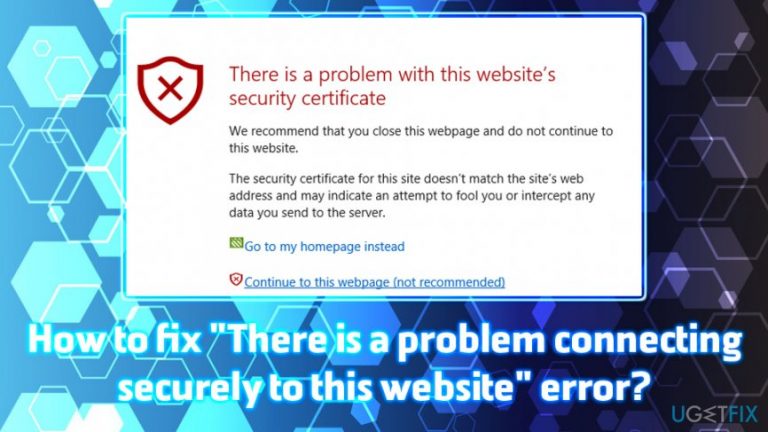
What causes How to fix “There is a problem connecting securely to this website” error?
- Incorrectly set time and date on the device
- Third-party antivirus software hindering access
- Website's security certificate not issued by a trusted certificate authority
- Potential attempt to intercept data or fool users
- Accessing suspicious or unknown websites
Repairs Windows system files, removes malware, and restores a clean OS state — without reinstalling.
Hello. I installed new update on Internet Explorer, and I can't enter certain websites anymore, as it shows me the "There is a problem connecting securely to this website" error. It is strange because before the update I could simply press "Continue to this website (not recommended)" and enter it regardless. Now I can not do even that. Can you please advise on what to do? Regards.
"There is a problem connecting securely to this website" error indicates a problem with site's security certificate (SSL).[ref en-1] Although this issue mostly affects Internet Explorer or MS Edge users, the same error can be encountered on Google Chrome, Firefox or Safari:
- Your Connection is not Private;
- Your Connection is Not Secure;
- Safari can't establish a secure connection
However, the message wording might be slightly different. Nevertheless, the main issue here is the certificate, and there are several actions users can perform in order to fix "There is a problem connecting securely to this website" error.
The error typically occurs when users are trying to access a website, and they do not get the option to continue. In such case, the most likely culprit is the incorrectly set time and date on the device. In other instances, the third-party antivirus software can hinder access to certain websites.
Additionally, other users face "There is a problem connecting securely to this website" error when they try to enter reputable websites like YouTube, PayPal, Facebook, and others.
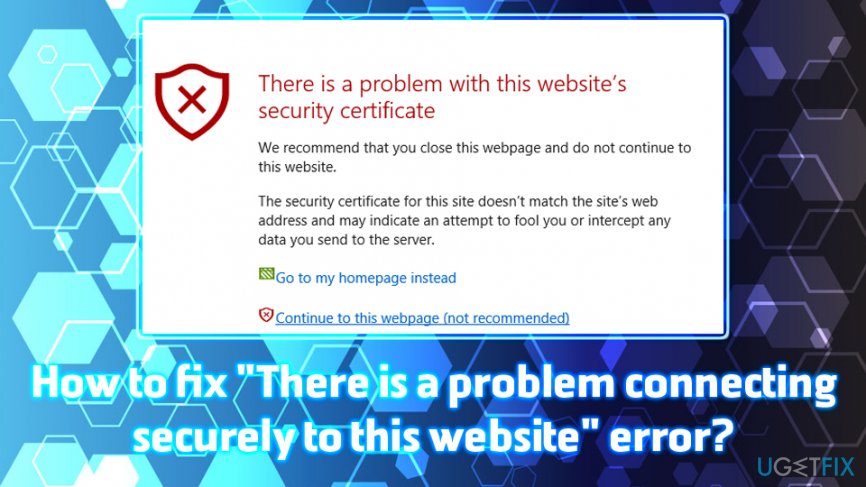
The message states the following:
There is a problem with this website's security certificate. The security certificate presented by this website was not issued by a trusted certificate authority.
Security certificate problems may indicate an attempt to fool you or intercept data you send to the server.
We recommend that you close this webpage and do not continue to this Web site.
Remember that the invalid certificate might indeed pose a danger to your cybersecurity. Therefore, it is genuinely not recommended accessing websites that are suspicious and unknown. In case you enter a malicious site, malware[ref en-2] could be potentially executed on your computer without any notice if certain requirements are met (vulnerabilities[ref en-3] in the system).
Sadly, in some cases, users might not even notice the infection, as cyber threats like Trojans usually do not emit any symptoms. To make sure you are not infected, scan your device using [d1] or other anti-virus software.
Without further delays, follow the steps below to fix "There is a problem connecting securely to this website" error.
Fix 1. Include the website into the Trusted Sites zone
If you are entirely sure that the website is secure and the "There is a problem connecting securely to this website" error is only hindering your entry, add the site to the Trusted Sites zone which can be accessed via the Internet Properties on Windows:
- Click on Start button and type in Internet Options > hit Enter
- Under Security Tab click on Trusted Sites, then Sites
- Enter the URL of the website and click Add
- Try to access the web page again
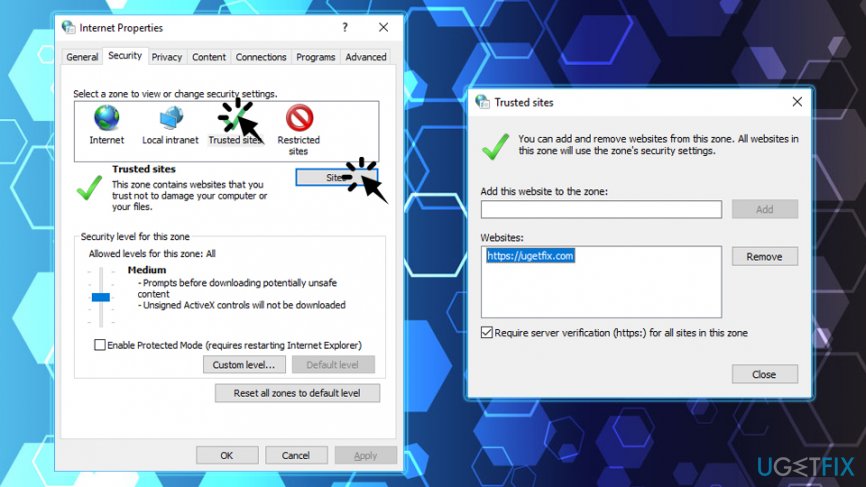
There is a problem connecting securely to this website add to tusted sites
Fix 2. Disable certain features of the third-party antivirus
Certain third-party antivirus applications might be blocking websites. Therefore, users can disable the Real-time protection feature if they are sure that the site they are trying to access is secure.
If switching off the Real-time protection feature did not work, uninstalling third-party antivirus could be an option. To perform the program's elimination, follow these steps:
- Press Ctrl+ Shift + Esc
- Find and right-click on your security software and pick End task
- Click on Start and enter Apps & Features into the search box
- Find the security software and click Uninstall
- Reboot your PC
Fix 3. Make sure the date and time are set correctly
This is one of the most simple solutions, yet many people fall for it. Suddenly they realize that their time is set to 1970s - back when computers, as we know them now, did not even exist. If the date on your machine is set incorrectly, the certificate will not be appropriately displayed, hence the "There is a problem connecting securely to this website" error. Follow these steps to fix the date and time settings:
- Right-click on the Date and time located at the bottom right of your screen and pick Adjust date/time
- In Settings, turn off the function Set time automatically
- Wait a few moments and turn it back on
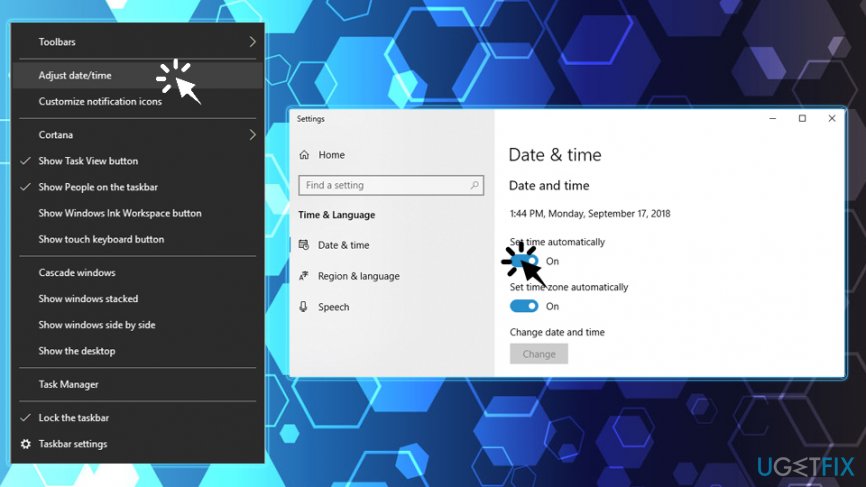
There is a problem connecting securely to this website add to adjust date and time
Fix 4. Use a different browser
In some cases, using a different browser might be a way to fix "There is a problem connecting securely to this website" error. Therefore, if you are using Internet Explorer, try switching to Chrome, Safari, Firefox, Opera, Tor, and many others.

Bottom line
To fix the "There is a problem connecting securely to this website" error, users should check their device's time and date settings, disable any third-party antivirus software temporarily, and ensure they are accessing websites with valid security certificates. If none of these solutions work, it is advisable to avoid the website and seek further assistance.
Frequently asked questions
You can try clearing your browser's cache and cookies, or checking your date and time settings to ensure they're correct.
Consider disabling any VPN or proxy settings you might be using, as these can interfere with secure connections.
Yes, you can reset your network settings by going to Settings > Network & Internet > Status, then click on 'Network reset' to restore default configurations.




Report an issue
What's wrong with this guide? We review every report and update or remove content.
Report received — thank you. We'll review and fix it.
You need a free account to submit a report.
Be the first to comment