How to fix
WaasMedic Agent Exe high disk usage
on Windows
Discover effective solutions to resolve WaasMedic Agent Exe high disk usage on Windows 10 and 11. Expert-tested fixes await you!

What causes How to fix WaasMedic Agent Exe high disk usage?
- Windows update services are turned off
- Malware interference with normal functions
- High resource usage during update processes
- Unexpected spikes in resource usage
- Legitimate part of the operating system causing issues
Repairs Windows system files, removes malware, and restores a clean OS state — without reinstalling.
Hi, I recently started having a problem with my Windows 10 laptop. I noticed that it started lagging like crazy - it sometimes takes minutes before it loads a browser, for example. I opened Task Manager to check and noticed that my memory usage is running at 100%, and most of it is taken by the WaasMedic Agent Exe. What is WaasMedic Agent Exe, and why is it taking so much memory? Need help urgently!
If you open your Task Manager, you will see that there are dozens of lines of processes running at all times when your computer is on - this is absolutely normal. WaasMedic Agent Exe is one of such processes and stands for Windows Update Medic service.
Initially, one might think that it is a remnant of some type of third-party program, but it is not the case. WaasMedic Agent Exe is a part of the Windows 10 operating system and fulfills an important role within its environment. The main goal of this service is to ensure that the Windows update process is smooth and uninterrupted so that users could receive the latest patches without issues.
To be precise, even if main Windows update services are turned off for some reason (for example, malware[ref en-2] might interfere with normal functions of the operating system and prevent it from upgrading), WaasMedic Agent Exe will be responsible for remediation of relevant components immediately.
Windows services should spike up in resource usage when it is relevant (in this case, when the update process is conducted) and should remain practically doormat when not in use. Unfortunately, not everything always goes as planned, and many users started complaining about WaasMedic Agent Exe high disk usage at random times.
If that is the case for you, you should obviously not tolerate it. Since Windows Update Medic service is a legitimate part of the operating system, disabling it altogether might not be as easy, although we will provide such a solution below.
If you are looking for a quick WaasMedic Agent Exe high memory fix, we recommend you first try running a PC repair application [d1], as it can find and eliminate various Windows problems within just a few minutes automatically.
Option 1. Disable or uninstall your antivirus
Since the main role of Windows Update Medic is to prevent system files from being tampered with, some security applications might not be compatible due to various reasons.[ref en-1] Therefore, if you have high disk usage of the process, you should try uninstalling your third-party anti-virus and see if that helps you sort out the problem.
Of course, if you have already paid the license fee for some anti-malware, you would like to keep using it. If disabling your anti-malware helped you fix WaasMedic Agent Exe high memory, you should instead look for other solutions we provide below. Or, you can always switch to a different anti-malware.
Option 2. Disconnect removable drives [workaround]
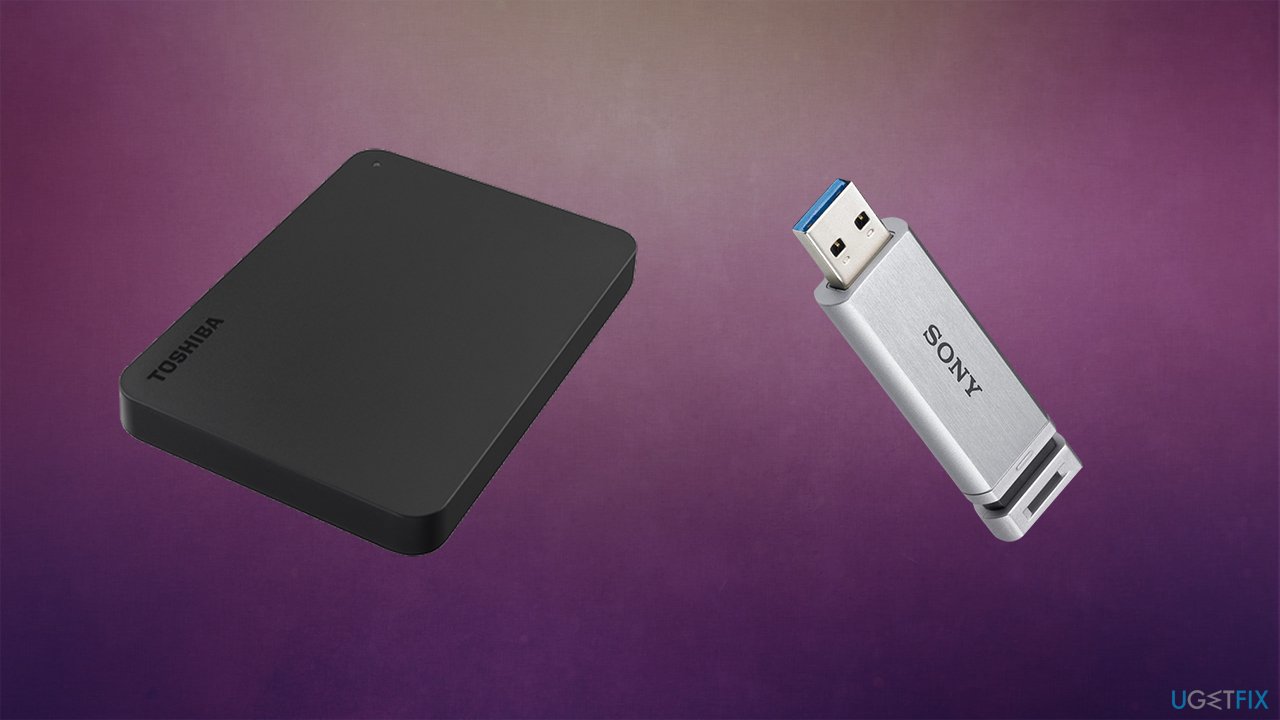
As the title says, this is more a workaround rather than a fix. Due to some unknown reasons, it seems like the process might not be working as intended and take up high disk usage. If that is the case for you, you should temporarily disconnect any removable drives (for example, external HDDs or USB Flash drives) and see if that does the trick.
Option 3. Use Disk Cleanup function
In some cases, the issue might be caused by insufficient space on your hard drive.[ref en-3] Thus, we recommend you use Disk Cleanup to get rid of useless temp files:
- Type Disk Cleanup in Windows search and press Enter
- Pick your main drive (C: by default)
- Select Temp files from the list by ticking the checkboxes and then click Clean up system files
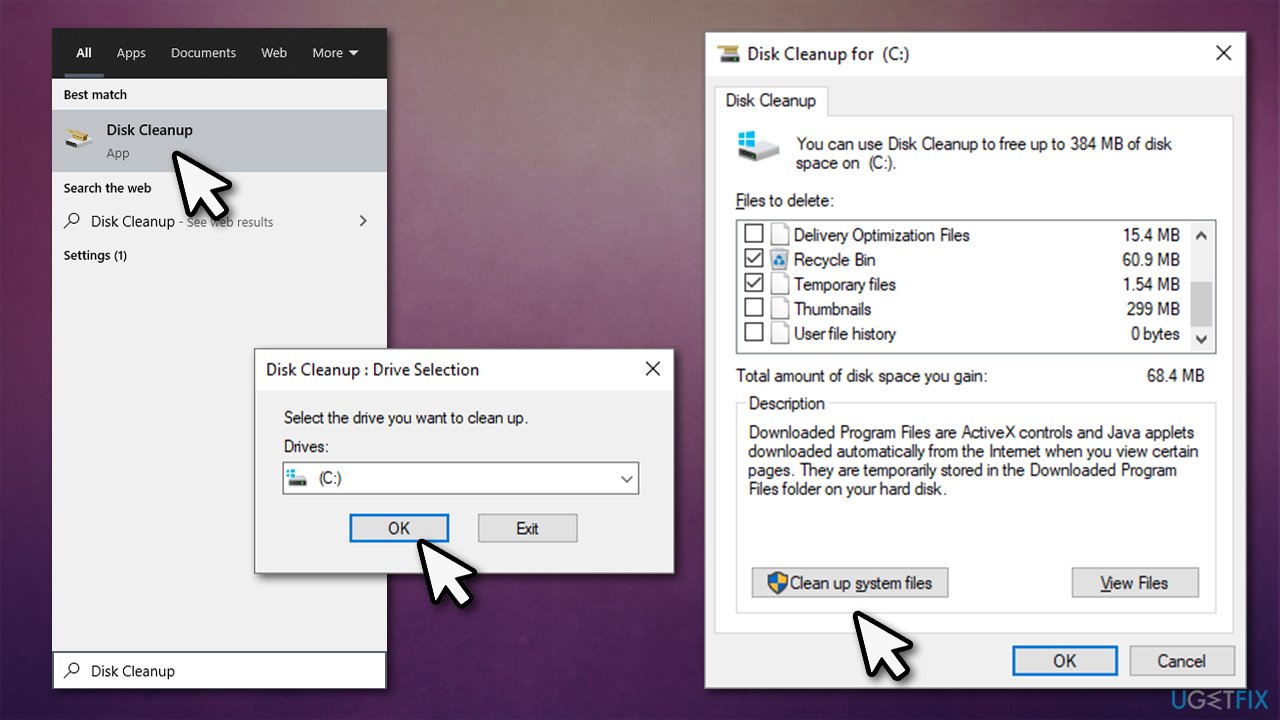
How to fix waasmedic agent exe high disk usage run disk cleanup - When the new pop-up shows up, pick C: drive once again
- Select the files you want to delete and click OK.
Note: if you select to delete Windows update files, you will not be able to roll back Windows to its previous version
Option 4. Pause Windows updates
It is not uncommon for Windows update to fail to install all the necessary files. If that happens, the OS provides an error message (for example, We couldn't connect to the update service, 0x80242016, or 0x80070020) or simply attempts to re-downloaded it later. Due to these errors and attempts to re-download, the Windows Update Medic service might use many resources.
Therefore, you can simply pause all Windows updates and only undo the action when you want the update to start. Here's how:
- Right-click on Start and pick Settings
- Go to Update & Security section
- On the tight-side of the window, select the Pause updates for 7 days
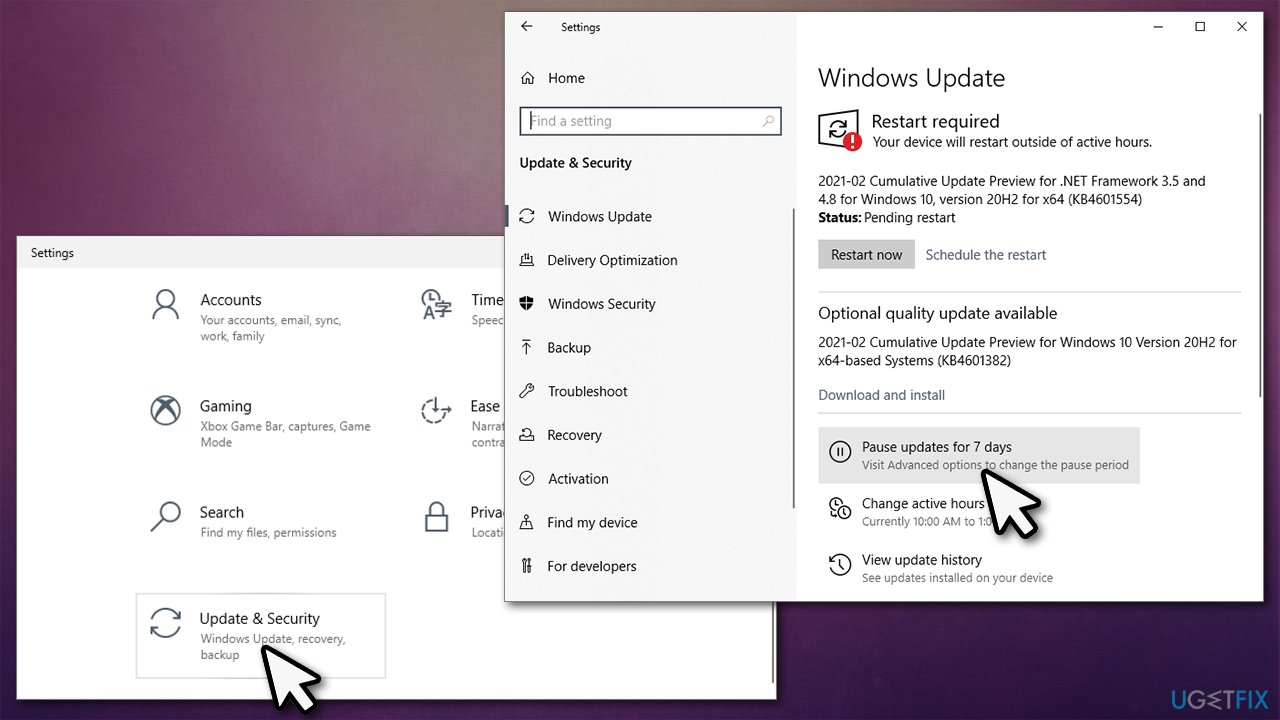
How to fix waasmedic agent exe high disk usage pause windows updates - Your updates now ill be paused until 7 days later, or until you click Resume updates located at the same spot.
Option 5. Disable WaasMedic Agent Exe to fix high disk usage [not recommended]
If you try to disable the WaasMedic Agent Exe service manually, you will receive the "Access Denied" error. This is not uncommon - Windows simply defends the services that it deems to be necessary this way.
That being said, while it is not recommended to turn off Windows-related services, it is not impossible. For that, you would have to download third-party software, however.
- Download Windows Update Blocker from the official developer website
- Extract the archive and run the Wub_x64.exe
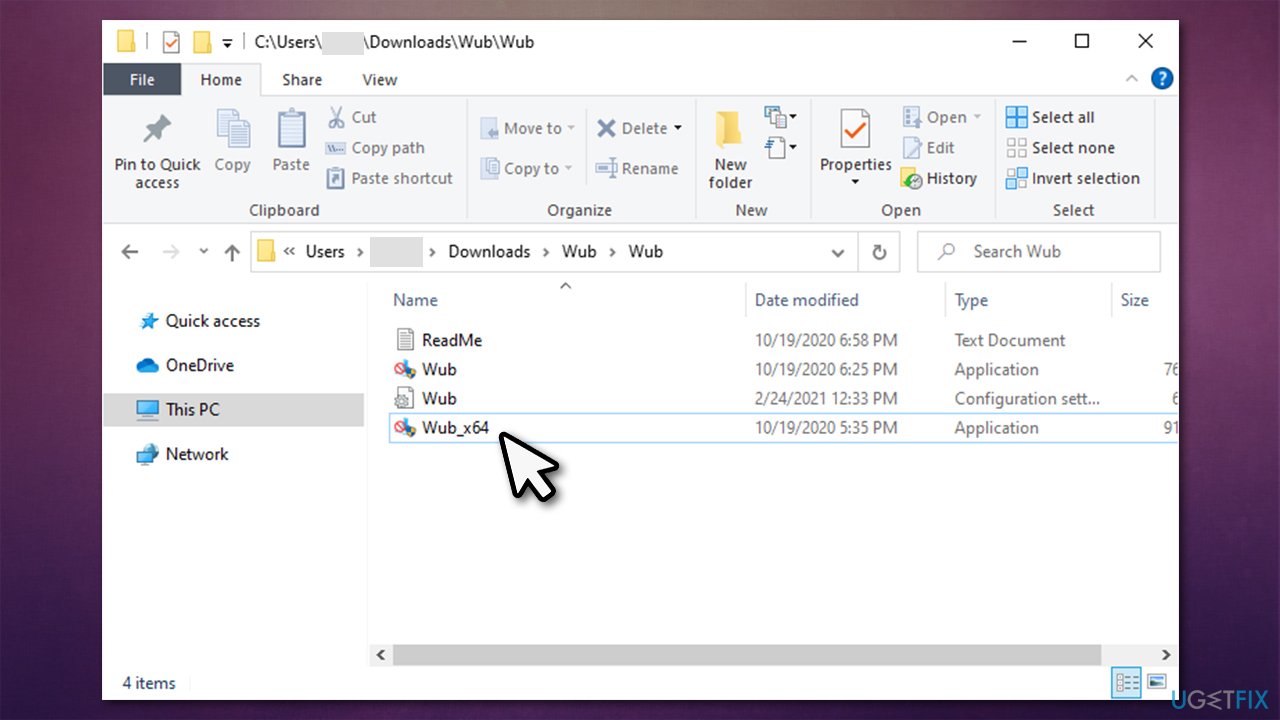
How to fix waasmedic agent exe high disk usage run windows update blocker - Click on Menu and select Windows Services
- Find Windows Update Medic Service, right-click and pick Properties
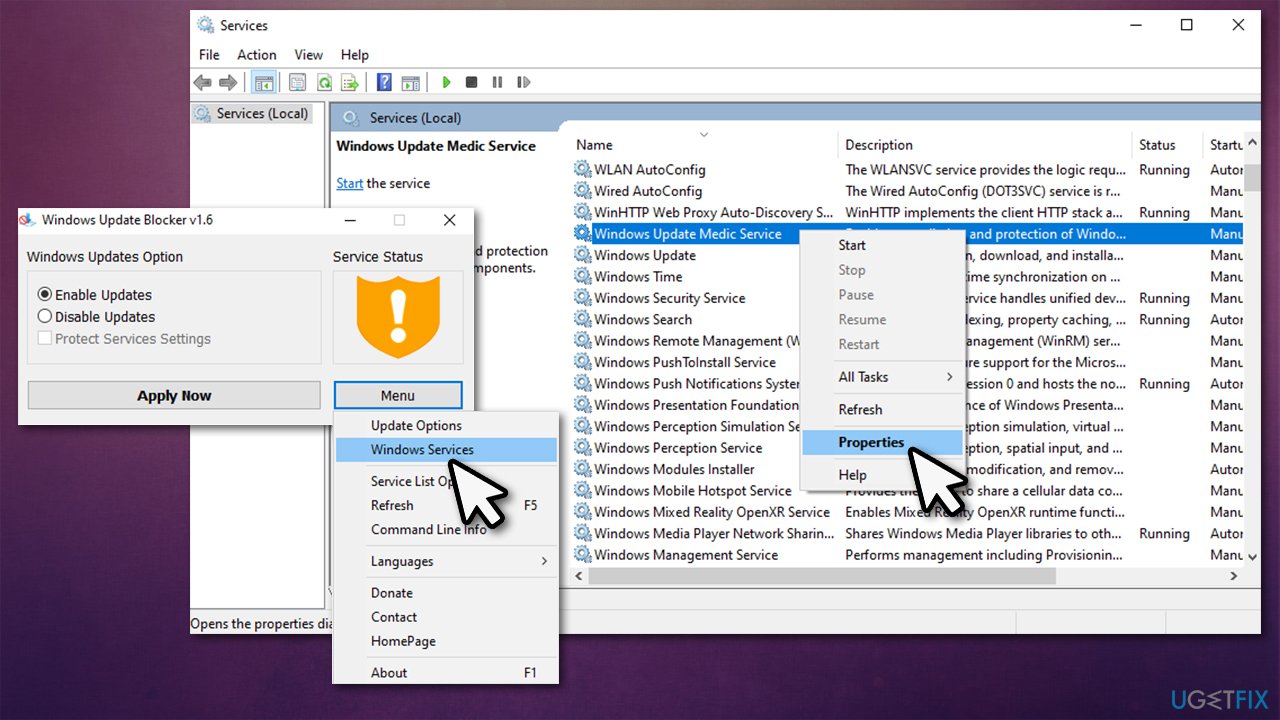
How to fix waasmedic agent exe high disk usage open windows services - Write down the Service name (in this case, WaaSMedicSvc)
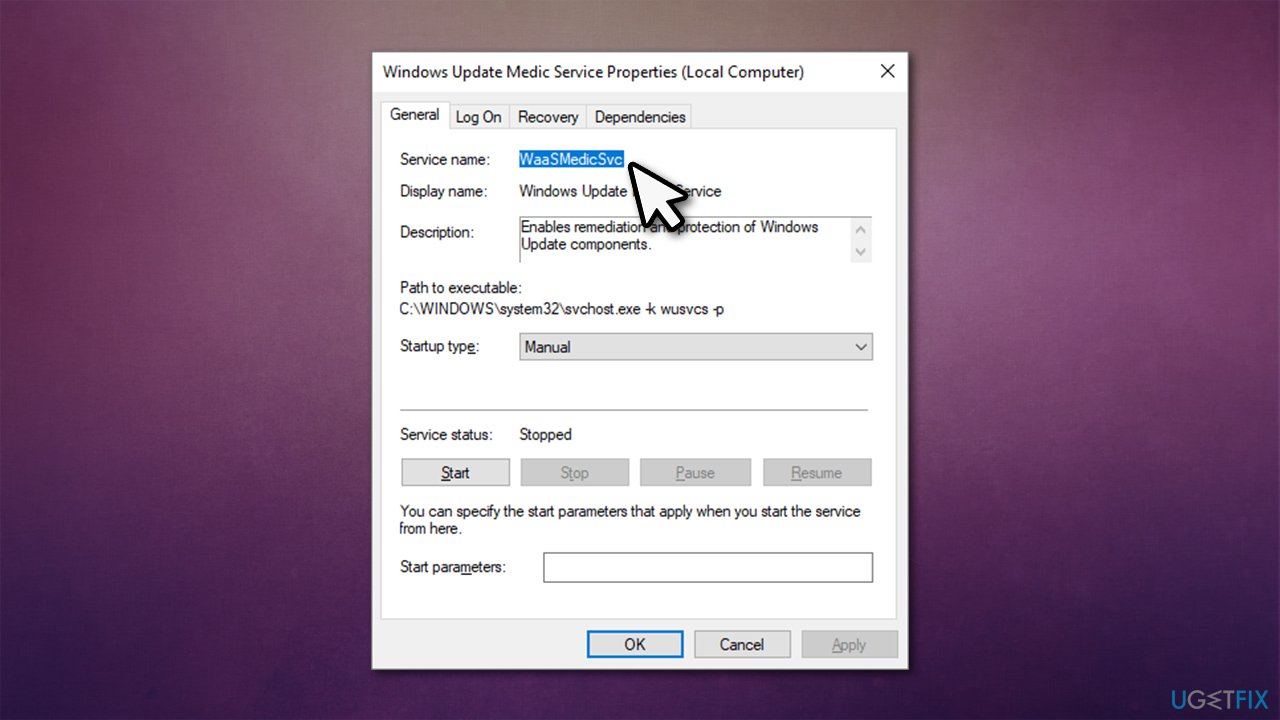
How to fix waasmedic agent exe high disk usage write down service name - Now open the folder where you extracted the app to
- Right-click on Wub.ini file and select Open with > Notepad
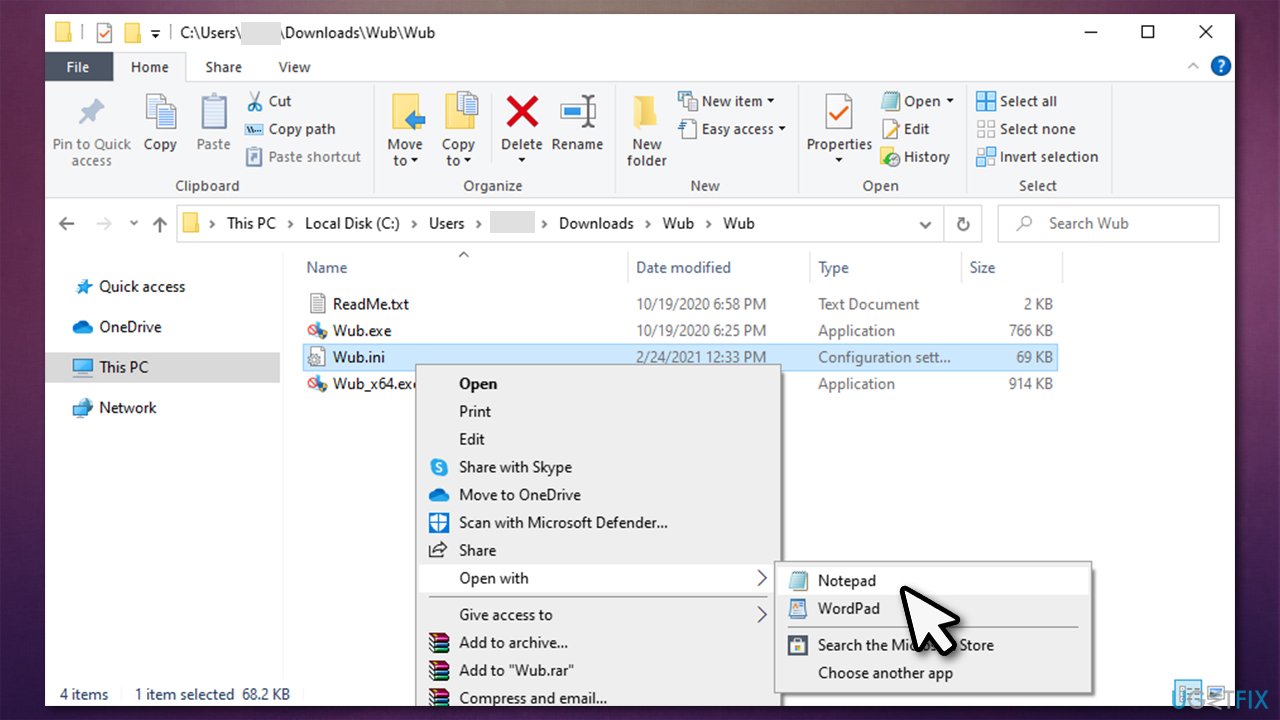
How to fix waasmedic agent exe high disk usage open with notepad - Under dosvc=2,4, paste in the service name and add =3,4 next to it, so the line would look like this:
WaaSMedicSvc=3,4
- Open up the program again and click Apply.
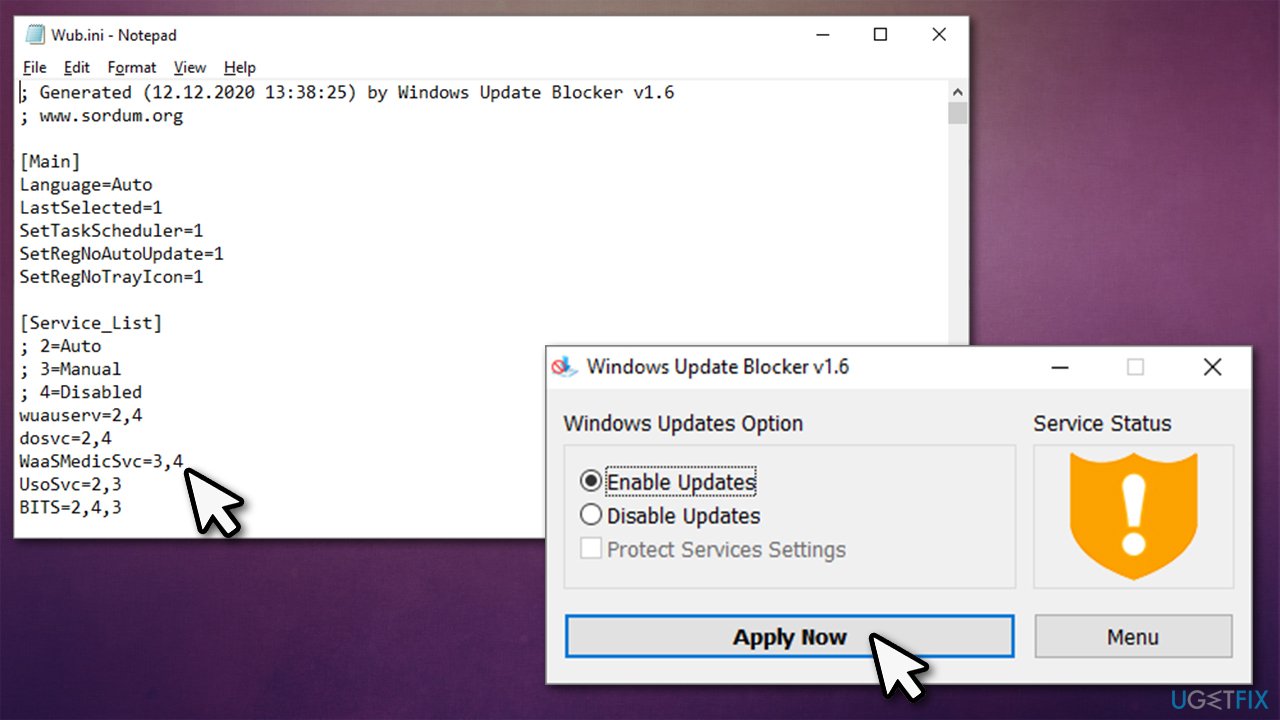
How to fix waasmedic agent exe high disk usage disable service
Bottom line
To address the high disk usage of WaasMedic Agent Exe, you can try running a PC repair application to identify and fix issues. If the problem persists, consider disabling the service, although this may not be straightforward. If none of these solutions work, further investigation into system performance may be necessary.
Frequently asked questions
WaasMedic Agent Exe is a Windows process responsible for managing Windows Update components, and high disk usage can occur during update processes or when the system is troubleshooting update issues.
You can try stopping the Windows Update service temporarily, running the Windows Update Troubleshooter, or performing a disk cleanup to reduce high disk usage.
Disabling WaasMedic Agent Exe is not recommended as it may interfere with important Windows Updates, but you can adjust your update settings to minimize its impact.




Report an issue
What's wrong with this guide? We review every report and update or remove content.
Report received — thank you. We'll review and fix it.
You need a free account to submit a report.
Be the first to comment