
How to fix "We'll need your current Windows password" error?

Prefer to fix it yourself? The manual steps follow.
- 5methods
- 1 to 40 minutes
- Easy
Applies to Windows 11 and Windows 10, Home and Pro, switching a local account to a Microsoft account
5 methods in this guide
Hello. Windows is showing me this message "We'll need your current Windows password" when I try to log in. Is there a way to fix this?
The message We'll need your current Windows password one last time appears when you switch a local account to a Microsoft account, and it wants the password of the local account. If that account never had a password, leave the box empty and select Next. If it refuses, add or reset the local password first, then switch again.
The box asks for the password of the local account you are signed in to now, not your Microsoft account password and not your PIN. If the local account has no password, leave the box empty and select Next (Fix 1). If you know the local password, type it (Fix 2). If blank is refused or you forgot it, add or reset the local password first (Fixes 3 and 4).
| Error | We'll need your current Windows password one last time. It follows the line Next time you sign in to this computer, use your Microsoft account password. |
|---|---|
| Where it appears | In the Microsoft account window after Settings > Accounts > Your info > Sign in with a Microsoft account instead, once you have entered your Microsoft email and password. |
| Main cause | Windows wants proof that you own the local account before it ties it to the Microsoft account. Readers type the Microsoft password or a PIN there, which the box does not accept. |
| Fastest fix | No local password: leave the box empty and select Next. Local password: type it exactly, with Caps Lock and the keyboard language checked. |
| Also written as | we'll need your current windows password, current windows password one last time, we will need your current windows password, what is my current windows password. |
| Affects | Windows 11 and Windows 10. Microsoft's switching steps are the same on both. Windows 10 left support on 14 October 2025. |
| Vendor status | Not a bug. It is a normal step of the switch. A Microsoft Q&A advisor confirms the box wants the local account password, or nothing when there is none. |
| Time to fix | 1 minute when blank or the old password works. About 10 minutes to add a password. 20 to 40 minutes for a reset from another account or a new user. |
Facts checked on 15 October 2026. Steps written for Windows 11 (25H2 and 26H2) and Windows 10 22H2.
What "We'll need your current Windows password one last time" means
Windows lets you turn a local account into a Microsoft account from Settings > Accounts > Your info. Microsoft's support page says the link Sign in with a Microsoft account instead shows only while you use a local account. You type your Microsoft email and password, and then Windows shows one more box.
That box says: Next time you sign in to this computer, use your Microsoft account password. We'll need your current Windows password one last time. "Current Windows password" means the password of the local account you are signed in to right now. After the switch, Windows signs you in with the Microsoft password and the old local one is no longer used.
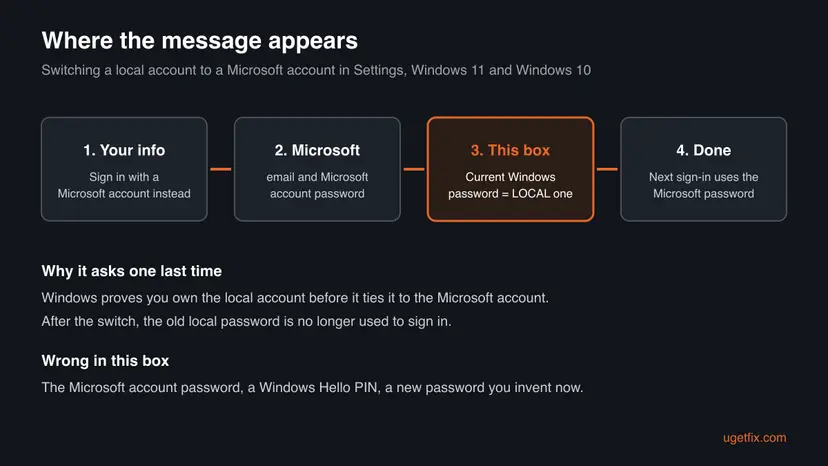
| What you type | Accepted? |
|---|---|
| The local account's password | Yes. This is what the box asks for. |
| Nothing, when the local account has no password | Yes, by Microsoft's advisor on Q&A. Some users report it loops; see Fix 3. |
| Your Microsoft account password | No, unless it happens to be the same as the local one. |
| Your Windows Hello PIN | No. The box asks for a password, and a PIN is a separate sign-in option. |
| A new password you invent now | No. Windows checks it against the existing local password. |
Why Windows keeps asking for the current password: causes ranked
The order below follows the Microsoft Q&A threads on this message, which repeat the same few cases. Microsoft publishes no error code for it, so there is no log entry to read. The cause is always which password goes in the box.
| How often | Cause | Typical sign | Fix |
|---|---|---|---|
| Most often | The local account has no password, and the reader types something | You never typed a password at the Windows sign-in screen | Fix 1 |
| Most often | The Microsoft password or the PIN is typed instead of the local password | You sign in with a PIN every day and rarely see a password | Fix 2 |
| Often, reported | Blank is refused and the box comes back | Next with an empty box shows the same message again | Fix 3 |
| Often | The local password is forgotten | You sign in only with a PIN, face or fingerprint | Fix 4 |
| Less often | You only need Microsoft services, not a converted account | You want the Store, OneDrive or Xbox to work | Fix 5 |
The earlier version of this page linked the message to a hidden default administrator account created at purchase or after a reset. We could not confirm that in any Microsoft source, so we removed it. The message belongs to the switch in Settings.
How to fix "We'll need your current Windows password" in Windows
Fixes 1 and 2 take a minute and solve most cases, because the box only wants the right password or none. Fix 3 is for a box that refuses blank. Fix 4 is for a forgotten local password, and Fix 5 skips the switch altogether.
| What you see or have | Start with |
|---|---|
| You never set a password on this account | Fix 1 |
| You know a local password, or you sign in with a PIN | Fix 2 |
| Next with an empty box shows the same message again | Fix 3 |
| You forgot the local password but can still sign in | Fix 4 |
| Nothing works, or you just want the Microsoft account on this PC | Fix 5 |
Fix 1. Leave the box empty when the local account has no password
1 minuteLow riskYou never typed a password at the Windows sign-in screen, or Windows signs you in straight to the desktop.
A local account can exist with no password at all. A Microsoft Q&A advisor explains that the box then expects nothing, so an empty box is the correct answer.
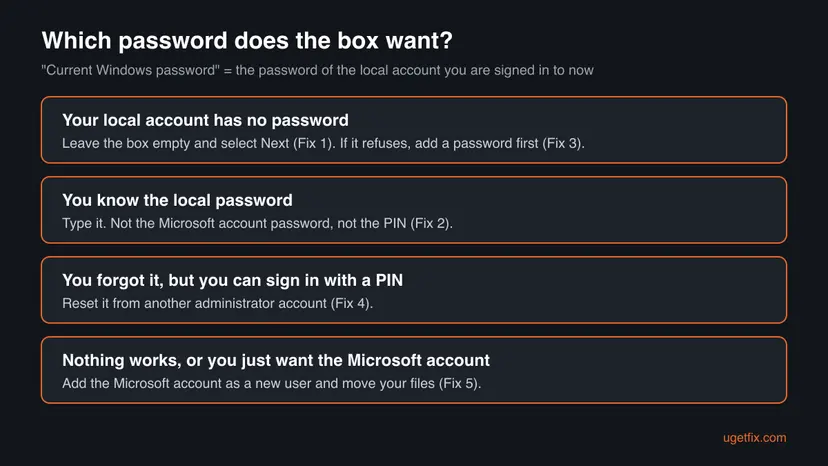
- Click into the Current Windows password box and make sure it is really empty. Delete any dots with Backspace.
- Select Next, or press Enter.
- Follow the remaining prompts. Windows may offer to set up a PIN for the Microsoft account.
- When asked, select Sign out and finish, or sign out from Start.
- Sign back in with your Microsoft account password or the new PIN.
It worked if: Windows moves to the next screen, and Settings > Accounts > Your info later shows your Microsoft email under your name.
If not: If the same message comes back, Windows wants a real password: use Fix 3. If the account did have a password, use Fix 2.
Fix 2. Type the local account password, not the Microsoft one or the PIN
2 minutesLow riskThe local account has or once had a password, or you sign in with a PIN and never see a password.
The box checks the password stored for the local account on this PC. Readers who use a PIN every day often type the PIN or the Microsoft password, and both are refused.
- Check Caps Lock and the keyboard language in the taskbar corner, such as ENG or DEU. A different layout changes the characters you type.
- Type the password you used before the PIN was set up, or the one you chose when the account was created.
- Select the eye icon in the box, if shown, to see what you typed.
- If that fails, try the passwords you used on this PC before a reset or a reinstall. Readers often reused an older one.
- Select Next and finish the switch.
Open Settings > Accounts > Sign-in options and expand Password. A Change button means the account has a password. An Add button means it has none, so go back to Fix 1.
It worked if: The box closes and Windows asks you to sign out and back in with the Microsoft account.
If not: If you see Change but do not remember the password, use Fix 4. If you see Add, use Fix 3.
Fix 3. Add a password to the local account first, then switch again
10 minutesLow riskThe account has no password, but Next with an empty box shows the same message again.
A user on Microsoft Q&A reports that an empty box loops back to the same message. Giving the local account a password you know turns the box into a simple check you can pass.
- Close the Microsoft account window. Press Win + R, run the shortcut below and press Enter.
ms-settings:signinoptions - Expand Password and select Add.
- Type a new password twice, add a password hint and select Next, then Finish.
- Sign out from Start and sign back in with the new password, so Windows has used it once.
- Open Settings > Accounts > Your info and select Sign in with a Microsoft account instead again.
- When the box asks for your current Windows password, type the password you just added and select Next.
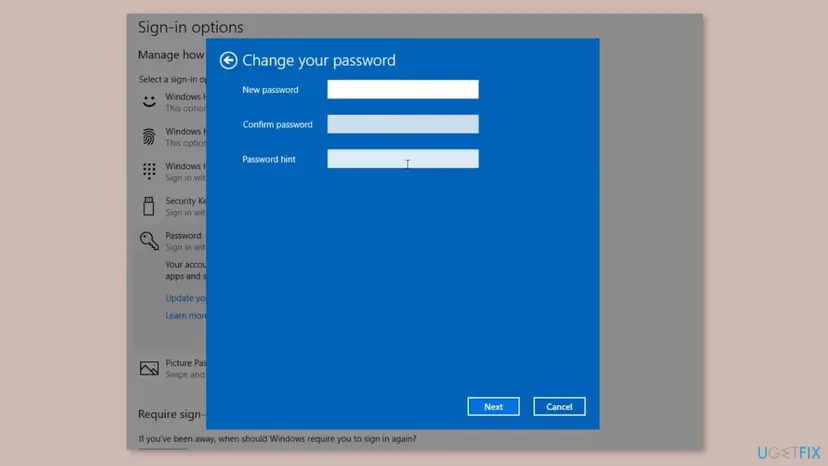
It worked if: The box accepts the password and the switch completes. Your next sign-in uses the Microsoft account password.
If not: If Sign-in options shows Change, a password already exists and you need it: Fix 2 or Fix 4.
Fix 4. Reset a forgotten local password from another administrator account
20 minutesRead the warningThe account has a local password you do not remember, but you can still sign in with a PIN or another administrator account exists.
Changing your own password in Settings asks for the old one, which you do not have. Another administrator can set a new local password without knowing the old one, and that new password then passes the box.
Setting a password from another account, without the old one, can make files encrypted with EFS and some saved passwords in that profile unreadable. Back up your files first: Back up your files (Windows Backup, File History, Time Machine). If no other administrator account exists, create one first: Create a new user account to test a problem.
- Sign in to the other administrator account.
- Right-click Start and open Terminal (Admin), then select Yes in User Account Control.
- List the accounts to see the exact user name of yours:
net user - Set a new password for it. Replace the name in quotes, then type the new password twice when asked; nothing shows while you type.
net user "YourUserName" * - Sign out, sign in to your own account with the new password, and run the switch again as in Fix 2.
It worked if: Your account accepts the new password at sign-in, and the box accepts it during the switch.
If not: If you cannot reach any administrator account, see Still not working below. If you only need Microsoft services, Fix 5 avoids the password entirely.
Fix 5. Add the Microsoft account as a new user instead of converting
30 to 40 minutesRead the warningNothing above works, or you mainly want the Microsoft account on this PC and do not mind a fresh profile.
Adding a new user with a Microsoft account does not convert the old local account, so Windows never asks for its current password. It is the clean way round the box.
It is a new profile. Your files stay in the old one until you copy them, and per-user apps must be set up again. Back up first: Back up your files (Windows Backup, File History, Time Machine). Keep the old account until everything is moved.
- Press Win + R, run the shortcut below to open Settings > Accounts > Other users (Windows 10: Family & other users).
ms-settings:otherusers - Next to Add other user, select Add account (Windows 10: Add someone else to this PC).
- Type your Microsoft account email and select Next, then Finish.
- Select the new account, then Change account type, choose Administrator and select OK.
- Sign out, sign in with the Microsoft account and copy your files from
C:\Users\<old name>into its folders. - When everything is in place, remove the old local account from Other users if you no longer need it.
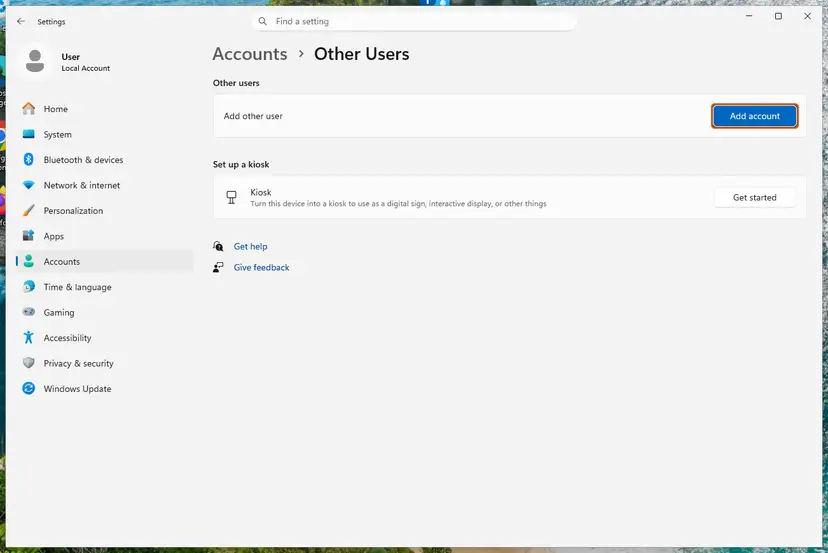
It worked if: You sign in with the Microsoft account, and Your info shows your Microsoft email under your name.
If not: If Add account is greyed out, a policy on a work or school PC controls accounts. Ask IT.
Still asked for the current Windows password: what to check next
This message writes no log, so the evidence is what Settings shows. Collect it before you post on Microsoft Q&A or call Microsoft support.
- Your Windows edition and version: run
winverand note the line, such as Windows 11 Home 25H2. - What Sign-in options > Password shows: Add or Change.
- Whether another administrator account exists in Settings > Accounts > Other users.
- Whether the Microsoft account password itself works at account.microsoft.com in a browser.
- Whether anything is listed under Access work or school.
If you cannot sign in at all, this is no longer the switch box. On a local account, select Reset password under the password field after a wrong try to answer your security questions, or use a password reset disk if you made one. Microsoft warns a forgotten local password cannot be recovered otherwise.
How to avoid the current Windows password prompt next time
- Write down the local password when you create an account, even if you plan to use a PIN every day.
- Before switching to a Microsoft account, open Sign-in options > Password to see whether a password exists.
- Keep a second administrator account, so a forgotten password never blocks you.
- On a local account, create a password reset disk on a USB drive, as Microsoft advises.
- Use the same keyboard language at sign-in that you used when you set the password.
Windows 10 left support on 14 October 2025. The switch works the same there, but the PC no longer gets security updates, which is one more reason to keep sign-in details in order.
Frequently asked questions
What is my current Windows password?
It is the password of the local account you are signed in to on this PC right now. It is not your Microsoft account password and not your Windows Hello PIN. If you never set a password and Windows opens straight to the desktop, you have none, so leave the box empty and select Next. To check, open Settings > Accounts > Sign-in options and expand Password: Add means none exists, Change means one does.
Why does Windows need my current password one last time?
Because you are turning a local account into a Microsoft account, and Windows wants proof that you own the local one before it links them. After the switch, Windows tells you to use your Microsoft account password at sign-in, so the old local password is not asked for again. That is the meaning of "one last time": the box appears once, during the switch, and never again for that account.
I reset my Microsoft account password and it still asks. Why?
Because the box does not want the Microsoft account password at all. A reader on Microsoft Q&A describes exactly this: a new Microsoft password, and the same message again. Resetting the Microsoft password online cannot change the local password stored on the PC. Type the local password (Fix 2), leave the box empty if there is none (Fix 1), or set a new local password first (Fixes 3 and 4).
Can I use my PIN in the current Windows password box?
No. The box asks for a password, and the Windows Hello PIN is a separate sign-in method tied to the device. If you sign in only with a PIN, your account may still have a password you have forgotten, or none at all. Check Sign-in options > Password. With Add, use Fix 1 or Fix 3. With Change, you need the old password or a reset from another administrator (Fix 4).
What if I press Enter with the box empty and nothing happens?
A Microsoft Q&A advisor says an empty box should work when the local account has no password. Users report that sometimes it only brings the same message back. In that case, give the local account a password you know through Sign-in options > Password > Add, sign out and in once, then repeat the switch and type that password. Fix 3 has the steps.
Does this message appear during Windows setup or after a reset?
We could not confirm that it does. The message we can document belongs to the switch from a local account to a Microsoft account in Settings. The earlier version of this page tied it to a default administrator account on new or reset PCs, but no Microsoft source says so. If you see it right after setup, you probably created a local account during setup and are now converting it.
Will I lose my files when I switch to a Microsoft account?
No. Converting the account with Sign in with a Microsoft account instead keeps the same profile, files and apps. Only the sign-in changes. Fix 5 is different: it adds a new user with a separate, empty profile, so you copy your files across yourself. A forced password reset in Fix 4 can make EFS-encrypted files and some saved passwords unreadable, so back up before you use it.
Can I skip the switch and still use Microsoft apps?
Yes. You do not have to convert your Windows account to use OneDrive, Outlook, the Microsoft Store or Xbox. Close the switch window and sign in inside each app instead. Your Windows sign-in stays local, and the box never appears. Settings sync between PCs will not work that way, which is the main thing the switch adds.
How do I find my current Windows password if I forgot it?
Windows does not show a stored password, so it cannot be found, only replaced. If another administrator account exists, set a new password from it with net user (Fix 4). If you are locked out at the sign-in screen, use your security questions or a password reset disk. Without either, the remaining route is a new account or a Windows reinstall, so back up whatever you can reach first.
Sources
Did this fix work?
One click, no account. It tells the next reader which guides are worth their time.
Questions and experiences: fix "We'll need your current Windows password" error
Still broken, or found a fix we did not cover? Ask here: members and our editors answer. Reading is open; writing needs a free account.
…