How to fix
Windows 10 error Code 0x801901F4
on Windows
Resolve Windows 10 error code 0x801901F4 quickly and effectively with expert-tested solutions. Get your system running smoothly in minutes.


What causes How to fix Windows 10 error Code 0x801901F4?
- Faulty installation of the latest updates
- Incorrect configuration of apps or system files
- Discrepancies within Windows service settings
- Outdated drivers
- Corrupted Windows Store cache
Repairs Windows system files, removes malware, and restores a clean OS state — without reinstalling.
I'm having problems with my Mail app. When I try to add my email to the Mail app, I receive a notification, which claims that the password is wrong, but I‘m pretty sure that it‘s correct.
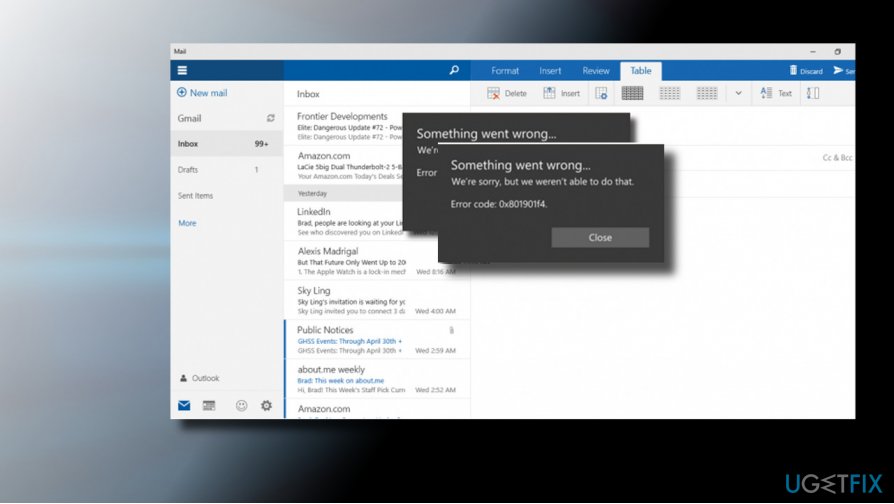
I‘ve changed the password and now all of the tasks, including writing and sending messages, end up with an error code, which reads as follows: "Something went wrong. We're sorry, but we weren't able to do that. Error code: 0x801901f4." Does anyone know how to fix this issue?
Windows 10 users might encounter various issues when using this intricate operating system. While some errors are relatively common and experienced by many, others are less common, and error code 0x801901F4 belongs to the latter category. Nevertheless, there is a considerable number of people who are desperately looking for methods to fix it.
The error code 0x801901F4 is related to applications like Mail, Gear of wars, and Groove Music.[ref en-2] It prevents the apps from opening or forces them to close soon after opening. The culprit of this issue is usually related to Windows Update service. In other words, the faulty installation of the latest updates can end up with an incorrect configuration of apps, system files, services, and so on. That might be the case of the Mail app error 0x801901F4.
Windows services[ref en-1] are integral parts of any operating system. Certain services can be set up to run in the background constantly; others can be started manually. In some cases, discrepancies within Windows service settings might cause various errors, including 0x801901F4, 0x800703f1, 0x80070422, error 1075, and many others.
If the updating process corrupts some of the Windows Update components, the part of the Windows Store apps may start malfunctioning, especially the ones that need updating. Therefore, we would recommend you to check for updates one more time and install the available ones. Yet another culprit of the 0x801901F4 error may be the outdated drivers[ref en-3] or Windows Store cache. Thus, the following are the fixes that you may try:
You will find the required information in this video:
[youtube 3-noXjMpjP8]
Solution 1. Check for Windows Updates
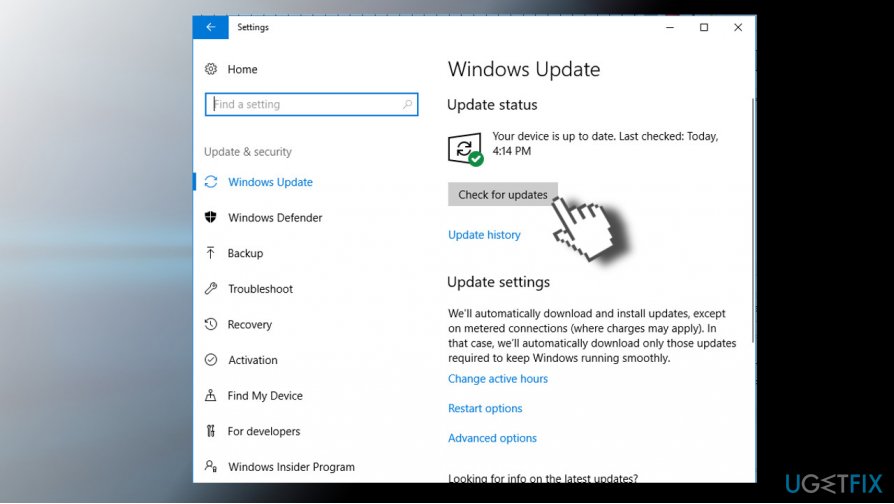
- Press Windows key + I and open Update & Security.
- Click Check for Updates button and wait until the system automatically installs the updates.
- Finally, reboot your PC.
Solution 2. Re-register Windows Store
- Right-click on Windows key and select Command Prompt (Admin).
- Click Yes on the confirmation window to proceed.
- Type PowerShell -ExecutionPolicy Unrestricted -Command "& {$manifest = (Get-AppxPackage Microsoft.WindowsStore).InstallLocation + '\\AppxManifest.xml' ; Add-AppxPackage -DisableDevelopmentMode -Register $manifest}" in the Command Prompt window and press Enter.
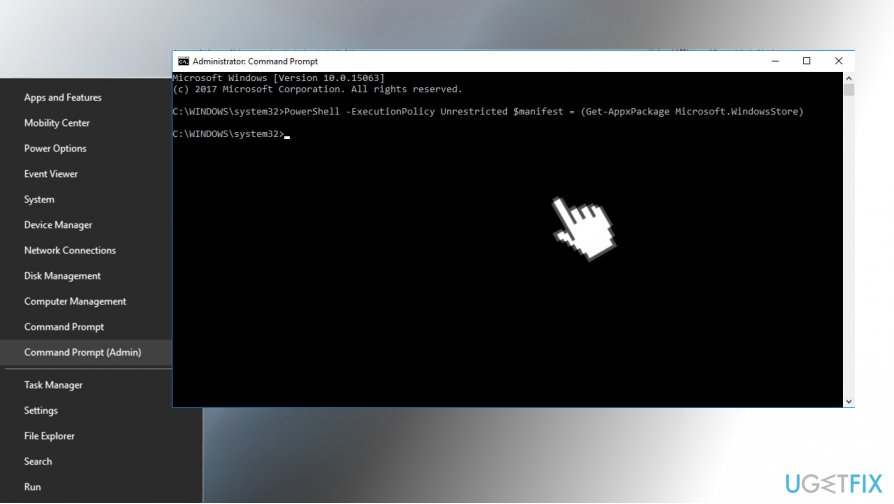
- Now close Command Prompt, restart computer and try to launch apps that were throwing 0x801901f4 error code before.
Solution 3. Update Device Drivers
- Right-click on Windows key and select Device Manager.
- First of all, check the Graphics card driver (Imaging devices). If the driver is marked with a yellow exclamation mark, right-click on it, and select Update driver.
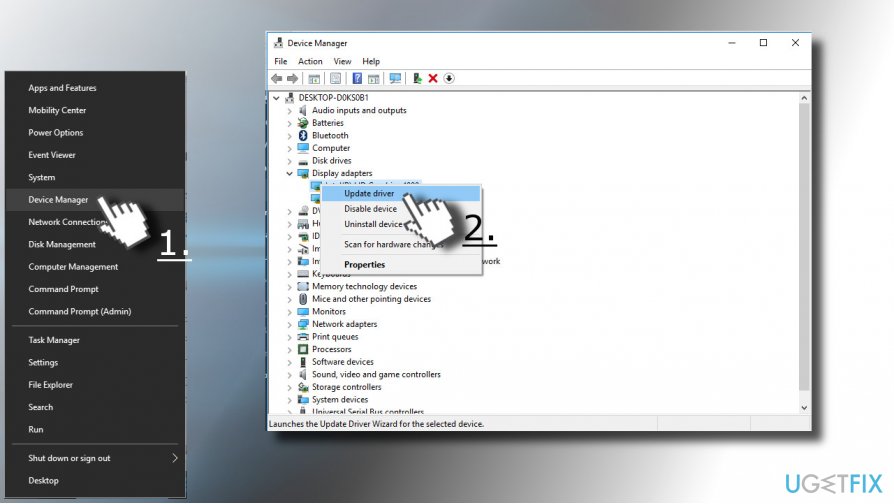
- Check all devices and update them if needed.
- Restart your PC.
Solution 4. Remove Windows Store Cache
- Click Windows key + S and type WSReset.
- Right-click on the WSReset option and select Run as Administrator.
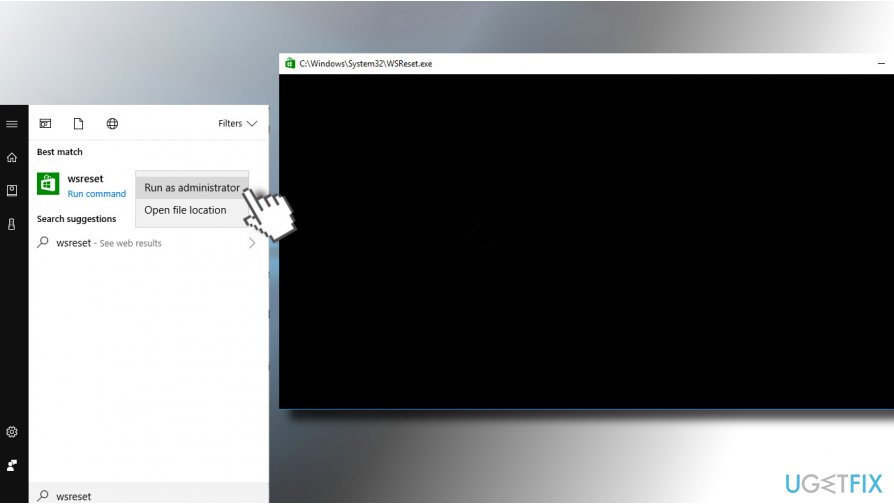
- Finally, it’s advisable to reboot your device and check if the problem persists.
Solution 5. Reset Windows
If none of the solutions above helped you fix 0x801901F4 error, you should reset Windows. You will not lose your personal files in the process, although you will have to reinstall some applications).
- Right-click on Start and select Settings.
- Pick Update & Security and then choose Recovery on the left.
- Locate Reset this PC and click on Get started.
- Choose Keep my files and then proceed with on-screen instructions.
If these methods did not help, we would strongly recommend using a PC optimization utility that would check the system for malware, corrupted registry entries, system files, and similar issues. Our recommendation is [d1].
Bottom line
To fix the error code 0x801901F4, you should check for Windows Updates and install any available updates. Additionally, consider updating your drivers and clearing the Windows Store cache. If none of these solutions work, further troubleshooting may be necessary.
Frequently asked questions
Error code 0x801901F4 typically indicates a problem with Windows Update or issues with network connectivity on Windows 10. This can prevent users from downloading updates or accessing certain features.
To resolve error code 0x801901F4 on Windows 11, try running the Windows Update Troubleshooter and resetting your network settings. This can help eliminate any underlying issues affecting the update process.
Yes, you can try running commands like 'sfc /scannow' and 'DISM /Online /Cleanup-Image /RestoreHealth' in the Command Prompt to repair system files that may be causing error code 0x801901F4 on Windows 10.




Report an issue
What's wrong with this guide? We review every report and update or remove content.
Report received — thank you. We'll review and fix it.
You need a free account to submit a report.
Be the first to comment