How to fix
Windows 10 stuck on checking for updates
on Windows
Resolve the frustrating issue of Windows 10 getting stuck on checking for updates. Expert-tested solutions ensure quick fixes with zero traces left.

What causes How to fix Windows 10 stuck on checking for updates?
- System running outdated version of Windows 10
- Issues with Windows Update service
- Interference from third-party antivirus software
- Corrupted system files
- Network connectivity problems
Repairs Windows system files, removes malware, and restores a clean OS state — without reinstalling.
My PC gets stuck on the "Getting Updates" screen for the installation of Windows 10 updates. It's been running for over a half-hour and still sitting on "checking for updates: 0%". I can't get any response from that window but the system runs as usual. Any suggestions on how can I get those updates?
Windows 10 OS has been released in July 2015[ref en-1] and, within five years or circulation on the market, most of the users got used to its new interface and features. However, since millions of Windows users are still running Windows legacy variants (Windows 7, Windows 8.1, Windows Server 2008 R2, and Windows Server 2012 R2), the misunderstanding of some renewed functionalities remain.
One of the prevailing topics on technology-related forums was how to upgrade to Windows 10 from earlier versions. However, the upgrade issues seem to be solved for now, though the installation of regular updates is an ongoing problem, which keeps raising users' anxiety[ref en-2].
Users' dissatisfaction is understandable having in mind how many flaws, security vulnerabilities, bugs, BSODs, and errors Windows 10 OS tends to encounter. Updates are the only way to patch system problems ensuring consistency, smooth performance, stability, and security.
Take for instance the fact about the latest Patch Tuesday update, which was unraveled in April. Security experts detected over 15 security vulnerabilities[ref en-3] within the update and some of them have already been publicly exploited by hackers. The only way to patch them - install security updates. Thus, it's not surprising when people express anxiety due to Windows 10 checking for updates forever. An outdated system is not only vulnerable to exploits and virus infections but may also encounter many performance issues.
Nevertheless, it important to outline the huge difference between the update service of Windows 10 and the legacy versions. Prior to Windows 10, OS update components were released individually allowing users to select the required update from the Update Tuesday package. For example, the user may select security updates to install but skip driver updates, .NET framework, and other security unrelated improvements. Such function tended to create a so-called fragmented ecosystem resulting in a high update failure rate.
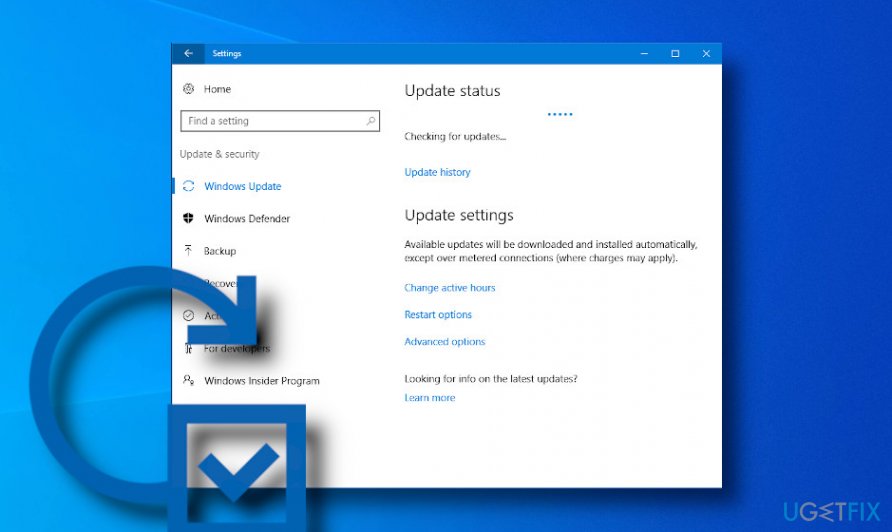
Windows 10 ended the long-lasting era of update fragmentation and suggests its users update Windows in full packages. The so-called Windows latest cumulative updates (LCU)[ref en-4] are rolled out regularly and contain the changes of the previous update and latest fixes under one roof. Although such a model simplifies the update service and reduces fragmentation, the Windows update system gets stuck on checking for updates and fails eventually very often.
Windows update service is set to run by default, meaning that the system automatically detects and downloads available updates. Nevertheless, upon the user's will, the automatic Windows update function can be disabled temporarily if the system is not ready for restart or the user has other ground for not allowing automatic updates.
Anyway, the biggest problem is not the updates itself because sooner or later they will have to be downloaded. The biggest concern for users is how long does it take to check for Windows updates and get them installed. According to users, Windows checking for updates lasts the whole day and eventually fails.
The others report Windows defender update stuck continuously or Windows update hanging on checking for updates when the process reaches progress of 99%. There are many reasons why Windows updates fail to download or stuck on checking, including:
- poor Internet connection
- Windows update cache
- AV engine disruption
- disabled Windows update service
- overfilled Software distribution folder
- malware infection
The list of possible Windows 10 stuck on checking for updates causes may be longer, though the above-mentioned are the most common. Before digging into the Windows setting, as the first remedy try to turn off your PC completely and leave it for some time to rest. After that, turn the PC on and scan it with an AV engine to ensure that it's malware-free. Finally, use a PC optimization tool, such as [d1] to check the system for damage that may be disrupting a search for Windows updates. After that, try to search for updates.
- Press Windows key + I simultaneously to open Settings.
- Open Update & Security section and click Windows Update.
- Click Check for Updates button and wait.
If Windows won't stop checking for updates, the system may need more advanced measures to fix stuck Windows update process.
Run automatic Windows Update Troubleshooter
Whenever you encounter an issue related to Windows updates, the first fix to apply is to run an in-built troubleshooter. Before launching the tool to fix Windows 10 updates stuck issue, double-check if the Internet connection is established.
- Press Windows key + I to open Settings Window.
- Select the Update & Security option and click Troubleshoot on the left side of the window.
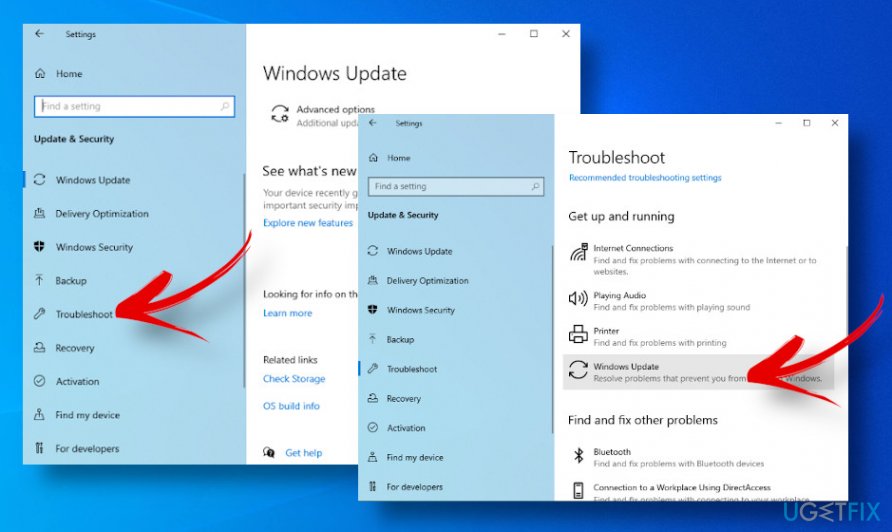
Run windows troubleshooter - Find Windows Update on the right side and select Run the troubleshooter.
If the troubleshooter ends up with an error 0x80248007, 0x800703f1, 0x80070422, or zero problems found, then proceed with the following fixes.
Restart Windows Update process
For many reasons, the Windows Update process may stop working or need a restart. Thus, try executing a command via Command Prompt to force the process to run:
- Press the Windows key and type cmd in the search bar.
- Press Enter to run the command.
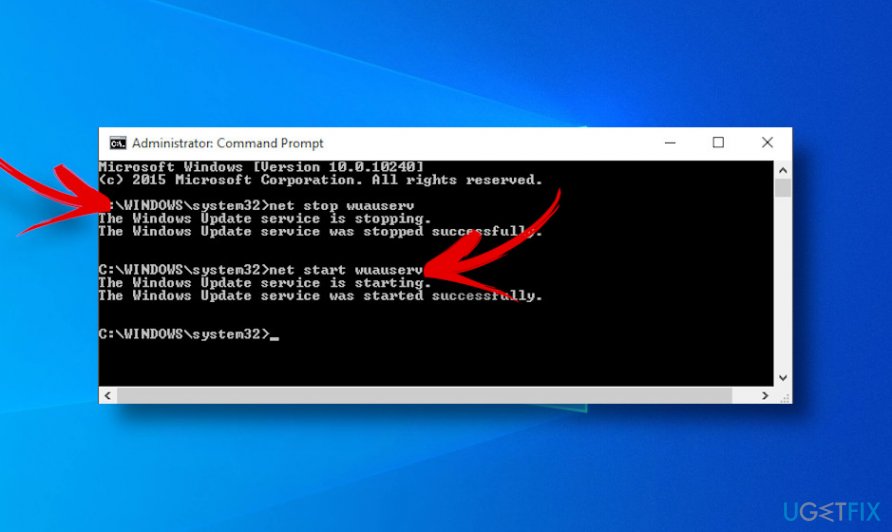
Restart windows update services - When the Command Prompt window opens, type the following commands pressing Enter after each of them.
net stop wuauserv
net start wuauserv
After that, close the Command Prompt window and try to check for updates. In case Windows remains stuck on checking for updates, try another solution.
Reset Windows Update components to fix Windows updates stuck on searching for updates
Due to the caches Software Distribution folder, Windows Updates service may get stuck at any point. Thus, try the following solution:
- Press Windows key + R, type services.msc, and press Enter.
- Scroll down until you see Windows Update, right-click on it, and select Stop.
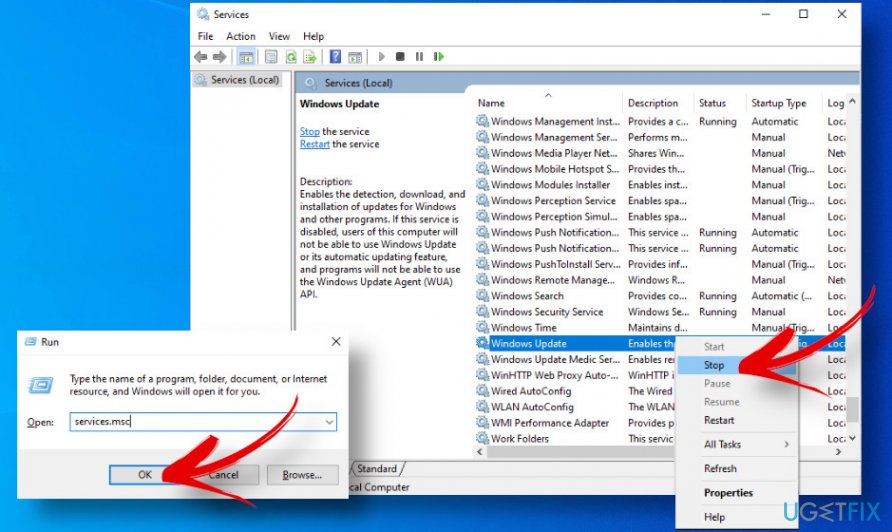
Restart windows update service - Now press Windows key + E and go to the following folder: C:\\\\Windows\\\\SoftwareDistribution.
- Here you should clean the content of the Download and DataStore folders (administrator privileges required).
Restart windows update services - Finally, open Services once again as explained in step 1, right-click on Windows Update and select Start.
Reset the catroot2 folder
If any of the above-mentioned steps helped to fix Windows 10 hangs on the search for updates, try resetting the catroot2 folder, where the signatures of the Windows 10 updates are kept. You should follow these steps:
- Open an elevated Command Prompt by pressing Windows key + R and typing cmd in the search bar.
- Type in the following commands one by one hitting Enter after each of them:
net stop cryptsvc
md %systemroot%\\system32\\catroot2.old
xcopy %systemroot%\\system32\\catroot2 %systemroot%\\system32\\catroot2.old /s
- Now eliminate the content of the catroot2 folder. Navigate to the C:\\Windows\\System32\\catroot2 location and eliminate each entry.
- Finally, reopen the Command Prompt, type in the below-given command, and hit Enter.
net start cryptsvc
The process of Windows update will be reset as soon as you navigate to the Windows update and select Check for updates.
Install updates manually
In case you have a problem with a separate update, for example, Windows Defender update stuck all the time, try installing its update manually.
- Navigate to the official Microsoft Update Catalog website.
- Open the search in the top-right corner of the screen.
- Type the number of the latest Cumulative Update that you want to install and press Enter.
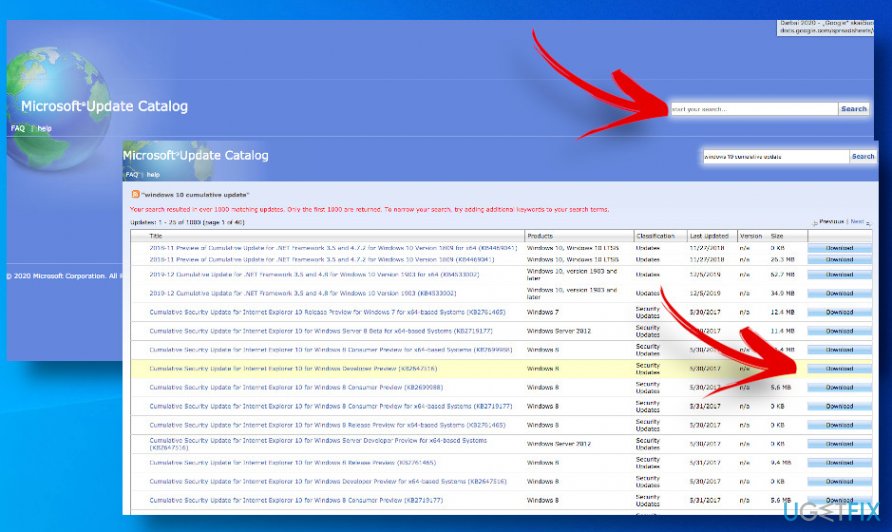
Install updates manually - When the list of available updates show up, select the correct version of the system (32-bit, 64-bit, ARM, Windows 10 in S mode or another). You can check the version on Settings -> System -> About.
- Click on the Download button and click the .msu file to proceed with the download.
- When the update is installed, restart the system.
Bottom line
To resolve the issue of Windows 10 being stuck on checking for updates, users can try restarting the Windows Update service, running the Windows Update Troubleshooter, or checking their internet connection. If none of these solutions work, consider resetting Windows Update components or performing a system file check.
Frequently asked questions
Try running the Windows Update Troubleshooter, which can automatically detect and fix common issues related to updates. You can access it by going to Settings > Update & Security > Troubleshoot > Additional troubleshooters.
Yes, you can manually reset Windows Update components by stopping the Windows Update services, deleting the SoftwareDistribution folder, and then restarting the services. This can help resolve persistent update issues.
You can run commands like 'sfc /scannow' and 'DISM /Online /Cleanup-Image /RestoreHealth' in Command Prompt to repair system files and the Windows image, which may help resolve the update issue.




Report an issue
What's wrong with this guide? We review every report and update or remove content.
Report received — thank you. We'll review and fix it.
You need a free account to submit a report.
Be the first to comment