How to fix
Windows 11 is slow after an update
on Windows
Revitalize your Windows 11 performance post-update with our actionable tips. Get your PC running smoothly again—expert-tested solutions await!

What causes How to fix Windows 11 is slow after an update?
- Bugs within the operating system
- File corruption in the OS
- Incompatible drivers
- Malware infection
- External applications causing issues
Repairs Windows system files, removes malware, and restores a clean OS state — without reinstalling.
I upgraded to Windows 11 a few months ago, and everything was working fine until recently. I have noticed that Windows 11 became slow after updating it with the latest patch that was launched automatically. Now I notice freezes and random lags. Please help me to solve this - it's really annoying.
People did not anticipate receiving a new version of Windows 10, and many were surprised by Microsoft's announcement to go for Windows 11. Since then, many users have been eagerly waiting for its release, as it included modern UI[ref en-3] elements and plenty of improvements to usability, as well as the security of the OS.
Unfortunately, just like with any other Windows version, Windows 11 release was not extremely smooth, and users began complaining about changed features - icon grouping, for example, made people annoyed by the fact that they had to click twice in order to access a particular window of a selected program. Some users also noticed strange shut-down boxes, the inability to bring windows to the foreground, and many other bugs[ref en-2] affecting the operating system.
Windows 11 being slow after an update is another issue people were complaining about. Some people reported having random slowdowns and freezes that happen occasionally, others complained that the issues are very persistent. The common trait among the complaints is that the problem happened after installing the latest Windows update.
While reduction of PC performance can be an indication of a failing hardware or malware[ref en-1] infection, it can also be caused by bugs or file corruption within the operating system itself. There could be external issues related to it as well, for example, incompatible drivers or applications.
Since there are plenty of different reasons why Windows 11 is slow after an update, we recommend first performing a full system scan with a powerful PC repair tool [d1]. It can target the broken components on the operating system and replace them with brand new ones using a unique technology. It can also remove already installed malware, clean browser caches, and remove junk/leftover files for better computer performance.
Solution 1. Check a troubleshooter
If the lag and slowdowns in Windows 11 started occurring after an update, it could be that the update is buggy. You can check that with the built-in troubleshooter:
- Open Settings and go to the System section
- On the right side of the window, click Troubleshoot
- Select Other troubleshooters
- Here, pick Windows update and click Run
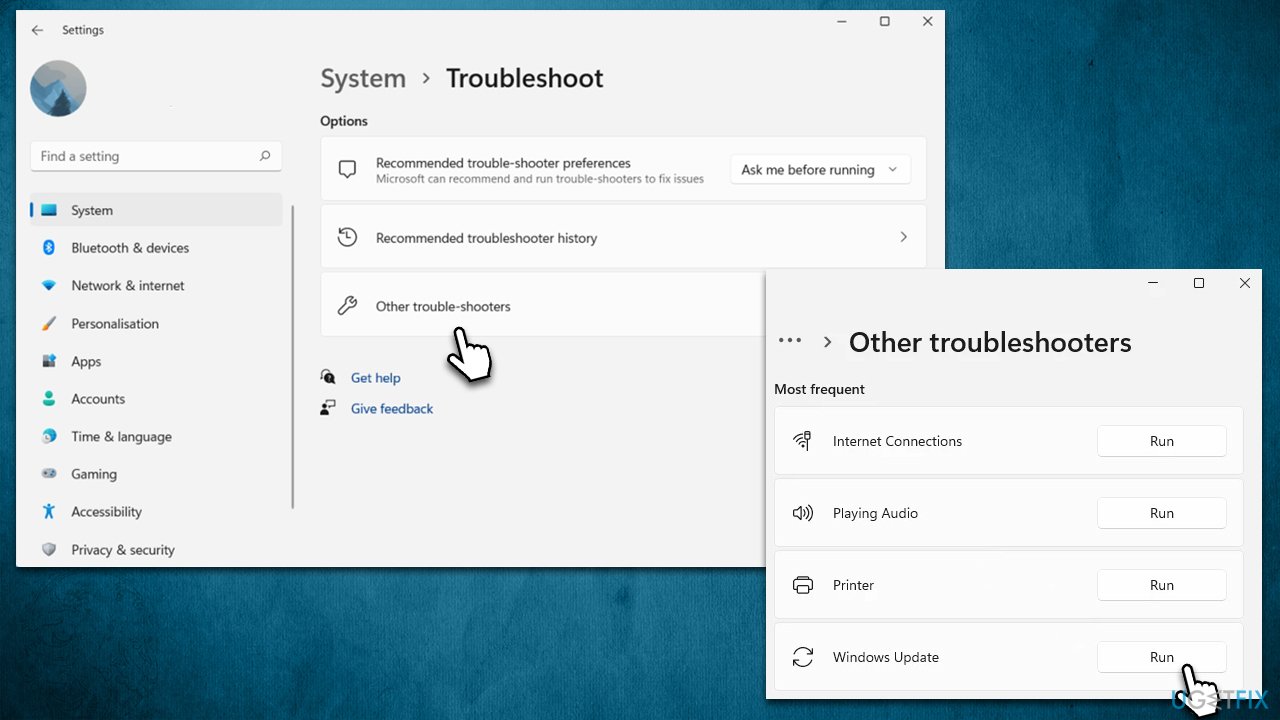
How to fix windows 11 is slow after an update run troubleshooter - Continue using on-screen instructions and, once done, restart the system.
We also recommend running additional available troubleshooters, such as the Program Compatibility troubleshooter.
Solution 2. Run SFC and DISM
Corrupted system files can be one of the main reasons for freezes and crashes. You can repair them by using an elevated Command Prompt.
- In Windows search, type cmd
- Right-click on Command Prompt and select Run as administrator
- When User Account Control shows up, click Yes
- In the new window, use the following command and press Enter:
sfc /scannow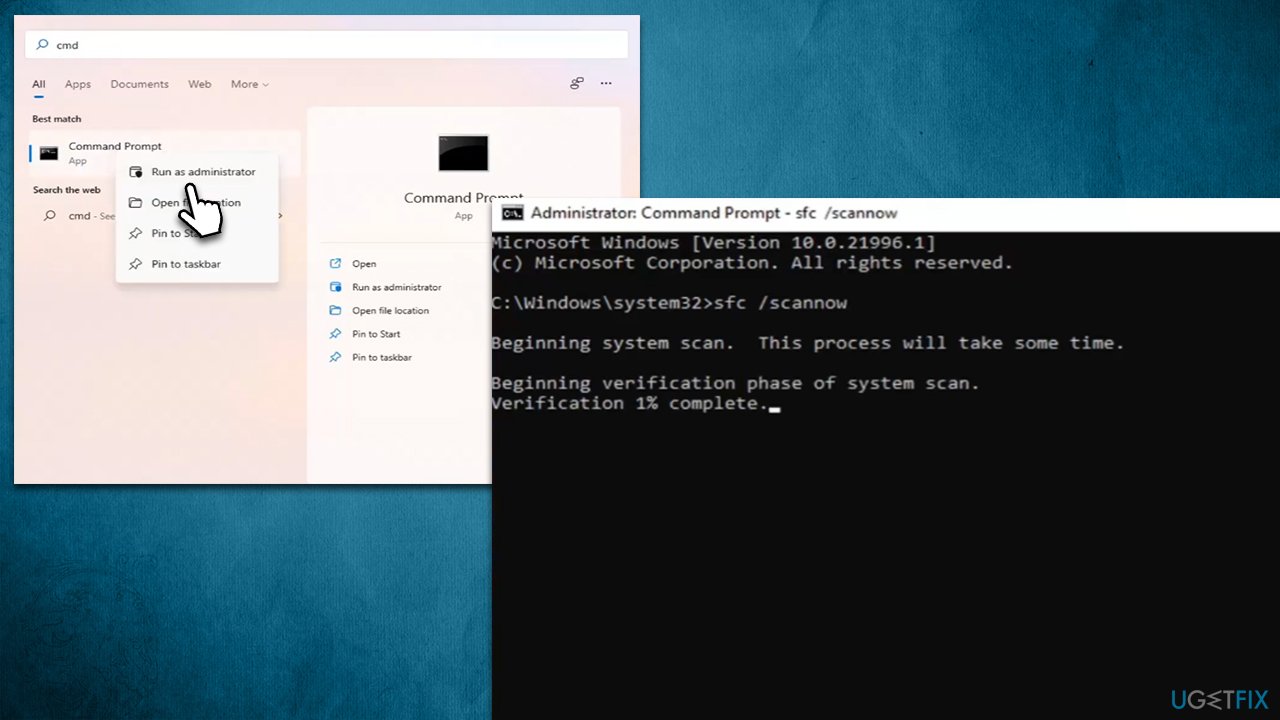
How to fix windows 11 is slow after an update run sfc dism - Once done, use the following commands, pressing Enter after each:
DISM /Online /Cleanup-Image /CheckHealth
DISM /Online /Cleanup-Image /ScanHealth
DISM /Online /Cleanup-Image /RestoreHealth - When complete, reboot your system.
Solution 3. Uninstall the latest update
If the update was buggy, you should uninstall it. Note that this is not available after a long time has passed.
- Press Win + R on your keyboard to open the Run dialog
- Type appwiz.cpl and press Enter
- Go to View Installed updates
- Sort the updates by date
- Right-click the most recent update and select Uninstall
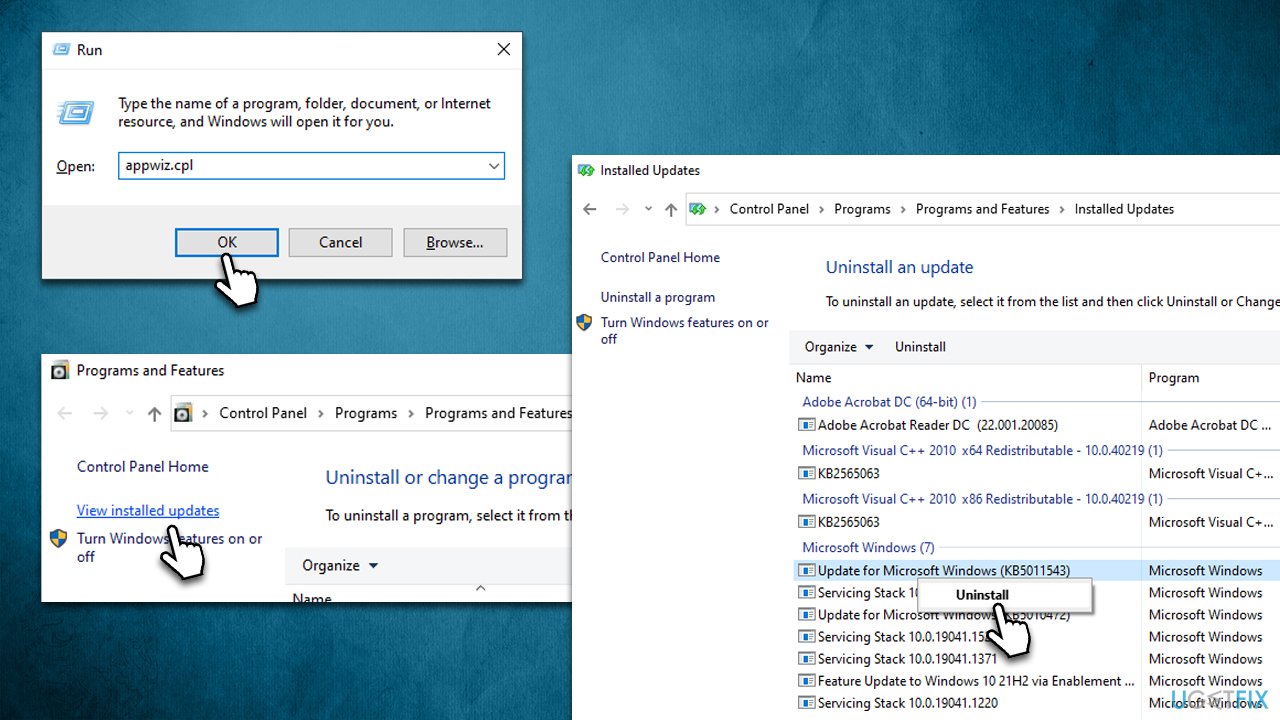
How to fix windows 11 is slow after an update uninstall update - Follow on-screen instructions and restart your device
- After a reboot, update Windows.
Solution 4. Check your startup section/uninstall some apps
Third-party applications might sometimes hog a lot of resources. Some antivirus applications are known to become incompatible with Windows after one or the other is updated. Therefore, if the issues started after a Windows update and you are using third-party anti-malware, try uninstalling it and see if that helps.
You can also try to disable startup items that could be causing excessive load on your machine:
- Press Ctrl + Shift + Esc to open the Task Manager
- Go to the Startup tab
- Here, go through various third-party apps
- Right-click on each of them and select Disable.
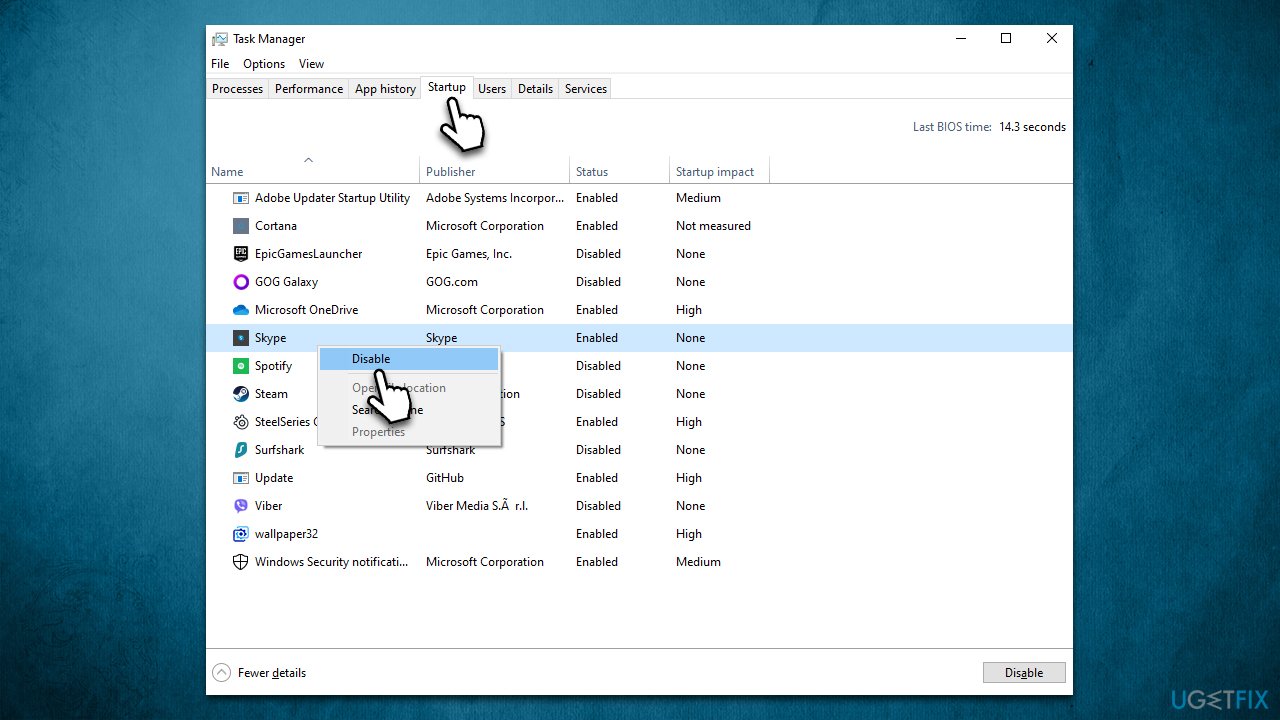
How to fix windows 11 is slow after an update disable startup items
Solution 5. Downgrade to Windows 10
If none of the methods helped or the issue started occurring right after upgrading to Windows 11, you can opt to downgrade to Windows 10 for the time being. Many users decided to do so until the performance of the newest Windows iteration is improved by Microsoft.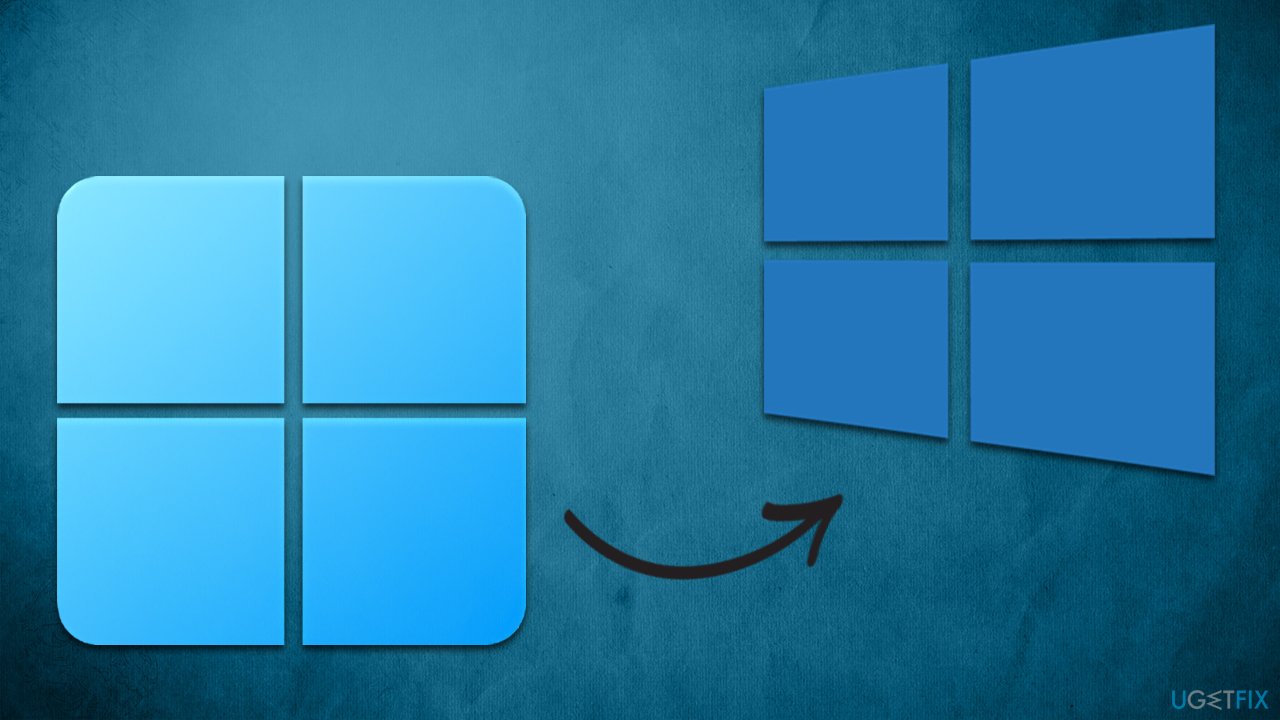
Bottom line
To address the slowness of Windows 11 after an update, it is recommended to perform a full system scan with a powerful PC repair tool to target and replace broken components. Additionally, removing malware, cleaning browser caches, and eliminating junk files can improve performance. If these solutions do not resolve the issue, further investigation into hardware or other software conflicts may be necessary.
Frequently asked questions
Windows 11 may slow down after an update due to compatibility issues, background processes, or resource-heavy features being enabled. It's important to check for additional updates or troubleshoot performance settings.
To improve speed, try disabling unnecessary startup programs, adjusting visual effects, or running the built-in performance troubleshooter in Windows 11. Additionally, consider checking for driver updates that may optimize performance.
Yes, rolling back a Windows 11 update can help restore performance if the update is causing issues, but ensure to back up your data first. You can do this through the Update & Security settings.




Report an issue
What's wrong with this guide? We review every report and update or remove content.
Report received — thank you. We'll review and fix it.
You need a free account to submit a report.
Be the first to comment