How to fix
Windows 11 WiFi icon missing
on Windows
Restore your Windows 11 WiFi icon with easy fixes that work. Get your connectivity back on track with expert-tested solutions!


What causes How to fix Windows 11 WiFi icon missing?
- Missing drivers
- Disabled WiFi adapter
- Damaged WiFi adapter
- Corrupted system files
- Registry issues
Repairs Windows system files, removes malware, and restores a clean OS state — without reinstalling.
Hello. I updated from Windows 10 to Windows 11 and the WiFi icon is missing from the taskbar now. How can I fix this?
Windows 11 was released at the end of 2021 but some people still experience issues during the upgrading process from Windows 10. We previously wrote about problems, like the weather widget not updating or not working, mouse cursor freezing or not responding, taskbar icons not working, and many more. Now people are complaining that the WiFi icon is missing from the taskbar after switching to Windows 11.
While it is unclear why exactly this could be happening, it could be caused by missing drivers[ref en-1] or a disabled or damaged WiFi adapter. In this guide, you will find 4 methods that could help you fix the Windows 11 WiFi icon missing issue. Many people have found success by simply running a troubleshooter built-in by Microsoft.
You may also use a maintenance tool like [d1] if you want to avoid a lengthy troubleshooting process. This powerful software can fix various system errors, BSODs,[ref en-2] corrupted files, registry[ref en-3] issues, and clear cookies and cache as well which are often the culprits of many malfunctions. Otherwise, follow the instructions provided below.
Method 1. Run the Network Troubleshooter
- Open the Windows Settings app
- Go to the System tab and select Troubleshoot
- Click on the Other troubleshooters option
- Scroll down and look for the Network Adapter troubleshooter
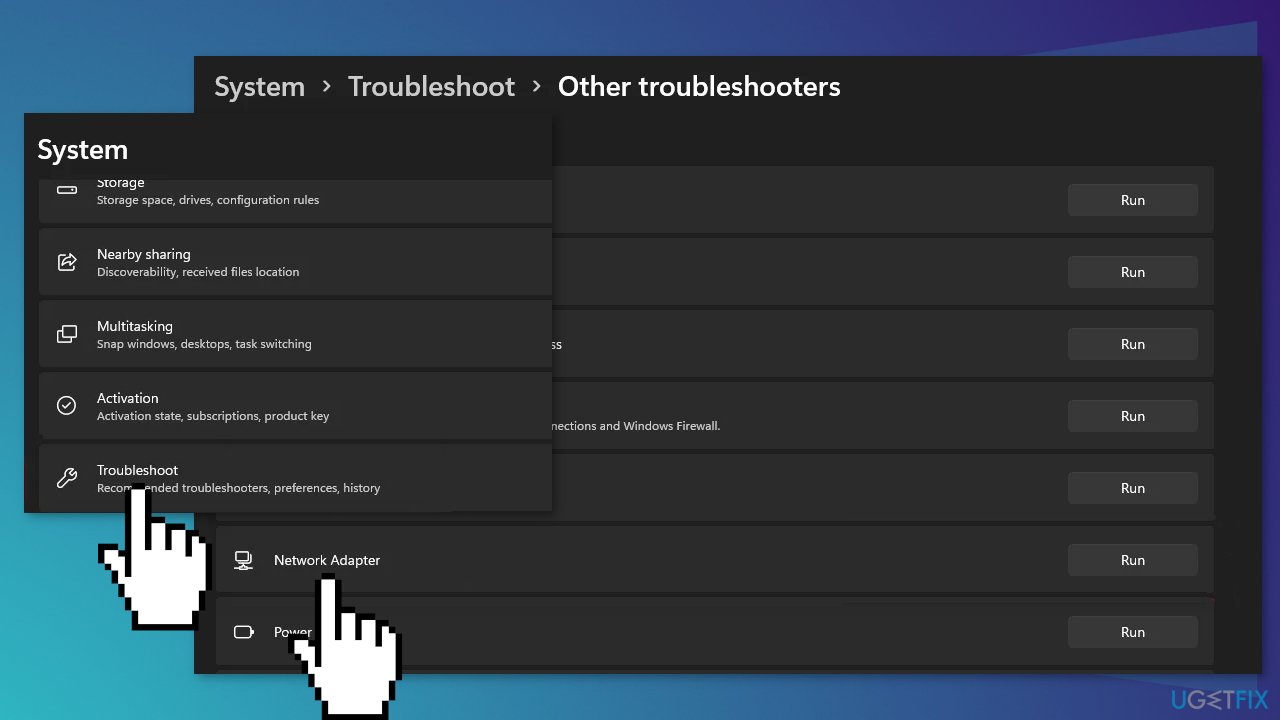
- Click the Run button
- Wait for the troubleshooter to finish scanning your system and look for any problems
Method 2. Check WiFi Adapter
- Open the Windows Settings app
- Switch to the Network and Internet tab
- Scroll down and click on the Advanced network settings option
- Under Related settings, click on More network adapter options
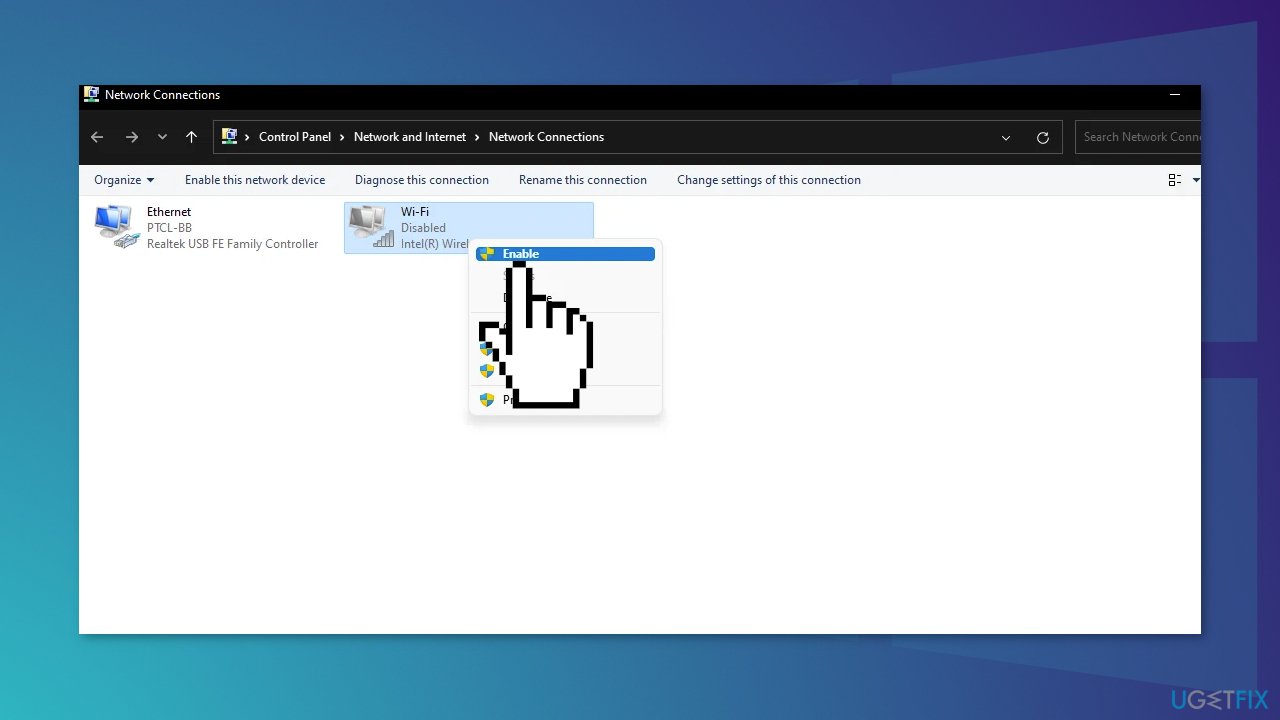
- Look for your WiFi adapter and make sure it is enabled
- Right-click on the adapter if it is disabled and from the drop-down menu, click Enable
Method 3. Reinstall WiFi Drivers
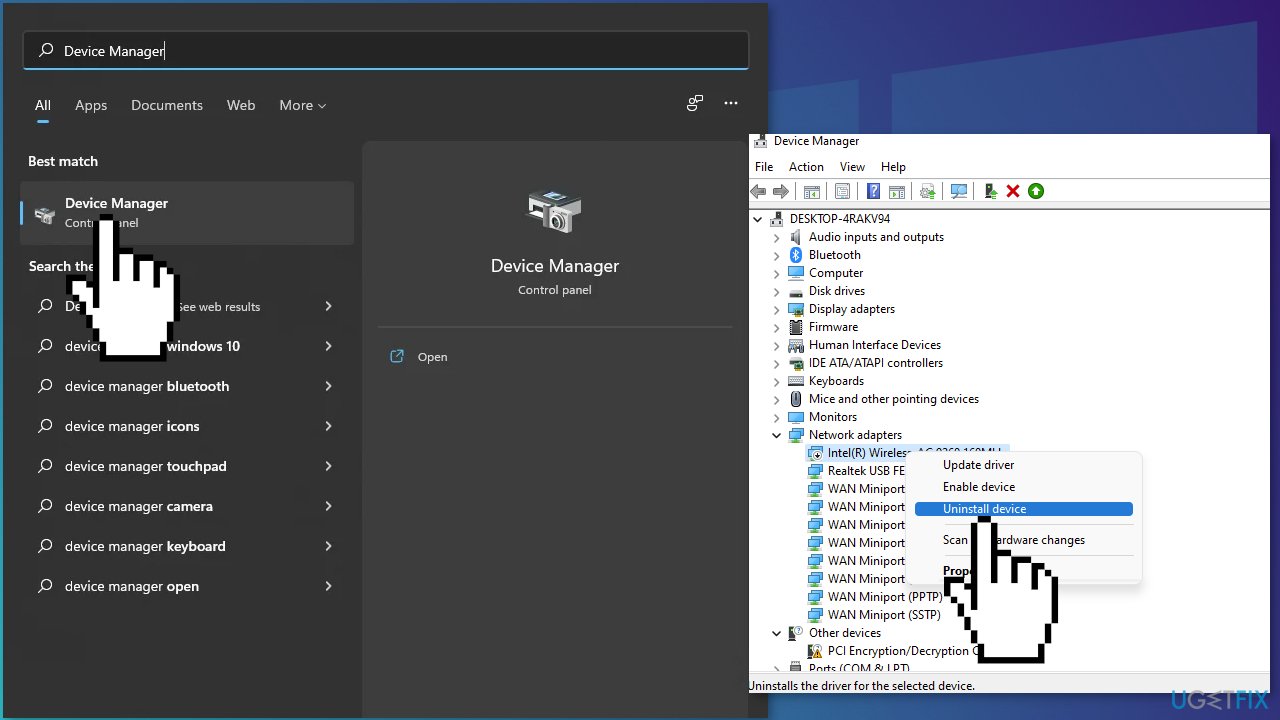
- Open up the Device Manager by searching for it in the Start Menu
- Expand the Network adapters list
- Right-click on your wireless driver and click the Uninstall device option
- Restart your computer if you wish to let Windows automatically install the drivers
- If the problem persists even after you have restarted, you may use a dedicated utility [rev id="DriverFix"] that can find the best drivers for your device
Method 4. Perform a Network Reset
- Open Settings and click on the Network & Internet tab
- Click on Advanced network settings
- Scroll down to the More settings section and click on Network reset
- Click the Reset now button
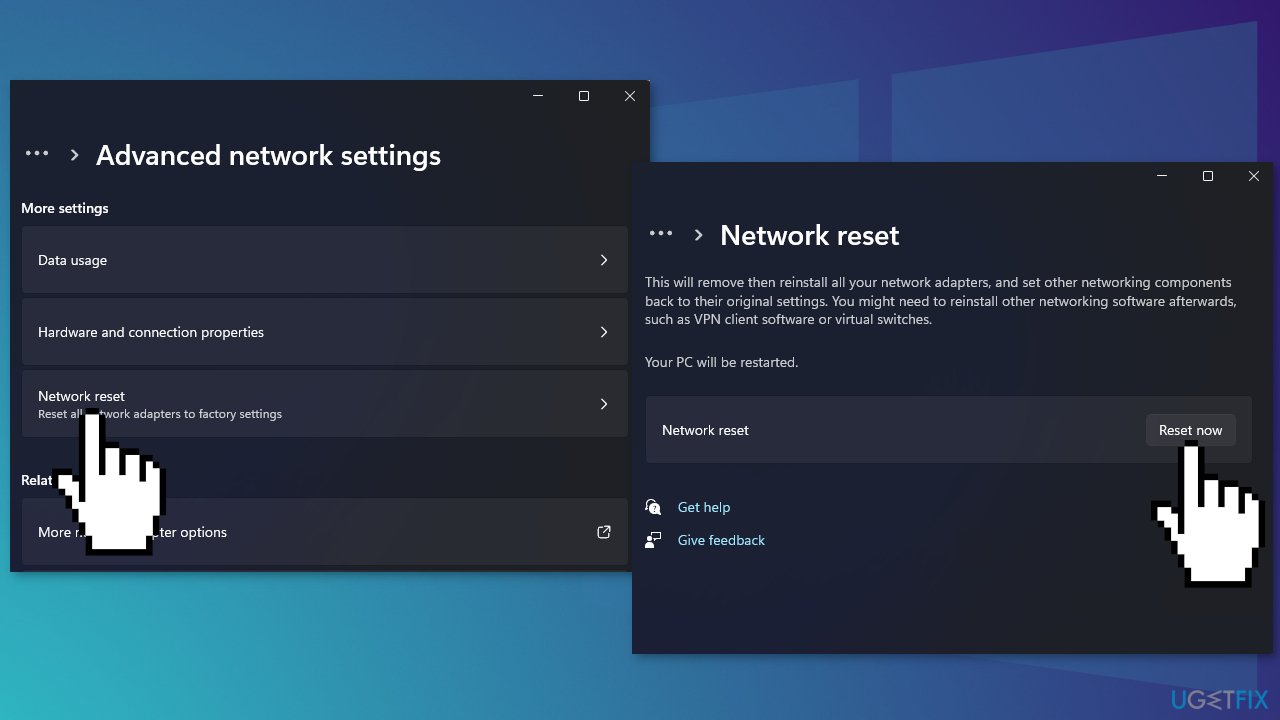
- Once the reset is complete, you should have the Wi-Fi connection restored
Bottom line
To fix the missing WiFi icon in Windows 11, you can run the Network Troubleshooter, check the WiFi adapter settings, or reinstall the WiFi drivers. If these methods do not resolve the issue, consider using a maintenance tool to address potential system errors.
Frequently asked questions
Try restarting your device first, as this can often resolve temporary glitches. If that doesn't work, go to Settings > Personalization > Taskbar and ensure that the 'Network' option is enabled.
Open Device Manager, click on 'View' and select 'Show hidden devices'. If the WiFi adapter is greyed out, right-click it and select 'Enable'.
Yes, go to Device Manager, locate your network adapter, right-click it, and select 'Update driver'. This can help restore the WiFi icon if it's due to outdated or corrupted drivers.




Report an issue
What's wrong with this guide? We review every report and update or remove content.
Report received — thank you. We'll review and fix it.
You need a free account to submit a report.
Be the first to comment