
How to fix Windows Store error code 0x80240437?
Prefer to fix it yourself? The manual steps follow.
6 methods in this guide
- Howe to fix Microsoft Store error 0x80240437: simple solutions
- Run Windows Store Apps Troubleshooter
- Make sure Windows is up to date
- Advanced error 0x80240437 fix options
- Reset Microsoft Store by using WSReset command
- Restart Windows Update services
- Reinstall Network Adapter
- Run script with an elevated Powershell
I’ve had Windows 10 since its release back in 2015, and the Store was always working OK up till yesterday. Believe me or not, I’ve had no problems related to Windows 10 OS before, but not I repeatedly get the same error code 0x80240437 when I try to download apps from Microsoft Store. Could you please help?
Microsoft store (or formerly known as Windows Store) is an excellent tool installing and updating applications without having to rely on third-party sources, which is a great choice considering that the latter can be dangerous when it comes to security.
Unfortunately, despite the useful functionality of Microsoft store, users often encounter problems with it and, instead of being able to download or update an application, they are instead presented with an error come - 0x80240437, which consequently prevents users from using it. Unfortunately, this error is not unique, and users can also face 0x80D05001, 0x8013153B, 0x00000194, and many others.
There is no universal way to fix 0x80240437 error, however, as reasons for Microsoft Store error occurrence depend on multiple factors, such as OS configuration settings, installed programs, driver versions, and many other features.
Nevertheless, the main reasons for the 0x80240437 error to occur usually are:
- Outdated operating system;
- Incorrect time and date settings;
- Outdated or corrupt drivers;
- Problems with system files;
- Etc.
Nevertheless, in some cases, a 0x80240437 error might emerge when Microsoft servers are experiencing some issues. In such a case, the only solution would be waiting for the tech giant to fix the matter internally. However, the chances of this case scenario to happen are pretty low.
Thus, if you want to fix 0x80240437 error from preventing you from downloading and installing apps, please follow the steps below.
Howe to fix Microsoft Store error 0x80240437: simple solutions
Before you start with more advanced options, we suggest you first start from the basics:
- Make sure your computer is connected to the internet, and you are not experiencing any network problems';
- Check time and date settings - if these are not correct, Microsoft store will simply not work and display 0x80240437 or another error code.
Fix 1. Run Windows Store Apps Troubleshooter
It is always wise to run Windows troubleshooter - it is a built-in tool that can spot issues and fix them automatically or offer solutions if it cannot. Therefore, run Windows Store Troubleshooter as follows:
- Right-click on Start button and select Settings
- Scroll down and pick Update & Security
- From the left pane, pick Troubleshoot
- Scroll down and locate Windows Store Apps Troubleshooter
- Click on it and select Run the troubleshooter
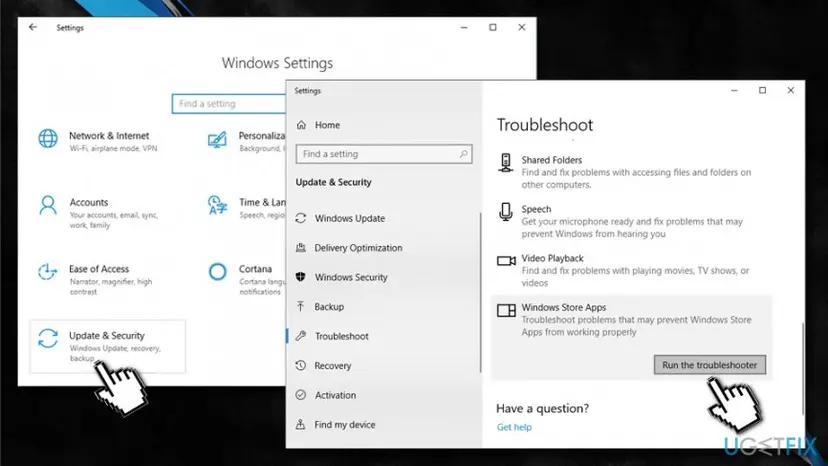
Fix 0x80240437 error run apps troubleshooter
Fix 2. Make sure Windows is up to date
Finally, you need to make sure that Windows is up to date, as an outdated operating system is not only a threat to online security but can also cause various issues, including those with Microsoft Store:
- Right-click on Start and pick Settings.
- Go to Update & Security.
- In the right pane, click on Check for Updates.
- Wait till Windows automatically updates the system.
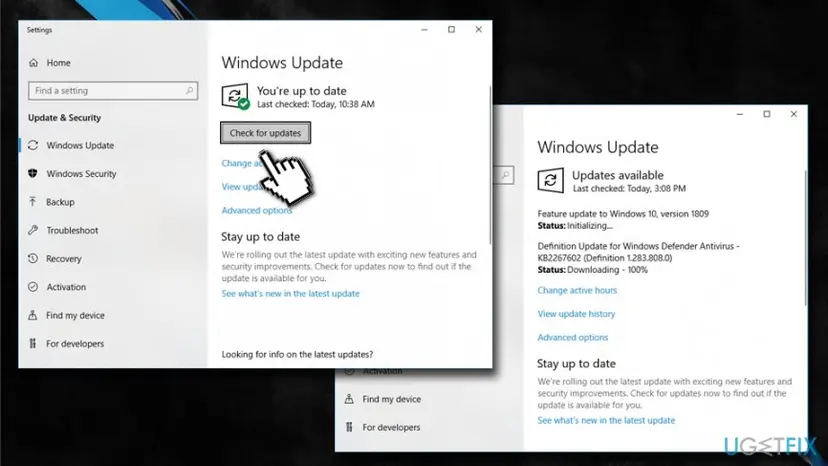
Fix 0x80240437 error update windows - Reboot your PC.
Advanced error 0x80240437 fix options
This section requires you to enter specific parts of the Windows operating system, such as Services and PowerShell. Please be aware that following these steps incorrectly might bring more trouble instead of fixing the problem. Thus, follow each step precisely, as explained below.
Fix 3. Reset Microsoft Store by using WSReset command
- Type in wsreset into Cortana's search box.
- Right-click on WSReset and select Run as administrator.
- Next, an empty command line window will pop up - let it hang.
- After a few seconds, it will disappear and Microsoft Store will be reset.
Fix 4. Restart Windows Update services
- Type in services.msc into the search box and click Enter.
- Locate Windows Update and Background Intelligent Transfer (BITS) services, right-click on them, and select Stop.
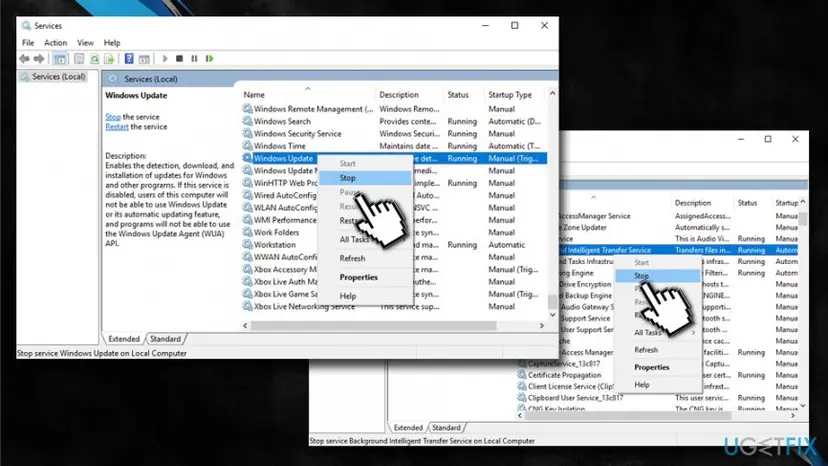
Fix 0x80240437 error stop windows services - After that, click Win key + R, type %systemroot%\\SoftwareDistribution\\, and press Enter.
- Press Ctrl + A on your keyboard and then follow up with Shift + Del.
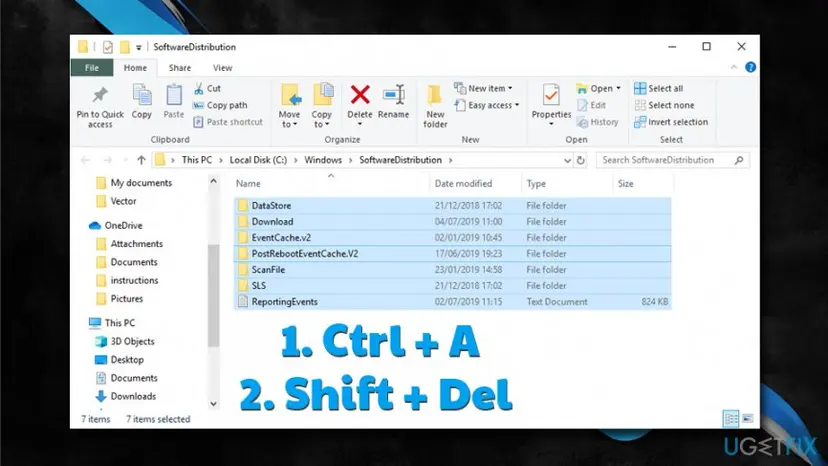
Fix 0x80240437 error stop delete software distribution folder - Type in services.msc into the search box again, and click Enter.
- Find Windows Update and Background Intelligent Transfer services, right-click on them, and select Start.
Fix 5. Reinstall Network Adapter
- Press Win key + R, type devmgmt.msc, and press Enter.
- When the Device Manager opens, find Network Adapters on the left page, and double click on it to expand.
- Find your Network Adapter, right-click it and select Uninstall.
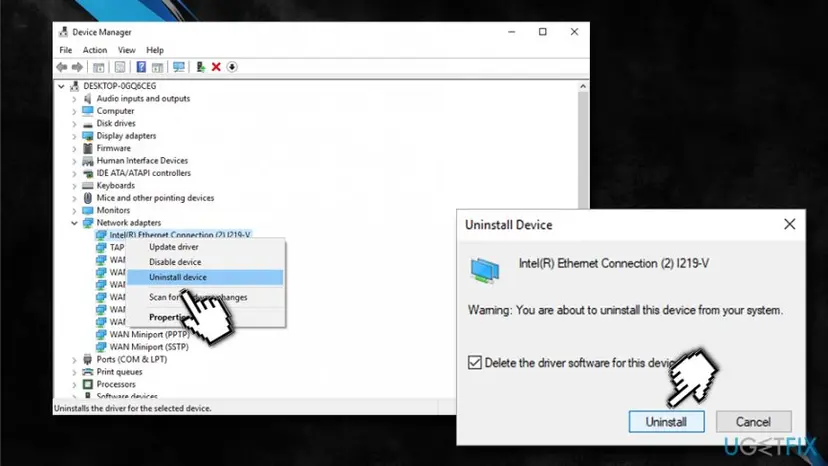
Fix 0x80240437 error uninstall network adapter - After that, click on Action menu and select Scan for hardware changes.
- Right-click on Unknown device and select Update Driver Software.
- Finally, restart your PC.
Fix 6. Run script with an elevated Powershell
Running scripts on an elevated Powershell should restore a proper connection between your OS and Windows Store. However, at this point, it’s very important to perform all the steps precisely.
- Right-click on Start button and select PowerShell (Admin).
- Now you should type in the following command in the Powershell window and press Enter:
PowerShell -ExecutionPolicy Unrestricted -Command "& {$manifest = (Get-AppxPackage Microsoft.WindowsStore).InstallLocation + '\\AppxManifest.xml' ; Add-AppxPackage -DisableDevelopmentMode -Register $manifest}"
Ignore all notifications that show up during the process of command execution. They will disappear automatically. Once done, reboot your PC and check if it worked to fix 0x80240437 error.
Did this fix work?
One click, no account. It tells the next reader which guides are worth their time.
Questions and experiences: fix Windows Store error code 0x80240437
Still broken, or found a fix we did not cover? Ask here: members and our editors answer. Reading is open; writing needs a free account.
…