How to fix
Windows update error 0x800703e3
on Windows
Resolve the Windows update error 0x800703e3 effortlessly. Get back to smooth updates on Windows 10 and 11 with expert-tested solutions. Fixed in minutes!


What causes How to fix Windows update error 0x800703e3?
- Corrupted system files
- Damaged update components
- General bugs
- Issues with cumulative updates
- Problems with graphic driver updates
Repairs Windows system files, removes malware, and restores a clean OS state — without reinstalling.
Hello. I have recently noticed that my Windows update keeps failing with error 0x800703e3. It shows that some cumulative and driver updates are failing while others are installing. Is there something that could be done about this?
Microsoft operates Windows OS as a service, which means that users can expect to receive constant updates. One might receive several different types of updates, including cumulative, security, bug[ref en-1] fixes, and others. Most of these are shipped every second Tuesday[ref en-2] of every month, which makes the pattern more predictable.
Unfortunately, not all updates reach users successfully, and error 0x800703e3 is one such example - it doesn't matter if the update is initiated manually or automatically, it keeps failing every time with the same code. This is not something uncommon, as we have already covered similar problems users had to deal with - 0x800704f1, 0x800700a1, or 0x80246013, to name a few.
Windows update errors such as 0x800703e3 can occur due to various reasons, including corrupted system files, damaged update components, general bugs, or other problems. In this case, most users found it difficult to install cumulative updates along with graphic driver updates.
Windows updates can be crucial for any computer user, as they fix various bugs, improve performance, or implement new features, and patch dangerous software vulnerabilities,[ref en-3] which would otherwise expose people to cyberattacks. This is why it is important to fix Windows update error 0x800703e3 as soon as possible - check the methods below. If you would rather opt for automatic repair, we recommend trying [d1] instead.
Solution 1. Run the troubleshooter
If you haven't yet, running a Windows Update troubleshooter is what you should do first whenever you have issues with Windows updates.
- Type Troubleshoot in Windows search
- Select Additional troubleshooters
- Find Windows Update from the list
- Click it and select Run the troubleshooter
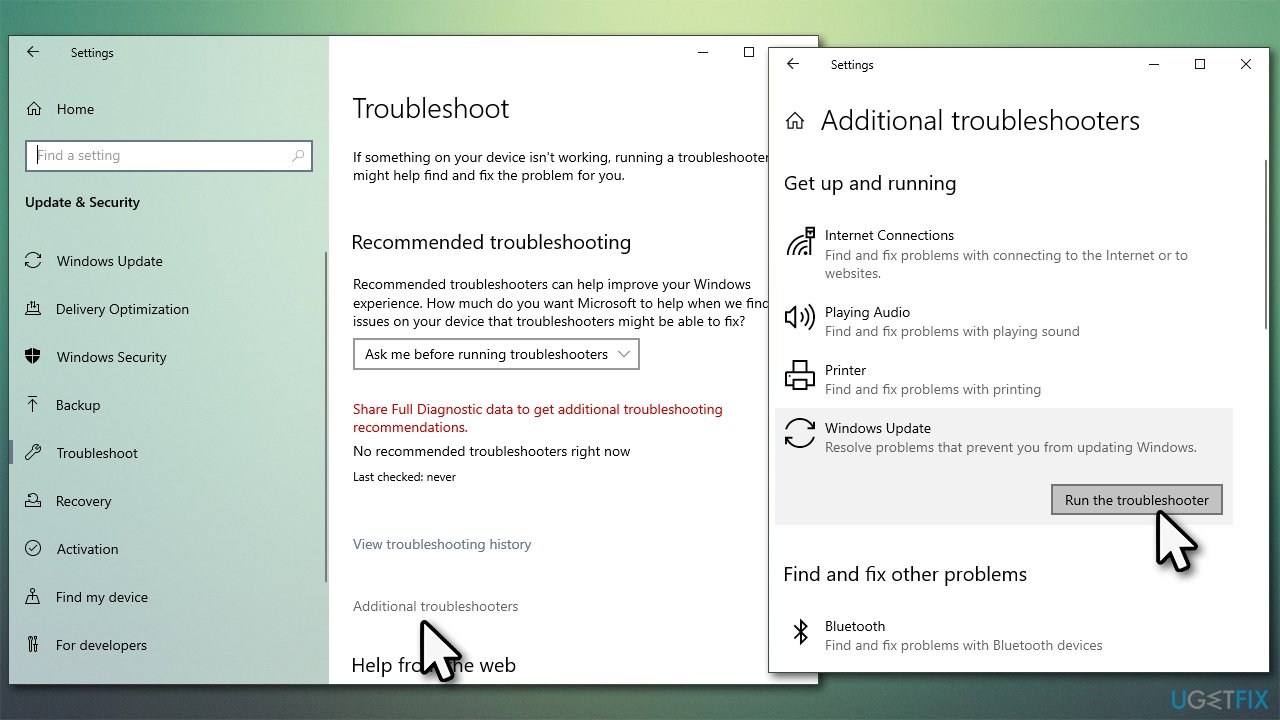
How to fix windows update error 0x800703e3 run troubleshooter - Apply the suggested fixes and restart your computer.
Solution 2. Reset Windows Update Components
Cached and temporary files are always stored in particular Windows locations, and they might sometimes become buggy. For example, a data packet might not go through because the previous installation was corrupt. In order to do this, the easiest thing would be to run an elevated Command Prompt.
- Type cmd in Windows search and press Enter
- In the new window, paste in each of these commands, pressing Enter every time:
net stop bits
net stop wuauserv
net stop appidsvc
net stop cryptsvc
Del “%ALLUSERSPROFILE%\Application Data\Microsoft\Network\Downloader\*.*”
rmdir %systemroot%\SoftwareDistribution /S /Q
rmdir %systemroot%\system32\catroot2 /S /Q
regsvr32.exe /s atl.dll
regsvr32.exe /s urlmon.dll
regsvr32.exe /s mshtml.dll
netsh winsock reset
netsh winsock reset proxy
net start bits
net start wuauserv
net start appidsvc
net start cryptsvc - Restart your machine.
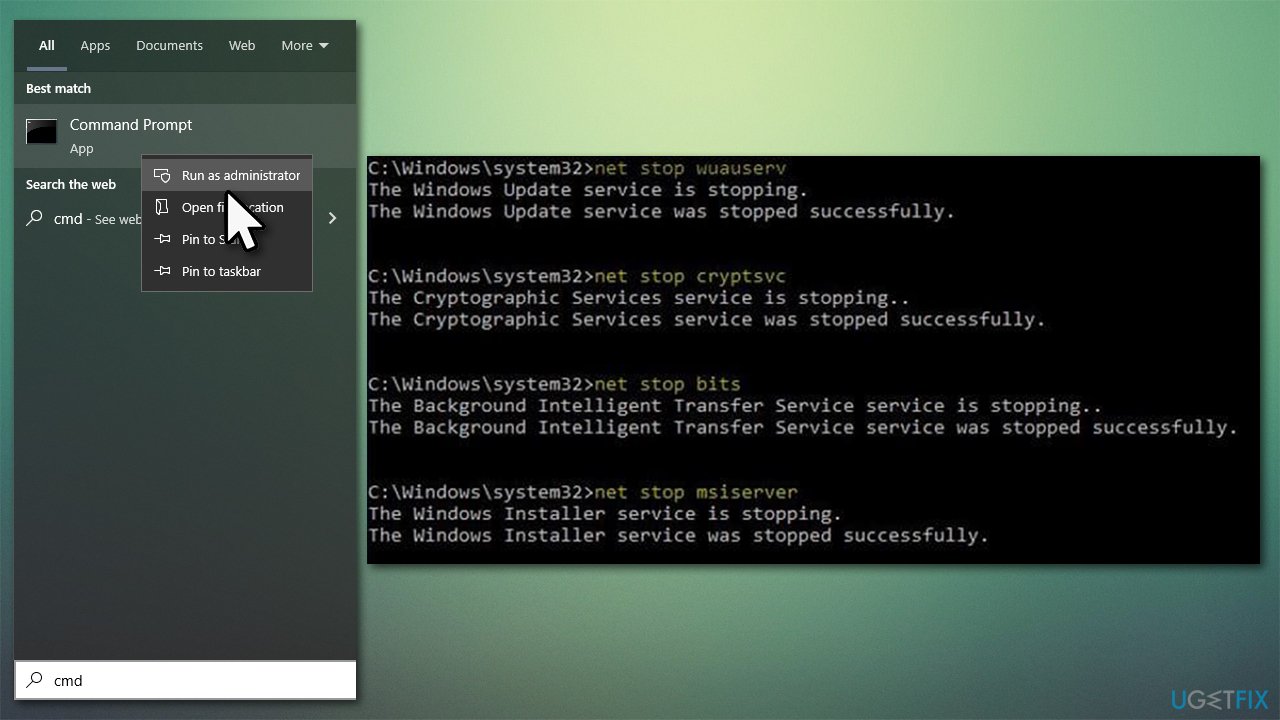
How to fix windows update error 0x800703e3 reset windows update components
Solution 3. Run SFC and DISM
- Type cmd in Windows search
- Right-click on Command Prompt and pick Run as administrator
- When User Account Control shows up, click Yes
- Use the following command lines, pressing Enter after each:
sfc /scannow
DISM /Online /Cleanup-Image /CheckHealth
DISM /Online /Cleanup-Image /ScanHealth
DISM /Online /Cleanup-Image /RestoreHealth - Restart your PC.
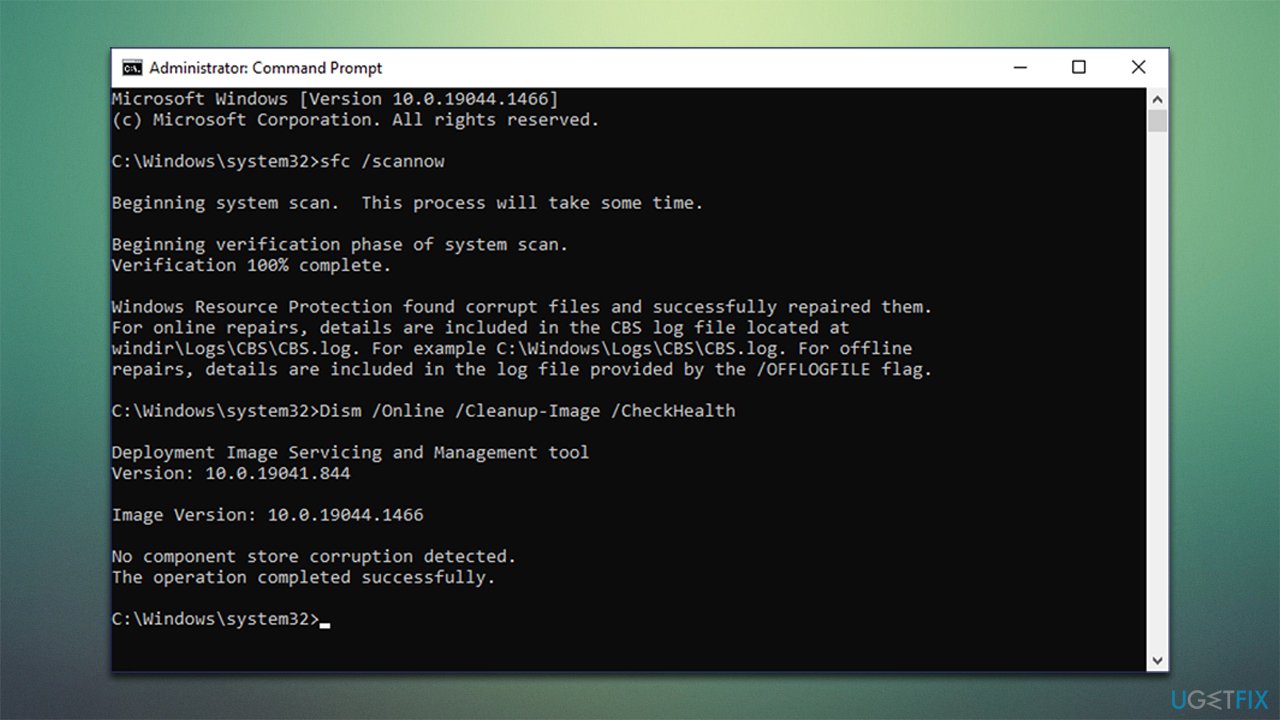
How to fix windows update error 0x800703e3 sfc dism
Solution 4. Install the update manually
- In Windows search, type in Update and press Enter
- Click View Update History
- Find the error code and check the KB number next to it – write it down or copy it
- Open your browser and go to Microsoft Update Catalog
- Within the search bar, use the KB number that failed to install with the 0x800703e3 error
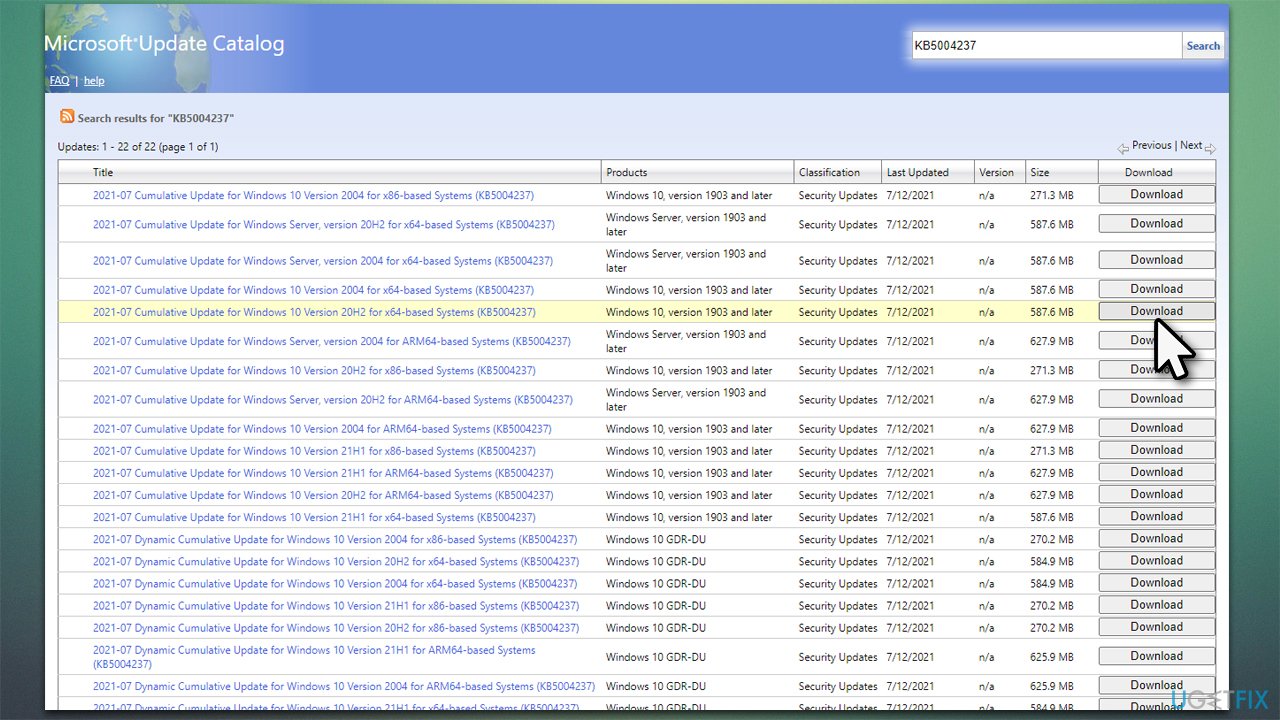
How to fix windows update error 0x800703e3 install update manually - Find the correct version of the update for your operating system (to check this, right-click on Start and pick System. Under Device specifications and check the System type) and click Download
- Use on-screen guidelines to finish the installation process and restart your PC.
Solution 5. Update display driver
If you are getting an error because you can't install the latest display drivers through Windows, you should do it in an alternative way. For that, you can visit the official Nvidia, AMD, or Intel websites - keep in mind that you need to know the precise make and type of your graphics card to install the correct drivers.
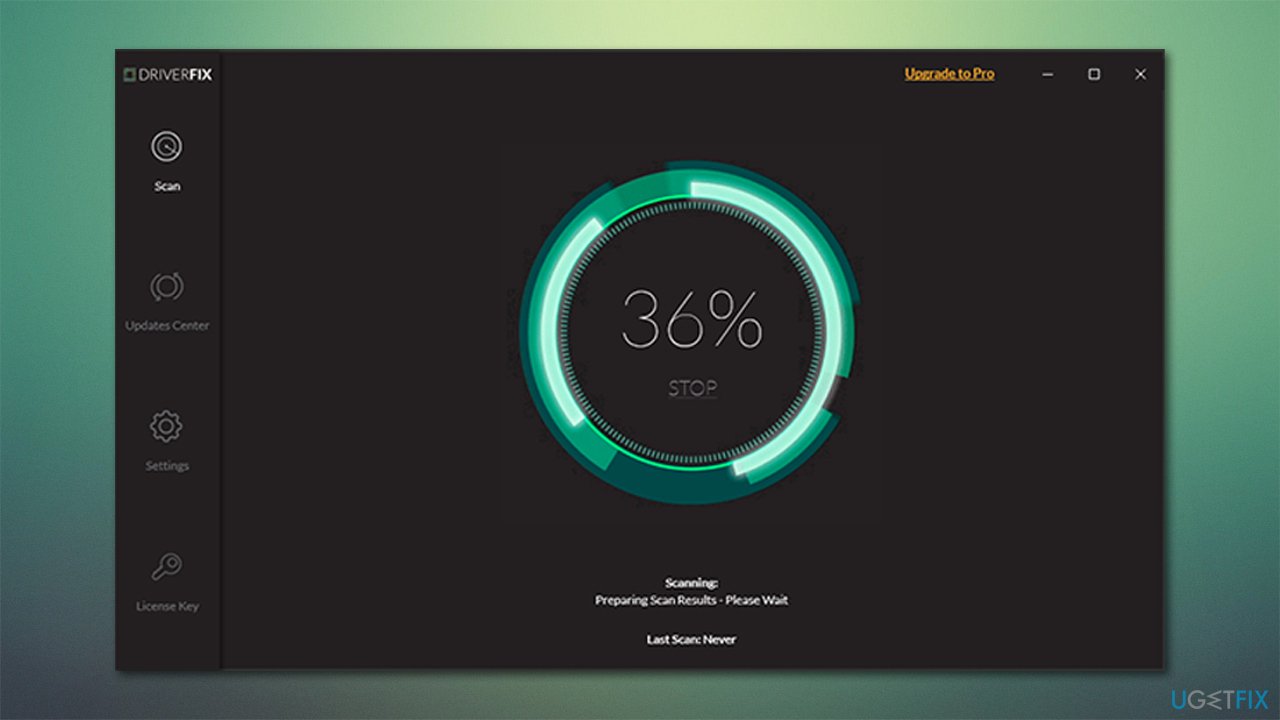
Alternatively, you could opt to update drivers automatically with [rev id="Driverfix"] - the software can automatically find and allocate correct drivers from the manufacturer. It can also make backups to avoid something going wrong.
Solution 6. Reset your PC
You can try resetting your PC if none of the above methods help.
- Right-click on Start and click Settings
- Go to Updates & Security section
- Select Recovery on the left
- Under Reset this PC, click Get started
- Select Keep my files and Cloud download
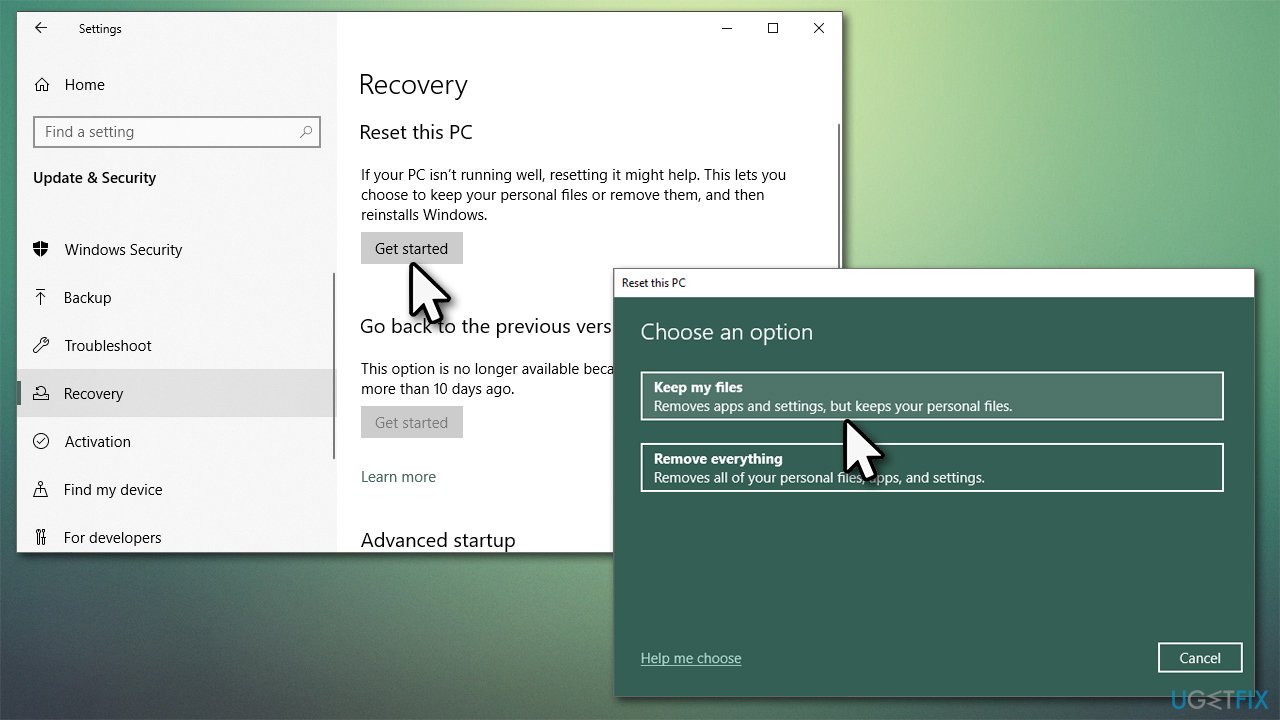
How to fix windows update error 0x800703e3 reset your pc - Wait till Windows finishes to download the necessary files
- Your computer will restart to finalize the process.
Solution 7. Use Media Creation Tool
If the above methods did not help, you could employ Media Creation Tool to perform an in-place upgrade. Make sure you disconnect all unnecessary external devices and make backups of your personal files as a precautionary measure.
- Go to the official Microsoft website and download Media Creation Tool
- Double-click the installer, agree to terms, and click Next
- Select Upgrade this PC now > Next
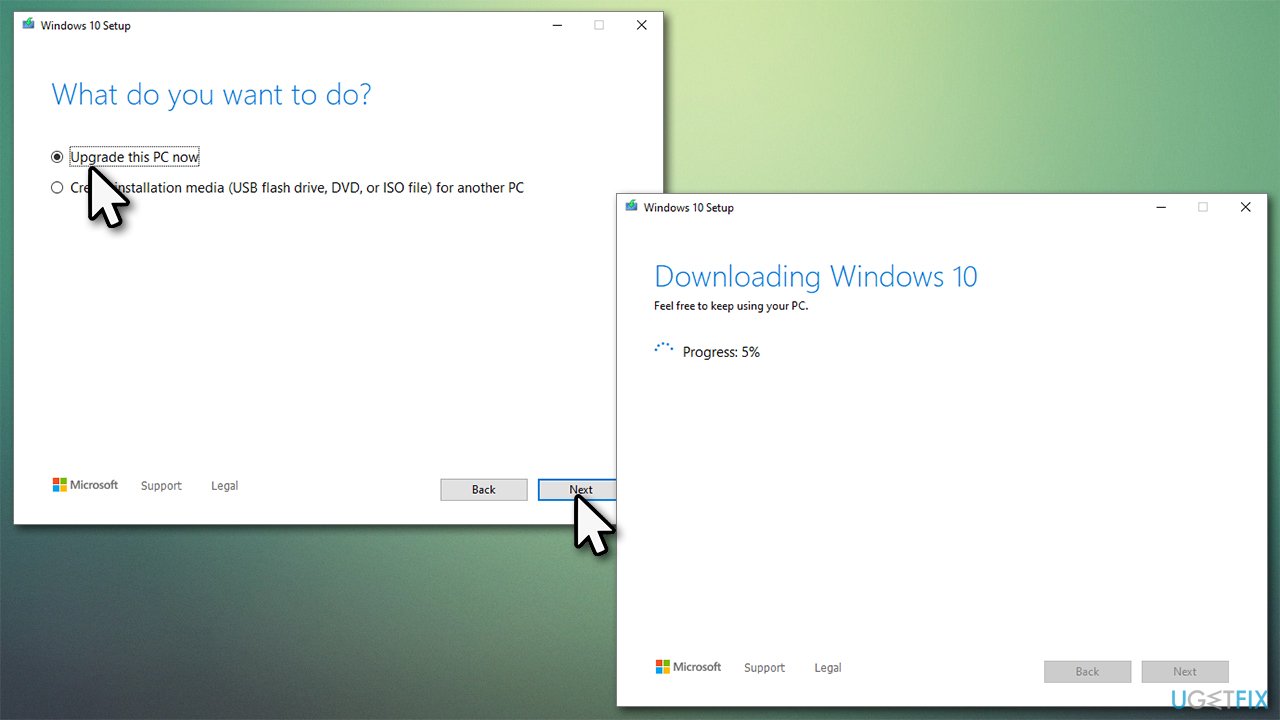
How to fix windows update error 0x800703e3 reinstall windows - Wait till Windows downloads and installs the necessary files
- Your system might restart several times.
Bottom line
To fix Windows update error 0x800703e3, you can run the Windows Update troubleshooter and reset the Windows Update components. If these methods do not resolve the issue, consider trying an automatic repair option.
Frequently asked questions
The error code 0x800703e3 indicates that there is a problem with the Windows Update service, often related to corrupted system files or issues with the update components.
To troubleshoot this error, you can run the Windows Update Troubleshooter, reset the Windows Update components, or perform a System File Check using the 'sfc /scannow' command in the Command Prompt.
If the error persists on Windows 11, try clearing the SoftwareDistribution folder, checking for disk errors using the CHKDSK utility, and ensuring that your device has enough storage space for updates.




Report an issue
What's wrong with this guide? We review every report and update or remove content.
Report received — thank you. We'll review and fix it.
You need a free account to submit a report.
Be the first to comment