How to fix
Windows update error 0x800704c7
on Windows
Resolve Windows update error 0x800704c7 quickly and efficiently. Follow expert-tested solutions to get your system back on track, fixed in minutes!


What causes How to fix Windows update error 0x800704c7?
- Corrupted system files
- Incorrectly installed previous set of updates
- Connectivity issues
- Conflicting background processes
Repairs Windows system files, removes malware, and restores a clean OS state — without reinstalling.
Hi, my Windows 10 PC usually updates automatically. Recently, the updates could have not been installed because of the 0x800704c7 error. Any advice on what to do now? Thanks.
Most regular computer users do not change the default settings of the operating system, such as Windows 10. This also relates to the Windows update process, and, by default, it is set to the automatic setting. Thus, users do not bother much about this, as everything is performed automatically.
However, it is not surprising that not all Windows updates are applied successfully - errors during this time are particularly common. 0x800704c7 is yet another Windows update error that can be encountered when the system is trying to install feature or cumulative updates.
There are several versions of the 0x800704c7 update error that you might see, despite the code number being the same. Here is one of the examples:
Error encountered
There were problems downloading some updates, but we'll try again later. If you keep seeing this, try searching the web or contacting support for help. This error code might be of help: (0x800704c7)
At this time, you can choose to retry the installation of the updates, although most people said that it brings no positive results, and the same issue arises. It is also important to note that this error is very similar to other update errors, including 0x80070422, 0x80240008, or 0x80070020.
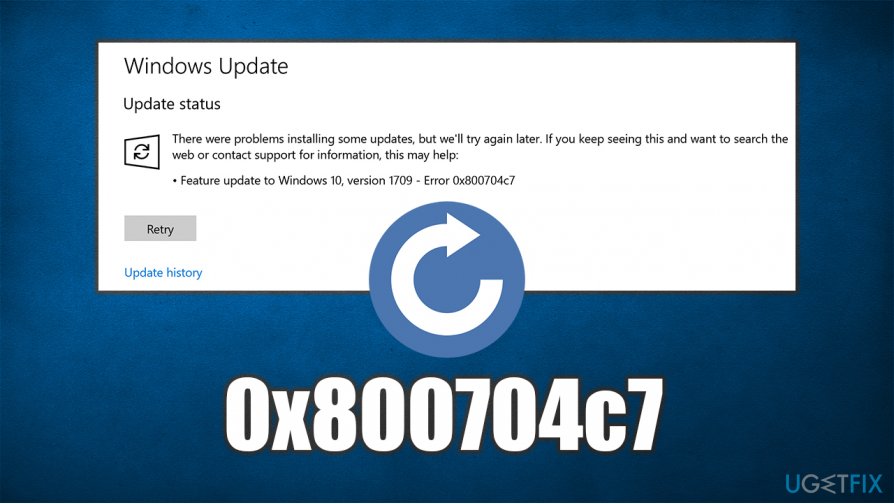
The question is now how to fix 0x800704c7 error and apply the necessary updates on Windows. To be clear, there is no universal answer to this, as each of the machines is different - they run different configurations, versions, have a unique set of software installed with a unique set of settings.
Due to this, there could be several different reasons why you encounter this error on Windows. These include:
- corrupted system files;
- incorrectly installed previous set of updates;
- connectivity issues;
- conflicting background processes, etc.
Therefore, below you will find various tips and step-by-step instructions on how to fix 0x800704c7 error manually. If you are not quite comfortable with solving issues yourself, we would like to suggest you try [d1], as this automatic Windows repair software could help you with things like corrupted system files.
Fix 1. Run Windows updates Troubleshooter
Windows has excellent built-in diagnostic tools known as Troubleshooters. These can be run to identify and sometimes fix 0x800704c7 and similar errors that relate to Windows update problems. Here's how to find and it and use it:
- Right-click on Start button and select Settings
- Go to Update & Security
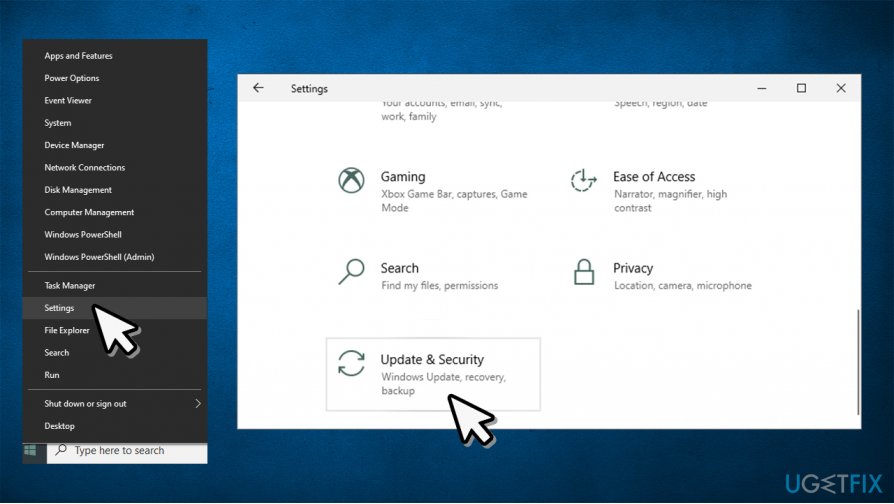
How to fix windows update error 0x800704c7 run troubleshooter - From the left menu, pick Troubleshoot
- On the right, you should see the listed troubleshooters. If they are not there, you might have to click on Additional Troubleshooters (depends on your Windows version)
- Find Windows Update, click it once and then pick Run the troubleshooter
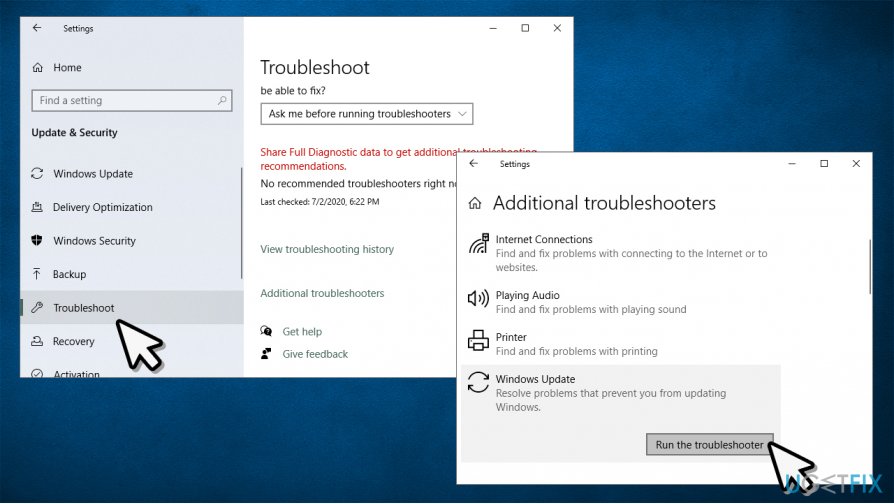
How to fix windows update error 0x800704c7 run troubleshooter2 - Wait till Windows diagnoses and attempts to repair the issues
Fix 2. Employ System File Checker to fix corrupted files
System file corruption is among the most common reasons for Windows update failures. Thus, follow these steps to check OS file integrity:
- Click on Start and type in cmd
- Right click on Command Prompt search result and select Run as administrator
- In the new window, type in the following command and press Enter:
sfc /scannow
- Wait till Windows completes the scan and fixes corrupted files
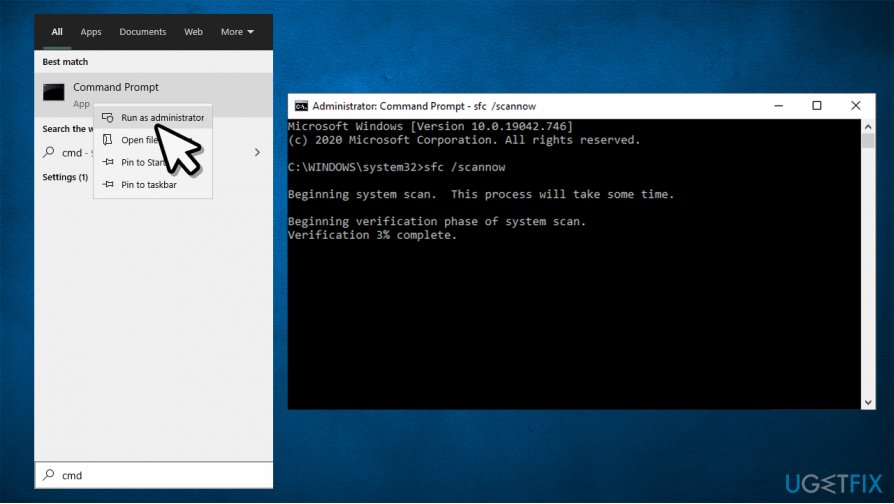
How to fix windows update error 0x800704c7 run sfc scan - Reboot the PC
- If that does not help, you can also run the DISM tool:
dism /online /cleanup-image /startcomponentcleanup
Fix 3. Install the updates manually
In some cases, users said that the 0x800704c7 error fix was successful when they apply the update manually. Here's how:
- Right-click on Start and pick Settings
- Go to Update & Security
- On the right side, click on View update history
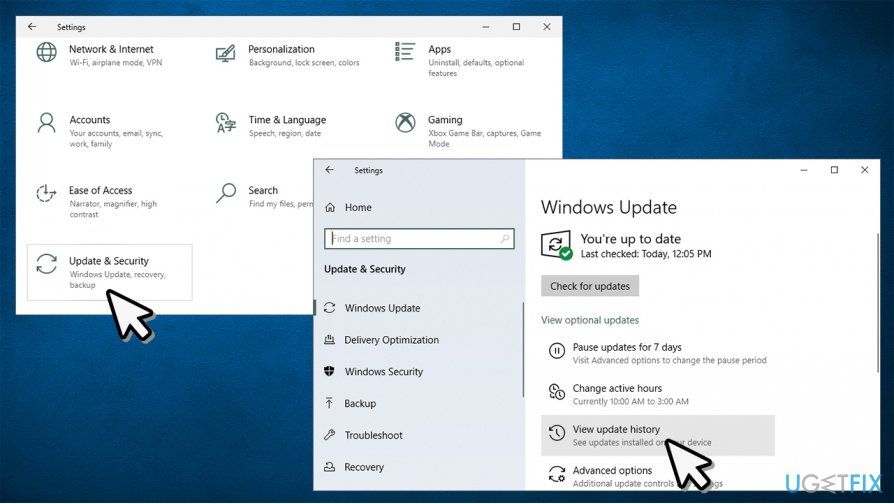
How to fix windows update error 0x800704c7 view update history - In this section, you should see the list of failed and successfully installed updates
- Note down the KB number (for example, KB4537759) of the failed update that is causing the error
- Go to Microsoft Update Catalog page, type in the relevant KB number and press Search
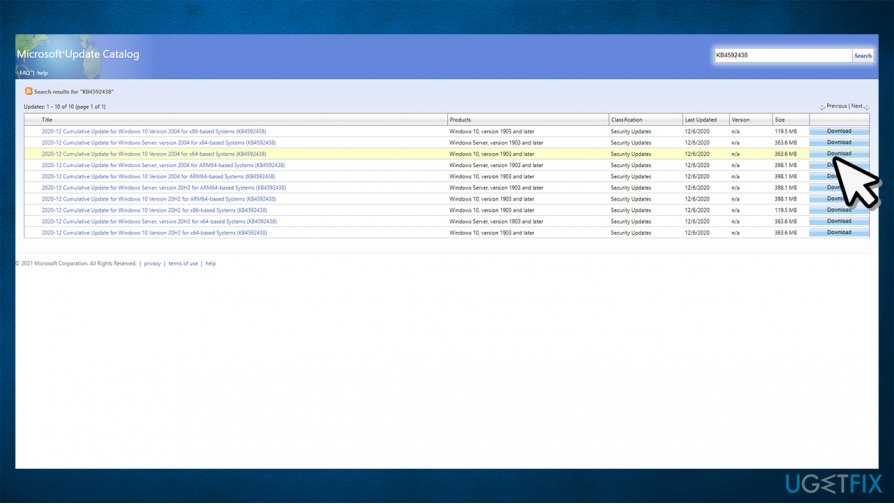
How to fix windows update error 0x800704c7 download updates manually - Find the relevant update version and install it manually.
Fix 4. Reset Windows Update Components
- Access Command Prompt with administrator rights as explained in the fix no. 2
- Enter each of these commands, pressing Enter after each:
net stop wuauserv
net stop cryptSvc
net stop bits
net stop msiserver
ren C:WindowsSoftwareDistribution SoftwareDistribution.old
ren C:WindowsSystem32catroot2 Catroot2.old
net start wuauserv
net start cryptSvc
net start bits
net start msiserver - Reboot your PC.
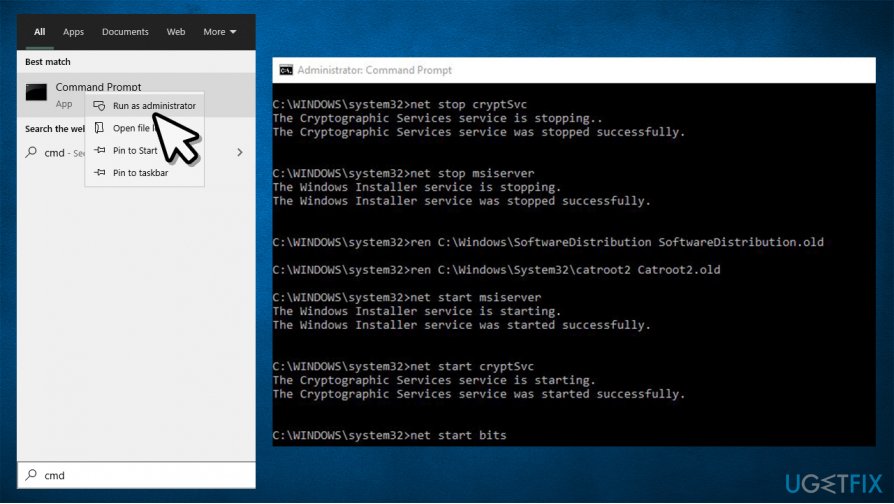
How to fix windows update error 0x800704c7 reset windows update components
Fix 5. Restart Windows services manually
In case the above came back with errors, you can restart related services manually:
- Press Start button and type in Services in Windows search
- Right-click on Services and pick Run as administrator
- If User Account Control pop-up shows up, click Yes
- Locate Windows Update service
- Right-click and select Restart
- Do the same with BITS (Background Intelligent Transfer Service).
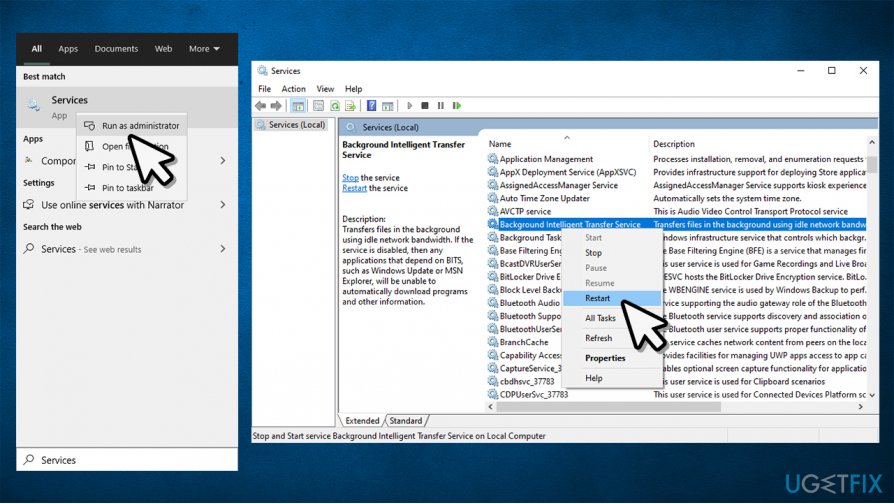
How to fix windows update error 0x800704c7 restart bits service
Fix 6. Reset your PC
If none of the above methods helped you, you should try resetting your Windows. While a PC reset might sound scary, it is actually a very simple process that does not result in any personal file loss. You might have to reinstall some programs, however. Here's a step-by-step solution:
- Right-click on Start and select Settings
- Go to Updates & Security section
- Choose Recovery
- Under Reset this PC, click the Get started button
- Pick Keep my files
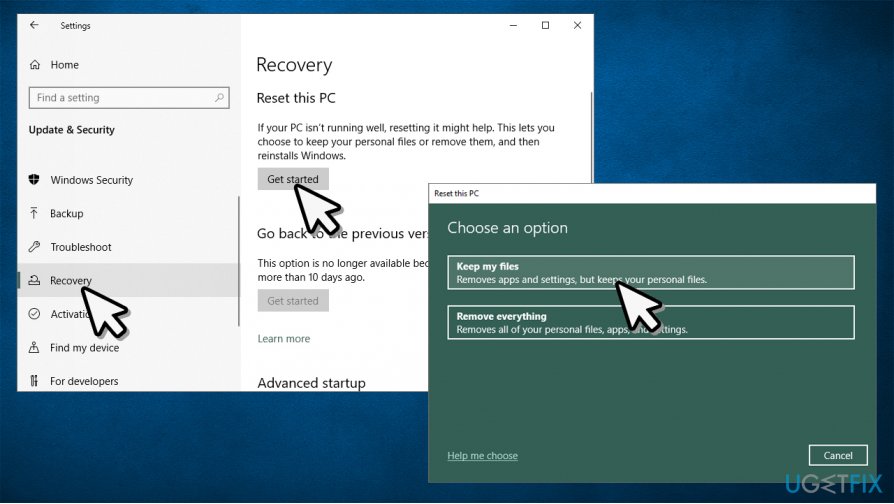
How to fix windows update error 0x800704c7 reset your pc - Proceed with on-screen instructions to finish the process.
Bottom line
To fix the 0x800704c7 error, you can try various tips and step-by-step instructions such as checking for corrupted system files and ensuring previous updates are correctly installed. If these solutions do not resolve the issue, consider using automatic Windows repair tools.
Frequently asked questions
The error code 0x800704c7 typically indicates that there is a problem with the Windows Update service or that a third-party application is interfering with the update process.
You can try running the Windows Update Troubleshooter, which can automatically detect and fix issues related to Windows updates in Windows 11.
Yes, antivirus programs and VPN software are known to interfere with Windows Update, so temporarily disabling them might help resolve the 0x800704c7 error.




Report an issue
What's wrong with this guide? We review every report and update or remove content.
Report received — thank you. We'll review and fix it.
You need a free account to submit a report.
Be the first to comment