
How to fix Windows update error 0x800f0900?
Prefer to fix it yourself? The manual steps follow.
7 methods in this guide
Hi, every time I try to update Windows, I receive an error 0x800f0900. I tried to wait a few days but to no avail - I still can't update my PC. Can you tell me how to fix this problem?
Microsoft ships major security, stability, and feature updates every month on Patch Tuesday, usually occurring every second or, sometimes, the fourth Tuesday of every month. Occasionally, minor and optional patches are available at random times, but they usually are relatively minor.
Most Windows users do not bother much whit what the update actually consists of, although, luckily, they also are responsible enough to keep their machine updated. This is a good practice since outdated OS can be a victim of a cyberattack due to unpatched software vulnerabilities.
In most cases, users don't really need to do much to install the latest updates, as it is done automatically. Once done, Windows must be rebooted in order for the new patch to be applied. This was when users reported, they encountered a 0x800f0900 error. Consequently, they are unable to update their system to the latest version.
Each of the Windows updates is marked with a specific KB number. The affected people said that they were unable to downloads the following updates:
- KB4464218
- KB4493437
- KB4499167, etc.
Initially, the problem began as soon as Windows 10 version 1709 was released in October 2017. However, it is important to note that it is persistent, and even many years later, users still experience the 0x800f0900 error.
Below you will find several solutions that should help you fix the error. If the culprit of the issue is related to malware infection or corrupted system files, it can be resolved automatically using this tool.
Fix 1. Run Windows Update troubleshooter
A troubleshooter is a good place to start when dealing with Windows update errors. While it may not automatically fix the problem for you, it might provide further information on it.
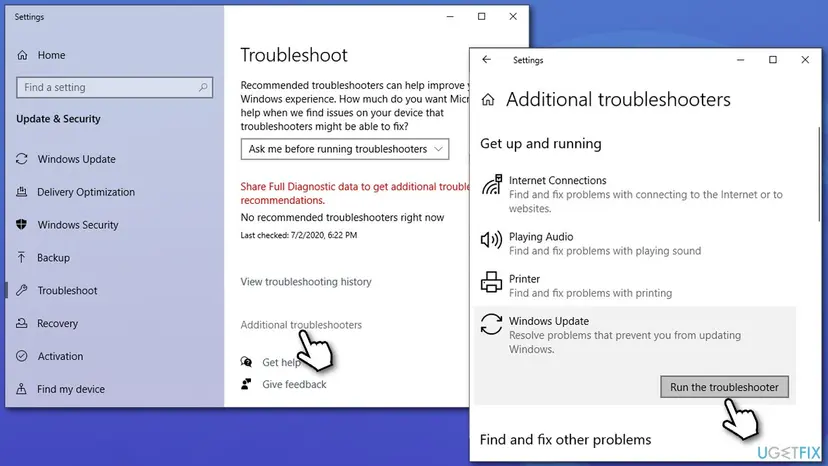
- Type Troubleshoot in Windows search and press Enter
- If you can't see the listed troubleshooters, click Additional troubleshooters
- Locate the Windows update entry and press Run the troubleshooter.
Fix 2. Use System File Checker
If the error occurs due to system file corruption, you can run a set of commands to mitigate the issue:
- Type cmd in Windows search
- Right-click on Command Prompt and select Run as administrator
- Type sfc /scannow and press Enter
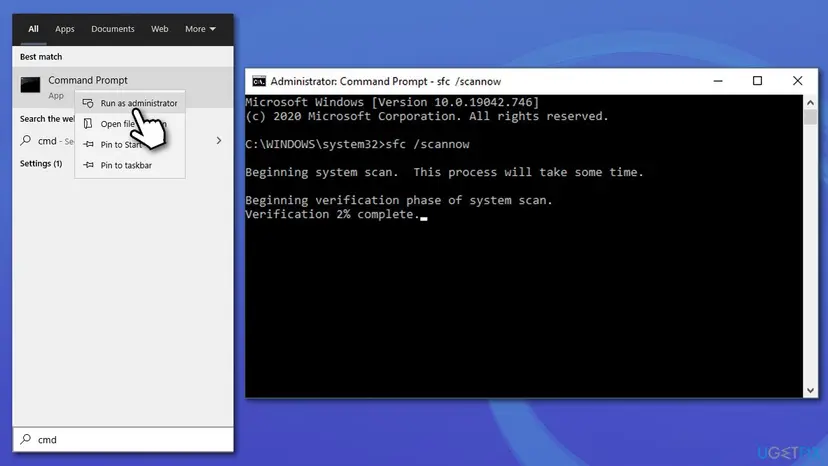
- Wait till the scan is finished. If it returns an error, use the following set of commands and press Enter after each:
DISM /Online /Cleanup-Image /CheckHealth
DISM /Online /Cleanup-Image /ScanHealth
DISM /Online /Cleanup-Image /RestoreHealth - Restart your PC.
Fix 3. Reset Windows update components
- Open Command Prompt (Admin) as explained above
- Copy and paste the following command lines, pressing Enter each time:
net stop wuauserv
net stop cryptSvc
net stop bits
net stop msiserver - Press Win + E to open File Explorer
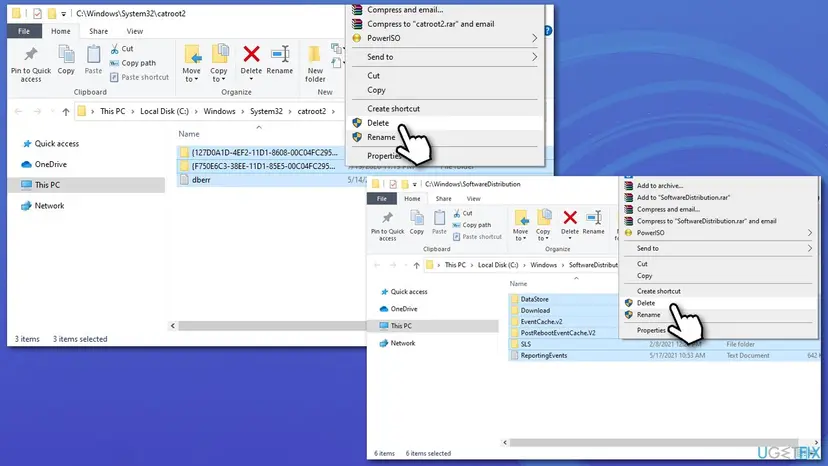
- Navigate to the following folders and delete all the contents:
C:\\Windows\\System32\\catroot2
C:\\Windows\\SoftwareDistribution
- Go back to Command Prompt and paste these commands:
net start wuauserv
net start cryptSvc
net start bits
net start msiserver - Restart your computer.
Fix 4. Fix socket errors with Winsock reset
Winsock has all the information related to your internet connectivity. If some of these settings get corrupted, you might not be able to download certain data packets via the internet, failing the update process. Thus, resetting these settings may help you solve the issue:
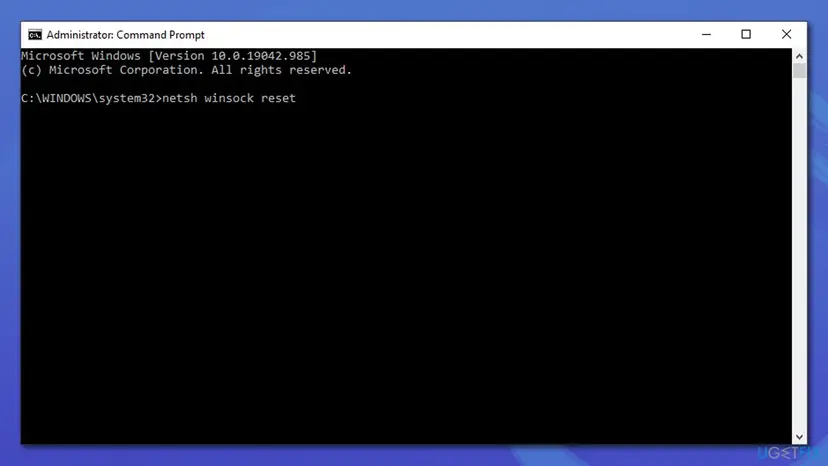
- Open Command Prompt as administrator once again
- Type the following command and press Enter:
netsh winsock reset
- Reboot your system.
Fix 5. Install the update manually
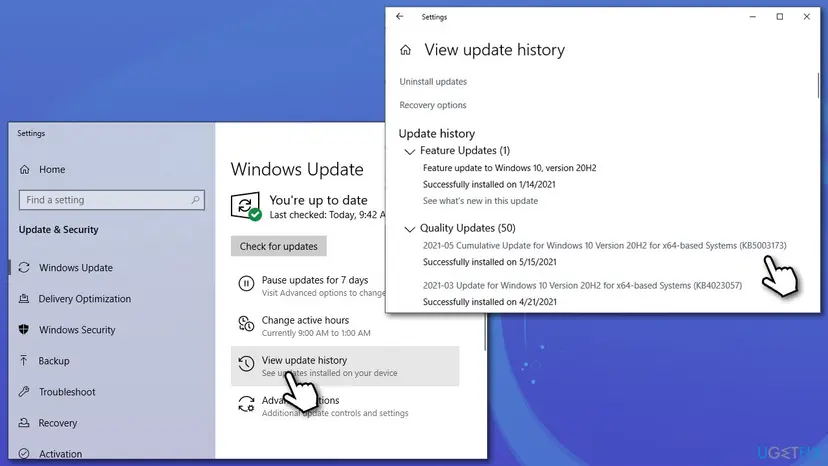
- In Windows search, type Update and hit Enter
- Go to View update history
- You will find the list of recently installed and failed to install updates
- Pick the one with the 0x800f0900 error code next to it, and copy the KB number
- Navigate to Microsoft Update Catalog via your browser
- Paste the relevant KB number into the search field
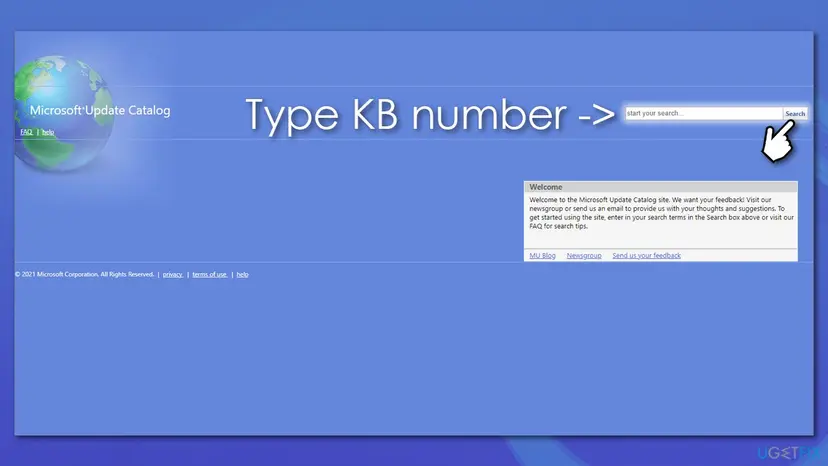
- Pick the correct version for your machine
- When a new window shows up, click the download link - the files will begin to download
- Once finished, select Yes in the Windows Update Standalone Installer and continue with on-screen instructions
- Restart your computer.
Fix 6. Go to previous Windows version
Microsoft has reported that some users might experience failure to install KB5003173 due to error 0x800f0900. According to the tech giant, users who try to update from version 1809 or later and do have the latest cumulative update released September 2020 (or later) installed may be impacted. To mitigate this, you should go back to the previous Windows version and then apply all the available updates via the settings panel.
- Right-click on Start and pick Settings
- Go to Update and Security section
- Here, select Recovery from the left pane
- Under Go back to previous version of Windows 10 and select Get Started (note: this is only available for up to 110 days after the latest update was applied. If this option is not available to you, you can pick the Reset this PC option instead)
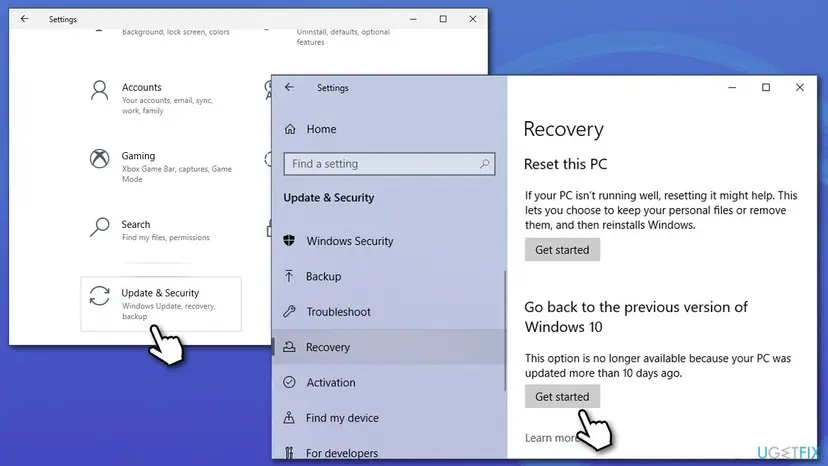
- Follow on-screen instructions to finalize the process.
Fix 7. Use Media Creation tool
- Visit the official Microsoft website to download Windows 10 ISO
- Double-click the installer, agree to Terms and click Next
- Select Upgrade this PC now and click Next
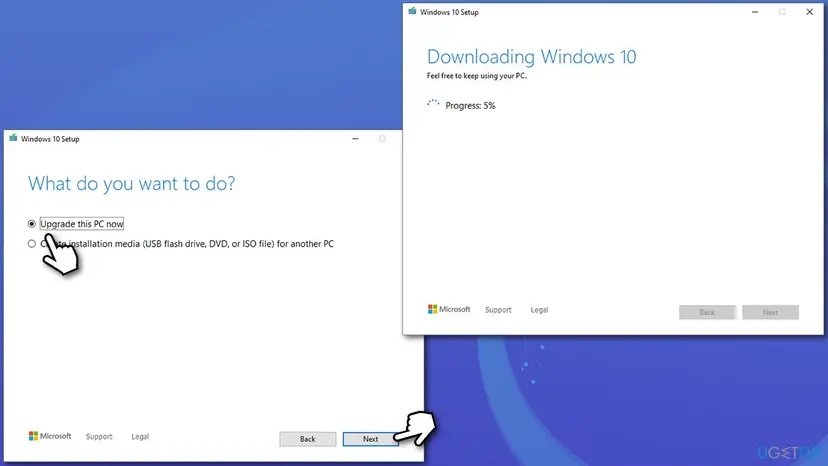
- Wait till Windows downloads all the necessary files
- Restart your PC once finished.
Did this fix work?
One click, no account. It tells the next reader which guides are worth their time.
Questions and experiences: fix Windows update error 0x800f0900
Still broken, or found a fix we did not cover? Ask here: members and our editors answer. Reading is open; writing needs a free account.
…