
How to fix Windows update error 0x800f0990?
Prefer to fix it yourself? The manual steps follow.
6 methods in this guide
Hello, I am having trouble with the latest Windows updates. They were launched to be installed automatically (as they usually do) but came up with the error 0x800f0990. I tried running Windows update troubleshooter but to no avail. Are there any other solutions available?
By default, Windows is set to be updated automatically, hence users never have to worry about it. This is done for a reason - updates are extremely important for any system, as they patch important software vulnerabilities, improve stability and performance, fix bugs, implement new features, and much more. This is why you should not disable the automatic Windows 10 update feature (unless there is a big reason for it, e.g., feature-breaking updates).
However, not everything always goes smoothly, and users start experiencing issues. According to many user reports on various IT forums, they could not update Windows because of an error 0x800f0990. While the issue occurs with regular cumulative or security updates, some people reported that they were getting the error for Windows Insider Preview.
Users are not provided a proper explanation about why the error is occurring or how to fix it. Instead, the default message text is shown:
Windows Update
Error EncounteredThere were some problems installing updates, but we'll try again later. If you keep seeing this and want to search the web or contact support for information, this may help: (0x800f0990).
While in some cases, the problem might go away on its own after some time passes (for example, Microsoft's servers might be overloaded, or the user's internet connection unstable), it does not work for most. Instead, users simply can't update their machines, regardless if it is standard Windows or Windows Insider Preview Build.
There could be many reasons for the error to occur, hence there is no universal solution. Some people named that update database corruption was at fault, while others managed to fix the 0x800f0990 error by simply downloading the update manually. This is why we provide several solutions below.
Some Windows update errors, such as 0x8024ce0e, 0x800f0900, or 0x800f0247, have been around for a while now and keep recurring from time to time. 0x800f0990, just like 0x80070541, is a relatively new issue that users started experiencing abruptly - it is especially prominent on Windows 10 21H2 versions.
The good news is that the error can be fixed - in one way or another. This repair software has a unique ability to locate damaged system files and replace them with new ones without having to reinstall or reset the PC.
Method 1. Run Windows Update troubleshooter
If you still haven't done this, run a Windows Update Troubleshooter. It might not be able to solve your problem fully, but it might at least point you in the right direction.
- Try Troubleshoot in Windows search and hit Enter
- Click Additional troubleshooters on the right if you can't see them all
- Here, find Windows Update and click Run the troubleshooter
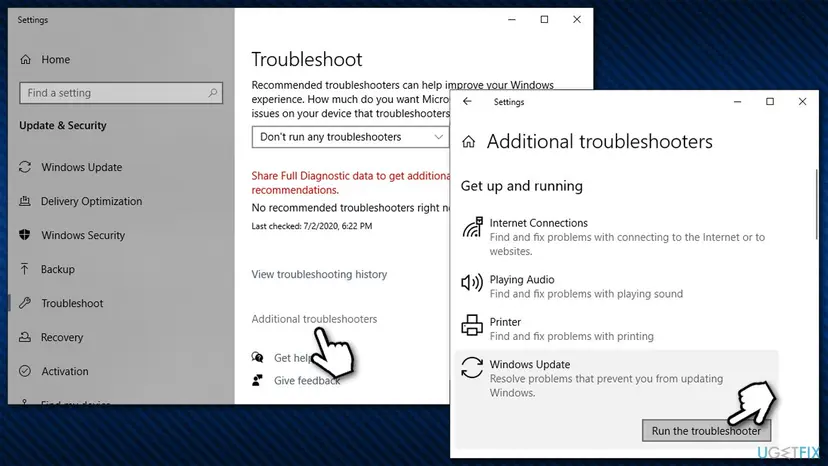
How to fix windows update error 0x800f0990 run update troubleshooter - Wait till the fixes are apply and try downloading the update once again.
Method 2. Run SFC and DISM
If broken Windows system files such as registries are at fault, SFC and DISM scans could be useful:
- Type cmd in Windows search
- Right-click on Command Prompt and pick Run as administrator
- If User Account Control shows up, pick Yes
- Use the following commands, pressing Enter after each:
sfc /scannow
DISM /Online /Cleanup-Image /CheckHealth
DISM /Online /Cleanup-Image /ScanHealth
DISM /Online /Cleanup-Image /RestoreHealth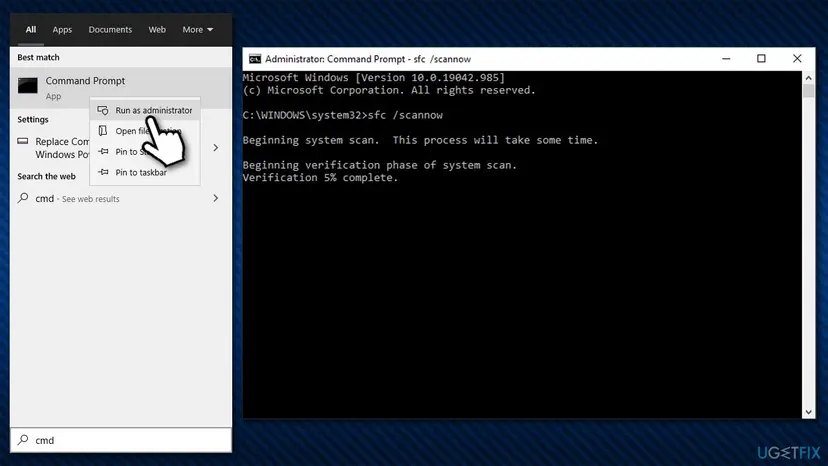
How to fix windows update error 0x800f0990 use sfc dism
Method 3. (Re)start relevant services
- Type in Services in Windows search and press Enter
- Locate Background Intelligent Transfer Service (BITS)
- If it is already running, right-click and select Restart
- if the service is not running, double-click it, select Automatic under the Startup type from the drop-down menu
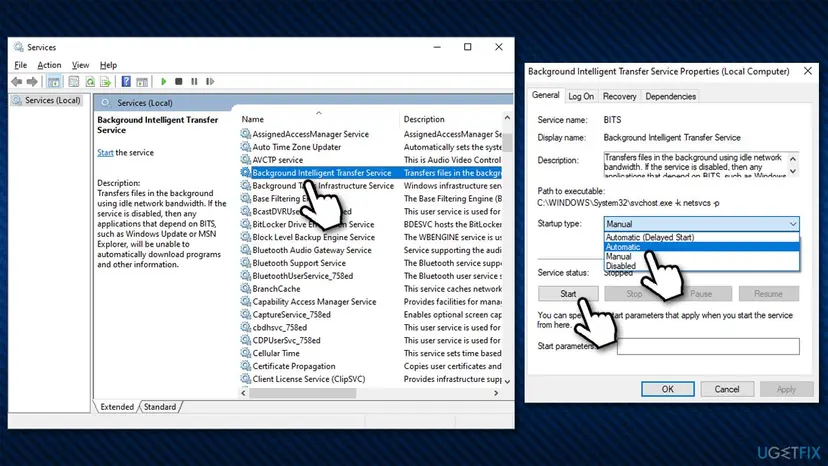
How to fix windows update error 0x800f0990 set bits service to automatic startup - Click Start, Apply, and OK
- Do the same with Windows Update Service.
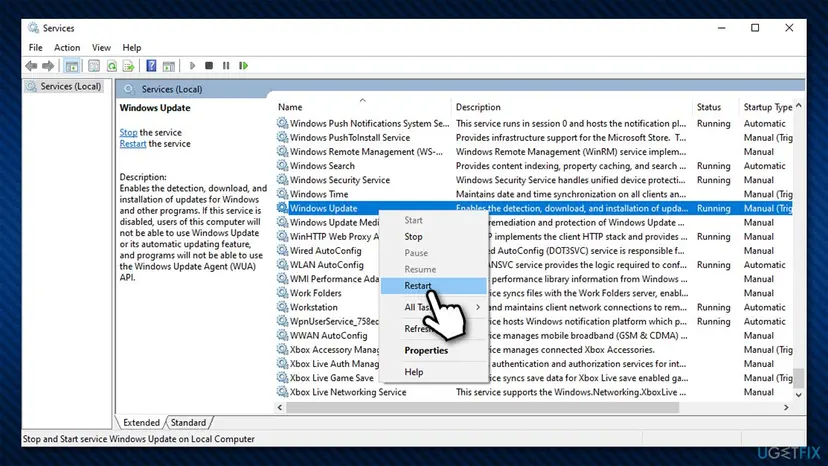
How to fix windows update error 0x800f0990 restasrt windows update service
Method 4. Reset Windows Update components
If corrupted update database files were at fault, resetting them via Command Prompt should work:
- Open Command Prompt as administrator as explained above
- Type in the following commands pressing Enter after each:
net stop bits
net stop wuauserv
net stop appidsvc
net stop cryptsvc
Del “%ALLUSERSPROFILE%\\Application Data\\Microsoft\\Network\\Downloader\\qmgr*.dat”
Ren %systemroot%\\SoftwareDistribution SoftwareDistribution.bak
Ren %systemroot%\\system32\\catroot2 catroot2.bak
cd /d %windir%\\system32
regsvr32.exe atl.dll
regsvr32.exe urlmon.dll
regsvr32.exe mshtml.dll
regsvr32.exe shdocvw.dll
regsvr32.exe browseui.dll
regsvr32.exe jscript.dll
regsvr32.exe vbscript.dll
regsvr32.exe scrrun.dll
regsvr32.exe msxml.dll
regsvr32.exe msxml3.dll
regsvr32.exe msxml6.dll
regsvr32.exe actxprxy.dll
regsvr32.exe softpub.dll
regsvr32.exe wintrust.dll
regsvr32.exe dssenh.dll
regsvr32.exe rsaenh.dll
regsvr32.exe gpkcsp.dll
regsvr32.exe sccbase.dll
regsvr32.exe slbcsp.dll
regsvr32.exe cryptdlg.dll
regsvr32.exe oleaut32.dll
regsvr32.exe ole32.dll
regsvr32.exe shell32.dll
regsvr32.exe initpki.dll
regsvr32.exe wuapi.dll
regsvr32.exe wuaueng.dll
regsvr32.exe wuaueng1.dll
regsvr32.exe wucltui.dll
regsvr32.exe wups.dll
regsvr32.exe wups2.dll
regsvr32.exe wuweb.dll
regsvr32.exe qmgr.dll
regsvr32.exe qmgrprxy.dll
regsvr32.exe wucltux.dll
regsvr32.exe muweb.dll
regsvr32.exe wuwebv.dll
net start bits
net start wuauserv
net start appidsvc
net start cryptsvc - Restart your PC
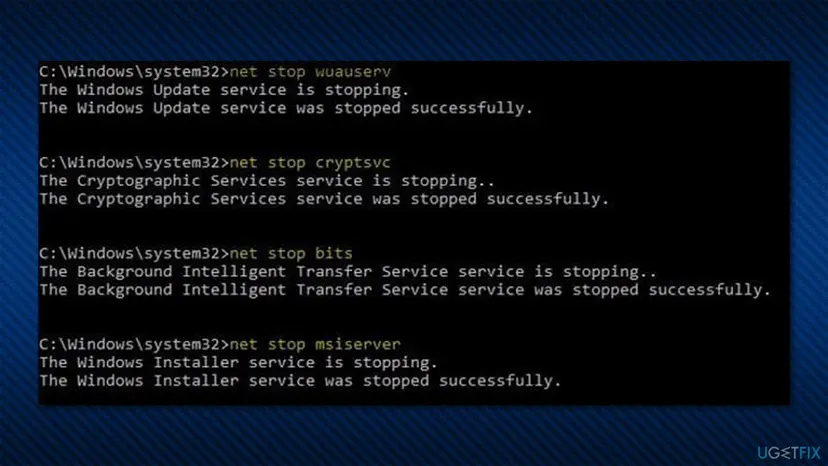
How to fix windows update error 0x800f0990 reset windows update components
Method 5. Install the update manually
- Type in Update in Windows search and press Enter
- Click View Update History on the right side of the window
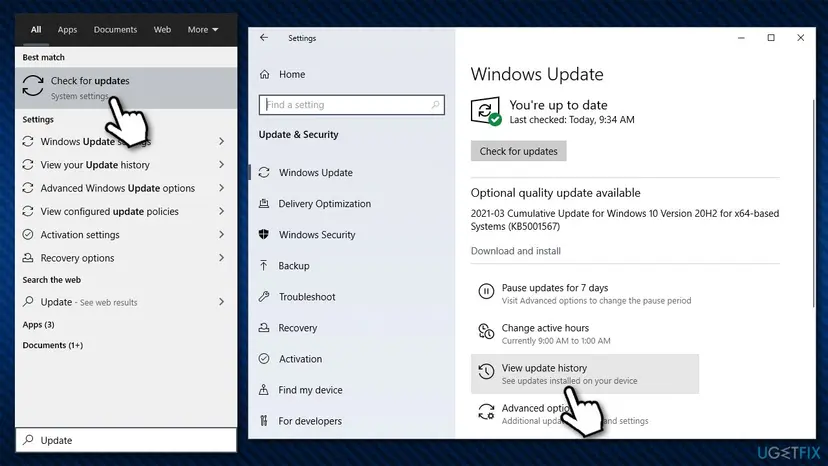
How to fix windows update error 0x800f0990 install update manually - From the list of updates, note the KB number of the one that failed to be installed
- Go to Microsoft Update Catalog
- Type in the KB number and click Search
- Pick the version that is compatible with your operating system and select Download
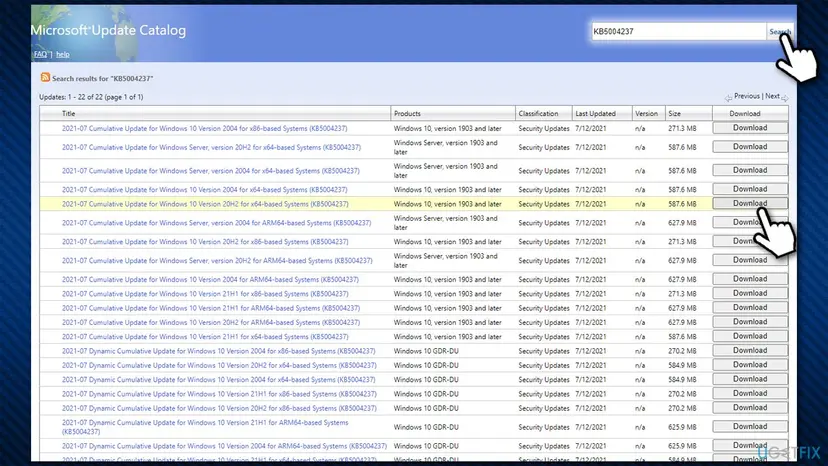
How to fix windows update error 0x800f0990 install update manually2 - Proceed with on-screen guidelines and restart your PC once done.
Method 6. Use Media Creation Tool
Those who tried most of the solutions available online and nothing has worked said that they could fix the error after using Media Creation Tool's upgrade feature. Before you begin, make sure that all the external devices (printers, phones, cameras, etc.) are disconnected from your system. Also, backup your files just in case something goes wrong.
- Download the installer from the official Microsoft website
- Launch it, agree to terms and click Next
- From the available options, select Upgrade this PC now and click Next
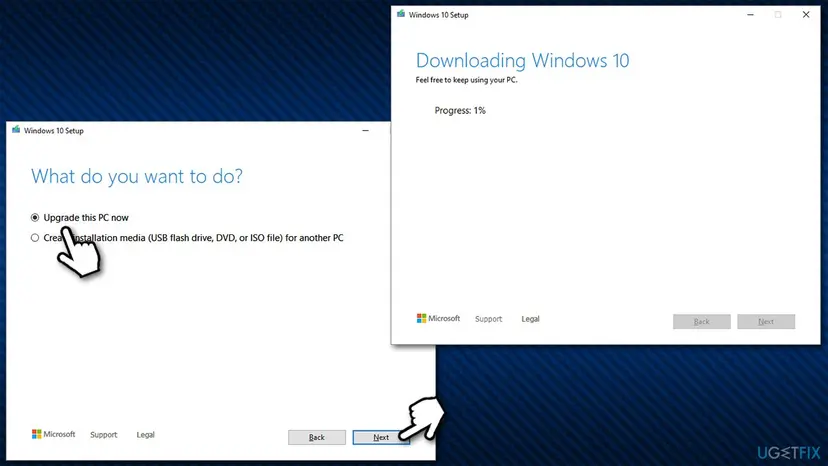
How to fix windows update error 0x800f0990 use media creation tool - The necessary files should be then downloaded
- Once the installation is complete, reboot your system.
Did this fix work?
One click, no account. It tells the next reader which guides are worth their time.
Questions and experiences: fix Windows update error 0x800f0990
Still broken, or found a fix we did not cover? Ask here: members and our editors answer. Reading is open; writing needs a free account.
…