
How to fix Windows update error 0x8024A003?

Prefer to fix it yourself? The manual steps follow.
5 methods in this guide
I have recently got a brand new computer with Windows pre-installed on it. Everything ran smoothly until just recently, when I encountered issues with Windows updates. Every time I try to apply updates, I receive a repeated error 0x8024A003. Please advise on what to do next - it's been going on for a few weeks now, and I don't think it will fix it on its own.
Users may encounter a 0x8024A003 error when attempting to install a Windows update, for example, KB5016688. When the system is not kept up-to-date with the most recent security and quality enhancements, it can jeopardize the system's integrity and security. Users on recent versions of Windows 10/11 have reported this problem.
The issue prevails when people initiate the update process manually or when Windows does so automatically - the error can also be seen in the Update history section within the Settings panel. However, most users encounter 0x8024A003 whenever the update process is abruptly interrupted at some point, and it never reaches the 100% mark.
Nonetheless, users are never presented with any comprehensive information on why the update failed or how to fix it, which is typical Windows behavior. The main reason for this is that Windows is a complex operating system, and each individual can have different configurations, so each of the cases should be troubleshot individually.
Usually, Windows update errors resolve on their own, as they occur due to simple bugs. However, problems arise when users try to apply the update for days or months with no success. When it comes to the reasons for the 0x8024A003 error, they may vary but are usually related to inconsistent Windows update service configurations, bugged caches, or system file corruption. We address these and other reasons in the guide below.
It may be quite useful in the future if you encounter problems such as Blue Screen crashes, system errors, registry corruptions, and other issues.
Solution 1. Start with Windows Update Troubleshooter
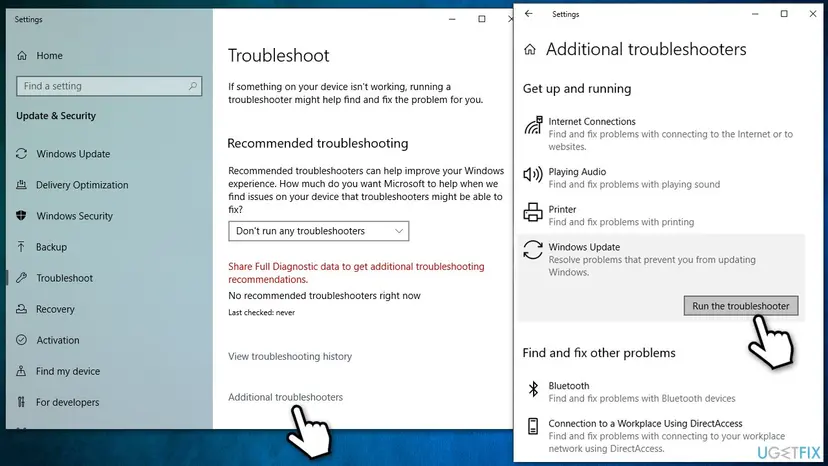
Windows troubleshooting options are relatively expansive and can greatly help when facing various PC issues. If you are dealing with the 0x8024A003 update error, you should run the update troubleshooter as follows:
- Type Troubleshoot in Windows search
- Select Additional troubleshooters
- Find Windows Update from the list
- Click it and select Run the troubleshooter
- Apply the recommended fixes and restart your device.
Solution 2. Reset Windows Update components
Corrupted SoftwareDistribution and catroot2 cached files may cause updates not to go through properly. Therefore,
- Type cmd in Windows search
- Right-click on Command Prompt and pick Run as administrator
- When User Account Control shows up, click Yes
- Copy and paste the following commands, pressing Enter each time:
net stop wuauserv
net stop cryptSvc
net stop bits
net stop msiserver - Press Win + E to open File Explorer
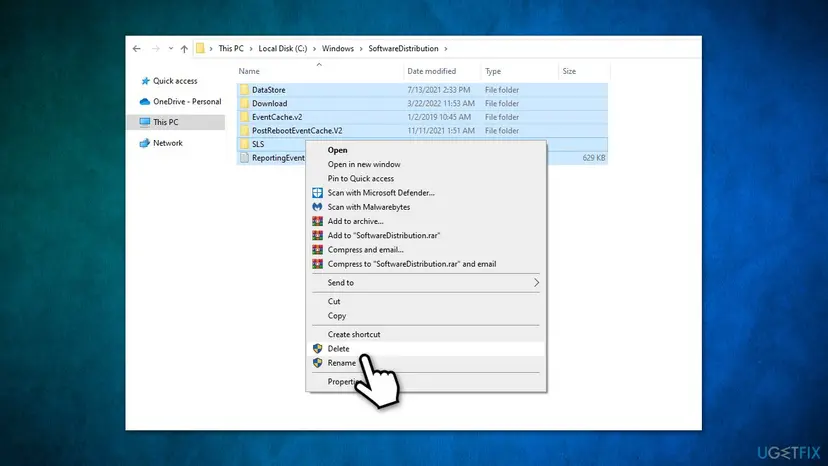
- Go to the following locations and delete the contents of these folders:
C:\Windows\System32\catroot2
C:\Windows\SoftwareDistribution - Open Command Prompt again and paste these commands:
net start wuauserv
net start cryptSvc
net start bits
net start msiserver - Reboot your PC.
Solution 3. Repair damaged system files with SFC and DISM scans
System file corruption and damaged registry are among the most common reasons for Windows malfunctions. Run a scan with SFC and DISM via elevated Command Prompt to address this.
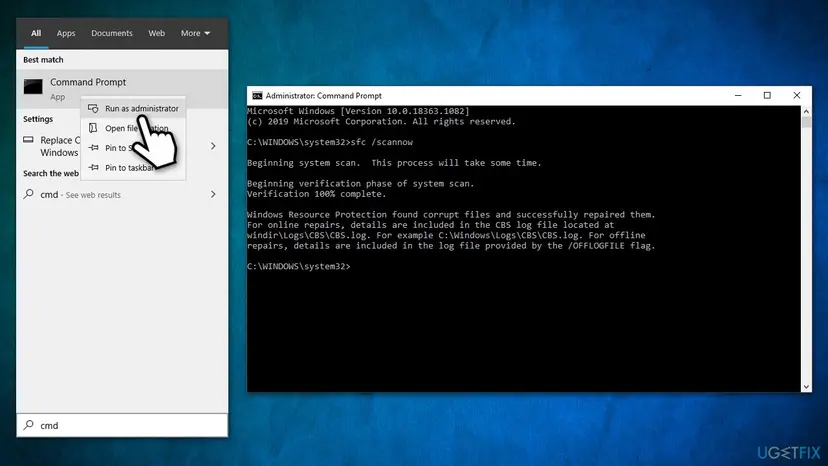
- Open Command Prompt (Admin)
- Use the following command lines, pressing Enter after each:
sfc /scannow
DISM /Online /Cleanup-Image /CheckHealth
DISM /Online /Cleanup-Image /ScanHealth
DISM /Online /Cleanup-Image /RestoreHealth - Once all the commands are executed, shut down Command Prompt and restart your system.
Solution 4. Try installing the update manually
- Type Updates in Windows search and press Enter
- Click View update history
- Locate the error code entry and note down the KB number that failed to be installed
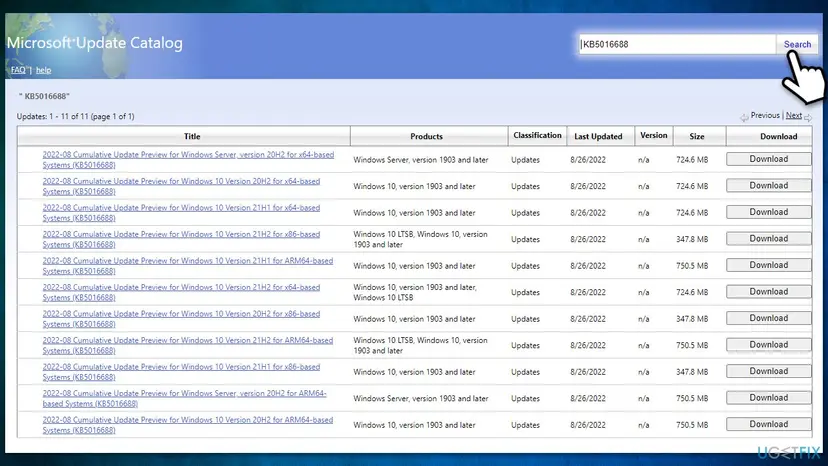
- Go to the official Microsoft Update Catalog website
- Type the KB number into the search bar, and press Enter or click Search
- You will find many different versions on the update – you need to find the one that matches your PC specs and Windows version (as a home user, ignore Windows server versions)
- Right-click on Start and pick System
- Under Device specifications, check the System type section: it should either be 64-bit or 32 bit
- Scroll down to Windows specifications and check the Version section
- Now pick the correct version for your computer
- Go back to the Microsoft Update catalog, download the appropriate version, and install it
- Finally, restart your device.
Solution 5. Perform in-place upgrade
Before proceeding with this step, make sure you create backups for all your important files just in case - you will have an option to keep them during the installation process, though. Additionally, make sure you disconnect all the peripherals that are not necessary to operate your machine, for example, printers, external HDDs, scanners, etc.
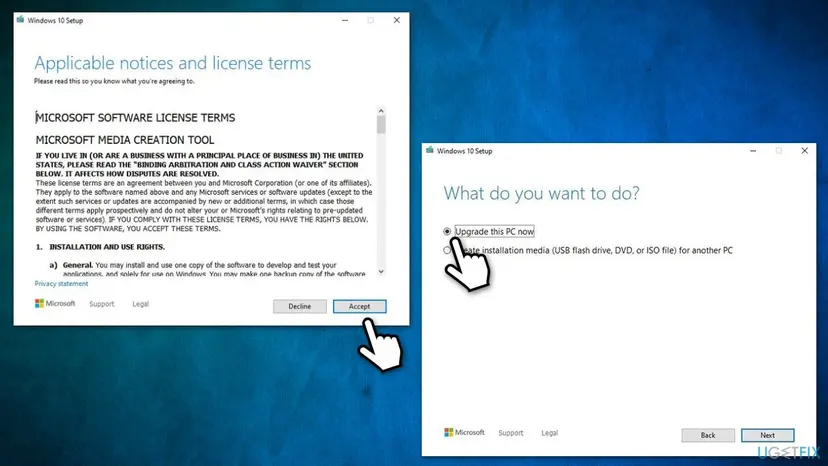
- Visit the official Microsoft website and download Windows installation media (Windows 10 version)
- Double-click the installer and select Yes when UAC shows up
- Agree to terms and click Next
- Select Upgrade this PC now and select Next
- Windows will now download all the necessary files – it might take sometime
- Agree to terms once again and click Next
- Before installing, make sure that you are happy with your choices (otherwise, you can click Change what to keep option)
- Click Install to begin the upgrade process.
Other useful tips:
- If you haven't done so since receiving the 0x8024A003 error, restart your computer and try again.
- Scan your system for malware thoroughly.
- Uninstall or temporarily disable or uninstall third-party anti-malware software and see if that works.
- Make sure your time and date are correct.
Did this fix work?
One click, no account. It tells the next reader which guides are worth their time.
Questions and experiences: fix Windows update error 0x8024A003
Still broken, or found a fix we did not cover? Ask here: members and our editors answer. Reading is open; writing needs a free account.
…