How to fix
Winrnr.dll error at startup
on Windows
Resolve the winrnr.dll error at startup on Windows 10 and 11 quickly and effectively. Enjoy a smooth experience with our expert-tested solutions.

What causes How to fix winrnr.dll error at startup?
- Newly installed software impacting the file
- Corruption of the winrnr.dll file
- Updates causing conflicts with the file
- Natural changes during system operation
Repairs Windows system files, removes malware, and restores a clean OS state — without reinstalling.
Hello. I had my Windows 10 PC for a few months only. Yesterday, I booted it up as normal and received a Winrnr.dll startup error. Is there anything that can be done to fix this? I tried restarting but that did absolutely nothing and I still receive this error every time my computer is booted. Please help.
Windows is an intricate operating system, with thousands of files present by default. Every time you install something on your PC, you bring more files in, and this number grows even further. If you look around, you would find many files marked with the DLL extension - it is very common and widely used by applications and Windows itself.
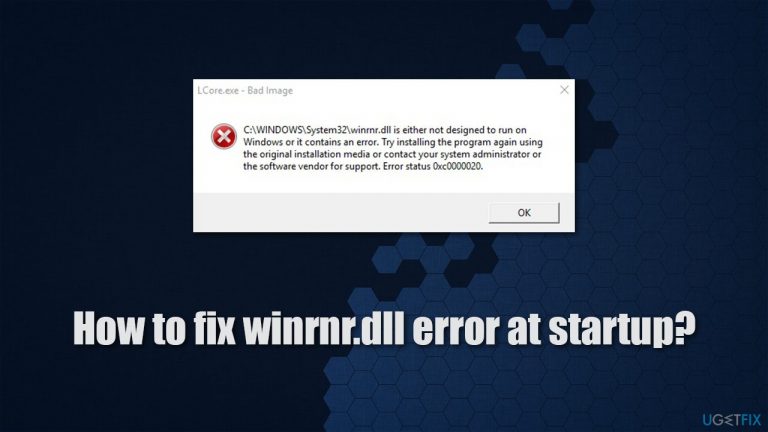
In the past few years, users have been struggling with the Winrnr.dll error which occurs as soon as the system is booted. Usually, the full path of the file is specified - here's the full message that people see:
program.exe - Bad Image
C:\\Windows\\System32\\winrnr.dll is either not designed to run on Windows or it contains an error. Try installing the program again using the original installatin media or contact your system administrator or the software vendor for support
Note: the message might also be marked with an error code, such as 0xc0000020.
In many cases, users reported that they themselves did not touch the mentioned file. However, with new application implementation, updates, and all the other natural changes that occur during system operation, something went wrong.
So what is a DLL file? In essence, it is almost the same as the EXE[ref en-2] or executable file. It is used to implement code or to call up certain elements when they are required by the system or the application. Unlike its counterpart, however, it needs a host to be executed and can't be loaded directly. Winrnr.dll, in particular, is a system process that provides additional functions to the LDAP[ref en-1] process.
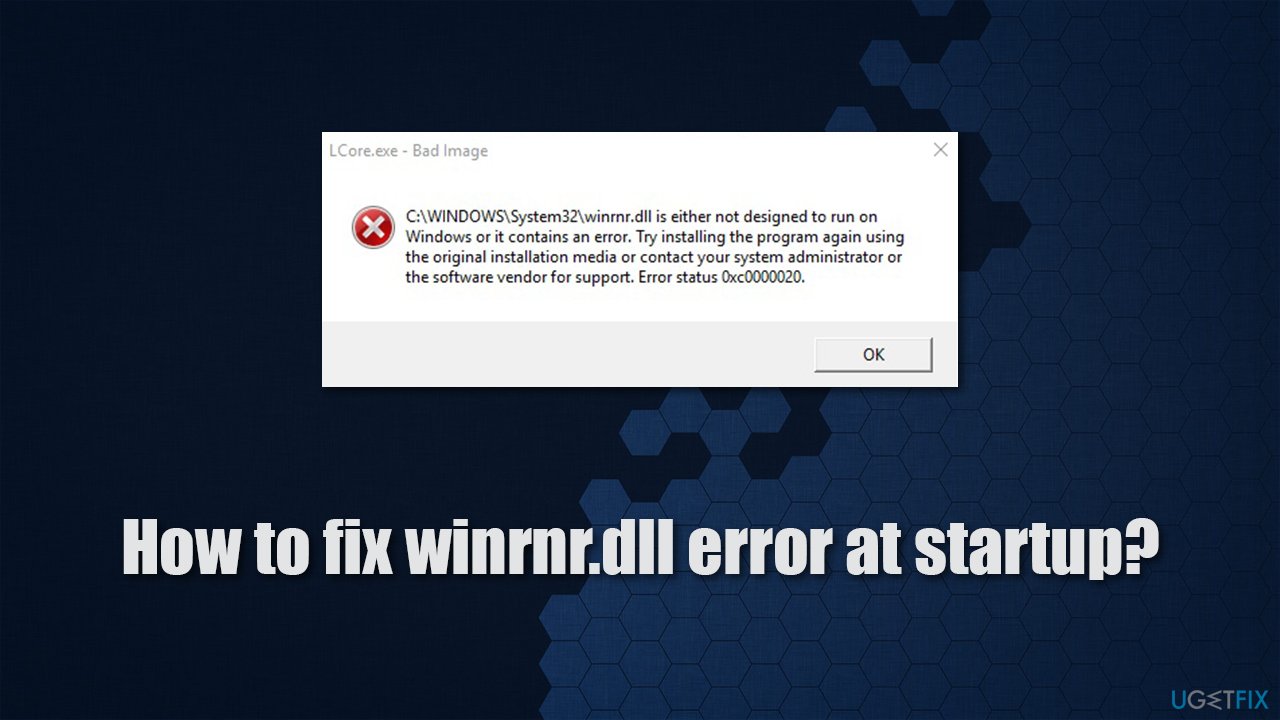
There are many problems that could cause the C:\\Windows\\System32\\winrnr.dll error. For example, newly installed software could have impacted this particular file, or even corrupted it. We will provide several solutions below in order to help you fix the error, although keep in mind that only one might work for you.
Users have been reporting issues with these types of files for years. We have previously talked about "Failed to load Steamui.dll," "Winscomrssrv.dll error," "VCRUNTIME140.dll is missing," and similar errors. Unfortunately, as long as these files exist, the issues might occur, even when it seems like nothing was changed or nothing new was implemented.
In order to resolve DLL errors that stem from system files quickly, we strongly recommend trying [d1] PC repair software. It can also come to aid when other Windows problems occur, for example, when suffering from registry errors or Blue Screen of Death[ref en-3] crashes. Likewise, the app can also fix problems that could arise after malware infection and clean the system and browsers from junk, improving overall PC performance.
1. Run SFC and DISM
One of the main reasons for DLL errors is system file corruption.
- Type cmd in Windows search
- Right-click on Command Prompt and select Run as administrator
- When User Account Control shows up, click Yes
- Paste the following command and press Enter:
sfc /scannow - Wait till the scan is finished
- If Windows found and repaired corrupted files, simply restart the system and see if the problem persists. If no issues were found or the scan returned an error, proceed with the following commands, pressing Enter each time:
dism /online /cleanup-image /checkhealth
dism /online /cleanup-image /restorehealth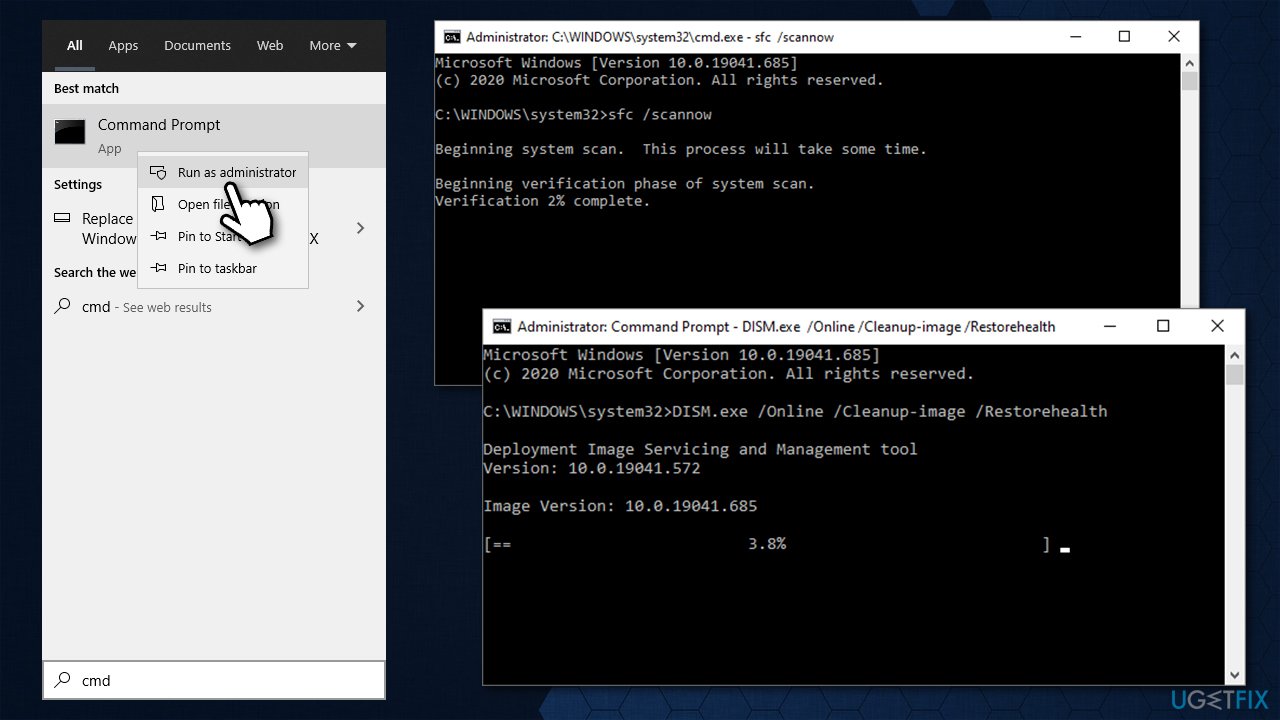
How to fix winrnr dll error at startup sfc dism - Finally, restart the PC.
2. Create a new user account
You can try creating a new user account on your system.
- Right-click on Start and pick Settings
- Go to the Accounts section
- Select Family & other users on the left
- Under Other users, click Add someone else to this PC
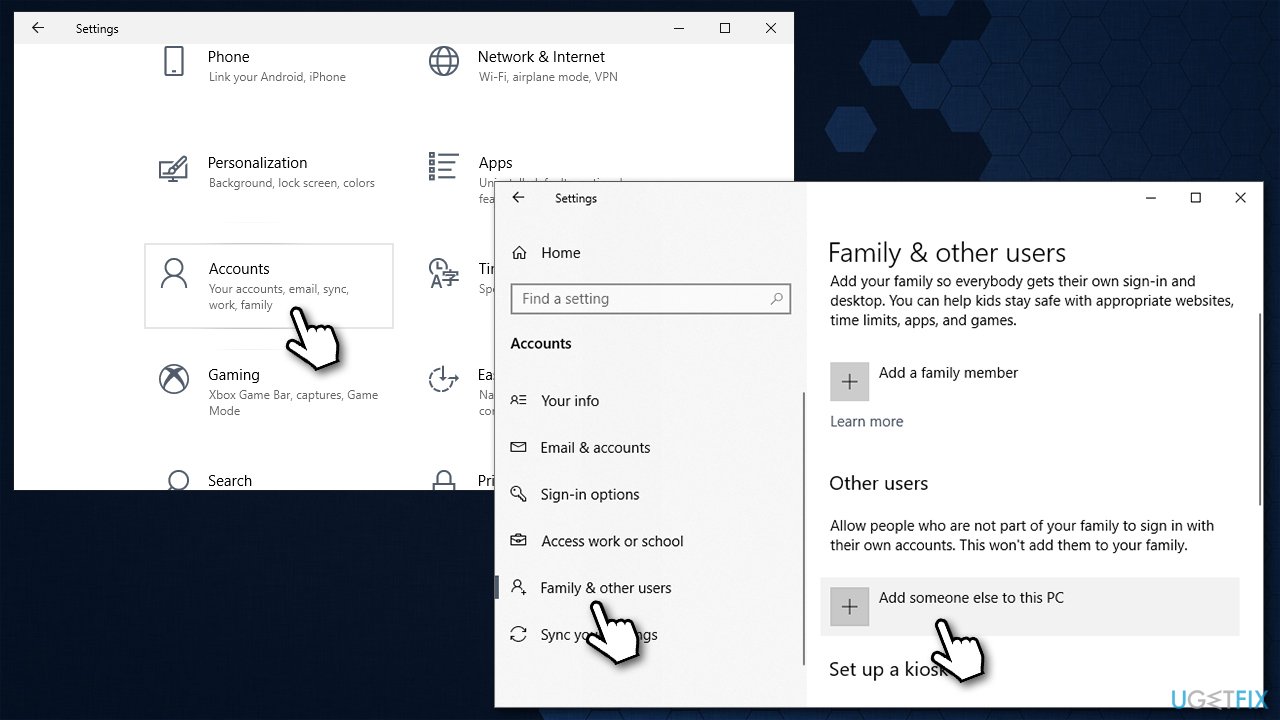
How to fix winrnr dll error at startup create new account - Pick I don't have this person's sign-in information > Add a user without a Microsoft account
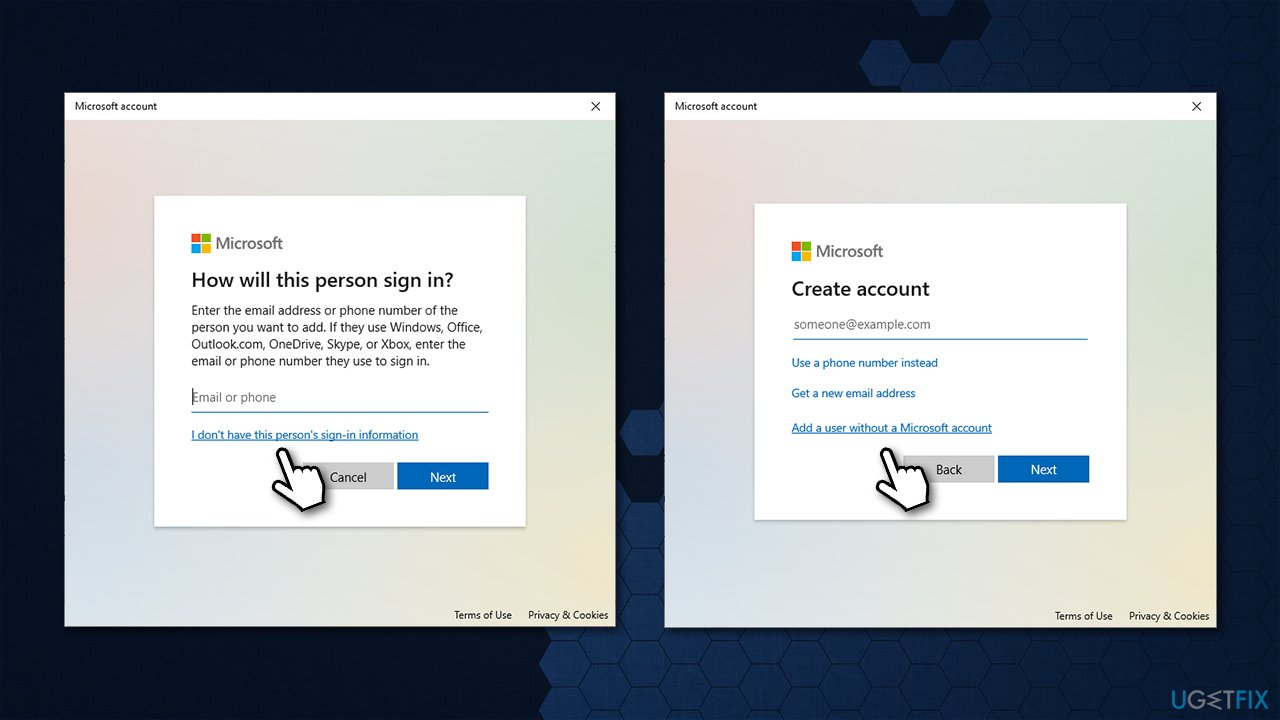
How to fix winrnr dll error at startup create new account2 - Enter the required information and click Next
- Reboot your system once done and try using the new account.
3. Check for software issues with Clean Boot
Clean boot disables all the non-Windows processes and apps, allowing you to check its health without third-party apps running in the background. If the issue is caused by one of them, this method will help to segregate the culprit.
- Type msconfig in Windows search and press Enter
- Pick Services tab
- Mark Hide all Microsoft services and select Disable all
- Select Startup tab and click Open Task Manager
- In the Task Manager, right-click on each of the items and select Disable, then close the Task Manager
- Go to Boot tab, tick Safe Boot, then click Apply and OK
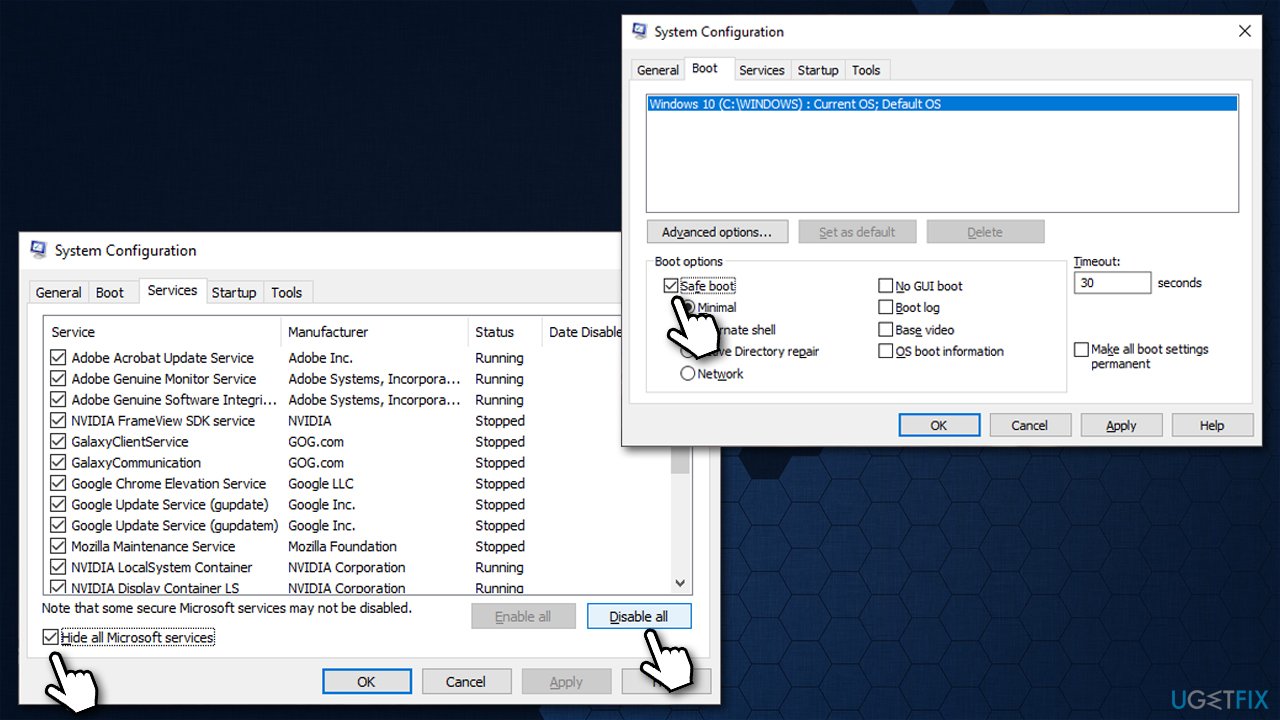
How to fix winrnr dll error at startup clean boot
4. Register the DLL file via Command Prompt
- Open Command Prompt as administrator as explained above
- Copy and paste the following command:
Regsvr32 winrnr.dll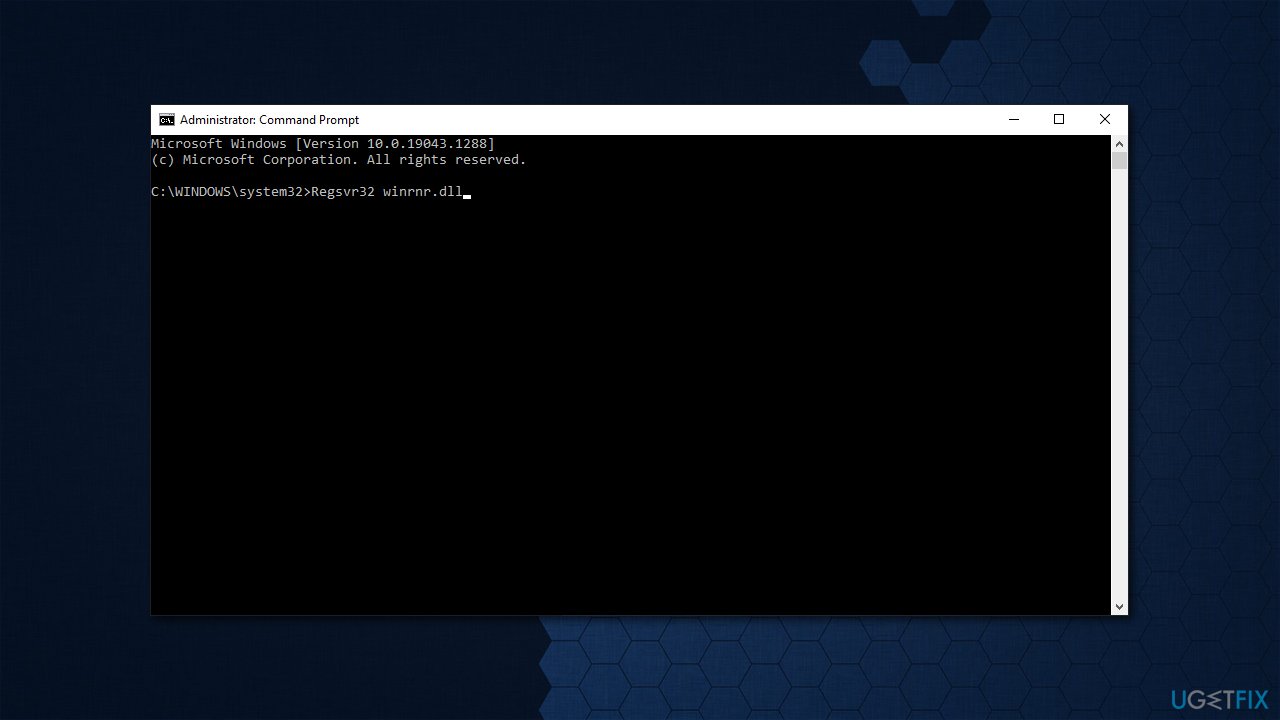
How to fix winrnr dll error at startup reregister dll file - Press Enter
- Reboot your computer.
5. Try System Restore
You can try restoring your system the way it was before the problem persisted. If the issue started only a few days ago, this should help you.
- Type in rstrui.exe in the Windows search bar and press Enter
- In the new window, click Next
- Mark the More restore points box (if available)
- Select the point in time when the issue did not exist and click Next
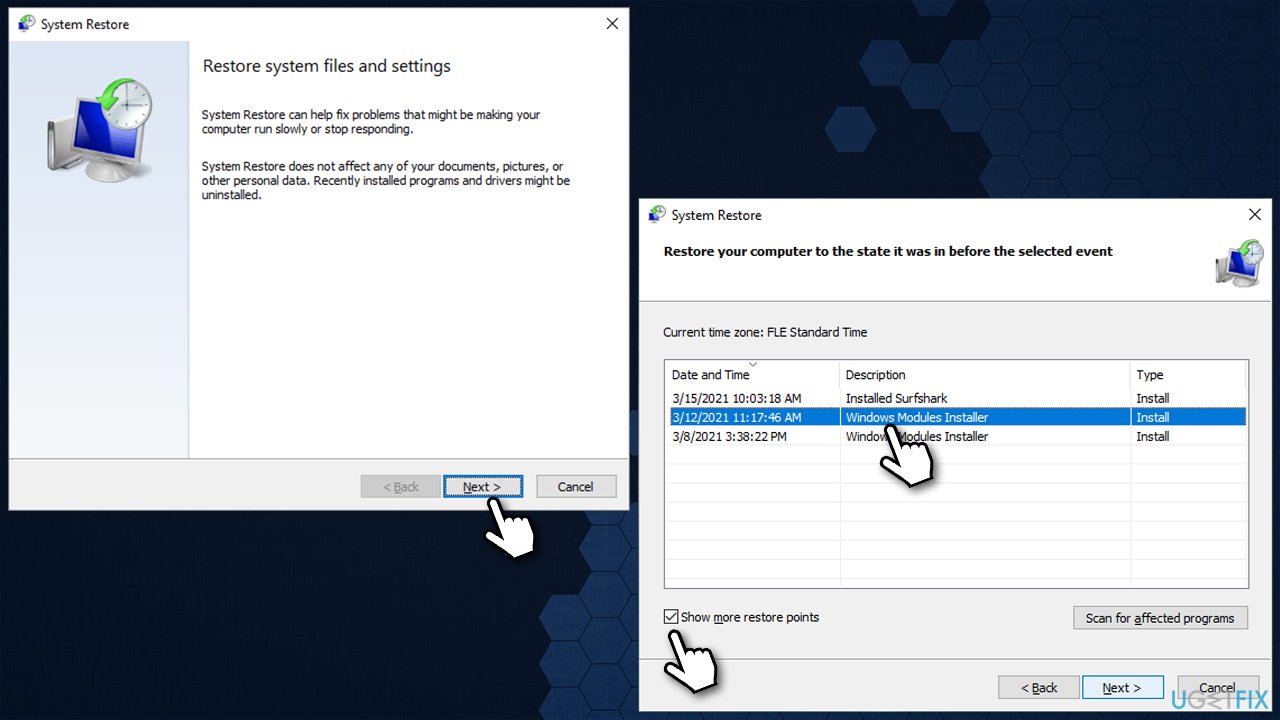
How to fix winrnr dll error at startup try system restore - Finally, click Finish.
6. Reset Windows
While you have an option to keep your files intact, we recommend you make a backup just in case. You should also remove all the peripherals, such as printers, cameras, USB sticks, etc., from your computer before proceeding.
- Right-click on Start and pick Settings
- Go to Update & Security and pick Recovery
- Find Reset this PC section and click Get Started
- Select Keep my files > Cloud download
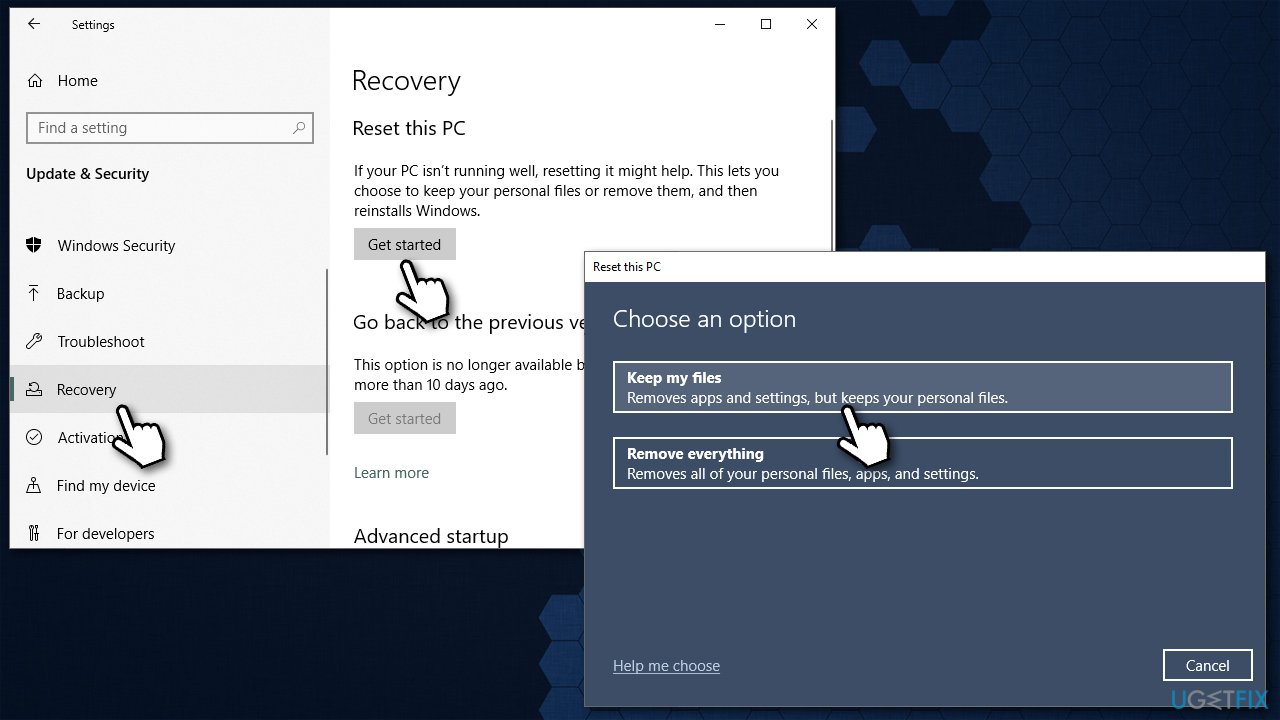
How to fix winrnr dll error at startup reset windows - Your system will restart several times.
Bottom line
To fix the Winrnr.dll error, you can try reinstalling the program associated with the error, using the original installation media, or contacting your system administrator or software vendor for support. If these solutions do not resolve the issue, further troubleshooting may be necessary.
Frequently asked questions
The winrnr.dll error at startup in Windows 10 can be caused by corrupted or missing system files, malware infections, or issues with third-party software that conflicts with the operating system.
To quickly fix the winrnr.dll error on Windows 11, you can run the System File Checker tool by opening Command Prompt as an administrator and typing 'sfc /scannow'.
Yes, reinstalling the application that relies on winrnr.dll can resolve the error, especially if the issue stems from a faulty installation or corrupted application files.




Report an issue
What's wrong with this guide? We review every report and update or remove content.
Report received — thank you. We'll review and fix it.
You need a free account to submit a report.
Be the first to comment