How to fix
Xbox Wireless Adapter BSOD
on Windows
Resolve Xbox Wireless Adapter BSOD issues in Windows 10 and 11 with expert-tested solutions. Get your gaming back on track in minutes!

What causes How to fix Xbox Wireless Adapter BSOD in Windows?
- Outdated drivers
- Incompatible drivers
- Problems with BIOS
- Issues with chipset drivers
- Corrupted system files
Repairs Windows system files, removes malware, and restores a clean OS state — without reinstalling.
Hello, ever since I started using a Wi-Fi adapter for my Xbox One controller, my system occasionally crashes with a BSOD when the adapter is connected to the USB hub. I've noticed that using an older driver has reduced the frequency of these crashes compared to when I used the newest driver. Is someone able to assist with this matter?
Xbox Wireless Adapter is a device that allows you to connect your Xbox controllers to a Windows PC wirelessly, enhancing your gaming experience by providing seamless integration and eliminating the need for a wired connection. While it generally performs well, there are instances where using the Xbox Wireless Adapter may lead to a Blue Screen of Death (BSOD), a critical system error that forces your computer to restart.
Blue Screens of Death, or BSODs, are severe Windows system errors that point to a major problem with the hardware, drivers, or operating system. In this case, the issue is usually related to the driver itself. The codes that appear when dealing with this can vary - they also indicate a distinct issue. You could run across a number of error codes with the Xbox Wireless Adapter, including:
- DPC_WATCHDOG_VIOLATION,
- DRIVER_IRQL_NOT_LESS_OR_EQUAL,
- KMODE_EXCEPTION_NOT_HANDLED,
- WDF_VIOLATION, among others.
These errors often point to the ntoskrnl.exe file, although other system files can also be implicated.
Xbox Wireless Adapter BSODs can be caused by several reasons, even though it's the adapter itself causing these issues. Outdated or incompatible drivers can result in conflicts inside the system, so they are frequently the cause. Further causes of these errors include problems with the BIOS, chipset drivers, or even corrupted system files. A BSOD may occasionally occur when using the Xbox Wireless Adapter due to software issues brought on by background apps.
Now you might need to try several troubleshooting steps before you are able to fix the Xbox Wireless Adapter-induced BSODs, as it depends on the reason it started to begin with.
Updating the Xbox Wireless Adapter driver to the latest version is often effective, as it ensures compatibility with the operating system. Similarly, updating the chipset drivers and BIOS can resolve underlying compatibility issues.
Repairing corrupted system files through system utilities or commands is another important step. Additionally, performing a Clean Boot to disable non-essential background software can help identify and eliminate software conflicts causing the problem.
See the guidance below this article for more specific information on how to execute these steps. A PC repair program such as [d1] can also automatically resolve any underlying Windows problems, which may help to remedy BSODs and other issues that are frequently difficult to troubleshoot.
Fix 1. Update the Xbox Wireless Adapter driver
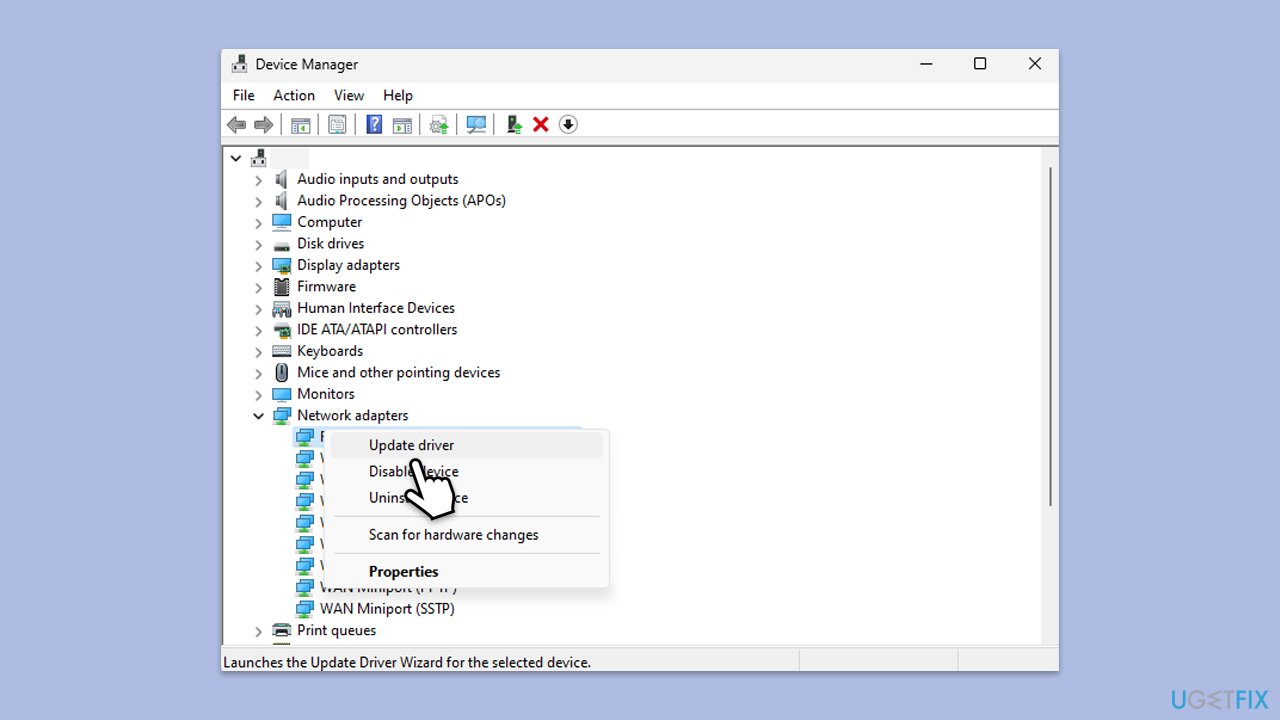
BSODs are most likely to be caused by drivers being outdated. To fix this, follow these steps:
- Right-click on Start and select Device Manager.
- Find the Xbox Wireless Adapter under Network adapters.
- Right-click and select Update driver.
- Choose Search automatically for drivers.
- Follow the on-screen instructions and restart your PC.
Fix 2. Update chipset drivers
Chipset drivers manage communication between the system's components. Updating these drivers can resolve compatibility issues. Chipset drivers should be downloaded from your motherboard maker. For example, you can find chipset drivers for Asus motherboards on its official website; you should know the product model of your motherboard for this. Alternatively, you can always rely on automatic tools such as [rev id="DriverFix"].
Fix 3. Update BIOS
An outdated BIOS can cause system instability. Updating the BIOS can improve hardware compatibility and system performance.
- Before proceeding, backup your data as a precaution.
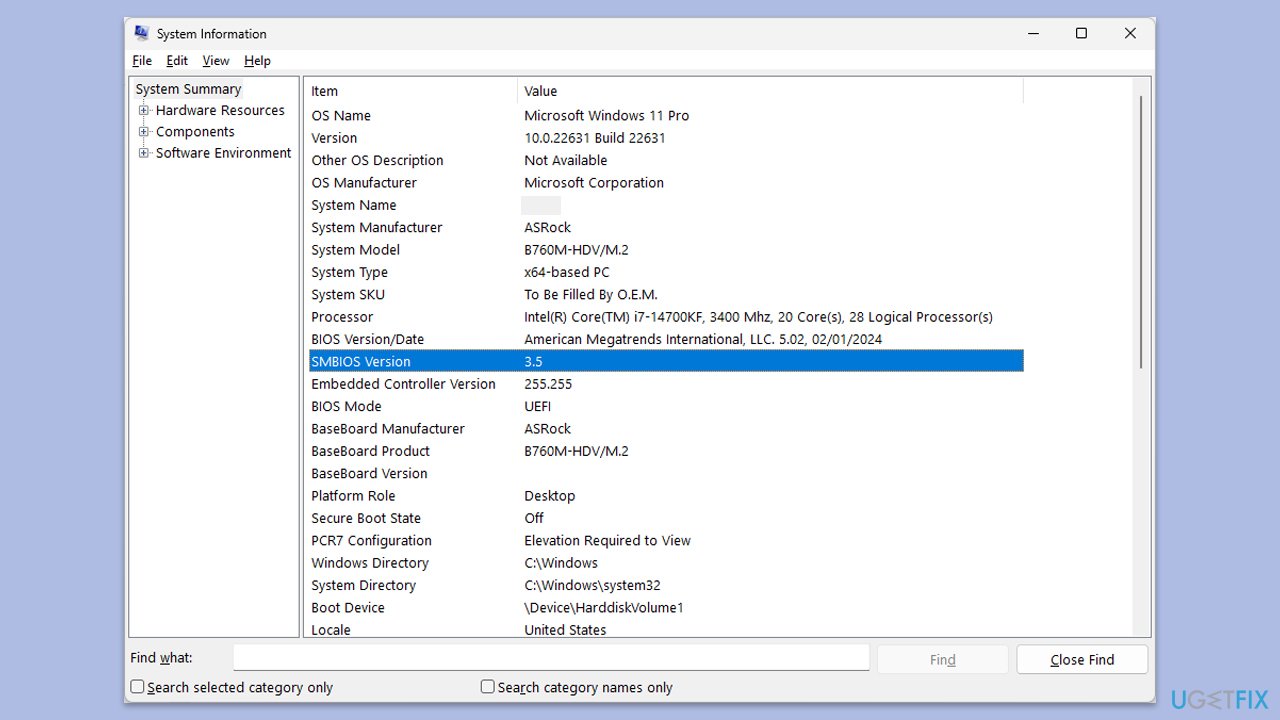
- Visit the manufacturer's website and download your specific model's latest BIOS update file (you can check which BIOS you are using by typing System information in Windows search and checking the BIOS Version/Date and BaseBoard Product entries there).
- Extract the BIOS update files and read any provided instructions or documentation.
- Create a bootable USB drive with the BIOS update files, if required.
- Update the BIOS using the manufacturer's recommended method, which may be through a built-in utility or booting from a USB drive.
- Restart your PC to complete the process.
Fix 4. Repair corrupted system files
Corrupted system files can cause BSODs. Repairing these files ensures system stability and smooth operation.
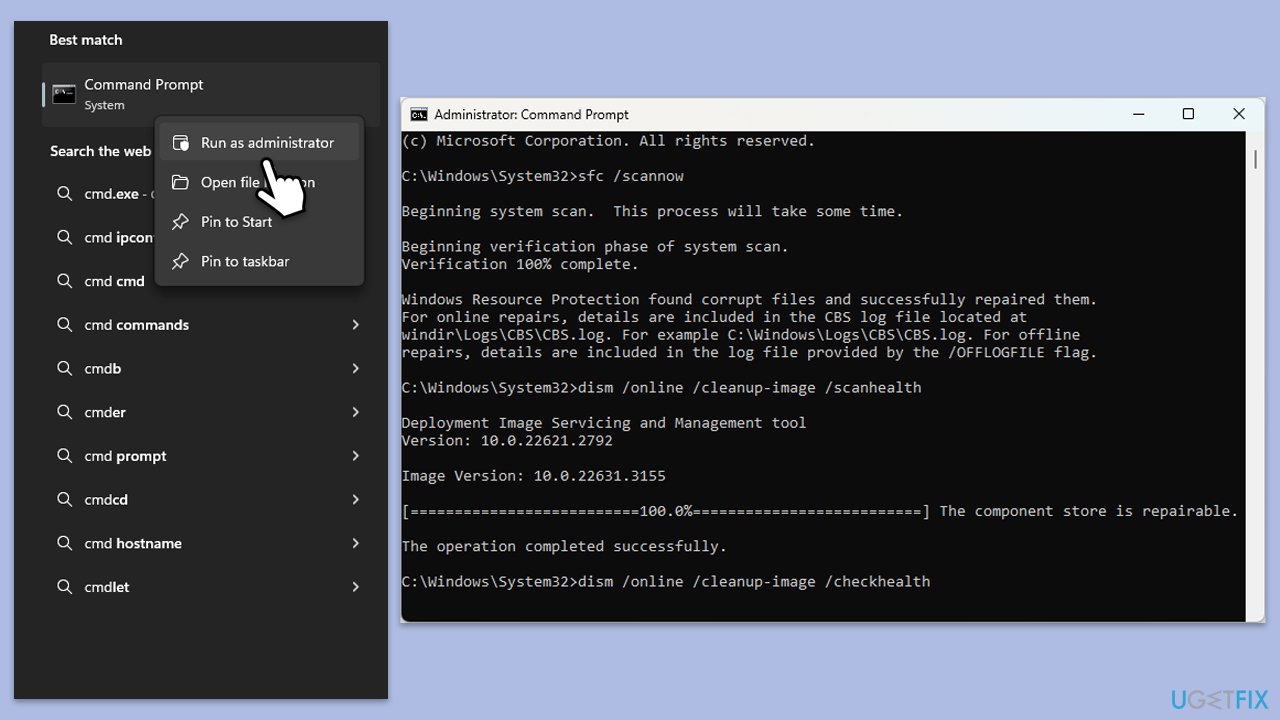
- Type cmd in Windows search.
- Right-click on Command Prompt and pick Run as administrator.
- User Account Control window will show up - click Yes when prompted.
- Then, copy and paste the following command, pressing Enter after:
sfc /scannow - Wait till the scan is finished. If Windows finds system file integrity violations, it will attempt to fix them. After this, use the set of the following commands, pressing Enter each time:
DISM /Online /Cleanup-Image /CheckHealth
DISM /Online /Cleanup-Image /ScanHealth
DISM /Online /Cleanup-Image /RestoreHealth - (Note: if you get an error executing this last command, add /Source:C:\RepairSource\Windows /LimitAccess to it and try again).
- Close down the Command Prompt and restart your system.
Fix 5. Perform a Clean Boot
Clean Boot starts Windows with a minimal set of drivers and startup programs, helping to identify if background software is causing the issue.
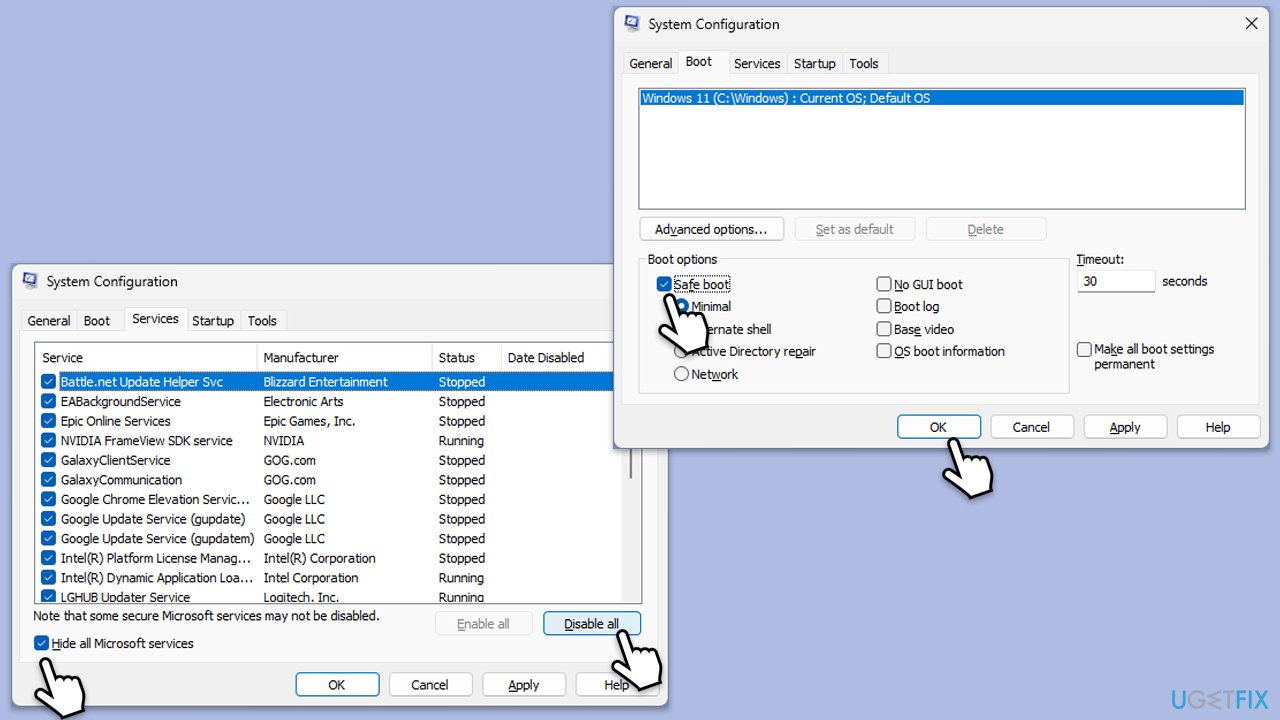
- Type msconfig inWindows Search and press Enter to open the System Configuration window.
- Click on the Services tab and check the Hide all Microsoft Services box.
- Click Disable all to disable non-Microsoft services, then click the Startup tab.
- Open the Task Manager, disable all startup items, and close the Task Manager.
- Go to the Boot tab and mark the Safe boot option.
- Click OK on the System Configuration window and restart your PC.
- After the restart, check if you can log in again. If you can, it means that one of the disabled services or startup items is causing the issue.
- Re-enable services and startup items one by one (or in groups), restarting your computer each time, to identify the specific program or service responsible for the issue.
- Once identified, keep the problematic program or service disabled or uninstall it if necessary.
Fix 6. Uninstall and reinstall the Xbox Wireless Adapter driver
Sometimes, the driver may be corrupted. Uninstalling and reinstalling it can resolve the problem.
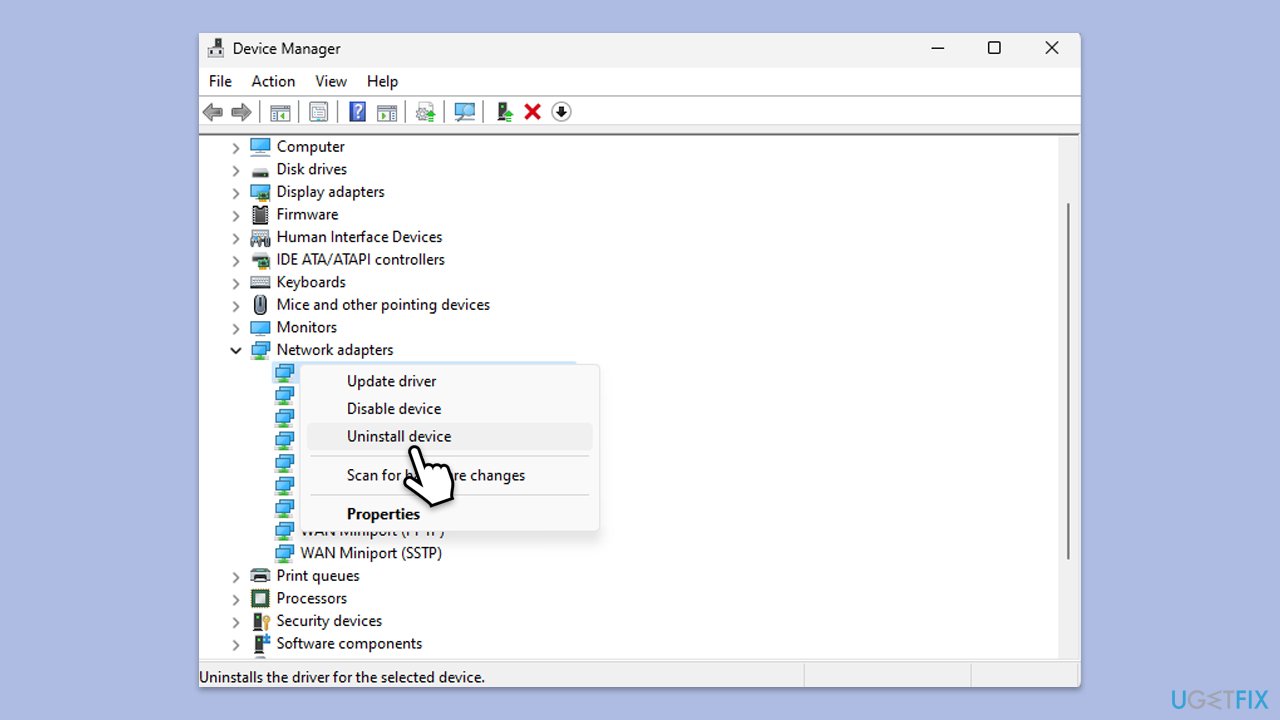
- Right-click on Start and select Device Manager.
- Find the Xbox Wireless Adapter under Network adapters.
- Right-click and select Uninstall device and follow the prompts.
- Restart your computer.
- Windows will automatically reinstall the driver. If not, use one of the methods described in Fix 2.
Fix 7. Check for Windows updates
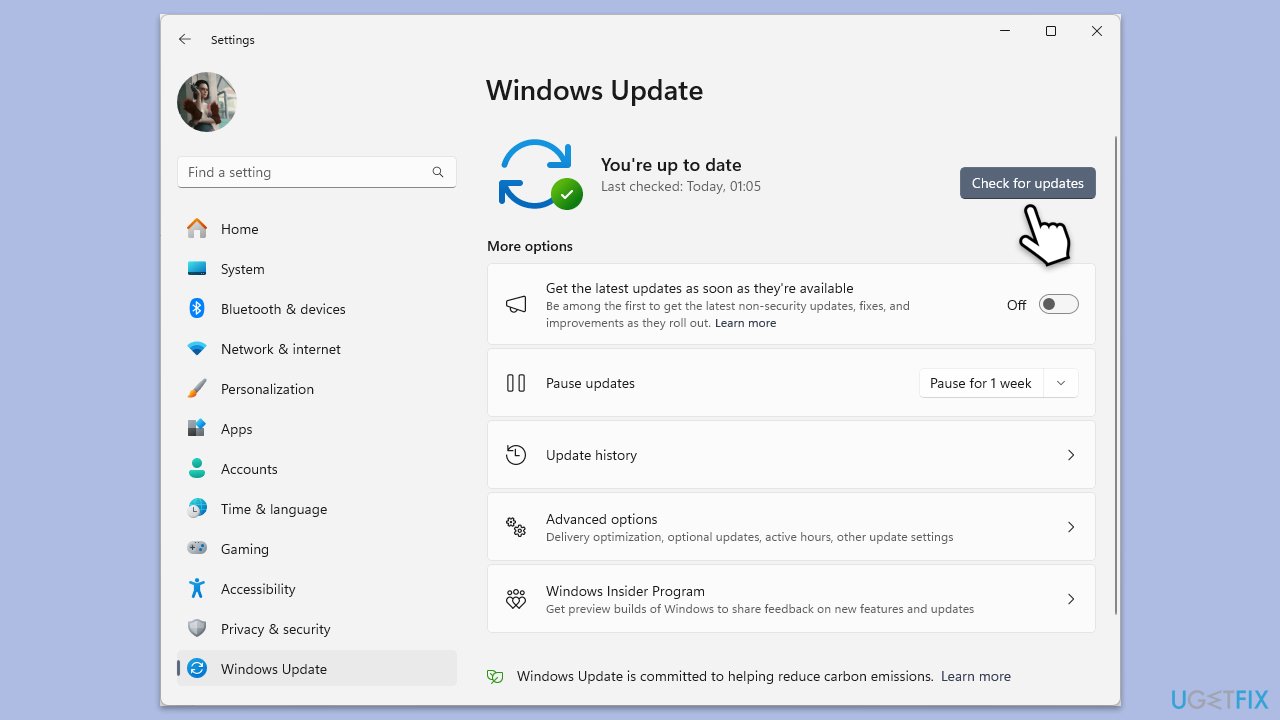
- Type Updates in Windows search and press Enter.
- When the new window opens, click Check for updates and wait.
- If there are optional updates available, install them as well.
- Restart your computer to implement the changes.
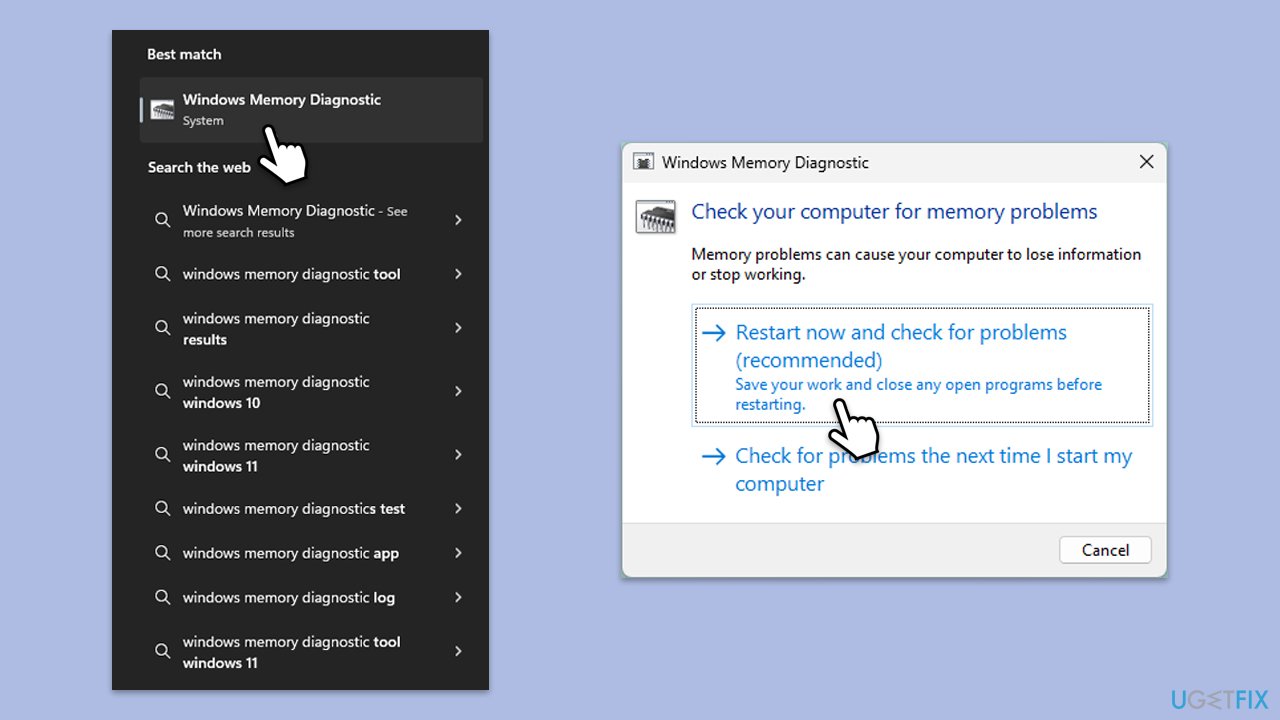
Fix 8. Run Windows Memory Diagnostic
Check for faulty RAM as it may be one of the reasons for system crashes.
- Type Windows Memory Diagnostic and press Enter.
- Select Windows Memory Diagnostics result.
- Click Restart now and check for problems (recommended) (note that your PC will restart immediately).The
- A memory test will run during startup and display any detected errors - this might take a while.
- Replace faulty RAM module(s) if errors are found.
Bottom line
To fix the Xbox Wireless Adapter BSOD, you should update the Xbox Wireless Adapter driver, as well as the chipset drivers and BIOS. If these steps do not resolve the issue, further troubleshooting may be necessary to identify the underlying cause.
Frequently asked questions
The Xbox Wireless Adapter BSOD error in Windows 10 is often caused by outdated drivers or compatibility issues with the Windows operating system.
To update the drivers for the Xbox Wireless Adapter on Windows 11, go to Device Manager, locate the adapter, right-click it, and select 'Update driver'.
Yes, you can try uninstalling and reinstalling the adapter's driver, running the Windows Troubleshooter, or checking for Windows updates to resolve the BSOD issue.




Report an issue
What's wrong with this guide? We review every report and update or remove content.
Report received — thank you. We'll review and fix it.
You need a free account to submit a report.
Be the first to comment