How to fix
Xfinity error TVAPP-00100
on Windows
Resolve the Xfinity TVAPP-00100 error effortlessly on Windows 10 and 11. Quick fixes to restore your streaming experience. Expert-tested solutions await!


What causes How to fix Xfinity error TVAPP-00100?
- Badly cached data within the router
- Incorrect DNS settings
- Corrupt registry entries
- Corrupt DLL files
- Browser cache issues
Repairs Windows system files, removes malware, and restores a clean OS state — without reinstalling.
Hello. I just recently decided to try Xfinity and immediately faced a problem. I tried to access the streaming site but instead received the TVAPP-00100 error. Please help! I'm using Windows 10.
Xfinity is a division of Comcast which provides various communication solutions to the residents of the United States. Streaming services, which are similar to Netflix, are very popular among users, as it allows them to connect to the website and watch all sorts of videos without restrictions on demand, provided that the internet connection is available on the device.
Unfortunately, people reported that they sometimes receive and TVAPP-00100 error while trying to stream. The problem is particularly common when using the Xfinity beta[ref en-3] app and occurs when users are trying to activate or sign in to their personal accounts. As evident, this does not allow them to enjoy everything the service has to offer, which can be really frustrating.
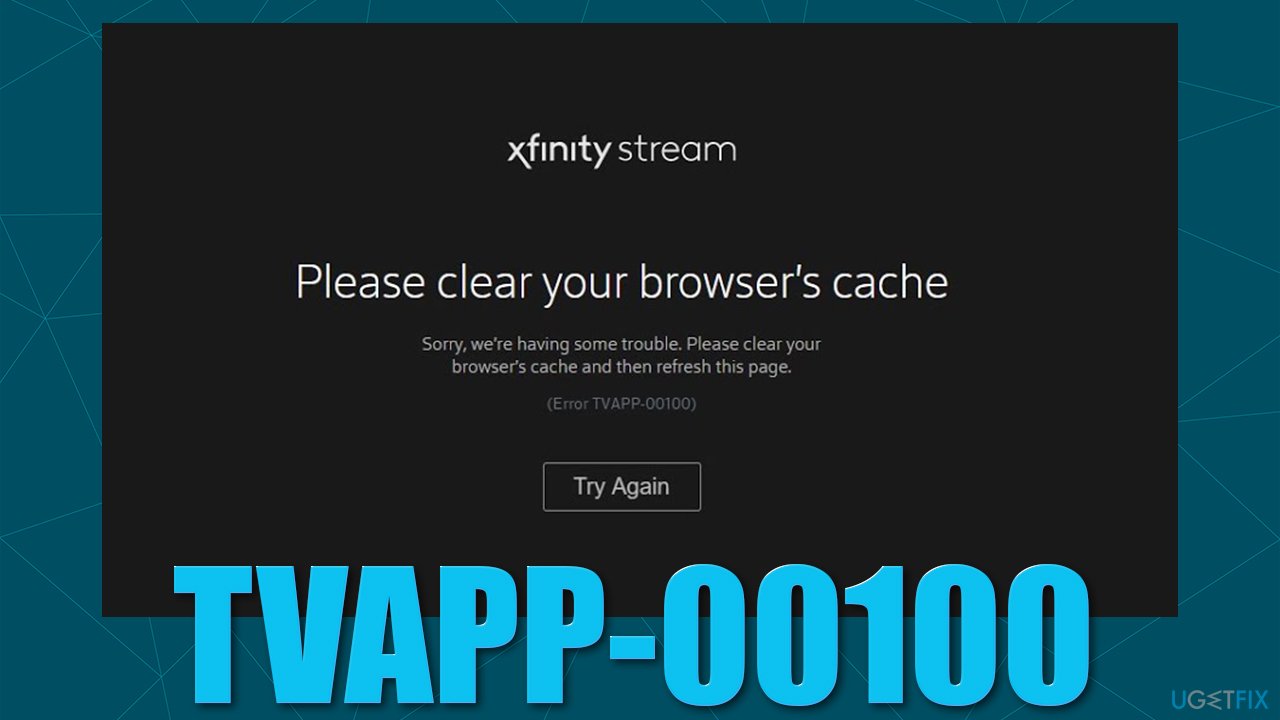
The error message that people receive reads as follows:
Sorry, we're having some trouble. Please clear your browser's cache and then refresh this page
(Error TVAPP-00100)
Just like with any other similar errors we talked about previously (Netflix, YouTube, Twitch, or Hulu), there could be several different reasons why you are facing the TVAPP-00100 Xfinity error. The message claims that the clear of browser cache could help users solve the problem. Thus, it is best to start from this - we explain how to do that in our solutions section.
Next, the most likely culprit for the error is the internet connection and everything related to it. For example, badly cached data within your router could be causing it, thus resetting it could work. There are also several commands that can be executed to help you to reset your internet connection. Likewise, some incorrect DNS[ref en-1] settings could prevent a consistent connection to Comcast servers.
Before you proceed with the manual fixes we provide below, we recommend you scan your machine with [d1] repair and maintenance utility, which can clear various caches (including browser) and fix the underlying issues caused by corrupt registry[ref en-2] entries or DLL files.
Fix 1. Clear your browser cache
Let's start by clearing browser caches. You can find the instructions for all the modern web browsers below.
Google Chrome
- Click on Menu and pick Settings.
- Under Privacy and security, select Clear browsing data.
- Select Browsing history, Cookies and other site data, as well as Cached images and files.
- Click Clear data.
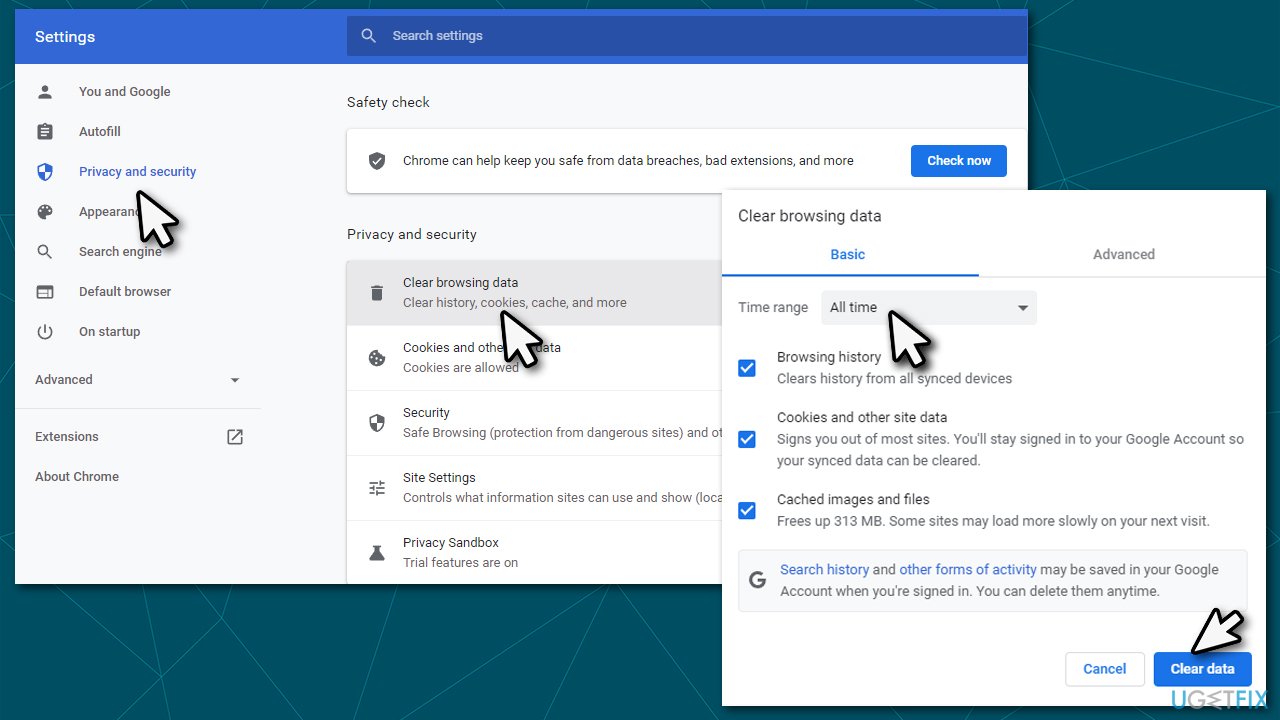
How to fix xfinity error tvapp 00100 clear cache chrome
Mozilla Firefox
- Click Menu and pick Options.
- Go to Privacy & Security section.
- Scroll down to locate Cookies and Site Data.
- Click on Clear Data...
- Select Cookies and Site Data, as well as Cached Web Content, and press Clear.
MS Edge (Chromium)
- Click on Menu and go to Settings.
- Select Privacy, search, and services.
- Under Clear browsing data, pick Choose what to clear.
- Under Time range, pick All time.
- Select Clear now.
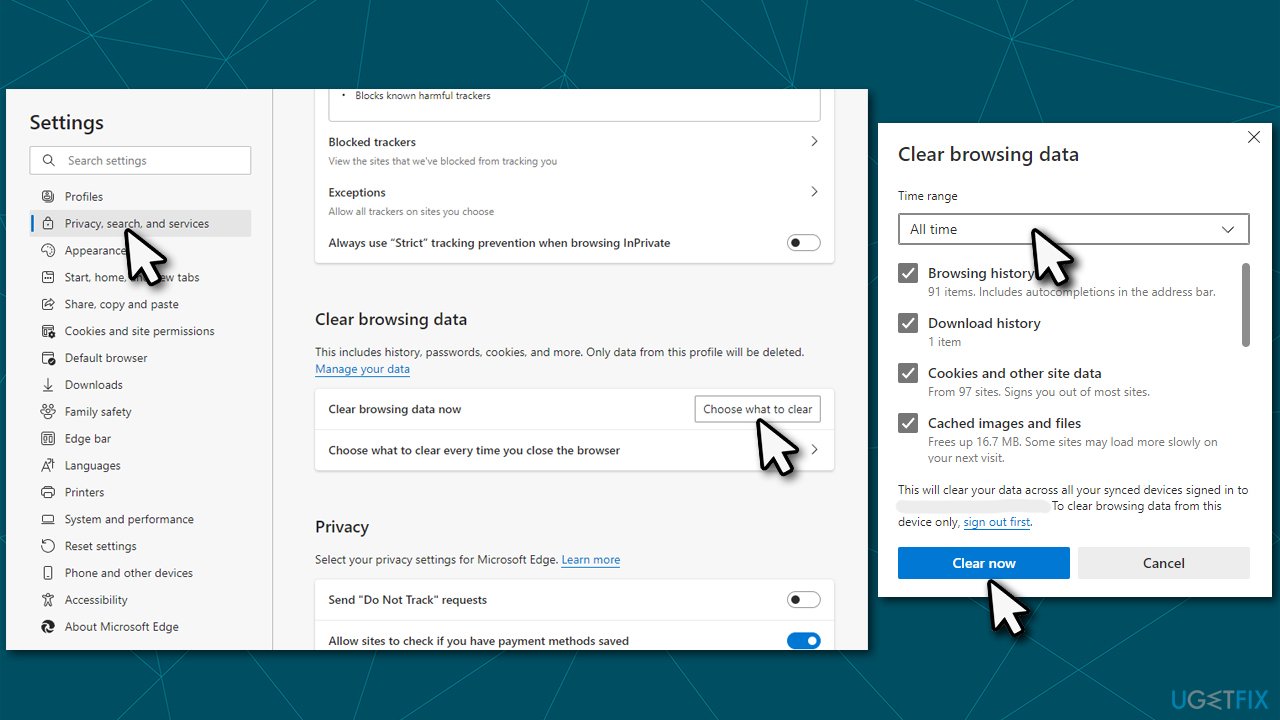
How to fix xfinity error tvapp 00100 clear cache edge
Safari
- Click Safari > Clear History...
- From the drop-down menu under Clear, pick all history.
- Confirm with Clear History.
Fix 2. Run internet connection troubleshooter
If there's something wrong with your internet connection, a troubleshooter might be able to help.
- Type in Troubleshoot in the Windows search box and press Enter.
- Click Additional troubleshooters on the right (if you can't see them listed).
- Select Internet Connections and click Run the troubleshooter.
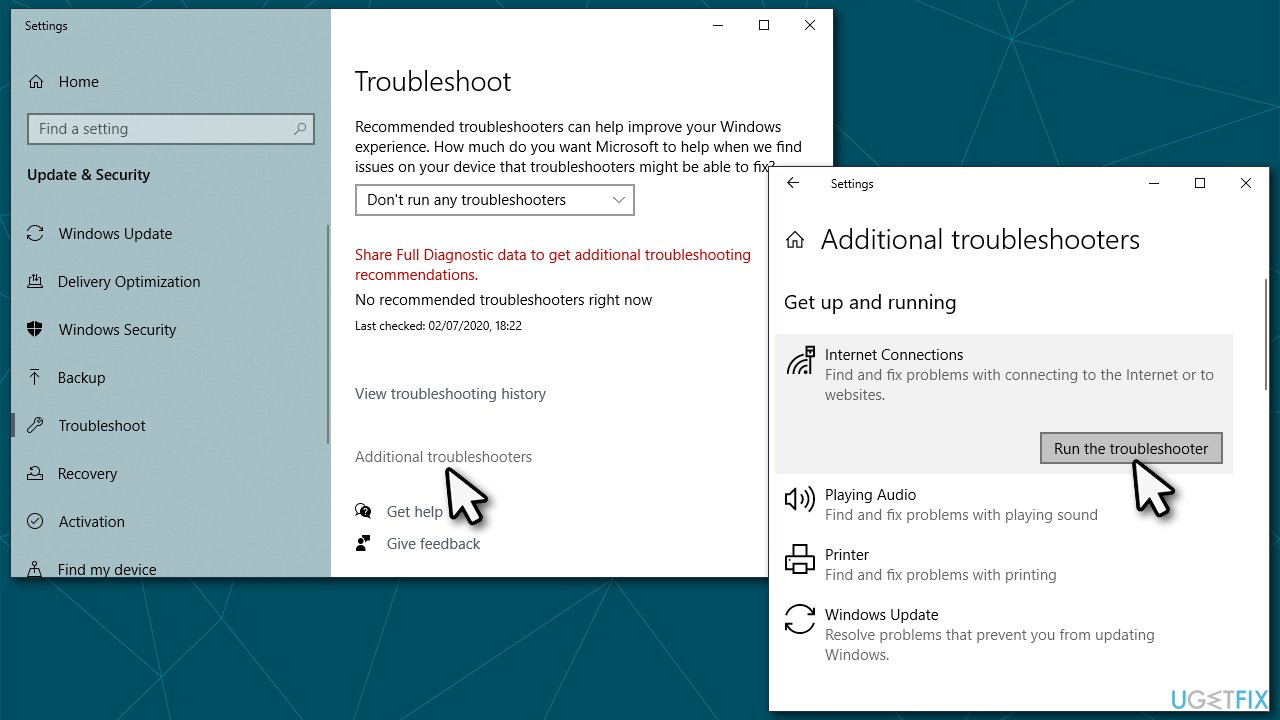
How to fix xfinity error tvapp 00100 run internet troubleshooter - Wait till the scan is finished and fixes are applied.
Fix 3. Change DNS settings
In case your DNS settings were changed due to one reason or another, or something else happened to them, try using Google's free DNS instead:
- Right-click on Start and pick Network Connections.
- Under Advanced network settings, pick Change adapter options.
- In the Network Connection window, right-click on your main connection (for example, Ethernet) and select Properties.
- Select Internet Protocol Version 4 (TCP/IPv4) and select Properties.
- Click Use the following DNS server address and paste the following into the fields:
Preferred DNS server: 8.8.8.8
Alternate DNS server: 8.8.8.9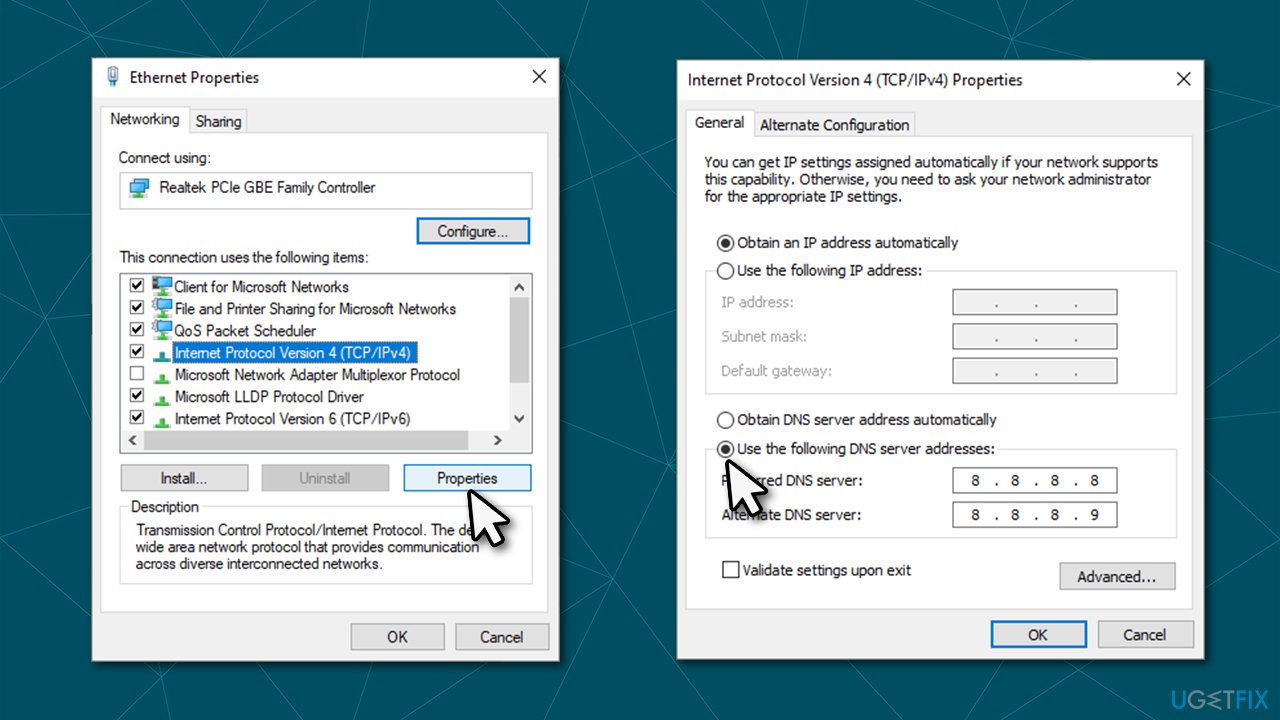
How to fix xfinity error tvapp 00100 use alternative dns settings
Fix 4. Reset your internet connection
If changing your DNS settings did not work, try using Command Prompt to reset your connection to default.
- Type cmd in Windows search.
- Right-click on Command Prompt result and pick Run as administrator.
- Once the User Account Control window shows up, click Yes.
- Paste the following commands and press Enter every time:
ipconfig /flushdns
ipconfig /registerdns
ipconfig /release
ipconfig /renew
netsh winsock reset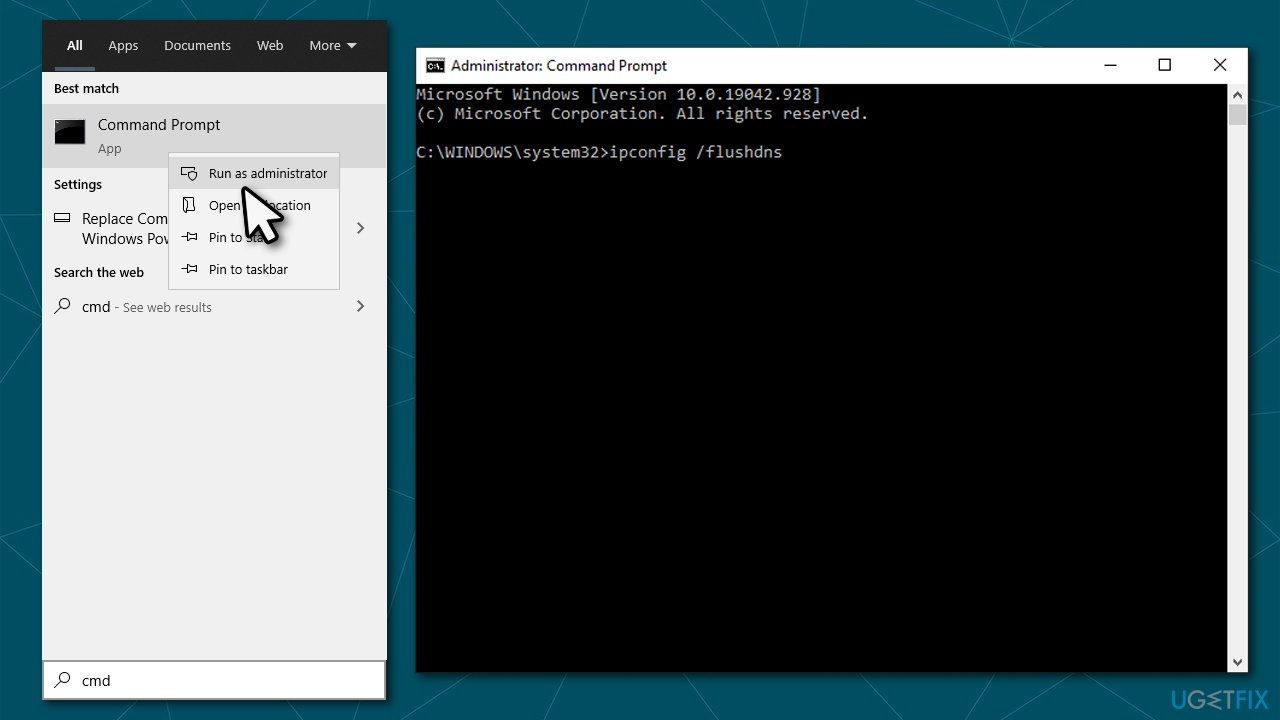
How to fix xfinity error tvapp 00100 reset internet connection
Fix 5. Reboot your router
- Go to your router or modem.
- Plug it out of the electric socket, press and hold the Power button, or remove the power cable (do NOT press the Reset button as you would lose all your configuration settings and would have to redo them - this is not necessary).
- Wait for around 1 minute and turn the device back on.
- After the router/modem reboots, your internet might be offline for 30-ish seconds, so wait a bit longer.
- Try using Xfinity stream services once again.
Bottom line
To fix the Xfinity error TVAPP-00100, start by clearing your browser cache. If the problem persists, consider resetting your router and checking your DNS settings. If none of these solutions work, scan your machine with a repair and maintenance utility.
Frequently asked questions
To fix the Xfinity error TVAPP-00100 on Windows 10, ensure that your app is updated and check your internet connection. If the problem persists, try resetting the app or reinstalling it from the Microsoft Store.
Yes, on Windows 11, you can go to Settings > Apps > Apps & features, find the Xfinity app, and select 'Repair' to resolve any issues causing the TVAPP-00100 error.
To clear the cache for the Xfinity app on Windows 10 or 11, go to Settings > Apps > Apps & features, locate the Xfinity app, click on 'Advanced options', and then select 'Reset'.




Report an issue
What's wrong with this guide? We review every report and update or remove content.
Report received — thank you. We'll review and fix it.
You need a free account to submit a report.
Be the first to comment