How to fix
Prevent a webpage from automatically reloading on Safari
on Windows
Stop Safari from auto-reloading webpages on your Windows 10 or 11 device. Simple fixes and expert-tested tips ensure a smoother browsing experience.

What causes How to prevent a webpage from automatically reloading on Safari?
- Low memory (RAM) on the computer
- Safari's memory management system
- Inactive tabs being force-killed
- Zoom video call platform consuming excessive memory
- Video streaming platforms like Disney+ or Netflix affecting performance
Repairs Windows system files, removes malware, and restores a clean OS state — without reinstalling.
Hello. I commonly have many tabs open on Safari when working from home. Previously, it used to warn me that one of the pages is using too much memory before performing any actions. It is not the case anymore with Safari 14 on Big Sur - the browser now automatically reloads without asking me first. I would appreciate help with this annoying problem.
Big Sur was released in November 2020 as the brand new version of the operating system for Macs. It was much anticipated, although the release did not go that well as planned for everybody - users complained that they were unable to install the update, machines were crashing, the second display stopped working, and much more.
While many of the problems were addressed by Apple, some people experience problems to this day. Safari is a standalone browser that is independent of the macOS version, although the synergy between the two might not always be perfect.
With the release of Safari 14, users rushed into Apple, and other tech forums complain about a rather annoying issue - the page would automatically reload after being inactive for some time.[ref en-2]
This behavior can be easily explained, however. Safari is crafted in a way so it would provide optimal performance, regardless of Mac specifications. Despite that, if the computer is low on memory (RAM),[ref en-1] Safari will force-kill the inactive tabs and reload the page when it is accessed.
Memory management system in Safari is often very useful, although not having an option to stop it from reloading pages can be a rather frustrating experience - users can lose connection to important video calls or stop the login session on a banking (or another) account.
Several people pointed out that the issue lies within the Zoom video call platform, as it keeps "eating" more and more memory over time, resulting in Safari killing the session to prevent a system collapse. Video streaming platforms, such as Disney+ or Netflix, can also be commonly affected by this problem. Alternatively, it could be a simple bug within the browser or other parts of the macOS, which we are here to address.
Therefore, in order to stop a webpage from reloading each time, you should try several different solutions we provide below. Before you go into troubleshooting, we highly recommend you try using [d1], as it can easily get rid of many junk files and organize your Mac, preventing memory issues in the first place.
Solution 1. Restart your browser
Let's start from the very basics. Some users do not turn off their machines for a while - if ever, which commonly leaves the browser running in the background. Therefore, if you are one of those people, you should definitely turn off the browser. To make this method even more effective, we recommend you restart your Mac, too.
Solution 2. Prevent pop-ups from loading
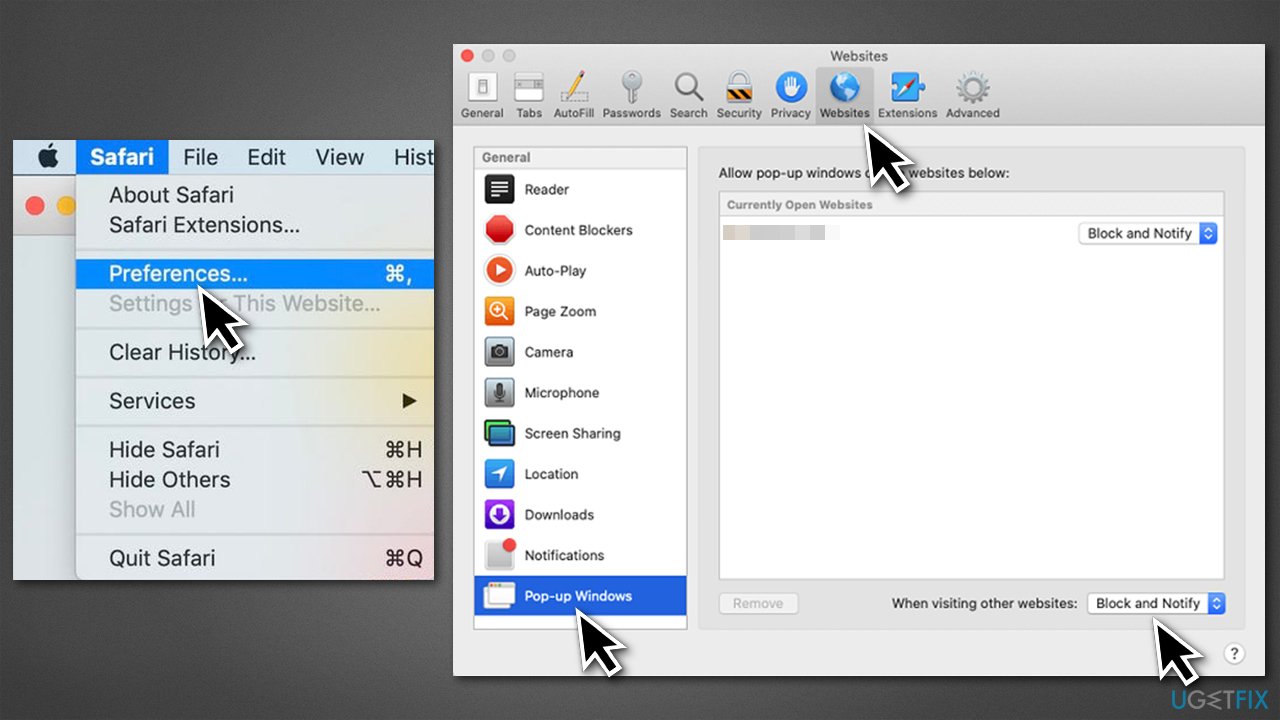
- Launch Safari and go to Safari > Preferences
- Go to Websites tab
- Select Pop-up Windows option on the left
- On the bottom-right-side of the window, you should see When visiting other websites entry
- Click on the drop-down menu and select Block and Notify.
Note: for more effective ad blocking, use a browser extension - there are plenty of those available on the Apple Store.
Solution 3. Clear cache and history
Clearing cache and browser data is recommended - it increases your security and prevents cookies and other trackers from doing their job and sending your data to third parties.
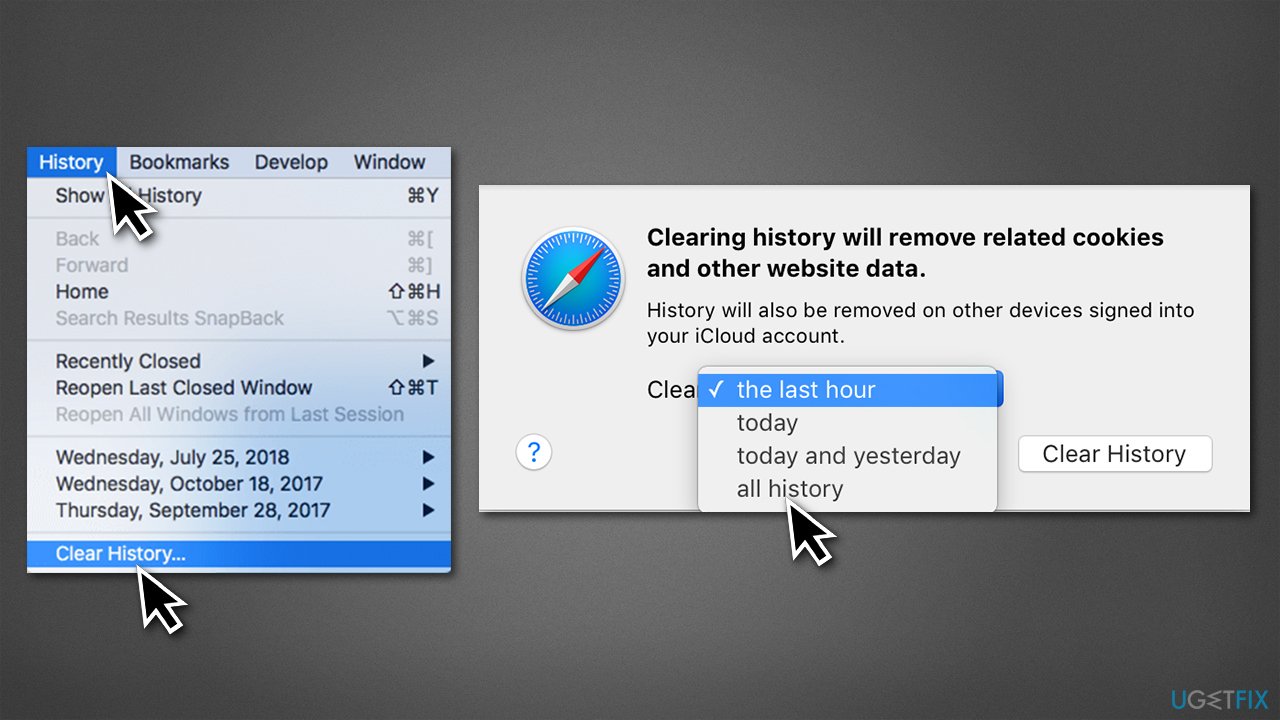
- Open Safari and select History > Clear History...
- From the drop-down menu, pick all history and click Clear History
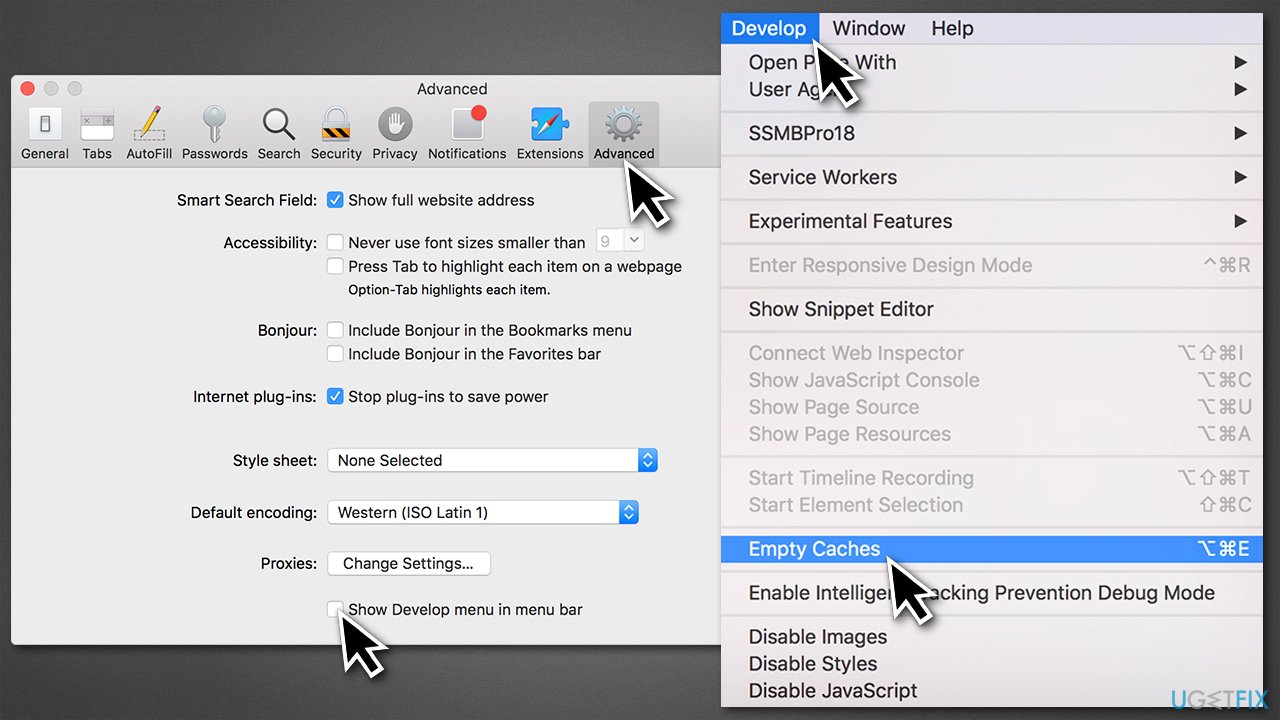
- Next, go to Safari > Preferences...
- Select Advanced tab
- Tick the Show Develop menu in menu bar
- Click Develop and select Empty caches.
Solution 4. Swap to Chrome's User-Agent
If you have Chrome installed, you could try using its User-Agent, as Google is well aware that its browser is a memory muncher on almost any computer. It is not something uncommon, however, as modern websites need to execute thousands of scripts and support various coding components within the browser.
- Open Safari and click the Develop menu
- Go to User Agent and select Google Chrome - macOS (you could also try other User-Agents, if available)
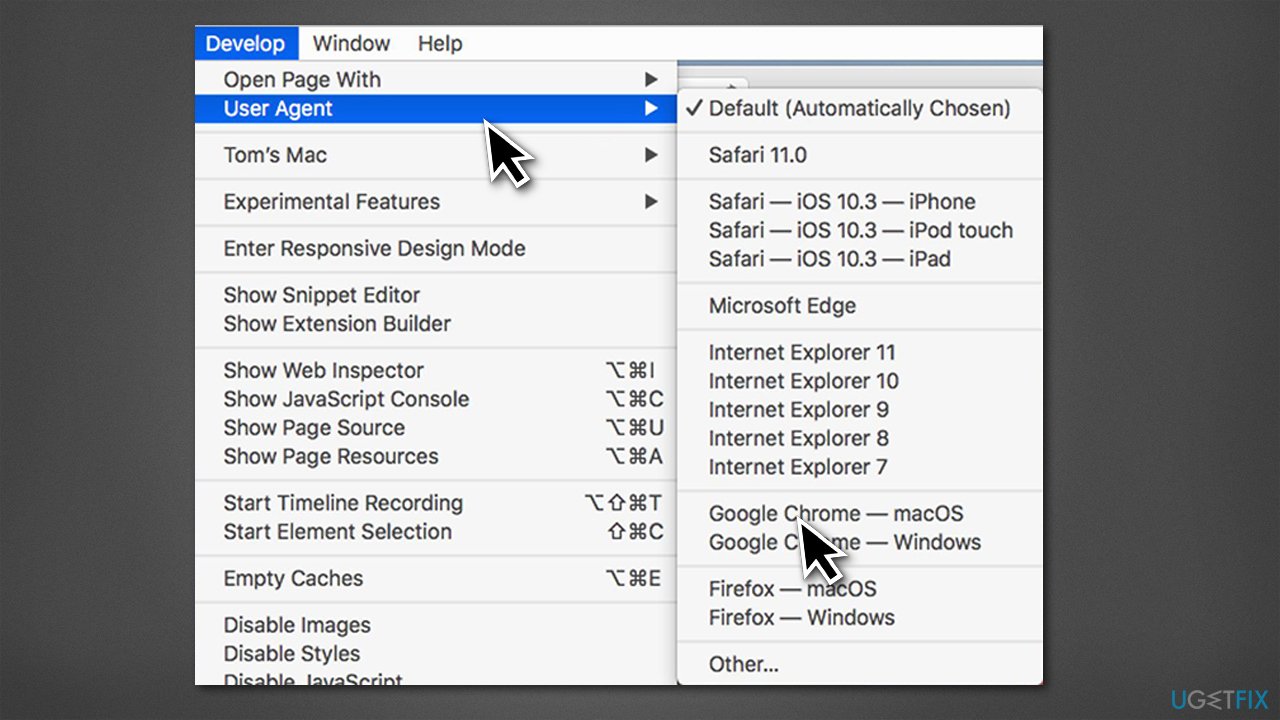
- If it does not work for you - you can always switch back.
Solution 5. Switch to a different browser
Believe it or not, Safari is not the only browser on the market! Mac is a versatile machine nowadays, and its compatibility with third-party applications has drastically improved. While many people are not that happy with Chrome (it has similar memory issues, suffers from malicious extensions,[ref en-3] and also is known to collect various user data), some alternatives could also be used.
For example, the Chromium-based Microsoft Edge is a lightweight browser that also excels when it comes to browsing speed and privacy. Alternatively, Mozilla Firefox is another competitor you should try giving a chance - it has plenty of privacy features and is highly customizable.
The conclusion
If the above solutions helped you to stop Safari reloading pages, we are glad we could help. However, when it comes to giving an option to users to avoid such function - it needs to be provided by Apple. As of the time of writing, the issue still prevails, and no method would allow this behavior to occur when using the browser.
To mitigate the issue, try to utilize your macOS memory better - always turn off applications that are not in use and employ tools to delete junk and other useless files from the system.
Bottom line
To prevent Safari from automatically reloading pages, consider closing unnecessary tabs, managing memory usage, or checking for updates. If the issue persists, you may want to explore alternative browsers or reach out to Apple support for further assistance.
Frequently asked questions
To prevent automatic page reloads in Safari on Windows 10, go to Safari preferences, navigate to the 'Advanced' tab, and disable any options related to automatic updates or reloading.
Unfortunately, Safari for Windows does not have built-in options to manage auto-refresh settings; consider using extensions or switching to a different browser that offers this feature.
If a webpage keeps reloading, try clearing your browser's cache and cookies, or check for any browser updates that might fix the issue on your Windows device.




Report an issue
What's wrong with this guide? We review every report and update or remove content.
Report received — thank you. We'll review and fix it.
You need a free account to submit a report.
Be the first to comment