
How to remove Unknown Locale (qaa-latn) language in Windows 10?

Prefer to fix it yourself? The manual steps follow.
- 6methods
- 2 to 5 minutes for Settings or PowerShell, 15 minutes for the sign-in screen
- Easy
Applies to Windows 11, Windows 10, Windows Server
6 methods in this guide
Hello, recently I have noticed that there is a strange language added to my keyboard language selection options. It is called Unknown Locale (qaa-latn). I am not sure where it is coming from, but I don't want it there. Any solutions for this would be appreciated.
Unknown Locale (qaa-Latn) is a keyboard layout that Windows lost track of, not a real language or a virus. It cannot be removed directly because Settings does not list it. Add qaa-Latn as a language, wait a minute, then remove it, and the stray keyboard goes with it.
Open Settings > Time & language > Language & region (Windows 10: Time & Language > Language), select Add a language, type qaa-Latn, add Private use (qaa-Latn), wait a minute and remove it again (Fix 1). If that does not clear it, run Set-WinUserLanguageList en-US -Force in PowerShell with your own languages listed (Fix 2). If it stays only on the sign-in screen, copy your settings there (Fix 4).
| Error | No error code. An extra keyboard named Unknown Locale (qaa-Latn) in the language bar next to the clock, often with the US layout under it. Also seen as qab-Latn, qac-Latn or qad-Latn. |
|---|---|
| Where it appears | In the input indicator on the taskbar (Win + Space list), sometimes on the sign-in screen. It is missing from the language list in Settings. |
| Main cause | A keyboard layout with no proper language entry. Windows gives it a reserved stand-in ID (0x2000 is qaa-Latn) and the stand-in name. Users report it after Windows updates and after keyboard tools such as Keyman. |
| Fastest fix | Add qaa-Latn in Settings, wait, then remove it (Fix 1). Second: reset the language list in PowerShell (Fix 2). |
| Also written as | qaa-latn, qaa latn, QAA language, Unknown locale, Private use (qaa-Latn), qab-Latn, qac-Latn, qad-Latn. |
| What qaa means | qaa to qtz are private use codes in the language code standard: no real language owns them. Latn means the Latin alphabet. |
| Affects | Windows 10, Windows 11 and Windows Server, also virtual machines and Remote Desktop sessions. |
| Microsoft's status | No fix or known issue entry from Microsoft. Users on Microsoft Q&A have reported it since 2020, with over 700 marking the same question. |
| Time to fix | 2 to 5 minutes. The sign-in screen and the registry take about 15 minutes. |
Facts checked on 15 October 2026. Steps written for Windows 11 (25H2 and 26H2) and Windows 10 22H2, from Microsoft Q&A answers and the Windows language settings.
What Unknown Locale (qaa-Latn) means and why you cannot remove it
Every keyboard layout in Windows belongs to a language. When a layout ends up in your list without a language that Windows can name, Windows gives it a reserved stand-in ID instead. A Super User answer lists them: 0x2000 shows as qaa-Latn, 0x2400 as qab-Latn, 0x2800 as qac-Latn and 0x2C00 as qad-Latn.
The letters are not random. In the international language code list, the range qaa to qtz is kept for private use, so no real language has them. Latn is the code for the Latin alphabet. Windows itself calls the entry Private use (qaa-Latn) in the language search, and Unknown Locale (qaa-Latn) in the keyboard list.
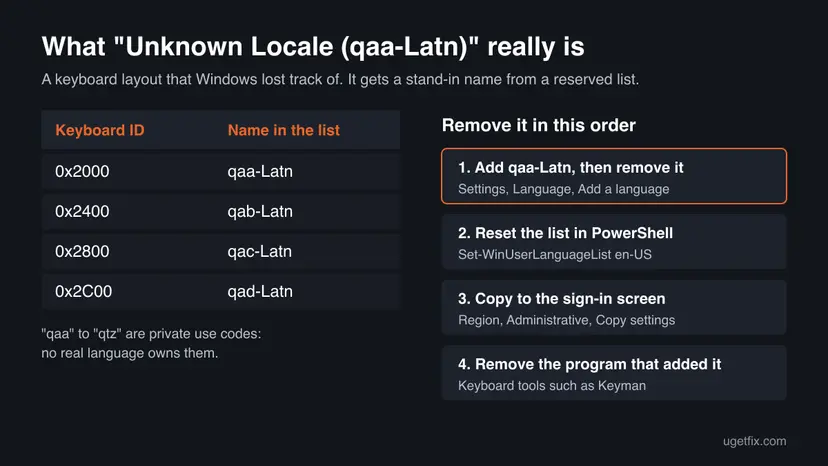
- It is harmless. It is not malware and it does not send anything anywhere. It only adds a keyboard you did not choose, so Win + Space or Alt + Shift can switch you to it by accident.
- Why Settings cannot remove it. The language list in Settings shows only languages it knows. The stray keyboard sits in the layout list without a language entry, so there is nothing to click.
- Spell check can suffer. One user on Microsoft Q&A reported that the unknown locale broke spelling and grammar checks in all languages until it was removed.
- Windows 10 or 11. The fixes are the same, only the Settings pages differ. Windows 10 left support on 14 October 2025.
Why the qaa-Latn keyboard appears: the causes, ranked
Microsoft has not published a cause. What users report on Microsoft Q&A and Super User points to three cases. Most often a Windows update or a sync of settings from another PC brings a keyboard back without its language. Less often a keyboard program adds its own layout. Rarely the leftover sits only in the settings of the sign-in screen.
| Cause | How you recognise it | Fix |
|---|---|---|
| A keyboard without its language after an update or a settings sync. | It appeared after an update, with US or another layout under it. | Fix 1, Fix 2 |
| The Settings search cannot find qaa-Latn. | Add a language shows no result for qaa-Latn. | Fix 3 |
| The sign-in screen keeps its own copy. | Gone after you sign in, still there on the sign-in screen. | Fix 4, Fix 5 |
| A keyboard program added it. | Keyman or another keyboard or input tool is installed. | Fix 6 |
Old guides add system file checks and registry cleaners. Nothing in the reports ties qaa-Latn to damaged system files, so those steps are not on this page. The stray entry is a setting, and it is removed as a setting.
How to remove the Unknown Locale (qaa-Latn) language in Windows 10 and 11
Fix 1 works through Settings and is the one most users try first. Fix 2 is the PowerShell answer with the most votes on Microsoft Q&A. Fix 3 helps when Settings cannot find qaa-Latn. Fixes 4 and 5 are for the sign-in screen, and Fix 6 for a keyboard program that keeps adding it back.
| What you see or have | Start with |
|---|---|
| Unknown Locale (qaa-Latn) in the language bar after you sign in. | Fix 1 |
| Fix 1 did nothing, or you also see qab-Latn, qac-Latn or qad-Latn. | Fix 2 |
| Add a language finds nothing for qaa-Latn. | Fix 3 |
| It is gone in your account but still on the sign-in screen. | Fix 4, then Fix 5 |
| It comes back after every restart, and a keyboard tool is installed. | Fix 6 |
Fix 1. Add the qaa-Latn language in Settings, then remove it
3 minutesNo riskEveryone who sees Unknown Locale (qaa-Latn) in the language bar. It needs no commands and no admin rights.
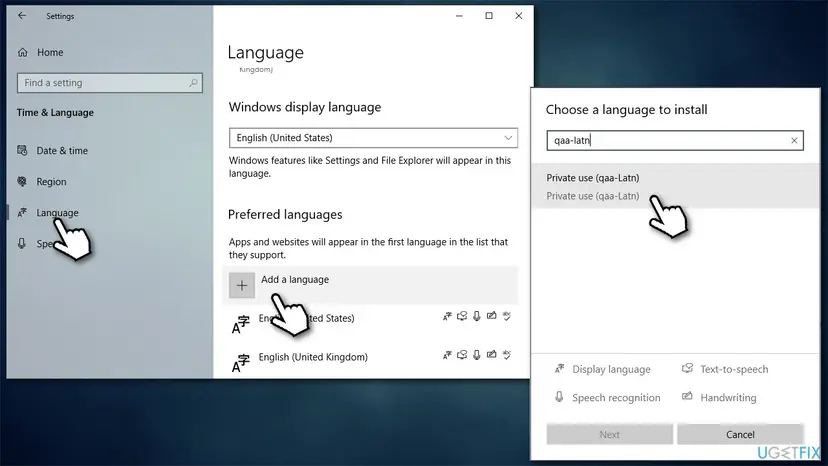
Settings cannot remove a keyboard that has no language. Adding qaa-Latn as a language gives the stray keyboard an owner, and removing that language takes its keyboards with it.
- Press Win + I to open Settings.
- Windows 11: open Time & language > Language & region. Windows 10: open Time & Language > Language.
- Select Add a language (Windows 11: the button next to Preferred languages).
- Type
qaa-Latnin the search box and pick Private use (qaa-Latn). - Select Next, then Install. Clear the optional features if you are asked, they are not needed.
- Wait about a minute until the language appears in the list.
- Windows 11: select the three dots next to Private use (qaa-Latn) and choose Remove. Windows 10: select the language and choose Remove.
- Sign out and back in, then open the language bar with Win + Space.
It worked if: The language bar lists only the keyboards you chose, and Unknown Locale (qaa-Latn) is gone after you sign in again.
If not: If it is still there, reset the list in PowerShell (Fix 2). If the search finds nothing, use Fix 3.
Fix 2. Reset the language list in PowerShell to the languages you want
5 minutesLow riskFix 1 did not help, or you see several stray entries such as qab-Latn and qac-Latn.
The command writes a fresh language list with only the languages you name. Keyboards that are not part of those languages, the stand-in qaa entries included, are dropped. It is the answer with over 1,200 helpful votes on Microsoft Q&A.
- Right-click Start and select Terminal (Admin) (Windows 10: Windows PowerShell (Admin)). Select Yes in User Account Control.
- Type
Get-WinUserLanguageListand press Enter. Note the LanguageTag of every language you want to keep, for exampleen-US,en-GBorde-DE. - Type the command below with your own tags, separated by commas, and press Enter.
- If PowerShell asks whether to continue, type
Yand press Enter. - Sign out and back in, then check the language bar with Win + Space.
Keep only English (US) and Persian, for example (PowerShell):
Get-WinUserLanguageList
Set-WinUserLanguageList en-US, fa -Force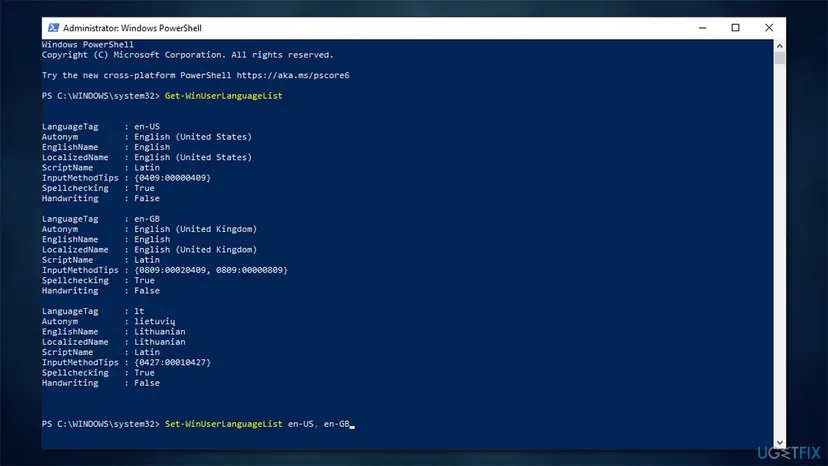
If one language had two keyboards, for example UK and US layouts under English (United Kingdom), you may need to add the second one again in Settings. A Super User answer used the same approach: reset to en-US, then add the other languages back by hand.
It worked if: Get-WinUserLanguageList shows only the languages you named, and the language bar has no Unknown Locale entry.
If not: If the qaa-Latn keyboard stays in the bar but is missing from the PowerShell list, add it first with Fix 3, then remove it.
Fix 3. Add qaa-Latn with PowerShell when Settings cannot find it
5 minutesLow riskThe Settings search shows no result for qaa-Latn, or Get-WinUserLanguageList does not show the stray entry.
A user on Microsoft Q&A noted that Get-WinUserLanguageList may not list the stray keyboard at all. Adding qaa-Latn to the list by command makes it a normal language that Settings can remove.
- Open Terminal (Admin) or Windows PowerShell (Admin) as in Fix 2.
- Run the three lines below one by one, pressing Enter after each.
- Open Settings > Time & language > Language & region (Windows 10: Time & Language > Language).
- Remove Private use (qaa-Latn) from the list.
- Sign out and back in.
Add qaa-Latn to your language list (PowerShell):
$LanguageList = Get-WinUserLanguageList
$LanguageList.Add("qaa-Latn")
Set-WinUserLanguageList $LanguageList -Force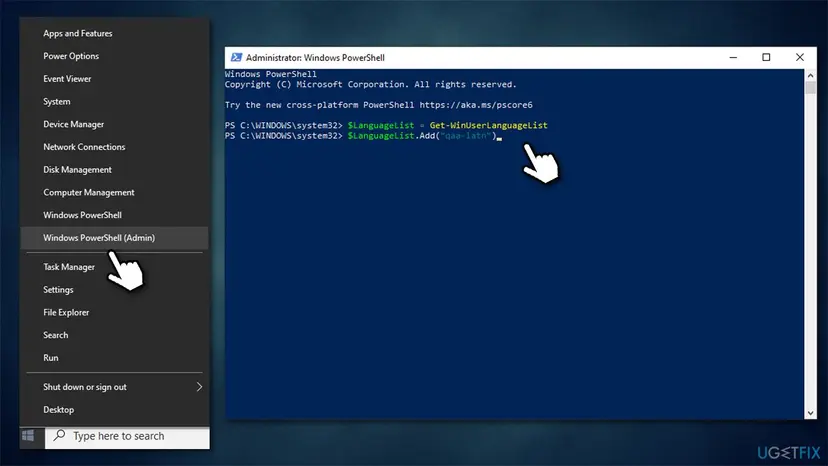
It worked if: Private use (qaa-Latn) appears in Settings, and after you remove it the language bar no longer shows Unknown Locale.
If not: If it is gone from your account but still on the sign-in screen, go to Fix 4.
Fix 4. Copy your language settings to the sign-in screen
5 minutesLow riskThe stray keyboard is gone after you sign in, but the sign-in screen still offers Unknown Locale (qaa-Latn).
The sign-in screen and system accounts keep their own copy of the keyboard list. A Super User question shows that fixing your account leaves that copy untouched, so you copy your clean list over it.
- Press Win + R, type
intl.cpland press Enter to open Region. - Open the Administrative tab.
- Under Welcome screen and new user accounts, select Copy settings.
- Tick Welcome screen and system accounts. Tick New user accounts too if you want new accounts to start clean.
- Select OK, then OK again, and restart the PC.
Copy settings needs an administrator account. It copies the display language, input languages and formats of the account you are signed in with, so do Fix 1 or Fix 2 first.
It worked if: After the restart, the sign-in screen offers only your own keyboards.
If not: If the sign-in screen still shows it, remove the leftover from the registry (Fix 5).
Fix 5. Remove the qaa-Latn leftover of the sign-in screen from the registry
15 minutesRead the warningFix 4 did not clear the sign-in screen, and you are comfortable with the Registry Editor.
On Super User the sign-in screen kept qaa-Latn because a backup copy of the system account's language profile still pointed to the 0x2000 keyboard. Removing that reference cleared it.
A wrong deletion here can leave the sign-in screen with no keyboard or the wrong one. Export each key before you change it, so a double-click on the file puts it back. Step by step: Back up the registry before editing it
- Press Win + R, type
regeditand press Enter. Select Yes in User Account Control. - Go to the first key below. Under it, open each language key (for example en-US or en-DE) and look for a value that refers to keyboard 2000.
- Right-click the key that holds that reference, choose Export and save it. Then delete only the value or key that refers to 2000.
- Check the Preload and Substitutes keys below for an entry with 2000 in it, export and remove it the same way.
- Search the registry with Ctrl + F for
qaa-Latnand remove what is left in the keys listed here. - Restart the PC and check the sign-in screen.
Keys named in the Super User answer:
HKEY_USERS\S-1-5-18\Control Panel\International\User Profile System Backup
HKEY_USERS\S-1-5-18\Control Panel\International\User Profile
HKEY_USERS\.DEFAULT\Keyboard Layout\Preload
HKEY_USERS\.DEFAULT\Keyboard Layout\Substitutes
It worked if: After the restart, the sign-in screen offers no Unknown Locale entry.
If not: If it comes back after a restart, something adds it again: check installed keyboard programs (Fix 6).
Fix 6. Uninstall the keyboard program that adds the stray layout
10 minutesLow riskqaa-Latn returns after you removed it, and a keyboard, input or language tool is installed.
Keyboard tools install their own layouts. Keyman is the program users name most often with qaa-Latn, though one Microsoft Q&A user saw it without Keyman. If the tool registers a layout without a language, the stand-in name comes back each time.
- Open Settings > Apps > Installed apps (Windows 10: Apps > Apps & features).
- Sort by install date and look for Keyman or other keyboard, input method or language tools installed around the time qaa-Latn appeared.
- If you still need the tool, open its own settings first and remove the keyboards you no longer use there.
- If you do not need it, uninstall it and restart the PC.
- Repeat Fix 1 or Fix 2 to clear what it left behind.
Step by step: Uninstall a program or app in Windows
It worked if: After the restart and Fix 1, Unknown Locale (qaa-Latn) stays gone.
If not: If it still returns, see the section below on settings sync and what to send to support.
If Unknown Locale (qaa-Latn) still comes back
A stray keyboard that returns after every fix is usually brought back by something: a settings sync from another PC, a keyboard program, or a company policy on a work PC. Find which one before you remove it again.
- Settings sync. If you sign in with a Microsoft account on several PCs, the language list can come back from another PC. Clean every PC, or turn off Language preferences in the sync or backup settings (Windows 11: Settings > Accounts > Windows backup > Remember my preferences), then turn it back on.
- Work PC. If your PC is managed, the language list may be set by your IT team. Ask them before you change it.
- Remote Desktop and virtual machines. The keyboard of the PC you connect from can appear as a qaa entry inside the session. Check the language list on that PC too.
- For a forum post or support, send the output of
Get-WinUserLanguageList, your Windows version from winver, the date it appeared and any keyboard programs installed.
How to keep the qaa-Latn keyboard from returning
- Add languages only through Settings. Keyboards added through a language keep their owner, so Windows never needs a stand-in name.
- Remove keyboards in the program that added them before you uninstall a keyboard tool.
- Check the language bar after big updates with Win + Space. Remove a stray entry at once with Fix 1, before it is copied to other PCs by sync.
- Keep one list on all your PCs. If you sync settings, set up the languages on one PC and let the others follow.
- Copy settings to the sign-in screen (Fix 4) every time you change your languages, so the two lists stay the same.
Frequently asked questions
What does qaa mean in Windows languages?
qaa is a private use language code. In the international list of language codes, the range qaa to qtz is kept free for private use, so no real language has it. Windows uses qaa-Latn, qab-Latn, qac-Latn and qad-Latn as stand-in names for keyboards it cannot match to a language. Latn means the Latin alphabet. Seeing qaa in your list means a keyboard lost its language entry, not that a strange language was installed.
Is Unknown Locale (qaa-Latn) a virus?
No. It is a keyboard layout entry that Windows cannot name, not a program and not malware. It does not run anything or send data. The only harm is practical: Win + Space or Alt + Shift can switch you to it, and one user reported that it disturbed spell check. Remove it with Fix 1 or Fix 2 on this page. If you also see other changes you did not make, run a normal antivirus scan as a separate step.
How do I remove the qaa language in Windows 10?
Open Settings, then Time & Language and Language. Select Add a language, type qaa-Latn, add Private use (qaa-Latn), wait a minute and remove it. Sign out and back in. If that does not work, run Set-WinUserLanguageList in an admin PowerShell with only the languages you want, for example en-US. Both fixes take a few minutes and do not need a restart.
How do I remove qaa-Latn in Windows 11?
The fixes are the same as on Windows 10, only the path differs. Open Settings, Time & language, Language & region, and select Add a language next to Preferred languages. Add Private use (qaa-Latn), then remove it with the three dots next to it. The PowerShell command in Fix 2 works on Windows 11 in Terminal (Admin) without changes.
What is Private use (qaa-Latn) in the language search?
It is the name that the Add a language search gives to the qaa-Latn code. It is the same entry that shows as Unknown Locale (qaa-Latn) in the keyboard list. You add it only so that Windows has a language to remove together with the stray keyboard. Do not keep it: remove it again after a minute, as Fix 1 describes.
Why can I not remove Unknown Locale from Settings?
Because Settings lists languages, and the stray keyboard has no language. It sits only in the keyboard list behind the language bar. That is why the trick is to add qaa-Latn as a language first. Settings then owns the keyboard and removes it with the language. PowerShell can do the same by writing a fresh list with only your languages.
How do I remove qaa-Latn from the sign-in screen?
The sign-in screen keeps its own copy of the keyboard list. Clean your own account first with Fix 1 or Fix 2. Then open intl.cpl, the Administrative tab, Copy settings, and tick Welcome screen and system accounts. Restart. If it is still there, a backup key of the system account may still point to keyboard 2000: Fix 5 shows where it is, with a registry backup first.
I also see qab-Latn, qac-Latn or qad-Latn. Are they different?
They are the same problem with the next stand-in IDs. Windows has four of them: qaa-Latn for 0x2000, qab-Latn for 0x2400, qac-Latn for 0x2800 and qad-Latn for 0x2C00. Each one is a keyboard without a language. Fix 2 removes all of them at once. With Fix 1, add and remove each code separately, for example qab-Latn.
Does removing qaa-Latn delete my other keyboards?
Fix 1 removes only the Private use language and its keyboards. Fix 2 keeps exactly the languages you name, so a language you forget to list is removed, and so is an extra layout of a language you keep. Run Get-WinUserLanguageList first and write down every tag. You can add anything back in Settings in a minute.
Is there a guide in Russian for removing qaa?
This page is in English only. The steps are the same in a Russian Windows: in Settings open Time and language, add the language by typing qaa-Latn, then remove it. The PowerShell commands in Fix 2 and Fix 3 are typed the same way in every Windows language, so you can copy them from this page as they are.
Sources
Did this fix work?
One click, no account. It tells the next reader which guides are worth their time.
Questions and experiences: remove Unknown Locale (qaa-latn) language in Windows 10
Still broken, or found a fix we did not cover? Ask here: members and our editors answer. Reading is open; writing needs a free account.
…