How to fix
Ungroup items
on Windows
Easily ungroup items in your Windows 11 taskbar with our expert-tested guide. Get your taskbar organized quickly and effortlessly!


What causes How to ungroup items in Windows 11 taskbar?
- Windows 11 introduced item grouping in the taskbar to reduce clutter.
- Grouping requires additional clicks to access specific windows.
- There are no official settings to ungroup items in Windows 11 taskbar.
- Users have reported dissatisfaction with the change in usability compared to Windows 10.
- The feature was optional in Windows 10 but is mandatory in Windows 11.
Repairs Windows system files, removes malware, and restores a clean OS state — without reinstalling.
In Windows 11, when I have multiple files open of the browser or Excel document, they are grouped together. This makes me need to click on the icon and then select the correct window I want to view, which makes it kind of annoying. Can I ungroup items in Windows 11? Thanks in advance.
Windows 11 was a long-anticipated operating system version that finally came out in October 2021. It featured improvements to the UI[ref en-3] and other elements from previous Windows versions, further improving usability. The new OS allows users to install Android apps easily and also includes a myriad of security improvements to ensure user safety.
However, not all the changes were met by users positively, as they fundamentally changed the way some of Windows features are handled. For example, many people were unhappy about disabled thumbnail previews or that the newest version requires a relatively new processor to be available in the first place.
Windows 11 icon grouping in the taskbar is also something that many people were not pleased with. Microsoft forums and other IT boards were flooded with unhappy posts about item grouping,[ref en-2] which increased the number of clicks required to access the correct window. Many said that Microsoft had sacrificed usability for the sake of visual aesthetics, which is not completely untrue.
In Windows 11, item grouping was introduced as a measure to counter the cluttered taskbar, where all the windows from the same app would be grouped into the single taskbar icon. In order to access a particular window, users would have to hover over the correct instance and click it. While this feature was optional in Windows 10, it is not the case anymore.
As for now, there are no official settings that would allow ungrouping items in Windows 11 taskbar. However, a few workarounds could prove effective in this task. Before you proceed, we recommend using a powerful PC repair software [d1] - it could fix various underlying issues such as BSODs,[ref en-1] registry errors, crashes, etc.
Before you proceed with the fix, we recommend you perform a few tasks to make the process more smooth and more reliable. Note that there are special third-party programs you could download to ungroup items in Windows 11 taskbar, although you should use them at your own risk.
Step 1. Update Windows to the latest version
- Click Start and select Settings
- Go to the Windows Update section
- Click Check for updates and wait
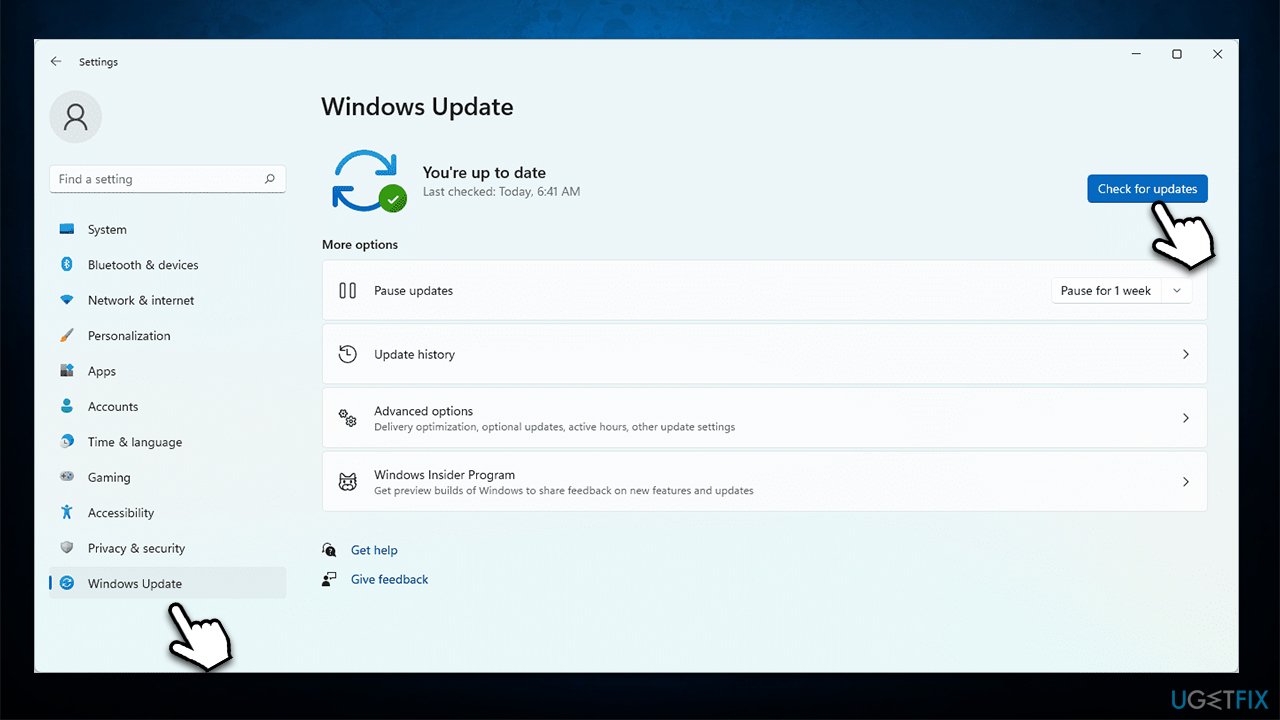
How to ungroup items in windows 11 taskbar update windows - Once Windows downloads all the necessary files, restart your computer.
Step 2. Backup your registry database
Registry database is particularly important and, if used incorrectly, can mess up many functions on Windows. As a precaution, we recommend making a backup of the registry before proceeding.
- Click the Windows button and type in regedit in Windows search
- When User Account Control shows up, click Yes
- In the new window, click File > Export
- Under Export range at the bottom, select All
- Name the backup and press Save.
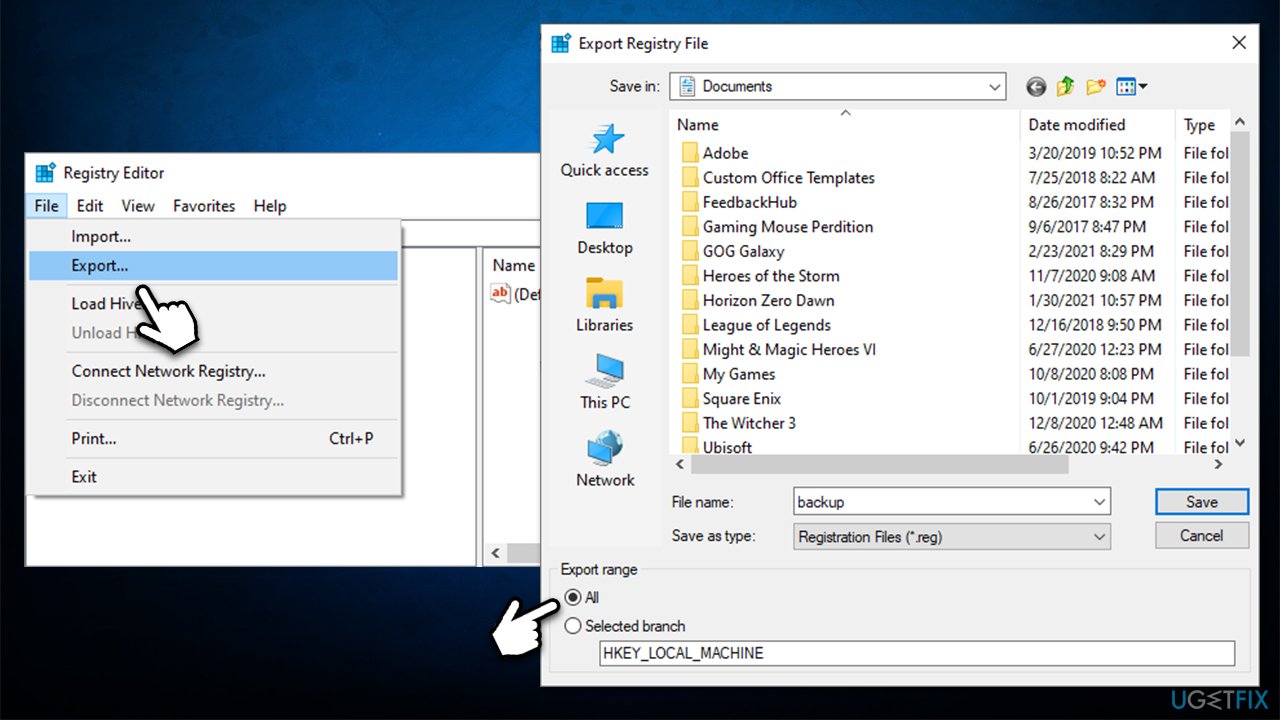
How to ungroup items in windows 11 taskbar backup registry
Solution
As the first step for this workaround, you have to download a special app.
- Go to the download page of Open-Shell, expand the Assets, and download OpenShellSetup_4_4_169.exe
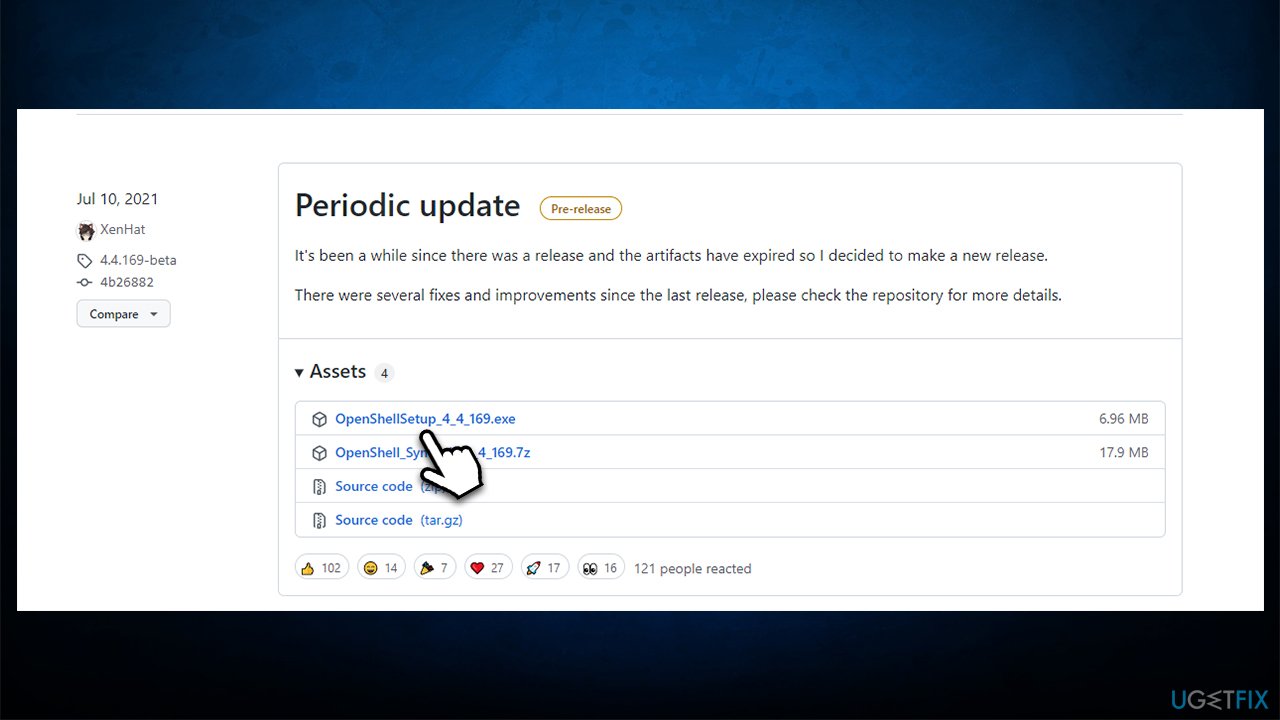
How to ungroup items in windows 11 taskbar download openshell - After downloading the installer, double-click it to begin the installation
- Proceed with on-screen instructions until you reach the Custom Setup section
- Here, click on Classic Explorer and select Entire feature will be unavailable
- Repeat the same action for Classic IE and Open-Shell update
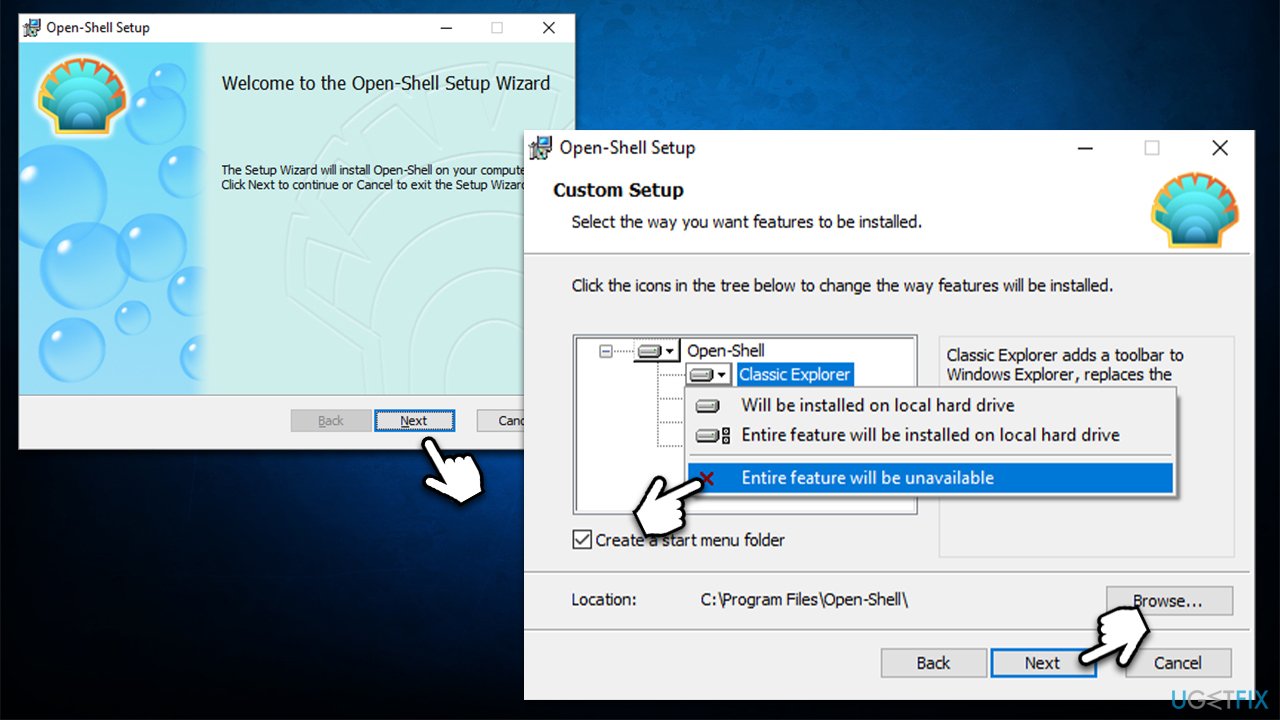
How to ungroup items in windows 11 taskbar install openshell - Click Next and Install
- After you reach the last step of the installation and pick Finish, a special menu will be launched
- Click Open-Shell Menu Settings at the top
- Select the Start menu of your choice and click OK once satisfied.
Next, you can start the ungrouping of Windows taskbar icons via Windows Registry.
- Open Windows Registry as previously explained
- Navigate to the following location:
HKEY_CURRENT_USER\\Software\\Microsoft\\Windows\\CurrentVersion\\Policies\\Explorer - Select Explorer on the left
- On the right side of the window, right-click on empty space and select New > DWORD (32-bit) Value
- Name it NoTaskGrouping
- Double-click it, change value data to 1 and click OK.
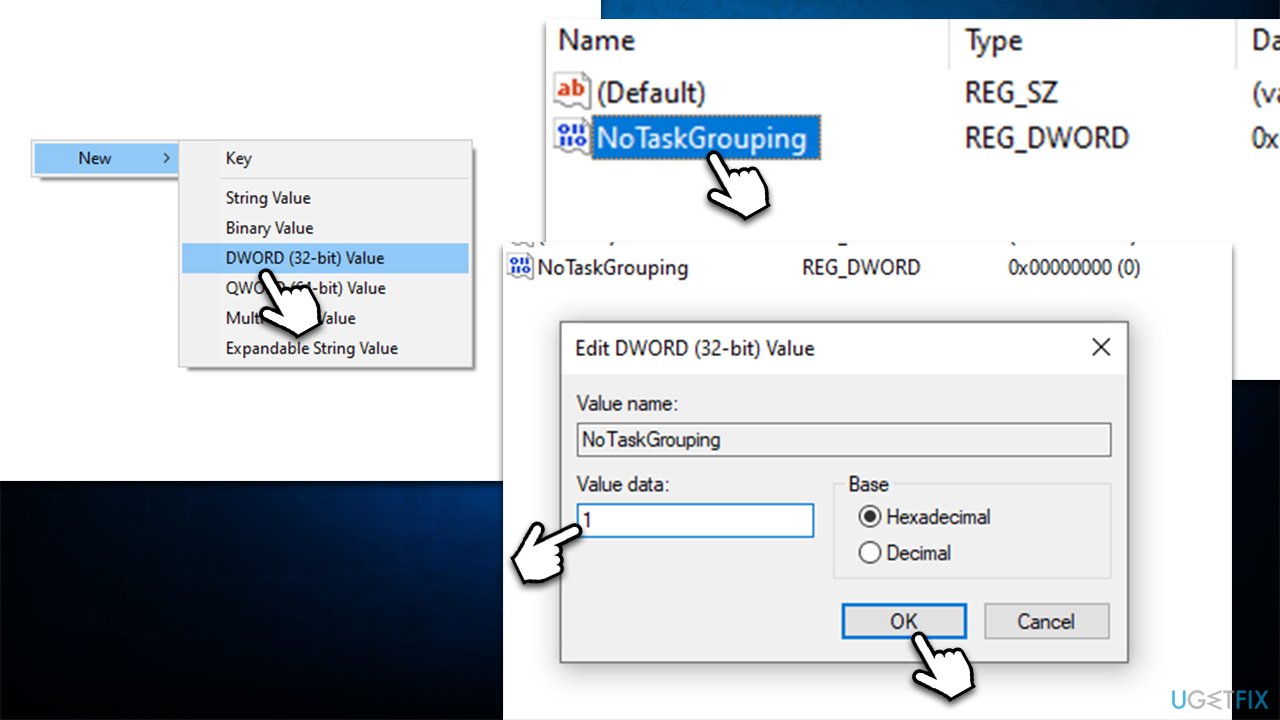
How to ungroup items in windows 11 taskbar no task grouping
You can now fix icon grouping in Windows 11. Proceed with the following steps:
- In the Registry Editor, go to the following location:
HKEY_LOCAL_MACHINE\\SOFTWARE\\Microsoft\\Windows\\CurrentVersion\\Shell\\Update\\Packages - Select Packages folder on the left
- On the right side of the window, right-click the empty space and pick New > DWORD (32-bit) Value
- Name it UndockingDisabled and double-click it
- Set value to 1 and click OK.
Your last step is to restart Windows Explorer.
- Press Ctrl + Shift + Esc to open the Task Manager
- Find Windows Explorer entry
- Right-click it and select Restart.
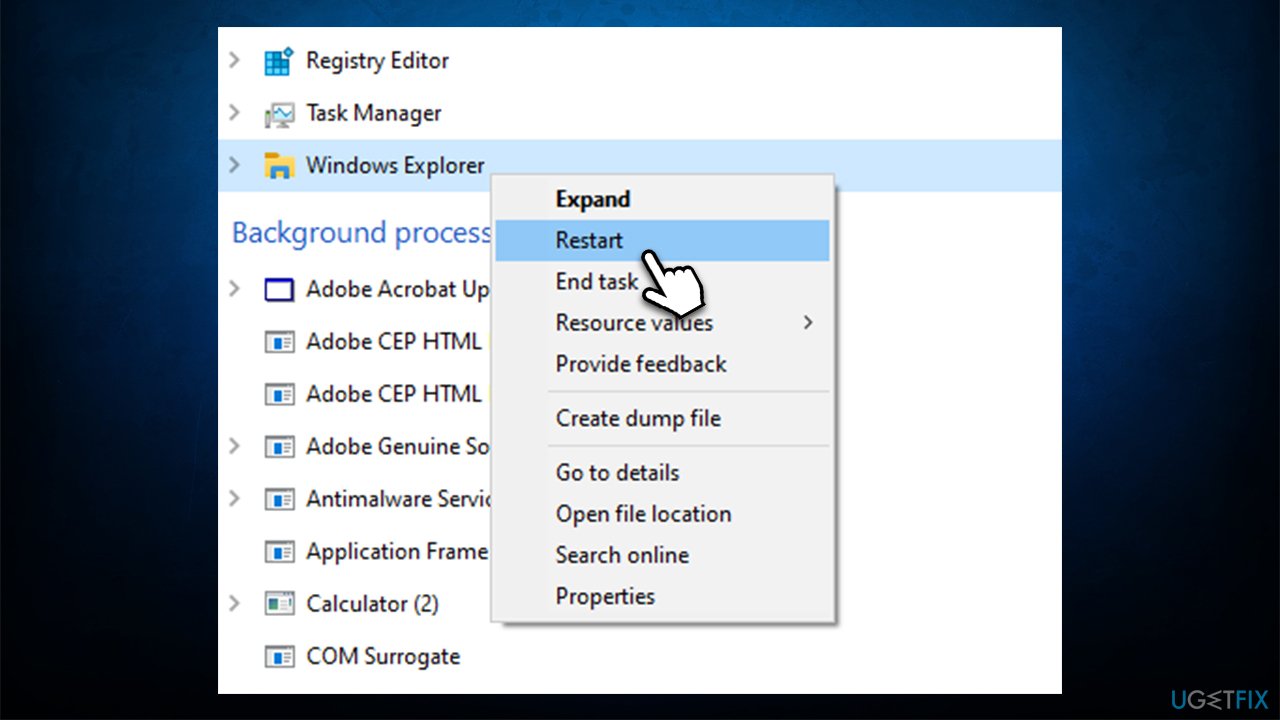
How to ungroup items in windows 11 taskbar restart explorer
Bottom line
Currently, there are no official methods to ungroup items in the Windows 11 taskbar. However, users can explore various workarounds to address this issue. If none of the suggested fixes work, consider using powerful PC repair software to resolve underlying problems.
Frequently asked questions
To ungroup items in the Windows 11 taskbar, right-click on an empty space on the taskbar, select 'Taskbar settings,' and then toggle off the 'Combine taskbar buttons' option.
If the ungrouping option is unavailable, ensure that your Windows 11 is updated to the latest version, as updates may restore missing features.
In Windows 10, you can customize taskbar grouping by right-clicking the taskbar, selecting 'Taskbar settings,' and adjusting the 'Combine taskbar buttons' setting.




Report an issue
What's wrong with this guide? We review every report and update or remove content.
Report received — thank you. We'll review and fix it.
You need a free account to submit a report.
Be the first to comment