How to fix
Microphone not working
on Windows
Is your microphone not working on Windows 10 or Windows 11? Discover expert-tested solutions to get it fixed in minutes and enhance your audio experience.

What causes Microphone not working on Mac – how to fix?
- Incomplete drivers
- Corrupted files
- Invalid application permissions
- Microphone obstruction
- Physical damage
Repairs Windows system files, removes malware, and restores a clean OS state — without reinstalling.
Hello. I have a problem that I cannot find the solution to. The Macbook Pro microphone is not working. I try to connect to my classes, use Discord, Zoom, and other programs, but no one can hear me without additional options like a headset. Checking issues with system settings, but there is no response and no detected issue. Can you help me fix this permanently because all the found solutions are working temporarily?
Microphone not working on Mac is a serious issue because people are kept from using their device normally and need to seek out alternative options, rely on additional pieces like external microphone and headphones for everyday activities, and sometimes work. Users[ref en-1] state that there is no particular issue indications when this happens, so the solutions might vary.
Mac or Macintosh, MacBook computers are manufactured by Apple and sometimes people think that these devices are immune to viruses,[ref en-2] cannot get any errors and are safe from faulty OS and other performance problems. However, that is not true because macOS has its own problems and bugs that require fixing and users' interference. There are specific Mac issues like kernel_task error, camera not working, Error code 5010F, and many more that we already talked about.
Despite those different features and distinct functions of macOS only, there are some issues with the machine still. The operating system is not bug-free,[ref en-3] and malware sometimes finds its way on such devices too. Microphone not working issue can occur with some applications only or the function is not working at all times.
There can be particular reasons why this is an issue because incomplete drivers, corrupted files, or settings can cause such issues. User glitches or invalid application permissions can possibly trigger the failure of some common functions. Microphone not working on Mac can be related to third-party application issues, microphone obstruction, physical damage. There are many probable causes, so different fixes can work in different instances.
The most common problem with these machines would be a corruption of either files, functions, or applications. You can solve those issues with tools like [d1] that act as system security and performance improving applications. Some applications might not work properly when other programs are installed and active, so compatibility issue triggers the microphone failure. You can find a few different tips below and options for problem-solving. Try a few of them to find the one that works for you and can fix the Microphone not working on Mac once and for all.
Option 1. Check application permissions
- Navigate to System Preferences by clicking the Apple logo at the top.
- Select the option of Security and Privacy.
- Once in Privacy settings, click on Microphone from the left navigation pane.
- You will see all the applications which can be granted access to your microphone.
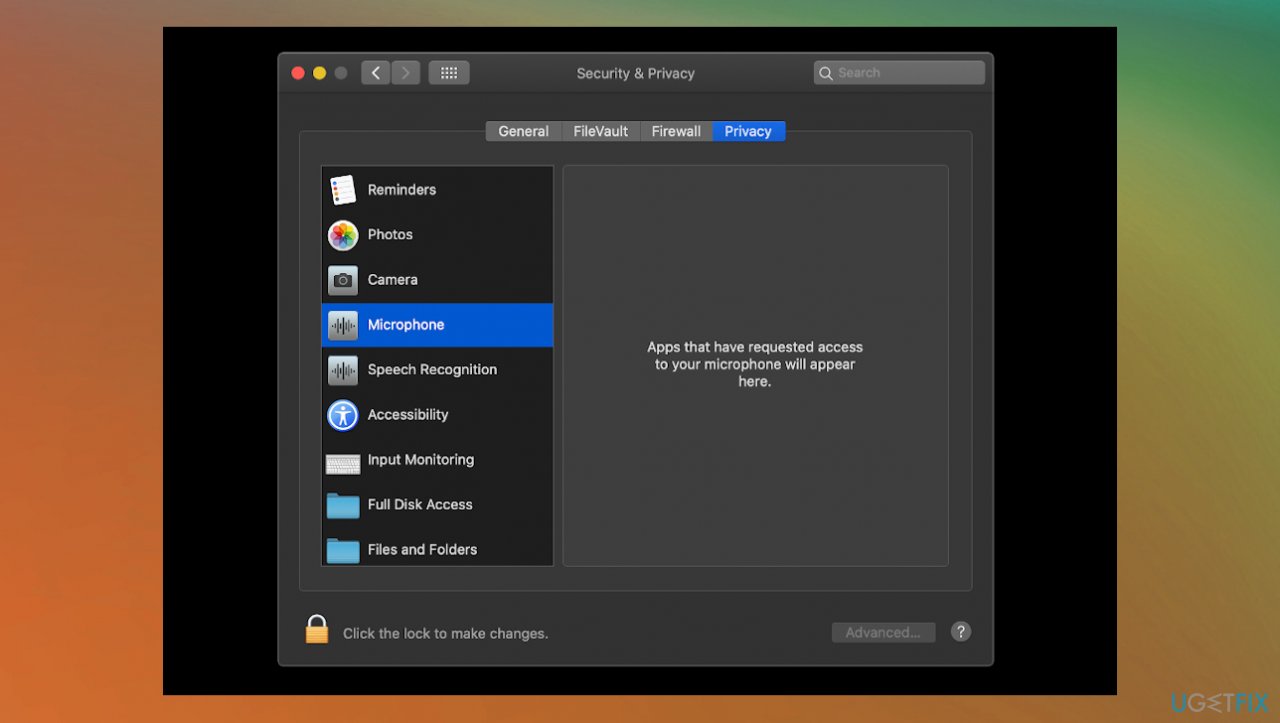
Microphone not working on mac fix permissions - Now you can check or uncheck which application you want to grant permission to.
- Locate the problematic app and make sure it is checked.
- Save changes and exit.
- Restart the application and test the microphone.
Option 2. Check system configurations
- Open System Preferences.
- Click on Sound.
- Select Input.
- Then Internal Microphone.
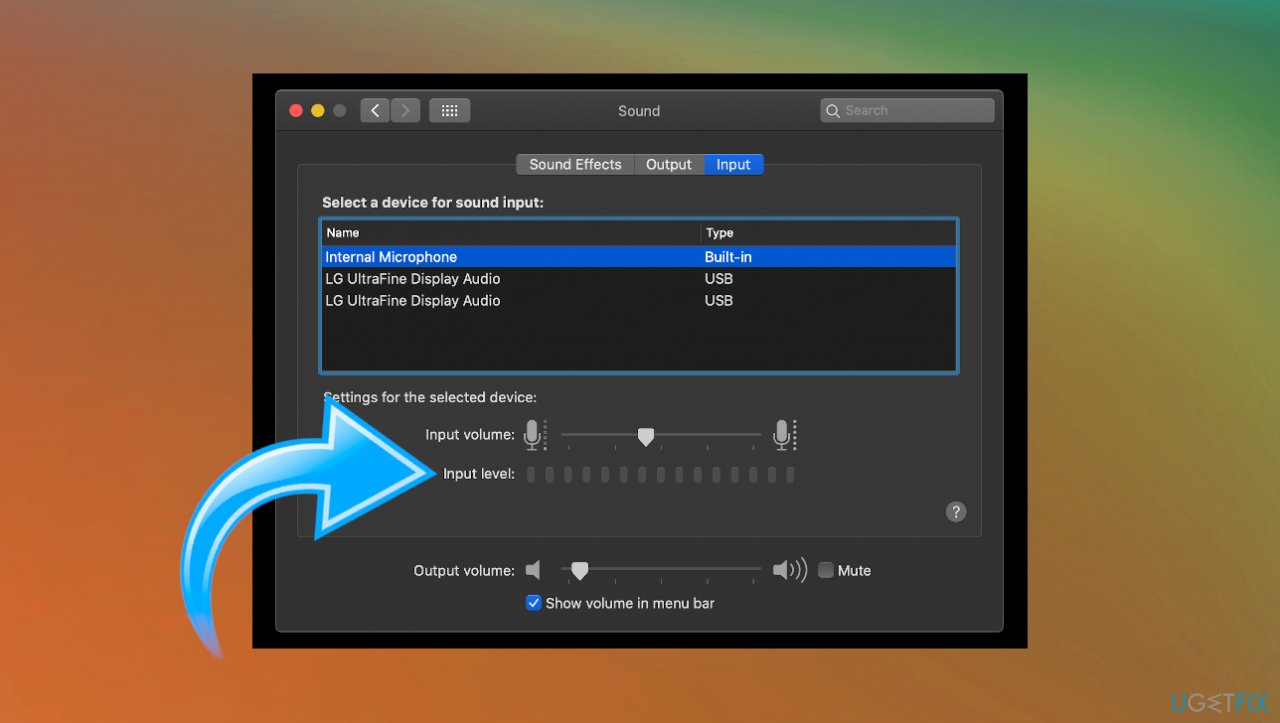
Microphone not working on mac fix input level - Make sure the Input Volume is at maximum. You can also adjust the Input Level.
- Now if you speak near to your Mac, the Input level bars should go up.
- Your Mac isn't registering the mic as an input if that is not happening.
Option 3. Switch to dictation
- Go to System Preferences.
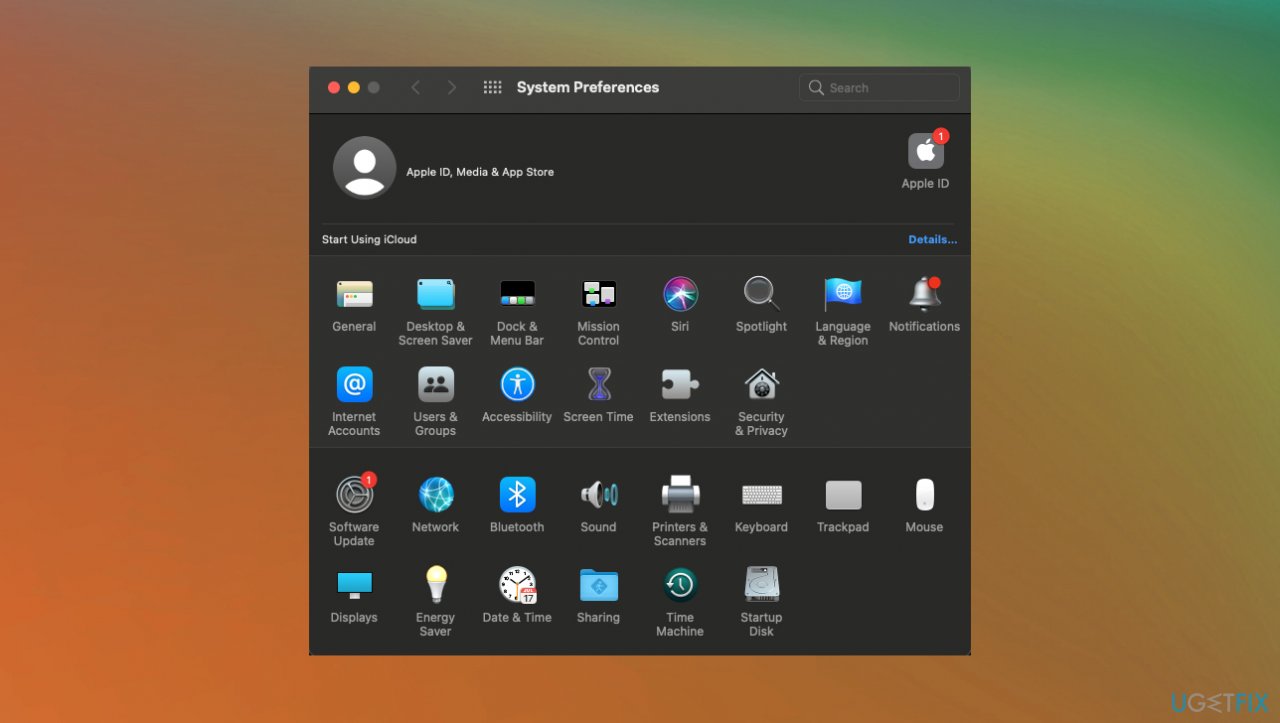
Microphone not working on mac fix system preferences - Click on Keyboard.
- Find the Dictation tab.
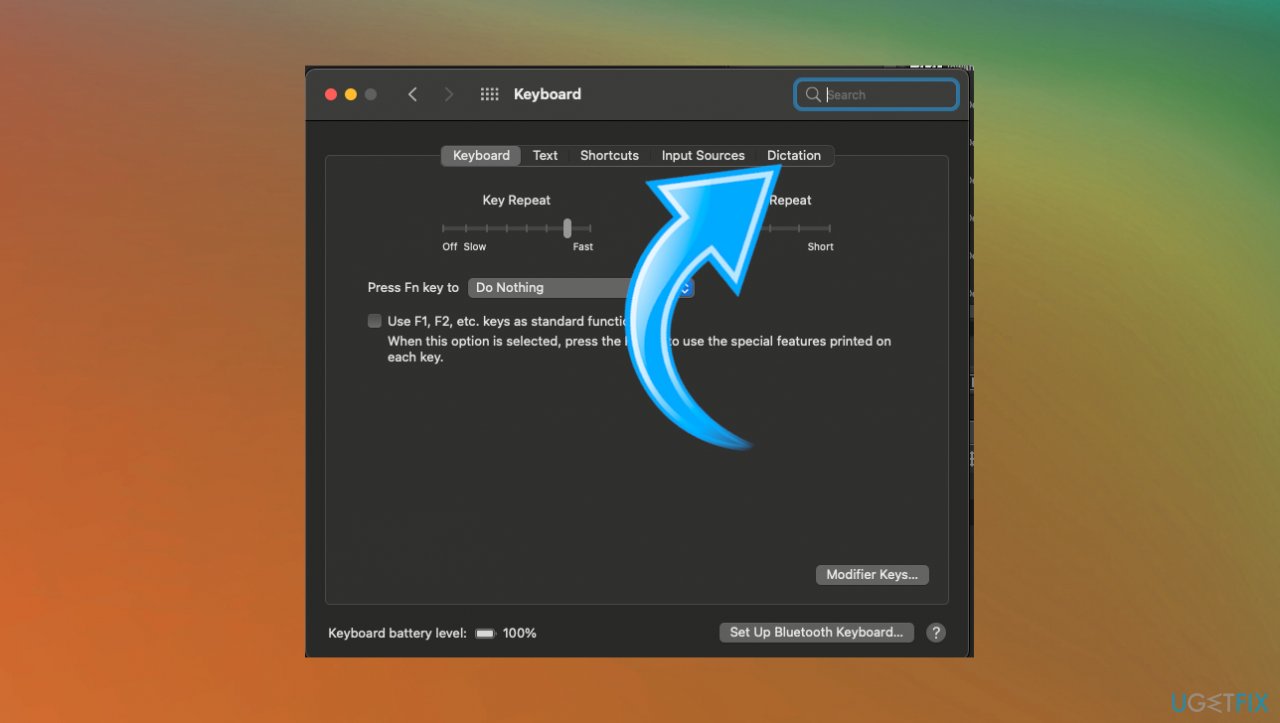
Microphone not working on mac fix dictation keyboard - Select On.
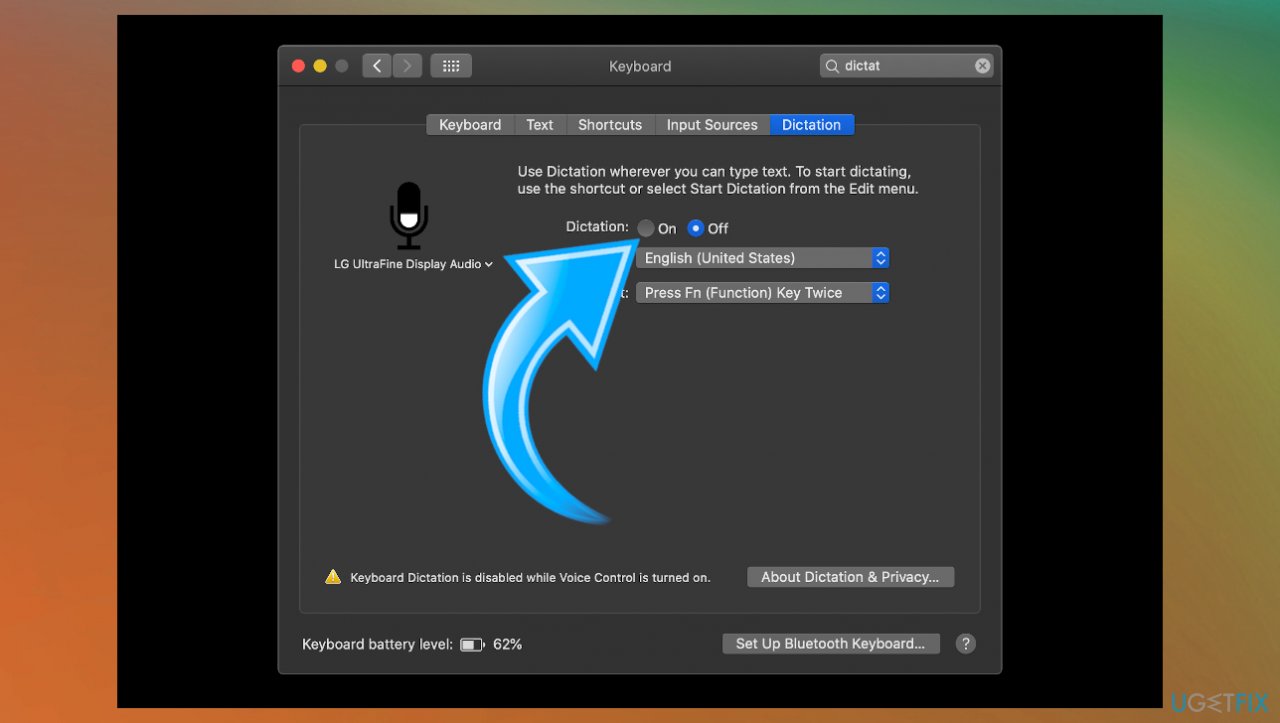
Microphone not working on mac fix dictation - You might find that the system automatically installs drivers needed for this function.
- You should encourage the mic to start working.
Option 4. Reset your mac PRAM
- Click the Apple icon and select Shut Down.
- Wait until Mac has turned off.
- Now press the power button and the following keys at the same time: cmd + alt + P + R
- Hold down for 20 seconds.
- Release the keys and it should start as normal, with a reset PRAM.
Option 5. Reset permissions on Mojave or Catalina
- Open Terminal via Applications and then Utilities.
- Enter this command and press Enter/return:
rm -rf ~/Library/Application\\ Support/com.apple.TCC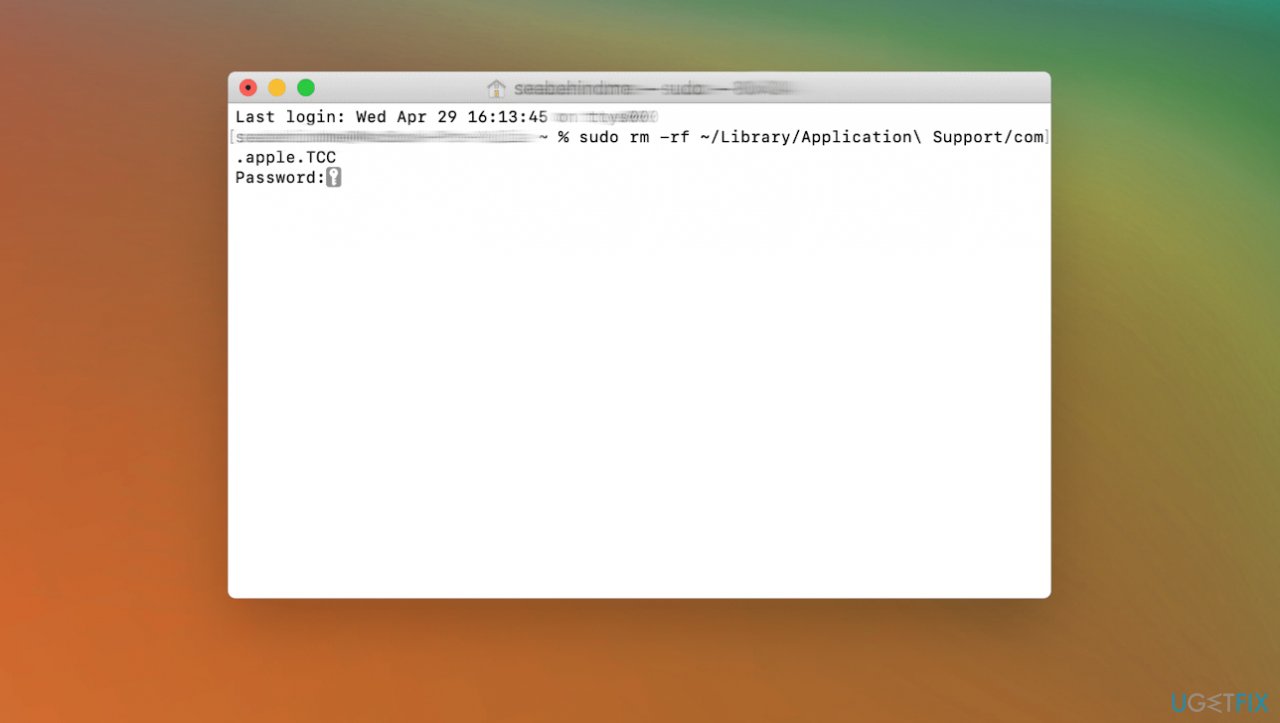
Microphone not working on mac fix terminal - Enter your password to confirm.
- Restart your Mac.
For Macs with T2 chip, hold these keys until you see that device going to restart for the second time. You'll see the Apple logo appear for the second time.
Option 6. Create a new user account
- Navigate to System Preferences.
- Go to Users & Groups.
- Click on the + button present at the bottom-left side of the screen.
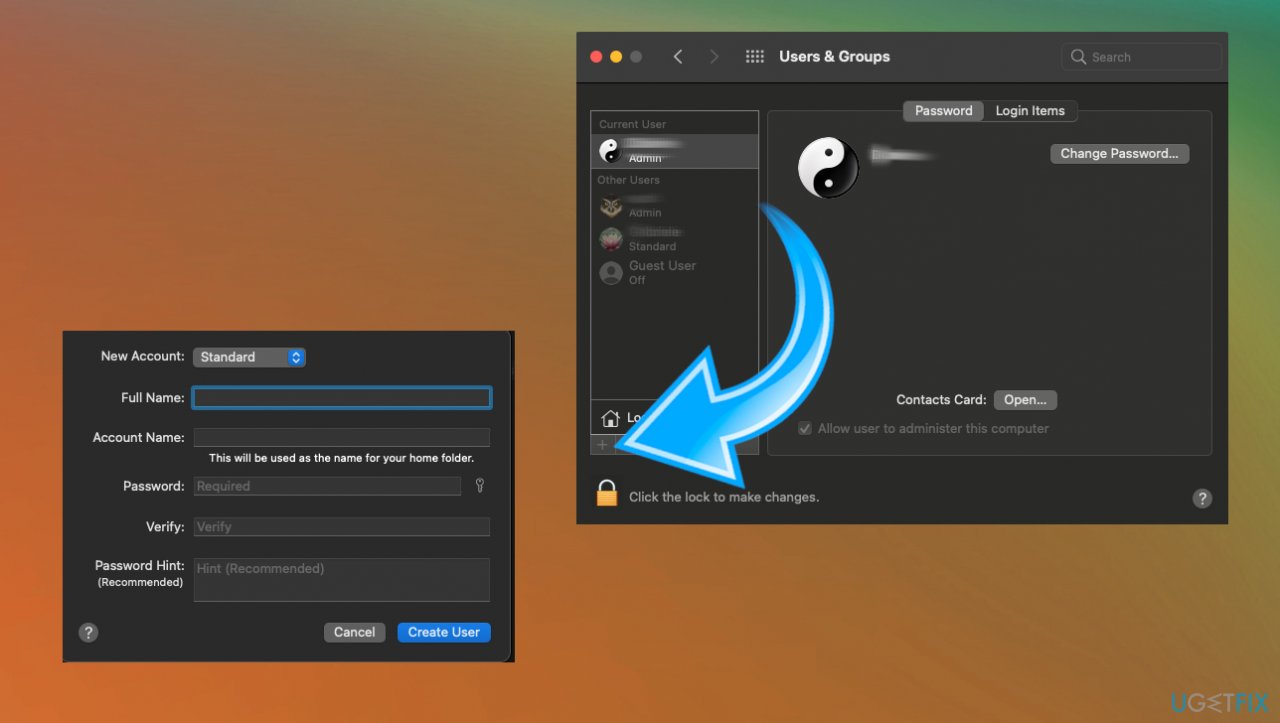
Microphone not working on mac fix users - Add the details and click on Create User.
- Log off your computer.
- After logging off, restart your machine and log into the new account and check for the issue.
Bottom line
To fix the microphone issue on your Mac, check for driver updates, ensure applications have the necessary permissions, and inspect for any physical obstructions or damage. If these solutions do not resolve the problem, consider using external microphones or seeking professional help.
Frequently asked questions
First, check the Sound settings under Control Panel to ensure the microphone is enabled and set as the default device. If it still doesn't work, try updating your audio drivers through Device Manager.
Go to Settings, then Privacy & security, and ensure that microphone access is allowed for apps. Also, check if the microphone is disabled in the sound settings.
Yes, ensure that the 'Allow apps to access your microphone' setting is turned on in the Privacy settings, as this can prevent applications from using the microphone.




Report an issue
What's wrong with this guide? We review every report and update or remove content.
Report received — thank you. We'll review and fix it.
You need a free account to submit a report.
Be the first to comment