
What are brown box icons on my pictures and how to remove them in Windows?

Prefer to fix it yourself? The manual steps follow.
- 8methods
- 2 to 15 minutes
- Easy
Applies to Windows 11 and Windows 10 File Explorer and desktop icons of files synced with OneDrive or another cloud app (Windows 10 support ended on 14 October 2025)
8 methods in this guide
- What the brown box means
- Causes, ranked
- The fixes
- 1. Always keep on this device
- 2. Stop Storage Sense dehydrating
- 3. Dropbox and other apps
- 4. Unlink and relink OneDrive
- 5. Restart File Explorer
- 6. Turn off Archive apps
- 7. Stop the folder backup
- 8. Uninstall OneDrive
- Still there: narrow it down
- Keep it from coming back
- FAQ
Hello. Recently I noticed small brown box icons on most of my files in Windows 11. What do they mean and how do I get rid of them?
The small brown box in the lower-left corner of desktop icons, pictures and files is not a virus. Windows marks a file whose data is not on your PC yet, most often a OneDrive file that is online only. Keep the files on this device and the box goes away.
The brown box means the file is not stored on your PC: its data sits in the cloud, usually in OneDrive. Right-click the folder that holds the files, for example Desktop or Pictures under OneDrive, and select Always keep on this device (Fix 1). If the boxes come back after some days, stop Storage Sense from turning files into online-only files (Fix 2).
| Error | A small brown box or package badge in the lower-left corner of desktop icons, picture thumbnails, documents and folders. Windows shows no message and no error code. |
|---|---|
| Where it appears | On the desktop and in File Explorer, on files inside a folder that a cloud app syncs: Desktop, Pictures and Documents when OneDrive backs them up, or a Dropbox folder. |
| Main cause | The file is online only. Its data is in the cloud and Windows marks it as not available on the PC until it is downloaded. |
| Fastest fix | Right-click the folder and select Always keep on this device (Fix 1). |
| Also written as | Brown box on desktop icons, box icon on files, OneDrive brown box icon, brown box on pictures, box on desktop icons Windows 11. |
| Affects | Windows 11 and Windows 10 with OneDrive Files On-Demand or another cloud app that keeps files online only. |
| Vendor status | Not a bug. Microsoft's list of OneDrive icons does not name the brown box, so we found no official page that explains it by name. |
| Data at risk | None. The files are in your cloud storage. You only cannot open a boxed file while the PC has no Internet connection. |
| Time to fix | About 2 minutes to mark a folder, plus the download time of the files. |
Facts checked on 16 October 2026. Steps written for Windows 11 (25H2 and 26H2) and Windows 10 22H2.
What the brown box on desktop icons and pictures means
Windows can keep a file on your disk as an empty stand-in: the name, size and icon are there, but the data stays in the cloud until you open the file. Microsoft's file system documentation calls a file like this one whose data "is not available immediately" and describes an offline attribute and a pinned attribute for it.
The brown box is the badge that Explorer draws over such a file. Reports on Microsoft Q&A, Super User and ElevenForum tie it to OneDrive files that are not downloaded. Microsoft's own list of OneDrive icons shows a blue cloud for online-only files and does not mention a brown box, which is why so many readers cannot place it.
| Badge | What it means | Opens without Internet |
|---|---|---|
| Small brown box in the lower-left corner | The file's data is not on the PC. Reported for OneDrive and Dropbox online-only files. | No, in most reports |
| Blue cloud outline (Microsoft's description) | OneDrive file that is only available online and takes no space on the PC | No |
| White circle with a green check | OneDrive file that was downloaded when you opened it; Storage Sense can turn it back into online only | Yes |
| Green circle with a white check | File you marked Always keep on this device | Yes |
| Red circle with a white cross | The file or folder cannot be synced | Depends on the file |
Users report two experiences with boxed files. For some, the file opens normally because it downloads in a second. For others, the file cannot be opened while the PC is offline. Both fit the meaning: the box says the data must come from the cloud first.
Why there is a brown box on your desktop icons: causes ranked
The box is a status, so the question is what made your files online only. In the order the reports name them:
| Cause | Typical sign | Fix |
|---|---|---|
| OneDrive backs up Desktop, Pictures or Documents with Files On-Demand on. New files on this PC stay local, files from another PC or from the web arrive as online only. | Boxes on many files at once after you signed in to OneDrive or set up a new PC. | Fix 1 |
| Storage Sense frees up space by turning OneDrive files you did not open for a while into online-only files. | Boxes come back days or weeks after you downloaded the files. | Fix 2 |
| Another cloud app, such as Dropbox, keeps files online only. | The files sit in the Dropbox or other app's folder, not in OneDrive. | Fix 3 |
| OneDrive or Explorer shows an old state. The files are local, but the badge did not update. | Opening the file works offline, yet the box stays. | Fix 4, Fix 5 |
| Archived apps. Windows can archive apps you seldom use and keep only a stand-in shortcut. | The box sits on app shortcuts on the desktop, not on your own files. | Fix 6 |
No report we read links the brown box to malware. It appears on files in cloud-synced folders and goes away when the files are stored on the PC. Programs and pictures behind boxed icons are not damaged.
How to remove the brown box from desktop icons and files
Fix 1 removes the box for most readers and changes nothing else. Fix 2 keeps it from coming back. Fix 3 is for Dropbox and other apps. Fixes 4 to 6 are for boxes that stay on files that are already local, or on app shortcuts. Fixes 7 and 8 take the folder out of OneDrive.
| What you see or have | Start with |
|---|---|
| Boxes on files on the desktop or in Pictures or Documents, and OneDrive is signed in. | Fix 1 |
| The boxes were gone and came back after some days. | Fix 2 |
| The boxed files are in a Dropbox folder or another cloud app's folder. | Fix 3 |
| The files open without Internet, but the box stays. | Fix 4, then Fix 5 |
| The box is on app shortcuts, not on your own files. | Fix 6 |
| You do not want OneDrive to sync the desktop or pictures at all. | Fix 7 |
Fix 1. Keep the files on this device with Always keep on this device
2 minutes plus download timeLow riskAnyone whose boxed files sit in a OneDrive folder, including the desktop and Pictures when OneDrive backs them up.
The box marks a file whose data is not on the PC. Always keep on this device downloads the data and pins the file, which Microsoft's documentation describes as the intent to keep it fully present locally, so the badge has nothing left to mark.
- Press Win + E to open File Explorer.
- In the left pane, find your OneDrive entry, for example OneDrive - Personal or OneDrive with your organisation's name.
- To fix one folder, open the OneDrive entry and right-click the folder, for example Desktop or Pictures. To fix everything, right-click the OneDrive entry itself.
- Select Always keep on this device. On Windows 11, the option may sit under Show more options.
- Wait while OneDrive downloads the files. The notification area icon shows sync arrows until it is done.
- Look at the files. The brown box is replaced by a green circle with a white check.
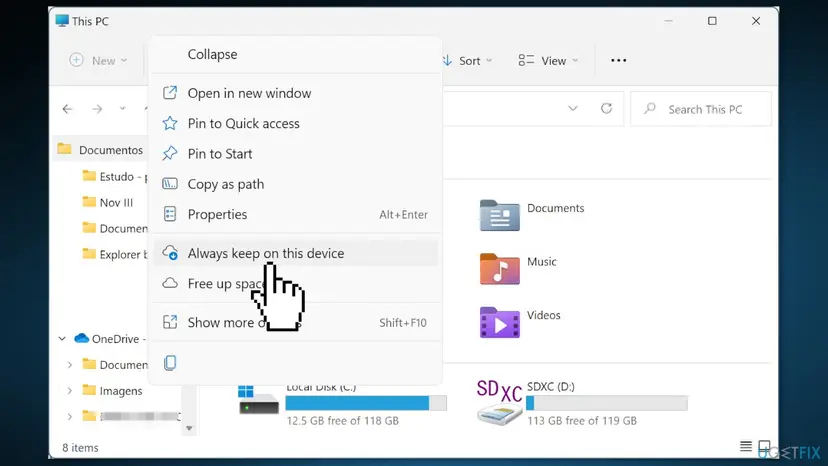
Every file you pin takes its full size on the disk. Right-click the folder, select Properties and compare Size with the free space on drive C: in This PC. If the space is short, pin only the folders you use, not the whole OneDrive.
OneDrive has the same switch for all files at once. Select the OneDrive cloud icon in the notification area, then the gear and Settings. Under Sync and back up, open Advanced settings and look for the Files On-Demand part, where you can download all files. Labels can differ between OneDrive versions.
It worked if: The boxed files show a green circle with a white check, they open with the Internet off, and the brown box does not return after a restart.
If not: If the boxes return after some days, go to Fix 2. If the files are not in OneDrive, go to Fix 3. If the box stays on files that already open offline, go to Fix 4.
Fix 2. Stop Storage Sense from turning files back into online-only files
3 minutesLow riskThe boxes were gone and came back after days or weeks on files you had downloaded.
Microsoft's list of OneDrive icons says that with Storage Sense turned on, locally available files become online-only files after the time period you select. That is the most common reason the brown box returns on its own.
- Press Win + I to open Settings.
- Select System, then Storage.
- Under Storage management, select Storage Sense (on Windows 10: Configure Storage Sense or run it now).
- Find the Locally available cloud content part with your OneDrive account.
- Set the time after which files become online only to Never.
- If you do not need Storage Sense at all, you can turn the Storage Sense switch off instead. Temporary files are then no longer cleaned automatically.
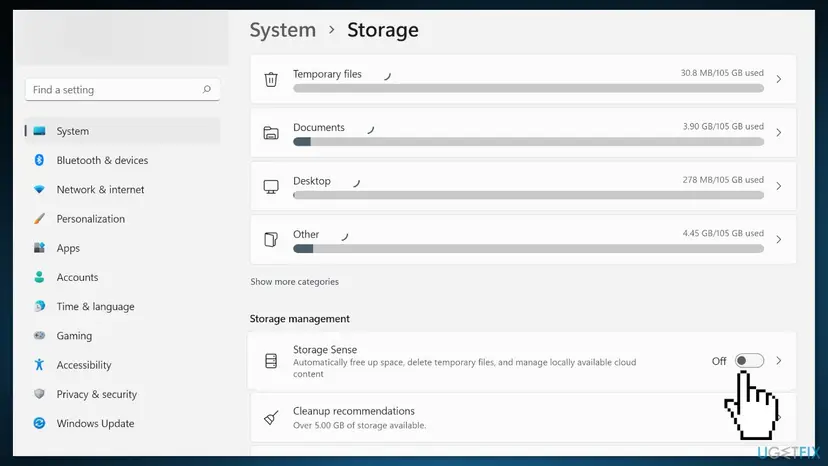
Files that Storage Sense already made online only keep their box. Run Fix 1 once more after you change the setting. Files marked Always keep on this device are not turned back, so Fix 1 alone also protects them.
It worked if: Files you downloaded keep their check badges for weeks, and no new brown boxes appear on them.
If not: If the boxes still come back, look at Manage backup in Fix 7 to see which folders OneDrive syncs.
Fix 3. Make files available offline in Dropbox or another cloud app
3 minutes plus download timeLow riskThe boxed files are in a Dropbox folder or the folder of another sync app, not under OneDrive.
Any sync app that keeps files in the cloud and only a stand-in on the PC can have Windows draw the same box. Each app has its own command to download the data and keep it.
- Open File Explorer and go to the app's folder, for example Dropbox in the left pane.
- Right-click the boxed file or folder.
- Open the app's menu in the right-click list, for example Dropbox. On Windows 11, select Show more options first if it is missing.
- Select the option that keeps the file on the PC. In Dropbox it is the offline option, the opposite of online only.
- Wait until the app shows the file as synced, then look at the icon again.
We did not test every cloud app, and their menu names change between versions. If you cannot find the option, open the app's own settings and look for online-only, smart sync or on-demand files.
It worked if: The files in the app's folder lose the brown box and open without an Internet connection.
If not: If the app shows the files as local but the box stays, restart File Explorer with Fix 5.
Fix 4. Unlink and link OneDrive again
10 minutesLow riskThe files open offline but keep the brown box, or OneDrive shows a gray or paused icon.
When OneDrive lost track of the files' state, the badges no longer match what is on the disk. Signing out and in makes OneDrive read every file again and set fresh status badges.
First look at the OneDrive cloud icon in the notification area. Microsoft's icon list says a gray icon with a line through it means you are not signed in, and a paused symbol means files are not syncing. Select Resume syncing in the second case and wait a few minutes before you unlink.
- Select the OneDrive cloud icon in the notification area, then the gear icon and Settings.
- Open the Account tab.
- Select Unlink this PC, then Unlink account to confirm. Your files stay on OneDrive.com and in the OneDrive folder.
- Press Win, type
OneDriveand open the OneDrive app. - Sign in with the same account and choose the same OneDrive folder when asked.
- Wait for sync to finish, then run Fix 1 on the folders with boxes.
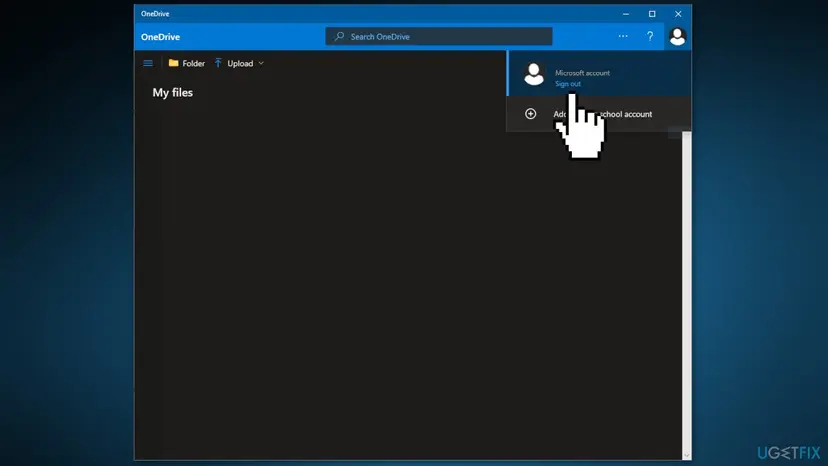
If OneDrive warns that you are already syncing a personal OneDrive, Microsoft points to its unlink and relink steps, which are the same as above.
It worked if: After the new sign-in, OneDrive shows a blue or white cloud icon without warnings, and Fix 1 now removes the boxes.
If not: If the badges still look wrong, restart File Explorer with Fix 5.
Fix 5. Restart File Explorer to redraw the badges
1 minuteNo riskThe files are local and open offline, but the desktop still shows the old brown boxes.
Explorer draws the badges when it loads a folder. Pressing F5 on the desktop redraws the icons; restarting Explorer also reloads the badge handlers of OneDrive and other apps.
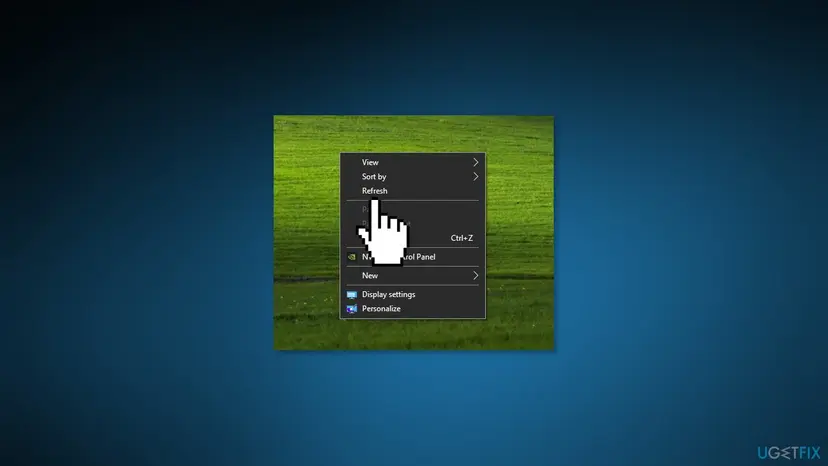
Try the light refresh first: click an empty spot on the desktop and press F5, or right-click it and select Refresh. If the boxes stay, restart Explorer as below. Step by step: Restart File Explorer.
- Open Task Manager. Press Ctrl + Shift + Esc. The Processes page opens.
- Select Windows Explorer. Find Windows Explorer in the list and select it. If it is not under Apps, look under Windows processes further down.
- Restart it. Select Restart task at the top of the window. The taskbar disappears for a moment and comes back. If you do not see Restart task, right-click Windows Explorer and select Restart.
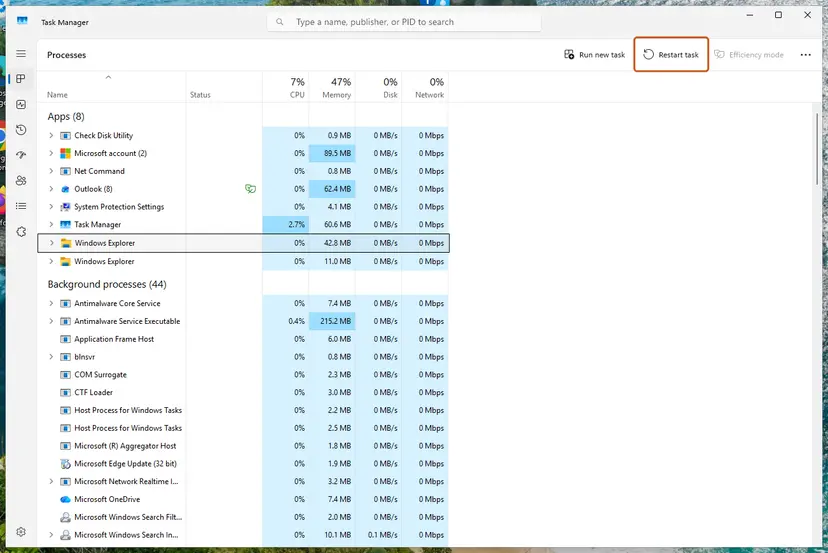
Select Windows Explorer, then Restart task. Screenshot: Windows 11 26H2.
These steps were written for Windows 11 26H2 (build 26300). The full page with the other versions and what each result means: Restart File Explorer
It worked if: The taskbar and desktop come back after a few seconds, and files that are on the PC no longer carry the brown box.
If not: If the boxes are on app shortcuts rather than files, go to Fix 6. If they are on files, they are still online only: repeat Fix 1.
Fix 6. Turn off Archive apps for boxes on app shortcuts
2 minutesLow riskThe box sits on shortcuts of apps on the desktop, not on your pictures or documents.
Windows 11 can archive apps you seldom use: it removes most of the app and keeps a stand-in that downloads it again when you open it. Users on Reddit report brown boxes on such shortcuts. We could not confirm which badge Windows draws for an archived app.
- Press Win + I to open Settings.
- Select Apps in the left pane.
- Select Advanced app settings.
- Select Archive apps and turn the switch Off.
- Open each boxed app once so Windows restores it in full, then look at its shortcut.
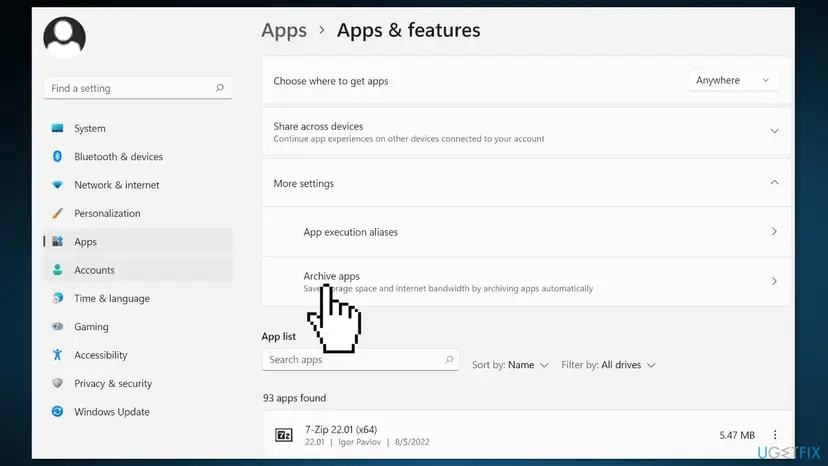
It worked if: App shortcuts lose the box after the apps are restored, and Windows no longer archives apps you do not use.
If not: If the shortcut points to a file in a OneDrive desktop folder, the box belongs to the file: use Fix 1.
Fix 7. Stop OneDrive from backing up the folder with the boxes
10 minutesRead the warningYou do not want your desktop, pictures or documents in OneDrive at all.
The boxes only appear on files that OneDrive manages. Once a folder is no longer backed up, it is a normal local folder again and new files in it carry no cloud badge.
When you stop the backup, files already in OneDrive can stay in the OneDrive folder and on OneDrive.com, and the local folder may look empty. Run Fix 1 on the folder first so every file is on the PC, then copy the files to a local folder or an external drive before you stop the backup.
- Select the OneDrive cloud icon in the notification area, then the gear icon and Settings.
- Open Sync and back up (in older versions the Backup tab).
- Select Manage back up.
- Turn off the folder you want to keep local, for example Desktop or Pictures, and confirm with Stop backup.
- Open the local folder. If the files are missing, copy them back from the OneDrive folder in File Explorer.
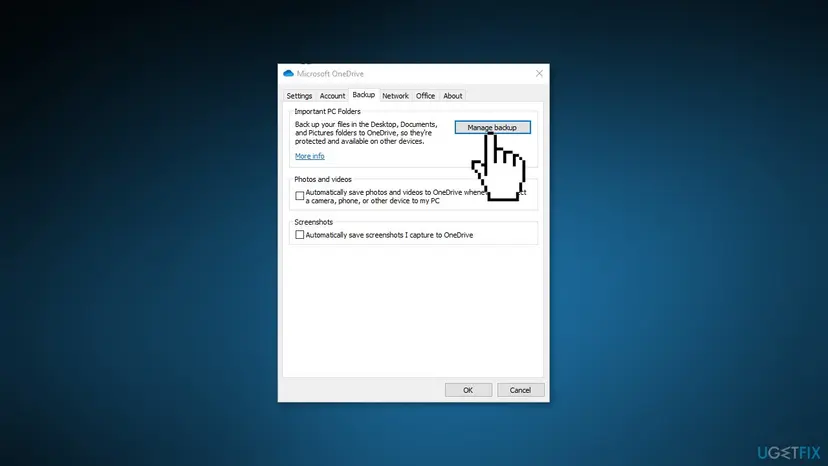
It worked if: The folder no longer belongs to OneDrive, its files show no cloud badges, and they stay on the PC.
If not: If you want OneDrive gone completely, use Fix 8.
Fix 8. Uninstall OneDrive and reinstall it if you need it
15 minutesRead the warningLast step: nothing above helped, or you do not use OneDrive at all.
Without OneDrive running, no app manages the files' cloud state. A fresh install also clears a damaged OneDrive setup that keeps wrong badges.
Files with the brown box have no data on the PC. After the uninstall, you can reach them only on OneDrive.com. Run Fix 1 first, or download what you need from OneDrive.com, before you uninstall.
- Press Win + I and select Apps, then Installed apps.
- Find Microsoft OneDrive in the list.
- Select the three dots next to it and Uninstall, then confirm.
- Restart the PC and check whether the brown boxes are gone.
- If you use OneDrive, install it again from Microsoft and sign in, then run Fix 1 and Fix 2.
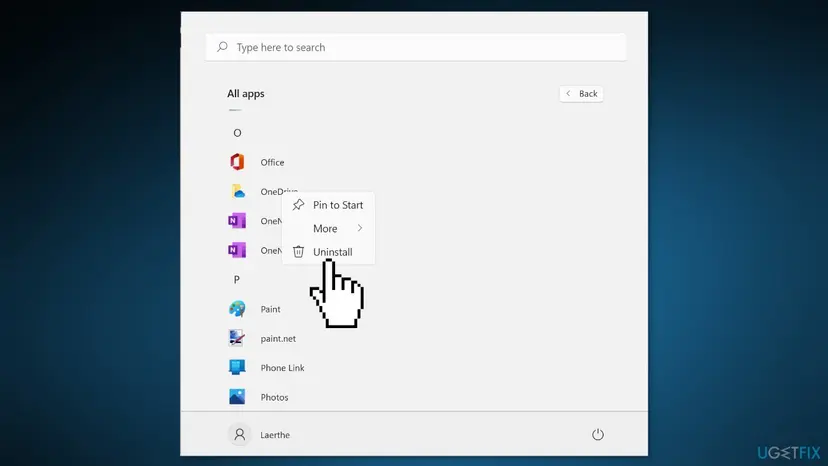
Before you uninstall, a reset of OneDrive may be enough: it rebuilds the sync state without removing the app. Step by step: How to reset OneDrive in Windows.
It worked if: After the restart, files on the PC show no cloud badges. After a reinstall and Fix 1, OneDrive files show green checks instead of boxes.
If not: Read the next section on what to do when the brown boxes are still there.
Brown boxes still there: narrow it down
Windows writes no error or log entry for the badge. These checks tell you which app owns the boxed file:
| Check | Result | What it means |
|---|---|---|
| Right-click the boxed file and select Open file location, or look at the path in the address bar. | The path runs through OneDrive or Dropbox. | That app owns the file. Use Fix 1 or Fix 3 on it. |
| Turn off Wi-Fi and open the file. | It does not open. | The data is still in the cloud. The box is correct; download the file. |
| Same test. | It opens. | The badge is stale. Use Fix 4 and Fix 5. |
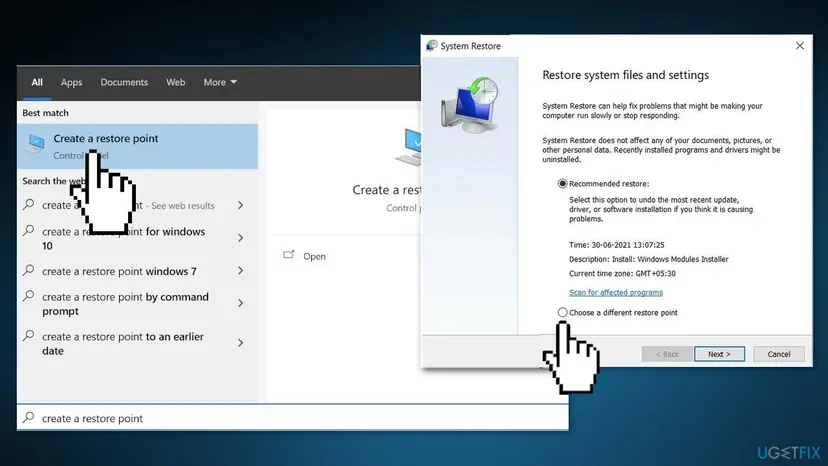
If the boxes appeared right after a recent change you can name, such as a new sync app, System Restore can take Windows back to a point before it. It keeps your documents but removes apps and drivers installed after that point. Step by step: Undo recent changes with System Restore.
- What to send to OneDrive support: the path of a boxed file, a screenshot of the badge, the OneDrive version from Settings > About, and whether the file opens offline.
- When it is not a software problem: never for this badge. It is a status of the file, not a fault of the disk or screen.
- What not to do: reset Windows or delete the OneDrive folder. Both can remove the local copies you are trying to keep.
Keep brown boxes from coming back
The box returns whenever a cloud app decides a file may live in the cloud only. Decide that yourself instead:
- Mark the folders you use every day with Always keep on this device.
- Set Locally available cloud content in Storage Sense to Never if you have the disk space.
- Check which folders OneDrive backs up in Manage back up after you set up a new PC.
- Keep files you need offline, for example on a trip, pinned before you leave.
- Do not pin the whole OneDrive on a small disk; pin folders instead.
- Do not delete files with boxes to clean up: deleting them in File Explorer also deletes them in the cloud.
- Do not uninstall OneDrive while files still show the brown box.
- Do not reset Windows over a badge.
Frequently asked questions
Why is there a brown box on my desktop icons?
Because the files behind those icons are not stored on your PC. Your desktop is most likely backed up by OneDrive, and OneDrive keeps some files in the cloud only, with a stand-in on the PC. Windows marks such a file with the small brown box in the lower-left corner. The file is safe in your cloud storage. Right-click the Desktop folder under OneDrive and select Always keep on this device to download the files, and the boxes go away (Fix 1).
What does the OneDrive brown box icon mean?
It marks a OneDrive file whose data is not on the PC yet, an online-only file in Files On-Demand. Microsoft's official icon list shows a blue cloud for online-only files and does not name the brown box, but reports on Microsoft Q&A, Super User and ElevenForum tie the box to the same state. The file opens when OneDrive can download it. To remove the box for good, keep the file on the device (Fix 1) and stop Storage Sense from turning it back (Fix 2).
How do I fix the OneDrive brown box icon?
Download the files and keep them on the PC. In File Explorer, right-click the OneDrive folder with the boxed files and select Always keep on this device. When OneDrive has downloaded them, the box changes to a green circle with a white check. If the box stays on files that already open offline, unlink and link OneDrive again (Fix 4) and restart File Explorer (Fix 5). Signing out and in was the old version of this guide's first tip; it helps only when the badge is stale.
Why is there a box icon on my files and pictures?
A box badge on files and picture thumbnails means the files sit in a folder that a cloud app syncs, and their data is in the cloud. This happens most often after OneDrive starts backing up Pictures, Desktop or Documents, or after you sign in on a new PC and your files arrive from the cloud. The pictures are not damaged and not infected. They are downloaded when you open them, or all at once when you use Always keep on this device.
Can I open files with the brown box without Internet?
Usually not. A boxed file has only its name and icon on the PC, so Windows has to fetch the data first. Users report both cases: some files open because they download in a second, others cannot be opened offline at all. If you need files offline, for example while travelling, pin them with Always keep on this device before you lose the connection. Microsoft says the same for its online-only cloud icon: such files cannot be opened when the device is not connected.
Why do the brown boxes come back after I removed them?
Storage Sense is the usual reason. Microsoft says that with Storage Sense on, OneDrive files that were downloaded become online-only again after the time period you select. Set Locally available cloud content to Never in Settings > System > Storage > Storage Sense (Fix 2). Files marked Always keep on this device are not turned back. A new PC or a new OneDrive sign-in can also bring files in as online only again.
What is the brown box on Dropbox files?
This page is mainly about OneDrive, but the reports show the same brown box on Dropbox files that are online only. Dropbox keeps a stand-in on the PC and the data in the cloud, like OneDrive does. Right-click the file or folder in the Dropbox folder, open the Dropbox menu and choose the offline option to keep it on the PC (Fix 3). We did not test the current Dropbox app for this guide, so menu names may differ.
Is the brown box on my desktop icons a virus?
No. The brown box is a status badge of cloud files and appears on normal files in OneDrive, Dropbox and other synced folders. No report we read connects it to malware. If you also see pop-ups, programs you did not install or a changed browser home page, run a scan anyway. Step by step: How to scan for malware with Microsoft Defender. A scan will not remove the box, though; keeping the files on the device does.
Does deleting files with the brown box free up space?
Hardly, and it is risky. A boxed file takes almost no space on the PC, because its data is in the cloud. Deleting it in the OneDrive folder also deletes it from OneDrive on every device. Use Free up space on the right-click menu if you want a file to stay in the cloud only, and Always keep on this device if you want it on the PC. If you deleted something by mistake, OneDrive keeps it in its recycle bin for a while. Step by step: Restore deleted or older files in OneDrive.
Sources
Did this fix work?
One click, no account. It tells the next reader which guides are worth their time.
Questions and experiences: What are brown box icons on my pictures and how to remove them in Windows
Still broken, or found a fix we did not cover? Ask here: members and our editors answer. Reading is open; writing needs a free account.
…