How to fix
Enable two-factor authentication on Gmail
on Windows
Secure your Gmail with two-factor authentication for enhanced protection on Windows 10 or 11. Expert-tested tips ensure a smooth setup. Fixed in minutes!

Why does How to enable two-factor authentication on Gmail occur?
- Inadequate account security
- Password compromise
- Unauthorized access attempts
- Lack of two-factor authentication
- Potential data breaches
Repairs Windows system files, removes malware, and restores a clean OS state — without reinstalling.
Could you explain to me how to turn on two-factor authentication on Gmail account?
Two-factor authentication, also known as 2FA,[ref en-2] TFA or two-step verification, is one of the methods to add more security to your personal information online. Once you set it up, you have to enter your login, password, and verification code that is being sent to your mobile device or authentication app in order to access your account.
You can enable two-factor authentication on Gmail, Facebook, Twitter, Reddit and many other online services. Users are advised[ref en-1] to turn on this feature as prevention of data breaches and other unauthorized access to your account if some evil-minded people guess your password.
If someone gets access to your account,[ref en-3] they might send emails on behalf of you, steal your contact list or get access to your other accounts. For instance, criminals might reset your banking account password. There's no doubt that this may lead to serious problems.
Therefore, two-factor authentication gives an extra layer to cyber security. Google allows enabling this feature on all its services, including Gmail, Drive, G+, YouTube, and others. Though, it’s impossible to set 2FA for Gmail only. You will need to protect all Google account.
Instructions how to enable two-factor authentication on Gmail and Google
As you already know, you can set 2-step verification on Gmail by enabling this feature on Google account. Therefore, every time you want to access your Gmail, YouTube or other Google account, you will need to confirm your login as soon as you enter your password.
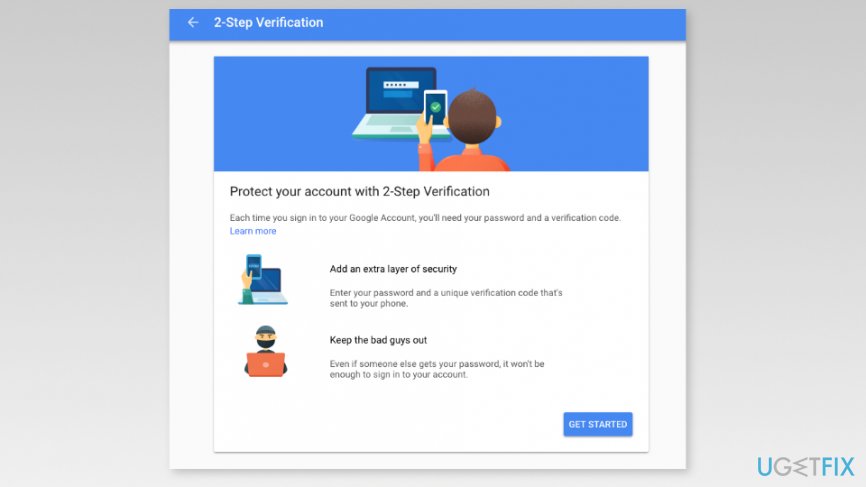
- Access 2-Step Verification page using a web browser on the computer and click "Get started" button.
Click get started button - Sign in to your Google account.
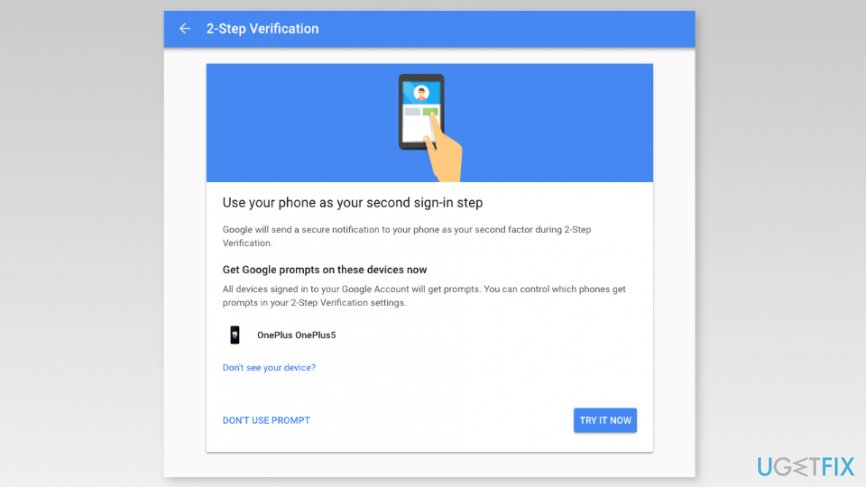
- Once you log in, you will be offered to set your phone as a second sign-in step. If you have logged in to your Google account using your mobile phone, you will see it under device list. Click “Try It Now” button to proceed.
Use your phone as second sign in step
Note: If you do not see your phone listed, you have to click “Don’t see your device?” option and follow the guide here. You will need to confirm your phone number. - Soon as you click the button, you will receive a prompt on your mobile device. If the information on the prompt is correct, tap "Yes" button on the smartphone’s screen.
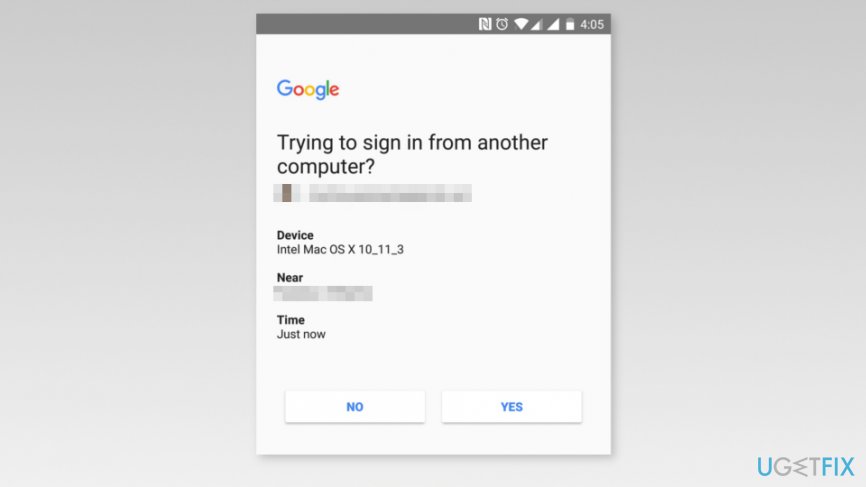
Confirm sign in on your phone - Then you will see “Add a backup option” window where you have to choose alternative sign up method in case you lose your phone. You can set your phone number or click “Use Another Backup Option” which hides the list of backup codes which you have to print or download.
- Once you choose your alternative login solution, click "Next" button.
- Finally, you will have to click "Turn On" button to enable two-factor authentication on Google.
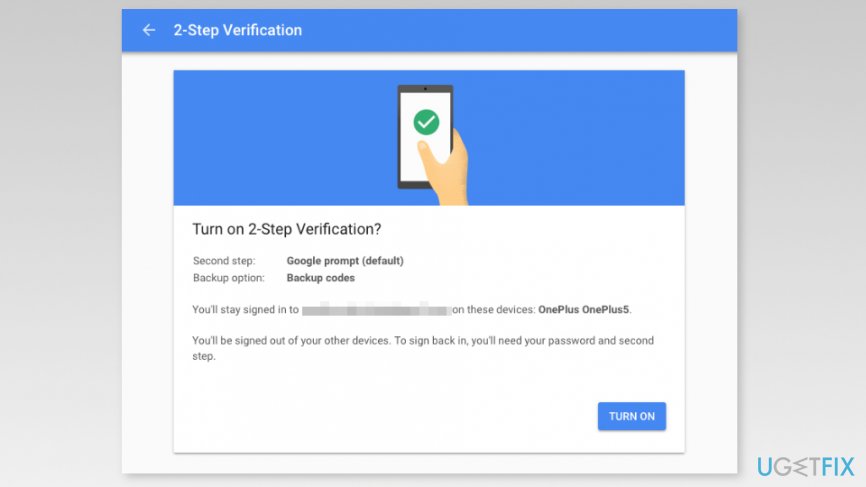
Turn on two factor authentication on google
Turning off two-factor authentication on Google account
If for some reason you want to disable two-factor authentication on your Google account, you can do it simply. Follow these steps:
- Access your Google account.
- Navigate to “Sign in & security” section and choose 2-step verification.
- Sign in to your account by entering the username, password, and verification code if needed.
- Select "Turn off."
- In the appeared pop-up confirm the action by clicking "Turn off" button.
Bottom line
To enable two-factor authentication on your Gmail account, access the 2-Step Verification page, sign in, and set up your phone as a second sign-in step. If you encounter issues, follow the prompts for device recognition or consult the guide for further assistance. If none of these solutions work, consider reaching out to Google support for help.
Frequently asked questions
To enable two-factor authentication on Gmail, go to your Google Account settings in a web browser on Windows 10, select 'Security', then under 'Signing in to Google', click '2-Step Verification' and follow the prompts.
Yes, you can manage your two-factor authentication settings for Gmail by accessing your Google Account through any web browser on Windows 11 and navigating to the 'Security' section.
If you face issues, ensure your Windows 10 or Windows 11 system is up to date, and try clearing your browser's cache or using a different browser to access your Google Account.




Report an issue
What's wrong with this guide? We review every report and update or remove content.
Report received — thank you. We'll review and fix it.
You need a free account to submit a report.
Be the first to comment