How to fix
Restore Mac to the earlier date
on Windows
Quickly restore your Windows 10 or Windows 11 settings to an earlier date for optimal performance. Follow our expert-tested guide and fix it in minutes!

Why does How to restore Mac to the earlier date occur?
- System slowdowns
- Random freezes
- Installed faulty software
- Incorrectly altered settings
- Software downloading and update installation
Repairs Windows system files, removes malware, and restores a clean OS state — without reinstalling.
Hello. I’ve been using my Mac for more than a year. However, these days I’ve noticed a significant slowdown and random freezes - this behavior just started recently. I know that it’s possible to restore the system to the previous state, but I’ve never done that in practice. Could you please provide me a tutorial on this? Thank you in advance.
Restoring macOS to an earlier date might be important for various reasons because users encounter problems with their devices like system slowdowns and other issues. Restoring the system can resolve various issues and system restore is a popular solution used to reverse particular changes. Installed faulty software or incorrectly altered settings.
Just like Windows, macOS can also be restored to a previous state. Everyday tasks, such as software downloading, update installation, settings changes, etc. influence Mac’s performance and, usually, decrease it's speed gradually. While such issues can be easily fixed with the proper macOS cleaning process, sometimes restoring the system is the only choice users have left.
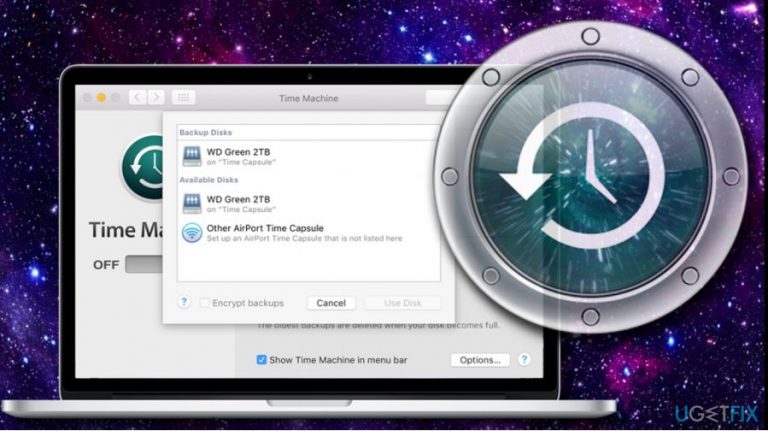
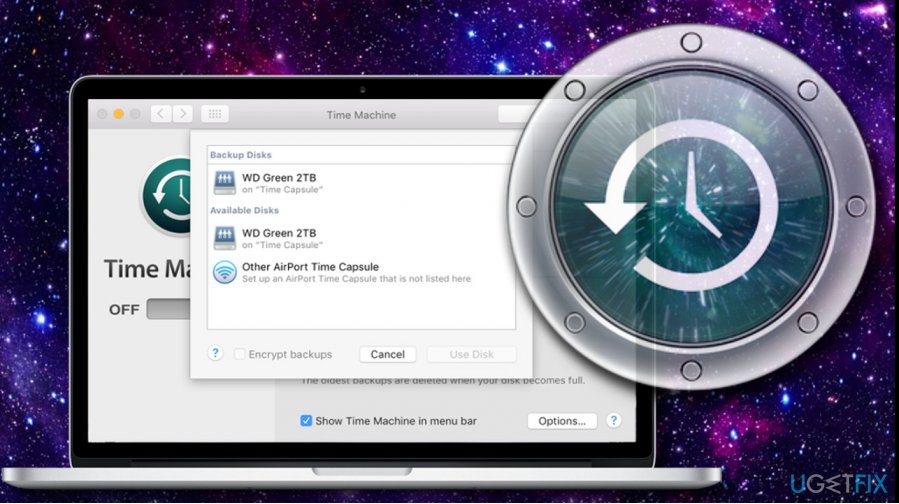
macOS has a built-in System Restore feature, which is an equivalent to Windows System Restore Point.[ref en-1] The feature is extremely useful if Mac gets slow, starts freezing or suspicious system errors[ref en-2] start emerging. It's not difficult to restore your Mac to the previous date, as the system has a built-in back-up feature known as Time Machine.
To restore the system, you'll have to set up the Time Machine. If you haven't set it up yet, unfortunately, you won't be able to reset your Mac to the previous date because the system does not have a copy of its previous state.
How to Restore macOS to the Previous Date
Time Machine backup is one of the greatest methods to restore your macOS to an earlier state. If you used this feature to create backups it is easy to restore files. This is one of the greatest solutions, when it comes to macOS devices because many third-party options are designed to restore files on Windows OS and there are little to none features for this operating system.
Set up Time Capsule to restore macOS to an earlier date
Time Machine on Macs is a great tool that allows creating backups of your files. To set up Time Capsule,[ref en-3] you'll have to use an external driver, which has free space that would be sufficient for all data from your internal drive.
First of all, connect an external hard drive, which is connected to a USB, Thunderbolt port or FireWire. The external hard drive connected to the USB port of an AirPort Extreme base station on your network also fits.
Once you connect an external hard drive to your Mac device, you may receive a confirmation window saying: “Do you want to use the drive to back up with the Time Machine?” Select Use a Backup Disk to proceed.
In case you want some extra security, you can select “Encrypt backup Disk” by which you will put a password on the created backups. Sometimes, the connected hard drive doesn’t trigger a confirmation window. In this case, you should perform the following steps:
- Select Apple menu –> System Preferences –> Time Machine.
- Select Backup Disk option.
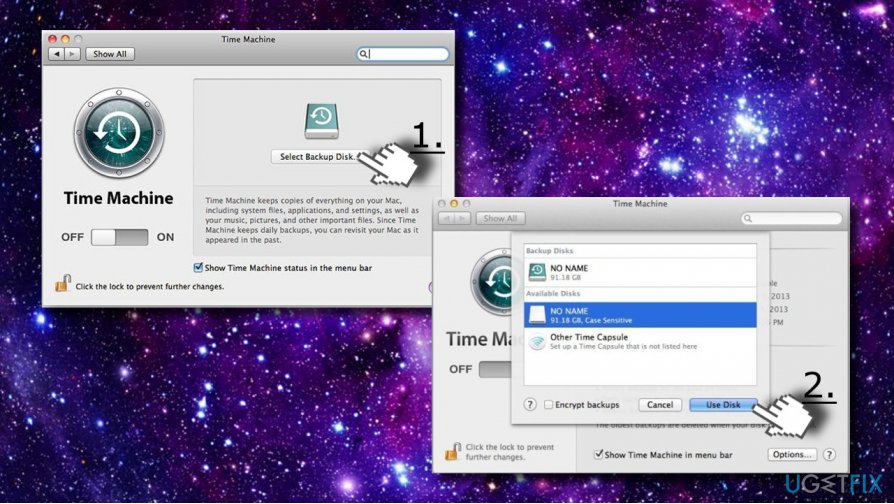
Create backup - Select an external hard drive that you attempt using (listed above) and click the Use Disk option.
- To ensure the security of your data, click Add or Remove Backup Disk
Back up data using Time Machine
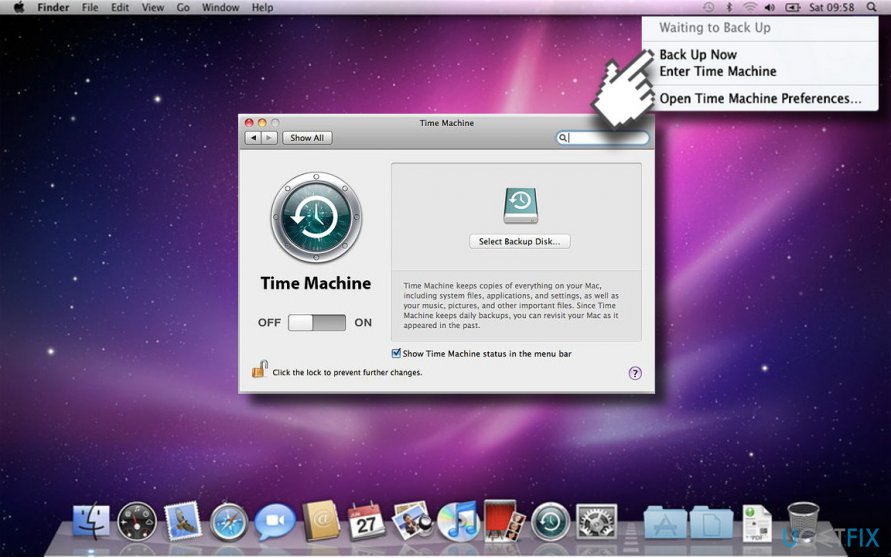
Once Time Capsule is set up, it starts creating backups for the past 24 hours and daily backups for the previous month automatically. In case you want to create backups right now, you have to select Back Up Now on the Time Machine menu. Then, select which disk you want to fully back up your Mac to continue this process. Keep in mind that the backup process might take a while, so be patient.
Restore Mac to the earlier data this way by restoring the macOS
As soon as you enable Time Capsule and create backups with Time Machine, you can use the option to restore the system to the previous date. For this purpose, you have to launch OS X Recovery Tool:
- When you boot up your system or restart it, click Command key + R simultaneously to open OS X Recovery Tool.
- Select Restore from Time Machine Backup.
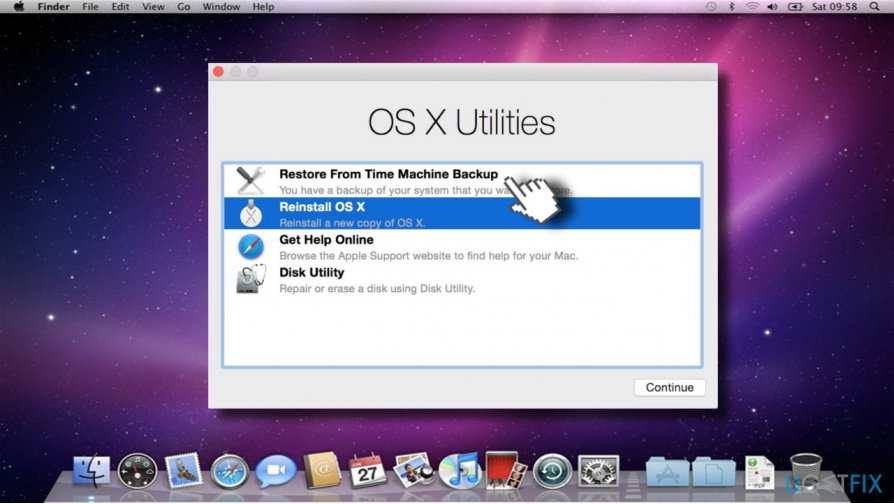
Restore from time machine backup - If you have created more than one backup, select the one that has been created before your Mac errors occurred or before it got slow.
- Finally, wait for the system to restore. This may take a while.
NOTE: If you don’t have a Time Capsule and can’t create backups, then the only solution to restore your Mac to the previous state is to reinstall it.
By the way, you can also try using a Mac optimization tool, for example, [d1]. This program has been developed for increasing Mac’s speed and overall performance, so if the problems that you encounter are not too big, optimization tool may be a great solution.
Bottom line
Restoring macOS to an earlier date can resolve issues like system slowdowns and freezes. This can be achieved by using the built-in Time Machine feature to create backups. If these solutions do not work, consider performing a macOS cleaning process or seeking further technical assistance.
Frequently asked questions
No, restoring a Mac to an earlier date is a process specific to macOS and cannot be done through Windows 10 or Windows 11 settings.
You can use third-party applications like Parallels Access or remote desktop tools to manage files on a Mac from Windows 10 or Windows 11.
While not natively supported, you can access Time Machine backups on a Mac from Windows using specific software like HFSExplorer.




Report an issue
What's wrong with this guide? We review every report and update or remove content.
Report received — thank you. We'll review and fix it.
You need a free account to submit a report.
Be the first to comment