How to fix
Set an Alarm
on Windows
Easily set alarms on Windows 10 and Windows 11 with our comprehensive guide. Enjoy expert-tested tips for hassle-free time management, fixed in minutes!

Why does How to set an Alarm in Windows occur?
- Incorrect time and date settings
- PC in sleep mode
- Outdated Alarms & Clock app
- Lack of system maintenance
- Junk files affecting performance
Repairs Windows system files, removes malware, and restores a clean OS state — without reinstalling.
Hello, I was wondering how to set up an alarm in Windows. Maybe you could provide steps to do so because I am quite a novice when it comes to computers. Thanks.
Alarms in Windows 10 are an essential feature for people who use their computers for work, study, or personal tasks. They help users to remain organized and never miss an important event or deadline. The Alarms & Clock app in Windows 10 is a versatile tool that allows you to set alarms, wake timers, stopwatches, and timers.
In addition to setting alarms and wake timers, you can use the stopwatch and timer features of the Alarms & Clock app to measure time accurately. You can use the stopwatch to time an activity, while the timer can be set for a specific duration.
The Alarms feature in Windows is incredibly useful as it enables you to keep your work life organized, never miss a deadline, and keep track of your daily tasks. It can help you keep your meetings on time and ensure that you don't miss any important events.
Moreover, the wake timer feature of the Alarms & Clock app allows you to schedule tasks, even if your PC is in sleep mode. This feature can be particularly helpful for those who need to perform tasks at a specific time, such as updates or backups. In this guide, we will show various peculiarities of this feature and ways how it can be configured, so check the instructions below.
In addition to using the Alarms & Clock app, it's important to keep your PC running smoothly and efficiently. One way to do this is by using a PC maintenance and repair utility like [d1]. This powerful tool can help optimize your PC's performance by cleaning up junk files, fixing registry issues, and more.
Step 1. Ensure your time and date are set correctly
The very first thing you should do is to ensure that Time and Date app is set correctly. The easiest way to do so is to synchronize it online.
- Type in Control Panel in Windows search and press Enter.
- Go to Clock and Region and click on Date and Time.
- Pick the Internet Time tab and select Change Settings.
- Make sure that Synchronize with an Internet time server box is ticked.
- Click Update now and OK.

Step 2. Install all updates
This step is not mandatory but advisable. By installing the newest updates, you can ensure that the system runs smoothly
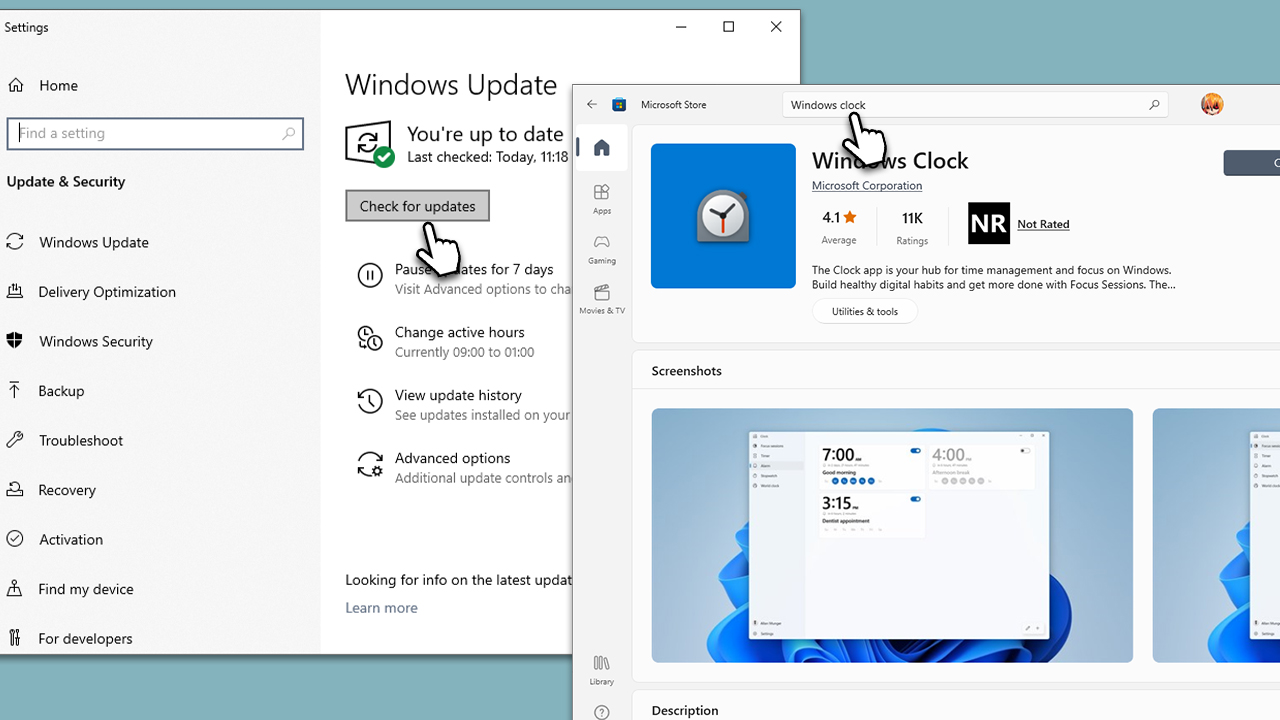
- Type Updates in Windows search and press Enter.
- Click Check for updates and wait.
- If any optional updates are available, install them as well.
- When done, reboot your PC.
Next, make sure your Clock app is updated:
- Type Microsoft Store in Windows search and press Enter.
- In the search bar at the top, type Windows Clock and press Enter.
- If any updates are available, click Install updates.
- If the button says Open, it means your Clock app is up to date.
Step 3. Disable sleep
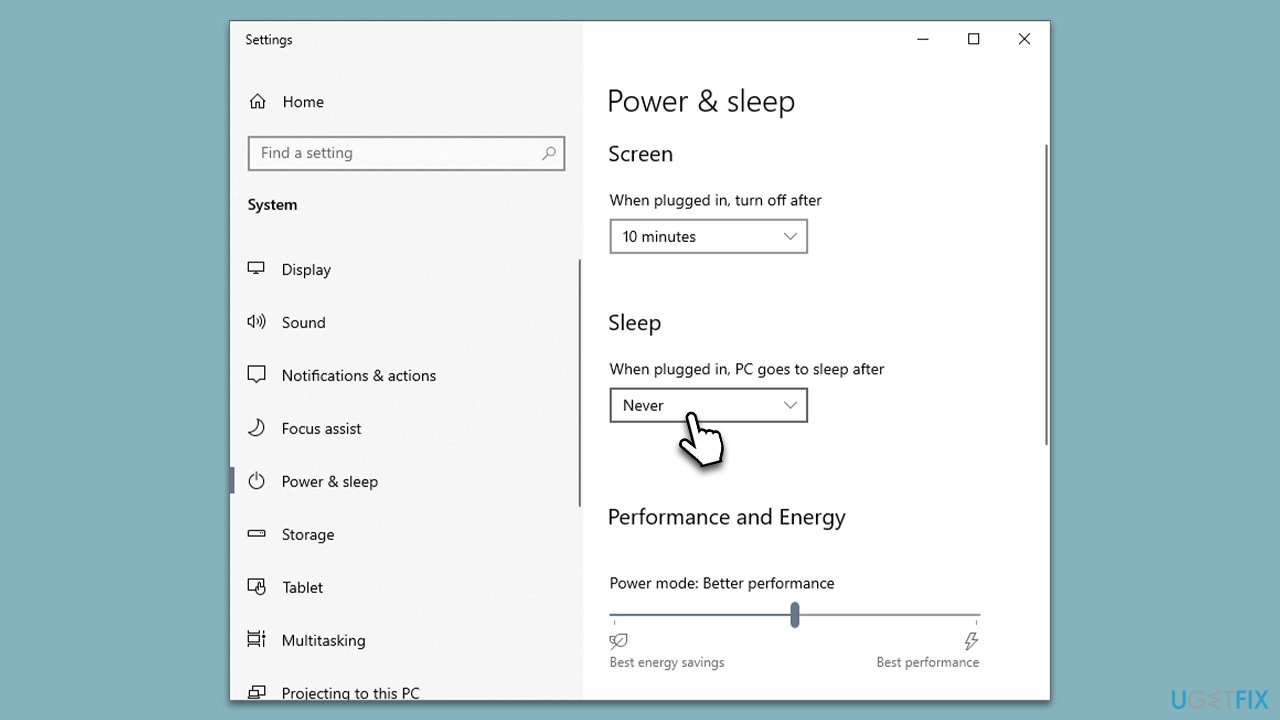
The alarm will not ring if sleep mode is enabled. Here's how to disable it:
- Type Power & Sleep in Windows search and press Enter.
- Find the Sleep section on the right.
- From the drop-down menu, select Never.
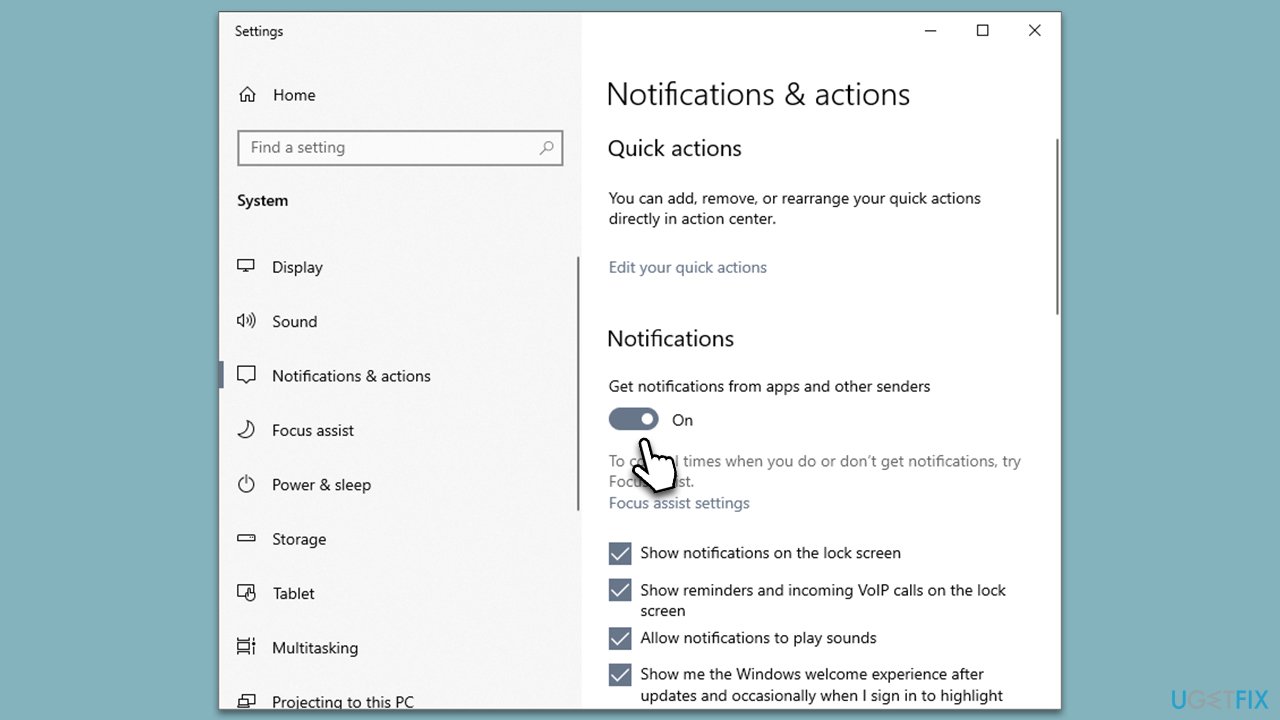
Step 4. Enable notifications
Another thing for the alarm to work is notifications. If they are not enabled, the alarm won't work, so make sure you have this feature enabled as follows:
- Type Notifications in Windows search and press Enter.
- Under Notifications, toggle the switch to the ON position.
Step 5. Set the alarm
Finally, you should get ready to set your alarm. Here's how:
- Type Clock in Windows search and press Enter - this will open the Clock app.
- In the app, select the Alarm section on the left.
- On the right side, you will see the preset for 7 AM - you can enable it by clicking the switch once.
- To modify it, click anywhere else on the alarm.
- Now set the time for your alarm, for example, 8 AM.
- You can then modify the name of the alarm if you want to. Simply click on the name to edit it.
- You can then set whether you want the alarm to repeat. If you do, you can then select which days the alarm should ring.
- Finally, select the ringtone and the snooze timer, and press Save.
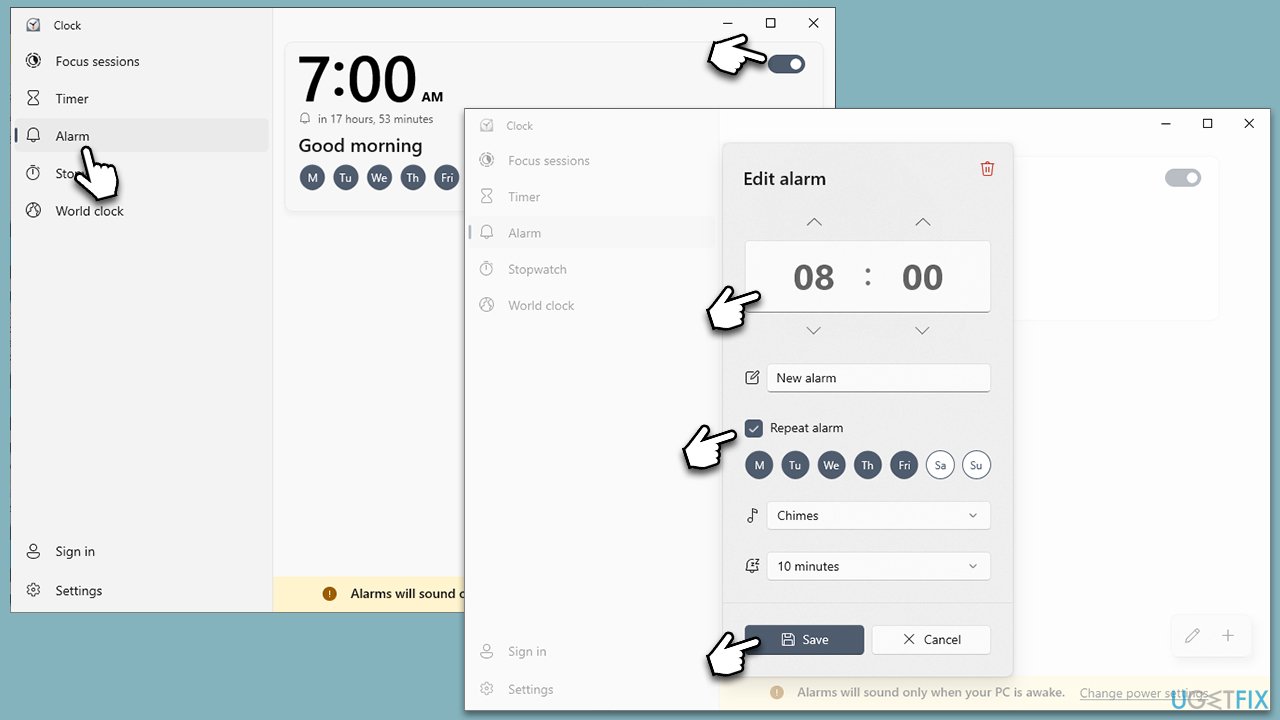
To add another alarm, you can press the plus (+) button and configure it. To delete the alarm, open it up and click the trash can icon at the top-right corner.

Other methods to customize your Windows experience:
Bottom line
To set an alarm in Windows, ensure your time and date are set correctly, and use the Alarms & Clock app. If you encounter issues, consider optimizing your PC's performance with a maintenance utility. If none of these solutions work, further troubleshooting may be necessary.
Frequently asked questions
To set a recurring alarm, open the Alarms & Clock app, click on the '+' button to create a new alarm, and then select 'Repeat' to choose your desired frequency.
Ensure that your volume is up and not muted, and check the sound settings in the Alarms & Clock app to confirm that a sound is selected for your alarm.
Yes, you can use your own music by selecting 'Browse' in the alarm settings to choose an audio file from your PC.




Report an issue
What's wrong with this guide? We review every report and update or remove content.
Report received — thank you. We'll review and fix it.
You need a free account to submit a report.
Be the first to comment