How to fix
Stop Zoom from suppressing music
on Windows
Discover how to prevent Zoom from suppressing music on Windows 10 and 11. Optimize your settings for crystal-clear audio, expert-tested solutions!

Why does How to stop Zoom from suppressing music in Windows occur?
- Automatic noise suppression feature in Zoom
- Incorrect microphone settings
- Conflicts with other audio enhancement software
- Inability to differentiate between intended audio and background noise
Repairs Windows system files, removes malware, and restores a clean OS state — without reinstalling.
I need Zoom to pick up music I'm playing in the background, yet it doesn't. Could you provide instructions on how to do that?
As more and more people can conveniently work from home, Zoom has become an essential tool in today's world. It is one of the best communication apps out there, facilitating video call meetings for work and other purposes
With numerous settings to choose from, it can also be used under other circumstances, such as streaming music at concerts or other parties. In such a situation, one might think that everything should work fine as soon as the meeting call is arranged, but this is not the case, some users notice that Zoom is suspending music on Windows systems, which can be a real pain for those trying to stream.
Zoom suspending music audio usually happens due to the platform's automatic noise suppression feature, which can be minimized if that's the case. This feature is designed to enhance voice clarity by minimizing background noise, but it can inadvertently affect the quality of music played in the background during a call.
This issue usually stems from incorrect microphone settings, where the system struggles to differentiate between intended audio (like music) and unintended background noise. As a result, the music gets suppressed, leading to a compromised audio experience.
There are several troubleshooting methods you can try to employ in order to stop Zoom from suppressing music in Windows - adjusting settings in Zoom itself is the first step. By fine-tuning these settings, you can help the software better distinguish between voice and music, thereby reducing the chances of music suppression.
Another effective method involves disabling specific features in Zoom, such as automatic noise suppression. This action can significantly improve the fidelity of music during calls. Additionally, conflicts with other software, particularly audio enhancement programs like DTS, can contribute to this issue.
While these apps are designed to improve audio quality, they can interfere with Zoom's audio processing, leading to unexpected music suppression. In such cases, tweaking the settings of these auxiliary programs or temporarily disabling them during Zoom calls can bypass the problem.
If you face regular audio or other issues on a PC, you should try running [d1] PC repair tool, which can fix various underlying Windows issues automatically.
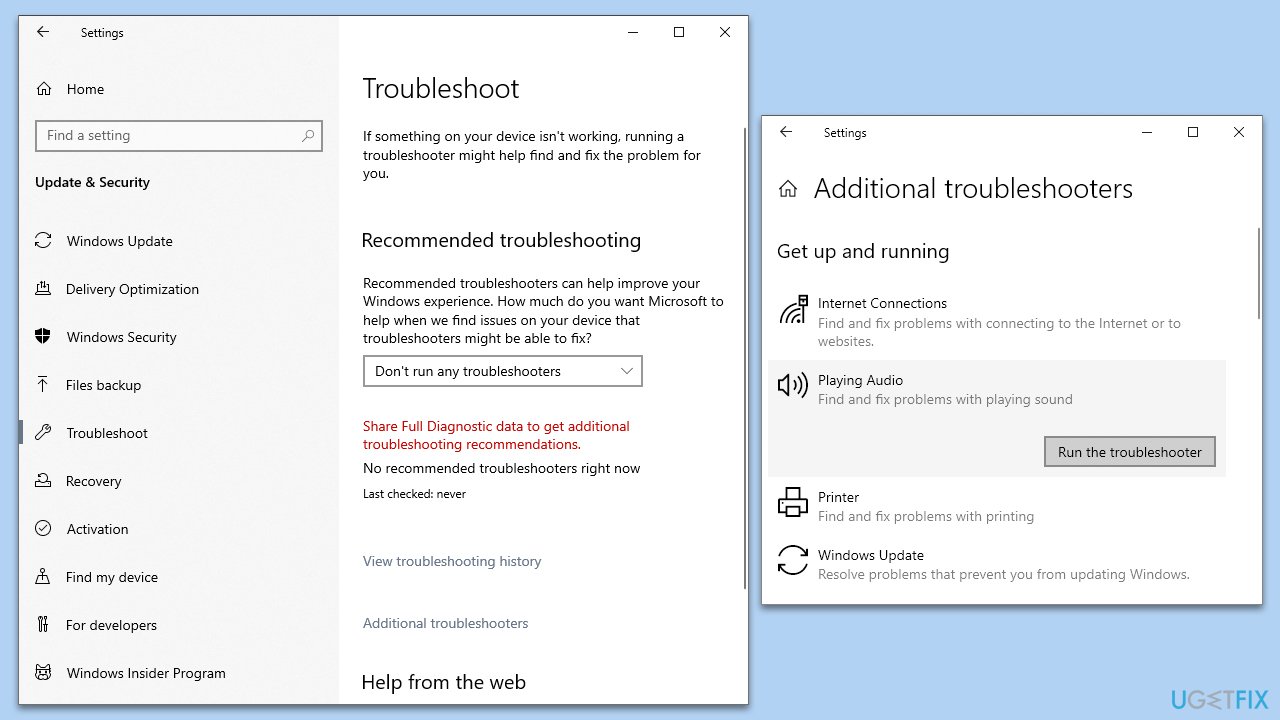
Solution 1. Run Audio troubleshooter
First, we recommend running the built-in tool known as a troubleshooter, which can diagnose sound issues and bring up automatic solutions.
- Type troubleshoot in Windows search and hit Enter.
- Select Additional troubleshooters/Other troubleshooters.
- Select the Playing audio option.
- Click Run/Run the troubleshooter and apply all the suggested solutions.
Solution 2. Reduce sound suppression in Zoom settings
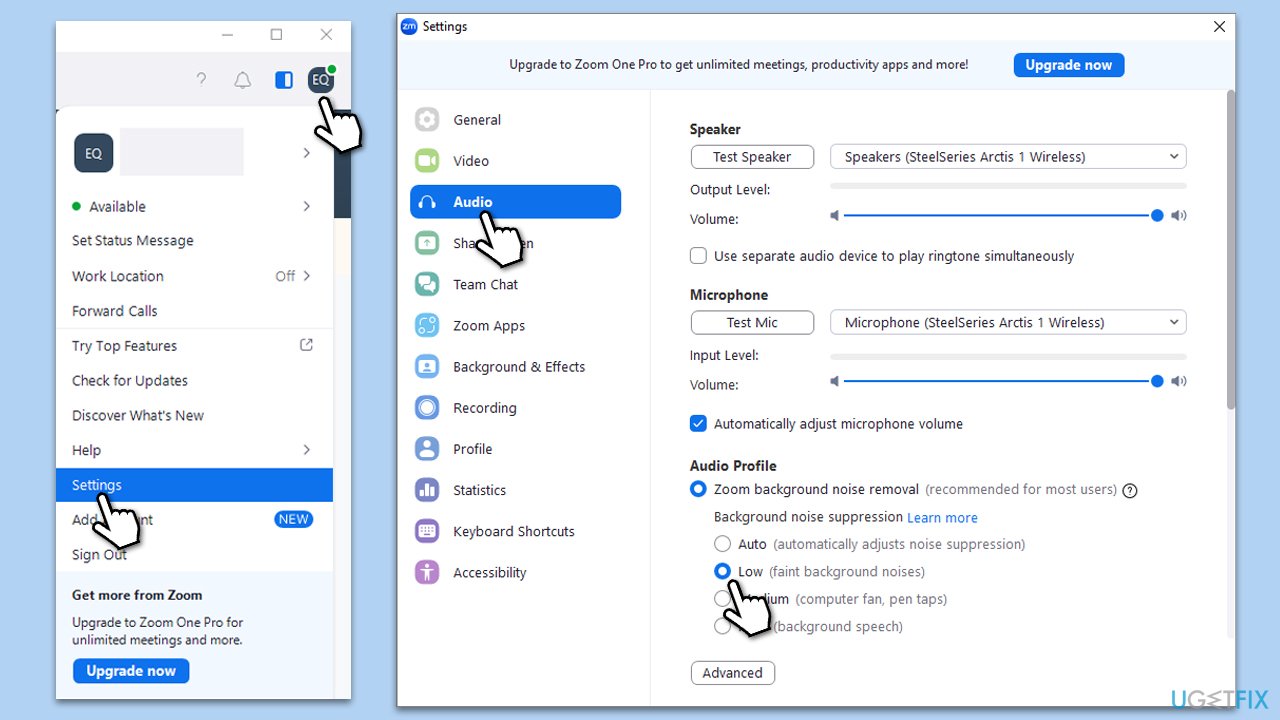
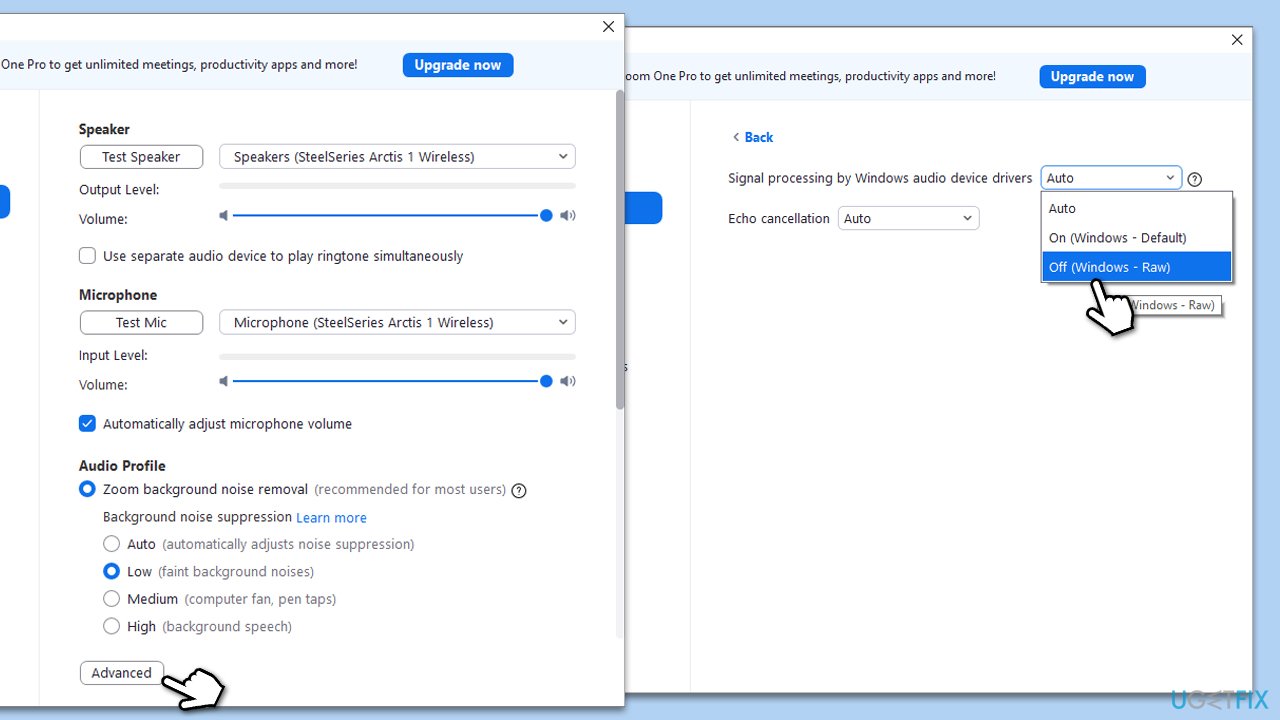
One of the main reasons why users encounter issues with Zoom surpassing music is due to the sound impression feature. Changing it to low might help you solve the problem:
- Open Zoom.
- Click on your profile and select Settings.
- On the left side, pick Audio.
- Find your Audio profile on the right.
- Set Background noise suppression to Low.
- Also, consider enabling Original sound for musicians or/and Live performance audio settings, depending on preference.
Solution 3. Disable the "Signal processing by Windows audio device drivers" option
Most people managed to stop Zoom from suppressing music by altering how the app interacts with sound drivers. Follow these steps:
- Open Zoom.
- Click on your profile and select Settings.
- On the left side, pick Audio.
- At the bottom, click Advanced.
- Under Signal processing by Windows audio device drivers, select the Off (Windows - Raw) option.
- Close down settings and see if the problem persists.
Solution 4. Disable Microphone Array
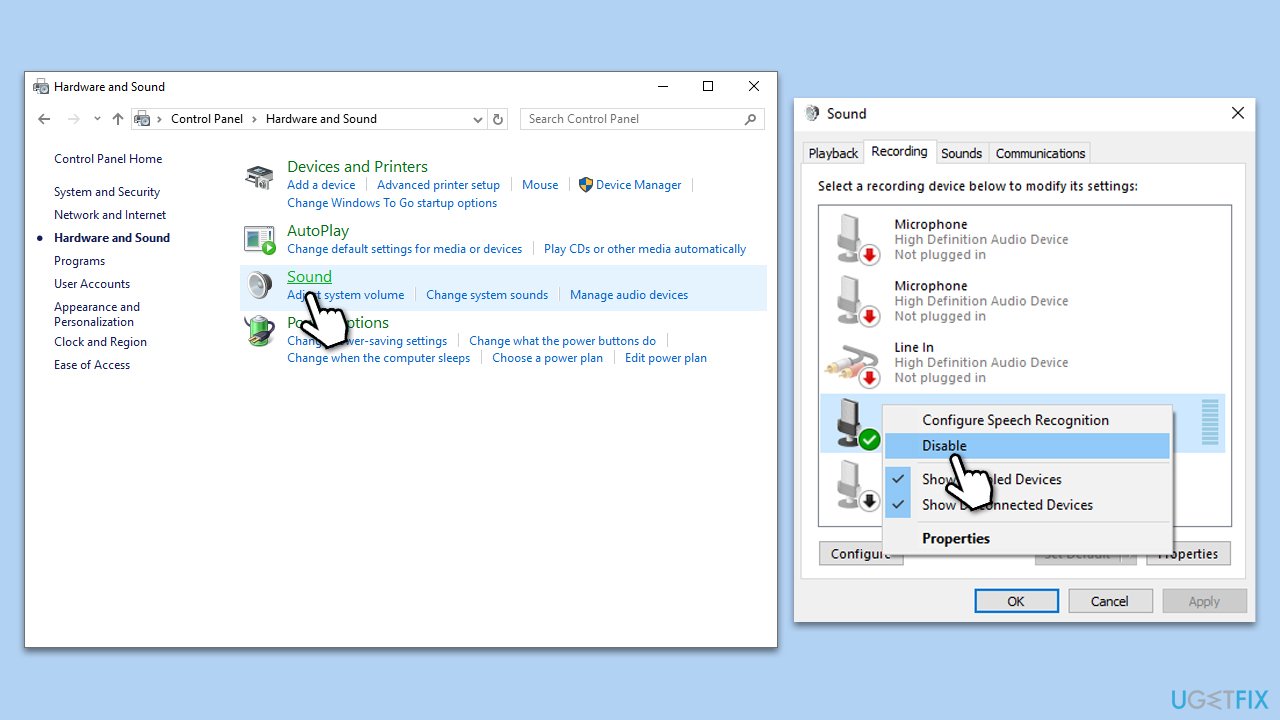
- Type Control Panel in Windows search and press Enter.
- Select the Hardware and Sound section.
- Click Sound.
- Go to the Recording tab.
- Find and right-click Microphone Array and select Disable.
- Click OK.
Solution 5. Configure or uninstall other audio software
Many laptops, for example, come with additional software dedicated to changing various settings, such as audio settings. It is important to note that this software might vary in name, depending on the system you run. Likewise, DTS or Dolby Atmos can also interfere with Zoom's sound impression systems.
- Open an application that could interfere with sound settings.
- Go to the settings menu and find sound suppression.
- Disable the setting.
- Alternatively, you could uninstall the software.
It was noted by several people that Realtek Audio Console's AI noise reduction settings were causing issues. If you have it installed on your system, follow these steps:
- Open Realtek Audio Console.
- Select Recording Devices and pick Microphone Array.
- Go to Microphone Effects.
- Uncheck the AI Noise Reduction option.
Bottom line
To stop Zoom from suppressing music on Windows, you can adjust settings within Zoom, disable automatic noise suppression, and check for conflicts with other audio enhancement programs. If these methods do not resolve the issue, further troubleshooting may be necessary.
Frequently asked questions
To stop Zoom from suppressing music in Windows 10, go to Zoom's settings, navigate to 'Audio,' and check the box for 'Enable Original Sound.' This allows your music to be transmitted without any enhancements.
In Windows 11, you can enhance your audio by right-clicking the sound icon, selecting 'Open Sound settings,' and ensuring that 'Enhancements' are disabled for your audio device.
Yes, disabling background noise suppression in Zoom is essential for music sharing; go to 'Audio' settings and set 'Suppress background noise' to 'Low' or 'Off' for optimal sound quality.




Report an issue
What's wrong with this guide? We review every report and update or remove content.
Report received — thank you. We'll review and fix it.
You need a free account to submit a report.
Be the first to comment