How to fix
Take a screenshot of a PC game
on Windows
Capture your best gaming moments on Windows 10 or 11 effortlessly! Discover quick methods and expert tips for flawless in-game screenshots, fixed in min…

Why does How to take a screenshot of a PC game on Windows occur?
- Windows operating system allows quick screenshot capture
- Built-in Print Screen function is available
- Various gaming tools can enhance screenshot capabilities
- No need to pause the game to take a screenshot
- Multiple options for capturing gameplay moments
Repairs Windows system files, removes malware, and restores a clean OS state — without reinstalling.
Hi, I have been wondering what is the most efficient way of taking a screenshot in a video game? I am using Windows 10.
More than one-third of the world population (2.8bn) play video games regularly.[ref en-2] There are action games, RPGs, first-person shooters, indie games, and much more. It is not surprising that the selection of games has become even vaster over the years, and more and more people engage in the game development business.
When we play games, we travel through worlds that never would otherwise be possible and meet various interesting people and live a lifetime of a character we get to love. It is not surprising that capturing some of these amazing moments is something that most players tend to do more and more.
Unlike in real life, you don't need a camera to take a screenshot in-game - operating systems such as Windows are very well designed and allow taking a picture quickly and easily, merely by pressing a shortcut on your keyboard. In most cases, you don't even need to pause your game to do that.
Now, Windows, while versatile, is not the only software that can be used to enrich the gaming experience or even take a screenshot of a game. There are plenty of tools designed for all-things-gaming that include rich features - these can also be used for the purpose.
With all that at your disposal, there are plenty of options for taking a screenshot of a Windows game - starting from simple and built-in Print Screen to applications with overlay such as GeForce Experience or Steam. Below you will find several methods that should help you decide what you prefer most when capturing the best moments of your gameplay.
Option 1. Rely on the good old Print Screen
If you are one of those people who doesn't like RGBs[ref en-1] flashing in your face from a custom-built NASA PC, you are likely one of those who want things to be done without any extra software on your PC. If that is the case, you can always resort to a simple press of a button on your keyboard - Print Screen (you can also use Snip & Sketch or Snipping Tool).
- When in-game press Alt + Print Screen button
- Press Alt + Tab to exit the main game screen
- Open MS Paint or another image editing app and press Ctrl + V
- Press File > Save as and pick where you want to save the picture.
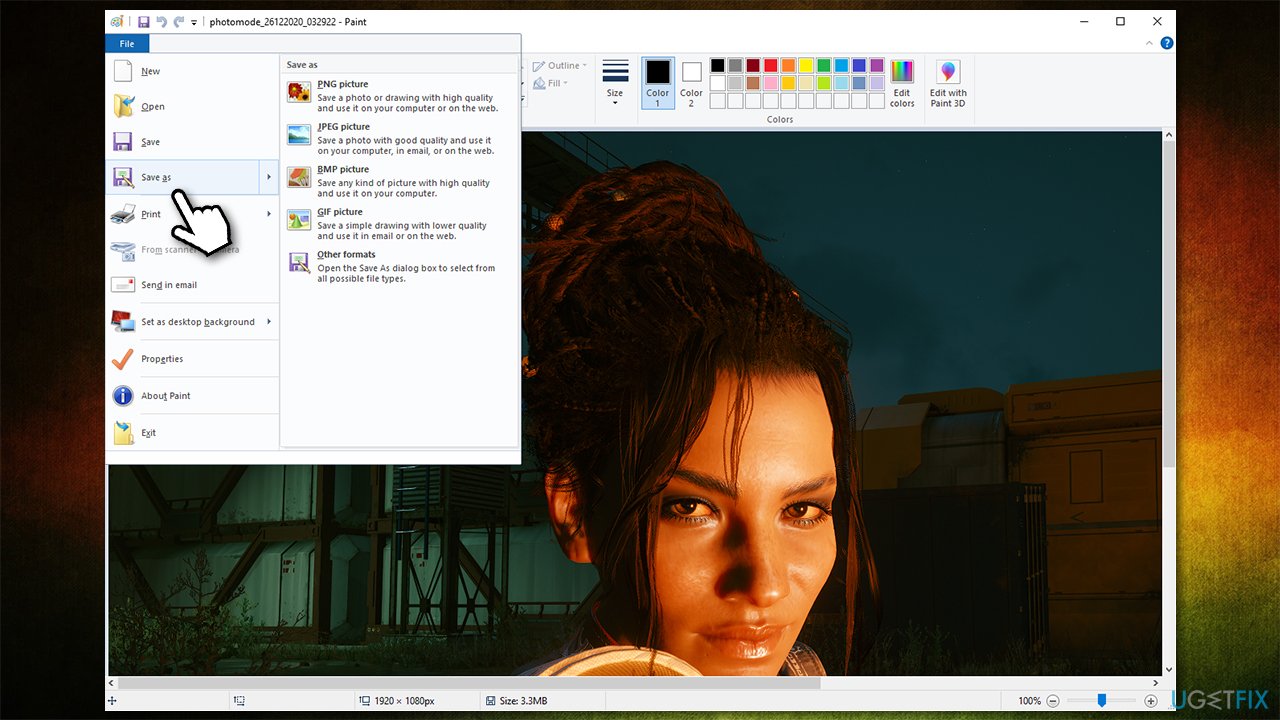
It is important to note that some games automatically save screenshots made this way in a particular location - usually, Documents folder, although this greatly varies.
Keep in mind that some games simply will not allow you to use print screen and instead of a beautiful picture you will paste a blank one. This happens due to the way some games are designed (for one reason or another), so proceed with other options we provide below if that is the case for you.
Option 2. Use Steam overlay to easy access your captures
You can take screenshots using Steam overlay, although you first need to make sure that it is enabled.
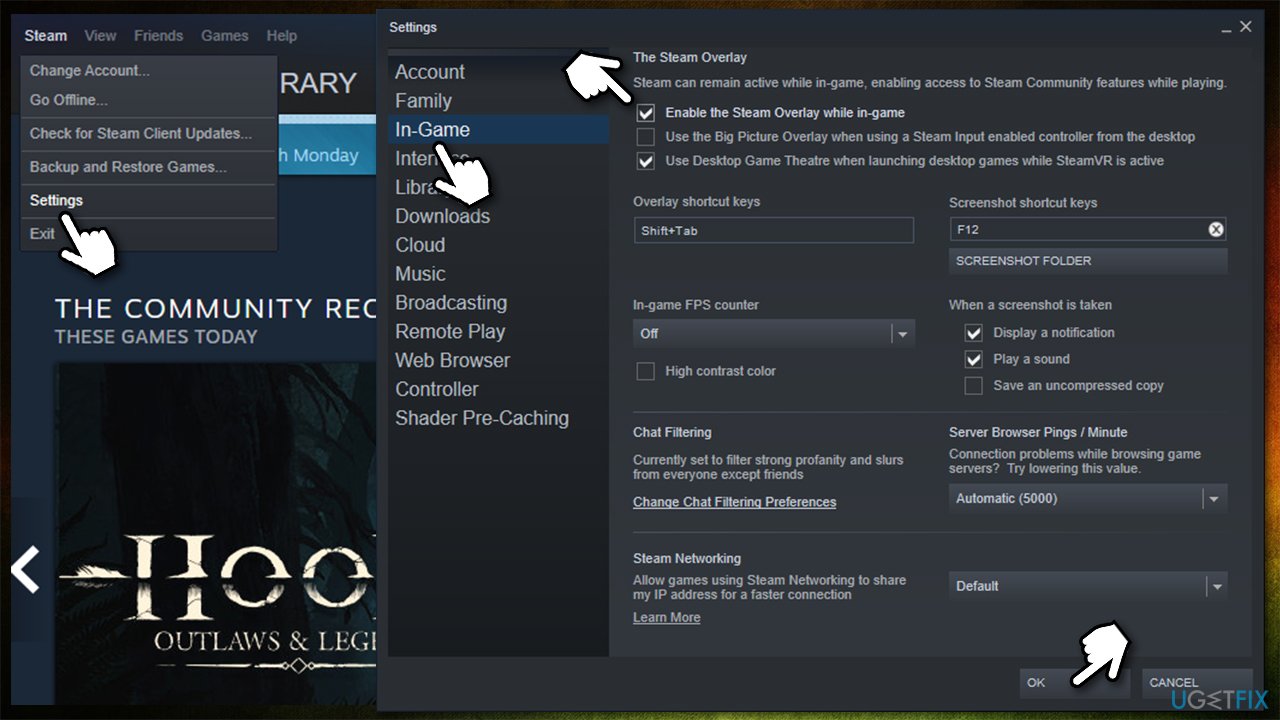
- Open Steam and go to Steam > Settings
- Select In-Game on the left side
- At the top, check the Enable the Steam Overlay while in-game checkbox
- See the Screenshot shortcut key section (it is F12 by default) - you can set it to whatever you like
- Once done, click OK
- Now, after accessing the game, you can take a screenshot using the set key, e.g., F12
- To view all the screencaps, open Stem and go to View > Screenshots.
Option 3. Take a screenshot with GeForce Experience
GeForce Experience is an optional program you can download along with your Nvidia GPU drivers[ref en-3] (speaking of which, while this tool can help you download the latest video drivers, we recommend [rev id="DriverFix"] for all things drivers, including effective backups). If you have it installed, you can use its overlay to take a game screenshot - here's how:
- While in-game, press Alt + 1
- You should see a notification - Screenshot has been saved to Gallery
- To access these pictures, press Alt + Z and then select the Gallery.
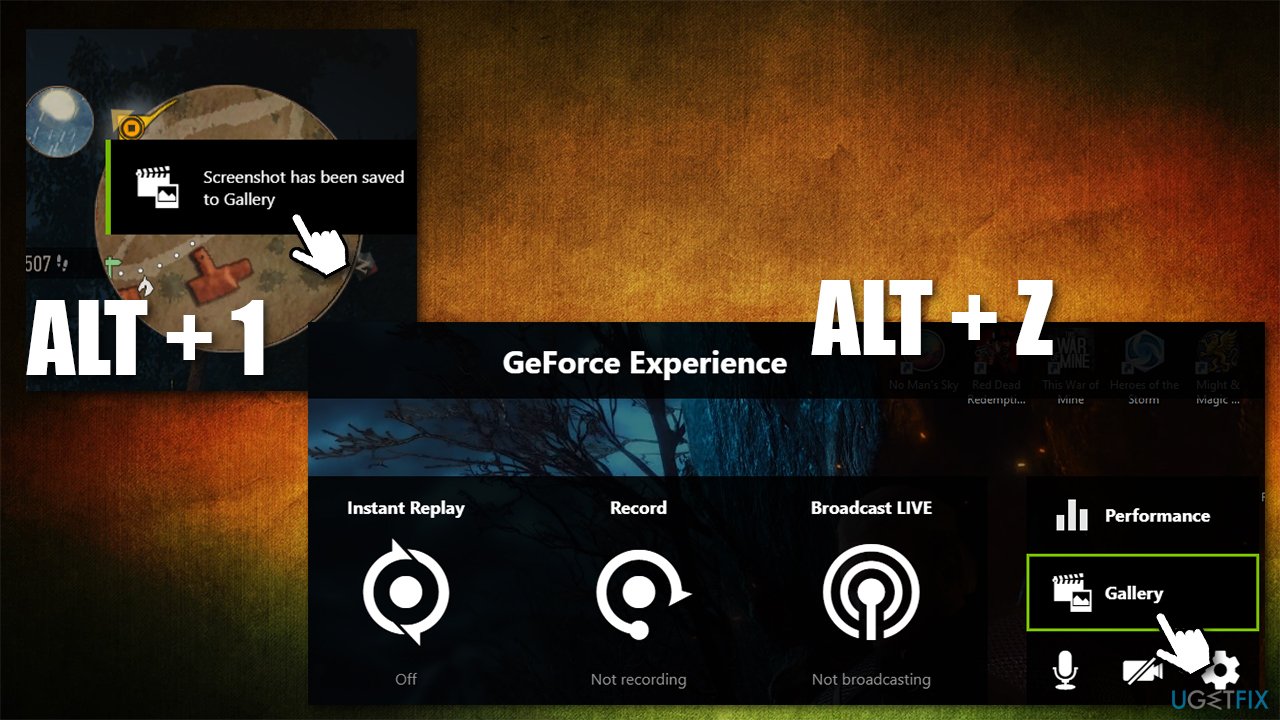
Option 4. Use Xbox Game Bar to take pictures quickly
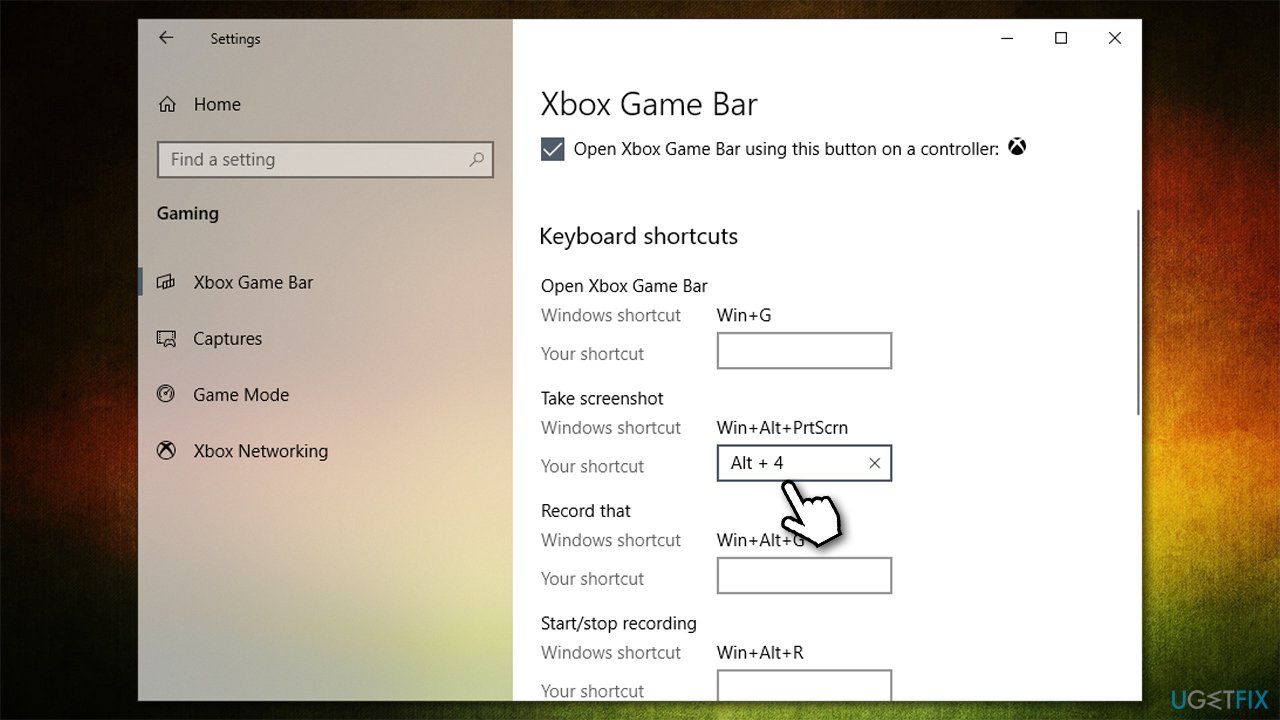
If you want to use Xbox Game Bar, all you have to do is press Win + G on your keyboard - you don't even have to be in-game for that. Initially, to take a screenshot in-game, you would have to press Win + Alt + Print Screen. This might be a rather uncomfortable shortcut - here's how to change it:
- Right-click on Start and pick Settings
- Go to Gaming section
- Under Keyboard shortcuts find the Take screenshot option
- Enter the preferred shortcut.
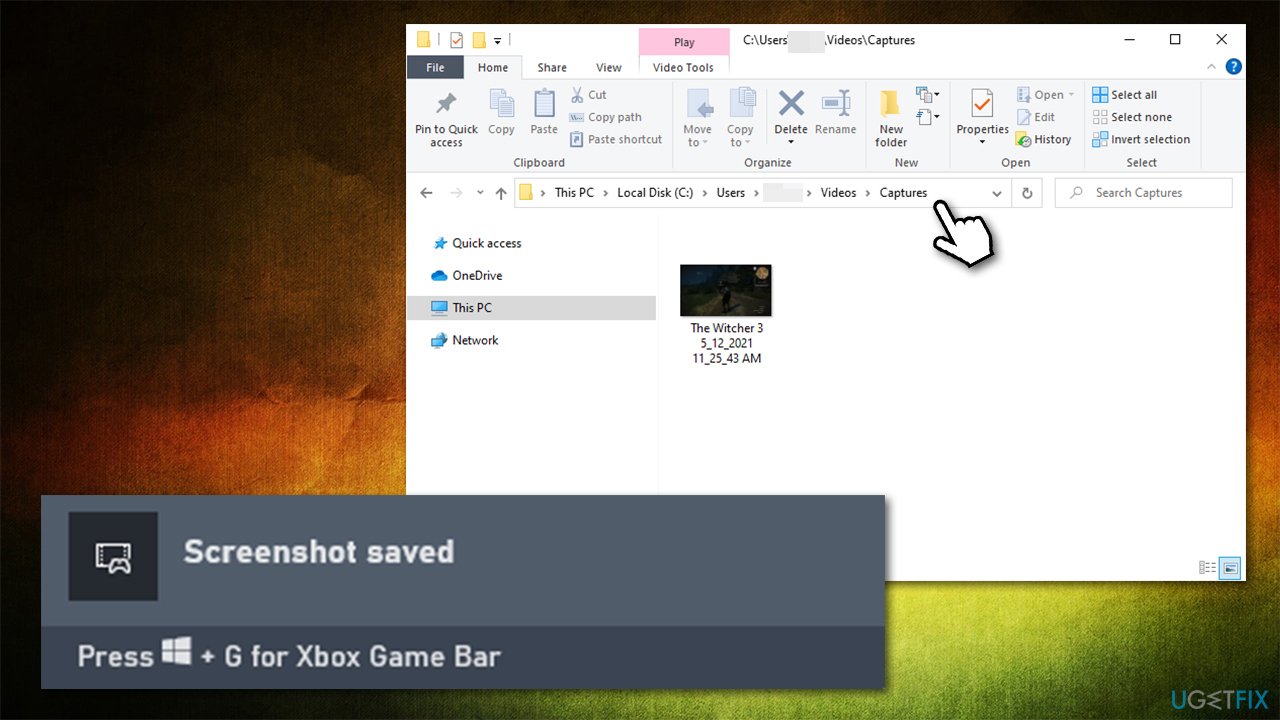
Once you press the shortcut, Xbox Game Gar will notify you with the "Screenshot Saved" notification and you can access it via the This PC > Videos > Captures section.
Option 5. AMD ReLive is for those with AMD GPUs
If you picked an AMD video card, you would have different drivers for it, along with different complementary software that comes with it - AMD ReLive. Note that this will only work if your hardware supports the AMD Graphics Core Next (GCN) architecture. Before you can use this tool, you need to enable it as follows:
- Right-click anywhere on desktop and select AMD Radeon Settings
- Click on ReLive at the top
- Click on the switch once to move it to the right and enable the feature.
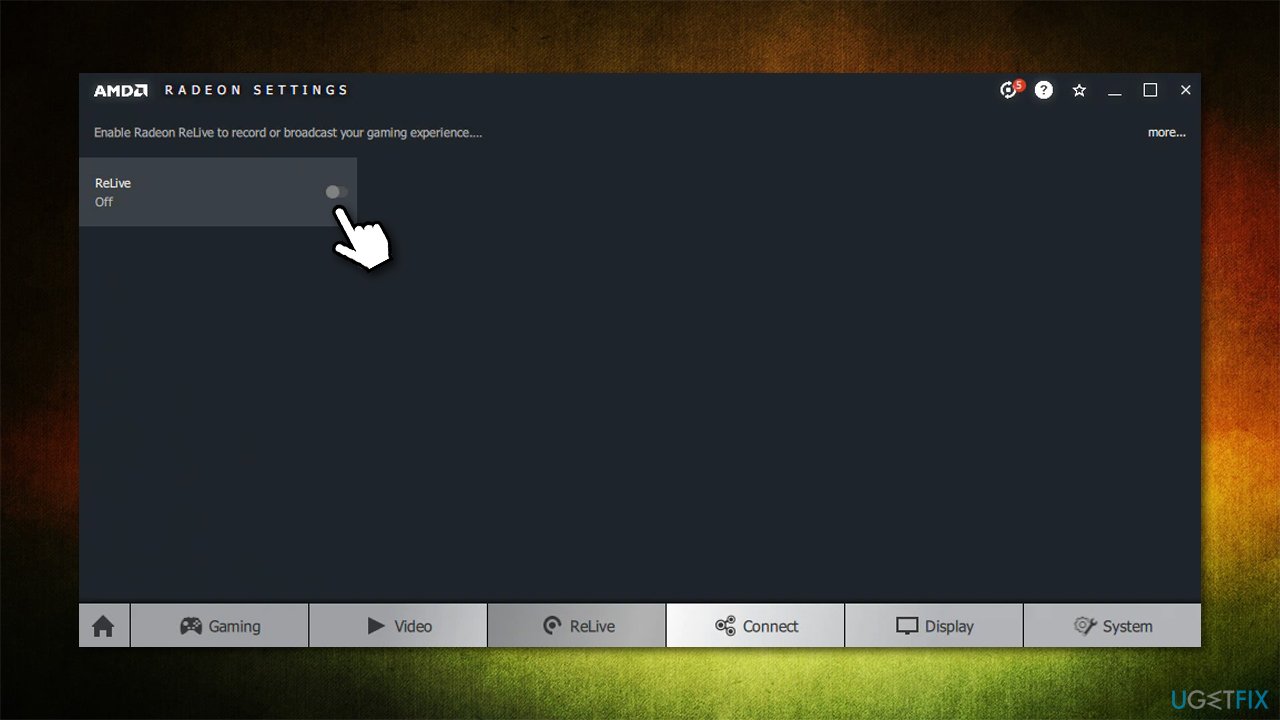
Similar to previously described methods, you need to call up the application overlay in-game in order to take a picture. You can use Ctrl + Shift + E or Alt + Z shortcuts and then pressing Screenshot button to capture an image in-game. All the screenshots are then saved in C:\\Users\\[username]\\Videos folder, although that can also be changed within the settings.
Option 6. In-game Photo Mode allows more customization
When game designers realized that players just love taking innovative and interesting screencaps of their games, they decided to provide in-game Photo Mode for that exact purpose. Of course, not all games have this feature available - it seems to be more prevalent in larger, single-player games such as Cyberpunk 2077, Ghost of Tsushima, or Horizon: Zero Dawn.
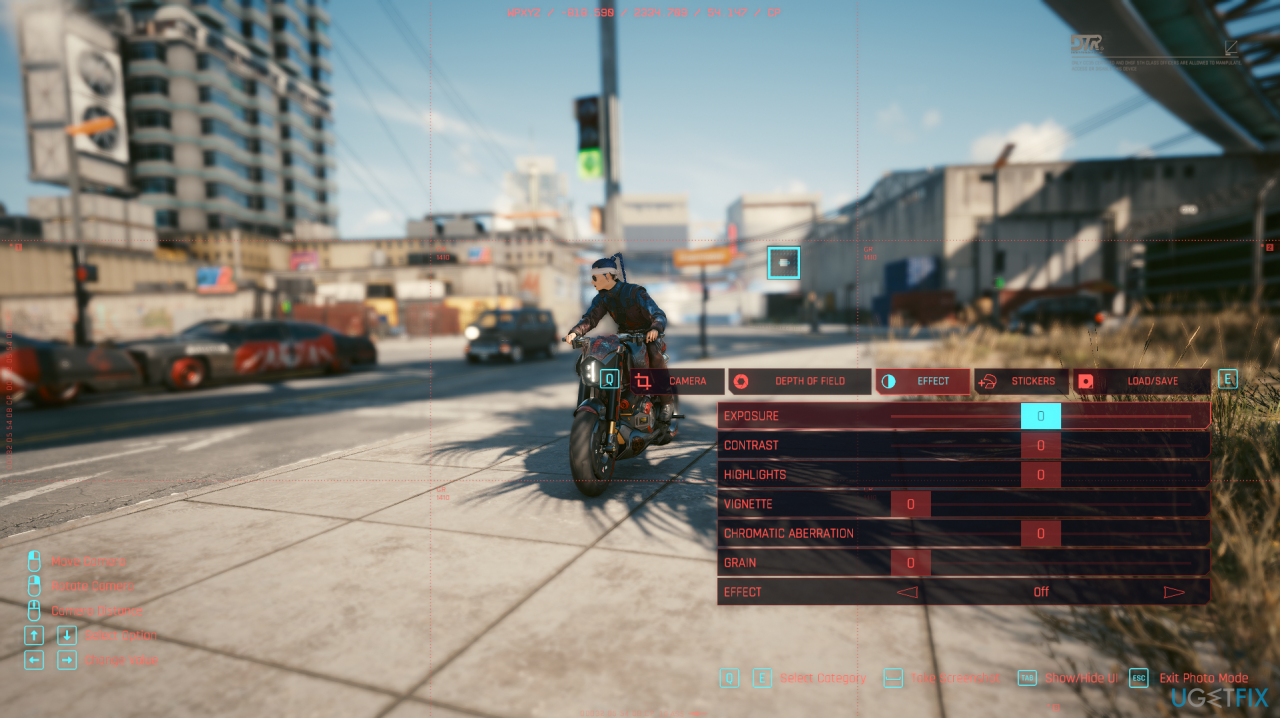
If you are playing a game that does have Photo Mode included, you should definitely use it for taking screenshots in-game. Not only it provides the free-roam camera angles but also various filters, effects, and other settings that could make your screenshot even more dramatic.
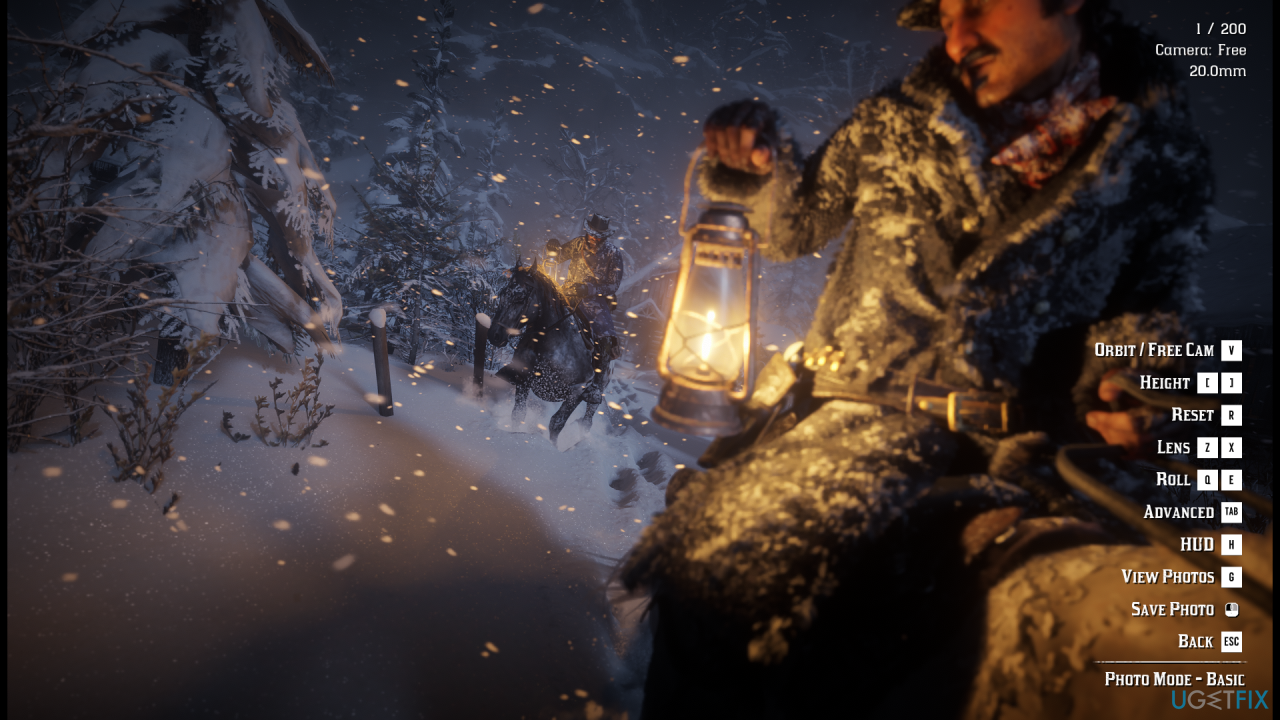
In most cases, you can easily access Photo Mode by either accessing the main menu in-game or pressing a dedicated shortcut. This highly depends on which game you play - for example, in Red Dead Redemption 2, you can press F6 to access the mode immediately.
Bottom line
To take a screenshot of a PC game on Windows, you can use the Print Screen key, or utilize applications like GeForce Experience or Steam for more advanced features. If these methods do not work, consider checking your game settings or looking for additional software solutions.
Frequently asked questions
Press Win + G to open the Xbox Game Bar while in-game, then click the camera icon or press Win + Alt + PrtScn to take a screenshot.
Yes, you can use the Xbox Game Bar by pressing Win + G, then use the screenshot button or the shortcut Win + Alt + PrtScn.
You can change the default screenshot folder by going to the Xbox Game Bar settings and adjusting the 'Captures' settings to your preferred location.




Report an issue
What's wrong with this guide? We review every report and update or remove content.
Report received — thank you. We'll review and fix it.
You need a free account to submit a report.
Be the first to comment