
How to Disable Kids Mode or Uninstall Kids Mode App on Samsung Galaxy?

Prefer to fix it yourself? The manual steps follow.
- 5methods
- 1 to 15 minutes; a factory reset takes longer
- Easy
Applies to Samsung Galaxy phones and tablets (Galaxy Tab A, A7 Lite, A9, A9+, S series and others) with Samsung Kids, and older Galaxy devices with the Kids Mode app
5 methods in this guide
Hello guys. I gave my Samsung Galaxy Tab A to my kids and they managed to get it stuck in Kids Mode. What I see now is a yellow background with a crocodile and several games for kids. I've been trying to turn that mode off, but in vain. Could someone please help?
Kids Mode on a Galaxy phone or tablet is the Samsung Kids app, made by Samsung. You leave it with More options, then Close Samsung Kids and the PIN, and you can uninstall it completely. If nobody knows the PIN, Samsung's own way out is to restart in Safe mode and uninstall Samsung Kids from Settings.
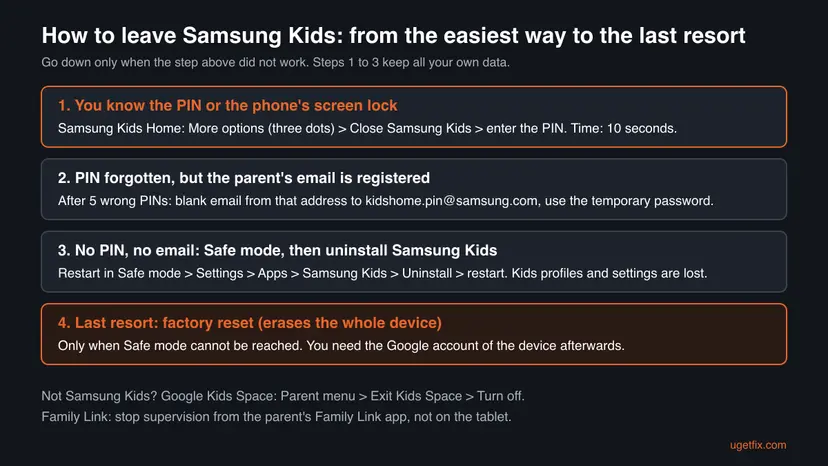
On the Samsung Kids home screen tap More options (three dots), then Close Samsung Kids, and enter the PIN (Step 1). Forgot it? After five wrong PINs, Samsung sends a temporary password to the registered email (Step 2). With no PIN and no email, restart in Safe mode and uninstall Samsung Kids in Settings > Apps (Step 3). Yes, the app can be uninstalled; only its Quick settings button stays, and you can hide it.
| Program | Samsung Kids (package com.sec.android.app.kidshome). Before Android 9 the same feature was the Kids Mode app. The yellow or coloured screen with Crocro the crocodile is its home screen. |
|---|---|
| Publisher | Samsung Electronics Co., Ltd. Galaxy Store version 12.8.01.9 of 28 September 2026, 33.61 MB. |
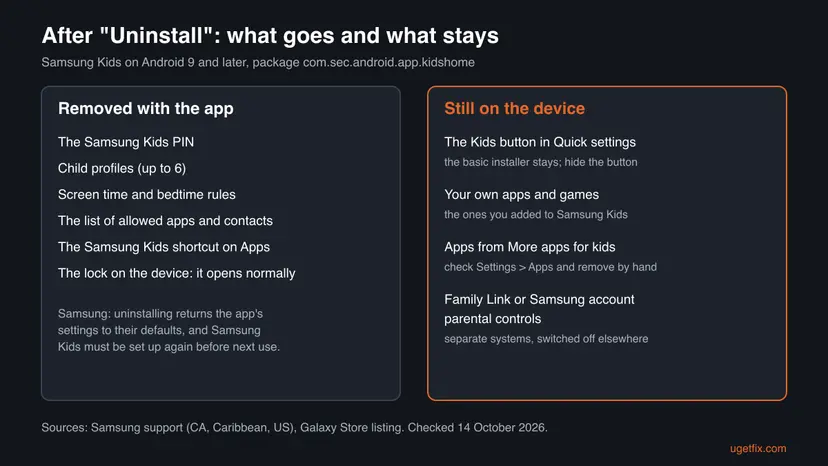
| Safe to remove | Yes. It is an optional parental control app. Android and your own apps keep working without it. Kids profiles, time limits and the PIN go with it. |
| Leaves behind | The Kids button in Quick settings (a small installer that Samsung says stays after uninstalling), and any kids apps you downloaded through it. |
| How to leave it | More options (three dots) > Close Samsung Kids > PIN or the phone's screen lock. |
| Forgotten PIN | After 5 wrong attempts: a blank email from your registered address to [email protected] returns a temporary password. Otherwise: Safe mode, then uninstall. |
| Needs | Android 9.0 or later. Not offered by every carrier. Some tablets get it through Samsung Kids Installer in the Galaxy Store. |
| Official removal | Settings > Apps > Samsung Kids > Uninstall, or touch and hold the Samsung Kids icon > Uninstall. No root and no computer are needed. |
| Not the same as | Google Family Link (parental supervision of a Google Account) and Google Kids Space (Google's kids home screen on Lenovo, Nokia and other tablets). Both are turned off elsewhere. |
| Time | Under a minute with the PIN, about 5 minutes through Safe mode. A factory reset takes longer and erases the device. |
Facts checked on 14 October 2026. Steps written for Samsung Galaxy phones and tablets with Android 9 or later (One UI) and Samsung Kids 12.8.01.9, read against Samsung's support pages in the US, Canada, the UK, Ireland and the Caribbean, the Galaxy Store listing and Google's Help Centers. Menu names vary by model and carrier.
What Kids Mode on a Samsung Galaxy is, and whether you need it
Samsung Kids is Samsung's own child mode for Galaxy phones and tablets. It replaces the normal home screen with a child's home screen, usually a coloured background with Crocro the crocodile and his friends, and it blocks everything you did not allow. Samsung's US support page says it is available on devices with Android 9.0 and above, and that availability may vary by carrier.
- Name on the device
- Samsung Kids. On Galaxy devices from before Android 9: Kids Mode, with helper apps such as Kids Parental Control and Kids Store.
- Package name
com.sec.android.app.kidshome, the ID of its Galaxy Store page. The small installer for tablets iscom.samsung.android.kidsinstaller.- Publisher
- Samsung Electronics Co., Ltd. The Galaxy Store listing is free and offers in-app purchases.
- Where it starts
- The Kids button in the Quick settings panel (swipe down with two fingers). Optionally also an icon on the Apps screen.
- What it contains
- My Phone, My Camera, My Gallery, My Browser, Crocro's Friends Village, Lisa's Music Band, My Magic Voice, Crocro's Adventure, Bobby's Canvas.
- Parental controls
- Up to 6 child profiles, Screen time, Bedtime, Allowed content, Frequently contacted, My kid's creations, More apps for kids.
- Does Android need it
- No. Nothing outside Samsung Kids depends on it.
The PIN is the whole point of the app. Samsung's Canadian support page puts it plainly: the PIN "prevents kids from exiting Samsung Kids without parental consent". That is why a curious child who opens the Kids button and types a PIN of their own can lock a parent out of the tablet. On Android 9 and later the app was not downloaded by the child: it is built into the Quick settings panel on many Galaxy models.
Samsung Kids is safe to remove. It is optional, it does not protect the device itself, and nothing else on the phone or tablet uses it. The only reason to keep it is a child who still uses the device: then close it with the PIN and keep the app.
Samsung Kids, Google Kids Space or Family Link: which one locks your device
Many readers search for "kids mode" or "parental controls on Samsung" when they mean one of three different things. Each is made by a different company and each is switched off in a different place, so check which one you have before you try any step below.
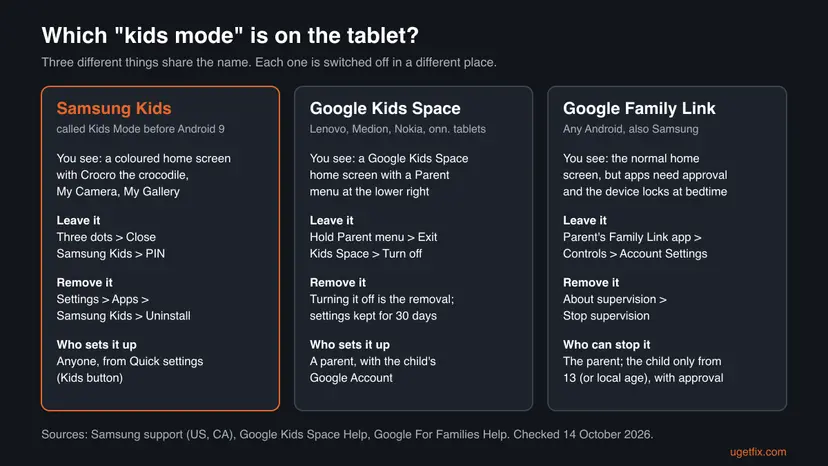
| What you see | What it is | Where it is switched off |
|---|---|---|
| A child's home screen with Crocro the crocodile, My Camera, My Gallery, a three-dot menu at the top | Samsung Kids | The three-dot menu > Close Samsung Kids. This guide. |
| A Google kids home screen with a Parent menu in the lower right corner, mostly on Lenovo, Medion, Nokia or onn. tablets | Google Kids Space | Touch and hold the Parent menu > Exit Kids Space > Turn off, then the parent's Google password. |
| The normal Samsung home screen, but downloads need approval, apps are blocked or the device locks at a set time | Google Family Link supervision | The parent's Family Link app > child's profile > Controls > Account Settings > About supervision > Stop supervision. |
| The normal home screen, but Samsung apps or purchases are blocked for a child Samsung account | Samsung account Family group parental controls | The parent's phone: Settings > your Samsung account > Family > the child's profile. |
Family Link and Kids Space are tied to a child's Google Account, so removing an app does not end them. The section on Family Link and Kids Space further down shows how a parent ends each one.
Before you start: what you lose and what to check first
Closing Samsung Kids with the PIN loses nothing. Uninstalling it loses everything stored inside the app, and a factory reset loses everything on the device. Pick the lightest way that works for you.
| What you do | What you lose | What stays |
|---|---|---|
| Close Samsung Kids with the PIN (Step 1) | Nothing | Everything. The child can open it again from the Kids button. |
| Reset the PIN with the temporary password (Step 2) | Only the old PIN | Profiles, rules, drawings and photos made in Samsung Kids. |
| Uninstall Samsung Kids (Steps 3 and 4) | The PIN, the child profiles, screen time and bedtime rules, allowed content, and Samsung says all app settings return to defaults | Your own apps, photos, contacts and accounts outside Samsung Kids. |
| Factory reset (Step 5) | Everything on the device: apps, photos, messages, contacts and settings | Only what was backed up to a Samsung account, a Google Account or a memory card. |
- Find out which lock it asks for. Samsung Kids uses either its own 4-digit PIN or the phone's normal screen lock. If the Close screen shows your usual PIN, pattern or password screen, try that first.
- Save the child's creations. If your child's drawings or photos made in My Camera or Bobby's Canvas matter, open Parental controls > My kid's creations while you still can, and move them out. We could not confirm whether they survive an uninstall.
- Charge the device. Safe mode and a reset need several restarts. Keep at least half the battery or plug it in.
- Know the Google Account on the device. It is only needed for a factory reset, but then it is required: Samsung says a device reset with the buttons asks for that Google password.
- Do not root the device. No step on this page needs root, a computer or a third-party tool.
How to get out of Samsung Kids and remove it, step by step
Do the steps in order and stop as soon as you are out. Step 1 is the normal exit. Step 2 recovers a forgotten PIN. Step 3 is Samsung's own way out when nobody knows the PIN. Step 4 removes Samsung Kids for good once the device works normally, and Step 5 is the last resort.
Step 1. Close Samsung Kids with the PIN
1 minuteNo riskYou know the Samsung Kids PIN or the phone's screen lock, or can ask the person who set it.
Samsung designed the PIN as the only normal way out. Closing the app returns the normal home screen at once and keeps the profiles and rules for the next time.
- Make sure you are on the Samsung Kids Home screen, the one with the characters. Press the Back button if a game is open.
- Tap More options, the three vertical dots at the top right.
- Tap Close Samsung Kids.
- Enter the Samsung Kids PIN. If the device uses Phone's screen lock for Samsung Kids, enter your normal PIN, pattern or password.
- The normal home screen comes back. Samsung Kids stays installed and can be opened again from the Kids button in Quick settings.
To keep the child from opening it again by accident, remove its shortcut. In Samsung Kids open More options > Settings, enter the PIN, and turn off Add Samsung Kids to Apps screen. Hiding the Quick settings button is shown in Step 4.
If the child chose the PIN, change it now: More options > Settings > Change Samsung Kids PIN, enter the current PIN, then the new one twice. Or set Lock type for Parental controls to Phone's screen lock, so only your normal unlock opens it.
It worked if: The Galaxy home screen with all your apps returns, and the Kids screen does not come back after a restart.
If not: If the PIN is not accepted, go to Step 2 for a temporary password.
Step 2. Reset a forgotten Samsung Kids PIN with the temporary password
5 to 15 minutesNo riskYou do not know the PIN, but you can read the email inbox that was registered with Samsung Kids.
Samsung's US support page describes a reset by email after five wrong PINs. It keeps the child profiles and rules, which the uninstall in Step 3 would delete.
- On the Close Samsung Kids screen, enter a wrong PIN five times in a row. Samsung says you are then told to send an email.
- From the email address registered with Samsung Kids, send a blank email to
[email protected]. Use that same address, not another one. - Wait for the reply with a temporary password. Samsung asks you to check the spam folder if it does not arrive.
- On the tablet or phone, enter the temporary password where Samsung Kids asks for it.
- Set a new PIN when you are asked, or open More options > Settings > Change Samsung Kids PIN and set one.
- Close Samsung Kids with the new PIN as in Step 1.
Samsung's pages describe the registered address differently. The US page says "your registered email address", and an older Samsung page says a Google Account registered on the device is needed to reset the PIN. We could not confirm which account each One UI version uses, so try the Google address of the device first, then your Samsung account address.
If Samsung Kids uses the phone's screen lock and that is what was forgotten, this email does not help, because the lock belongs to the device. Samsung Ireland says it is no longer possible to unlock a phone remotely with SmartThings Find. Step 3 also needs that screen lock after the restart, so without it Step 5 is the way out.
It worked if: Samsung Kids accepts the new PIN, closes, and the normal home screen comes back with the child profiles still in place.
If not: If no email arrives within a day, or you cannot read that inbox, go to Step 3.
Step 3. No PIN at all: restart in Safe mode and uninstall Samsung Kids
5 to 10 minutesLow riskNobody knows the PIN and the email reset did not work, for example after a child set a random PIN.
This is Samsung's own advice for a forgotten Kids PIN: in Safe mode Samsung Kids does not take over the screen, so Settings opens and the app can be uninstalled. Samsung warns that its settings return to defaults.
- Open the power menu: press and hold the Power key. On newer Galaxy phones and tablets press the Side key and Volume down together, or swipe down from the top right and tap the Power icon.
- Touch and hold Power off until the Safe mode icon appears, then tap Safe mode. The device restarts.
- Check that Safe mode is written at the bottom left of the screen. If it is not there, repeat the first two steps.
- Open Settings, tap the search icon and type Samsung Kids. Or go to Settings > Apps > Samsung Kids.
- Tap Uninstall, then OK.
- Leave Safe mode: open the power menu again and tap Restart, or swipe down and tap the Safe mode is on notification, then Turn off.
If the power menu asks for the PIN or does not open, use the button method from Samsung's Safe mode page. Turn the device off completely, which may mean letting the battery run down. Turn it on, and when the Samsung logo appears, press and hold Volume down until the home screen shows Safe mode.
Samsung Kids loses its PIN, child profiles, screen time, bedtime and allowed content lists. Samsung also notes that leaving Safe mode may reset some customisation, such as wallpapers and themes. Your own apps and photos outside Samsung Kids stay.
It worked if: After the restart the normal home screen appears, and the Kids button in Quick settings offers to set Samsung Kids up from the start.
If not: If Samsung Kids has no Uninstall button or Safe mode never appears, read the section about when it will not uninstall below, then Step 5.
Step 4. Remove Samsung Kids for good and hide the Kids button
3 minutesLow riskThe device works normally again and you do not want Samsung Kids on it at all.
Samsung documents two ways to uninstall the app and one way to hide its Quick settings button. The button stays because Samsung keeps a small installer behind it, so hiding it is what stops a child from starting Samsung Kids again.
- Open Settings and tap Apps.
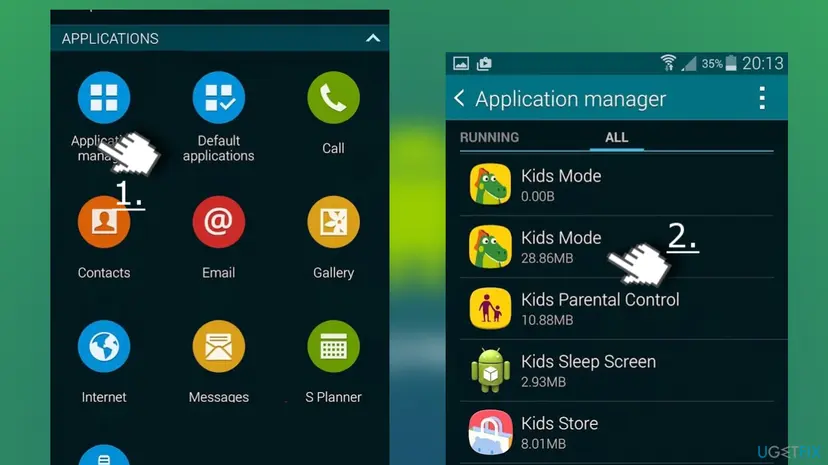
- Tap Samsung Kids. On older models with Kids Mode, tap Kids Mode and then the same for Kids Parental Control, Kids Sleep Screen and Kids Store if they are listed.
- Tap Uninstall at the bottom of the screen, then OK. If Samsung Kids has an icon on the Apps screen, you can also touch and hold it and tap Uninstall.
- Swipe down from the top of the screen with two fingers to open the full Quick settings panel.
- Tap the More options icon (three dots) or the pencil icon, then Edit buttons or Edit. The name depends on the One UI version.
- Drag the Kids button out of the active panel to the area of unused buttons, then tap Done.
Now remove what Samsung Kids brought with it. Open Settings > Apps and look for kids apps that you or the child downloaded through More apps for kids. Uninstall the ones nobody uses. Samsung's pages do not list which apps these are, so judge by name and install date.
It worked if: Samsung Kids is no longer listed in Settings > Apps, and the Kids button is gone from the visible Quick settings.
If not: If Uninstall is missing or greyed out, see the section about when it will not uninstall below.
Step 5. Last resort: factory reset the Galaxy phone or tablet
30 to 60 minutes with setupRead the warningSafe mode cannot be reached or Settings stays locked, and no other step worked.
A factory reset returns the device to the state it left the factory in, so Samsung Kids is no longer set up. It is the only way left when the device itself cannot be opened, but it erases everything.
A factory reset permanently deletes personal data, settings, downloaded apps, messages, contacts and photos. Samsung recommends a backup first to a Samsung account, a Google Account, Smart Switch or a memory card. After the reset the device asks for the Google Account that was on it, because of Google's Factory Reset Protection. Recover that password first at Google's account recovery page.
If the device is signed in to a Samsung account and has remote control turned on in its Find settings, you can erase it from another device without the buttons. Go to SmartThings Find, sign in, select the device and choose Erase data. Samsung says the device must be online and signed in.
- Turn the device off. If the power menu asks for a PIN you do not know, let the battery run down.
- On a tablet: press and hold Volume up and Power (and Home if the tablet has one) until the recovery menu opens. On a phone the combination differs by model; Samsung's factory reset page lists them, and some models need a USB cable to a computer.
- Use Volume down to highlight Wipe data/factory reset, then press Power to select it.
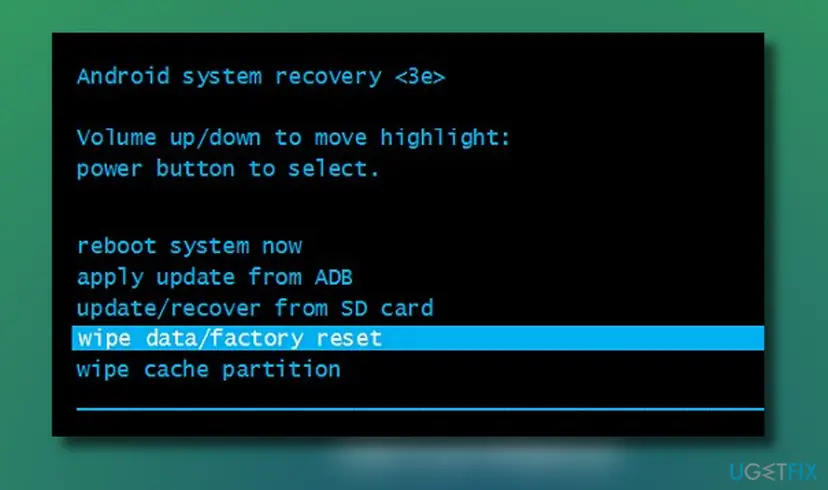
The Android recovery menu with Wipe data/factory reset highlighted. Newer Galaxy models use the same labels in a different layout. - Highlight Yes or Factory data reset and press Power.
- When Data wipe complete appears, select Reboot system now.
- Set the device up again and sign in with the Google Account that was on it.
It worked if: The device starts with the setup screens and, after setup, with the normal home screen and no Samsung Kids profile.
If not: If it asks for a Google Account you cannot recover, take the device and proof of purchase to an authorised Samsung service centre.
What Samsung Kids leaves behind after you uninstall it
Samsung Kids is an Android app, so it has no registry keys or loose folders to clean. What remains is a short list of things on the device and in your accounts. Samsung's own help confirms the first row; the others follow from how the app works.
| What stays | Where you see it | Remove it? |
|---|---|---|
| The basic Samsung Kids installer | The Kids button in Quick settings. Samsung says it stays after uninstalling. | It cannot be removed with Uninstall. Hide the button as in Step 4. |
| Kids apps downloaded through More apps for kids | Settings > Apps, as separate apps | Yes, uninstall each one that nobody uses. |
| Samsung Kids games that you installed from its home screen | Settings > Apps, if your model lists them separately | Yes, if they are listed. We could not confirm which models list them. |
| Your own apps that were added to Samsung Kids | Your normal home screen and Apps screen | No. Adding them only made a shortcut on the Kids home screen. |
| Drawings and photos made in Samsung Kids | My kid's creations in Parental controls while the app exists | Move them out before uninstalling. We could not confirm where they are stored. |
| Family Link supervision or a Samsung child account | The parent's Family Link app, or Settings > Samsung account > Family | Only if you also want those controls gone. See the next section. |
| Old Kids Mode helper apps (before Android 9) | Kids Parental Control, Kids Sleep Screen, Kids Store in the app list | Yes, uninstall them together with Kids Mode. |
How to turn off Family Link parental controls or Google Kids Space instead
If the steps above did not apply because your device shows the normal Samsung home screen with restrictions, the controls come from a Google Account. Google's help says only a parent can turn these off, and a child under 18 needs a parent's approval to stop supervision.
- Family Link, from the parent's device: open the Family Link app, select the child's profile at the top left, tap Controls > Account Settings > About supervision, follow the instructions and tap Stop supervision.
- Family Link, from the child's Galaxy device: open Settings > Digital Wellbeing & parental controls, tap More at the top right > Stop supervision, then sign in as the parent or use the Parent Access Code.
- Google Kids Space: on the child's device touch and hold the Parent menu in the lower right corner, tap Exit Kids Space > Turn off, enter the parent's password and tap Confirm.
- Samsung child account: on the parent's phone open Settings > your Samsung account > Family, tap the child's profile and change the web, app, download and purchase controls there.
Google says supervision can be stopped once the child reaches 13, or the applicable age in your country. Before that age the account stays supervised. If Kids Space is turned on again within 30 days, the child's settings are restored; after 30 days they are deleted.
When Samsung Kids will not close or will not uninstall
| What happens | Why | What to do |
|---|---|---|
| The PIN is refused although it is right | Samsung Kids may be set to Phone's screen lock, or the child changed the PIN | Try your normal screen lock. Then use Step 2. |
| No email arrives from Samsung | The email came from another address, or it went to spam | Send it again from the registered address and check spam. If nothing comes in a day, use Step 3. |
| Safe mode does not appear at the bottom of the screen | The button was released too early or held too late | Turn the device off completely, then hold Volume down from the moment the Samsung logo appears. |
| The power menu asks for the PIN | The device lock protects the power menu | Let the battery run down, then use the Volume down method at start-up. |
| Settings shows Disable or Uninstall updates instead of Uninstall | On some models Samsung Kids may be part of the firmware | Tap Uninstall updates or Disable, then restart. We could not confirm which models behave this way. |
| Samsung Kids opens again after a restart | It was closed, not uninstalled, and the child started it again from the Kids button | Uninstall it and hide the Kids button (Step 4). |
| The device is locked with a screen lock nobody knows | This is the device lock, not the Kids PIN | Samsung says remote unlock through SmartThings Find is no longer possible. A factory reset (Step 5) is the remaining option. |
If none of this works and you can prove the device is yours, Samsung Kids' own Contact us link and Samsung support chat are the official help. Samsung's Galaxy Store page also lists [email protected] as the seller's contact address for the app.
How to check that Samsung Kids is really gone
- Restart the device. It must start on the normal Galaxy home screen, without the Kids screen and without the word Safe mode at the bottom.
- Look in Settings > Apps. Search for Samsung Kids or Kids. After Step 4 it is no longer listed, or only listed as disabled if your model offered Disable.
- Open Quick settings. The Kids button should not be among the active buttons. If you tap it there, it offers to set Samsung Kids up again, which shows the app itself is gone.
- Check the downloads. Look through Settings > Apps once more a day later, and make sure no kids apps you removed have come back.
- Check the account controls. On the parent's phone open Family Link and confirm the child's profile is no longer supervised, if you stopped supervision as well.
The Samsung Kids page in the Galaxy Store shows Install when the app is not on the device. If it shows Open or Update, Samsung Kids is still installed.
How to set up Samsung Kids again later, safely
Removing Samsung Kids is not final. When the child is ready to use the device again, you can bring it back in a minute and set it up so the same lock-out cannot happen twice.
- Put the Kids button back: open Quick settings, tap the three dots or the pencil > Edit buttons, drag Kids into the panel and tap Done.
- Tap Kids, then Start or Continue. The installer downloads Samsung Kids again. On some tablets install Samsung Kids Installer from the Galaxy Store first.
- When asked, keep Phone's screen lock as the lock type if your device has a screen lock. Then only your own unlock closes Samsung Kids, and a child cannot invent a PIN.
- Write down the Samsung Kids PIN if you choose a custom one, and check which email address is registered for the reset in Step 2.
Samsung notes that if the device has no screen lock, a Samsung Kids PIN is required. Setting a normal screen lock first is therefore the simplest way to keep control of the exit.
Frequently asked questions
How do I get out of Samsung Kids mode without the password?
First enter a wrong PIN five times. Samsung's US help says you are then told to send a blank email from your registered address to [email protected], and a temporary password comes back. If that is not possible, restart the device in Safe mode, open Settings > Apps > Samsung Kids and tap Uninstall, then restart. This is Samsung's own advice for a forgotten Kids PIN. It removes the child profiles and rules but keeps your own apps and files. Only when Safe mode cannot be reached is a factory reset needed, and that erases the device.
Can I delete the Samsung Kids app, or only disable it?
You can delete it. Samsung's help shows two ways: Settings > Apps > Samsung Kids > Uninstall, or touch and hold the Samsung Kids icon and tap Uninstall. What stays is the Kids button in Quick settings, because Samsung keeps a small installer behind it so the app can be set up again. You hide that button in the Quick settings edit screen. If your model offers only Disable or Uninstall updates, use that: the app then no longer runs, which has the same effect for you.
How do I remove Kids mode on a Samsung tablet like the Galaxy Tab A?
The steps are the same on a tablet as on a phone, because both use the same Samsung Kids app. Close it with More options > Close Samsung Kids and the PIN, then uninstall it in Settings > Apps > Samsung Kids. Older tablets from before Android 9, such as early Galaxy Tab A models, have the Kids Mode app instead, together with Kids Parental Control and Kids Store; uninstall all of them. Some tablets got Samsung Kids through the Samsung Kids Installer app from the Galaxy Store. Kids edition tablets use the same app.
How do I turn off Kids mode on a Samsung phone?
On a Samsung phone, Kids mode is Samsung Kids, started from the Kids button in Quick settings. Open the three-dot menu on its home screen, tap Close Samsung Kids and enter the PIN or your screen lock. To stop it for good, uninstall Samsung Kids in Settings > Apps and remove the Kids button from Quick settings. If your phone shows the normal home screen but blocks apps or downloads, it is not Kids mode but parental controls from Google Family Link or a Samsung child account, which a parent switches off from their own phone.
Why does Samsung Kids remove apps or keep losing games?
Samsung's help does not describe Samsung Kids uninstalling apps on its own, and we found no official explanation. Users report that games disappear from the Kids home screen after a restart. What Samsung documents is that apps appear on the Kids home screen only after a parent adds them with Add and edit apps, and that Delete there removes the app from that screen. Reset Samsung Kids in its settings also returns everything to defaults. Check Settings > Apps first: if the game is still installed, add it again through Add and edit apps.
What is the yellow screen with a crocodile on my Galaxy?
It is the home screen of Samsung Kids, or of the older Kids Mode app on Galaxy devices from before Android 9. The crocodile is Crocro, one of the Samsung Kids characters, who also appears in the games Crocro's Friends Village and Crocro's Adventure. The screen is not a virus and not a fault. Someone tapped the Kids button in Quick settings and set a PIN. Leave it through the three-dot menu and Close Samsung Kids, or follow Step 2 or Step 3 if the PIN is unknown.
Is Samsung Kids the same as Google Family Link?
No. Samsung Kids is an app by Samsung that replaces the home screen with a child's screen while it runs, and it is closed with a PIN. Google Family Link supervises a child's Google Account on any Android device, including Samsung, and works on the normal home screen by blocking apps, limiting screen time and locking the device. Samsung's own support links to Family Link as a separate parental control option. Uninstalling Samsung Kids does not stop Family Link; a parent stops supervision in the Family Link app under Account Settings > About supervision.
Will a factory reset remove Kids mode, and do I lose everything?
Yes, a factory reset removes the Samsung Kids setup, but it also deletes all personal data, settings, downloaded apps, messages, contacts and photos on the device, so Samsung recommends a backup first. After the reset the device asks for the Google Account that was on it, so recover that password first. Use a reset only when Safe mode cannot be reached and no PIN or email reset is possible. In most cases Step 3 removes Samsung Kids without erasing anything else.
Apakah Samsung Kids boleh dihapus, and how do I exit it (cara keluar dari Samsung Kids)?
These Indonesian searches ask whether Samsung Kids may be deleted and how to exit it. Yes, Samsung Kids can be deleted safely: Settings > Apps > Samsung Kids > Uninstall. To exit, tap More options (three dots) on the Samsung Kids home screen, then Close Samsung Kids and enter the PIN. Without the PIN, restart in Safe mode and uninstall the app there. Menu names on an Indonesian Galaxy follow the same order in your language. This page is in English only.
Can a child turn off Samsung Kids or Family Link by themselves?
Not without the PIN or a parent's approval, which is the purpose of both. Samsung says the Samsung Kids PIN prevents kids from leaving without parental consent. A child who knows the Safe mode trick can still uninstall Samsung Kids, because it is a normal app. Family Link is stronger: Google says a child under 18 needs a parent's approval to stop supervision, and cannot stop it before age 13 or the local age. If you want a lock the child cannot remove, use Family Link together with or instead of Samsung Kids.
Sources
- Google For Families Help: Add and manage supervision on a current Google Account (stop supervision) (support.google.com)
- Google Kids Space Help: Fix problems with Google Kids Space (turn off Google Kids Space) (support.google.com)
- Samsung US: Samsung Kids on your Galaxy phone or tablet (exit, PIN, five wrong attempts and [email protected], settings) (samsung.com)
Did this fix work?
One click, no account. It tells the next reader which guides are worth their time.
Questions and experiences: Disable Kids Mode or Uninstall Kids Mode App on Samsung Galaxy
Still broken, or found a fix we did not cover? Ask here: members and our editors answer. Reading is open; writing needs a free account.
…