How to fix
Increase download speed on Steam
on Windows
Boost your Steam download speed effortlessly by tweaking Windows 10 or Windows 11 settings. Expert-tested solutions for fast results, fixed in minutes!

Why does How to increase download speed on Steam occur?
- Bad system configuration
- Steam configuration issues
- Slow internet connection
- WiFi limitations
- Remote area location
Repairs Windows system files, removes malware, and restores a clean OS state — without reinstalling.
Hello, I hope you could help me with Steam download speeds. Recently, I have moved to a new apartment, so I had to re-establish my internet connection. The bandwidth speeds I get from the ISP are exactly the same as at my previous place, but the Steam downloads are simply terrible. It takes me hours to download barely a few gigabytes of data. Help is appreciated.
Released in 2003, Steam is the most popular game distribution platform around. It offers more than 50,000 titles of various genres and is used by more than 120 million monthly active users worldwide.[ref en-1] While freshly-released games often cost as much as $70, there are plenty of deals that players can get via the platform, discounts reaching up to 90% off.
Due to such immense accessibility, all users have to do is download the game, install it, and hit the "Play" button. Unfortunately, the download part is what might cause some players problems.
Modern, especially AAA titles,[ref en-2] often provide gamers an immersive world with innovative mechanics, customization, story development, and much more. To create these worlds and make them graphically more realistic, developers use a lot of data, which each individual has to download and install in order for the game to work.
As a result, some games can reach as much as 100GB (or even more, in some cases) in space - all that needs to be downloaded via the internet by the user. While the internet speed highly depends on the ISP, location, and the selected plan, multiple other factors could result in slow Steam download speed.
Some users reported that even with ultra-fast fiber optics connection, they receive bad download speeds from the platform. This could be a result of many internal issues, including bad system or Steam configuration.
Below you will find methods that should improve your Steam download speeds, although keep in mind that they might not work for you - it all depends on various external factors. For example, if you only have access to the internet via WiFi or live in a remote area, there little that could be done about it (unless you want to move to obtain better download speeds).
As already mentioned, corrupted Windows itself could be the cause of poor connection speeds to the internet. In order to address that, we highly recommend you try the [d1] repair tool. It can find the underlying Windows issues automatically fix BSODs, missing DLL[ref en-3] errors, registry errors, and much more.
Also, if you are having other issues with Steam, you can find more information in the following links:
1. Check your downloads region and bandwidth limit
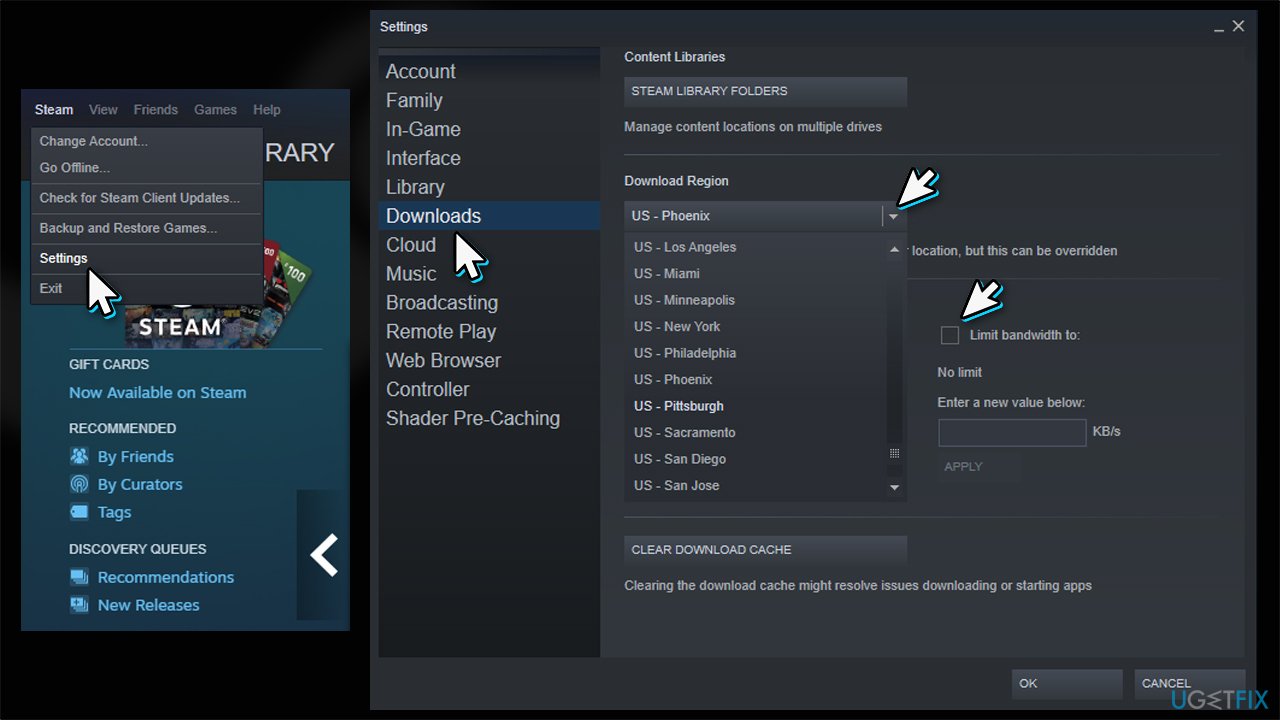
In some cases, your download region could be not set to what it is supposed to be, making your Steam download slow. Here's how to correct that:
- Open the app
- Go to Steam and select Settings
- Select the Downloads section on the left
- Check the Download region on the right
- If it is not set to your local region, change it to the closest one to you
- Then, check the Download restrictions area
- Ensure that No limit setting is applied.
2. Uninstall or shut down apps that interfere with Steam
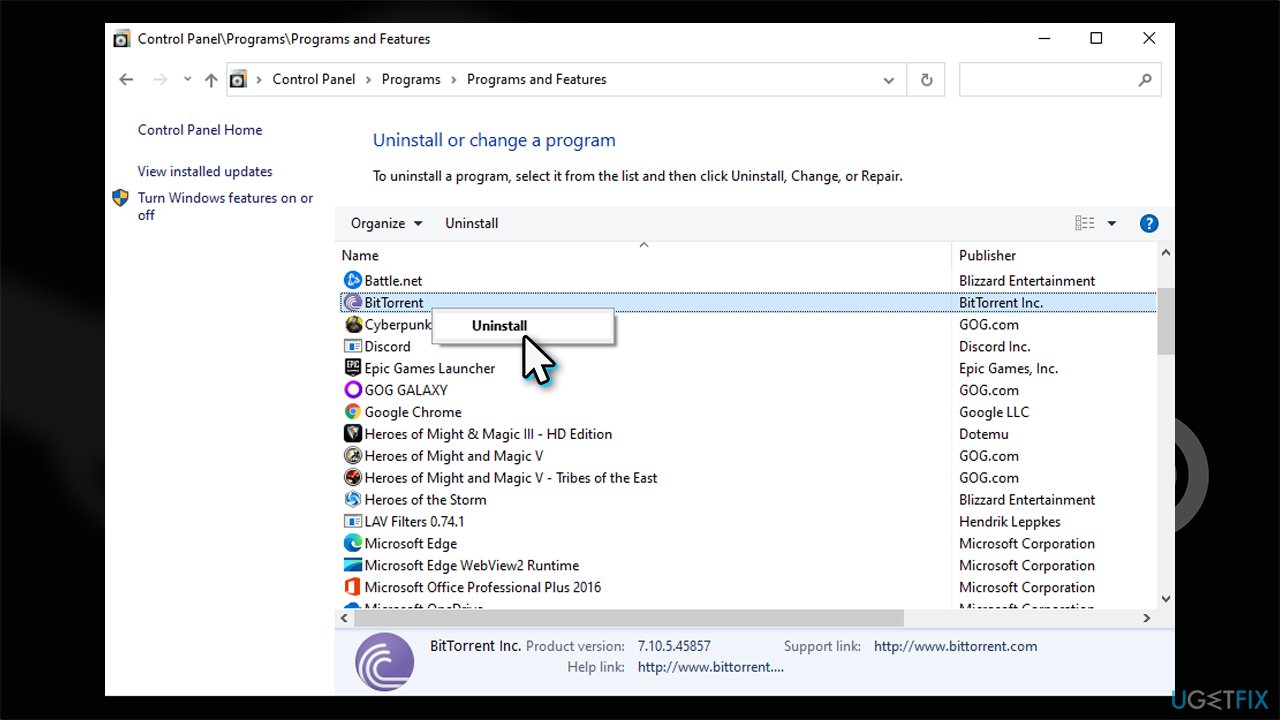
Many apps can affect download speeds on the gaming platform. Most commonly, it is related to software that uses packet filtering, or network protection/security software can be the cause of the problem. Therefore, you should disconnect from your VPN or temporarily disable your third-party antivirus. Other platforms that could impact the download speeds include:
- Third-party Firewalls
- FTP and web server apps
- Peer-to-peer clients (torrents)
- Download accelerators or download managers
- IP filtering programs.
Also, it was discovered that NOD antivirus could interfere with Steam download speeds. If you are using this app, follow these steps:
- Open NOD antivirus and go to Settings
- Find Web access protection section (under Antivirus and Antispyware)
- Go to Web browsers and find Steam.exe
- Click the box several times until you see the red cross (X)
- Click OK.
3. Give Steam priority
- Press Ctrl + Shift + Esc to open the Task Manager
- Go to Details section
- Right-click on SteamService.exe
- Go to Set priority > High.
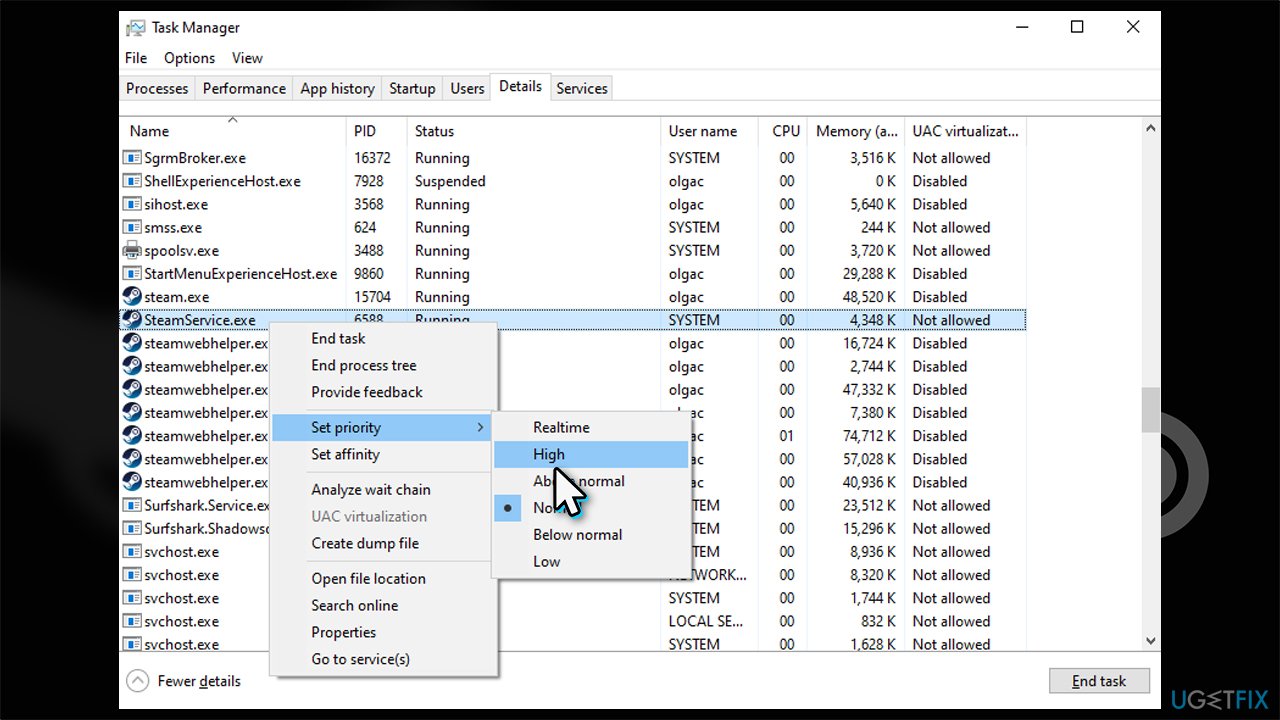
This method might not drastically increase your download speeds, but it will ensure that Steam has a priority over other applications that do use the bandwidth in the background.
4. Run network connection troubleshooter
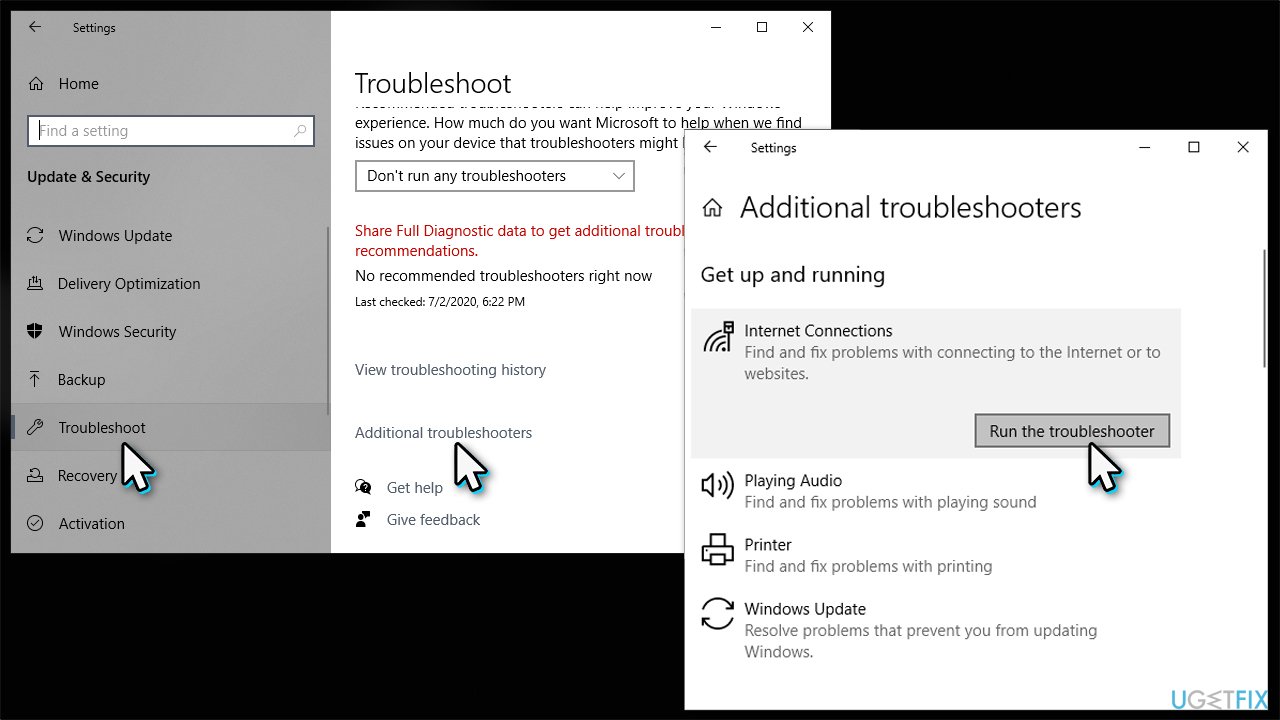
- Right-click on Start and pick Settings
- Go to Update & Security section
- Select Troubleshoot on the left
- If you can't see the troubleshooters listed, select Additional Troubleshooters
- Pick Internet Connections and select Run the troubleshooter.
5. Reset your internet connection
In some cases, the reason may be related to the internet connection settings themselves. In such a case, you can use a set of commands via the elevated Command Prompt to reset all aspects of your internet:
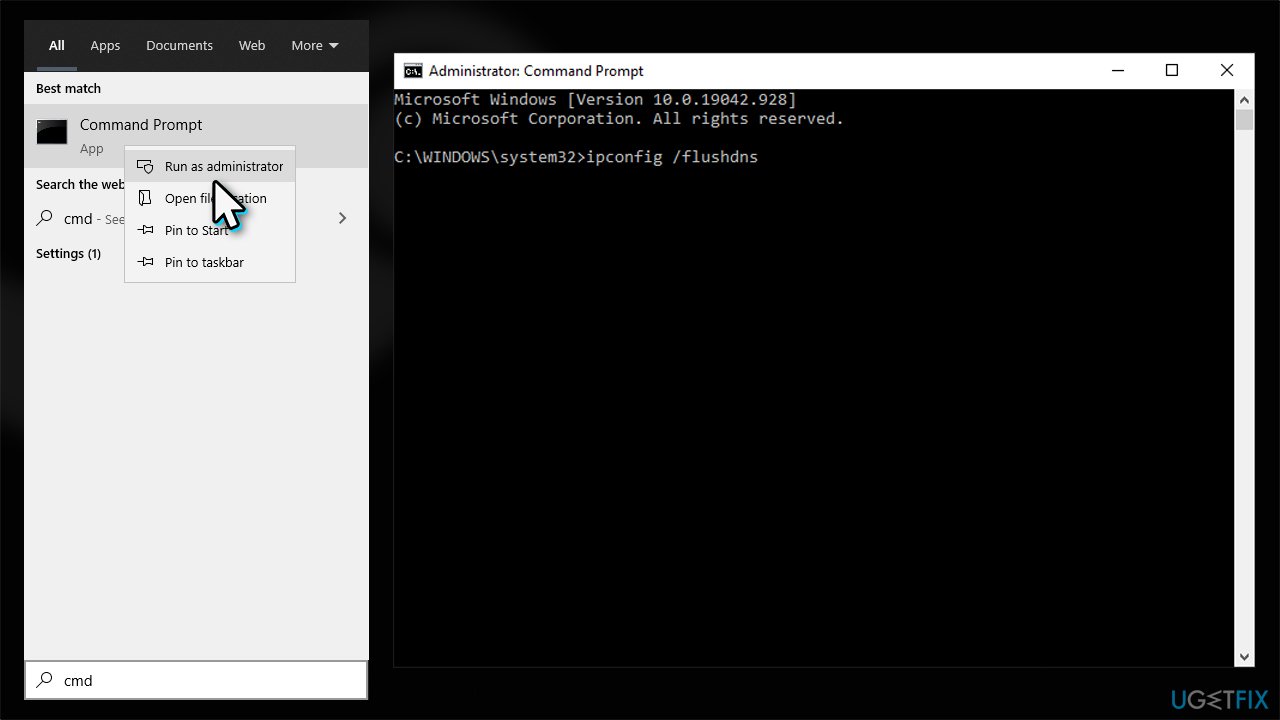
- Type cmd in Windows search
- Right-click on Command Prompt and pick Run as administrator
- Copy and paste the following commands, pressing Enter after each:
ipconfig /flushdns
ipconfig /registerdns
ipconfig /release
ipconfig /renew
netsh winsock reset - Restart your PC.
Bottom line
To improve your Steam download speeds, consider checking your system and Steam configurations, using a wired connection instead of WiFi, and ensuring your internet plan meets your needs. If these fixes do not resolve the issue, you may need to contact your ISP for further assistance.
Frequently asked questions
You can increase your Steam download speed by adjusting the bandwidth limit in Steam settings and ensuring that your Windows 10 or 11 network settings are optimized for performance.
Yes, selecting a closer download region in Steam can help improve download speeds on Windows 10 or 11 by connecting you to a less congested server.
Make sure your network adapter settings are configured for maximum performance, and disable any background applications that may be using bandwidth while downloading from Steam.




Report an issue
What's wrong with this guide? We review every report and update or remove content.
Report received — thank you. We'll review and fix it.
You need a free account to submit a report.
Be the first to comment