How to fix
Windows could not start the Windows Audio Service on local computer error
on Windows
Resolve the "Windows could not start the Windows Audio Service" error on Windows 10/11 easily. Get expert-tested solutions that work fast!

![[Fix] Windows could not start the Windows Audio Service on local computer error](https://ugetfix.com/wp-content/uploads/articles/askit/how-to-fix-windows-could-not-start-the-windows-audio-service-on-local-computer-error_en-768x432.jpg)
What causes [Fix] Windows could not start the Windows Audio Service on local computer error?
- Corrupted system files
- Insufficient permissions
- Windows Audio Service is disabled
- Audio service not set to automatic
- Dependency services not running
Repairs Windows system files, removes malware, and restores a clean OS state — without reinstalling.
Hi. Today, I turned on my PC just as usual and found out I have no sound at all. I went to services because I thought that the audio service was off - and it was. I tried to turn it on, but I got an error "Windows could not start the Windows Audio Service on local computer." How can I fix this?
There are many services running in the background of Windows at any time when it is operational. While some are imported by third-party applications, others are pre-installed and are necessary for the operating system to function properly. Windows Audio Service is one such service - all the browsers, games, media players, and various other software rely on it to play the audio at any time.
If you look at the list of the services, you will notice that some of them are set to a manual, automatic, or disabled setting. This tells Windows whether a particular service should be launched as soon as the system boots. Audio service should be set to the automatic setting, as many programs depend on it when using audio on the system, according to a description:
Manages audio for Windows-based programs. If this service is stopped, audio devices and effects will not function properly. If this service is disabled, any services that explicitly depend on it will fail to start
Some users claimed that they had found the service disabled, hence they had no audio. However, when trying to enable the service, they receive an error "Windows could not start the Windows Audio Service on local computer." Additionally, it usually comes with an error code, which can vary - 0x80070005, 1067, 1740, 1079, etc.
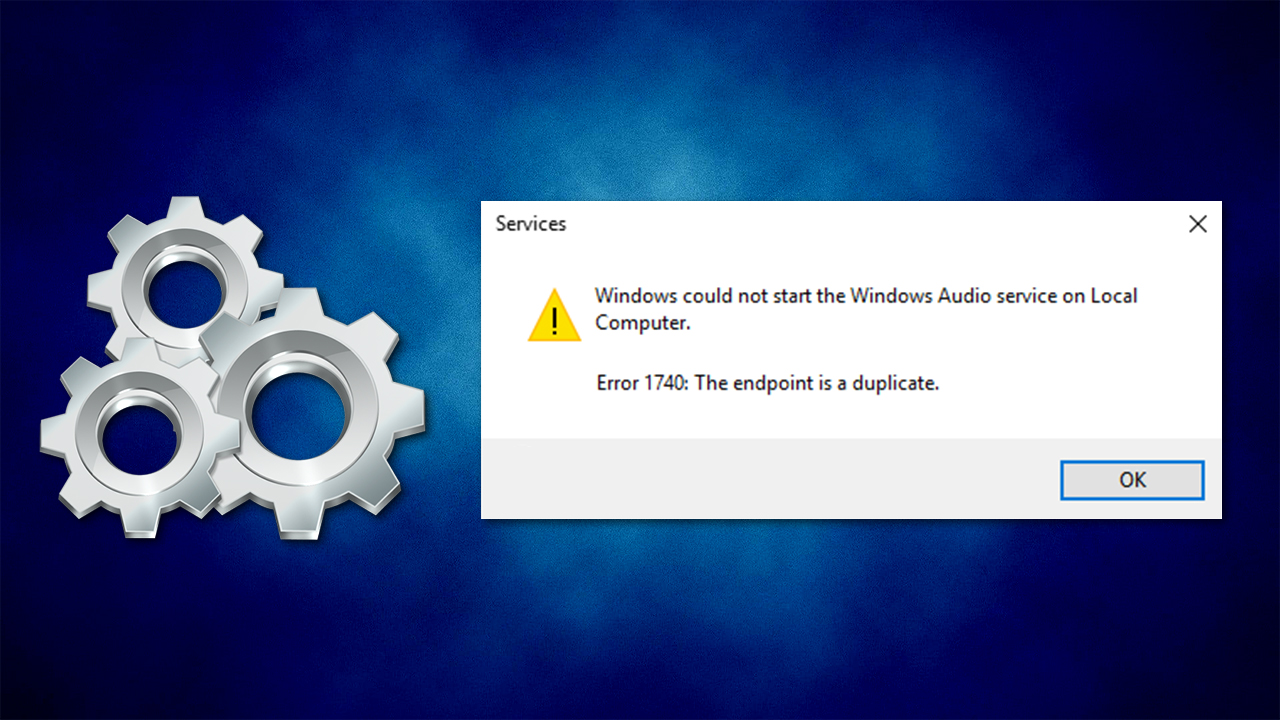
This can be particularly troublesome, as users are unable to hear anything when watching videos or doing something else. The issue is likely to be caused by corrupted system files, although insufficient permissions might also be at fault. Below you will find several methods that should help you fix the "Windows could not start the Windows Audio Service on local computer" error.
Before you proceed with the steps below, we strongly recommend running a scan with powerful PC repair software [d1]. It can fix the most common Windows issues, resolving BSODs,[ref en-1] registry errors, and other issues automatically.
Fix 1. Run a sound troubleshooter
Let's start from the basics and run a built-in troubleshooter
- Type troubleshoot in Windows search and hit Enter
- Select Additional troubleshooters
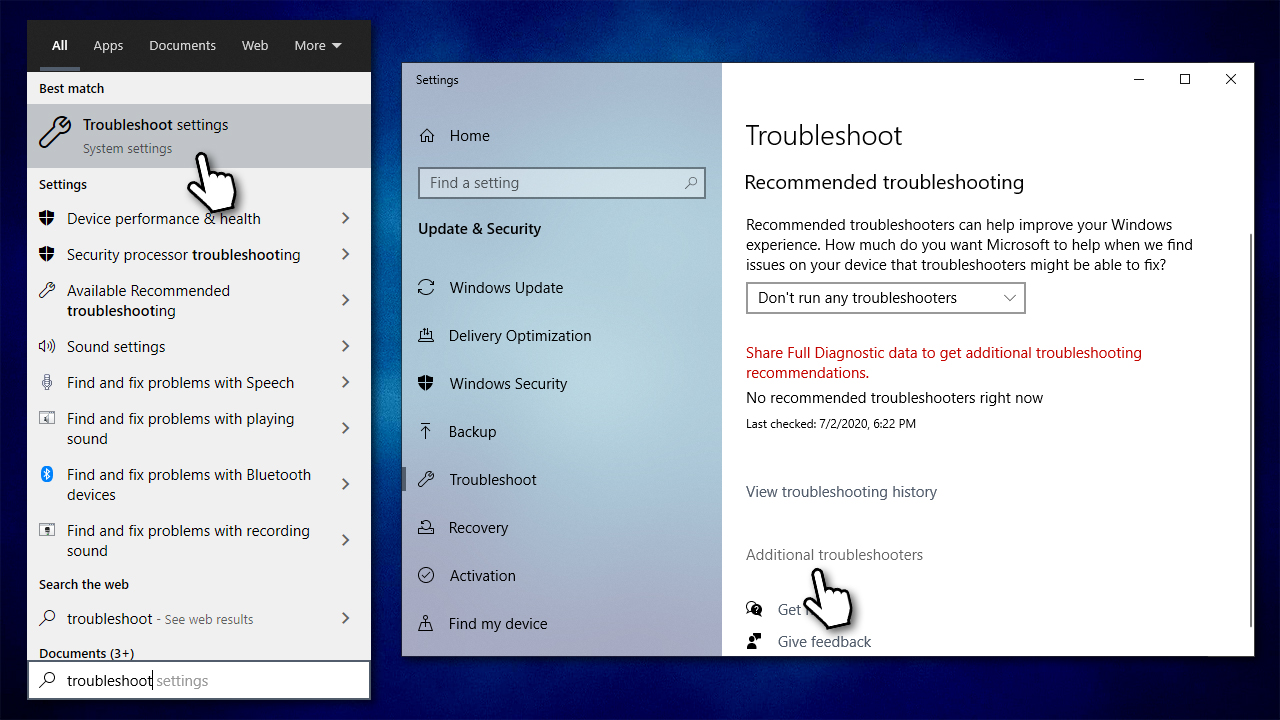
How to fix windows could not start the windows audio service on local computer error run audio troubleshooter - Pick Playing Audio and click Run the troubleshooter
- Wait till the scan is finished
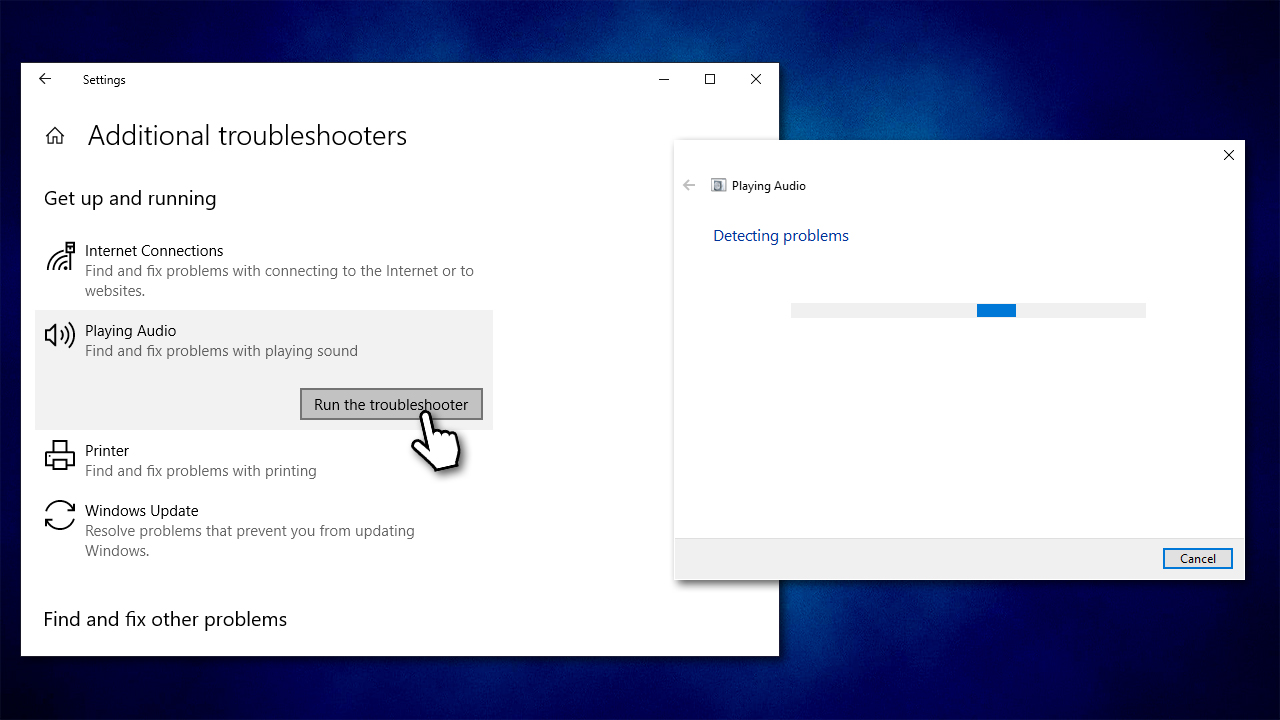
How to fix windows could not start the windows audio service on local computer error run audio troubleshooter2 - Apply the suggested fixes and restart your PC.
Fix 2. Eun SFC and DISM
Corrupted[ref en-3] system files are one of the main reasons why you might experience the Windows could not start the Windows Audio Service on local computer error. Running SFC and DISM can help you resolve this issue.
- Type cmd in Windows search
- Right-click on Command Prompt and select Run as administrator
- Type sfc /scannow and hit Enter
- Wait for the scan to finish
- As soon as the scan finishes, Windows will report whether integrity violations were found and if they could be fixed. If SFC says that it can't repair found errors, paste the following commands, pressing Enter after each:
Dism /Online /Cleanup-Image /CheckHealth
Dism /Online /Cleanup-Image /ScanHealth
Dism /Online /Cleanup-Image /RestoreHealth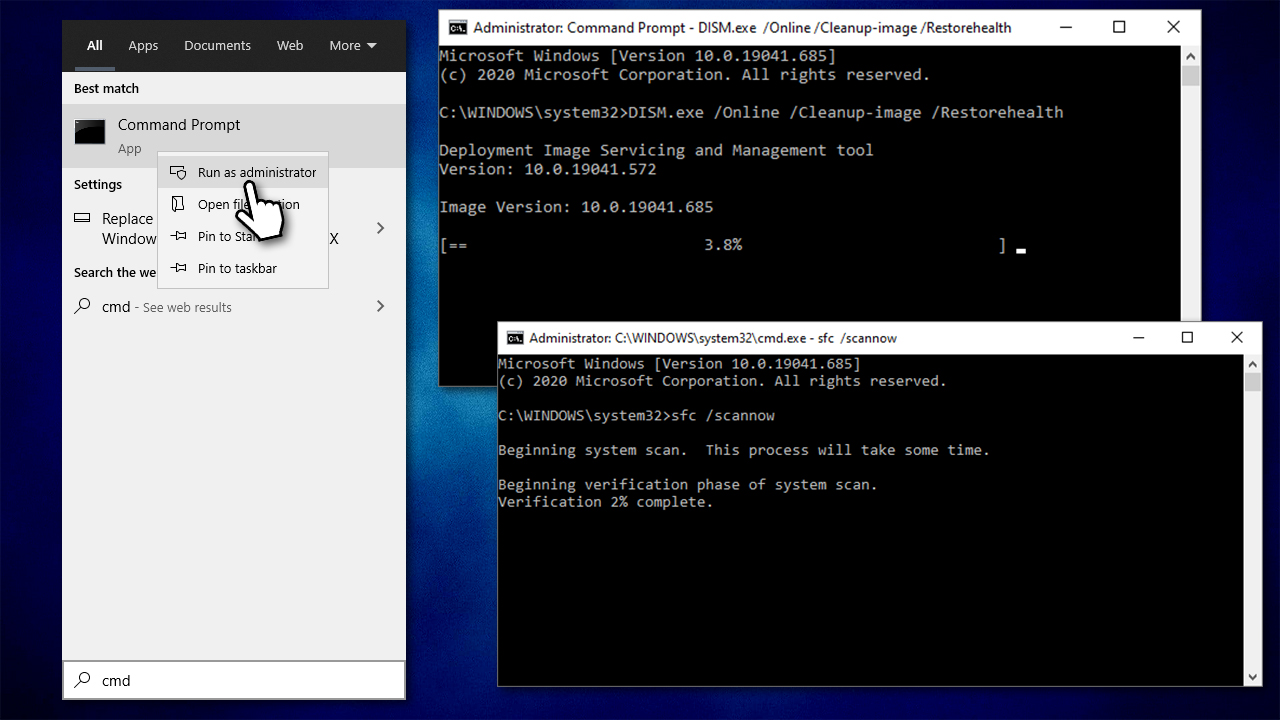
How to fix windows could not start the windows audio service on local computer error run sfc dism
Fix 3. Give the service full control via the Registry
before you proceed, we strongly recommend you backup your registry.[ref en-2]
- Type in regedit in Windows search and press Enter
- When User Account Control shows up, click Yes
- Click File > Export
- Under Export range, select All
- Name your backup and click Save.
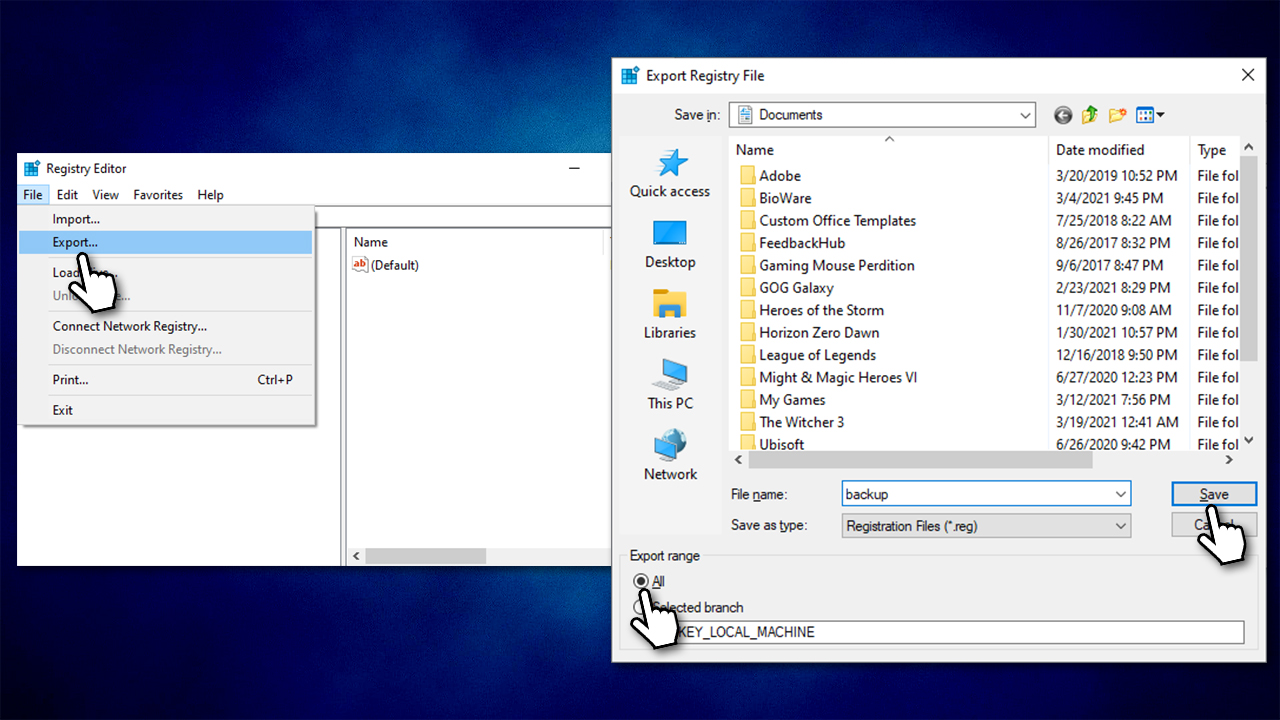
How to fix windows could not start the windows audio service on local computer error export registry
After this, go back to the registry editor and proceed with the following:
- Navigate to the following location:
Computer\\HKEY_LOCAL_MACHINE\\SYSTEM\\CurrentControlSet\\Services\\Audiosrv - Right-click on Audiosrv and click Permissions...
- Select SYSTEM from the list
- Tick the Full Control option
- Now select Users from the list
- Make sure Full Control checkbox is marked
- Click Apply and OK.
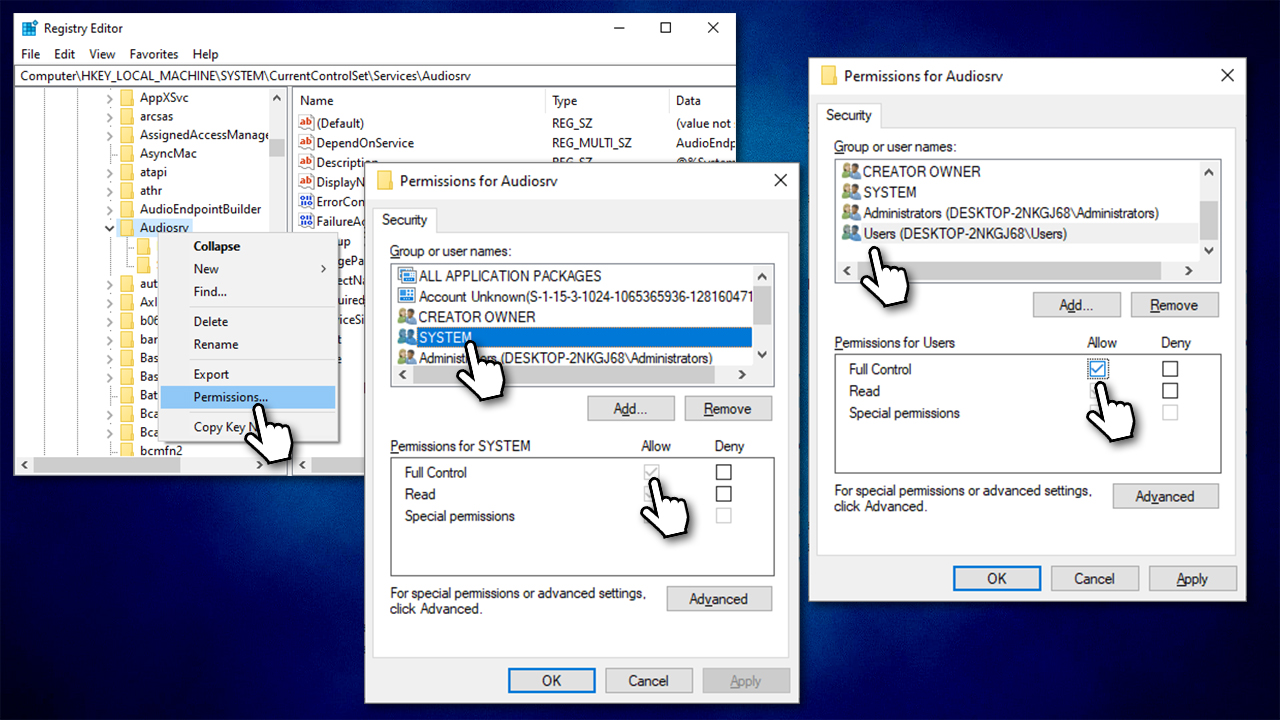
How to fix windows could not start the windows audio service on local computer error give permissions via registry
Fix 4. Change Log on Settings
- Type Services in Windows search and press Enter
- Scroll down to Windows Audio and double-click it
- In the new window, select the Log On tab
- Mark the Local account option and then enable the Allow service to interact with desktop option
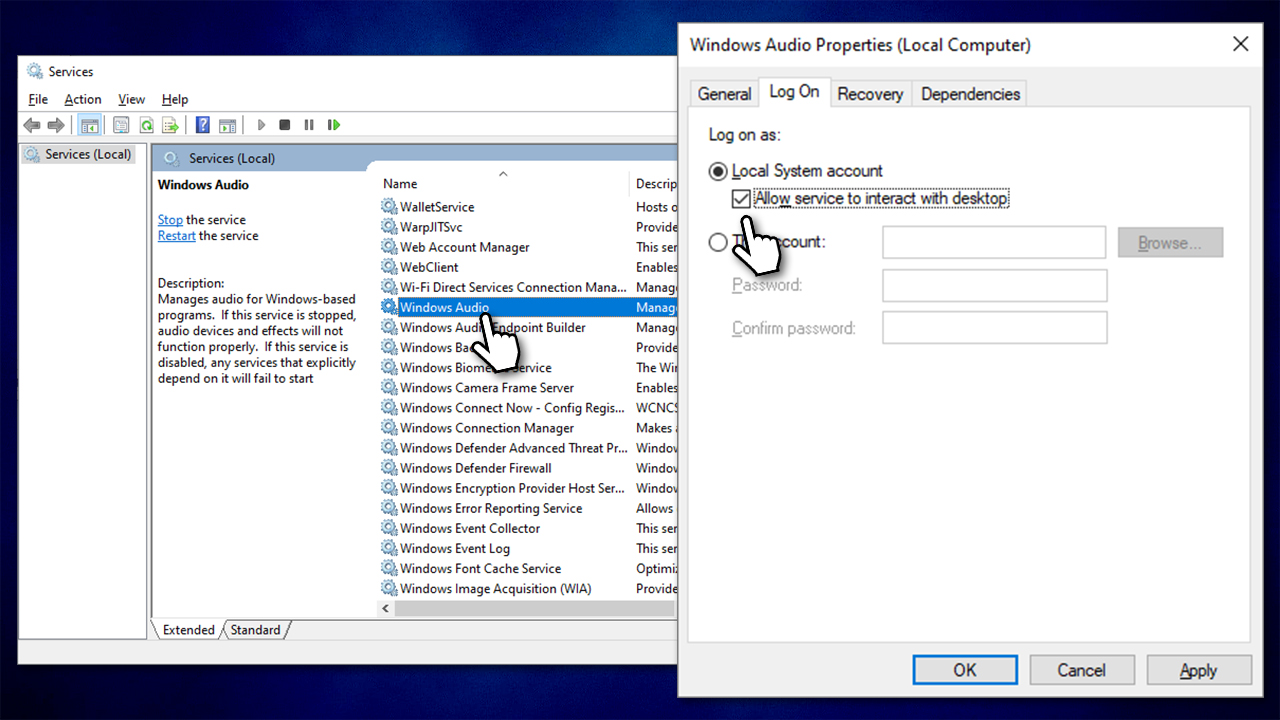
How to fix windows could not start the windows audio service on local computer error allow service to interract with desktop - Click Apply and OK.
Similar topics that might be helpful:
Bottom line
To fix the 'Windows could not start the Windows Audio Service on local computer' error, you can try enabling the Windows Audio Service, checking the service dependencies, and ensuring proper permissions are set. If these methods do not resolve the issue, consider running a system file checker or restoring your system to a previous state.
Frequently asked questions
You can try restarting the Windows Audio service through the Services application, or you can run the audio troubleshooter from Settings to identify and fix the issue automatically.
Ensure that the Windows Audio service and its dependencies are set to automatic startup, and check for any recent updates that might affect audio settings.
Yes, you may need to check specific registry entries related to the audio service to ensure they are correctly configured, but be cautious when editing the registry.




Report an issue
What's wrong with this guide? We review every report and update or remove content.
Report received — thank you. We'll review and fix it.
You need a free account to submit a report.
Be the first to comment