How to fix
Reinstall Graphics drivers
on Windows
Reinstalling graphics drivers in Windows 10 or 11 is quick and easy. Boost your system's performance today with expert-tested tips!

Why does How to reinstall Graphics drivers in Windows occur?
- Driver issue
- Corrupted drivers after Windows updates
- Windows failed to update drivers
- Graphics card too weak for rendering
- Compatibility issues between components
- System and file errors common in Windows
Repairs Windows system files, removes malware, and restores a clean OS state — without reinstalling.
Hello. I am having issues while trying to watch videos or play games. Sometimes my screen starts glitching or stuttering and I cannot seem to identify the problem. Someone suggested that it might be a driver issue. How do I reinstall them?
A graphics card also called a video card or for short - GPU is responsible for the function of media on your computer. Be it an image, video, or game streaming on your device it accelerates the creation and rendering[ref en-1] of everything. The graphics driver is software that needs to communicate between the graphics card and the operating system of the computer.
If you experience issues when trying to use media editing tools or gaming, you might need to upgrade your graphics card. It might be simply too weak to render some of the pictures you want it to process. However, the drivers are not always at fault, of course, it can be Windows that failed to update drivers, or drivers were corrupted after the Windows updates. Users sometimes have to take matters into their own hands and completely reinstall audio drivers, network drivers,[ref en-2] and others to make the PC function properly.
The main reason that drivers are so important is that Windows computers often use components manufactured by different companies. If users are building a custom PC, it is very important to make sure that all the parts are compatible and will work fine together. However, regardless of that, Windows sometimes has a hard time balancing all of that. Hardware customization abilities make everything much more difficult which is why various system and file errors are quite a common occurrence for Windows users.
If your graphics card is not functioning correctly, it could cause trouble while playing games and watching videos. Therefore, you might need to reinstall the drivers to make it up and running. However, before reinstalling the drivers, you can try to fix the graphics card issue by trying to update video drivers first.
If you do not want to keep up the guessing game, and want to avoid going through all of the steps, you can try using a repair tool [d1]. This powerful software can fix various system errors, corrupted files, registry issues, BSODs,[ref en-3] and optimize the device. It is an overall very helpful tool, so give it a try and you might dodge the manual troubleshooting process.
The GPU drivers might not be working properly due to various reasons. It could be because you have updated your PC recently, and it messed up important files, or third-party software is interfering with the process. Issues can also appear when the OS is unable to find the missing updates automatically of the graphics driver or just that the graphics driver in Windows 10 went corrupt. You should learn how to reinstall drivers completely, as shown in the step-by-step guide provided below:
Uninstall the graphics driver
To reinstall the driver, you need to uninstall the driver first. You can uninstall the graphics driver via Device Manager. Device Manager is a Control Panel application that allows you to manage devices and drivers in your system. You can always uninstall, update or roll back drivers through the Device Manager:
- Press Windows + R at the same time to open the Run box
- Type devmgmt.msc and press Enter to open the Device Manager
- Double-click on Display adapters to view the devices in the category
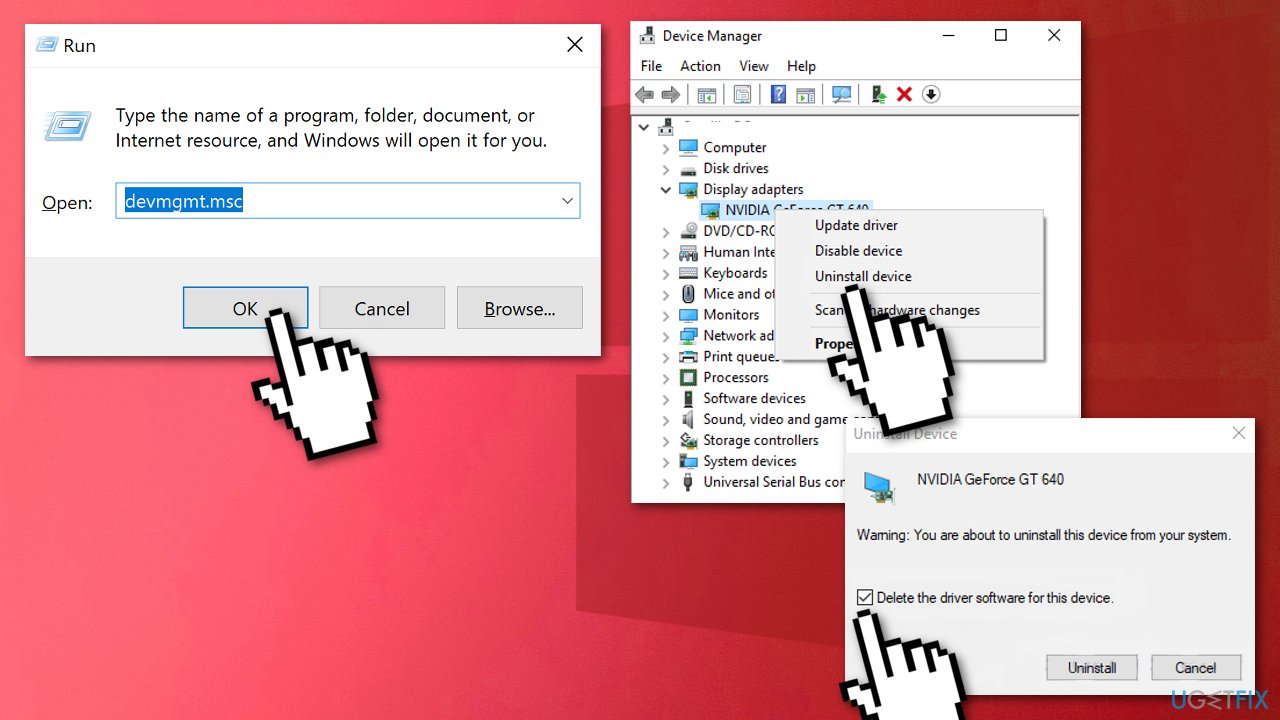
- Right-click on the graphics card name, and select Uninstall device
- On the Uninstall confirm dialog box, click the Delete the driver software for this device option, then click Uninstall
The first step is done. Now we will dive into all of the installation options. There are three methods for you to reinstall the driver.
Method 1. Allow Windows to install the graphics driver automatically
- After uninstalling the driver, you just need to restart your computer
- Windows will install the driver automatically from Windows Update
This method may not provide the latest driver for you. It may get you a generic driver that works, but not the exact one that is required for your device. If you still have performance issues after having the graphics driver reinstalled, you can try the next method.
Method 2. Install the graphics driver with DriverFix
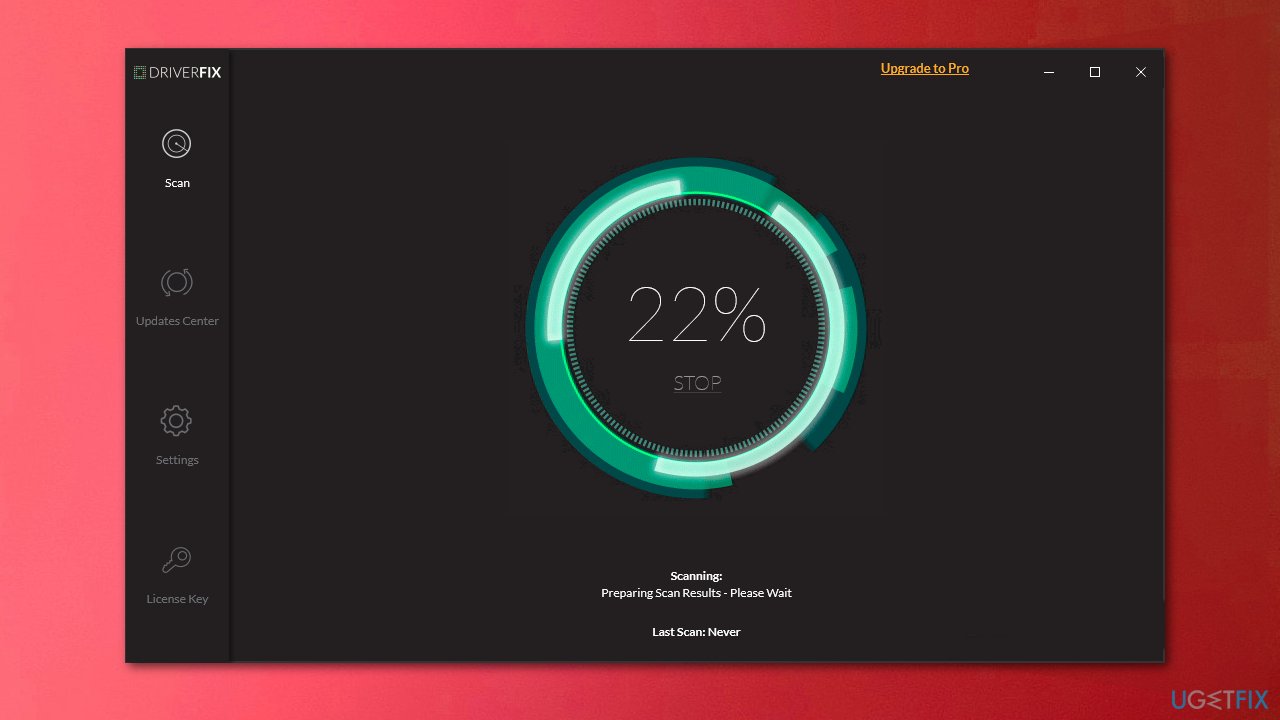
Drivers are an integral part of any Windows operating system and are typically delivered along with Windows updates. However, as we mentioned before, the operating system is not the best way to update your drivers. With[rev id="DriverFix"], you can ensure that all your drivers are up to date and not malfunctioning.
The program UI consists of three main panels - Scan (to perform a full scan for drivers), Updates Center (shows downloaded drivers), and Settings, all of which are self-explanatory. All the functions within the program are really easy to navigate and find.
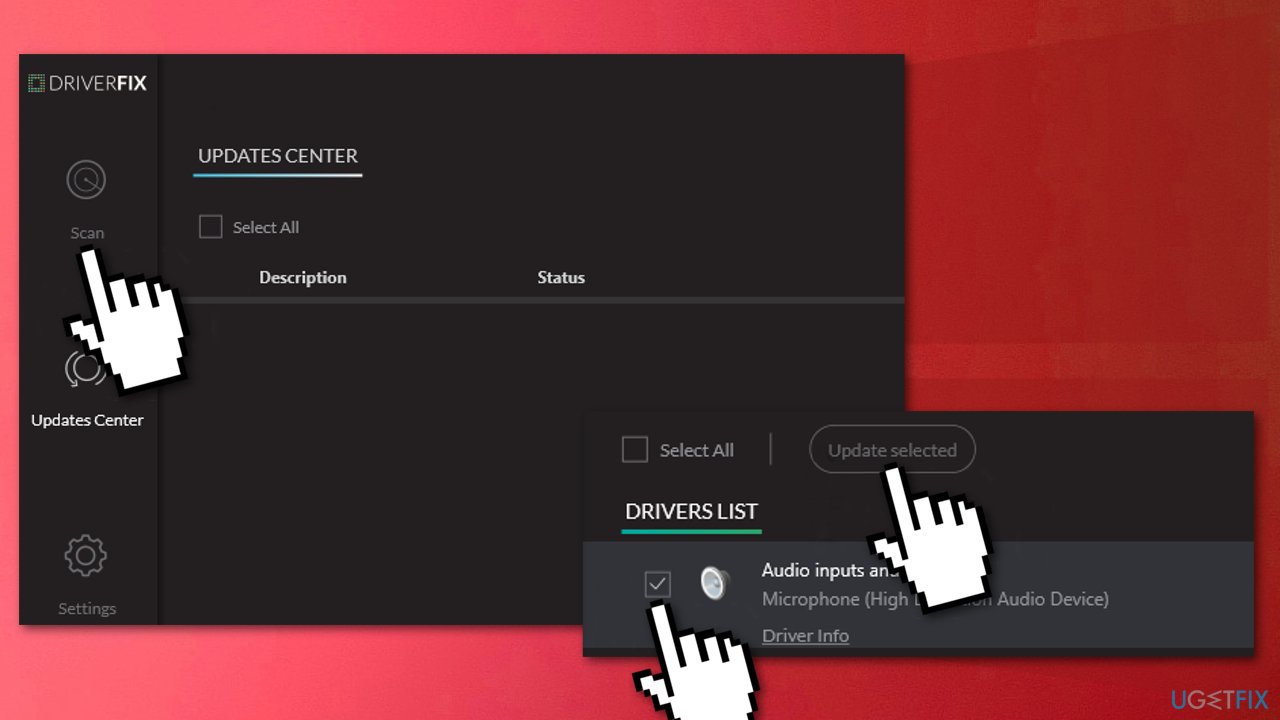
- To start scanning press the Scan button on the top left of the DriverFix software; the scan will proceed and find any available devices that are connected but lacking a correct driver
- From the Driver List section select the device and click the Update Selected button
- DriverFix will download and install the latest driver for the selected device
Method 3. Download drivers from the manufacturer
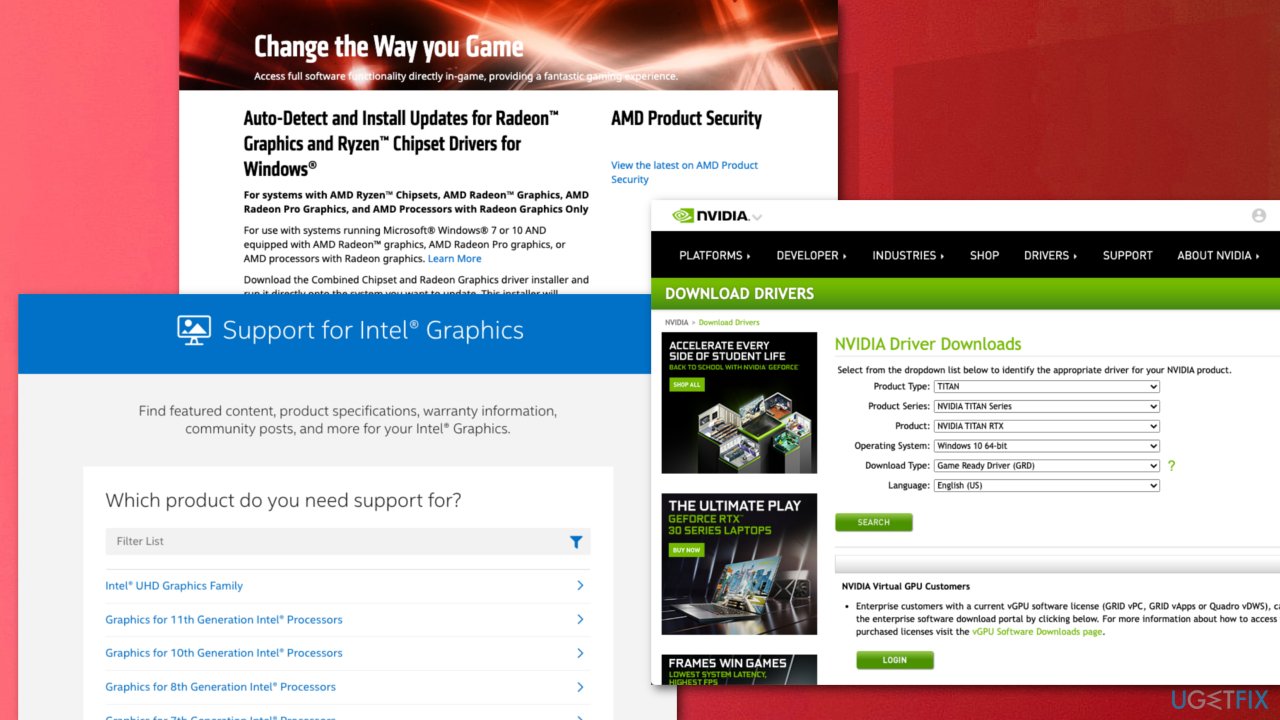
While you can install usable video drivers via Windows' Device Manager, it is not recommended. The best way to do that is by visiting the manufacturer's website and downloading the most recent drivers for your GPU model.
Here are the links to the most popular GPU manufacturer sites:
Bottom line
To resolve graphics card issues, you can try updating the video drivers first. If that does not work, you may need to completely reinstall the graphics drivers. If none of these solutions work, consider upgrading your graphics card.
Frequently asked questions
Go to Device Manager, expand the Display adapters section, right-click on your graphics card, and select 'Uninstall device'. Make sure to check the option to delete the driver software for this device.
You can reinstall graphics drivers by either downloading the latest version from the manufacturer's website or using Windows Update to automatically find and install the recommended drivers.
Yes, it is important to restart your computer to ensure that the new drivers are properly loaded and to allow any changes to take effect.




Report an issue
What's wrong with this guide? We review every report and update or remove content.
Report received — thank you. We'll review and fix it.
You need a free account to submit a report.
Be the first to comment