How to fix
Bddci.sys blue screen error
on Windows
Resolve the bddci.sys blue screen error on Windows 10 and 11 quickly with our expert-tested solutions. Fix it in minutes with easy-to-follow guides!

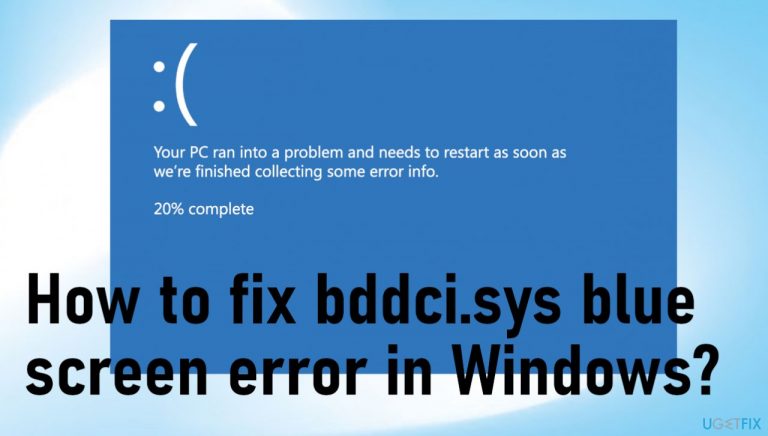
What causes How to fix bddci.sys blue screen error in Windows?
- Hardware failure
- Outdated firmware
- Corrupted drivers
- Recent installation of software
- Improper system performance due to missing or corrupted files
Repairs Windows system files, removes malware, and restores a clean OS state — without reinstalling.
I get the Blue Screen of Death error with the bddci.sys file indication. It repeats. I manage to use the laptop normally, but I am in constant fear that the error occurs again and permanent damage is caused. I don't know what is causing this and what to do. I just realize that this is the system file and can be a major issue as any other BSOD error is. I am desperate but not that tech-savvy. Help me, please.
People often encounter error messages and other issues with machines that run the Windows operating system. However, Blue Screen of Death errors are common and can be indicating major issues with the machine or lead to complete shutdown.[ref en-1] This bddci.sys Blue Screen of Death error in Windows creates concerns because of the file that is having .sys extension.
These system data pieces are used by the operating system and contain particular settings, variables, functions. The file is needed for the system to run, and such data is storing device drivers. Users report[ref en-2] encountering the issue with the blue screen error and various system files. Hardware failure, outdated firmware, corrupted drivers, other software issues can accompany the BSOD error.
There are tons of different system files that trigger these issues and error codes. You can experience these particular codes alongside the file indication: KMODE_EXCEPTION_NOT HANDLED; SYSTEM_SERVICE EXCEPTION; APC_INDEX_MISMATCH; PAGE_FAULT_IN_NON_PAGED_AREA. The issue can be related to the recent installation of software or updates of the program, operating system.
Windows updates can often lead to improper system performance due to missing or corrupted files that couldn't transfer during the upgrade.[ref en-3] This is a common problem for the latest Windows 10 users. There are several methods that can help resolve this issue, but all depends on the reason behind the error.
We have already covered a few issues with Blue Screen of Death errors with similar codes and related to different system files. For example:
- PAGE_FAULT_IN_NONPAGED_AREA;
- APC_INDEX_MISMATCH;
- KMODE_EXCEPTION_NOT_HANDLED;
- SYSTEM_SERVICE_EXCEPTION.
If the system has already crashed a few times, you should react as soon as you can until the crash is crucial. The file can be a part of the Bitdefender antivirus tool, but issues can reside in other parts of the system. You can run [d1] and properly repair system files quickly. The permanent solution for the bddci.sys blue screen error in Windows might require more interference, so focus on the guide below.
Method 1. Uninstall BitDefender
- Press Windows + I on your keyboard to open Windows Settings.
- In the new window, select Apps and then head over to App & features.
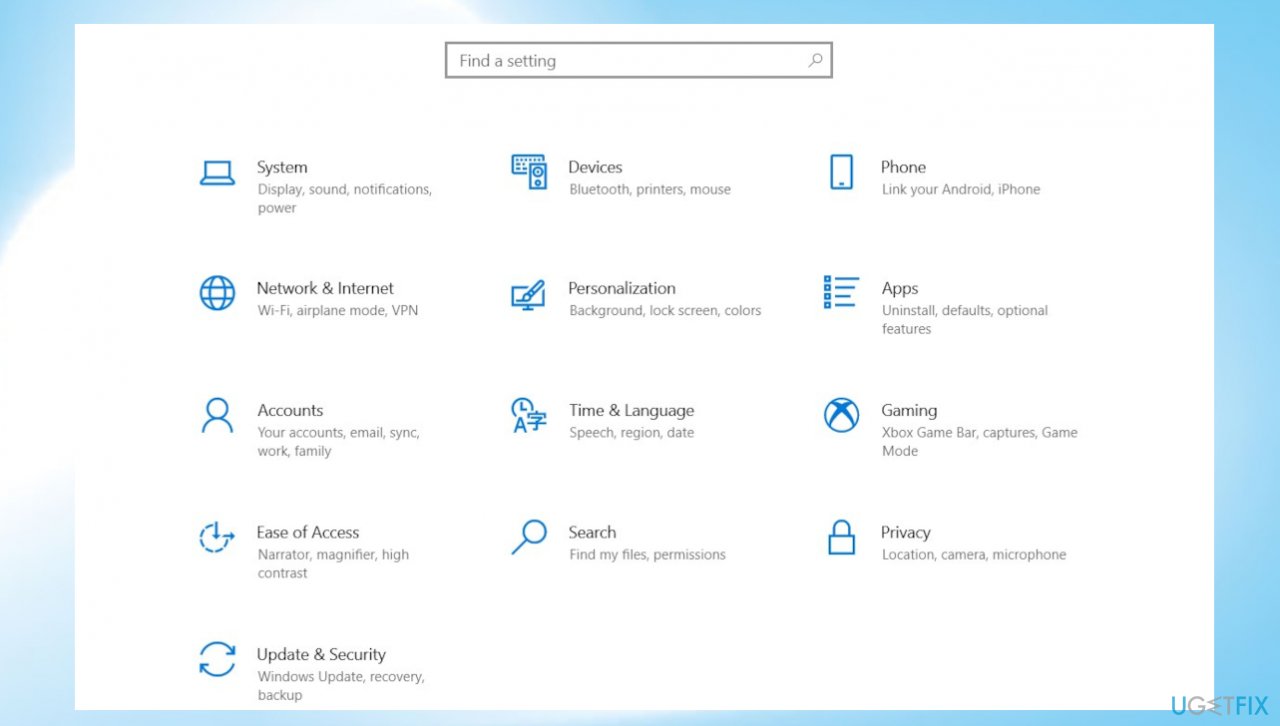
Bddci sys blue screen error windows settings - Locate BitDefender in the right pane and click on it.
- Hit Uninstall and follow the instructions.
- Restart your PC and check if the bddci.sys Blue Screen error appears.
Method 2. Rename the file
- Launch File Explorer via right-click on the start button.
- Click on This PC.
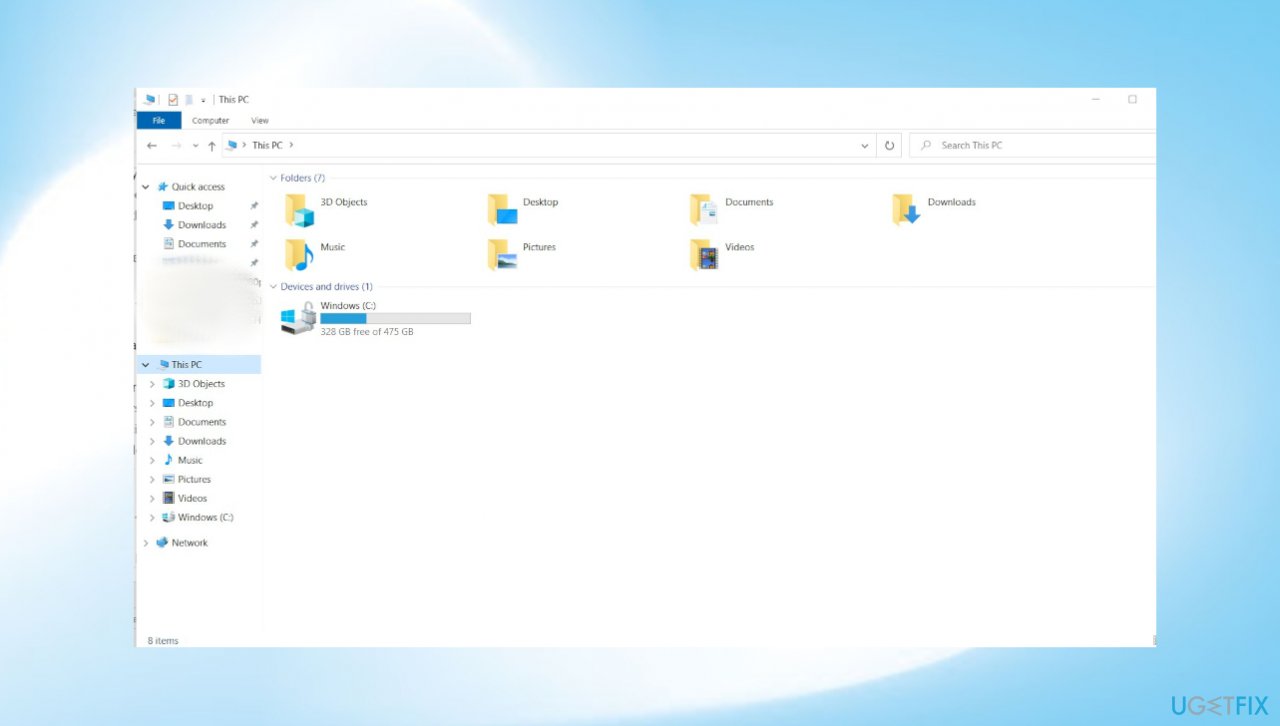
Bddci sys blue screen error this pc - Access the (C:) drive and head over to the Windows folder.
- Click on Windows > System32 and then select drivers.
- Now right-click on bddci.sys and select Rename from the context menu.
- Rename this file as bddci.old.
- Once done- restart.
Method 3. Reverse the Windows update
- Open a Run box by pressing Windows + R keys.
- In the dialog box, type appwiz.cpl and hit Enter to launch the Programs & features window.
- Click on View installed updates and then scroll down to the Microsoft Windows section.
- Right-click on the update and select Uninstall.
- Click Yes in the confirmation prompt.
- Wait for the end.
- You can also go to Updates and upgrade again if there is more recent version.
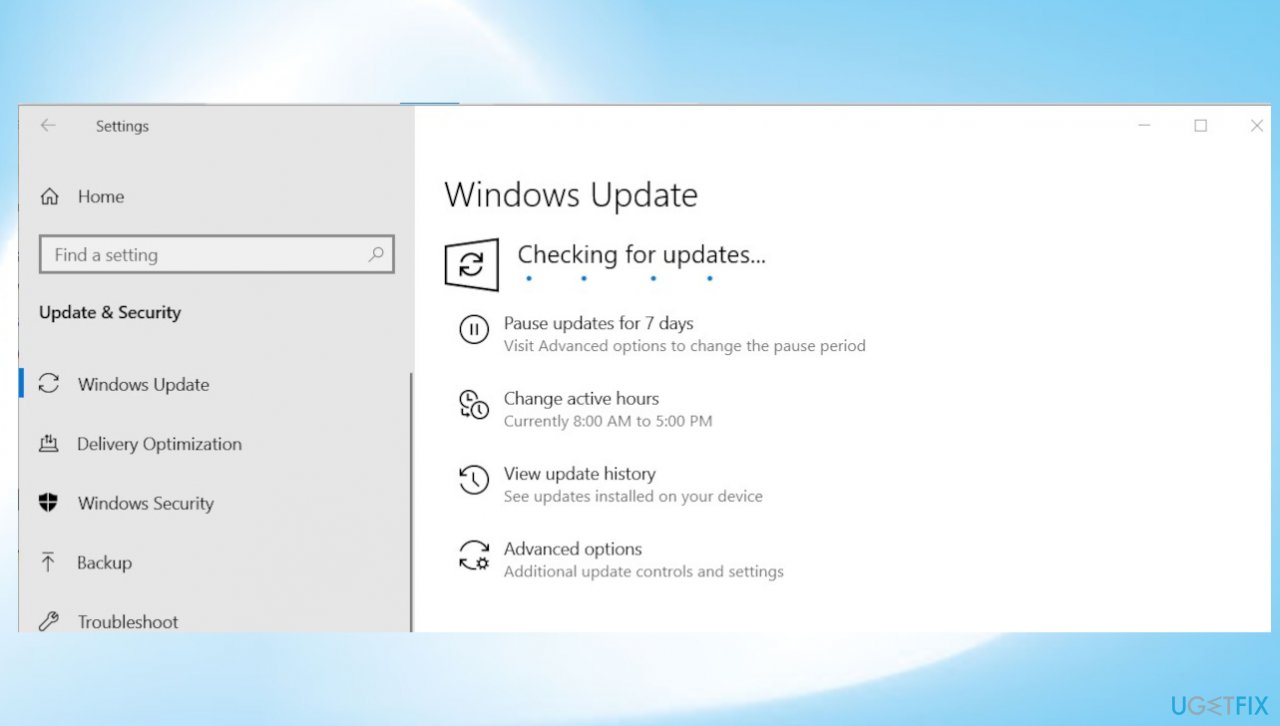
Bddci sys blue screen error windows update
Method 4. Run system scans
- Type cmd in the search area of your taskbar and click on Run as administrator.
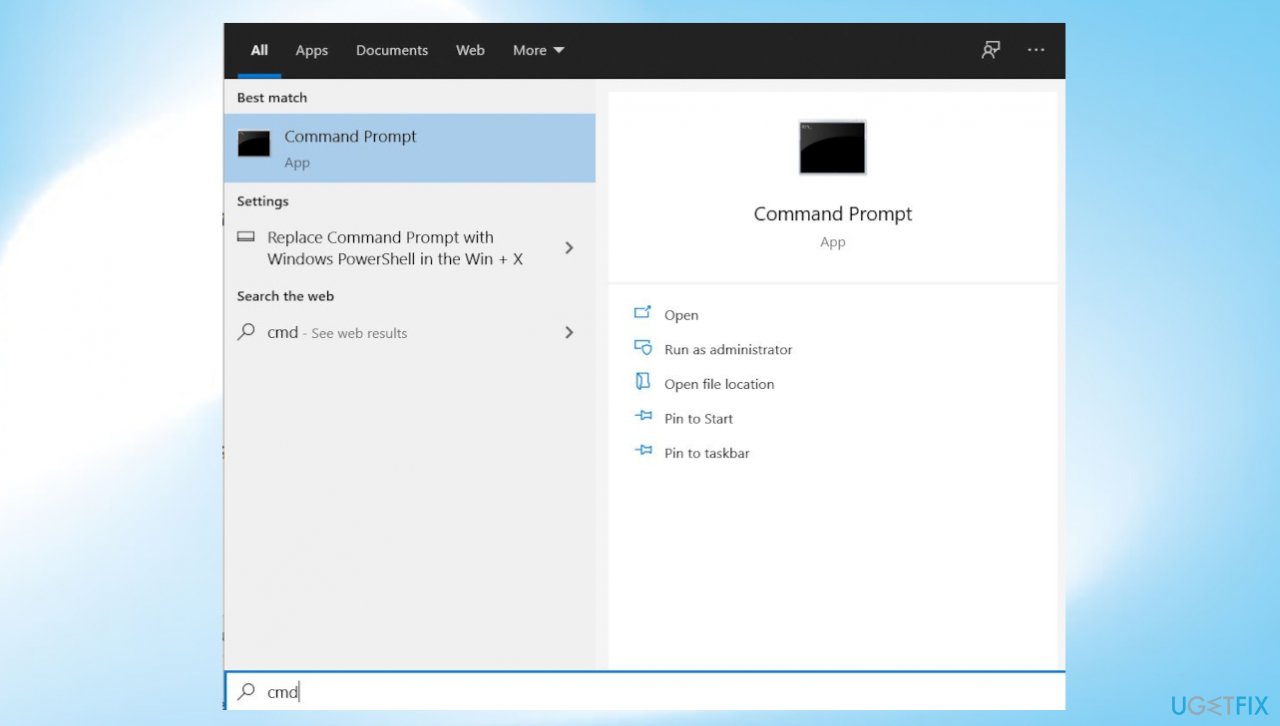
Bddci sys blue screen error command prompt - Inside the Command Prompt window, type the command: sfc /scannow and hit Enter.
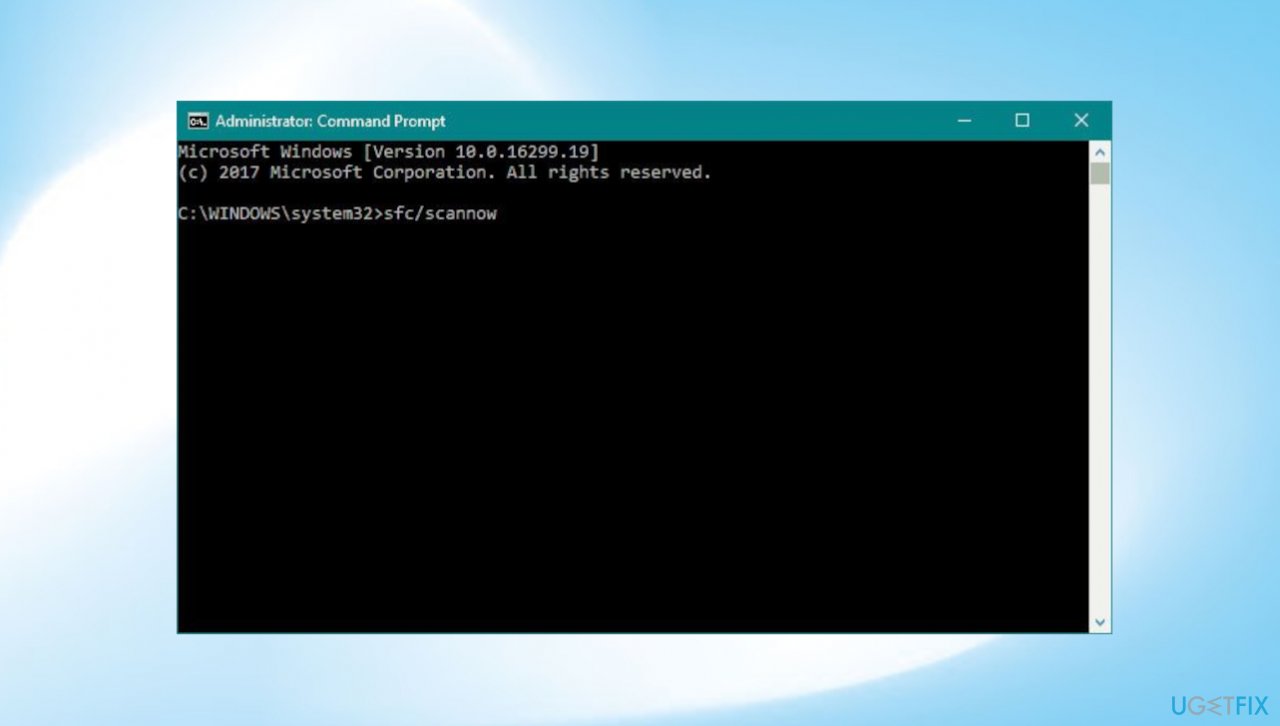
Bddci sys blue screen error sfc scan - From the same elevated CMD window, do a DISM scan: DISM /Online /Cleanup-Image /RestoreHealth
- Restart your PC.
Method 5. Perform System Restore
- Click on the Search icon from the taskbar.
- Type – rstrui.
- Press- Enter.
- System Restore wizard will load.
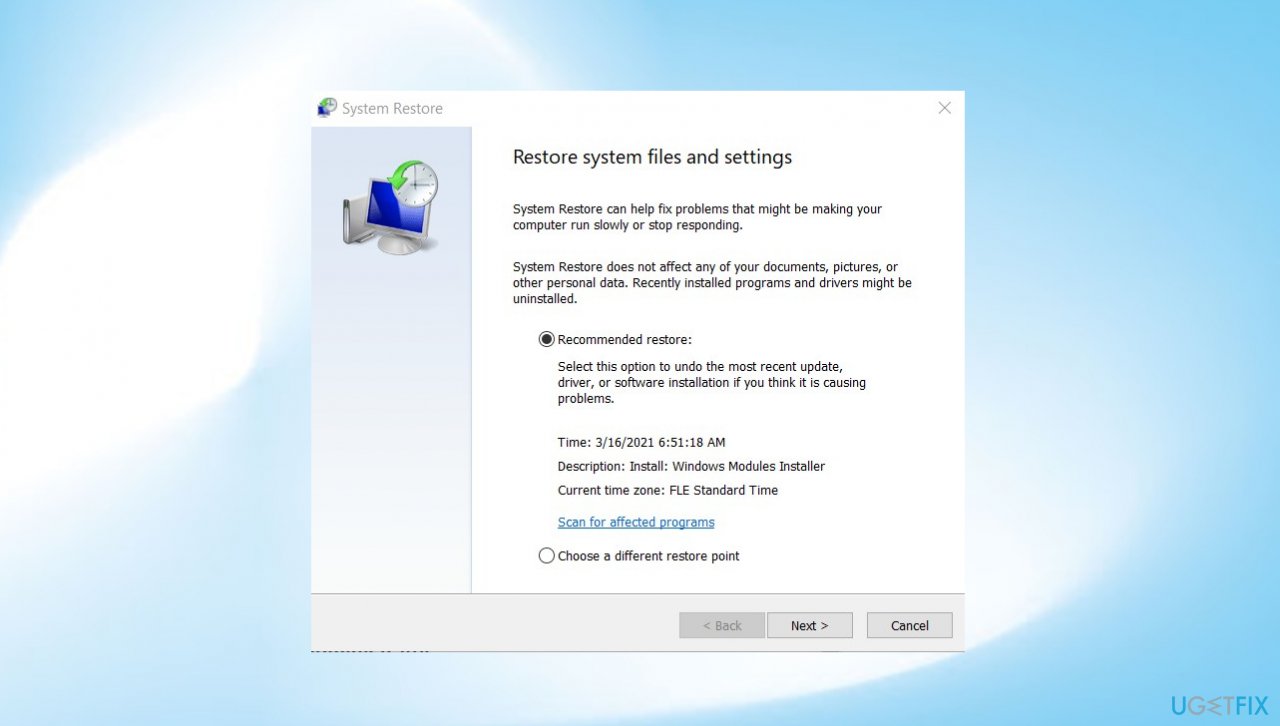
Bddci sys blue screen error system restore - Click on Next.
- Select the point before the BSOD bug check has started to occur.
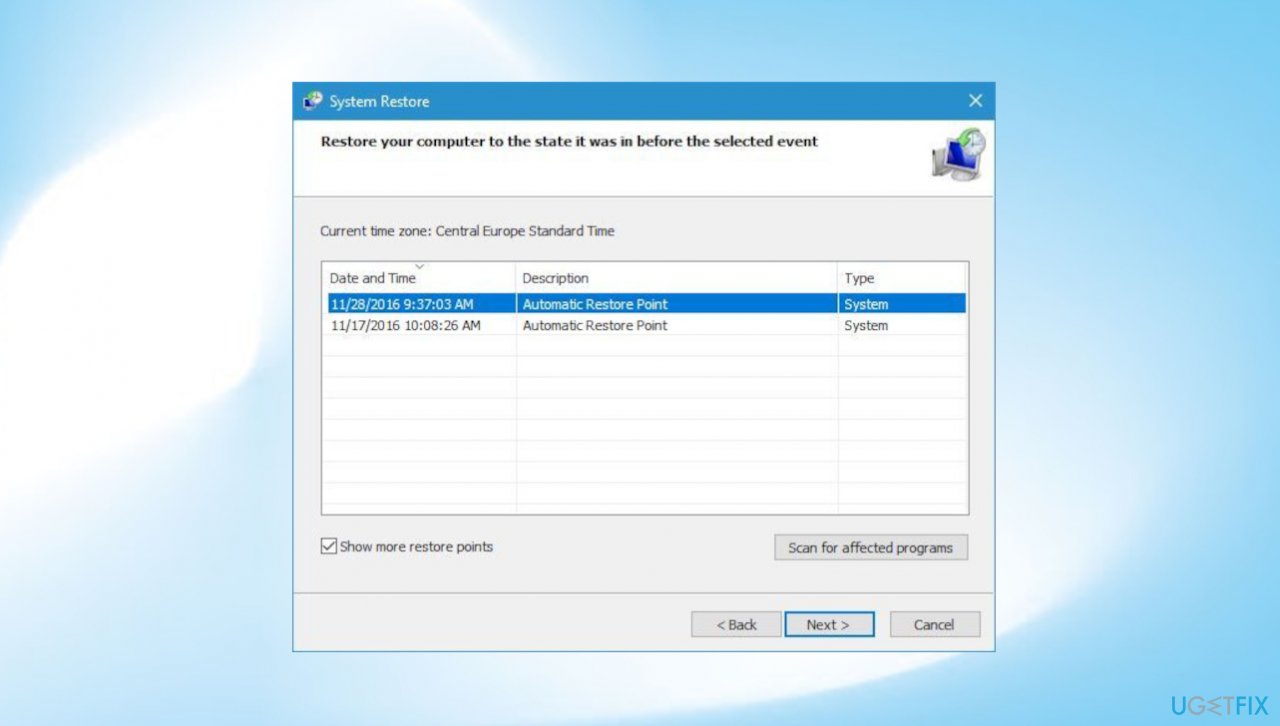
Bddci sys blue screen error restore points - Click on Finish.
- Confirm by clicking Yes.
Bottom line
To resolve the bddci.sys Blue Screen of Death error, you can try updating drivers, uninstalling recent software, or performing system updates. If these methods do not work, consider seeking professional help or further troubleshooting to prevent potential permanent damage.
Frequently asked questions
The bddci.sys blue screen error in Windows 10 is often caused by outdated or incompatible drivers, particularly those related to the Bluetooth functionality or device management software.
To fix the bddci.sys error on Windows 11, try updating your drivers through Device Manager or uninstalling recently installed software that may be conflicting with system files.
Yes, you can attempt to repair a corrupted bddci.sys file by running the System File Checker tool ('sfc /scannow') in the Command Prompt on Windows 10 or Windows 11.




Report an issue
What's wrong with this guide? We review every report and update or remove content.
Report received — thank you. We'll review and fix it.
You need a free account to submit a report.
Be the first to comment