How to fix
Windows error 0x80040154 when opening apps
on Windows
Resolve the Windows error 0x80040154 quickly and easily. Get your apps running smoothly again with expert-tested solutions for Windows 10 and 11.


What causes How to fix Windows error 0x80040154 when opening apps?
- Bugs in the system
- Corrupted caches
- Corrupted files
- Issues with recent system updates
- Problems with Windows Store
Repairs Windows system files, removes malware, and restores a clean OS state — without reinstalling.
Hello, can somebody help me to fix error code 0x80040154? Every time I try to use Windows apps, such as Mail, Photos, and others, they won't open, and instead, I receive the error. Any suggestions would be appreciated.
Windows uses a system where it assigns particular error codes (usually, they follow a certain pattern) when certain issues occur. This allows users to easier troubleshoot problems they might sometimes have on their operating system. In this case, we are talking about error 0x80040154 when trying to open apps in Windows 10, 11, or other versions.
In most cases, users run into the error when they are trying to launch certain Windows apps on their computers, including Mail, Outlook, Calendar, Cortana, MS Edge browser, and more. In some cases, people can't even launch and use Microsoft Store as well. There are also people who said that the 0x80040154 error occurs exclusively when they are trying to download and install the recent system update.[ref en-2]
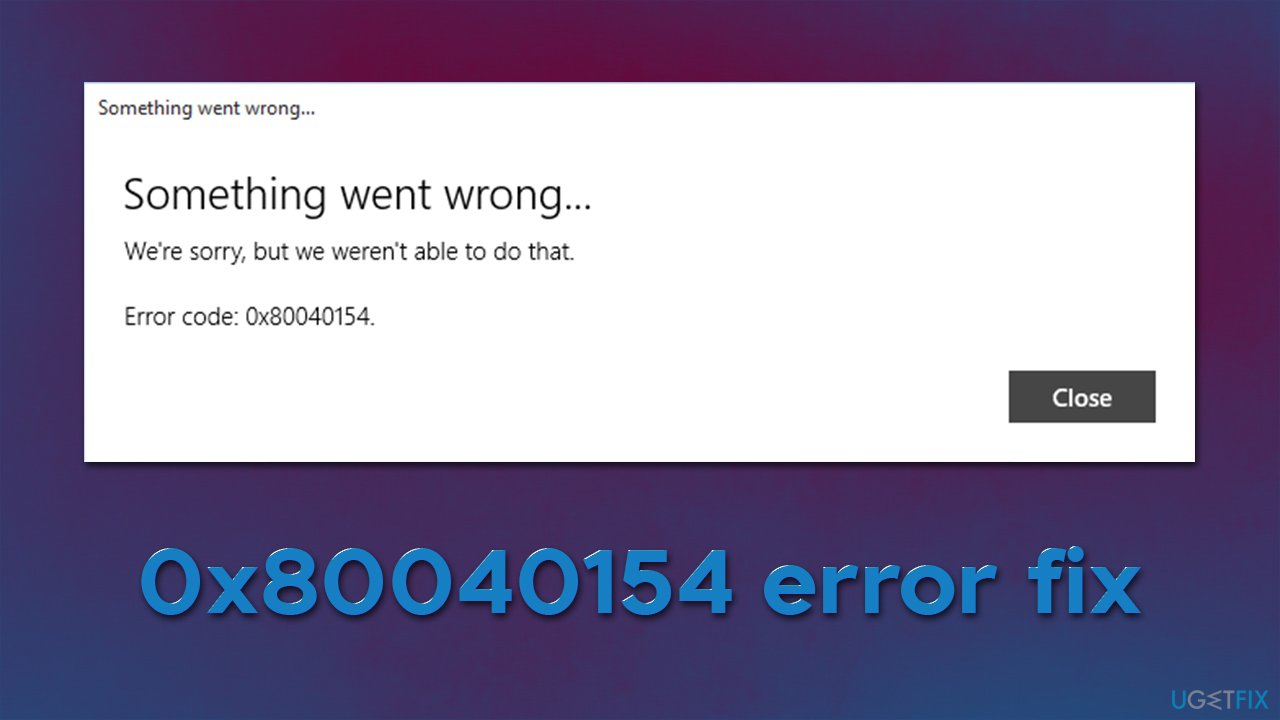
Here's the message of the error which shows up when users are unable to open apps:
Something went wrong...
We're sorry, but we weren't able to do that.
Error code: 0x80040154
As evident, the message does not convey any significant details about the problem, and neither does it explain how to fix it. However, Windows rarely provides any solutions to their errors, simply because too many variables can differ from computer to computer.
As such, there is no universal fix that would apply to all people who are affected by this. In most cases, the error is related to bugs,[ref en-1] corrupted caches[ref en-3] or files, and much more. We have analyzed the error and come up with several solutions that might help you as well. Before you proceed, we strongly recommend running a scan with the [d1] PC repair tool - it is an excellent solution for those who want their Windows issues to be fixed quickly and effectively.
Fix 1. Run Windows Store Apps troubleshooter
When dealing with Windows Store App errors, we strongly recommend starting with the built-in troubleshooter - they are easy to use and sometimes might help you fix the 0x80040154 error when trying to open apps.
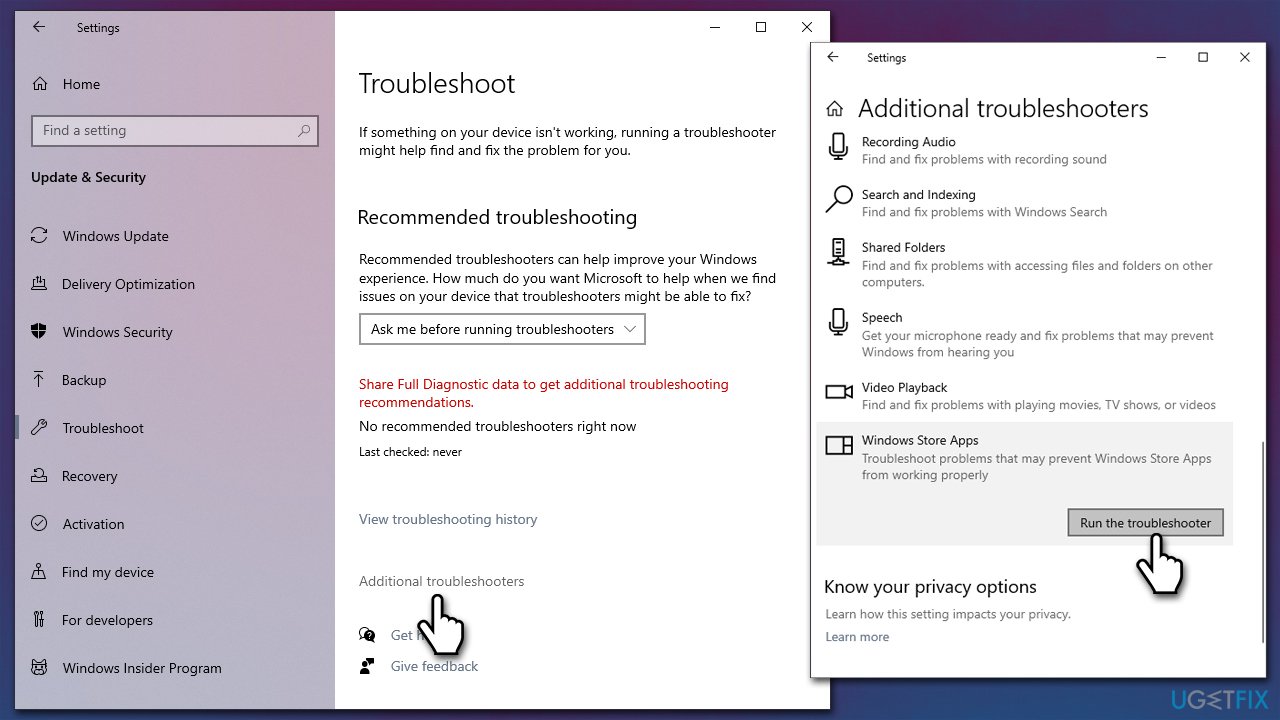
- Type troubleshoot in Windows search and hit Enter
- On the right side of the window, pick Additional Troubleshooters
- Scroll down and select Windows Store Apps
- Click Run the troubleshooter
How to fix windows error 0x80040154 when opening apps run troubleshooter - Wait till the scan is finished and fixes applied.
Fix 2. Install all the available Windows updates
There were reports that some users who suffered from the error ran outdated OS versions. Thus, make sure that all Windows updates are installed:
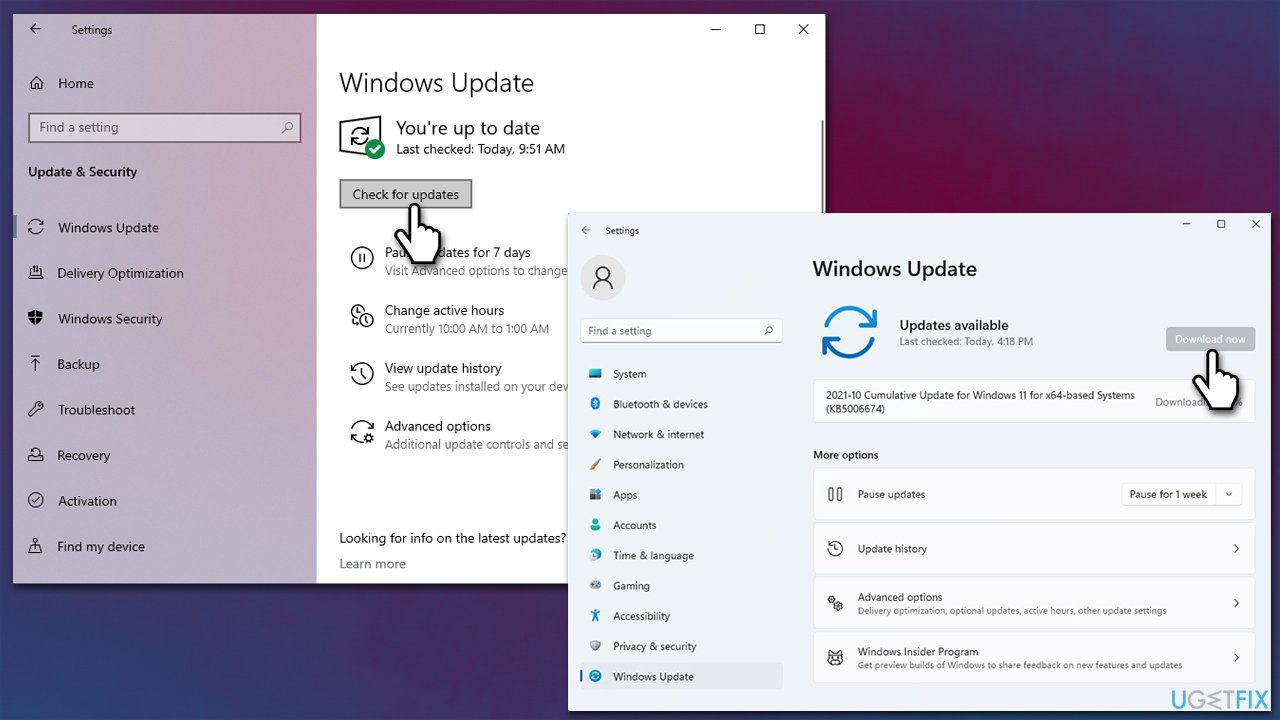
- Type Updates in Windows search and hit Enter
- In the new window, click Check for updates
- Wait till updates are installed
- Make sure you also install all the optional updates
How to fix windows error 0x80040154 when opening apps update windows - Restart your system.
Fix 3. Rename your Comms folder
Some users reported that renaming the Comms folder in the AppData location helped them to get rid of the error.
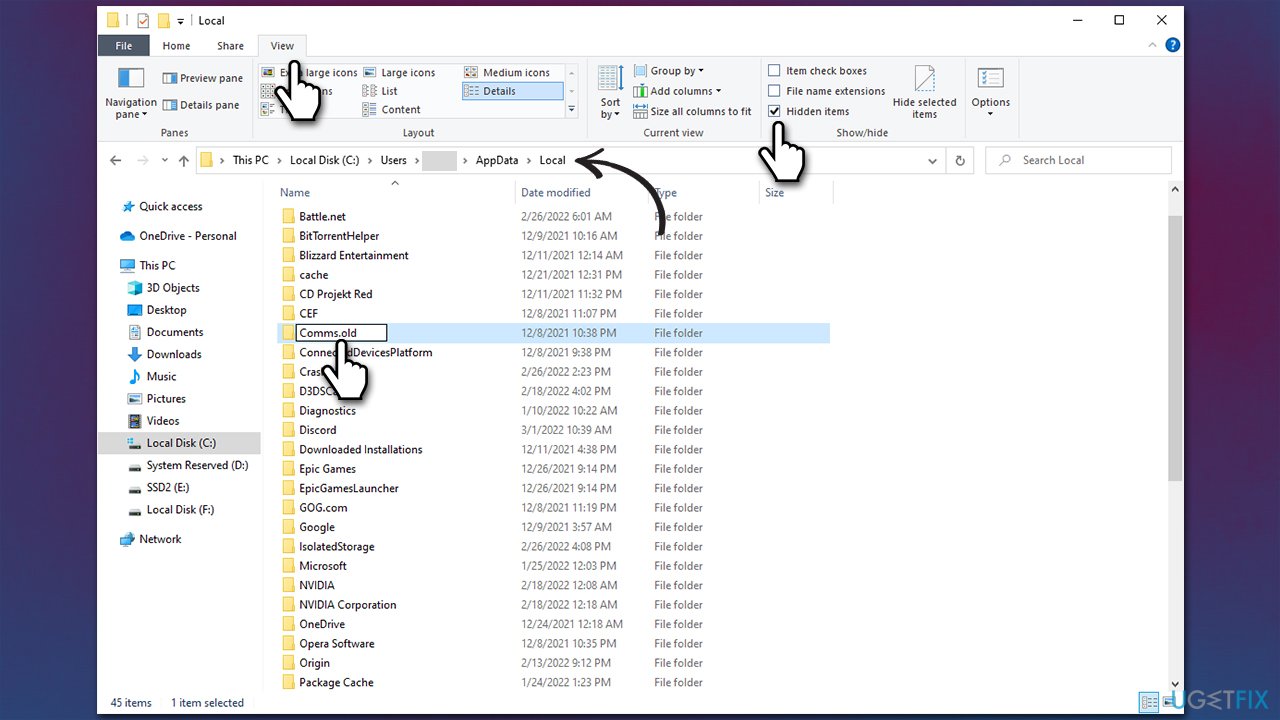
- Press Win + E to open File Explorer
- Select the View tab at the top
- Mark the Hidden items checkbox
- Now navigate to the following location:
C:\\Users\\Username\\AppData\\Local\\ - Right-click on the Comms folder and select Rename
- Rename it to Comms.old and then restart your system.
How to fix windows error 0x80040154 when opening apps rename comms folder
Fix 4. Reset Microsoft Store cache
- In Windows search, type in wsreset.exe and hit Enter
- A pop-up window will show up – do not close it
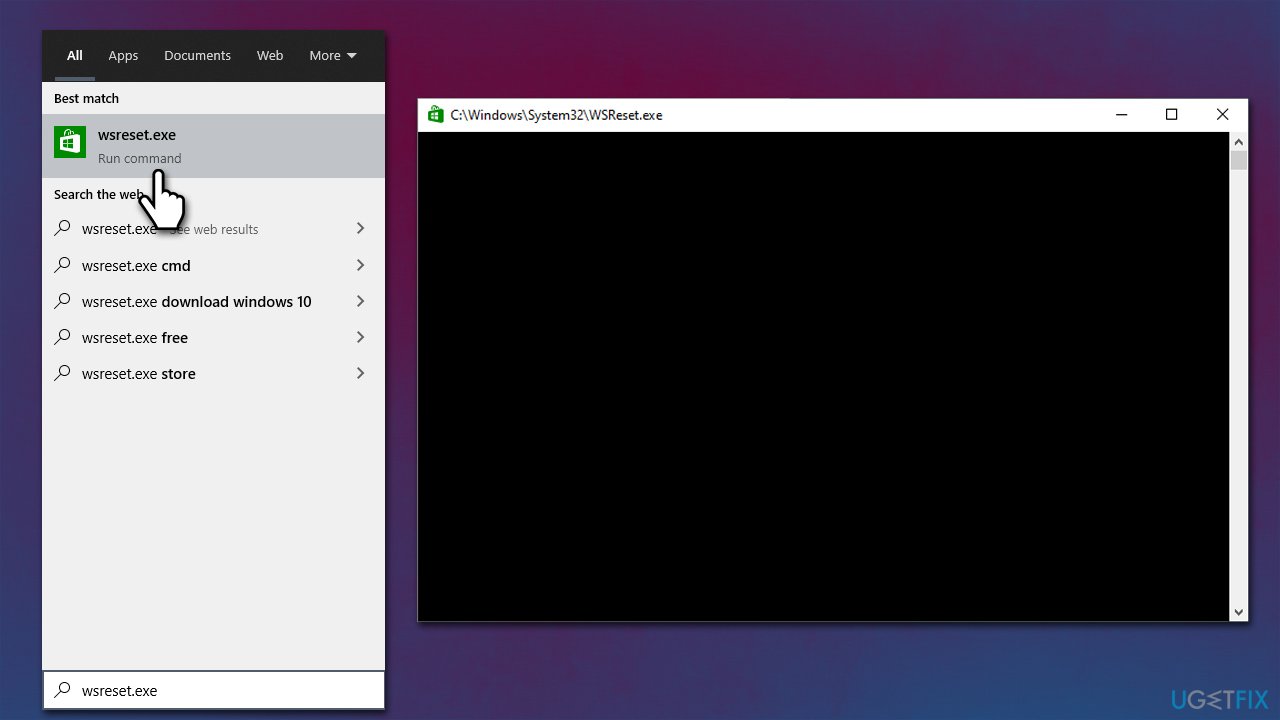
How to fix windows error 0x80040154 when opening apps reset windows store cache - Once the window disappears, it means that your Store cache has been reset.
Fix 5. Run SFC and DISM to repair system corruption
- Type cmd in Windows search
- Right-click on Command Prompt and select Run as administrator
- When the User Account Control window pops up, click Yes
- Use the following command and press Enter:
sfc /scannow - After the SFC scan is complete, use the following commands, pressing Enter after each:
DISM /Online /Cleanup-Image /CheckHealth
DISM /Online /Cleanup-Image /ScanHealth
DISM /Online /Cleanup-Image /RestoreHealth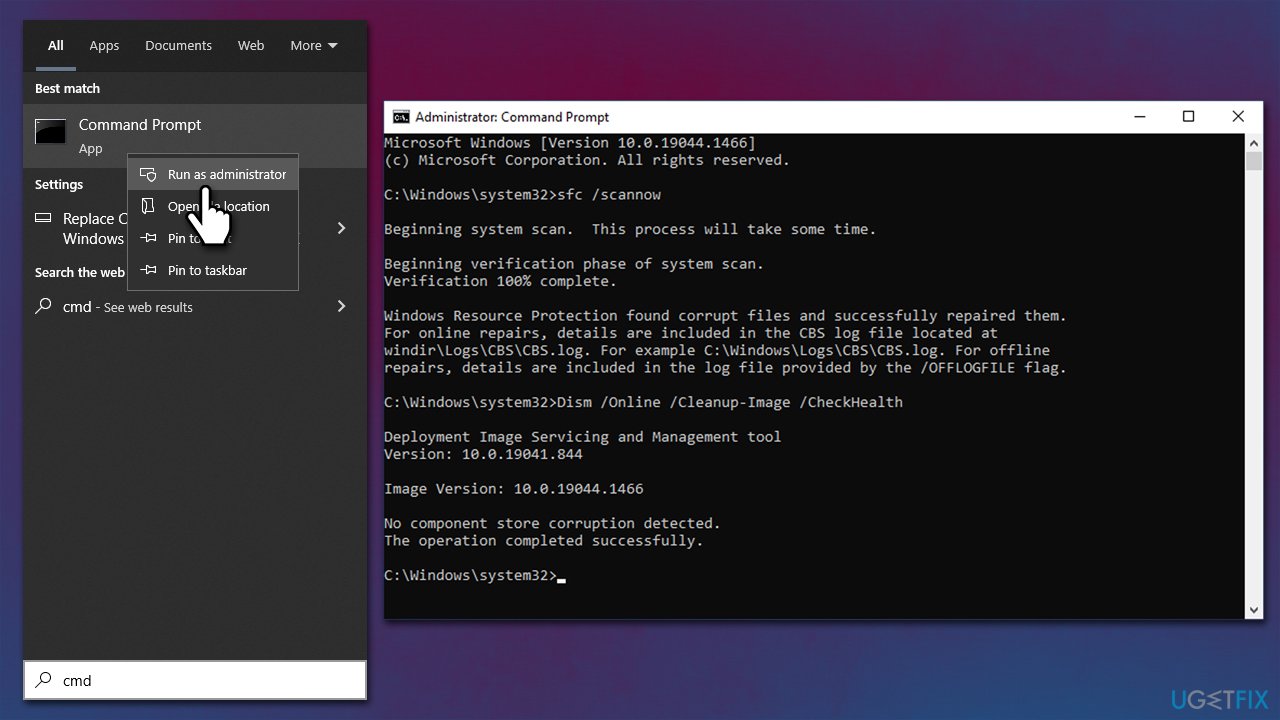
How to fix windows error 0x80040154 when opening apps run sfc dism - Once done, restart your PC.
Fix 6. Repair or Reset the malfunctioning app(s)
All integrated Windows apps have a repair and reset function that can be easily reached via the Apps and Features menu.
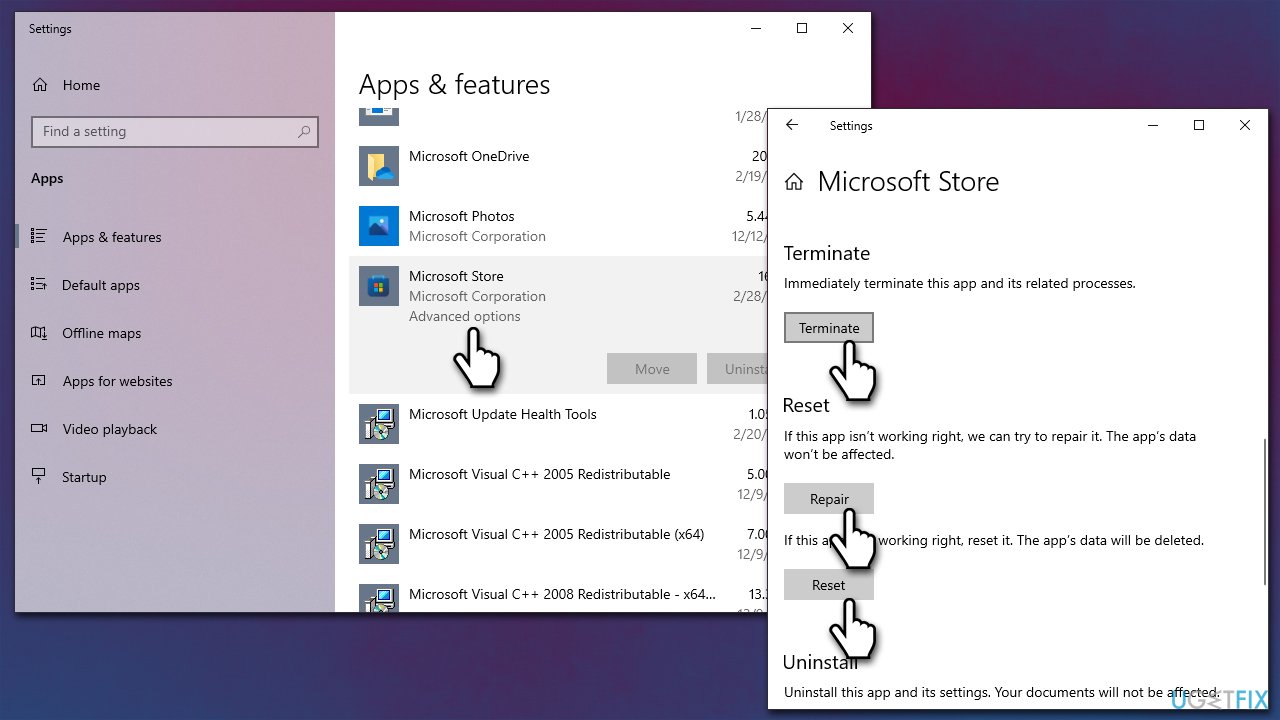
- Right-click on Start and select Apps and Features
- Scroll down to the malfunctioning app and select the Advanced options
- Scroll down and select Terminate to turn off all the running instances of the app
- Now select Repair and check if that helped
- If no effect, select the Reset option
How to fix windows error 0x80040154 when opening apps reset or repair - Do the same steps with every malfunctioning app.
Fix 7. Reset Windows
If none of the above methods helped you, you could opt for resetting Windows. As a precautionary measure, please backup your personal files.
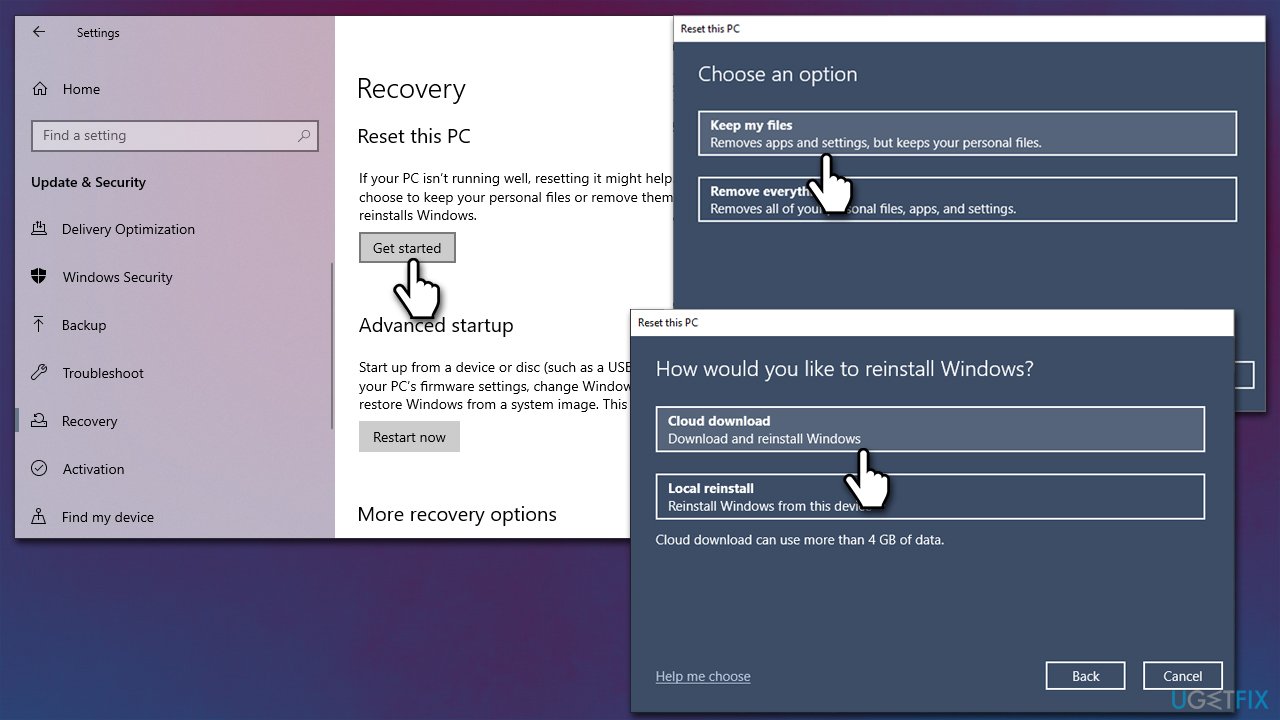
- Right-click on Start and then select Settings
- Go to Update & Security and pick Recovery on the left side of the window
- Find Reset this PC section and click Get Started
- Select Keep my files and Cloud download
How to fix windows error 0x80040154 when opening apps reset windows - Let the system restart.
Similar error fixes you might be interested in:
Bottom line
To fix error 0x80040154, you can start by running the Windows Store Apps troubleshooter, which is designed to address issues with Windows apps. If the problem persists, consider using a PC repair tool to resolve deeper system issues. If none of these solutions work, further investigation may be needed.
Frequently asked questions
Error 0x80040154 indicates that a class is not registered, which often occurs when there is a problem with the app's installation or a missing component in the system.
You can resolve this error by re-registering the app using PowerShell, running the Windows App Troubleshooter, or reinstalling the affected application.
Yes, you can usually fix error 0x80040154 without reinstalling Windows by using repair options or system file check commands.




Report an issue
What's wrong with this guide? We review every report and update or remove content.
Report received — thank you. We'll review and fix it.
You need a free account to submit a report.
Be the first to comment